
Browse Our Knowledge Base
Changing Display Settings in Windows
Adjusting Display Resolution and Position
Right-click on your desktop and select “Display Settings”
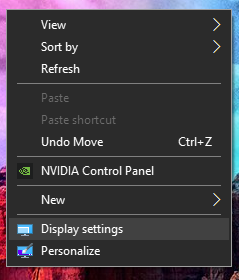


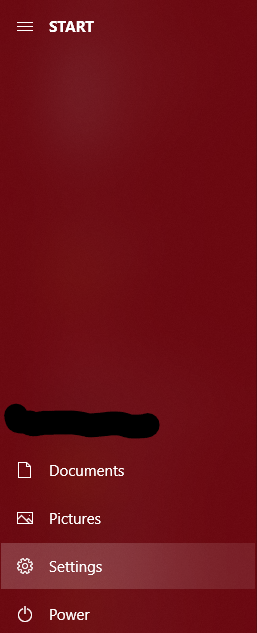 Or open the start menu and click “Settings” then “System” and make sure “Display” is selected on the left.
 Here you will see all your PC’s display settings.
 Rearrange your displays:
Here you can click and drag to adjust the positions of your monitors, allowing you to drag windows in whatever direction you want.
 You can click “Identify” to pop up a number on each display to indicate which display is where.
The highlighted display is the one that is selected for you to adjust the settings on.
Select the specific display you want to change before changing any settings.
If you don’t see this menu, you only have one display connected.
Scale and layout:
Here you can change the size of things on your screen.
Bring it above 100% if the text or taskbar is too small for you to see.
If necessary, you can change the resolution in this section as well to make things fit better on your monitor, although it is usually best if you stick with the “Recommended” value listed in the drop down menu.
Changing Presentation Mode

Pressing the Windows key and P at the same time pulls up the “Project” Menu
PC screen only: Shows nothing on your secondary screen or projector.
Duplicate: Replicates what is on your primary screen to your secondary screen or projector.
Extend: Allows you to drag windows from your primary screen to your secondary screen or projector. This will show different things on every screen.
Second screen only: Shows nothing on your primary screen. Only shows things on your secondary screen or projector.