
Browse Our Knowledge Base
Availability in Microsoft Teams
How to change your availability status in Microsoft Teams:
1. In the top-right corner of Microsoft Teams, click on your profile icon.
2. Additional options will appear. Select your current status (typically, it will say Available).
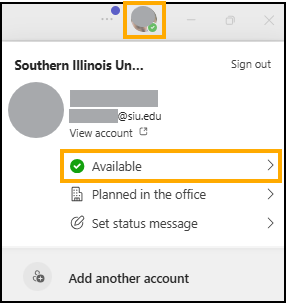
3. A list of status options will appear. Click on the option you would like to set for your account.
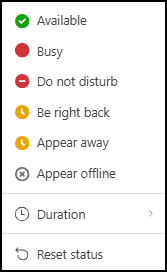
Description of each status:
Available
When you’re active in Teams and don’t have anything in your calendar (no meetings or calls, for example). Note that Teams will automatically set your status from Available to Away when you lock your computer or when it enters idle or sleep mode.
On mobile, this will happen when the Teams app is in the background.
Busy
When you want to focus on something, and you do want notifications to pop up. If you’re in a meeting or call, Teams will automatically change your status to In a meeting or In a call (Busy) when not set to Do not disturb.
Do not disturb
When you want to focus or present your screen and don’t want notifications to pop up.
Be right back
When you want to say you’re temporarily away. It’s never set automatically.
Appear away
When you need to work without responding right away.
Appear offline
When you want to indicate that you’re not signed into Teams, so will not be responding until you’re back online. You will still receive notifications if anyone messages you.
Set a duration for your status
When you want to change your status for a specific period of time—for example, to set “Do not disturb” for an hour of concentrated work—you can set a duration so that Teams will automatically reset your status at the end of the allotted time.
1. In the top-right corner of Microsoft Teams, click on your profile icon.
2. Additional options will appear. Select your current status (typically, it will say Available).
2. Click Duration below the various status options.
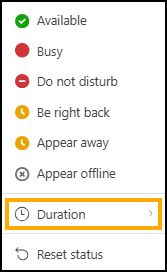
3. Select the Status you would like to set for your account. The Duration will default to “Today.” Click on Today to change the duration.
Note: If none of the default durations match the timeframe that you want, click Custom to define your own.
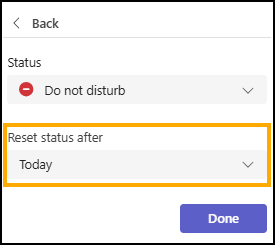
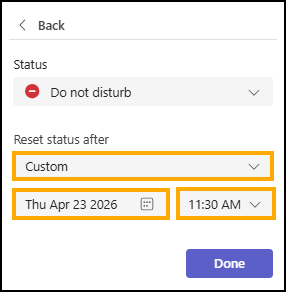
4. Click Done to save your changes.
At the end of the time period you entered, Teams will automatically reset your status based on your activity, your calendar, and the state of your computer.
See who is currently available
Microsoft Teams displays a user’s availability based on their current status. When viewing someone’s profile icon in Teams—just like your own—you’ll see a small colored circle next to their picture. Each color represents the user’s current status and availability.
Understanding Availability Status
When someone is available, you’ll see a green circle with a check mark next to their profile picture. This indicates they are currently active in Teams.
View Who Is Online in a Team
To see which members of a team are online right now:
- Go to the team name in Teams.
- Select More options (⋯).
- Choose Manage team, then select Members.
- Team members who are currently available will have a green circle with a check mark next to their name.
Important Note About Availability
Even if someone’s status shows as Available, they may have briefly stepped away from their desk, be in a conversation, or be working with someone else. Availability status is a helpful indicator, but it does not guarantee that the person can respond immediately or answer a call.