
Browse Our Knowledge Base
How to sign into a Teams Phone
Signing into Yealink MP54 Teams Phone
- If utilizing a departmental ID (SIU9xxxxxxxx) to sign in, open a “Private or Incognito” browser on your computer or mobile device. For personal accounts (SIU85xxxxxxx) you can proceed through a regular browser.
- Go to the website mentioned on the display: https://microsoft.com/devicelogin
- Click the Refresh Code button on the phone display if a code is not showing.
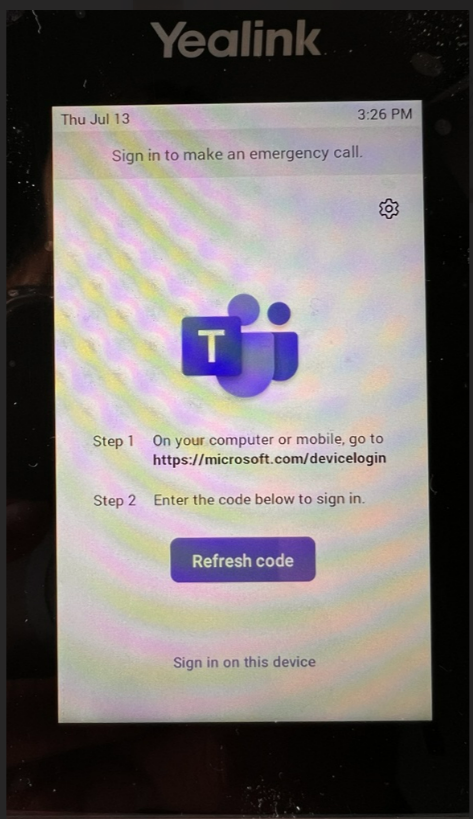
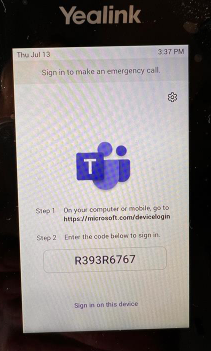
- Enter the code in the pop up on the browser.

- Sign into Microsoft with the user account that is associated with the phone number you are signing in. Enter the email address, then click next.
- If it did not request a sign in, then check to make sure you are using an Incognito or private browsing window. If not, then you might be signed into that browser under a different account than what you want to sign into the phone with.

- Enter the password associated to the account

- Click continue for next screen

- Then you can close the browser per the next pop up.

- The phone display will begin cycling through the log in.
- If it is an individual user, then DUO authentication will be presented that must be completed.
- Once DUO has been authenticated, then it finishes signing in and the display will have some tips displayed that you can read and click next all the way through.
- If it is an individual user, then DUO authentication will be presented that must be completed.
- When fully signed in, the phone number will show at the top of the display.
Troubleshooting Teams Phone Sign In
If you’re experiencing issues with the above steps please try the following.
- Utilize an incognito window when signing in.
- Clear your browser’s cache.
- Try a different web browser.
If those options fail please reach out at 618-453-5155 for assistance.