
Browse Our Knowledge Base
Install MATLAB on Your Personal Computer
Overview
Install MATLAB on your personal computer for academic use.
Linux
| These instructions apply to Linux personal computers for academic use: * Academic Research * Teaching and Learning | |
| Sign In: * Open https://www.mathworks.com/. * Sign in with your @siu.edu email address and password. | |
| Download MATLAB Installer: * Open https://www.mathworks.com/downloads. * Click Download for Linux. | |
| Install MATLAB: * Download and Install MATLAB | |
| Install MATLAB Add-Ons: Get and Install MATLAB Add-Ons and Simulink Add-Ons Using the Add-On Explorer |
Mac
| These instructions apply to Mac personal computers for academic use: * Academic Research * Teaching and Learning | |
| Sign In: * Open https://www.mathworks.com/. * Sign in with your @siu.edu email address and password. | |
| Download MATLAB Installer: * Open https://www.mathworks.com/downloads. * Click Download for macOS (Apple silicon) or Download for macOS (Intel processor). | |
| Install MATLAB: * Download and Install MATLAB | |
| Install MATLAB Add-Ons: Get and Install MATLAB Add-Ons and Simulink Add-Ons Using the Add-On Explorer |
Windows
| These instructions apply to Windows personal computers for academic use: * Academic Research * Teaching and Learning | |
| Sign In: * Open https://www.mathworks.com/. * Sign in with your @siu.edu email address and password. | |
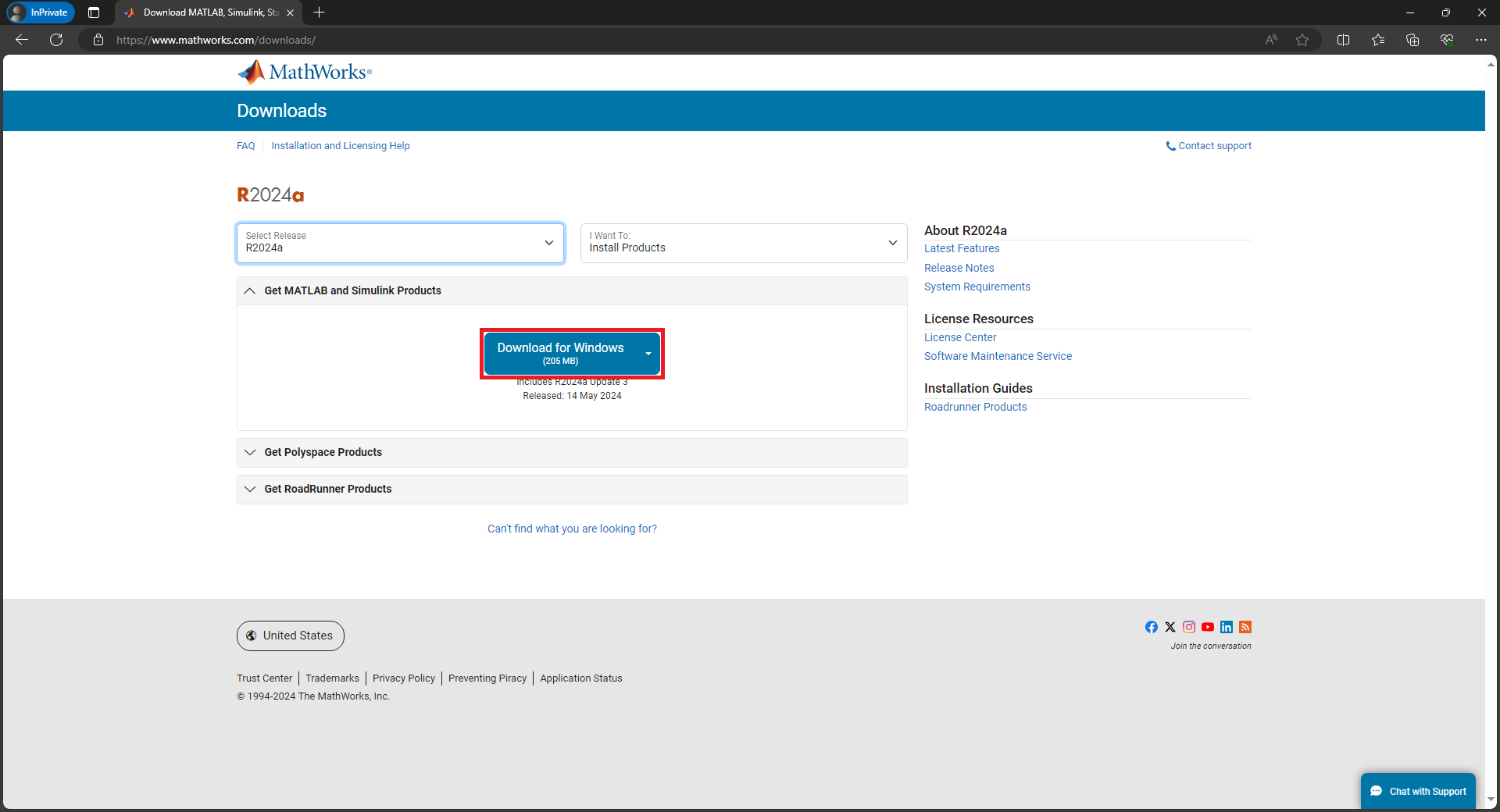 | Download MATLAB Installer: * Open https://www.mathworks.com/downloads. * Click Download for Windows. |
| Install MATLAB: * Open the downloaded installer and follow the installation prompts. | |
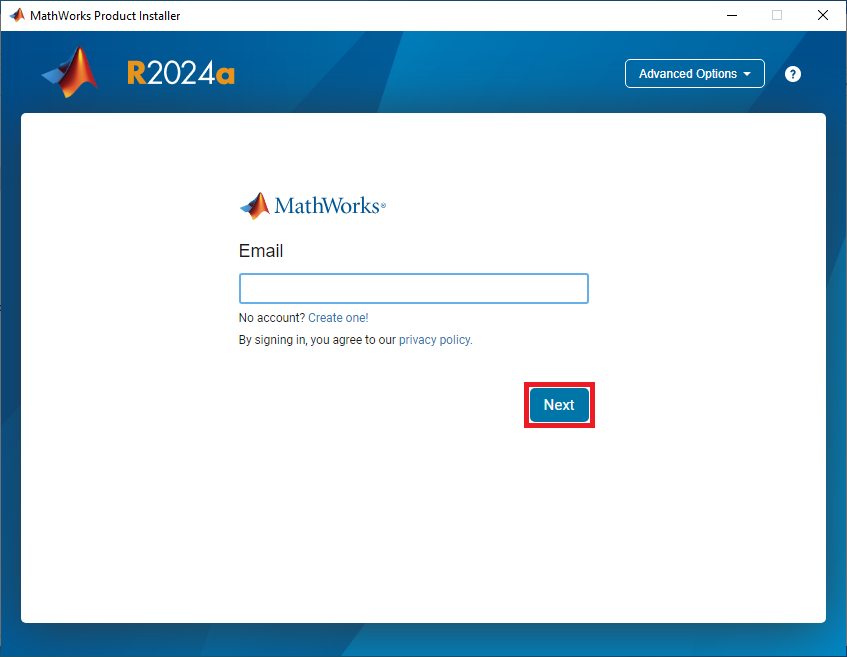 | Sign In MATLAB Installer: * Sign in with your @siu.edu email address and password. |
 | Accept Terms of the License Agreement: * Select Yes, then click Next. |
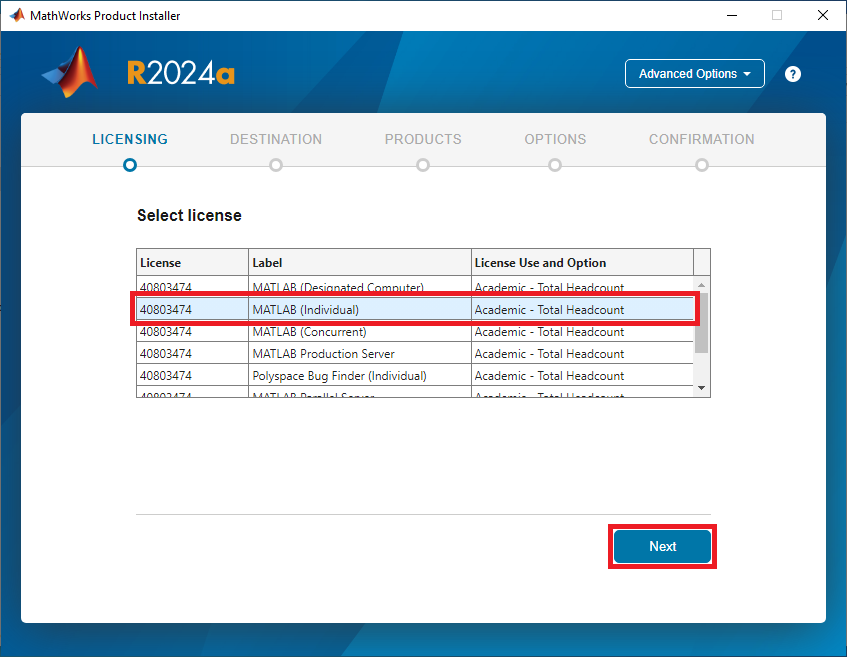 | Select License: * Select the MATLAB (Individual) license, then click Next. |
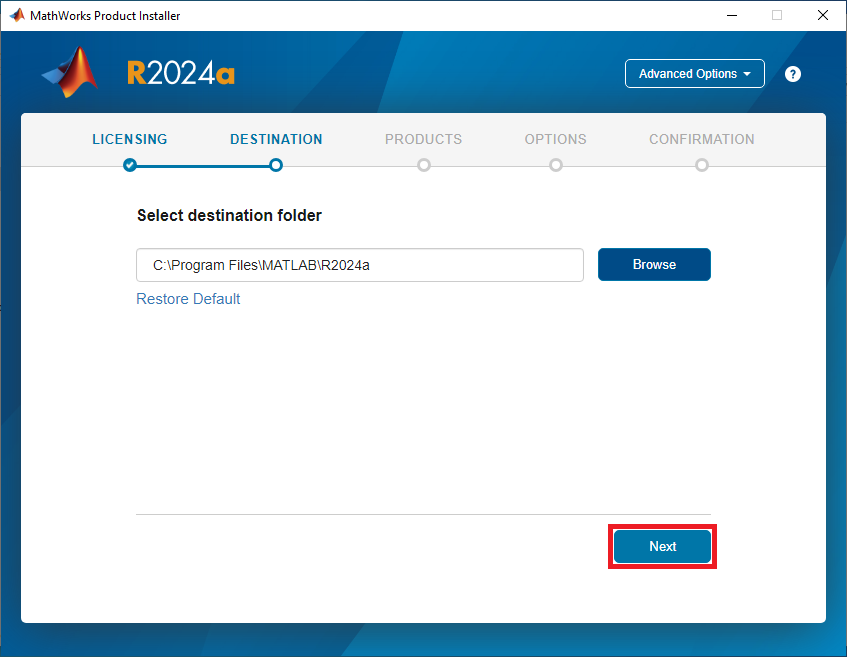 | Select Destination Folder: * Click Next. |
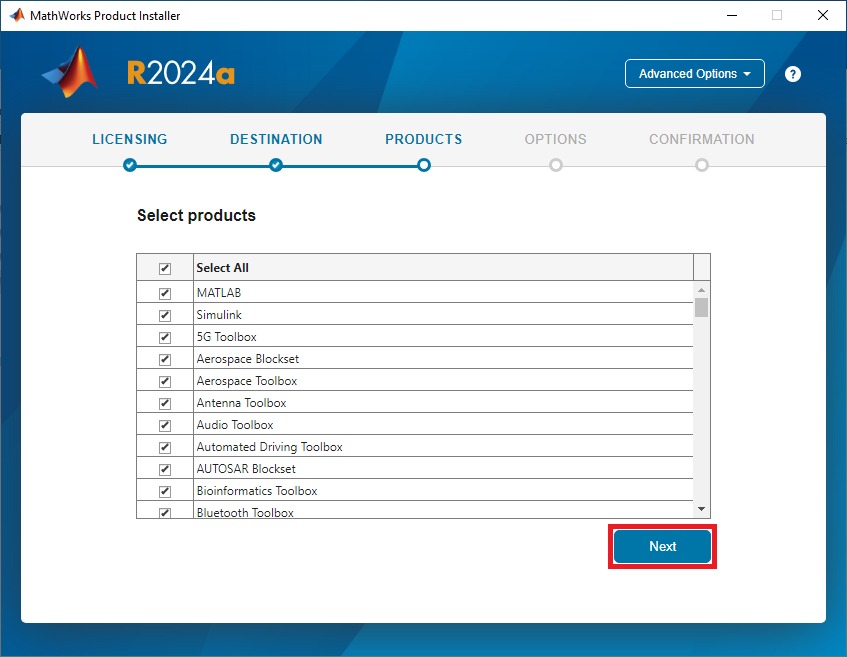 | Select Products: * Check the boxes next to the MATLAB products you need, then click Next. |
 | Select Options: * Click Next. |
 | Confirm Selections: * Click Begin Install. |
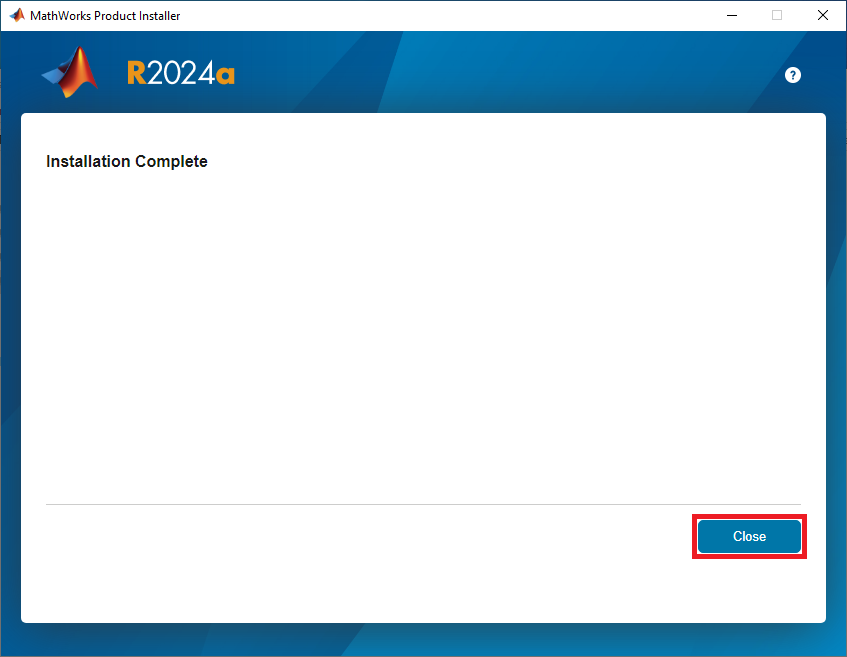 | Installation Complete: * Click Close. |
| Install MATLAB Add-Ons: Get and Install MATLAB Add-Ons and Simulink Add-Ons Using the Add-On Explorer |
Frequently Asked Questions (FAQ)
What is our MATLAB license cycle?
Our MATLAB license cycle is September 1st through August 31st the following year. Licenses must be renewed each year.
Which MATLAB and Simulink products are included?
Product List for Campus-Wide
Must devices be online to use MATLAB?
Devices must be online to sign in to MATLAB. Once signed in, you can take the devices offline. MATLAB should require you to sign in:
1. on first launch
2. annually, on or around September 1 when our new contract year begins
3. periodically, “several months” after the last sign-in
How do I sign in to MATLAB Academy?
Sign In MATLAB Academy
How do I sign in to MATLAB Drive?
Sign In MATLAB Drive
How do I sign in to MATLAB Mobile?
Sign In MATLAB Mobile
How do I sign in to MATLAB Online?
Sign In MATLAB Online
How do I sign in to Simulink Online?
Sign In Simulink Online