
Browse Our Knowledge Base

Toggle Call Queues in Microsoft Teams

You are here:

Turn Call Queue(s) On or Off

1. In Microsoft Teams, click the ellipsis () in the top right corner next to your profile icon.

2. Select Settings from the menu that appears.
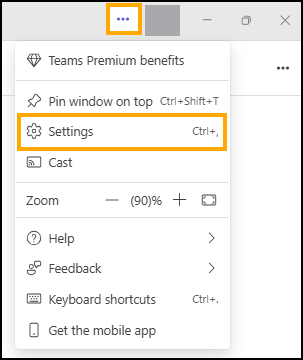
Screenshot of ellipsis button and highlighted Settings link.

3. From the Settings menu, click Calls.
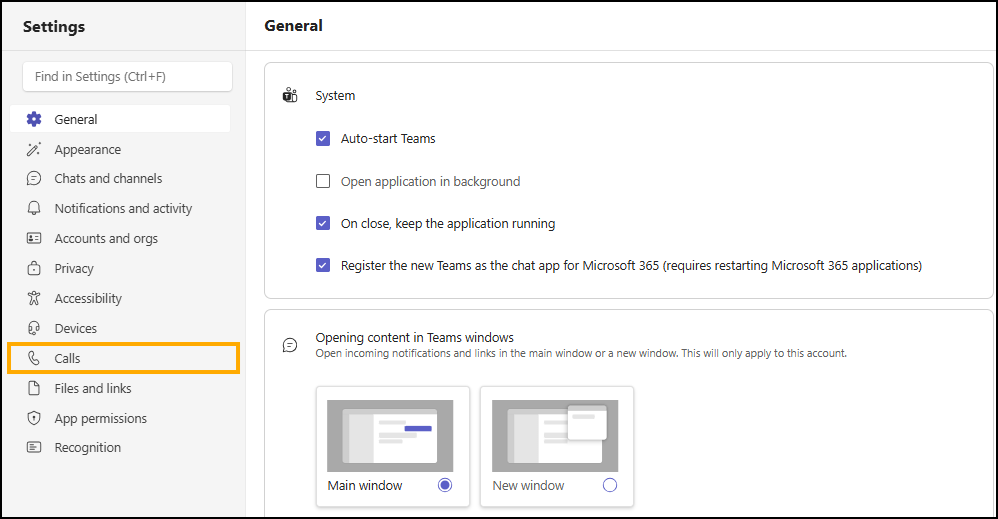
Screenshot of Microsoft Teams Settings menu with Calls highlighted.

4. The call queue(s) that you are a part of will automatically be listed at the top of the Calls Settings. Select the queue you would like to turn off/on.
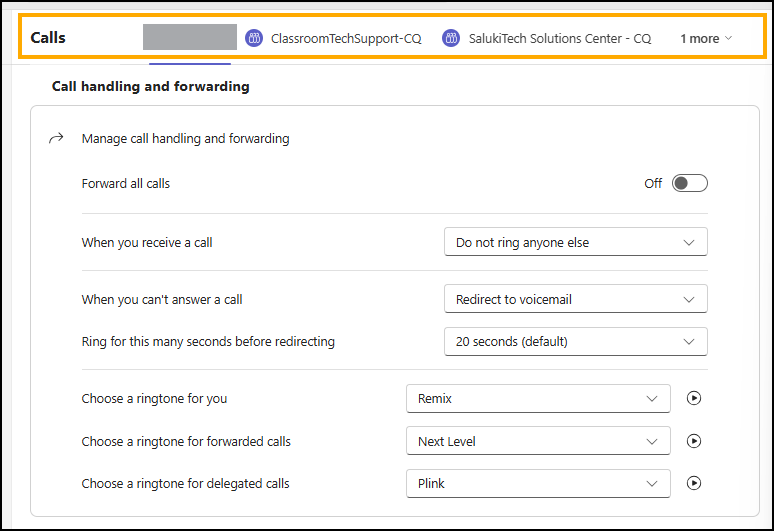
Screenshot of example call queues at the top of the Calls Settings menu.

5. Click the on/off switch under Receive calls from the queue to toggle whether or not you want to receive calls.

Screenshot of on/off switch.
Was this article helpful?
How can we improve this article?
Need help?

Leave a Reply

Table of Contents