
Browse Our Knowledge Base
Using the Electronic Whiteboard and Document Camera
To Start up Projector
Wake computer and login.
Push the power button on the projector controls to turn on projector.
If projector doesn’t automatically display the computer screen:
Make sure the computer isn’t asleep.
Push the source search button on the projector controls.
To Use the Document Camera
Power on camera by hitting the power button on the camera controls.
To switch the projector to the camera, push the source search button.
 If the document is blurry, Push the focus button on the camera controls.
 If you want to make the field of view larger or smaller, use the zoom buttons on the camera controls.
To Use the Whiteboard
Push the whiteboard button on the projector controls.
Use either your finger or the provided pens to interact with the whiteboard controls.
 Tapping on the blue triangle on either side of the screen will show or hide the drawing controls.
In this menu you can:
Undo or redo changes.
Draw shapes
Change the size of the pen
Change the color of the pen
Turn the pen into an eraser
Erase the whole screen.
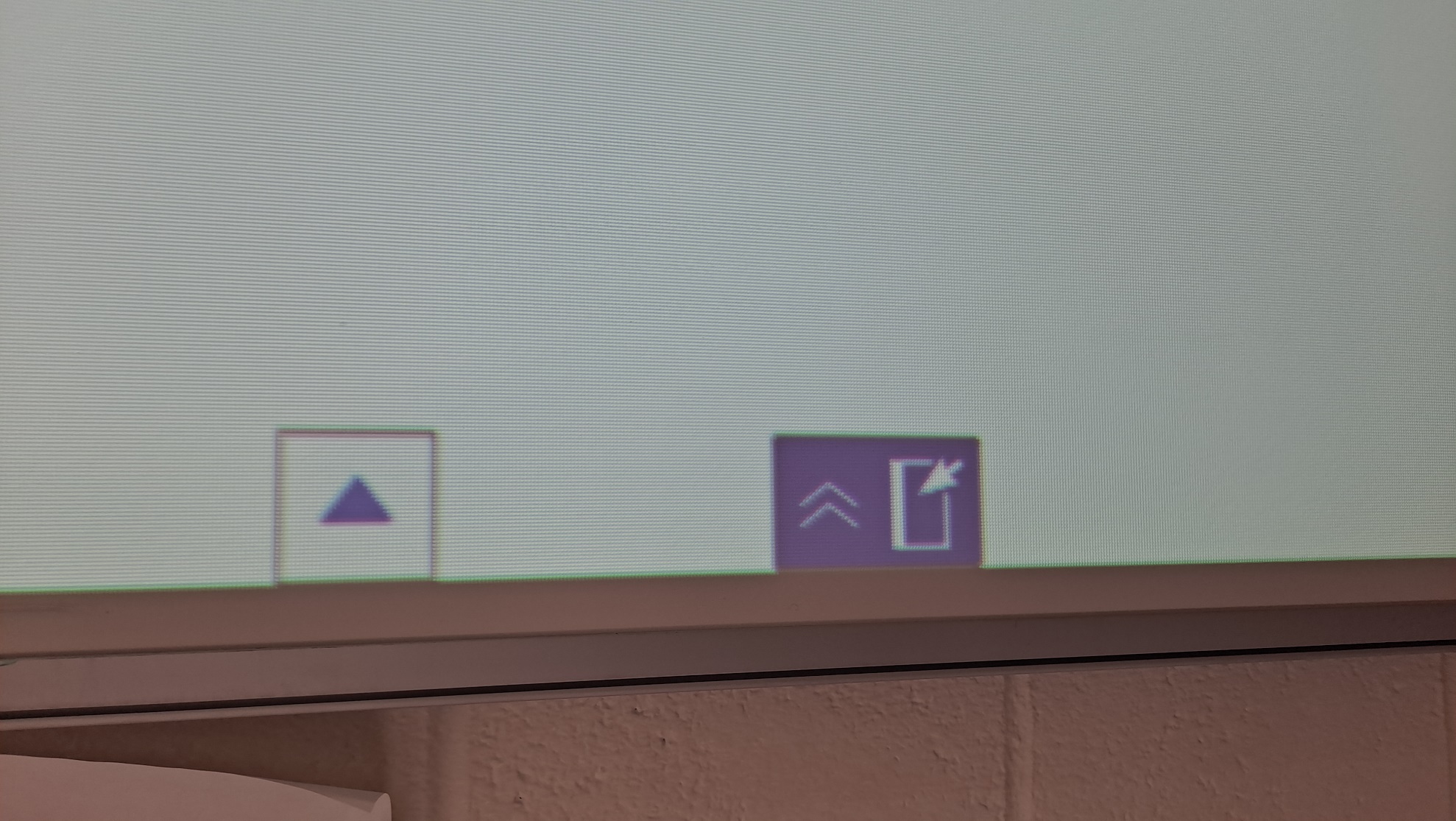 Just below the button for the drawing controls, there is a button with a double arrow and a icon that looks like a screen with a mouse cursor. This button allows you to pull up the computer or document cam feed next to the whiteboard.
 If you run out of space, but don’t want to erase what you have already written, there is a button that looks like a blue plus with a rectangle on the bottom of the white board screen. This button adds a new screen.
You can delete a screen by tapping on it when you have it selected and tapping the trash icon.