
Browse Our Knowledge Base

Video Thumbnail in Microsoft Stream

You are here:

Overview

In this how-to guide, learn how to customize thumbnail for a video in Microsoft Stream.

Add Thumbnail from Video

1. Select a video in OneDrive and open it in Stream. Click on Video settings icon from the menu in the upper right corner.
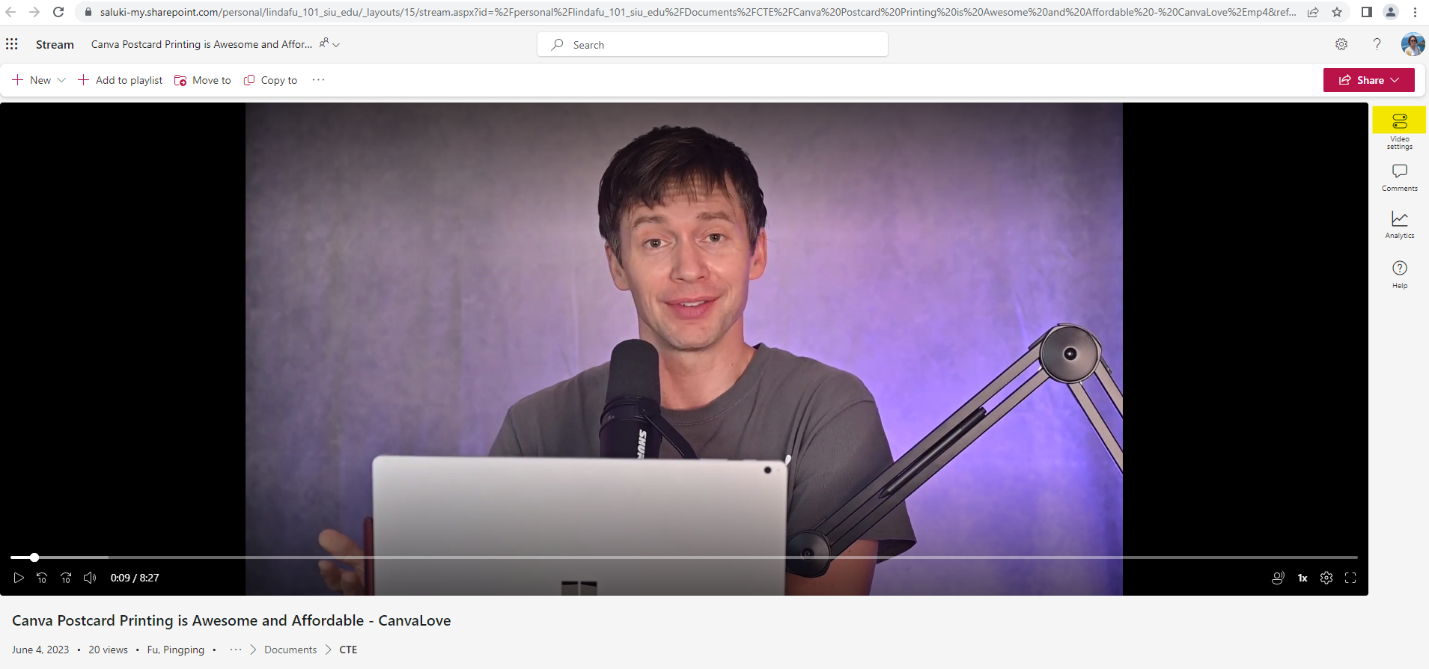
A screenshot of a video streaming in MS Stream, highlight the video settings icon
A screenshot of a video streaming in MS Stream, highlight the video settings icon.

2. Click on Thumbnail. Then click on the pencil icon to activate editing.
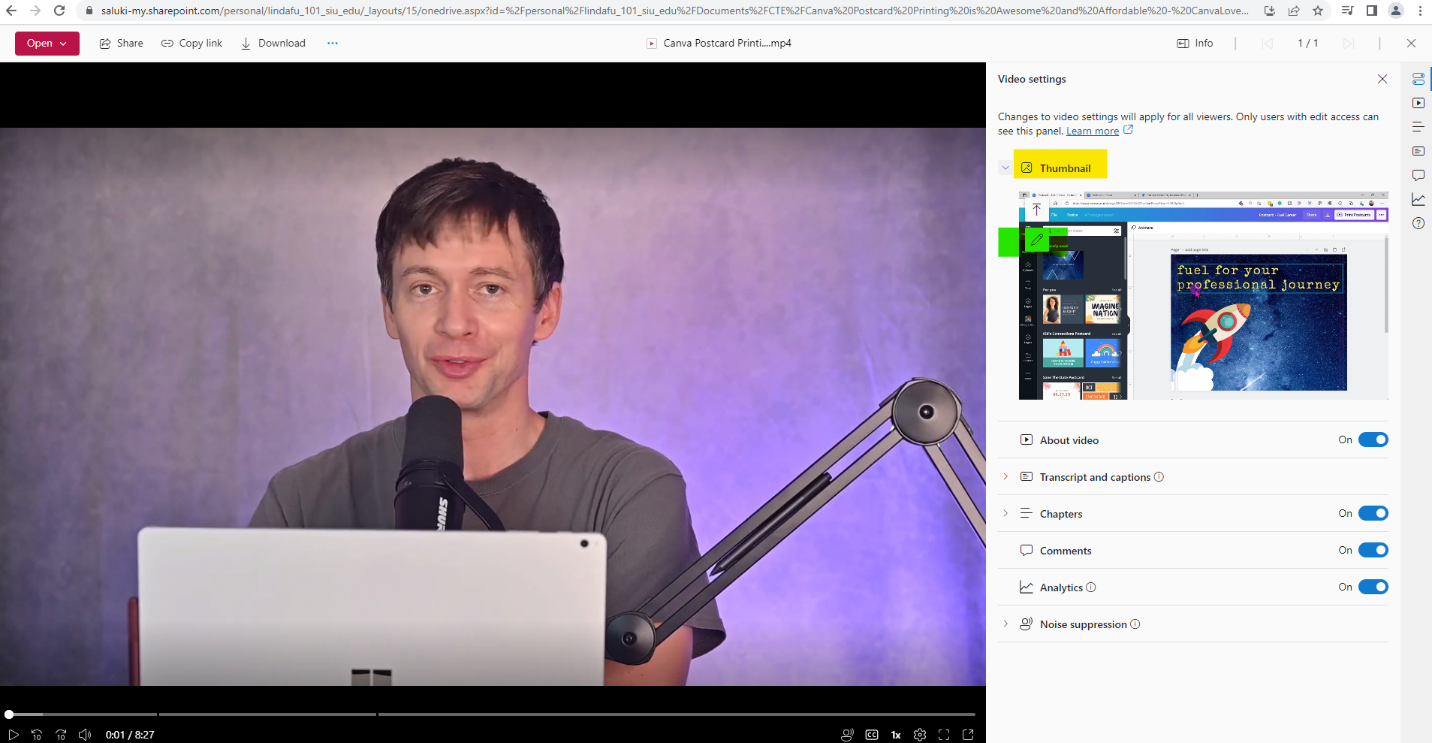
A screenshot of a Stream video, highlighting Thumbnail and pencil icon
A screenshot of a Stream video, highlighting Thumbnail and pencil icon.

3. Move the seekbar to choose a thumbnail from the video.
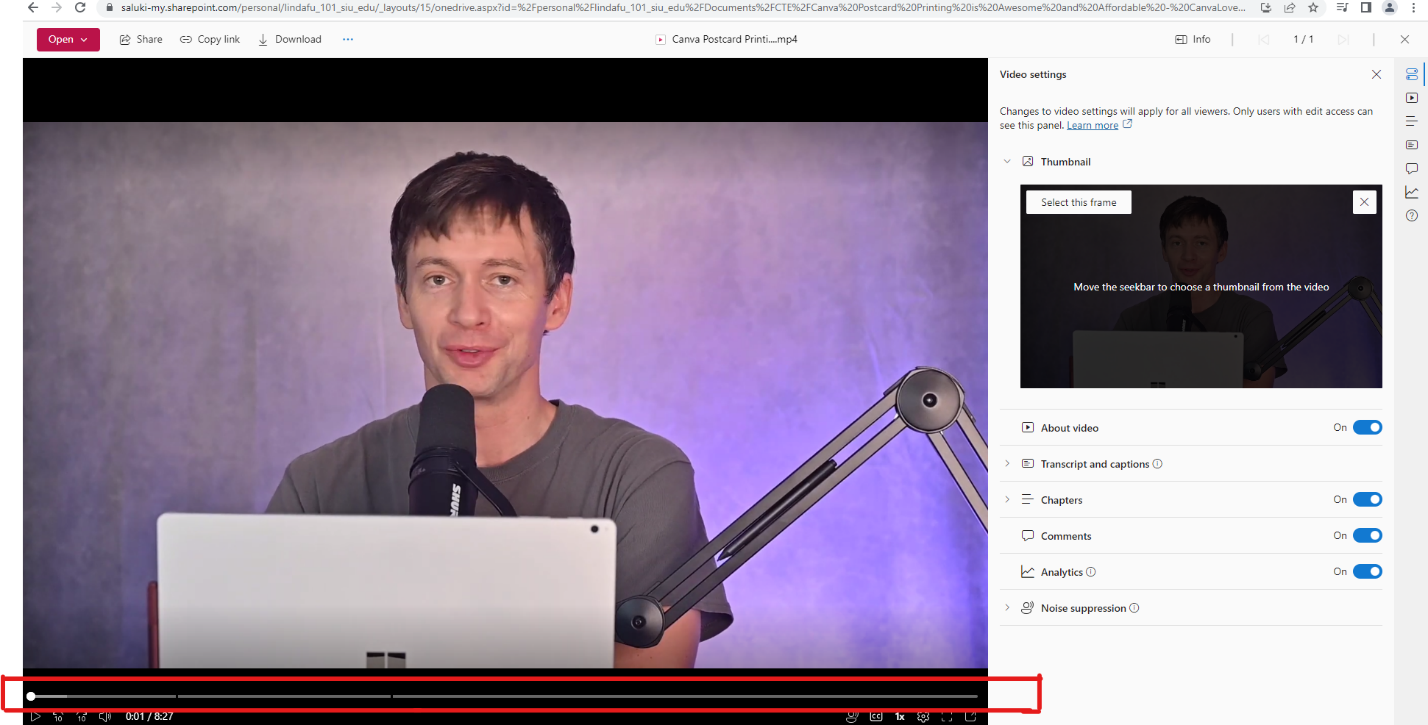
A screenshot of a Stream video, highlighting the seekbar at the bottom of the video
A screenshot of a Stream video, highlighting the seekbar at the bottom of the video.

4. View the thumbnail frame in the video or under Thumbnail in the Video settings panel. Click on Select this frame.
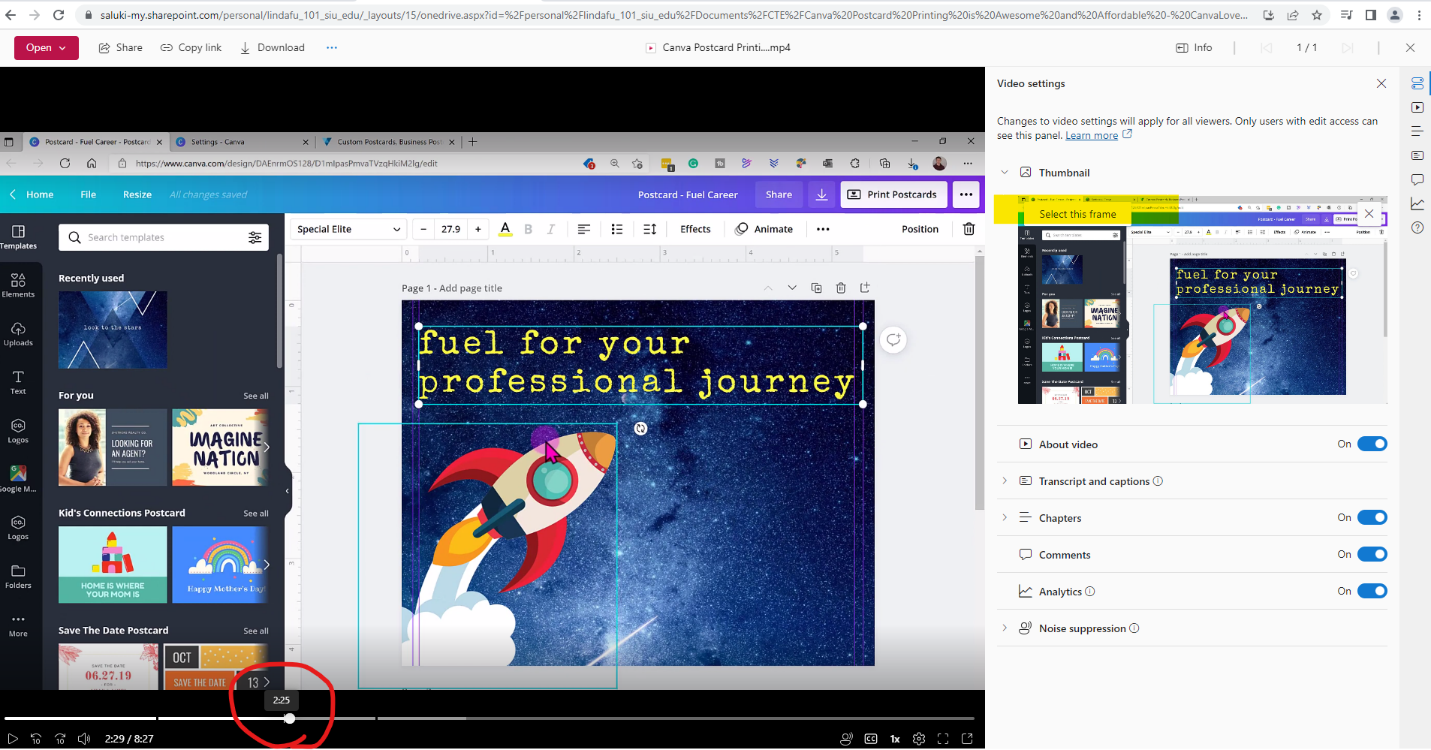
A screenshot of a Stream video, highlighting Select this frame under Thumbnail in Video setting panel and a specific timecode on the seekbar
A screenshot of a Stream video, highlighting Select this frame under Thumbnail in Video setting panel and a specific timecode on the seekbar.

5. A new thumbnail has been created for this video.
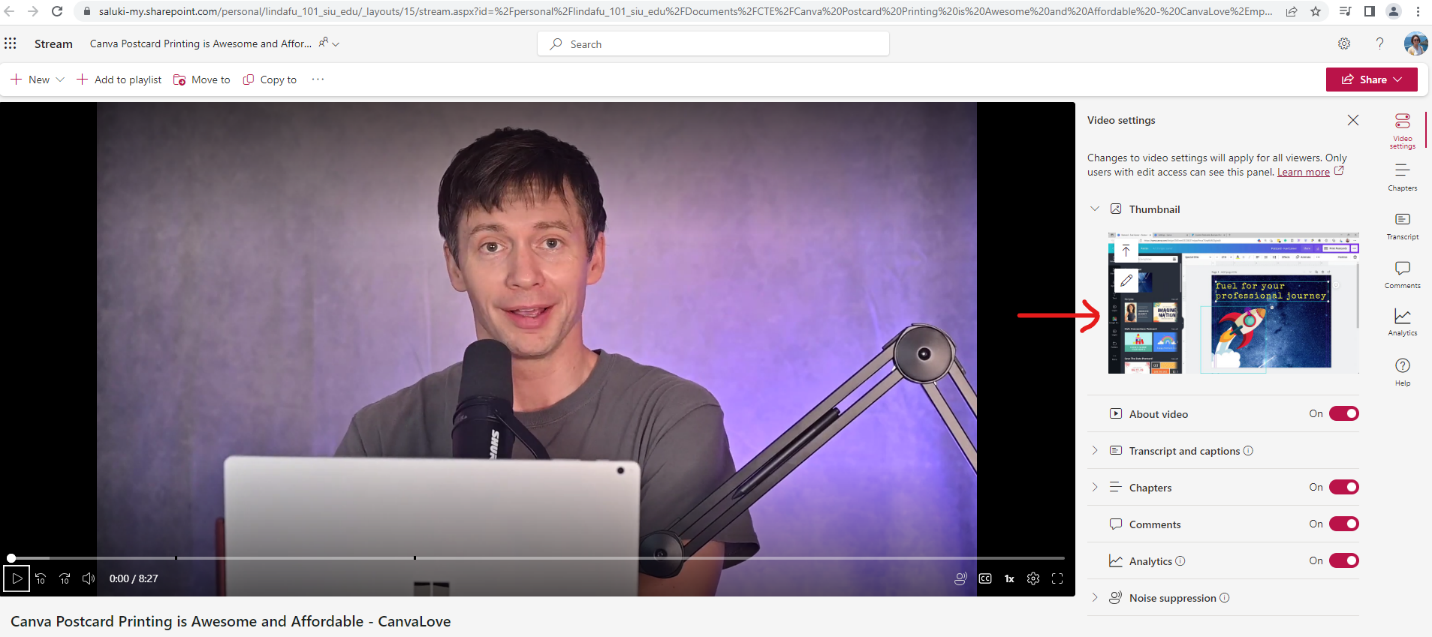
A screenshot of a Stream video, highlighting the new thumbnail created in Video settings panel
A screenshot of a Stream video, highlighting the new thumbnail created in Video settings panel.
Was this article helpful?
How can we improve this article?
Need help?

Leave a Reply

Table of Contents