
Browse Our Knowledge Base
Yubikey Hardware Device Instructions – Windows
Overview
This guide helps you set up and manage your YubiKey for multi‑factor authentication on Windows computers.
Note: These steps apply to university‑issued YubiKeys and should also work with most FIDO2 keys, including newer YubiKey models such as the Security Key (C) (NFC) and YubiKey 5 (C) (NFC/FIPS).
If you have questions or need help, please contact SalukiTech.
Adding a Yubikey to Your SIU / Microsoft Account
- In your browser, go to: office.siu.edu
- In the top-right corner, click your profile icon.
- Select My Account.
- Select Security Info.
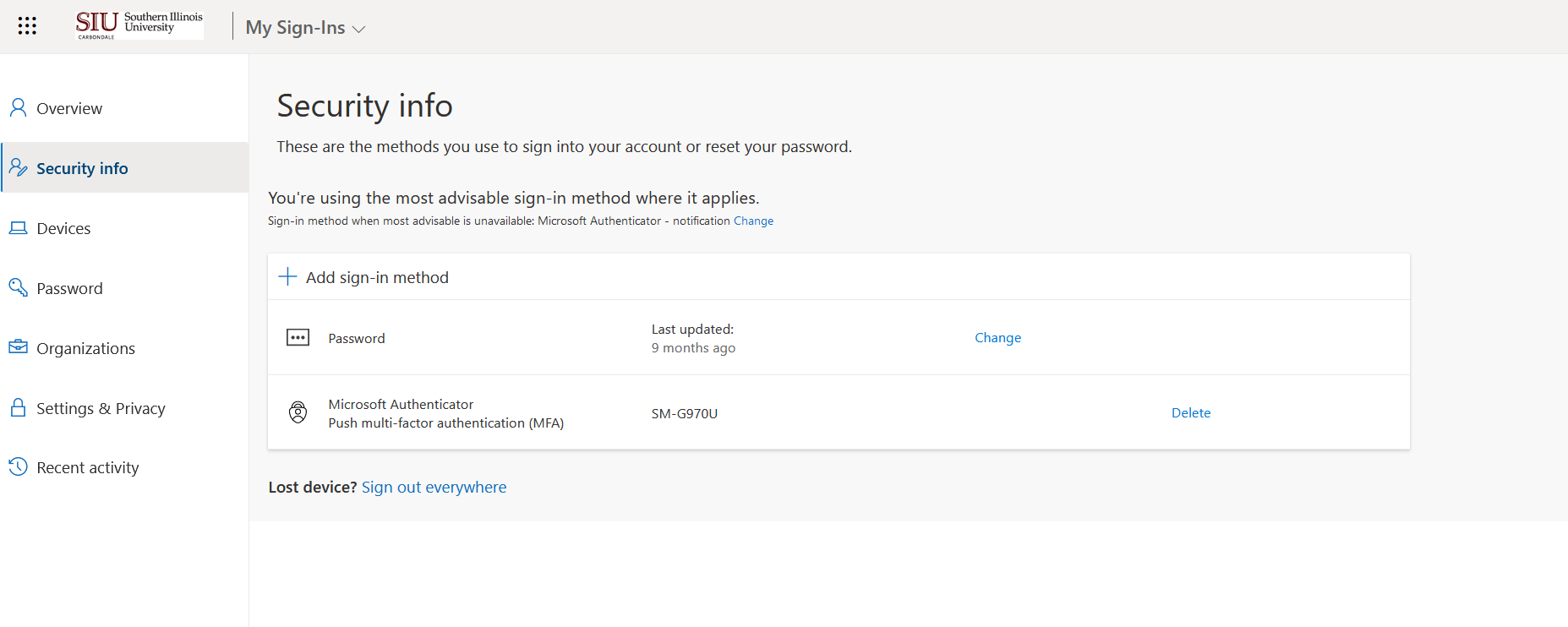
- Click Add sign-in method.
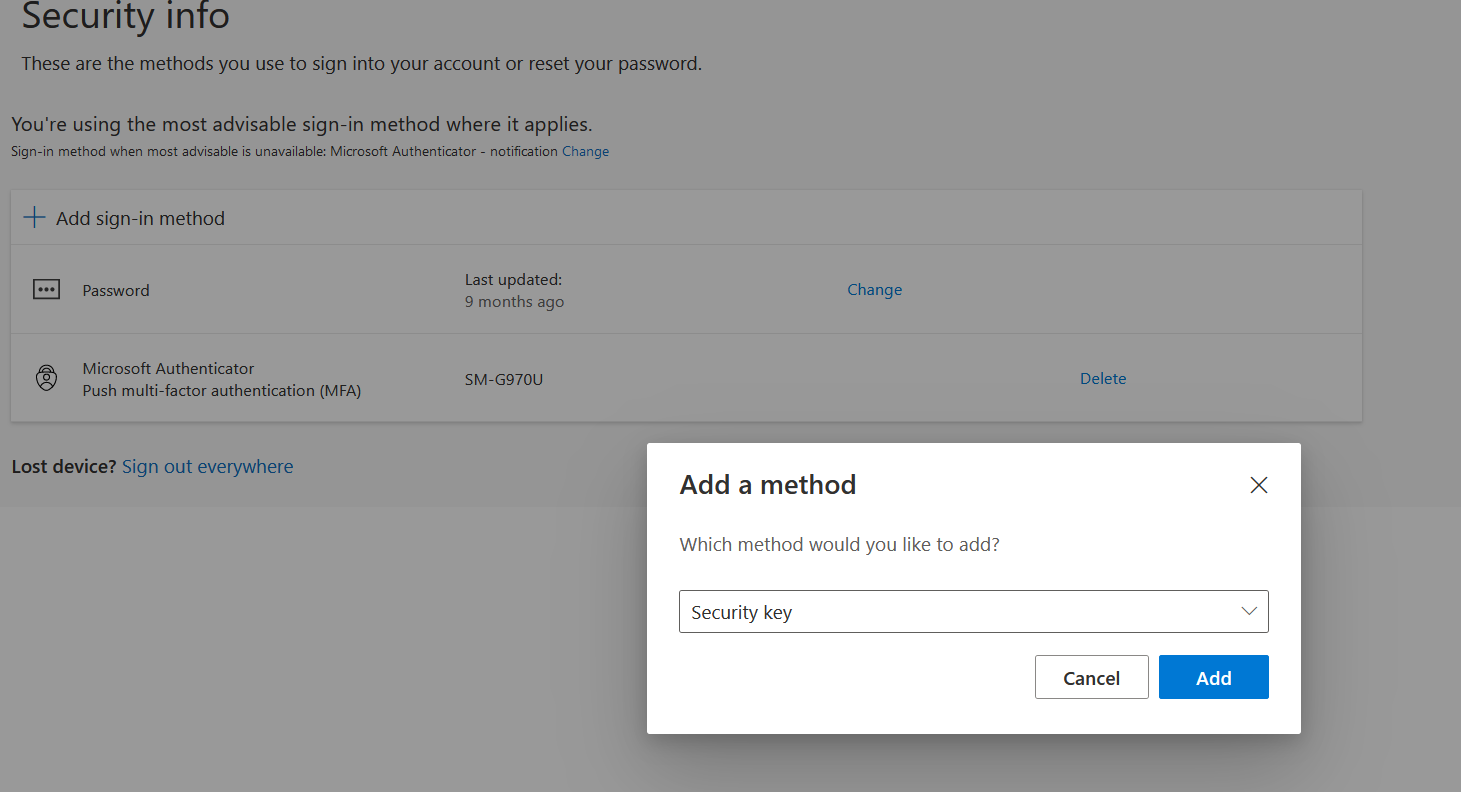
- Select Security Key.
- Click Add.
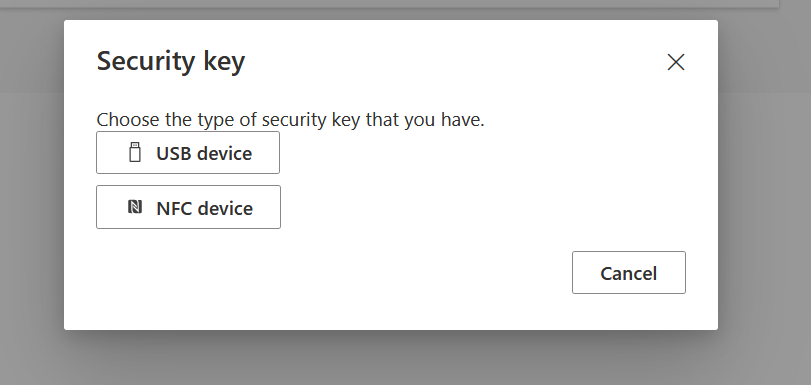
- Select USB (or NFC if you are operating your NFC-capable hardware token via a mobile device).
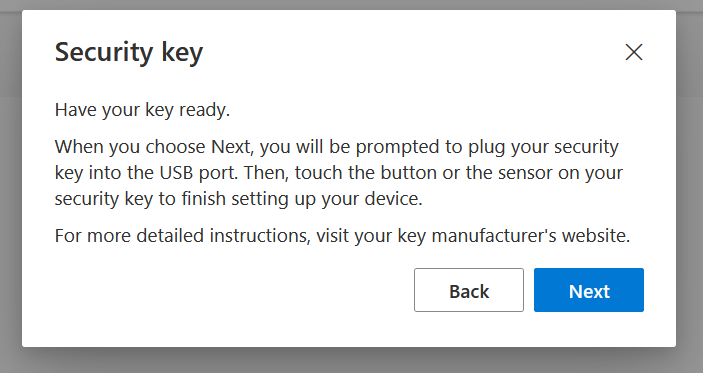
- You will now be advised to have you key ready. Click Next.
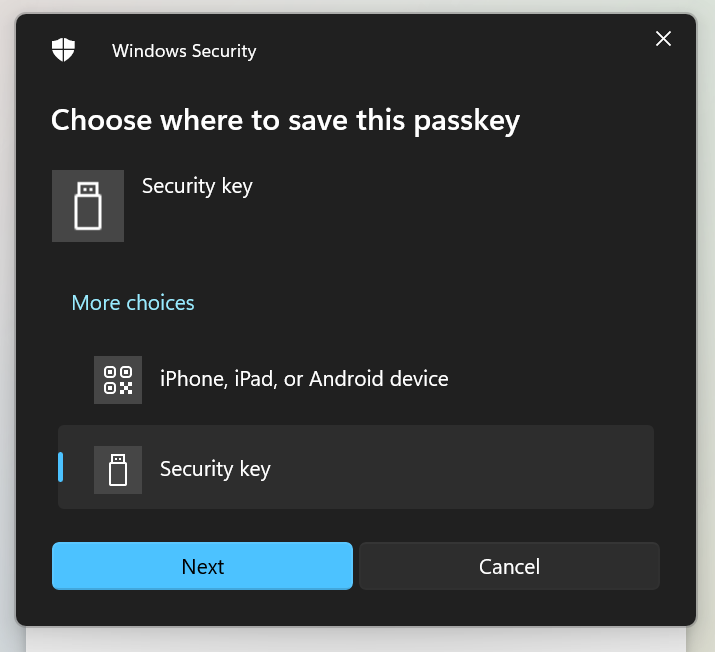
- Select Security Key and then click Next.
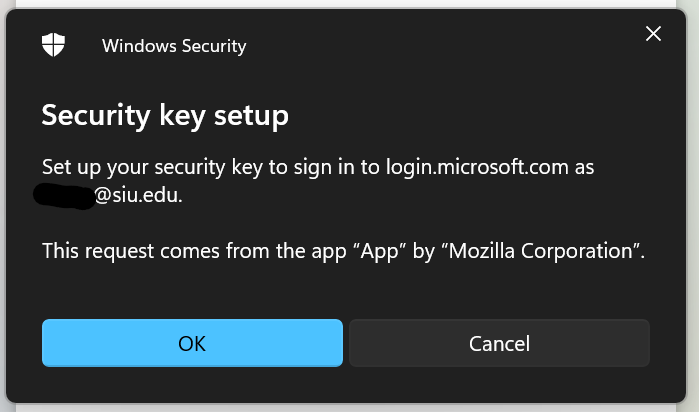
- You will see your e-mail address listed as logging into login.microsoft.com. If your e-mail address is correct click OK.
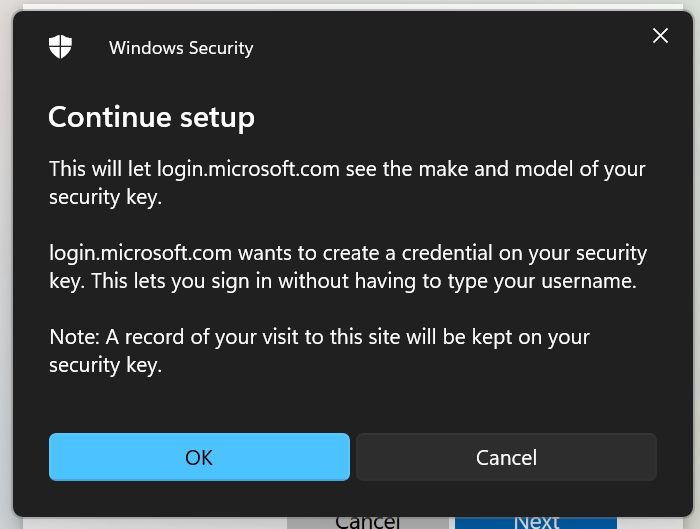
- Click OK again.
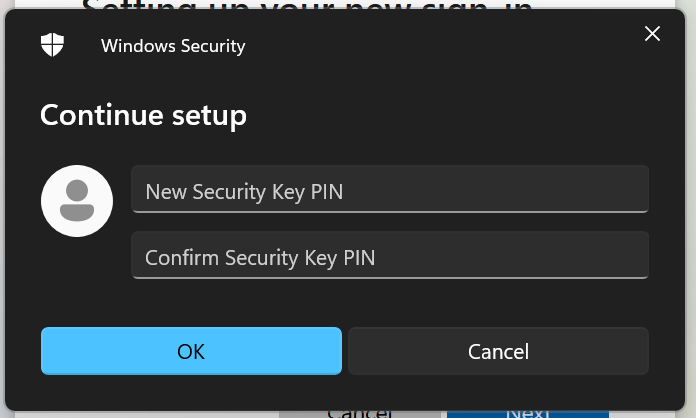
- Enter a secure PIN.
Note: You can use letters or number and must be between 4 and 63 characters in length. We recommend a 6-character password for your Yubikey. This doesn’t have to be overly complex, and should be something you can/will remember. Entering this wrong 8 or more times will reset the device. - You will be asked to Touch the security key and/or enter your PIN to confirm.
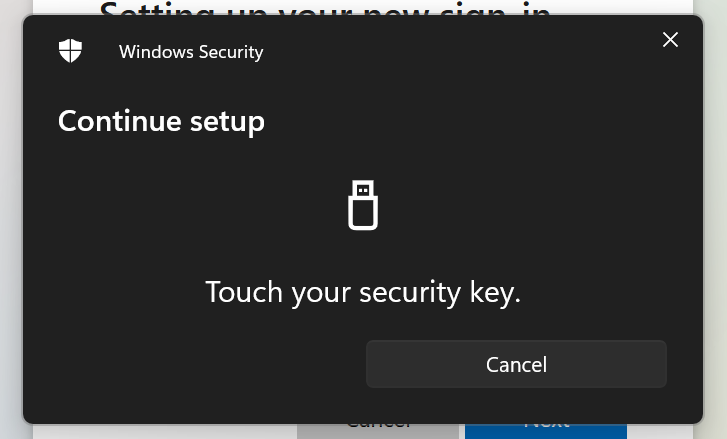
- You will now see the Passkey saved if successfully setup.
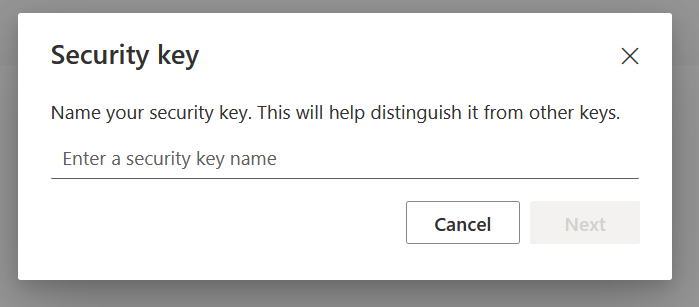
- Enter a name for your Yubikey. This is for your reference only. Click Next when done.
Removing a Hardware Token from your SIU / Microsoft Account
1. In your browser go to your Microsoft My Sign-Ins page.
Note: You can get there by using the direct link above or by going to office.siu.edu, clicking your profile icon in the top right corner and then clicking Security Info.
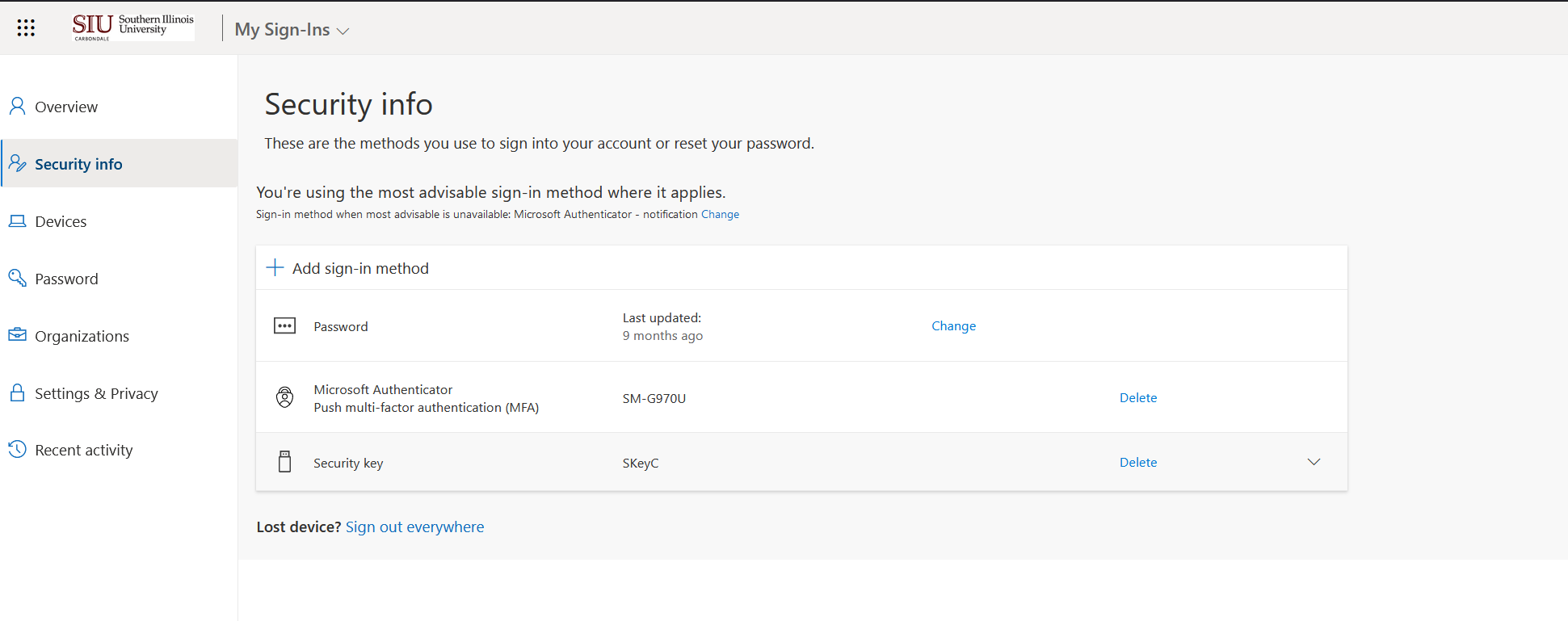
2. Click the Delete button next to the device(s) you want to remove.
3. You may be prompted to Sign In to confirm deletion; if not, move on to Step 4. Note: You should have another device currently setup for Authentication to complete this step. If you do not, please contact SalukiTech for assistance.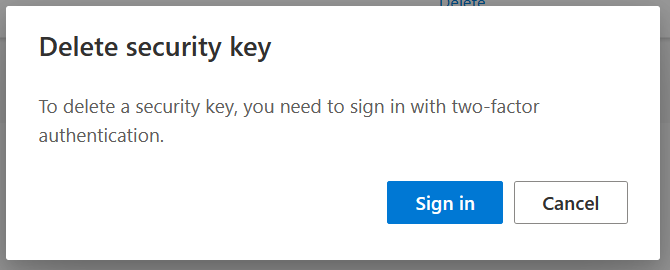
4. Click OK to confirm deletion.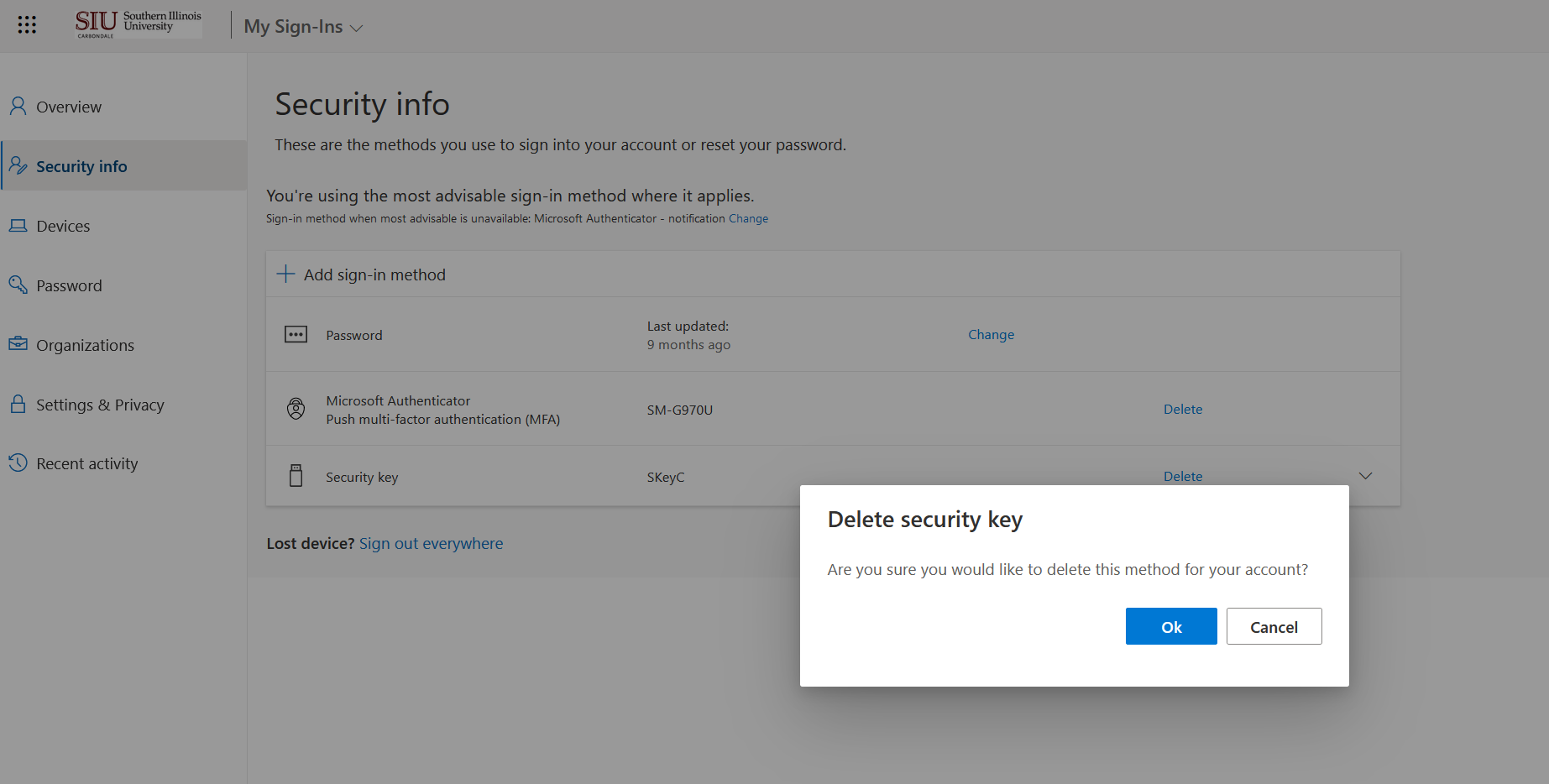
Creating a PIN for a Yubikey / FIDO 2 Device
On your Windows device…
1. Navigate to your Device Settings.
2. Click Accounts.
3. Click Sign-In Options.
4. Select Security key.
5. Click Manage.
Note: You may be prompted to insert and/or touch the security key connected to your device.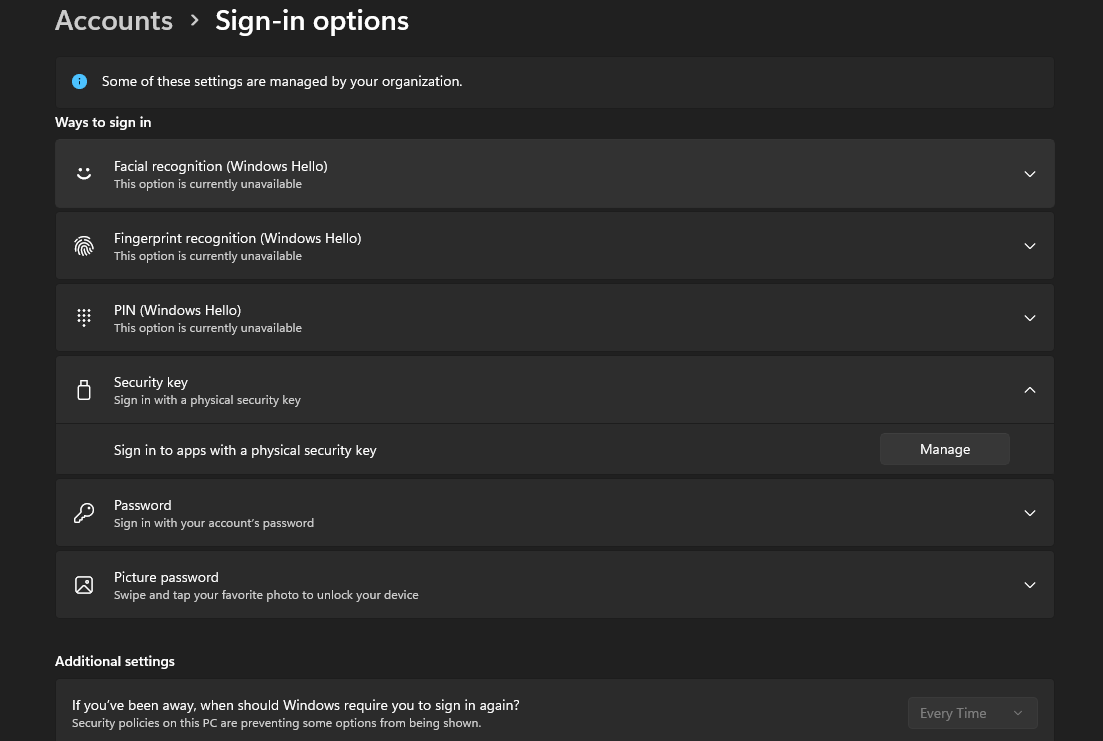
6. Click Add.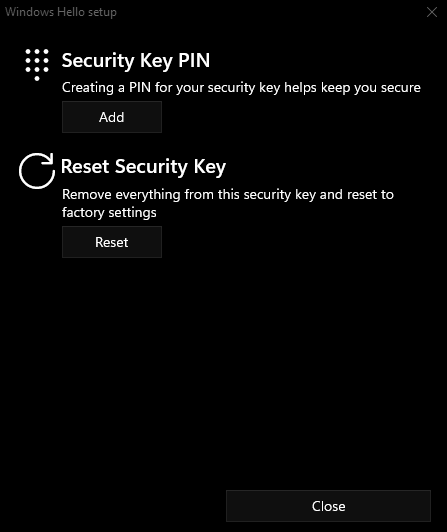
7. Enter a secure PIN here.
Note: You can use letters or numbers. The PIN must be between 4 and 63 characters in length. We recommend a 6-character password for your Yubikey. This doesn’t have to be overly complex, and should be something you can/will remember. Entering this wrong 8 or more times will reset the device.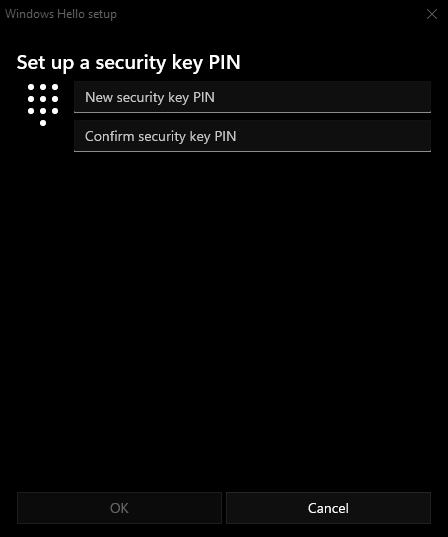
Note: If you enter less than 4 character (or less than 6 with a FIDO 2 FIPS device) you will be presented with an error like this:
Resetting a PIN for a Yubikey / FIDO 2 Devic
On your Windows computer…
- Navigate to your Settings.
- Click on Accounts.
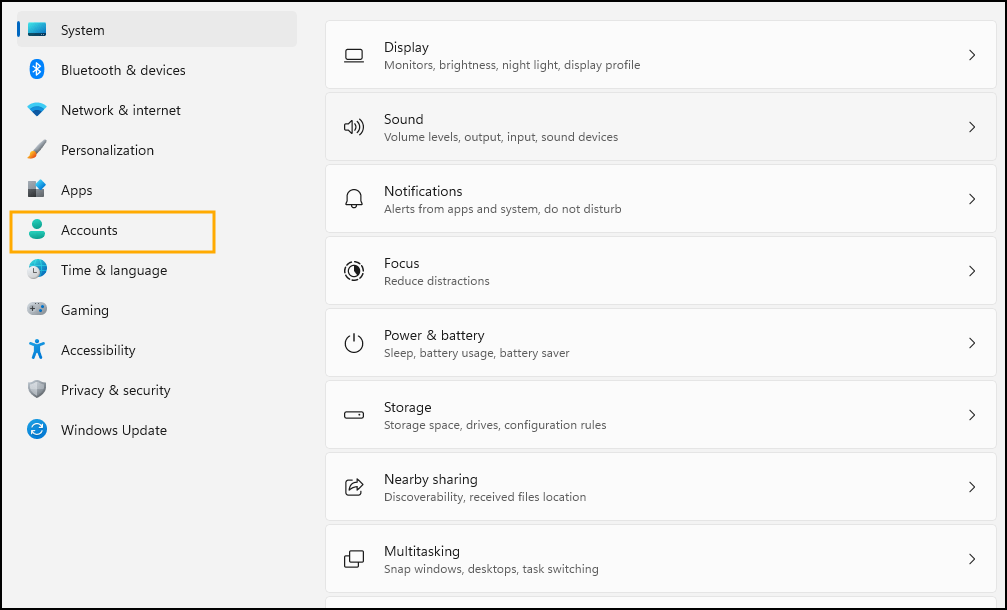
3. Click Sign-in Options.
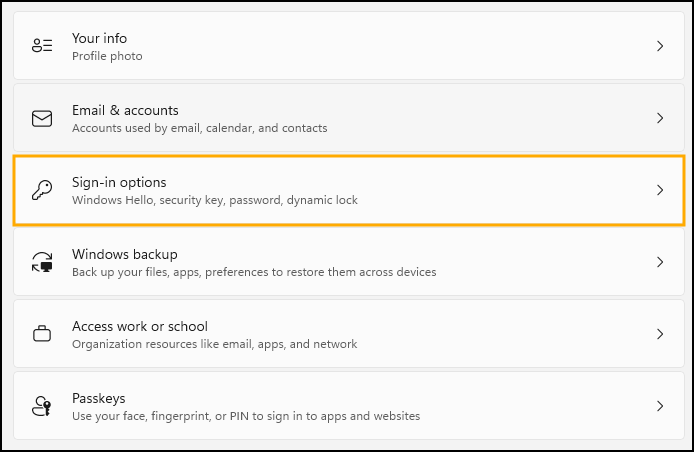
4. Select Security key.
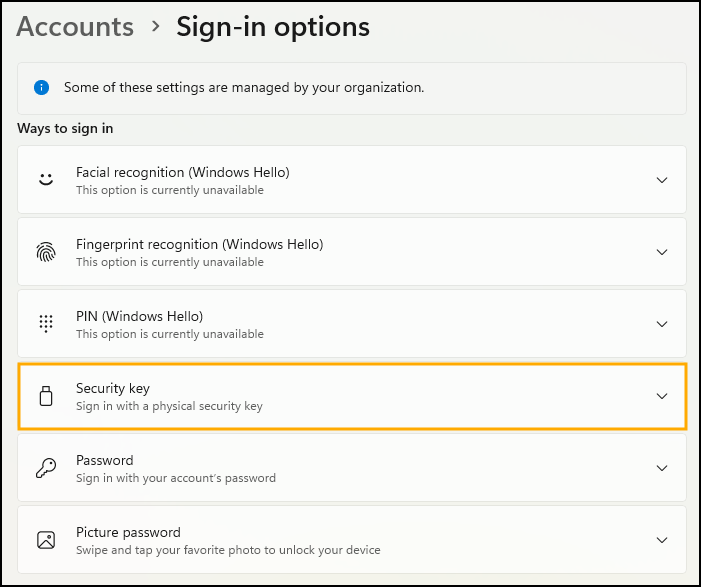
5. Click Manage.

Note: You may be prompted to insert and/or touch the security key connected to your device.
6. Click Reset.
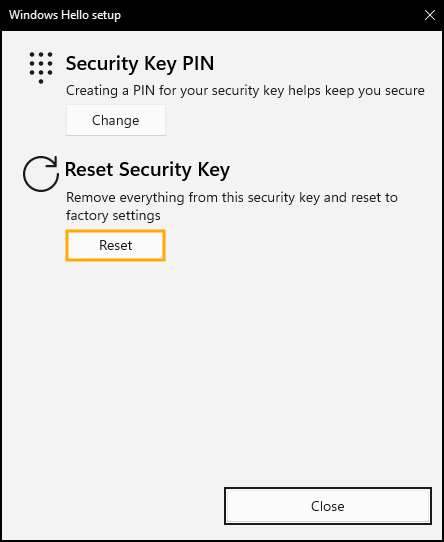
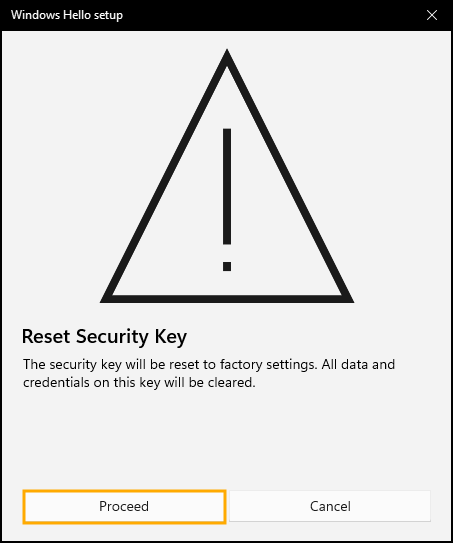
7. Click Proceed.
8. If prompted, reinsert your YubiKey.
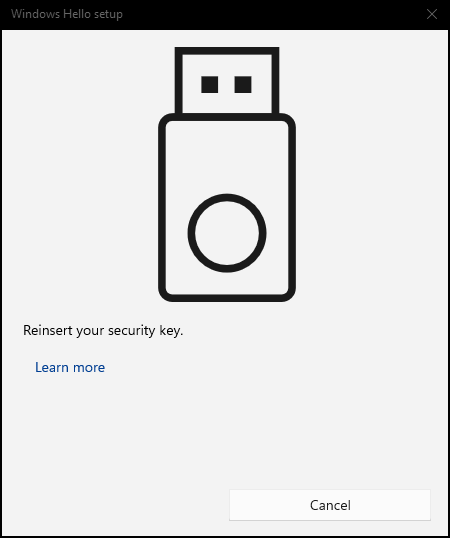
9. When prompted, tap your YubiKey twice within 10 seconds.
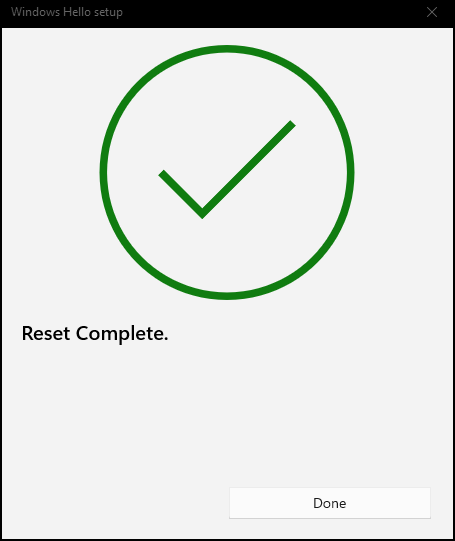
10. Once tapped, you will receive confirmation that the reset was successfully completed. Click Done.
11. Now, you can set a new PIN. If you aren’t sure how to do this, follow the steps in the “Creating a PIN” section above.