
Browse Our Knowledge Base
Install SPSS Statistics on Your Personal Computer
Overview
Install SPSS Statistics on your personal computer. SPSS Statistics must be reinstalled with a new authorization code each year. New codes are not compatible with old software versions from previous years. The current license cycle is from 7/1/2026 until 7/30/2027.
SPSS Statistics for Mac
| These instructions apply to SPSS Statistics 32 for Mac. | |
| 1. Request SPSS Statistics for Mac: * Click SalukiTech Software Request to request SPSS Statistics for Mac. * Upon email notification of the authorization code, proceed below. | |
| 2. Download SPSS Statistics Installer for Mac: * Click SPSSStatistics_32.0_MAC.pkg to download. * Optional: Compare SHA-256 hash to verify successful download. 6119d1eaa0321a96e476f4270b7a36807ab3a0f5c1bf1b9d23c9ef876e975f9f | |
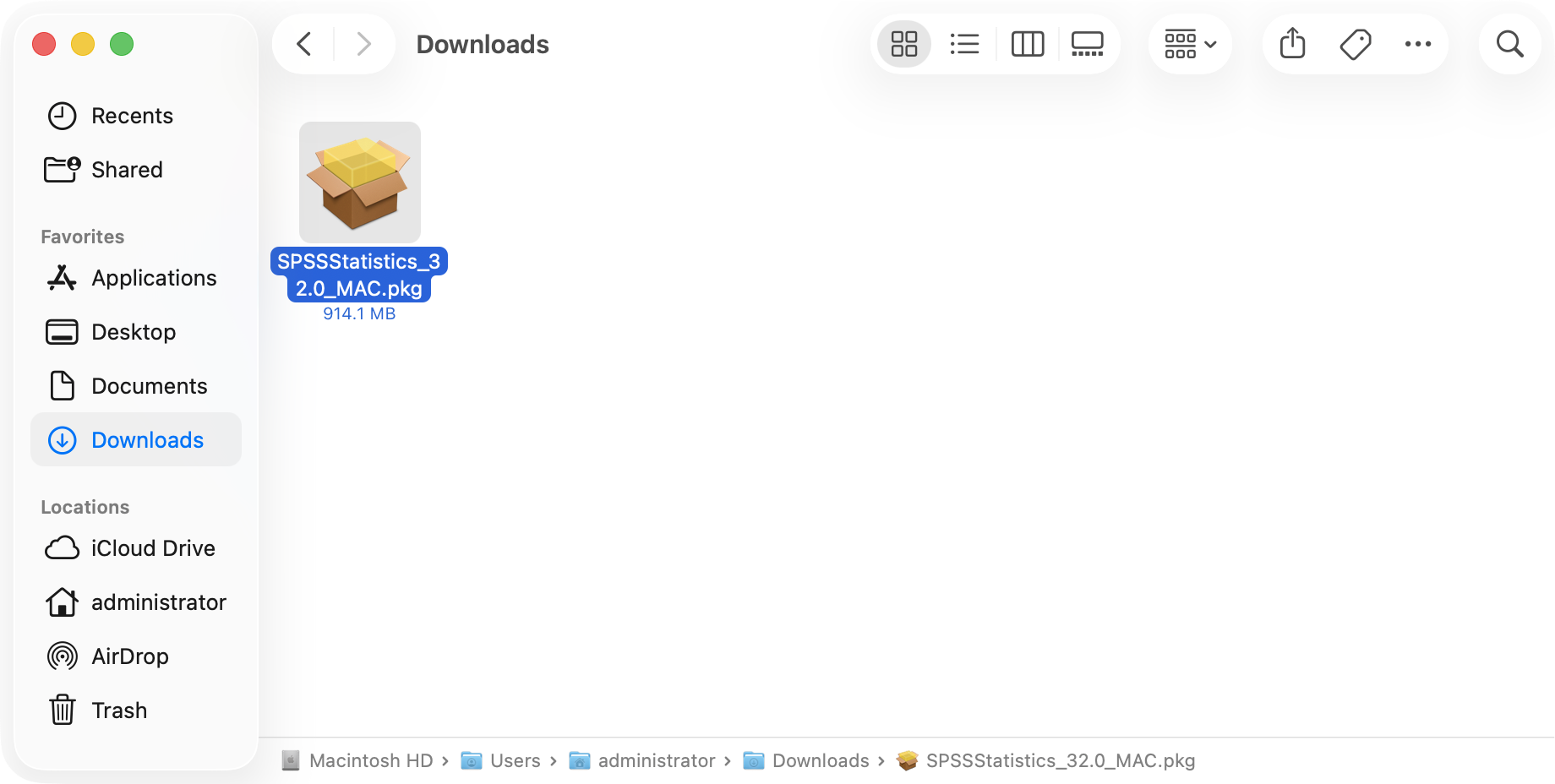 | 3. Install SPSS Statistics for Mac: * Open the downloaded installer and follow the installation prompts. |
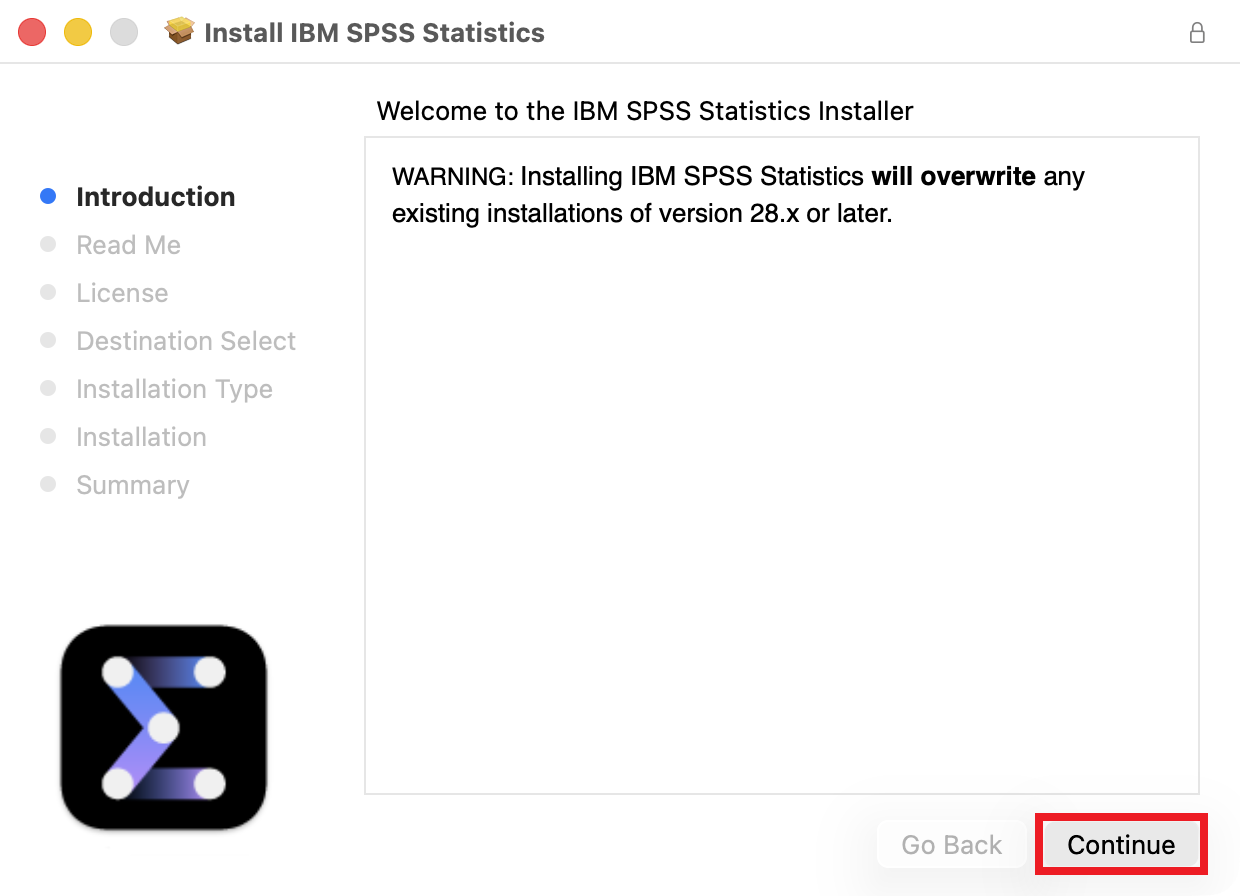 | 3.1. Welcome to the IBM SPSS Statistics Installer: * Click Continue. |
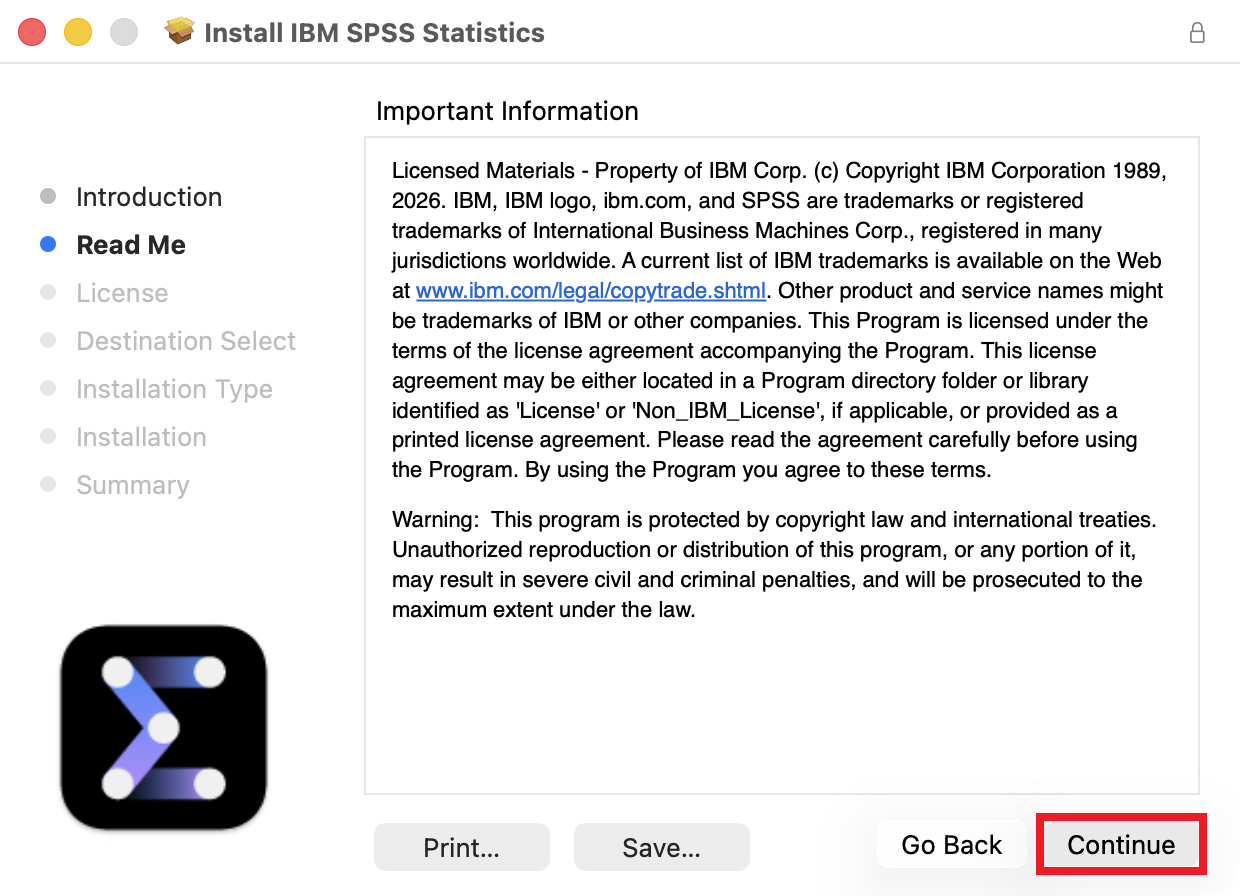 | 3.2. Important Information: * Click Continue. |
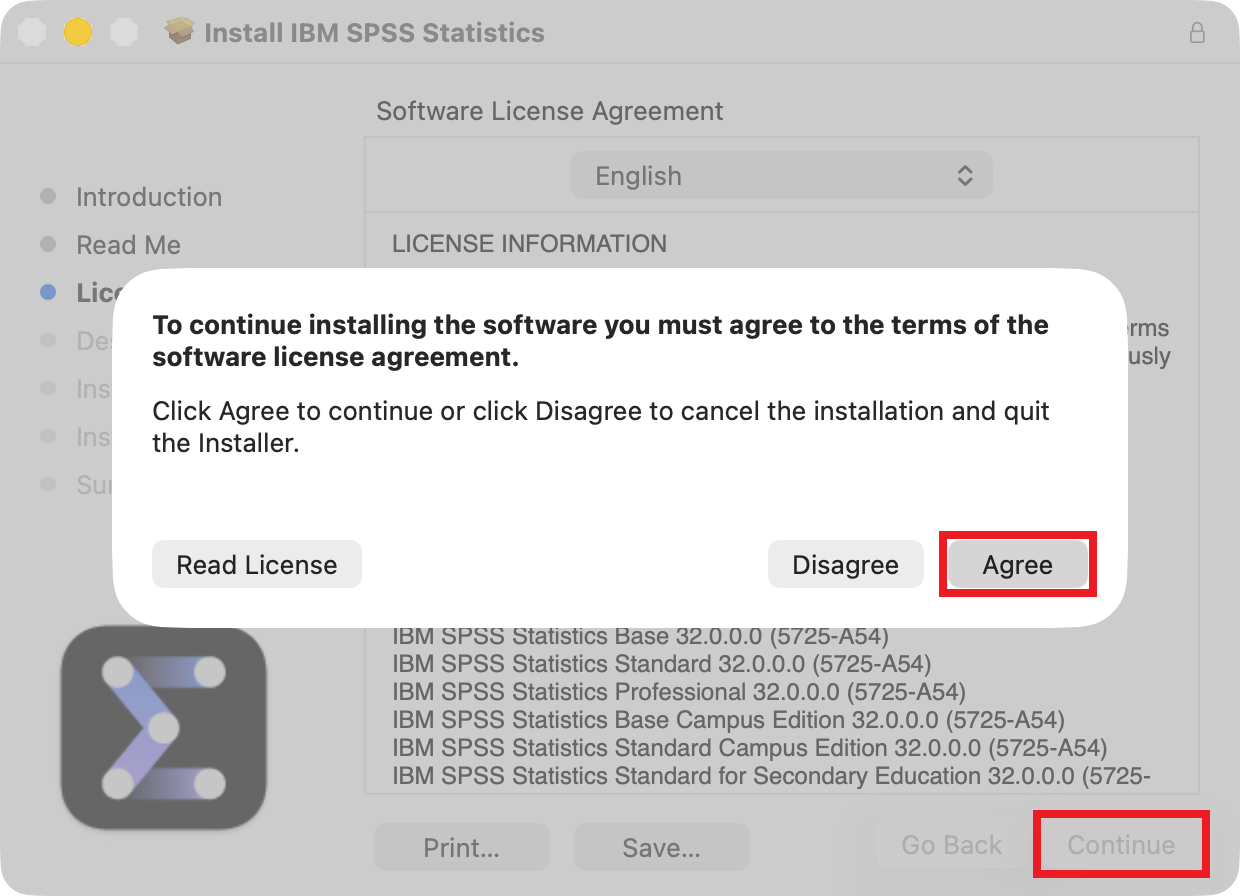 | 3.3. Software License Agreement: * Click Continue. * Click Agree. |
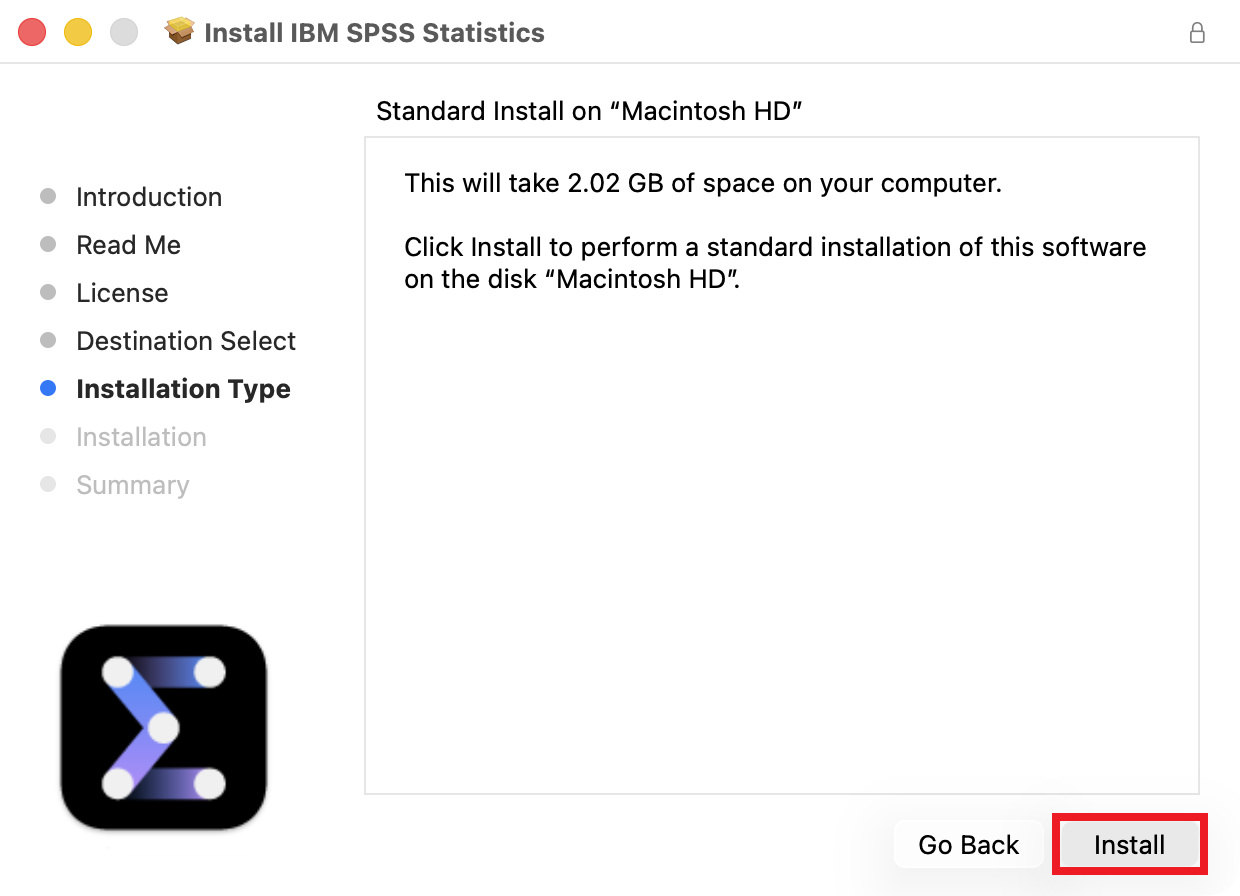 | 3.4. Standard Install: * Click Install. |
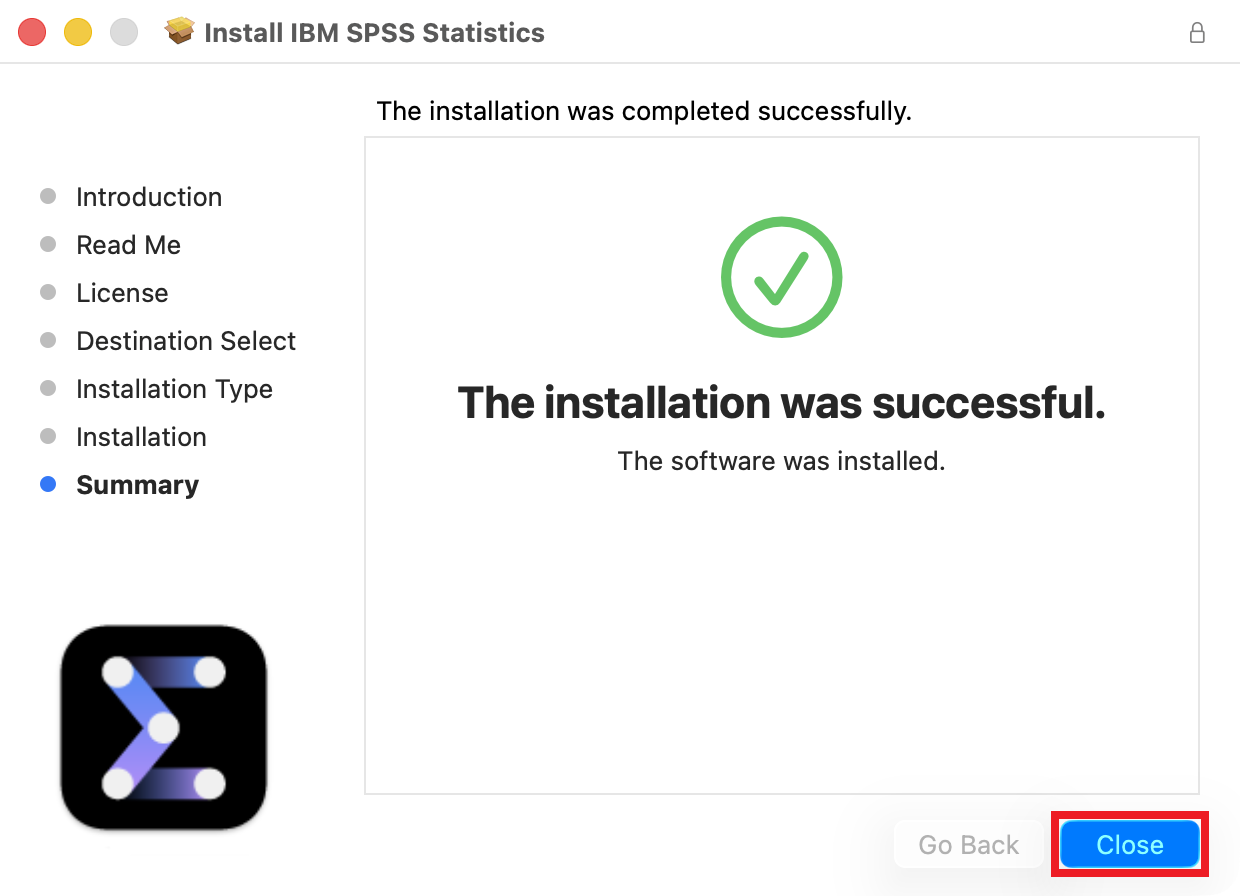 | 3.5. The installation was completed successfully: * Click Close. |
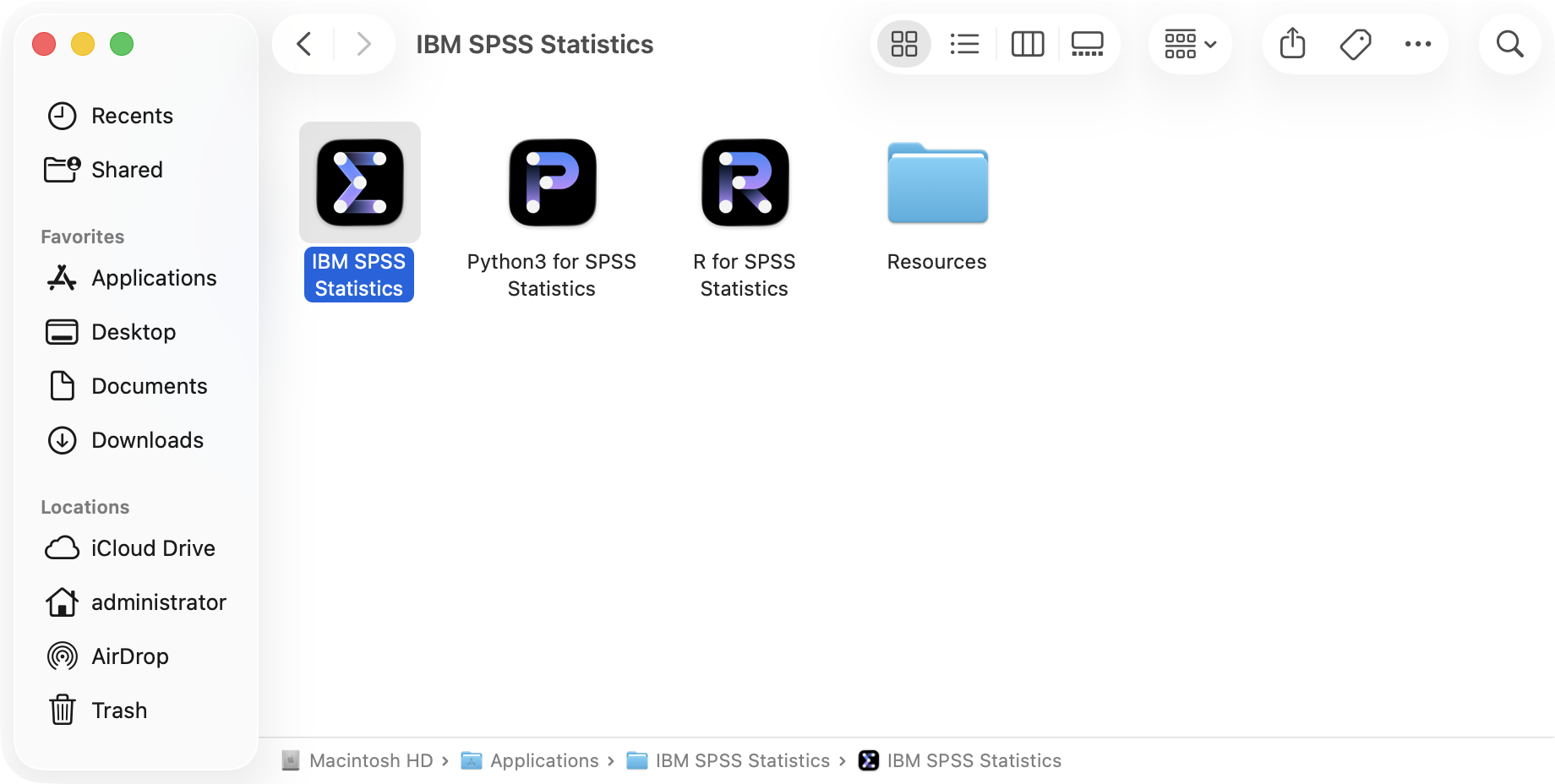 | 4. Activate SPSS Statistics for Mac License: * Open the SPSS Statistics app and follow the license activation prompts. |
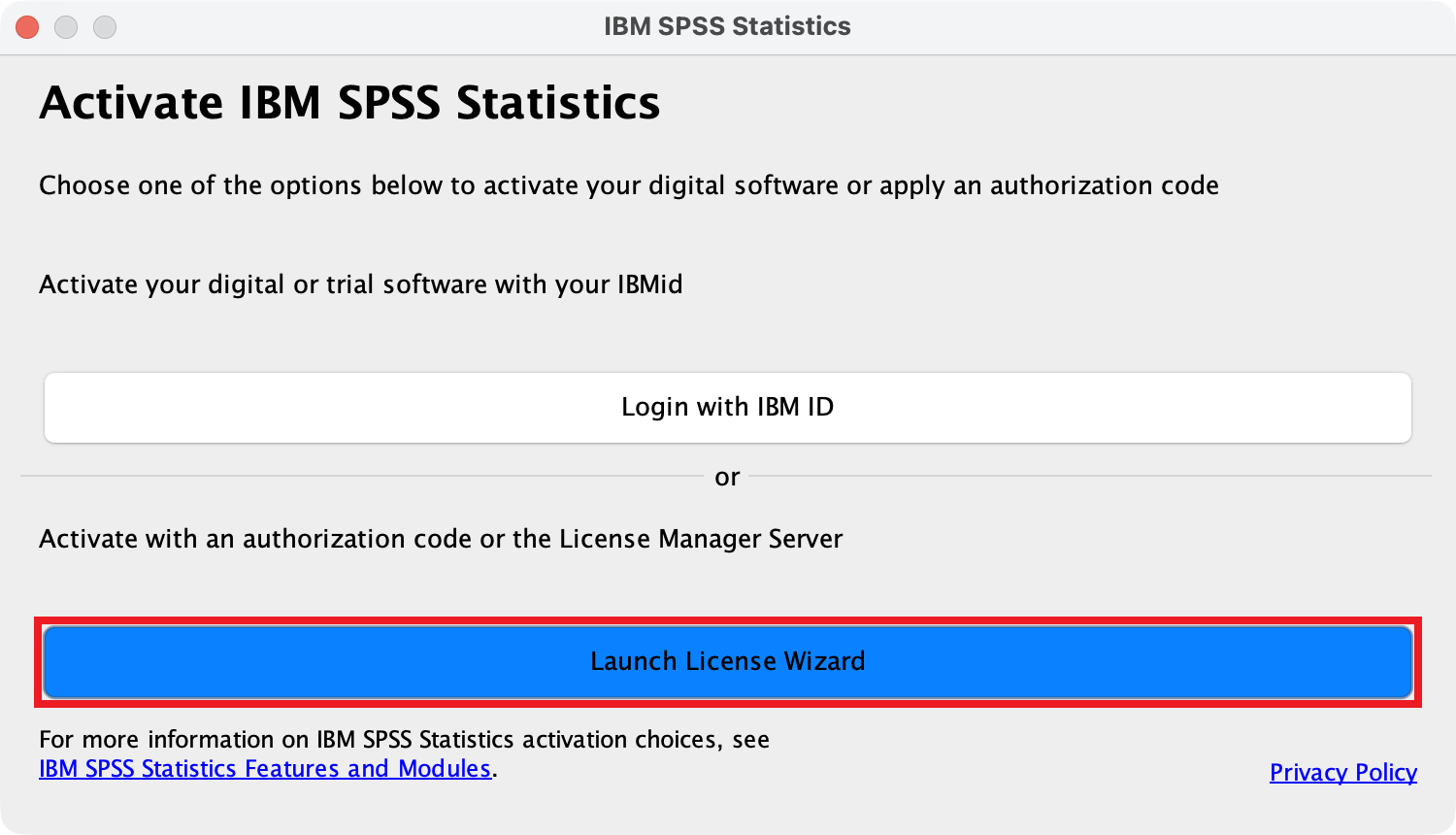 | 4.1. Activate IBM SPSS Statistics: * If the Activate IBM SPSS Statistics window appears, click Launch License Wizard. |
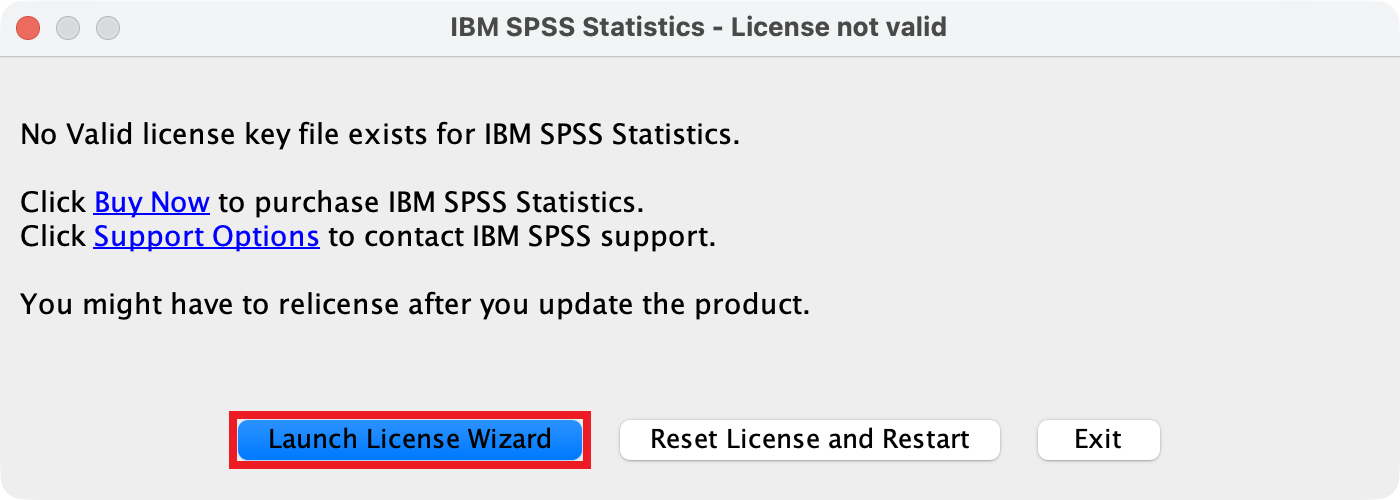 | 4.2. License not valid: * If the License not valid window appears, click Launch License Wizard. |
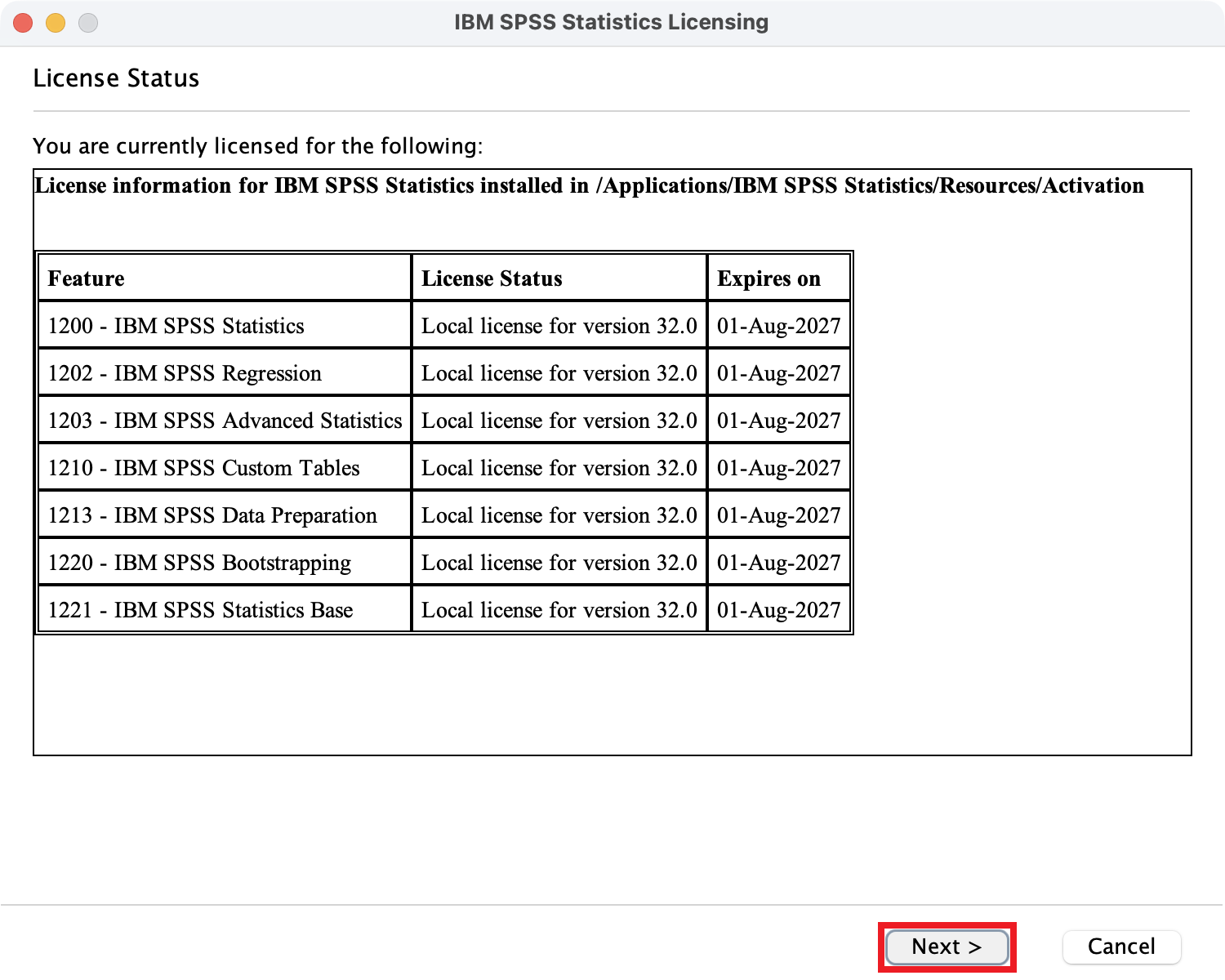 | 4.3. License Status: * If the License Status window appears, click Next. |
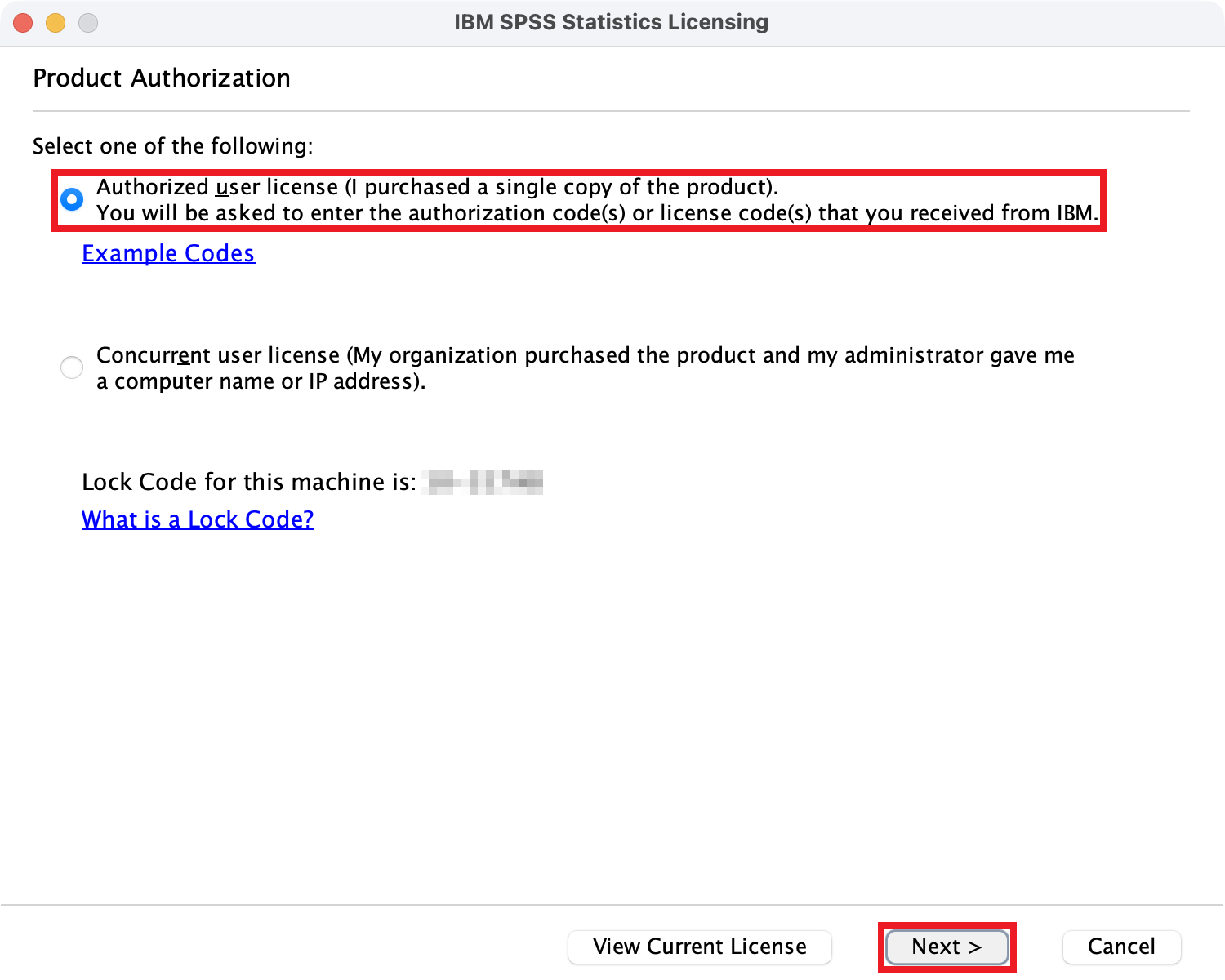 | 4.4. Product Authorization: * Select Authorized user license. * Click Next. |
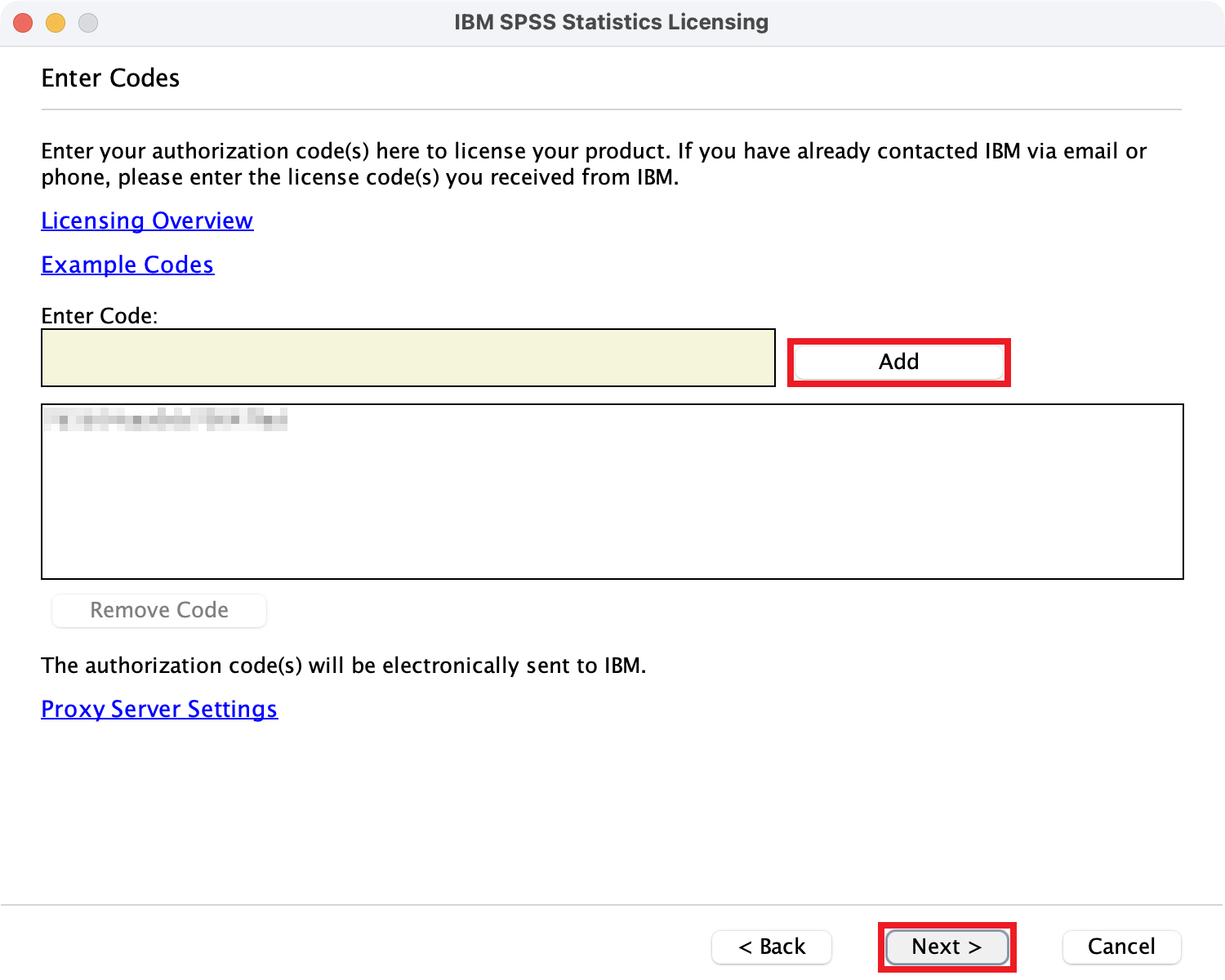 | 4.5. Enter Codes: * Copy and paste your 20-character authorization code from the email notification to the Enter Code field. * Click Add. * Click Next. |
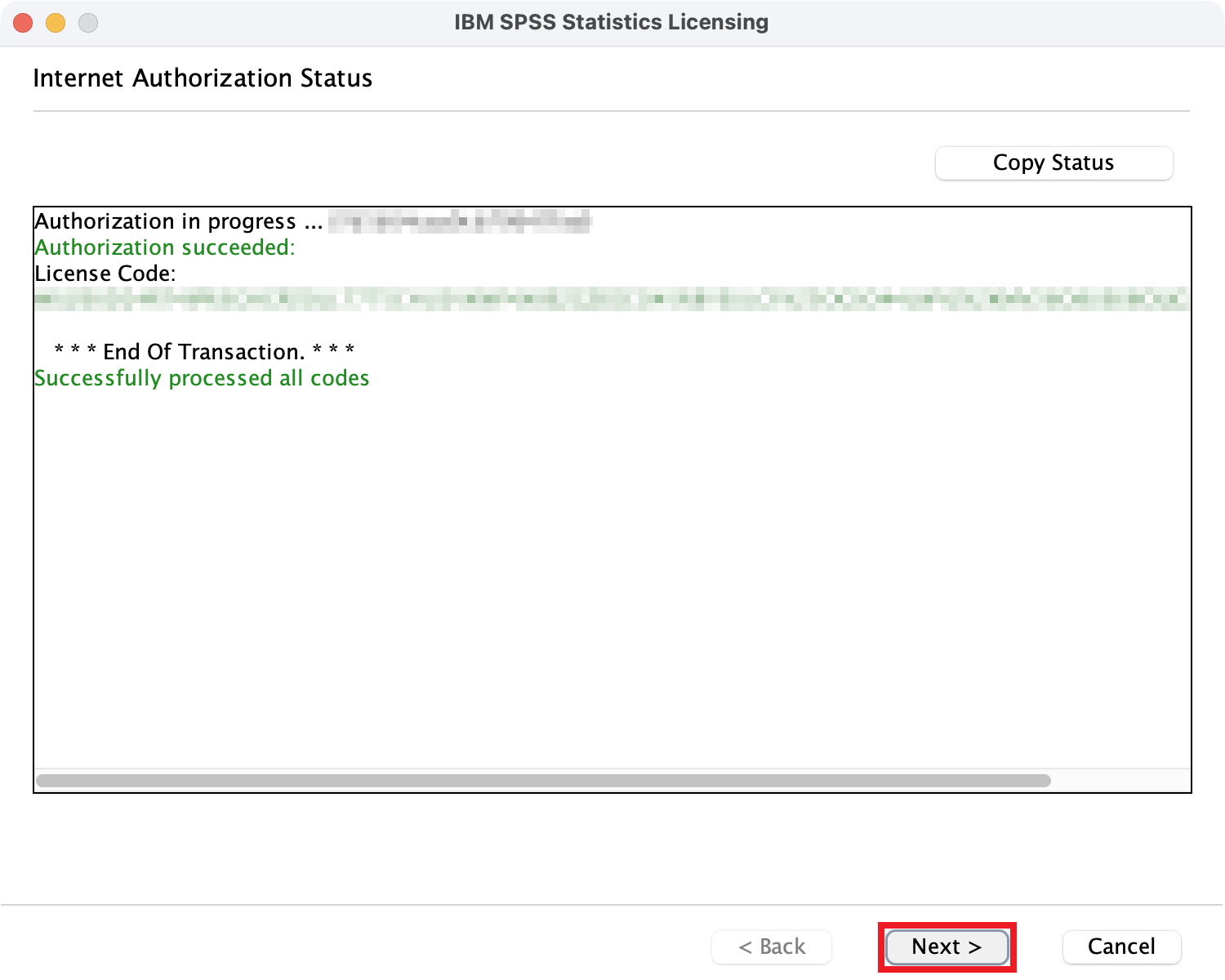 | 4.6. Internet Authorization Status: * Upon successful authorization, click Next. |
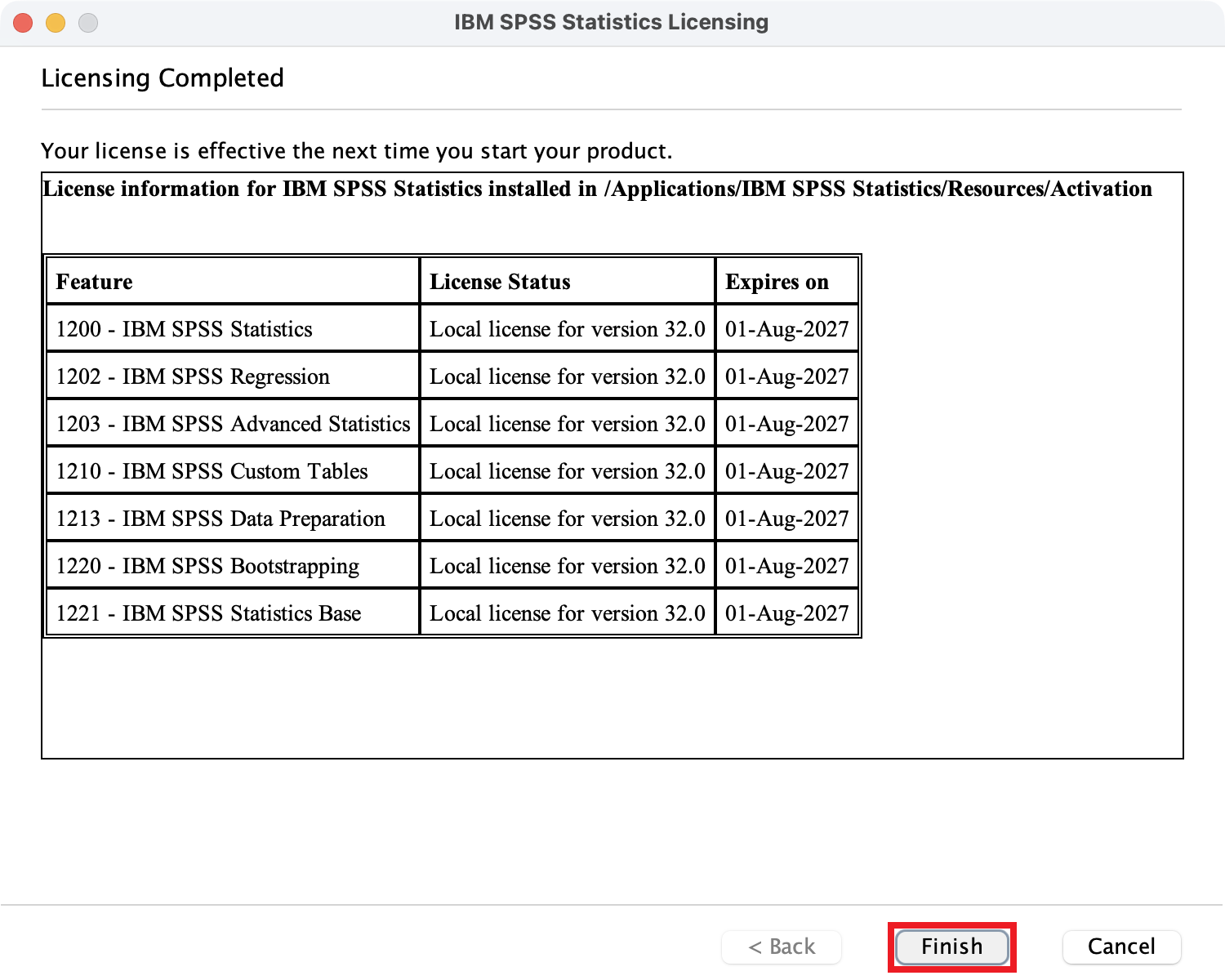 | 4.7. Licensing Completed: * Click Finish. |
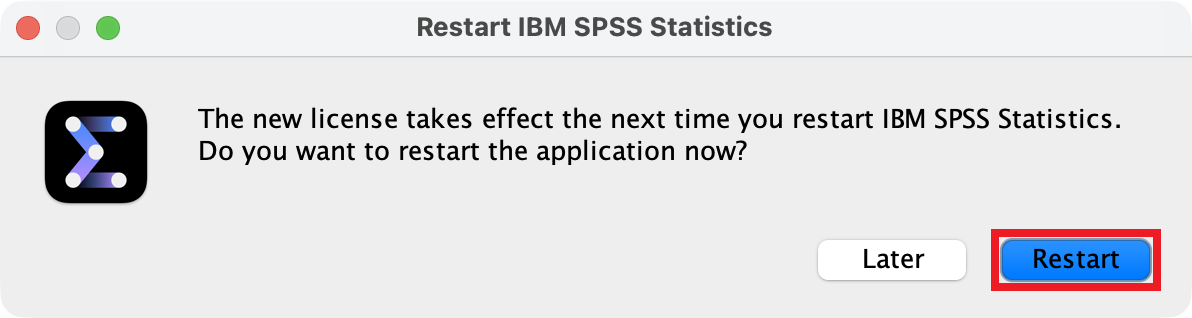 | 4.8. Restart IBM SPSS Statistics: * Click Restart. |
SPSS Statistics for Windows
| These instructions apply to SPSS Statistics 32 for Windows. | |
| 1. Request SPSS Statistics for Windows: * Click SalukiTech Software Request to request SPSS Statistics for Windows. * Upon email notification of the authorization code, proceed below. | |
| 2. Download SPSS Statistics Installer for Windows: * Click SPSSStatistics_32.0_WIN.exe to download. * Optional: Compare SHA-256 hash to verify successful download. c699b367721fff3d869aba32433c1e2629c942087099a37388d7120314d9cd32 | |
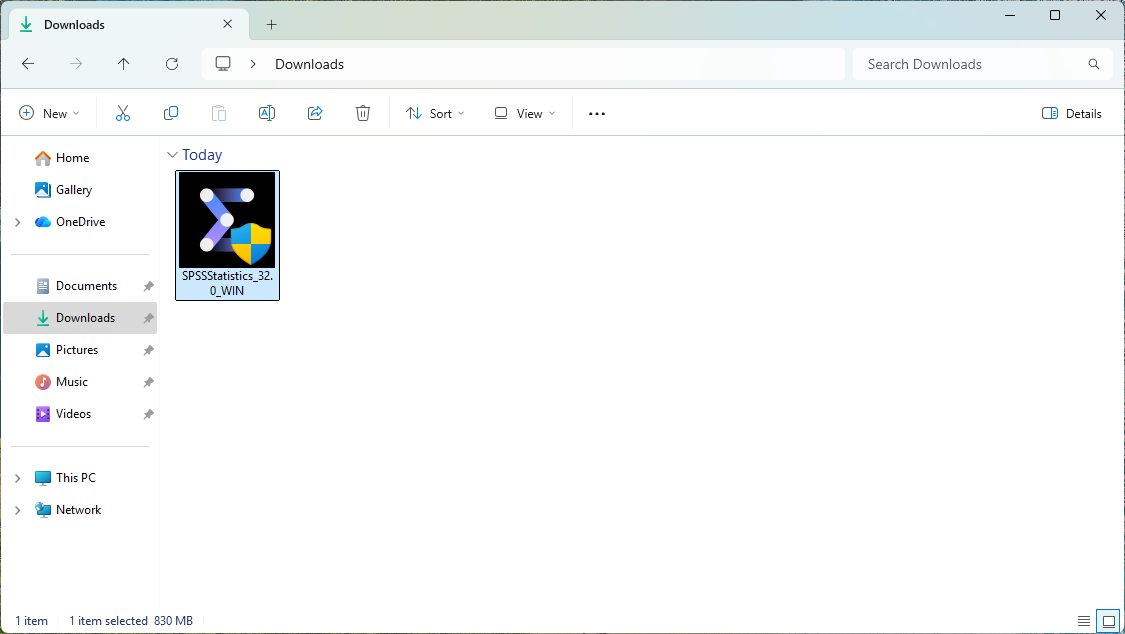 | 3. Install SPSS Statistics for Windows: * Open the downloaded installer and follow the installation prompts. |
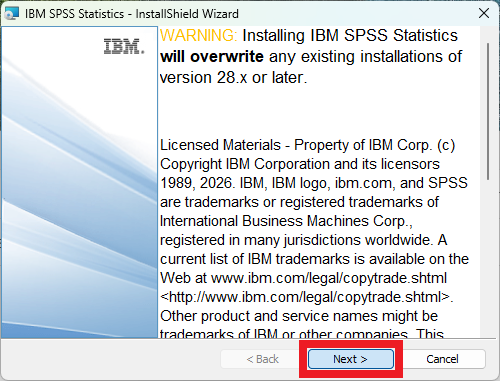 | 3.1. Copyright: * Click Next. |
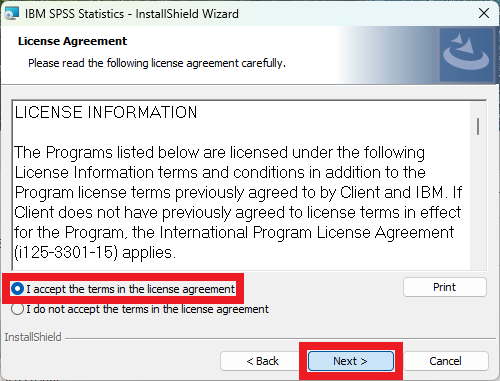 | 3.2. License Agreement: * Select I accept the terms in the license agreement. * Click Next. |
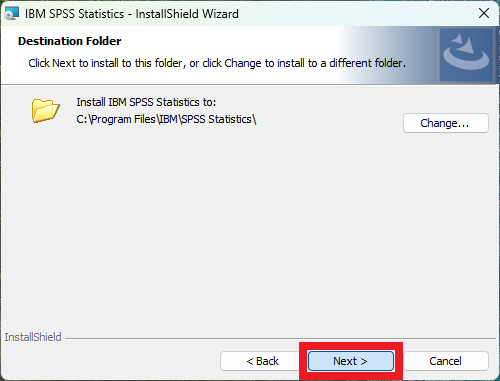 | 3.3. Destination Folder: * Click Next. |
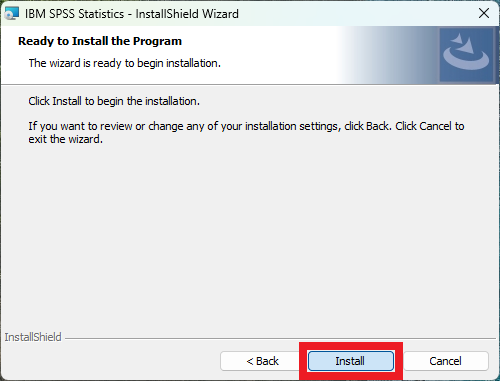 | 3.4. Ready to Install the Program: * Click Install. |
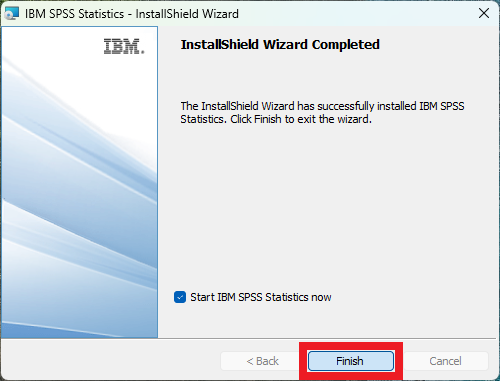 | 3.5. InstallShield Wizard Completed: * Click Finish. |
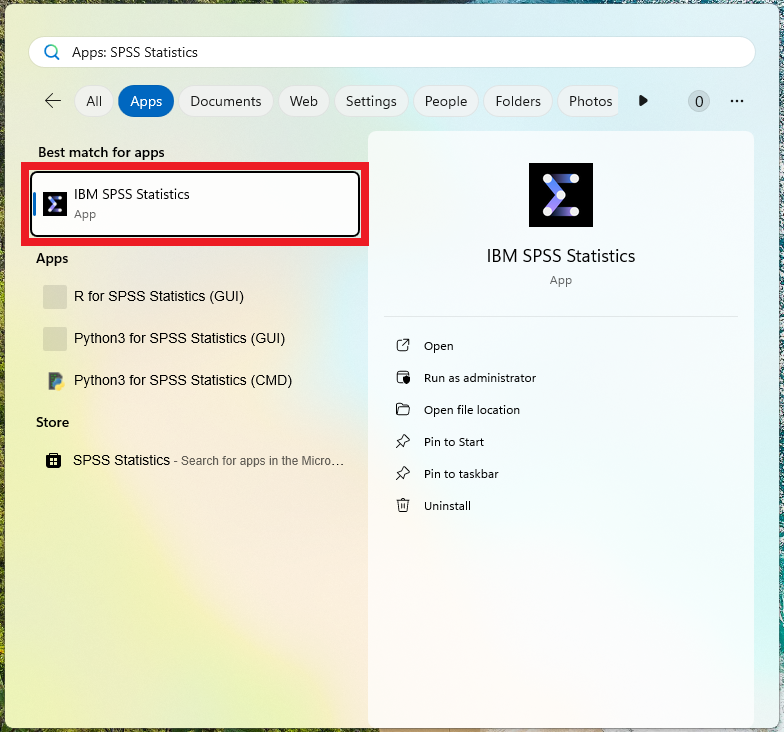 | 4. Activate SPSS Statistics for Windows License: * Open the SPSS Statistics app and follow the license activation prompts. |
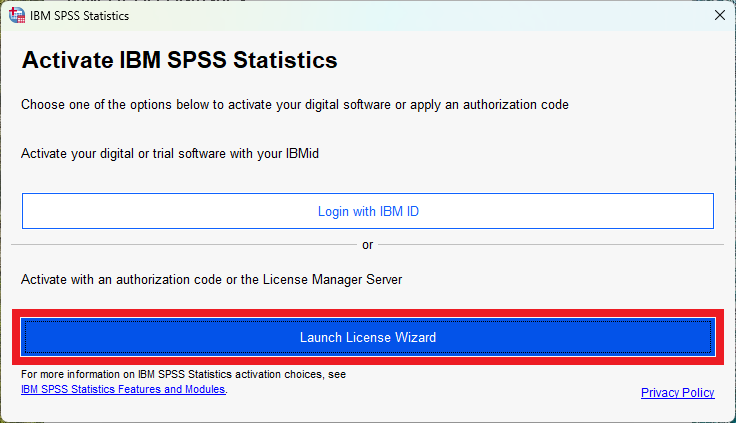 | 4.1. Activate IBM SPSS Statistics: * If the Activate IBM SPSS Statistics window appears, click Launch License Wizard. |
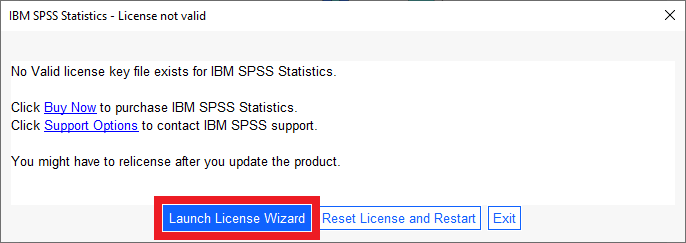 | 4.2. License not valid: * If the License not valid window appears, click Launch License Wizard. |
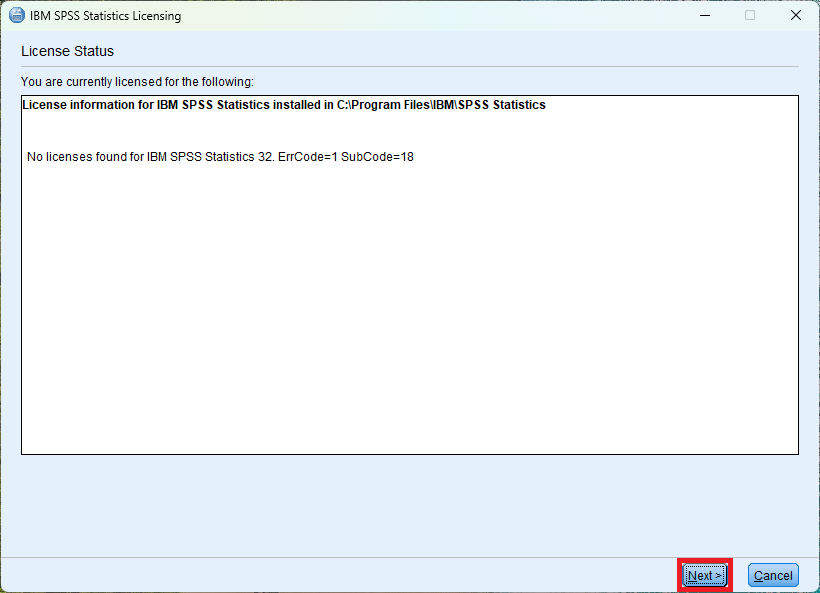 | 4.3. License Status: * If the License Status window appears, click Next. |
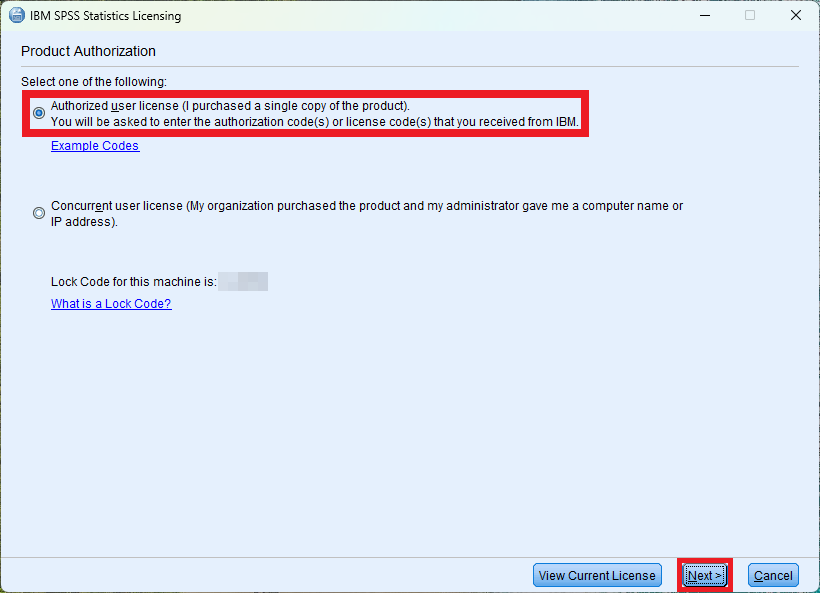 | 4.4. Product Authorization: * Select Authorized user license. * Click Next. |
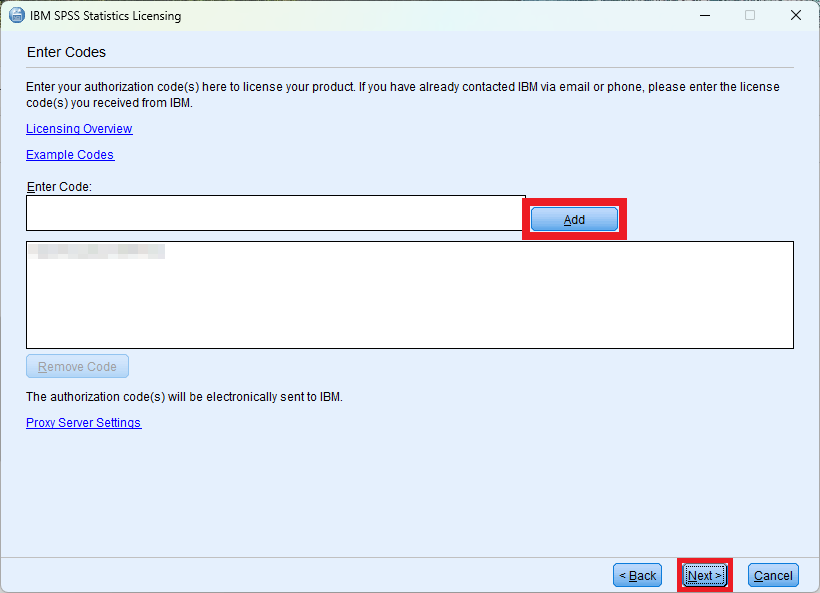 | 4.5. Enter Codes: * Copy and paste your 20-character authorization code to the Enter Code field. * Click Add. * Click Next. |
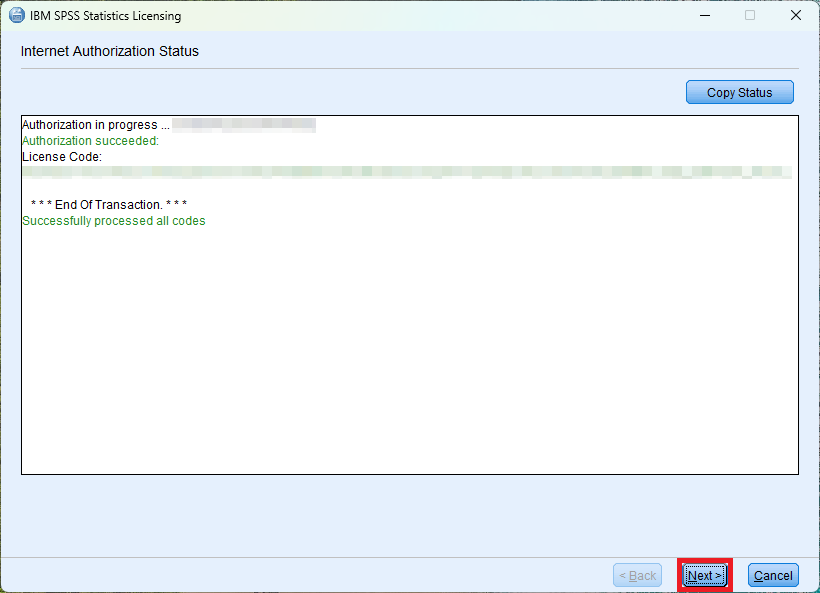 | 4.6. Internet Authorization Status: * Upon successful authorization, click Next. |
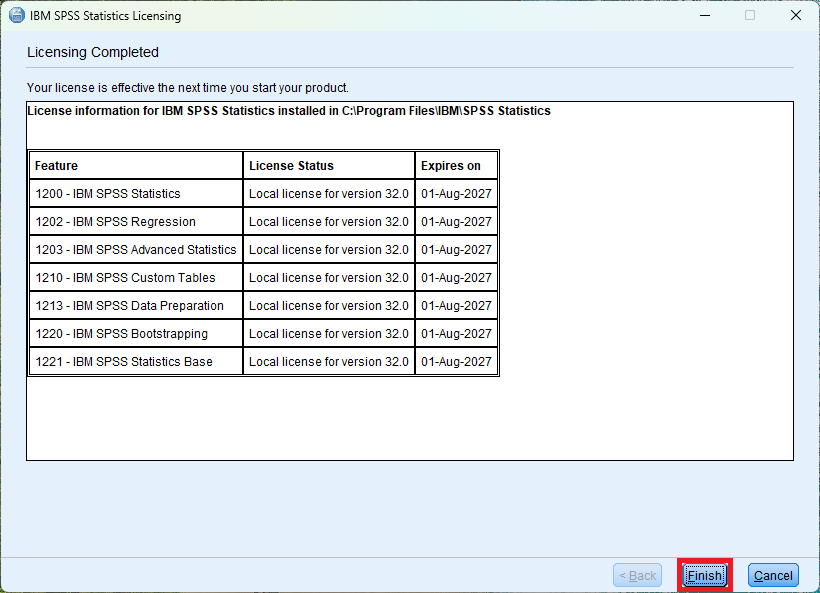 | 4.7. Licensing Completed: * Click Finish. |
Frequently Asked Questions (FAQ)
What is our SPSS Statistics license cycle?
Our SPSS Statistics license cycle is July 1st through June 30th the following year.
Which SPSS Statistics modules are included?
IBM SPSS Statistics Standard includes the following modules. Additional modules and add-ons require a separate purchase.
- Statistics Base
- Data Preparation
- Bootstrapping
- Advanced Statistics
- Regression
- Custom Tables
What are the SPSS Statistics system requirements?
SPSS Statistics Desktop is available for macOS and Windows only. Sign in a virtual desktop like Statistical Analysis to access SPSS Statistics from Android, Chrome, iOS, or Linux.
* SPSS Statistics Desktop System Requirements
* Access Virtual Desktop Infrastructure (VDI) from a Personal Device