
Browse Our Knowledge Base
Install SPSS Statistics on Your Personal Computer
Overview
Use these instructions to install SPSS Statistics on your personal computer. SPSS Statistics is available for Mac and Windows. SPSS Statistics is not available for Android, ChromeOS, iOS, or Linux.
SPSS Statistics must be re-installed with a new authorization code each year. New codes are not compatible with old SPSS Statistics versions from previous years. The current license cycle is from 7/1/2026 until 7/30/2027.
SPSS Statistics for Mac
| These instructions apply to SPSS Statistics 32 for Mac. | |
| 1. Request SPSS Statistics: * Click SalukiTech Software Request to request SPSS Statistics. * Upon email notification of the authorization code, proceed below. | |
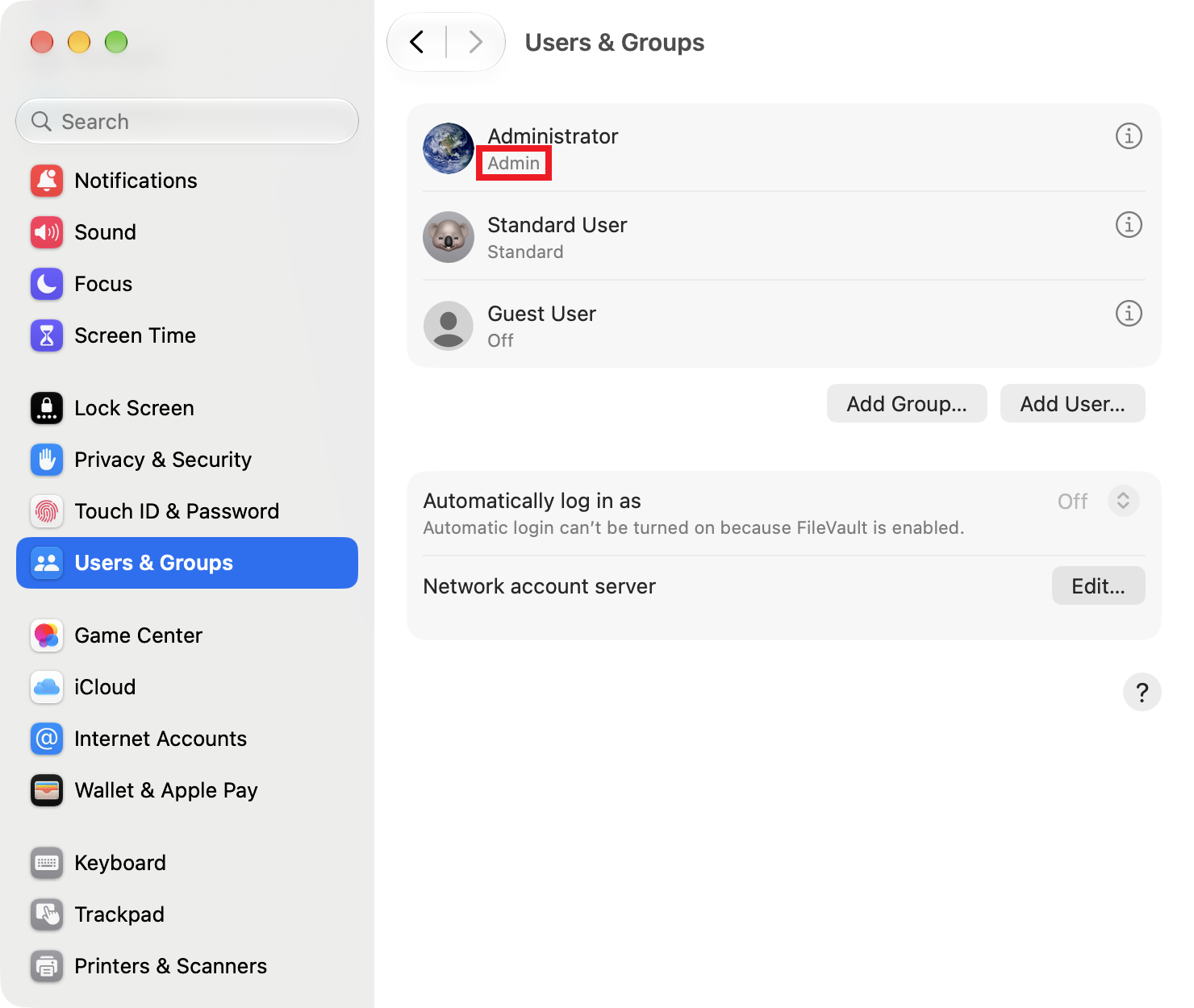 | 2. Sign in Administrator Account: * Sign in the computer with an administrator account during SPSS Statistics installation and license activation. To verify, open System Settings, select Users & Groups, and note the Admin label under your account name. |
| 3. Download SPSS Statistics Installer: * Click SPSSStatistics_32.0_MAC.pkg to download. If download fails, try again from another web browser. * Optional: Compare the SHA-256 hash to verify successful download. 6119d1eaa0321a96e476f4270b7a36807ab3a0f5c1bf1b9d23c9ef876e975f9f | |
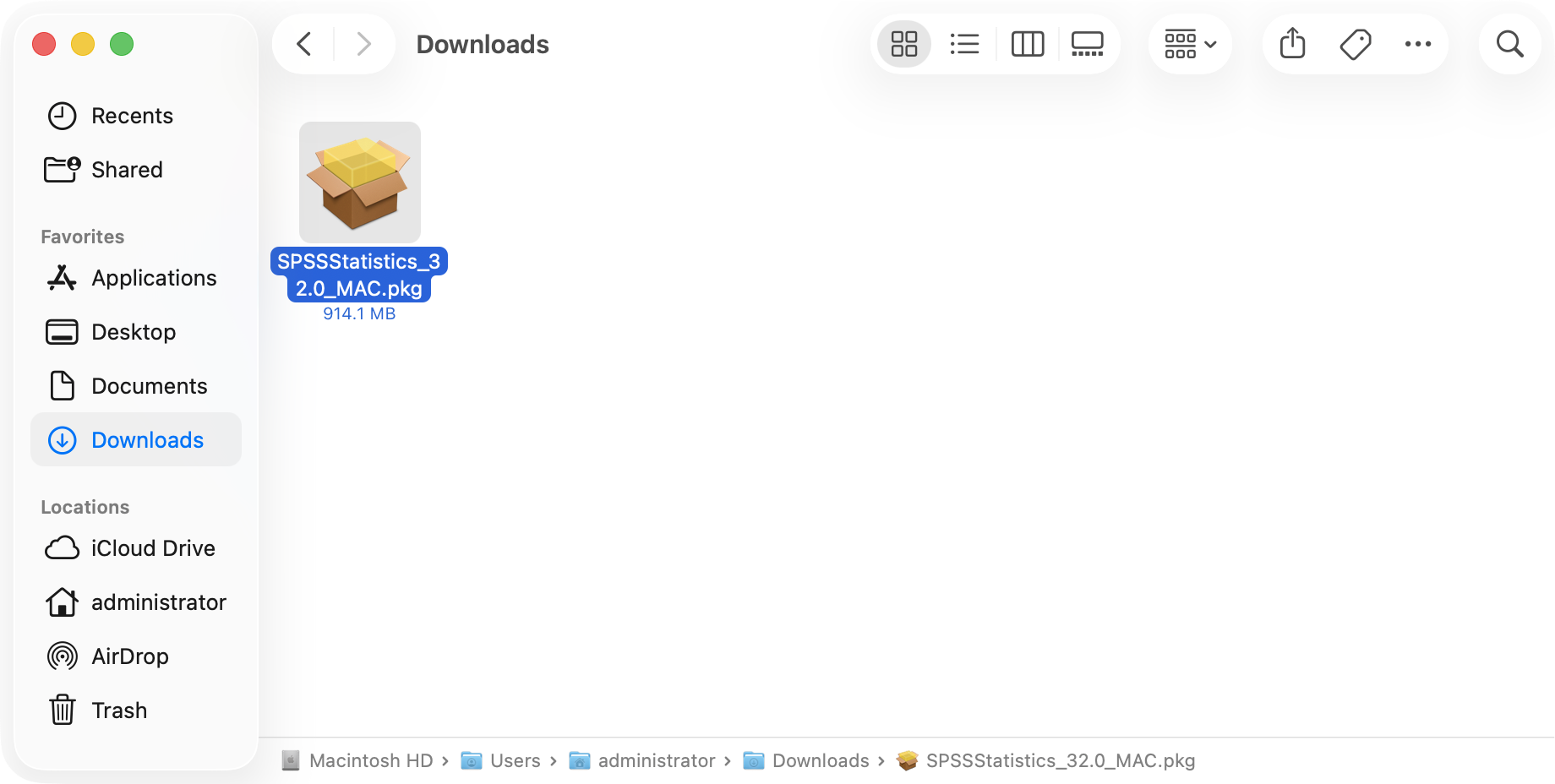 | 4. Open SPSS Statistics Installer: * Open the downloaded installer and follow the installation prompts. |
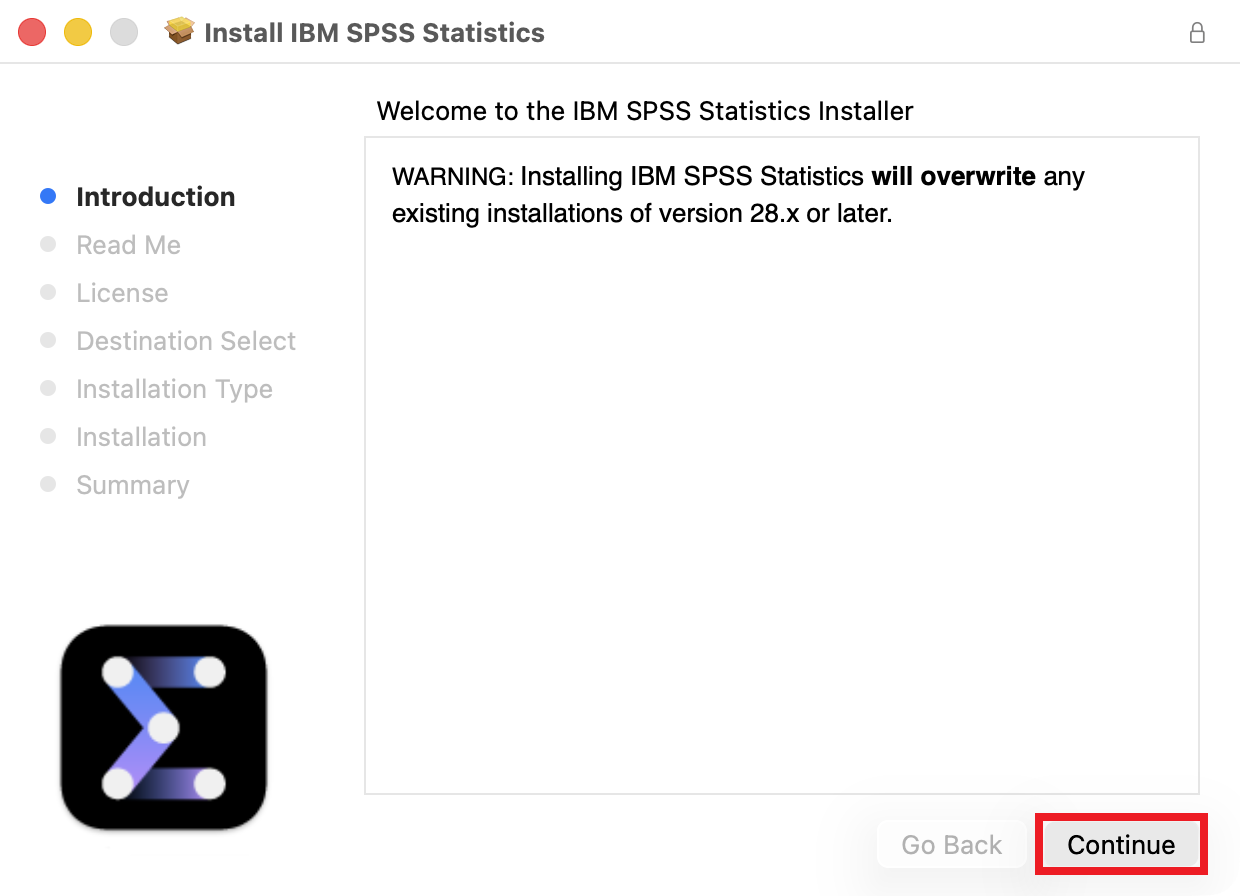 | 5. Welcome to the IBM SPSS Statistics Installer: * Click Continue. |
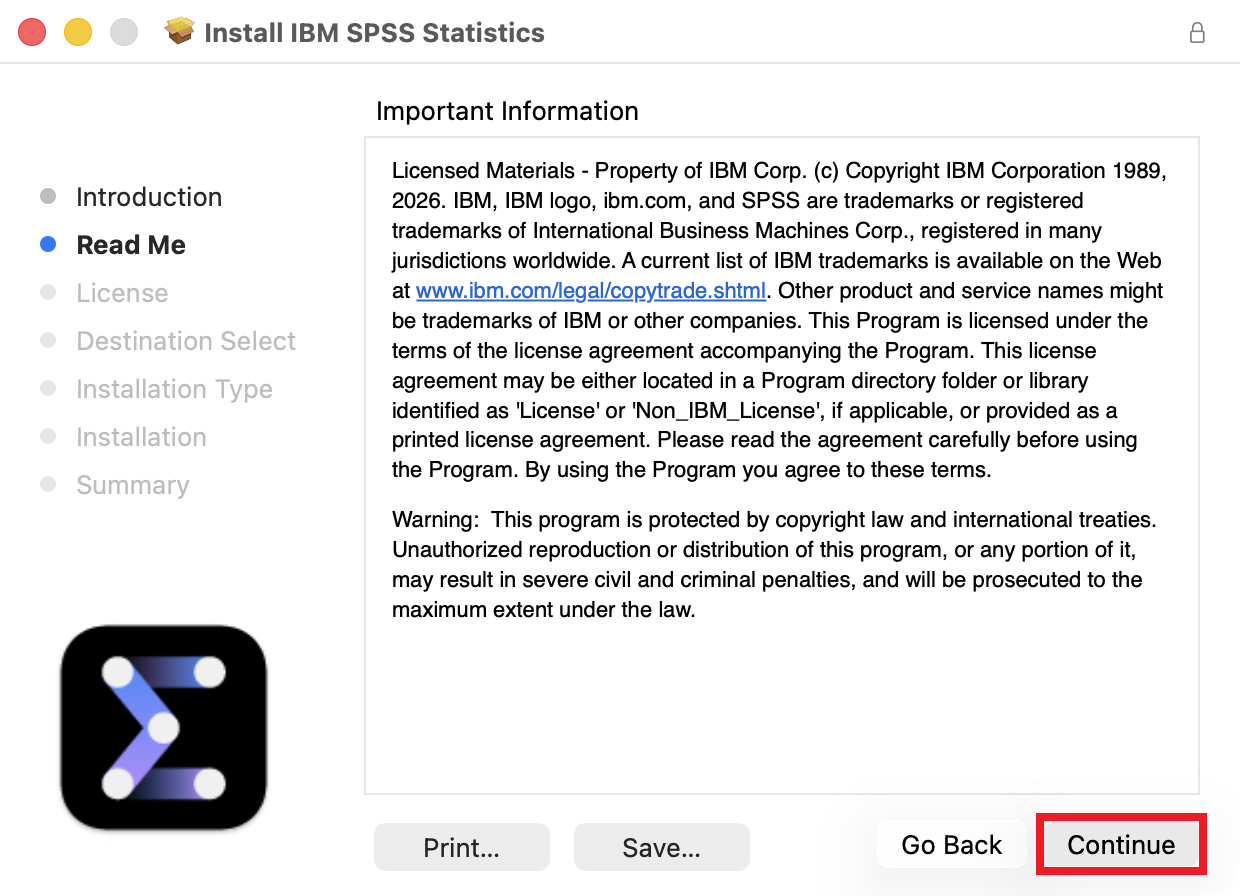 | 6. Important Information: * Click Continue. |
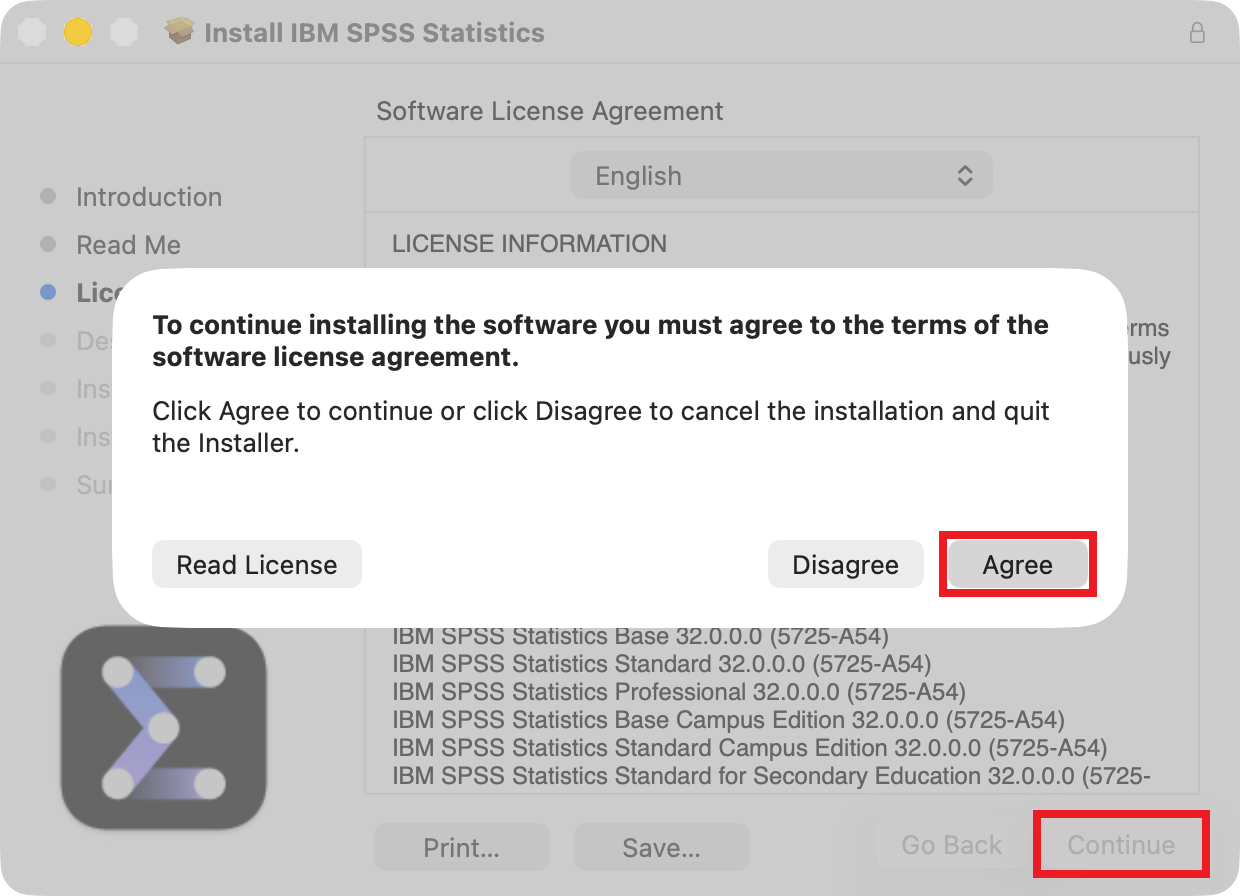 | 7. Software License Agreement: * Click Continue. * Click Agree. |
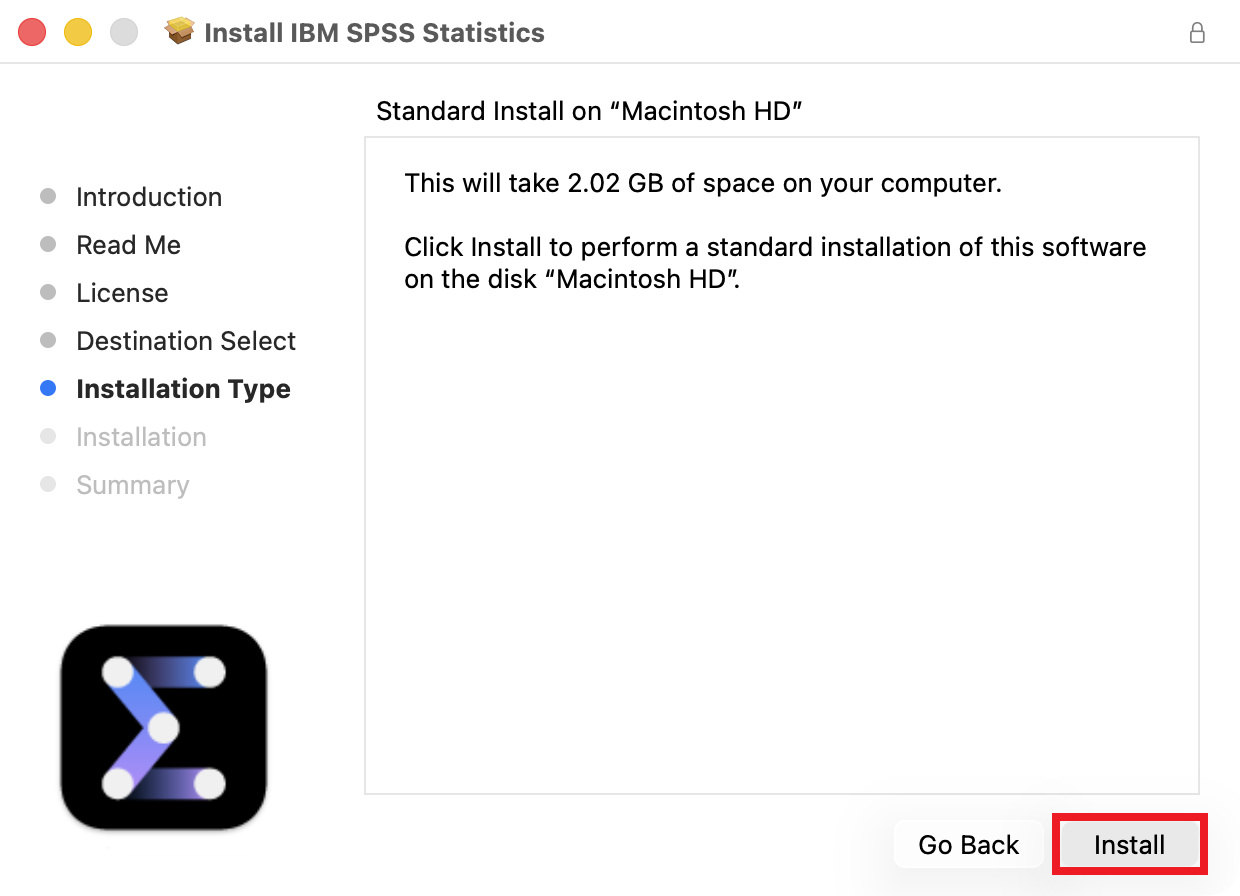 | 8. Standard Install: * Click Install. |
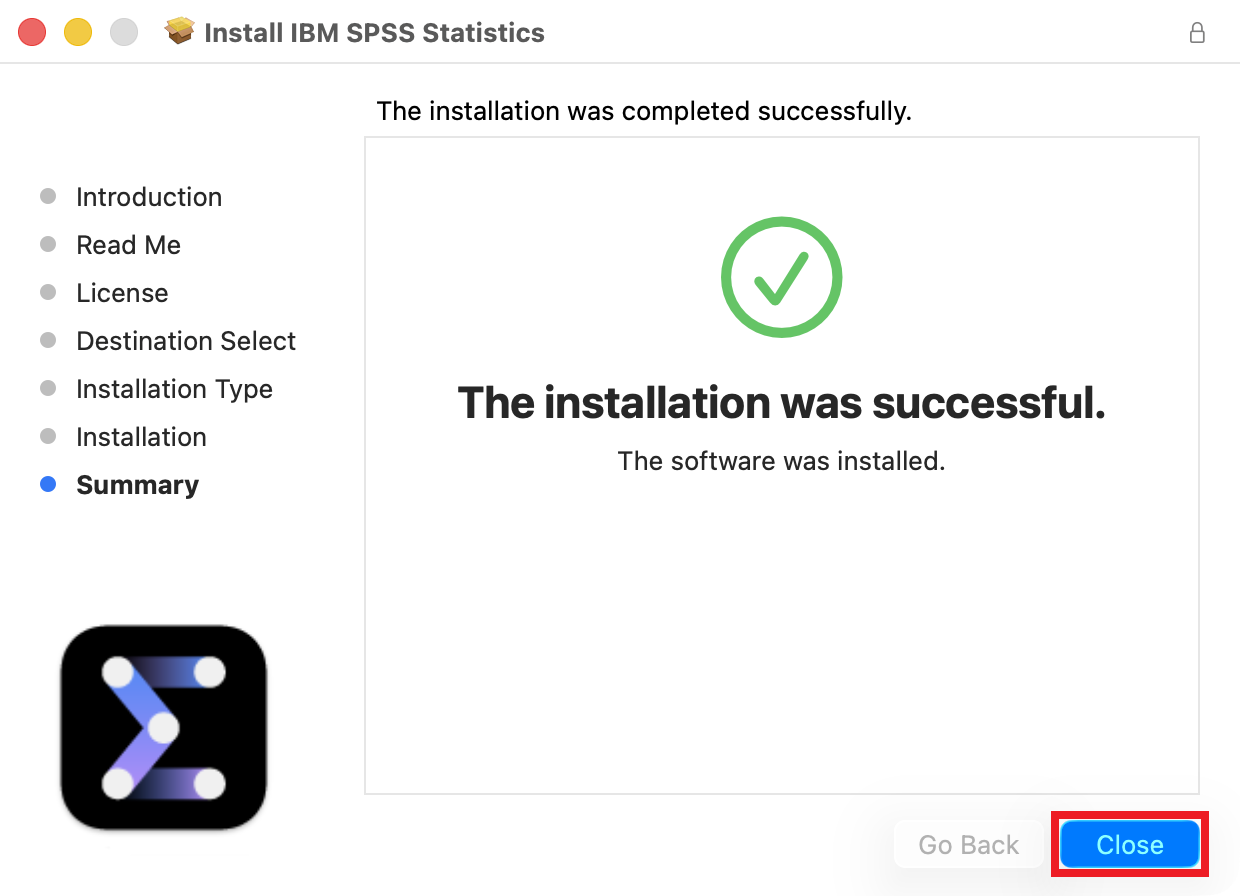 | 9. The installation was completed successfully: * Click Close. |
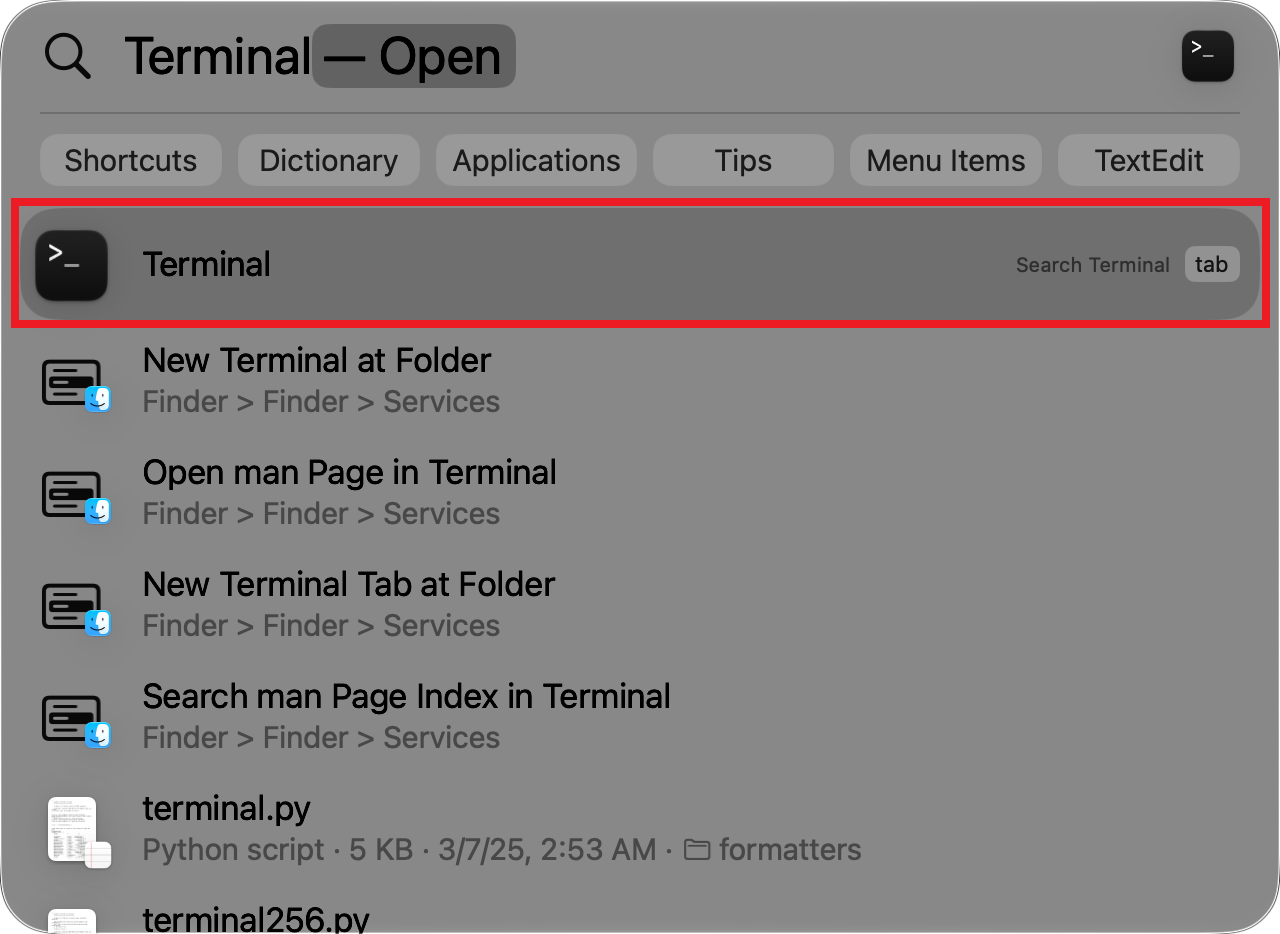 | 10. Open Terminal * Open Spotlight or press Command-Space. * Type Terminal in the search bar. * Double-click Terminal in the search results. |
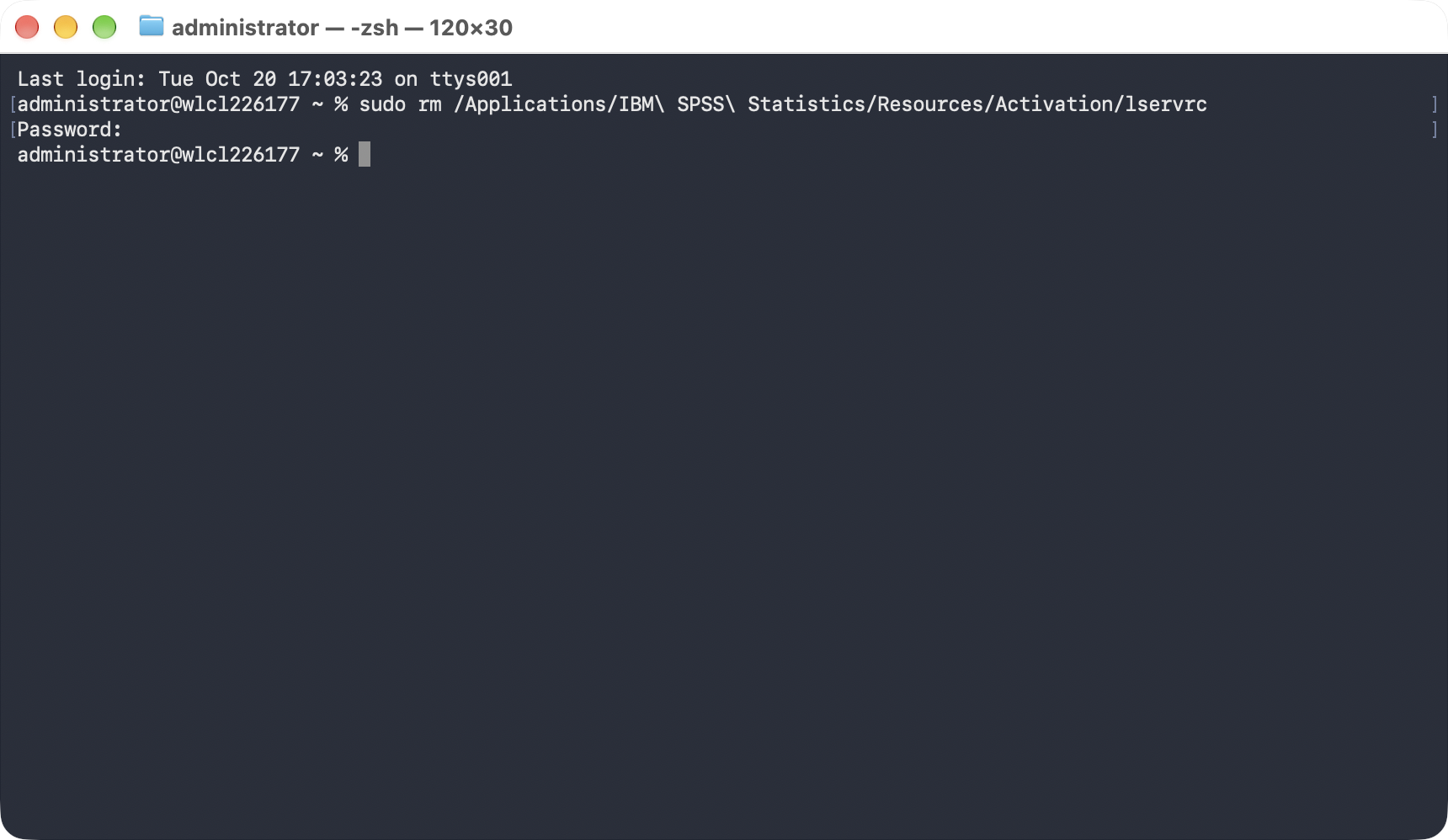 | 11. Enter Terminal Command #1 * Copy/paste the following command to the Terminal window and press Enter. You may be prompted to enter your computer password. sudo rm /Applications/IBM\ SPSS\ Statistics/Resources/Activation/lservrc |
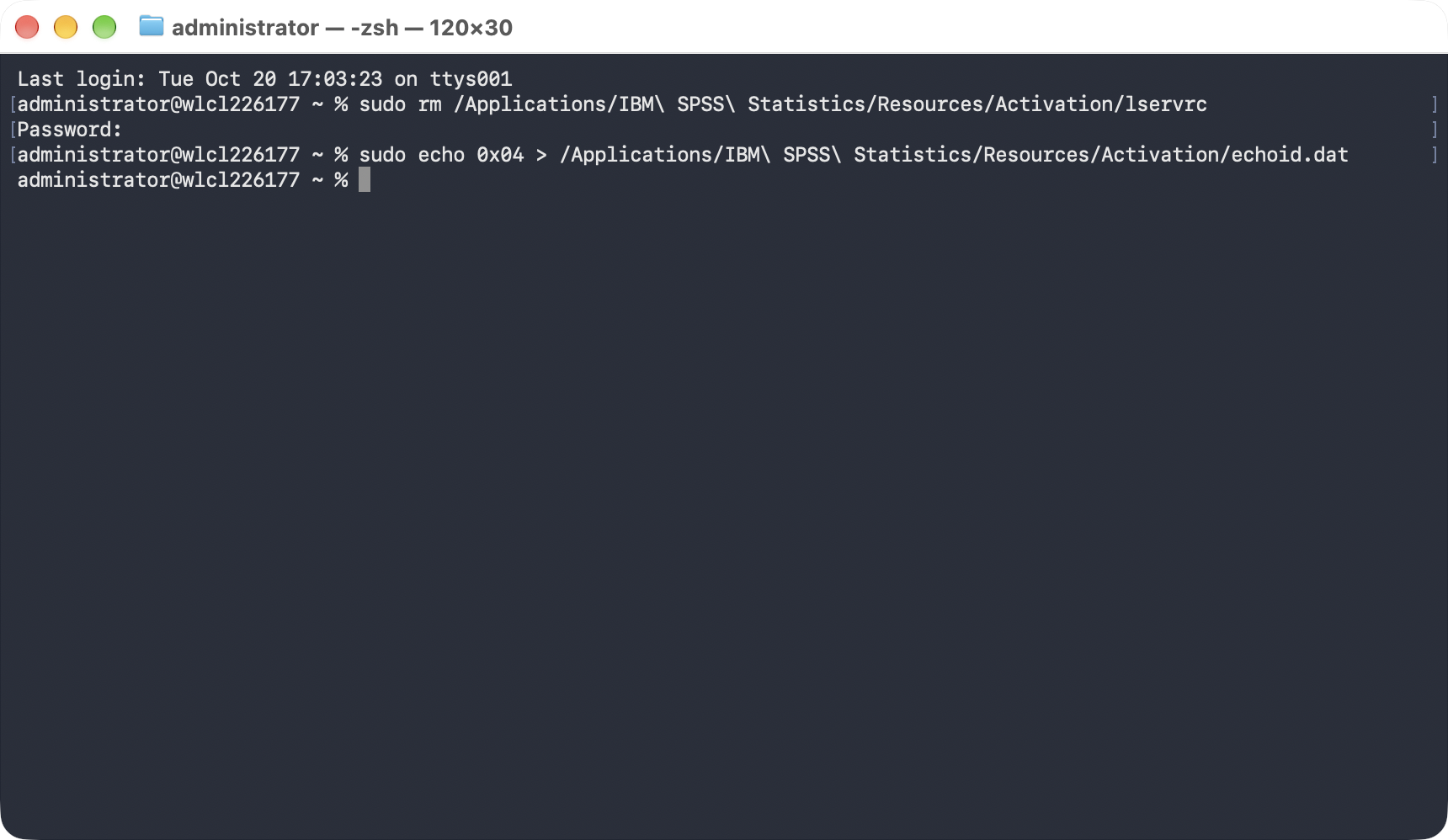 | 12. Enter Terminal Command #2 * Copy/paste the following command to the Terminal window and press Enter. You may be prompted to enter your computer password. sudo echo 0x04 > /Applications/IBM\ SPSS\ Statistics/Resources/Activation/echoid.dat |
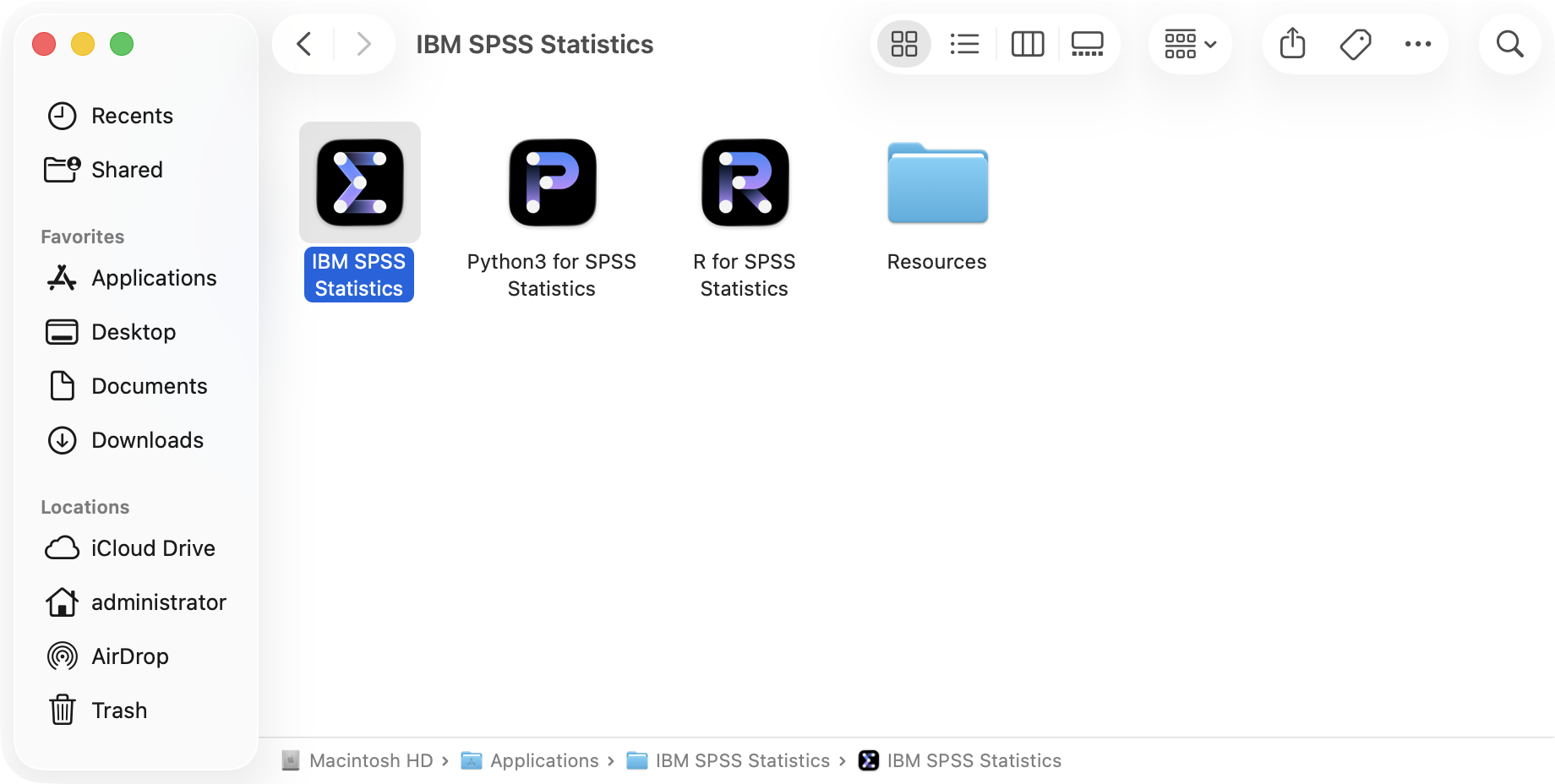 | 13. Activate SPSS Statistics: * Open the SPSS Statistics app and follow the license activation prompts. |
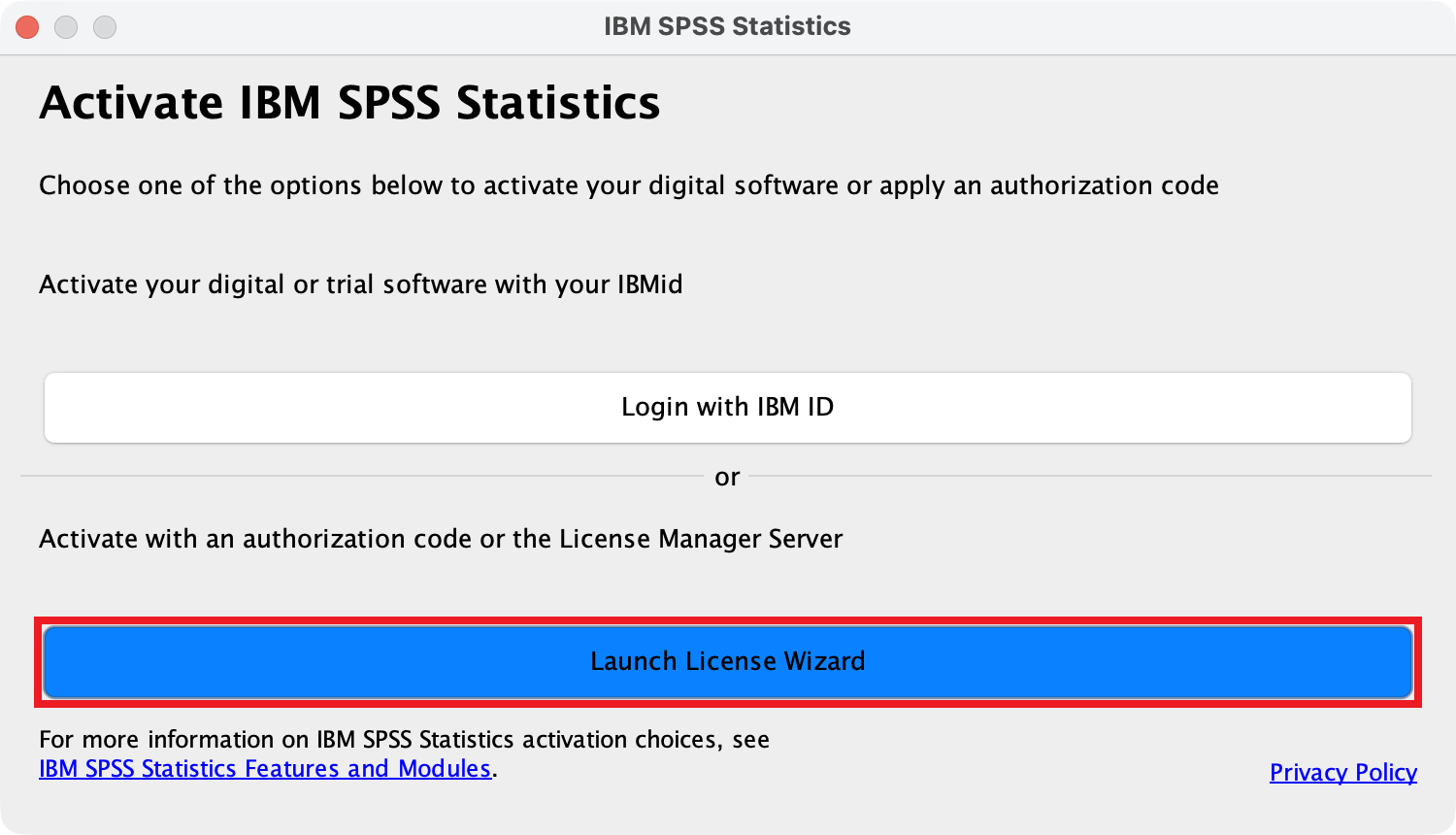 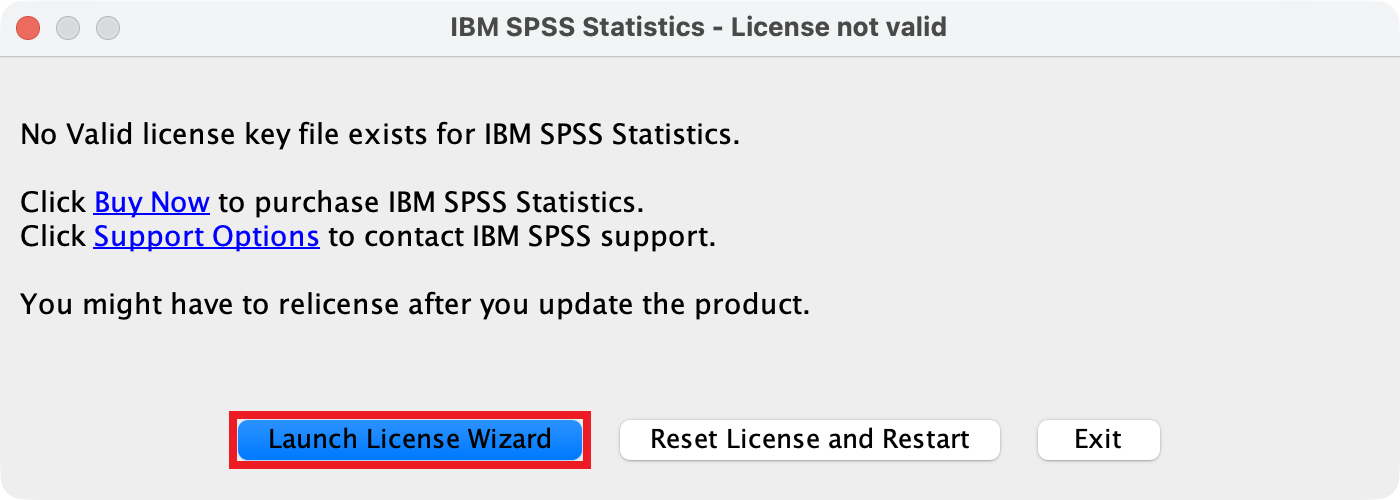 | 14. Activate IBM SPSS Statistics / License not valid: * If the Activate IBM SPSS Statistics or License not valid window appears, click Launch License Wizard. |
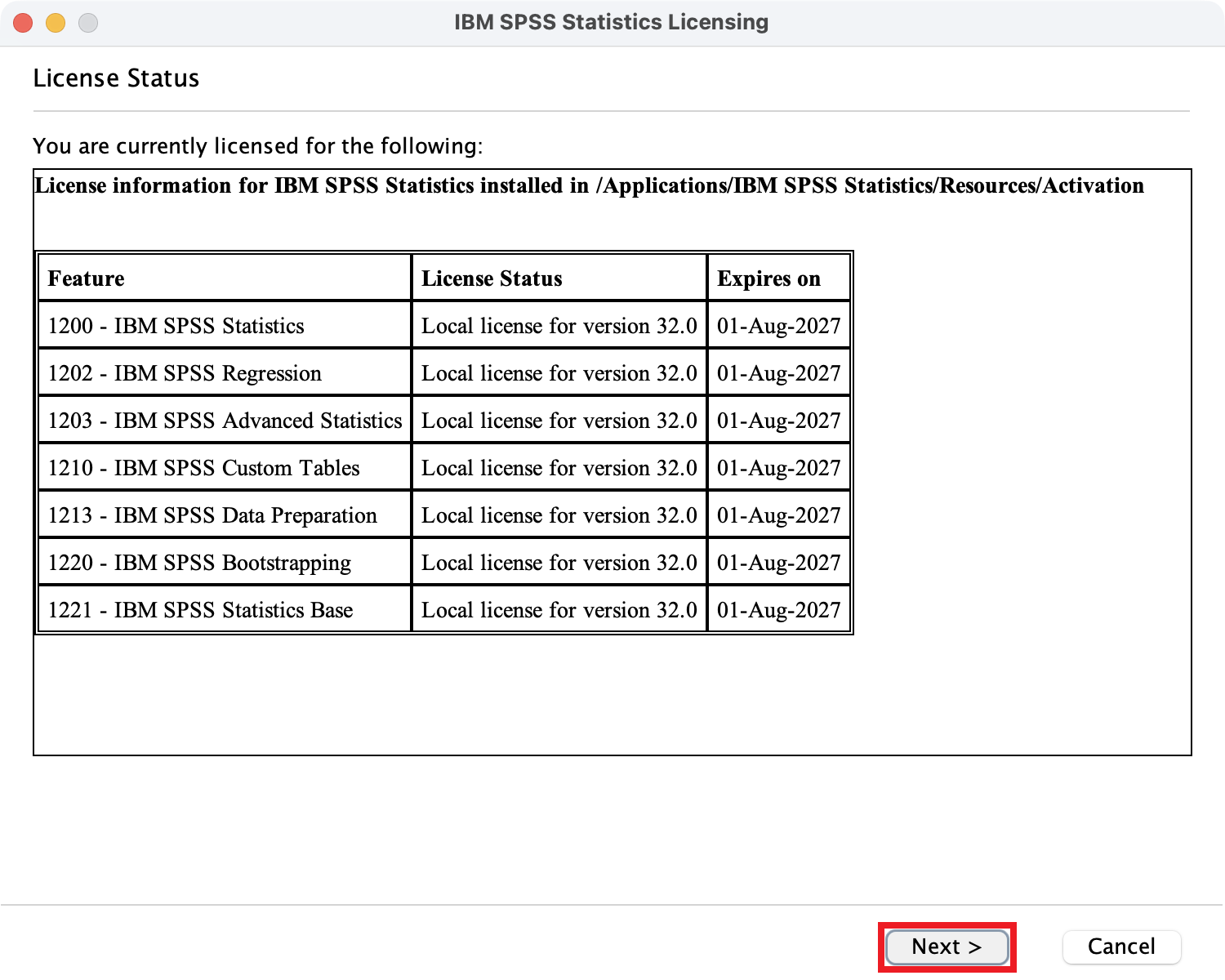 | 15. License Status: * If the License Status window appears, click Next. |
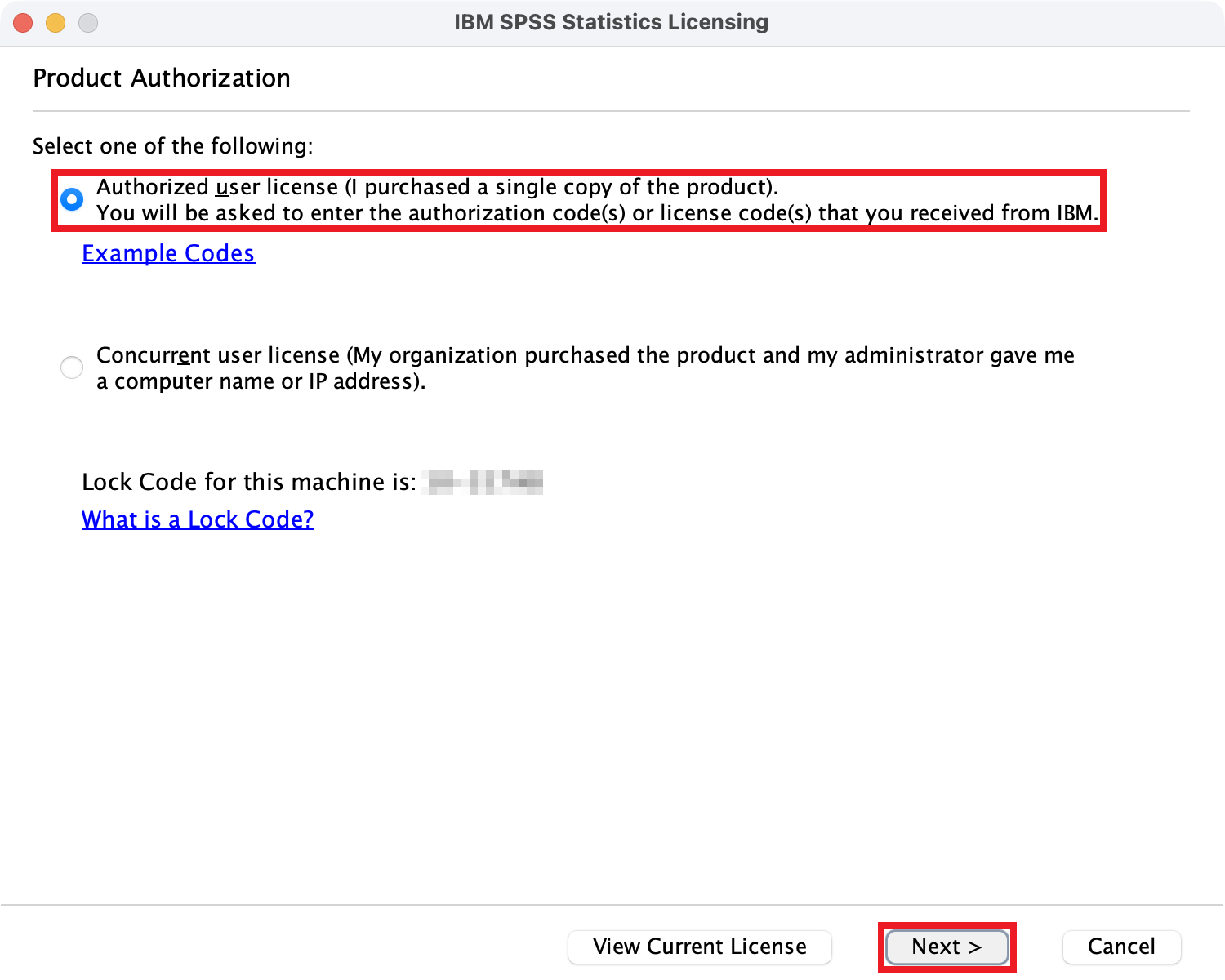 | 16. Product Authorization: * Select Authorized user license. * Click Next. |
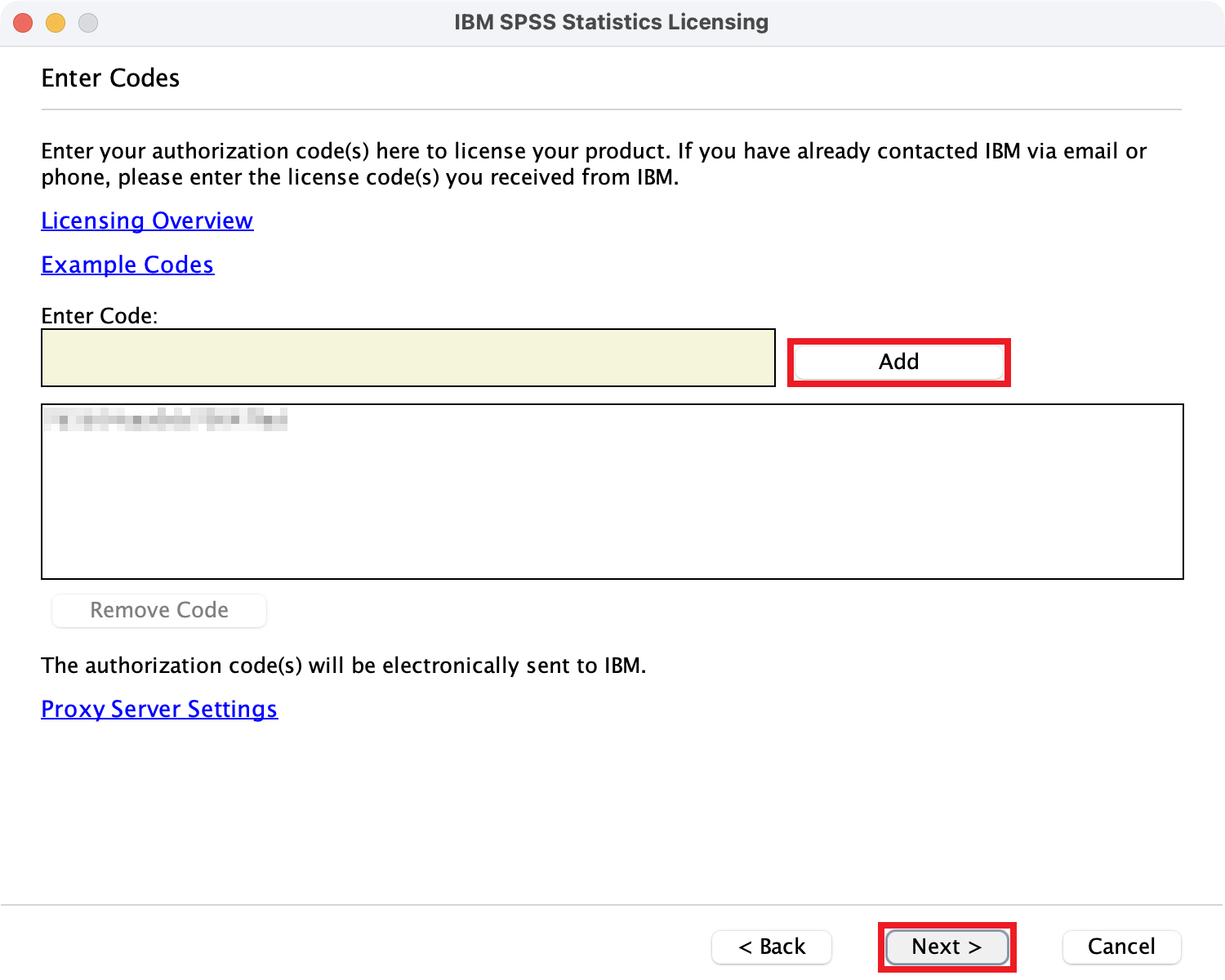 | 17. Enter Codes: * Copy and paste your 20-character authorization code from the email notification to the Enter Code field. * Click Add. * Click Next. |
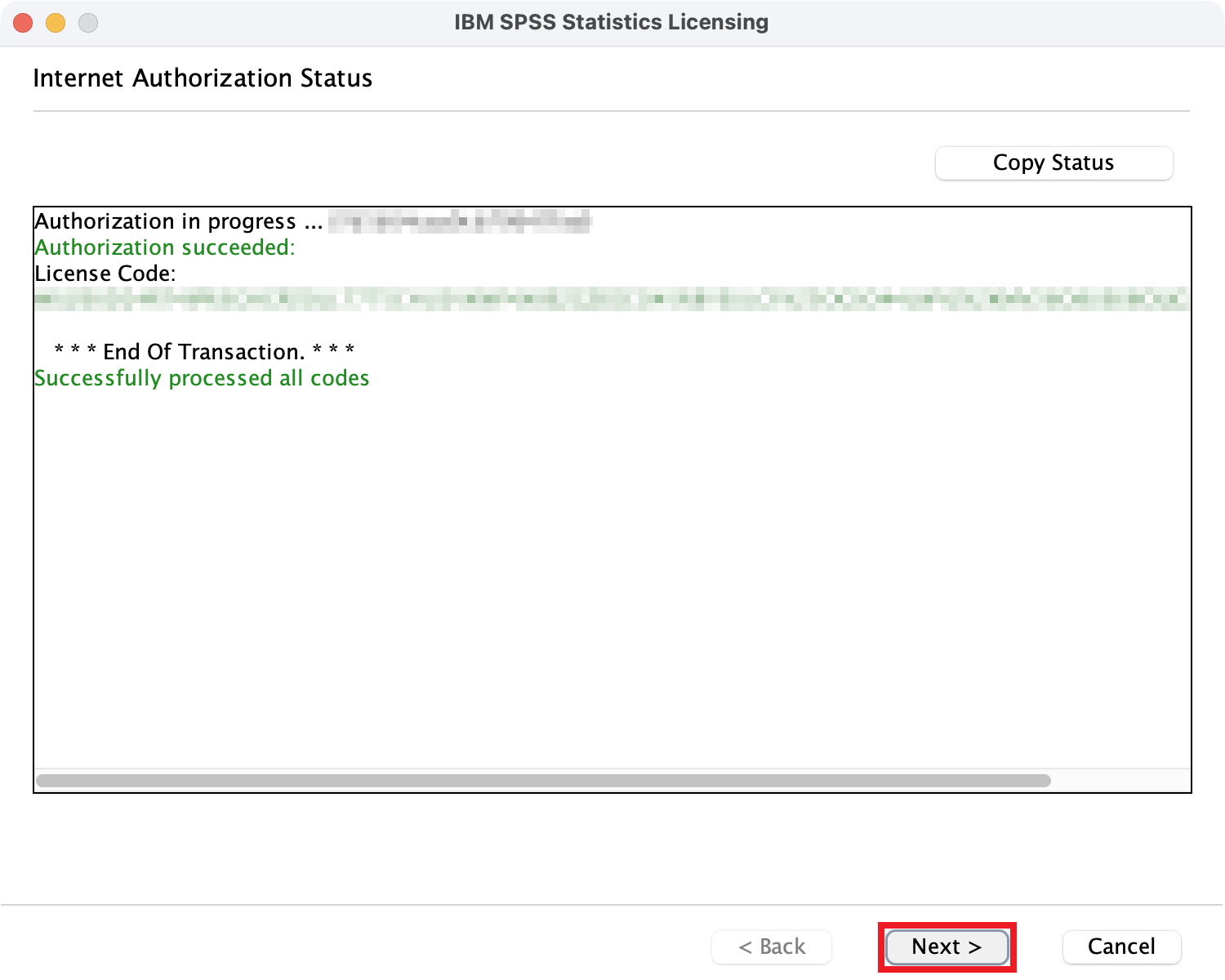 | 18. Internet Authorization Status: * Wait a few seconds. Upon successful authorization, click Next. |
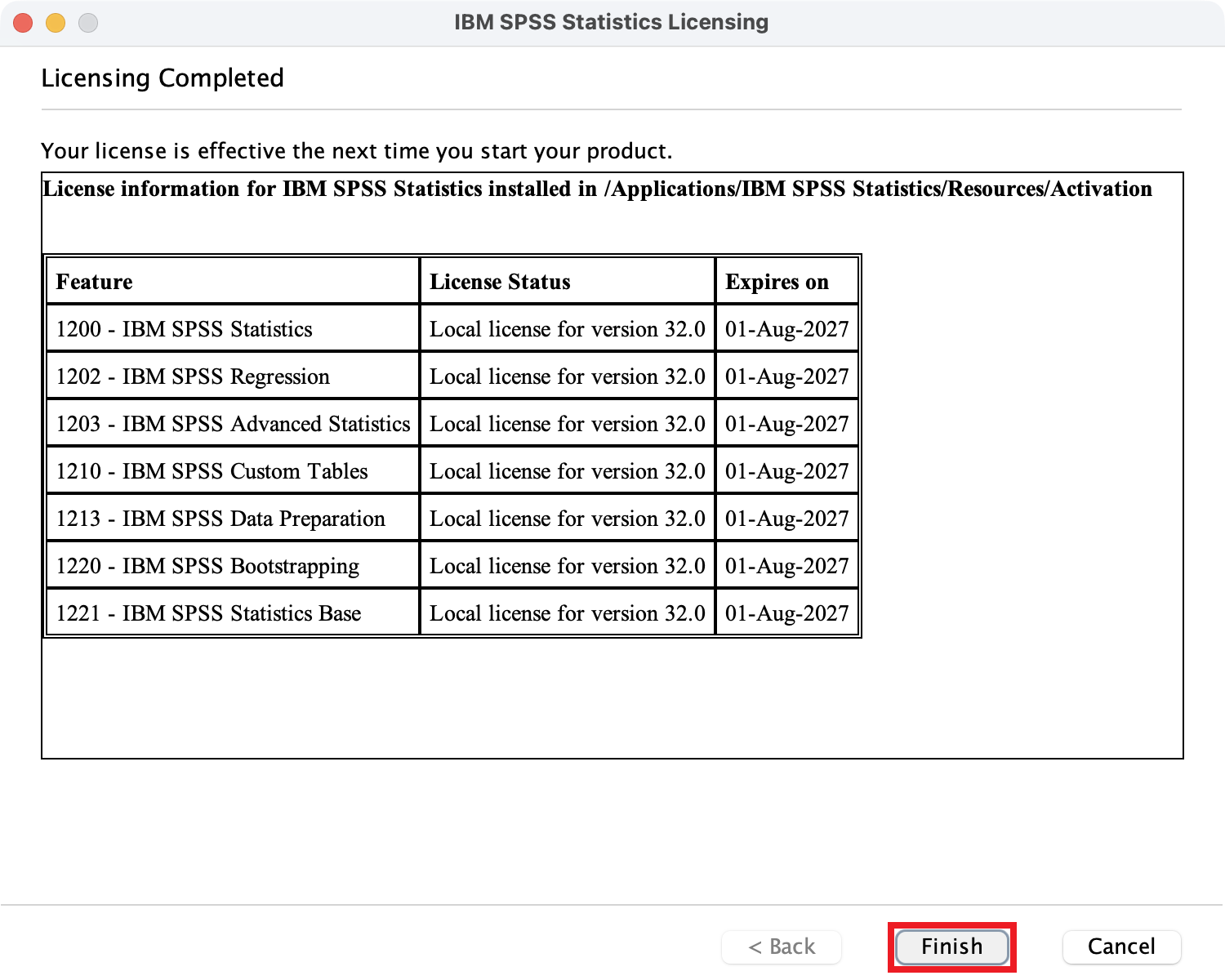 | 19. Licensing Completed: * Click Finish. |
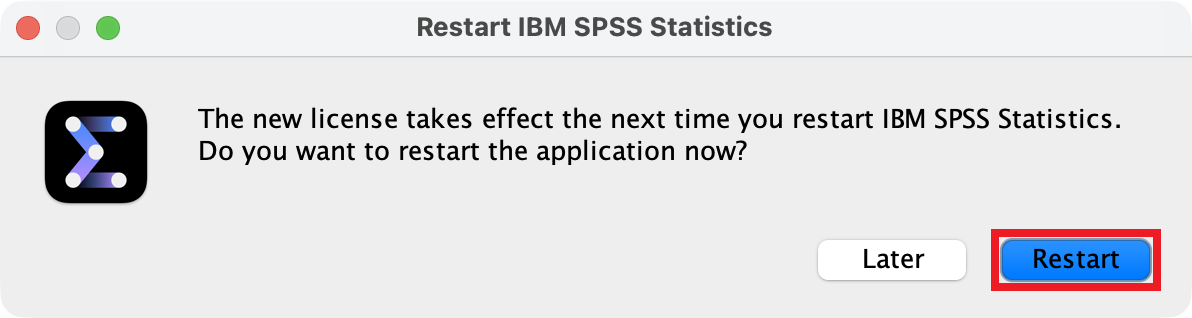 | 20. Restart IBM SPSS Statistics: * Click Restart. |
SPSS Statistics for Windows
| These instructions apply to SPSS Statistics 32 for Windows. | |
| 1. Request SPSS Statistics: * Click SalukiTech Software Request to request SPSS Statistics. * Upon email notification of the authorization code, proceed below. | |
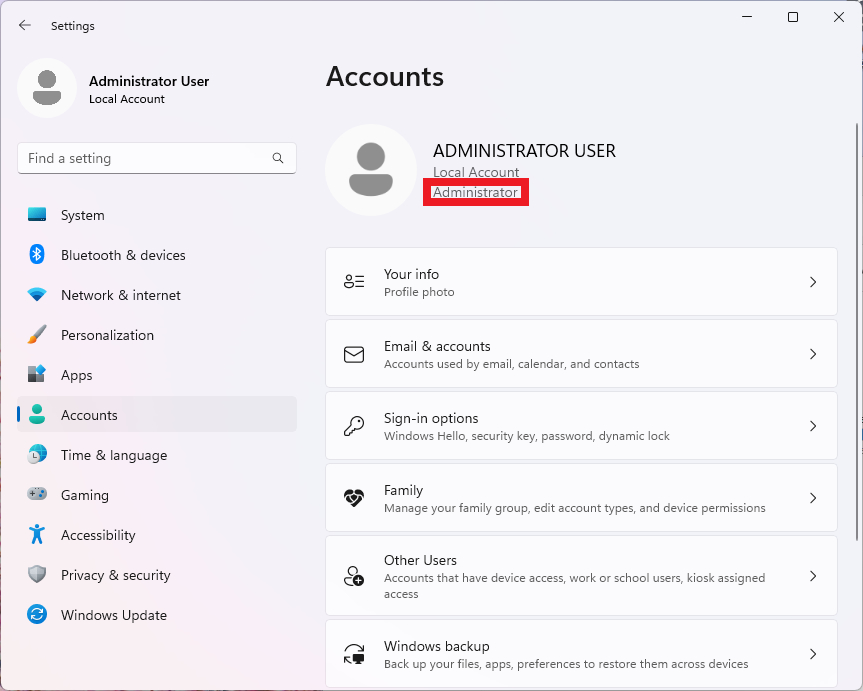 | 2. Sign in Administrator Account: * Sign in the computer with an administrator account during SPSS Statistics installation and license activation. To verify, open Windows Settings, select Accounts, and note the Administrator label under your account name. |
| 3. Download SPSS Statistics Installer: * Click SPSSStatistics_32.0_WIN.exe to download. If download fails, try again from another web browser. * Optional: Compare SHA-256 hash to verify successful download. c699b367721fff3d869aba32433c1e2629c942087099a37388d7120314d9cd32 | |
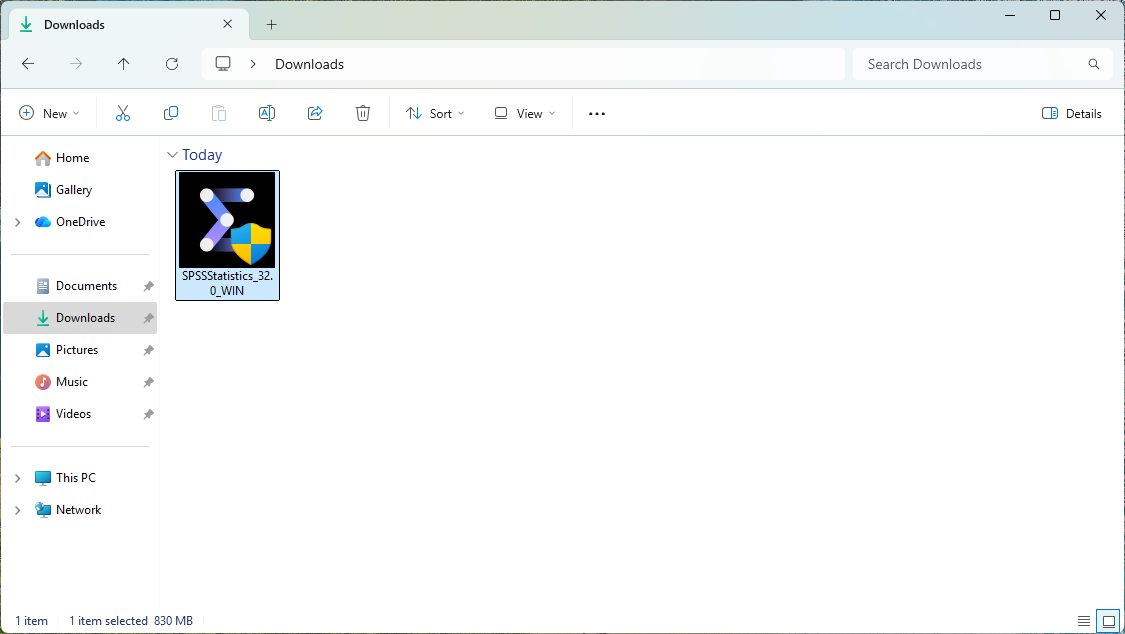 | 4. Open SPSS Statistics Installer: * Open the downloaded installer and follow the installation prompts. |
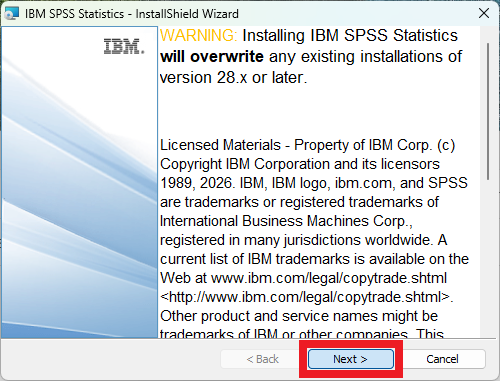 | 5. Copyright: * Click Next. |
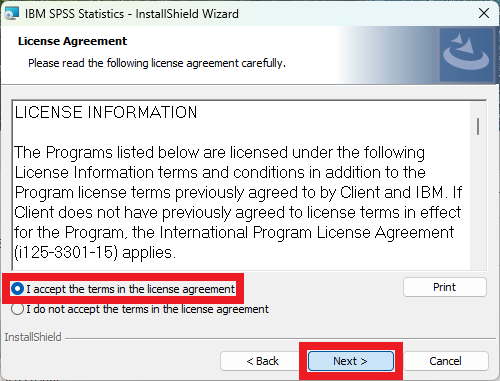 | 6. License Agreement: * Select I accept the terms in the license agreement. * Click Next. |
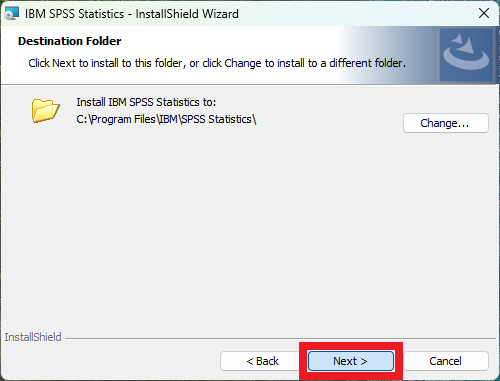 | 7. Destination Folder: * Click Next. |
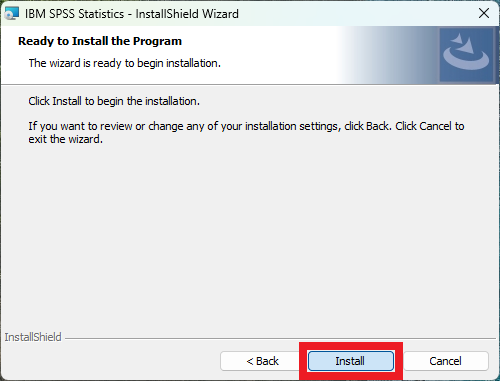 | 8. Ready to Install the Program: * Click Install. |
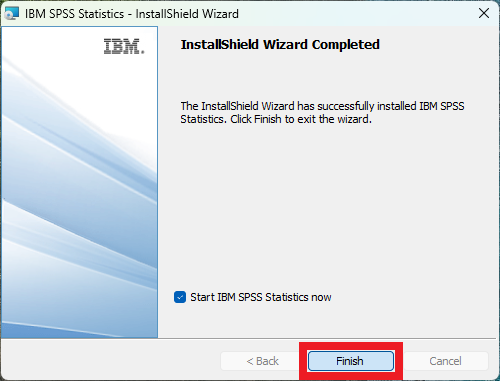 | 9. InstallShield Wizard Completed: * Click Finish. |
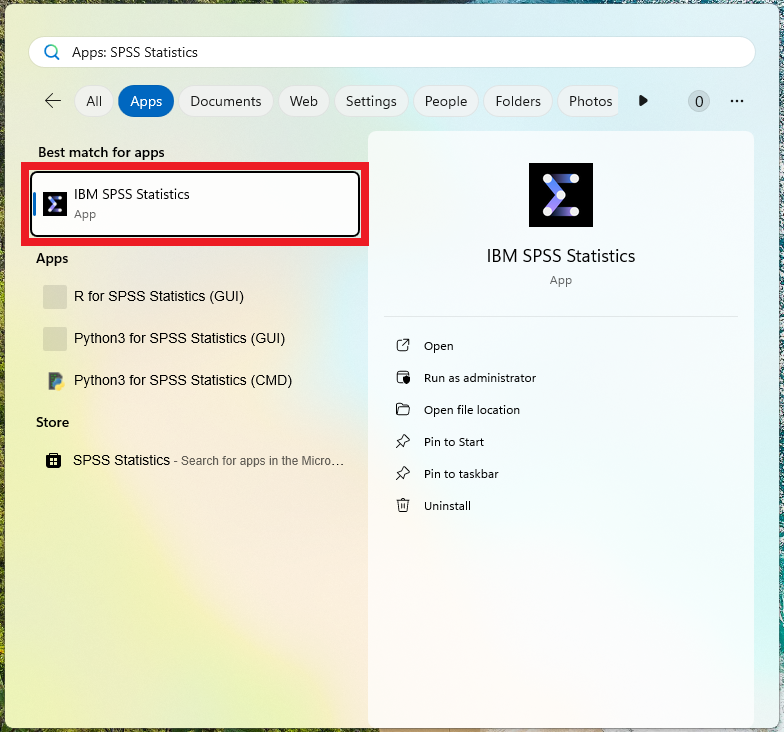 | 10. Activate SPSS Statistics: * Open the SPSS Statistics app and follow the license activation prompts. |
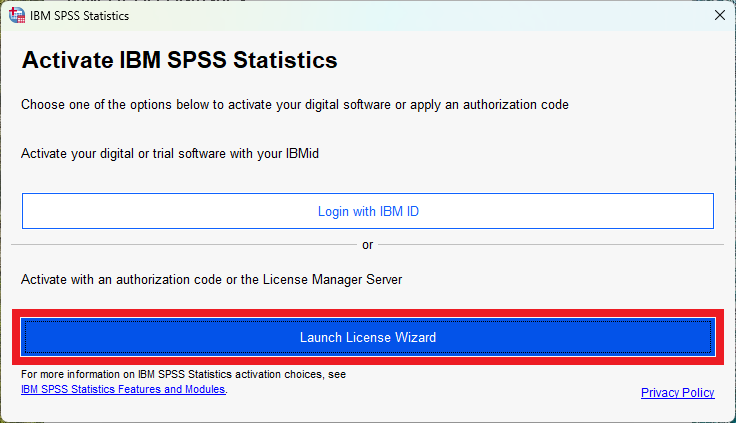 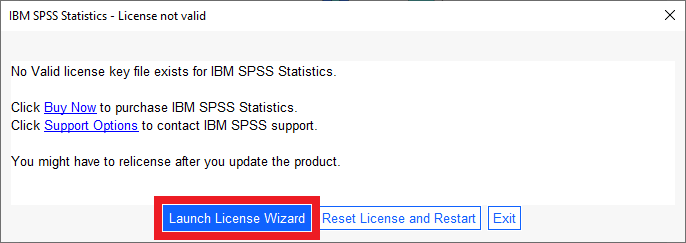 | 11. Activate IBM SPSS Statistics / License not valid: * If the Activate IBM SPSS Statistics or License not valid window appears, click Launch License Wizard. |
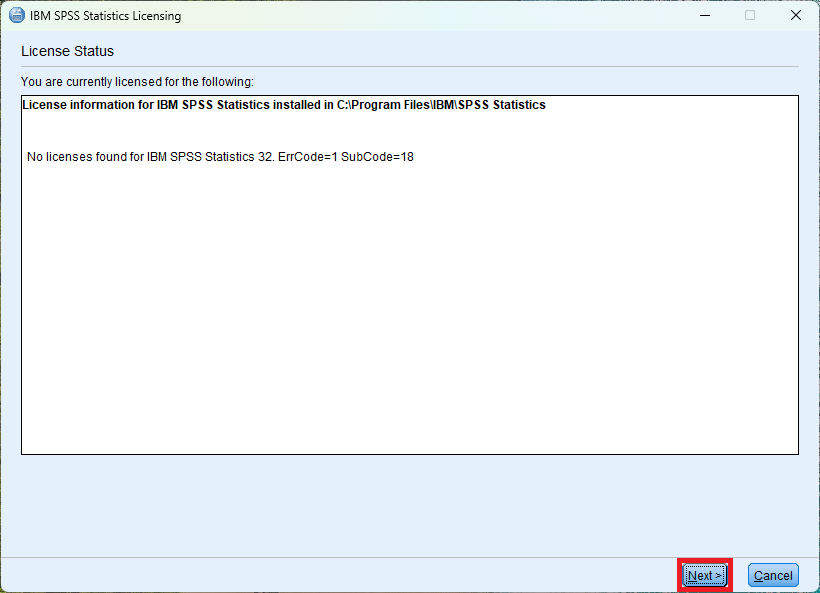 | 12. License Status: * If the License Status window appears, click Next. |
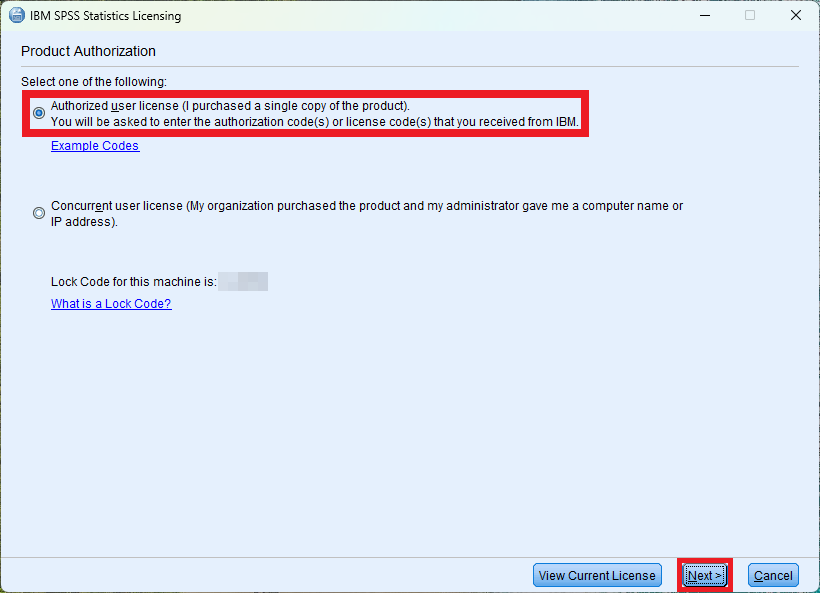 | 13. Product Authorization: * Select Authorized user license. * Click Next. |
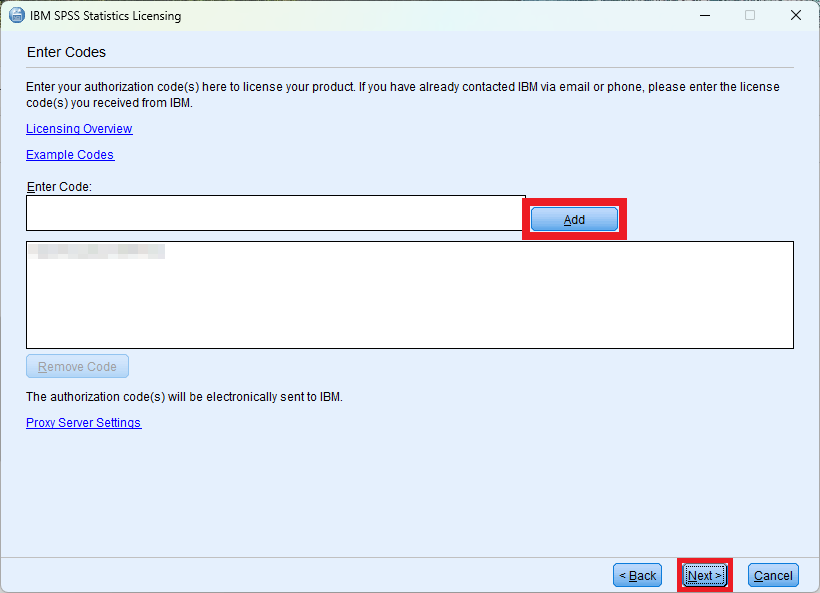 | 14. Enter Codes: * Copy and paste your 20-character authorization code to the Enter Code field. * Click Add. * Click Next. |
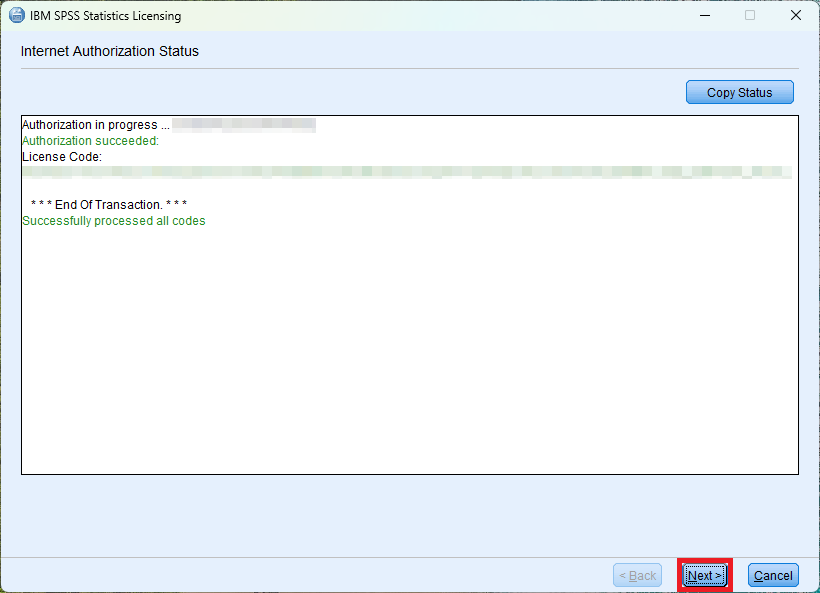 | 15. Internet Authorization Status: * Wait a few seconds. Upon successful authorization, click Next. |
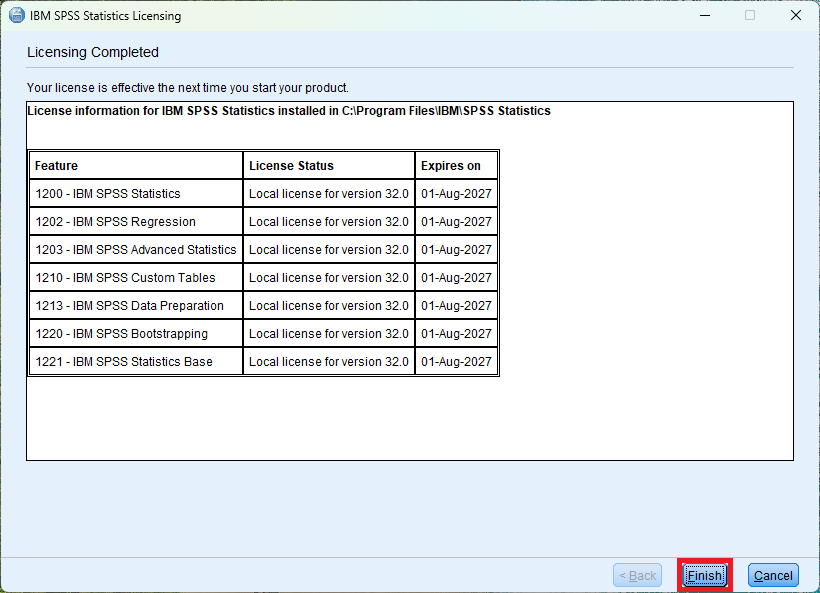 | 16. Licensing Completed: * Click Finish. |
Frequently Asked Questions (FAQ)
What is our SPSS Statistics license cycle?
Our SPSS Statistics license cycle is July 1st through June 30th the following year.
Which SPSS Statistics modules are included?
IBM SPSS Statistics Standard includes the following modules. Additional modules and add-ons require a separate purchase.
- Statistics Base
- Data Preparation
- Bootstrapping
- Advanced Statistics
- Regression
- Custom Tables
What are the SPSS Statistics system requirements?
SPSS Statistics Desktop is available for macOS and Windows only. Sign in a virtual desktop like Statistical Analysis to access SPSS Statistics from Android, Chrome, iOS, or Linux.
* SPSS Statistics Desktop System Requirements
* Access Virtual Desktop Infrastructure (VDI) from a Personal Device