
Browse Our Knowledge Base
Unable to open PDF files
Overview
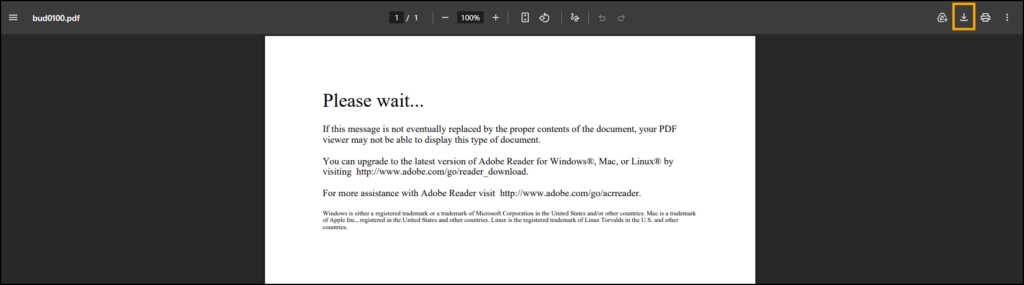
This article applies if you see the following message when trying to open a PDF file:
“Please wait… If this message is not eventually replaced by the proper contents of the document, your PDF viewer may not be able to display this type of content. You can upgrade to the latest version of Adobe Reader…”
This message indicates that the PDF is opening in your web browser instead of in Adobe Acrobat. Some PDFs (especially interactive or form‑based documents) cannot be displayed properly in a browser.
To resolve this issue, follow the steps below to ensure that PDF files open using Adobe Acrobat Reader instead of your browser.
Open with Adobe Acrobat
1. On the screen with the “Please wait…” message, click the Download icon in the top right corner (to the left of the printer icon).
2. Locate the file on your computer (typically, it will be in your Downloads folder).
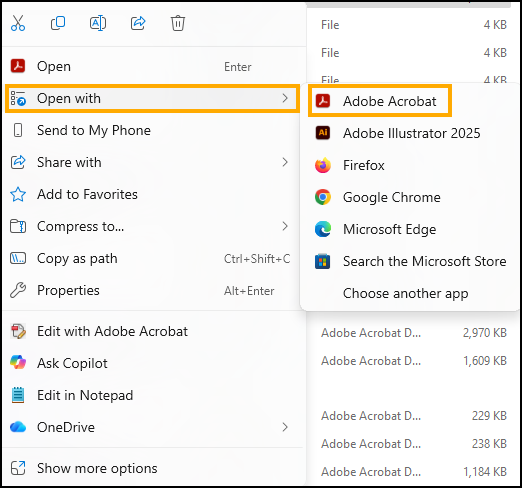
3. Right-click on the file.
4. Click Open with, then select Adobe Acrobat.
Set Adobe Acrobat as Default PDF program
If you would like to set Adobe Acrobat Reader as the default program to open PDF’s, click the corresponding button below to view instructions from Adobe.