Browse Our Knowledge Base

Setting up a Network ID account for a Local Administrator

You are here:

Note: This guide assumes you have prior approval from your supervisor to create a local administrator account.

1. Click the button below to open the request form.

    2. Select Create an Account, then click Next.
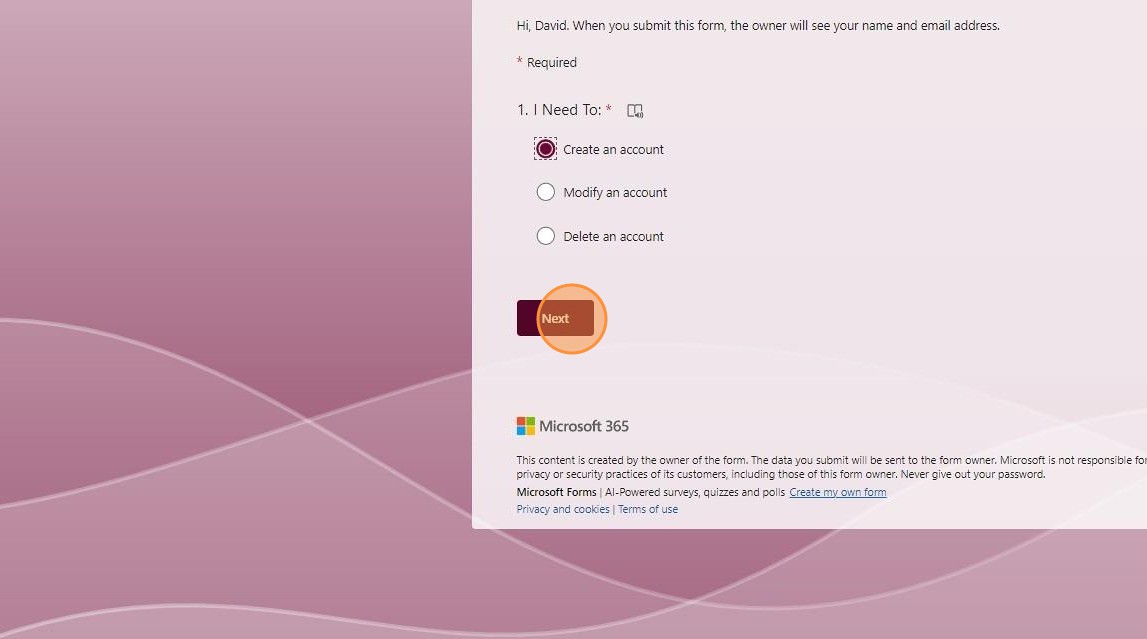
    Screenshot of Create an Account option on the Microsoft Form.
    Screenshot of Create an Account option on the Microsoft Form.

    2. Select who will manage the account.
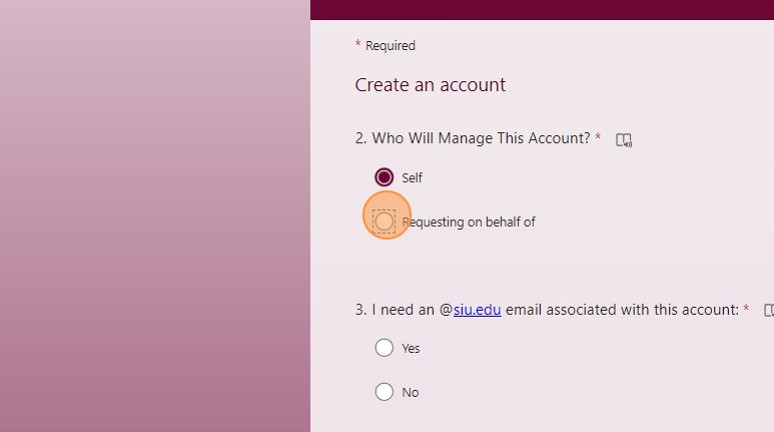
    Screenshot of Account Manager field on the Microsoft Form.
    Screenshot of Account Manager field on the Microsoft Form.

    3. Enter the SIU email address of the person who will manage the account.
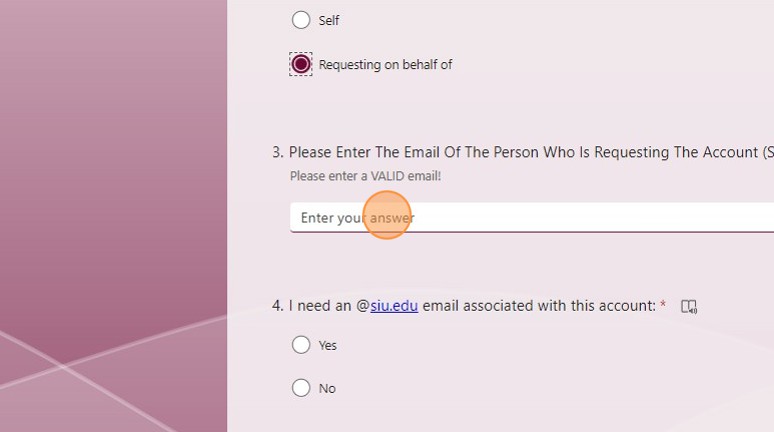
    Screenshot of the email address field on the Microsoft Form.
    Screenshot of the email address field on the Microsoft Form.

    4. If requesting an email address in addition to the elevated account, click Yes under ‘I need an @siu.edu email.’ If you do not want an email address for this account, click No.

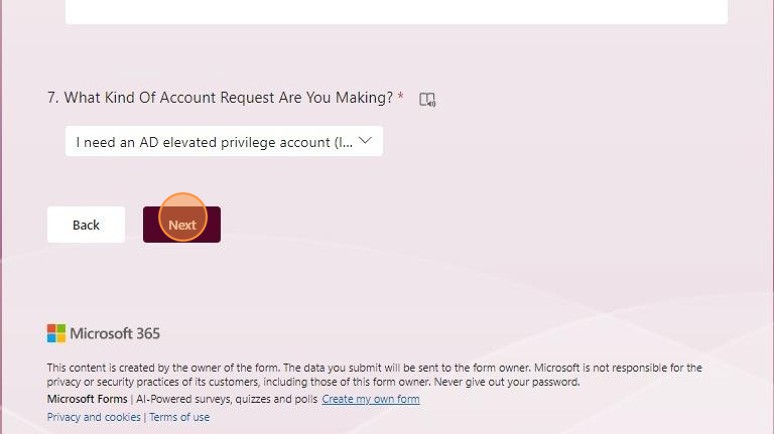
    5. Click Next.
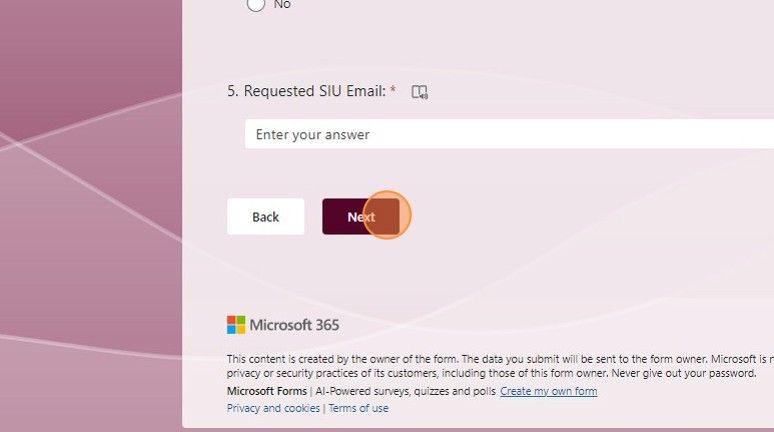
    Screenshot of Next button on the Microsoft Form.
    Screenshot of Next button on the Microsoft Form.

    5. Enter the purpose of the account.
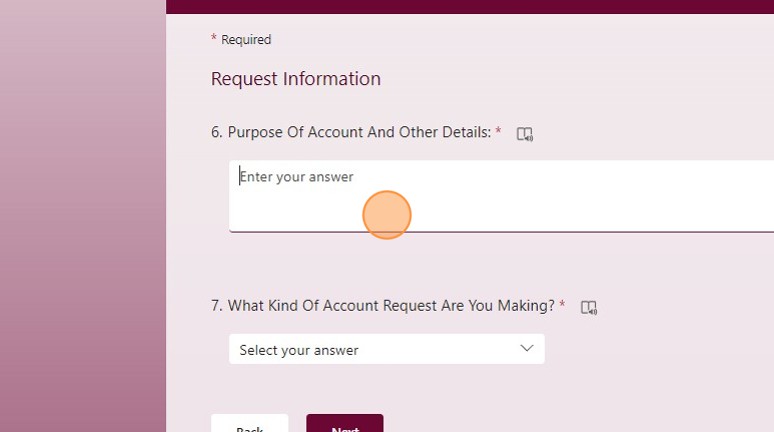
    Screenshot of the Purpose field on the Microsoft Form.
    Screenshot of the Purpose field on the Microsoft Form.

    6. From the Account Type drop down menu, select “I need an account to mimic my 85 account for university use [Custom Person Account]”
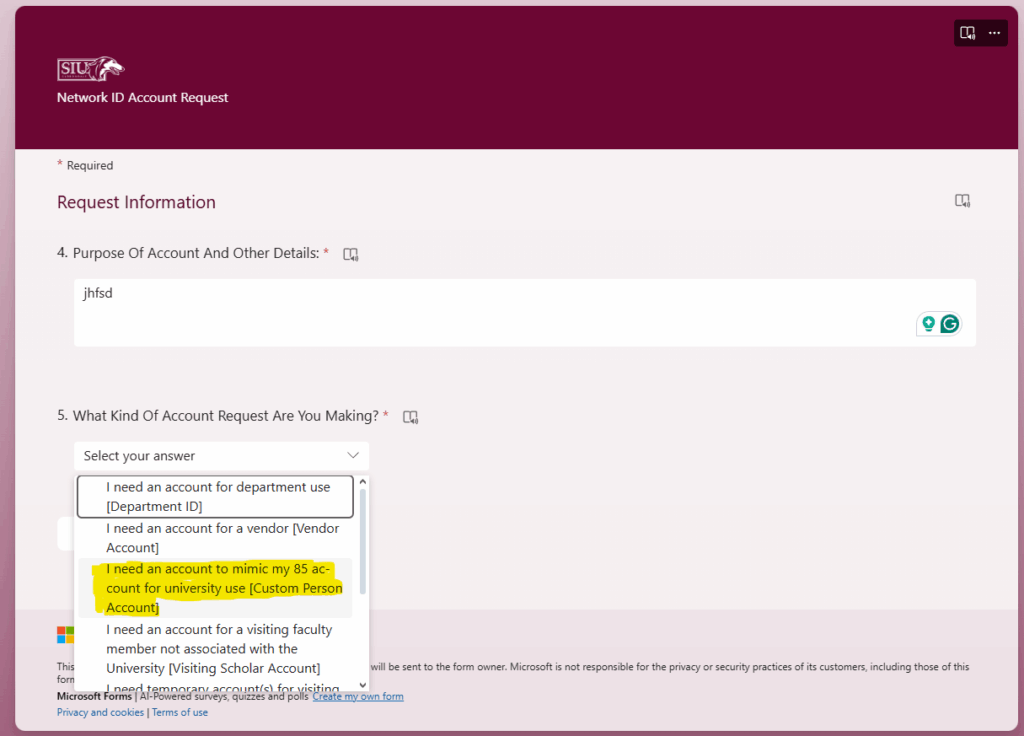
    Screenshot of Account Type drop-down menu options.
    Screenshot of Account Type drop-down menu options.

    7. Click Next.

    Screenshot of Next button on the Microsoft Form.
    Screenshot of Next button on the Microsoft Form.

    8. Enter the description of the account.
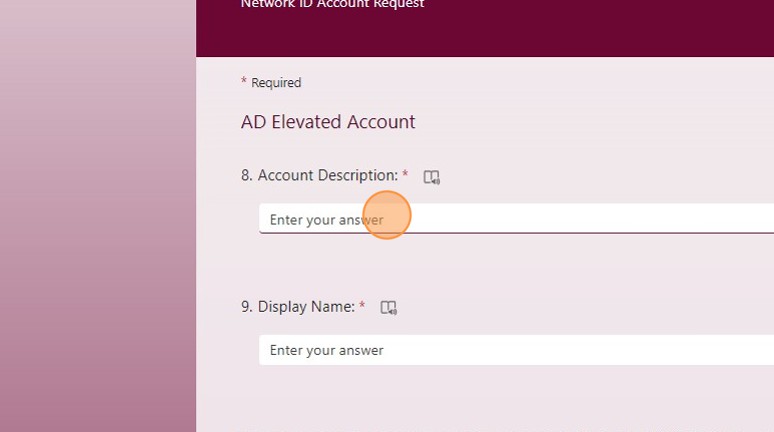
    Screenshot of Account Description field on Microsoft Form.
    Screenshot of Account Description field on Microsoft Form.

    9. Enter the display name you would like for the account.

    10. Select Yes or No for whether you are requesting local admin on your workstation.
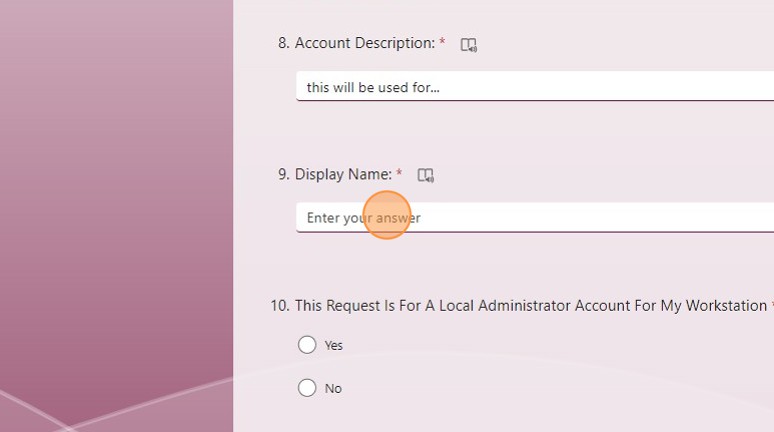
    Screenshot of Display Name field on Microsoft Form.
    Screenshot of Display Name field on Microsoft Form.

    11. Once completed click Submit. A ticket will be automatically generated for this request and you will receive email updates upon processing.

    Was this article helpful?
    How can we improve this article?
    How can we improve this article?
    Need help?

    Leave a Reply

    Table of Contents