
Browse Our Knowledge Base
Accessibility Checker in Microsoft Office
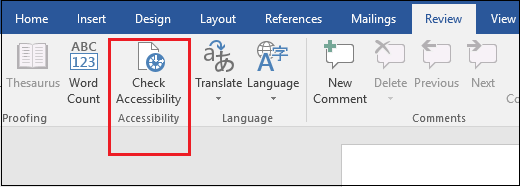
In Office 365, to use the accessibility checker in Word, Excel and PowerPoint, look for the Check Accessibility button on the Review tab on the Ribbon. Click it to open the Accessibility Checker.
Tip: Another easy way to open the Accessibility Checker is to use the Tell me box. Press Alt+Q, and then, in the Tell me box, type accessibility checker.
If you have an older version of Word, Excel or PowerPoint, and do not see the Check Accessibility button on the Review tab, follow these steps.
- Click File > Info.
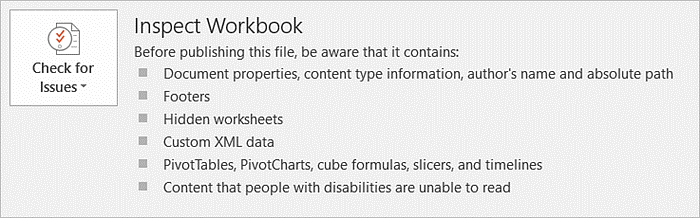
- Select the Check for Issues button.
Tip: To the right of the Check for Issues button, under the Inspect heading, is a list of potential issues.
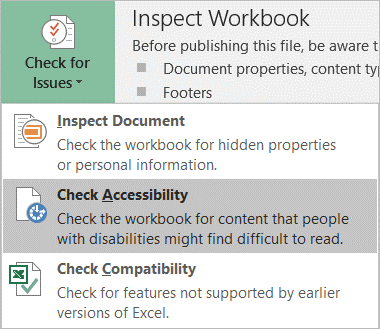
- In the Check for Issues drop-down menu, select Check Accessibility.
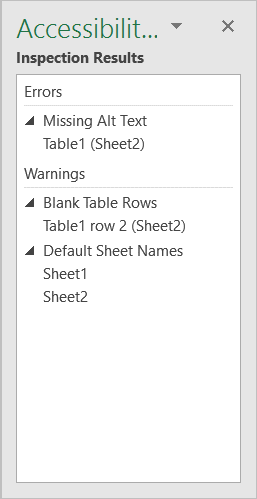
- The Accessibility Checker task pane appears next to your content and shows the inspection results.
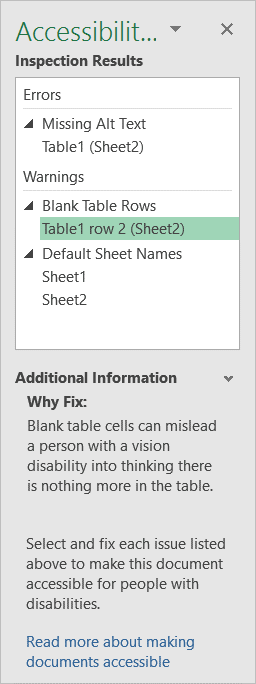
- To see information on why and how to fix an issue, under Inspection Results, select an issue. Results appear under Additional Information, and you’ll be directed to the inaccessible content in your file.
Based on the help document at https://support.office.com/en-us/article/Use-the-Accessibility-Checker-on-your-Windows-desktop-to-find-accessibility-issues-a16f6de0-2f39-4a2b-8bd8-5ad801426c7f
Other helpful links:
Make Word documents accessible:
Video Training:
Accessibility Checker Warnings:
Other MS Product Accessibility help links: