
Browse Our Knowledge Base
How to Use Copyleaks in D2L
Overview
This job aid explains how to use CopyLeaks in D2L to set up assignments, adjust scan settings, utilize the instructor scan tool, and how to obtain support. Note: Google Chrome is the preferred browser for CopyLeaks. A computer is prefered for assignment submissions.
Setting Up Assignments
There are two options for setting up assignments that will use Copyleaks. The first sets up the assignment in the content area. The second option is set up using the Assignment tool and can be utilized with existing assignments. While both options start off differently the actual setup is identical.
Option 1 – Starting within the content page
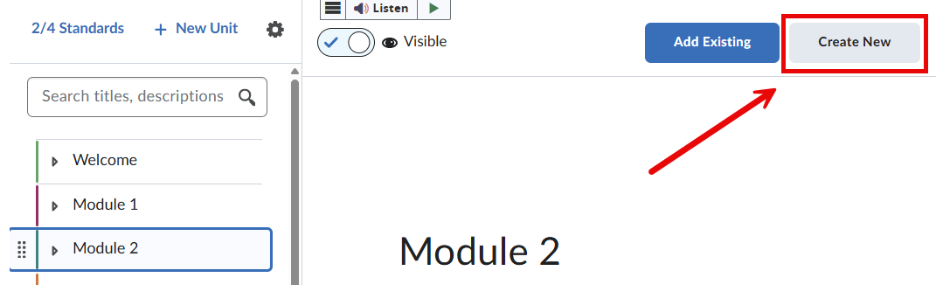
1. From the course content section, select the desired module then click Create New.
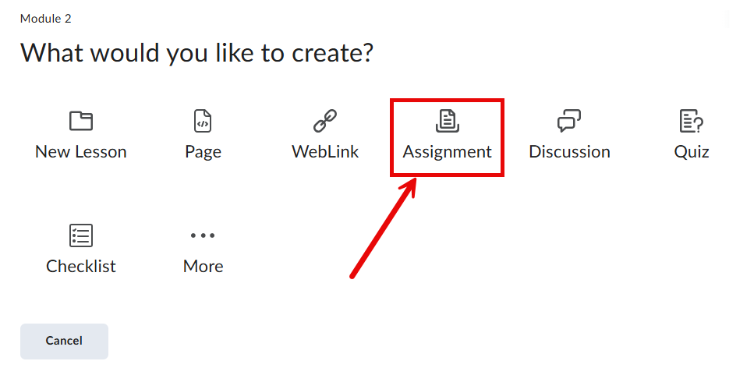
2. Select Assignment.
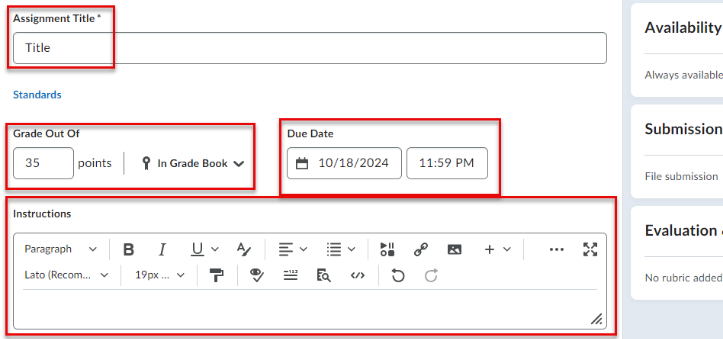
3. Enter the assignment title, due date, and instructions for the assignment. There is an option to link the assignment to the gradebook as well as the opportunity to uploading additional documents such as a rubric or supporting document.
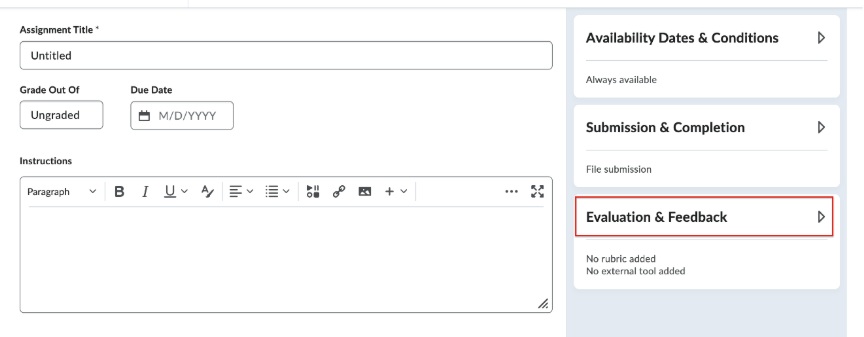
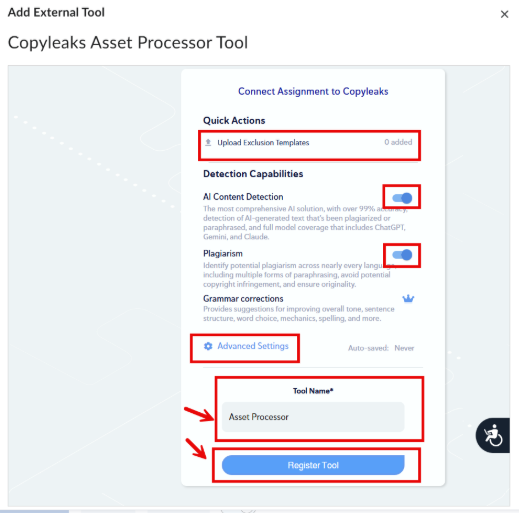
4. Next, expand the “Evaluation and Feedback section” on the right side of the screen. Select the option to add an External Tool.
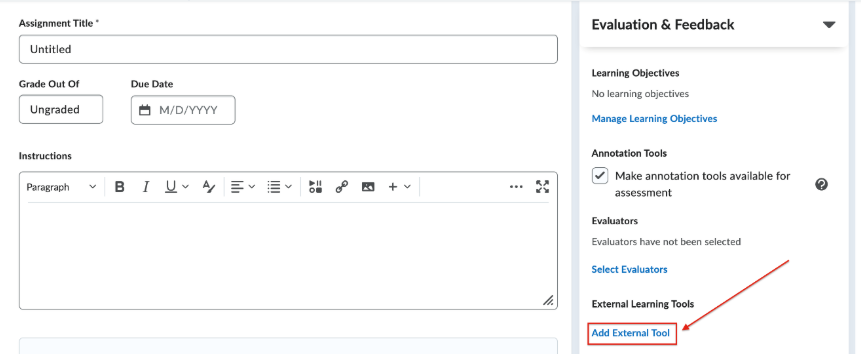
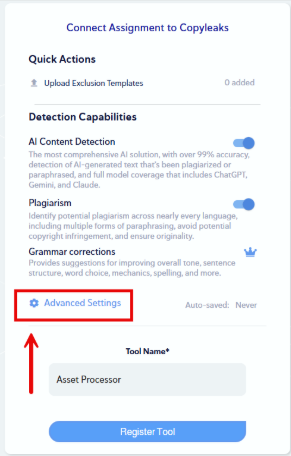
5. This will open the Copyleaks Asset Processor Tool. There are several quick setting options to choose from. Including adding an exclusion template, deselect AI detection or deselect plagiarism detection. There is also the option to change the advanced settings which will be covered in another section of this guide.
6. Update the Tool Name to match the name of the assignment. Then select register tool to add Copyleaks to the assignment.
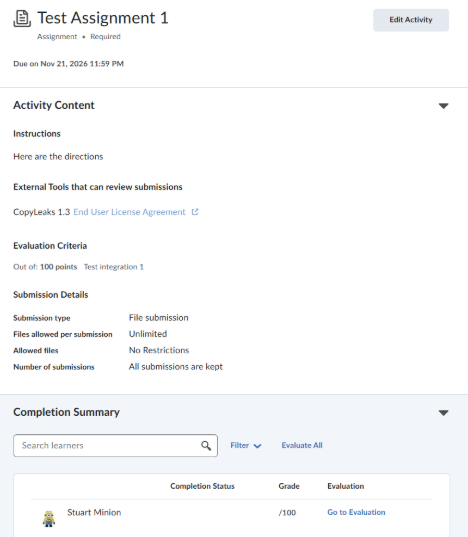
7. Once the assignment is added to the course, instructors will see the Copyleaks assignment, it has the same interface as non-Copyleaks assignments. Instructors can edit the assignment from this page.
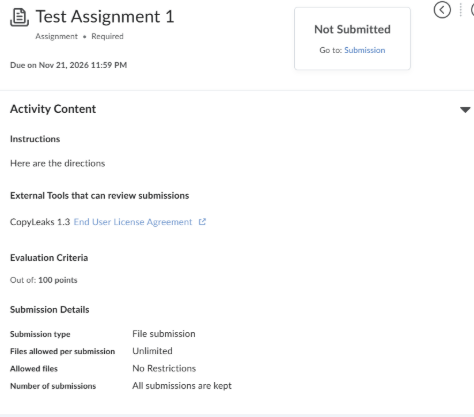
Please note: students will only see the assignment description, due date, any attachments, and a link to submit their assignment.
Faculty view of the Copyleaks assignment
Student view of assignment
Option 2 – Starting with the Assignment tool.
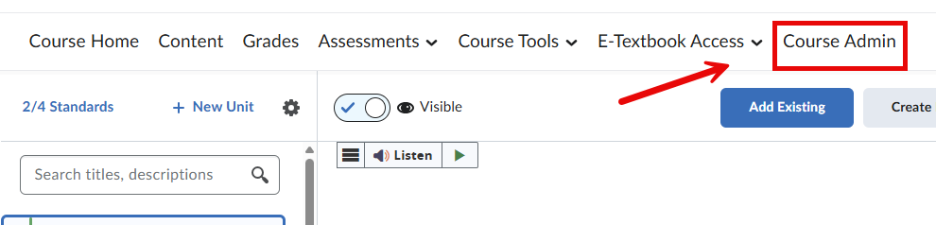
1. From the navigation bar, go to the Course Admin tab and locate Assignments. Please note: your course admin could be organized by categories or alphabetically.
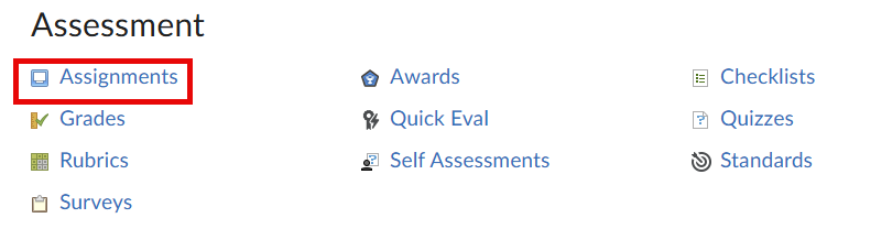
2. Select New Assignment to create a new submission assignment or if editing an existing assignment select Edit Assignment to access the Assignment tool (then skip to #4).
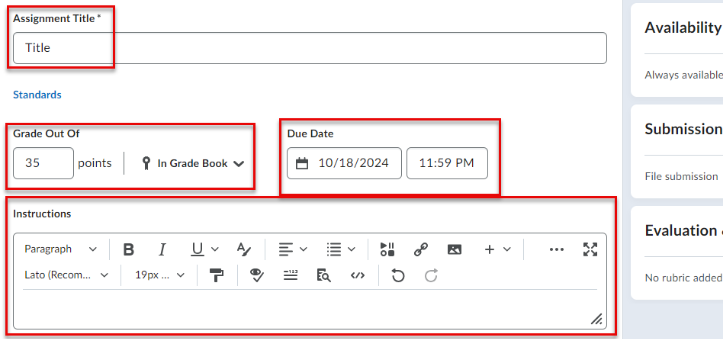
3. Enter the assignment title, due date, and instructions for the assignment. There is an option to link the assignment to the gradebook as well as the opportunity to uploading additional documents such as a rubric or supporting document.
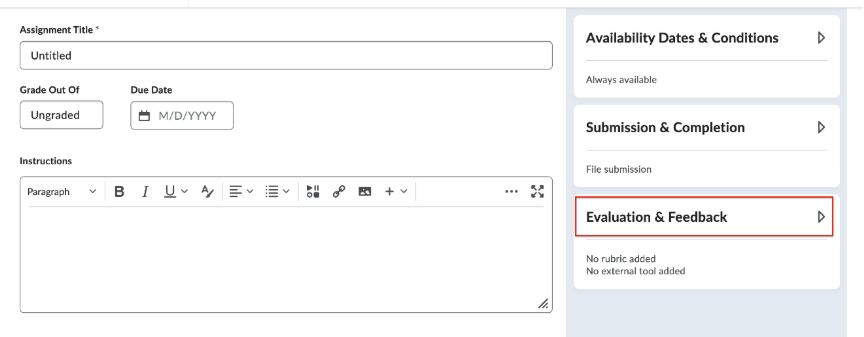
4. Next, expand the “Evaluation and Feedback section” on the right side of the screen. Select the option to add an External Tool.
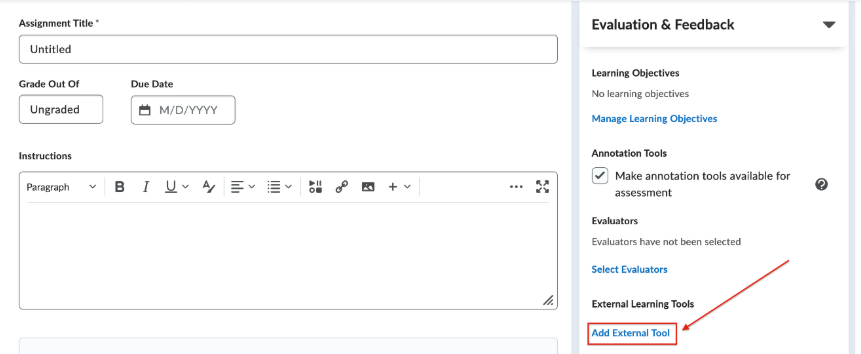
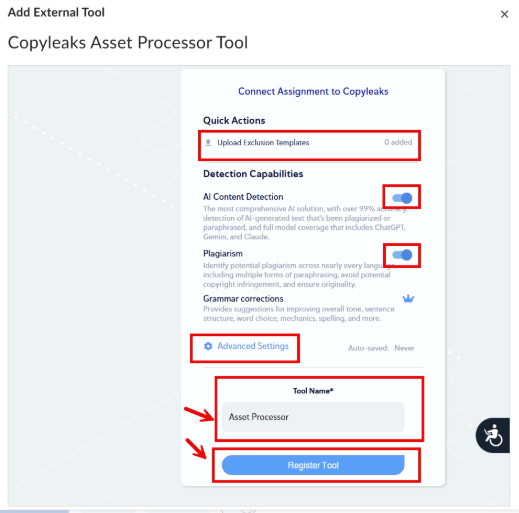
5. This will open the Copyleaks Asset Processor Tool. There are several quick setting options to choose from. Including adding an exclusion template, deselect AI detection or deselect plagiarism detection. There is also the option to change the advanced settings which will be covered in another section of this guide.
6. Update the Tool Name to match the name of the assignment. Then select register tool to add Copyleaks to the assignment.
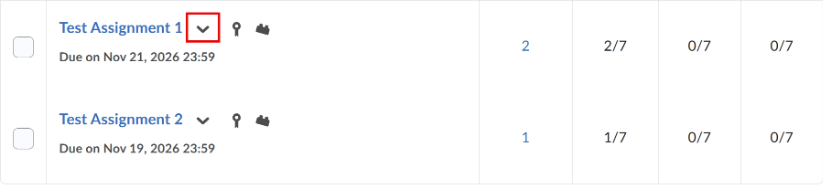
7. Once the assignment is added to the course, instructors will see the external tool icon on the Copyleaks assignment. Like non-Copyleaks assignments, Instructors can edit the assignment by opening the assignment and selecting Edit Assignment.


Reviewing Student Submissions
- Select the down arrow/carrot next to the desired assignment and select view submissions from the pop-up menu.
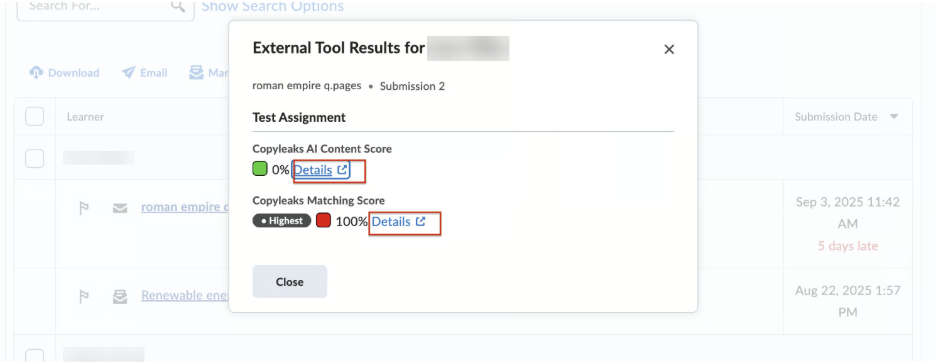
2. The “External Tool Results” will appear next to students who have submitted work, select View to preview their scores.
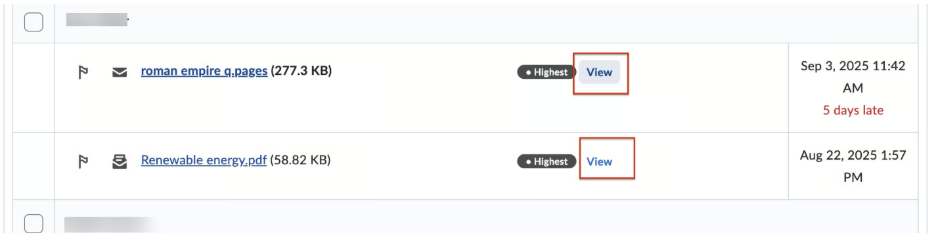
3. Select Details to review the full Copyleaks report. A guide on the Reports Tool can be found later in this guide.
Adjusting Scan Settings
This section will provide an overview of the advanced scan setting. Instructors are not required to adjust these settings as the default settings will meet most instructors’ needs.
There are two ways to access the advanced scan options. The first takes place during the initial set up. Instructors will select Advanced Settings tp open the settings menu.
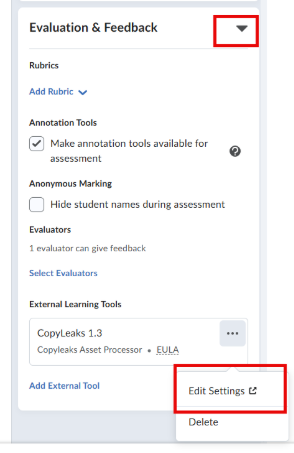
To access the advanced setting for existing assignments, begin by accessing the Edit Assignment tool, then open the Evaluation & Feedback tab. Select the three dots on the Copyleaks tool under External Learning Tools and select Edit Settings.
General Settings
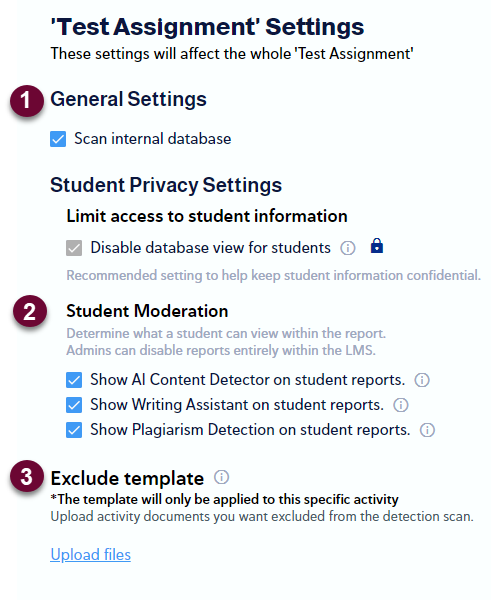
- Scan Internal Database – see Sources in the next section.
- Student Moderation – Uncheck the boxes to hide certain detection results from the student report. By default, students can see all aspects of the report.
- This is a good idea if an instructor wants to run an AI check but not penalize students for the use of AI.
- Exclude Template – similar to Omit the right side.
- Instructors can upload a template assignment file so that the questions or prompts included in the assignment do not get marked as plagiarism.
Scan Settings
This panel provides switches to enable AI Content detection and Plagiarism detection, which are on by default (switches shown below are in the “on” position).
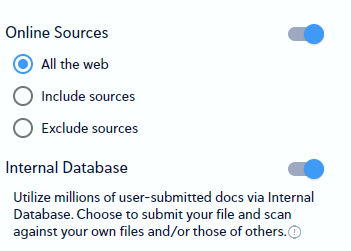
Sources Panel
- Online Sources:
- All the Web – recommend for best plagiarism detection
- Include or Exclude sources: Add a specific URL or URLs to either of these options to limit plagiarism review coverage.
- Internal Database:
- This option will scan student submissions against submissions already in the CopyLeaks database.
- Using the Exclude Template is a good option to reduce false hits from previous semesters.
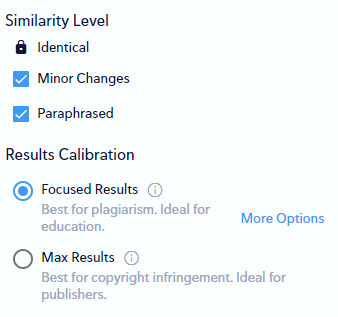
Filters Panel
- Similarity Level:
- Minor Changes: Text that has very minor changes from the source will be marked in the report.
- Paraphrased: Text that has been paraphrased from the source and remains similar overall will be marked in the report.
- Results Calibration:
- Focused Results: Default Setting, results are balanced between lower and higher accuracy.
- Lower Accuracy: Shows the most basic and relevant results.
- Higher Accuracy: Shows more “noise” in the report, and takes longer; not recommended.
- Max Results: Typically for very detailed copyright infringement, not recommended.
- Focused Results: Default Setting, results are balanced between lower and higher accuracy.
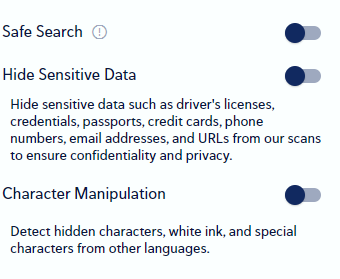
Security Measures Panel
- Safe Search: Hide adult or violent content, generally unnecessary.
- Hide Sensitive Data: This option can prevent sensitive data from appearing in the report. Overall, instructors do not need to activate this setting.
- Character Manipulation: This setting looks specifically for manipulated inputs like hidden characters, white font, or other special characters.
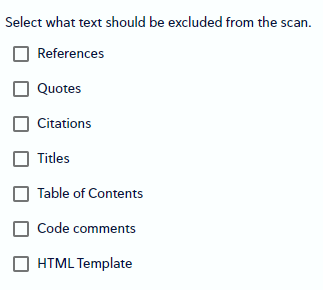
Omit Panel
To reduce “noise” in your reports, you can choose to exclude certain common identifiers and unchanging elements from the scan. Check these items to exclude them from reports so that they do not contribute to the similarity score.
Instructor Scan Tool
The Instructor Scan Tool enables instructors to scan for plagiarism outside of an assignment. Files can be uploaded or content can be copied and pasted into the tool. Instructors also have the option to contribute files to the Copyleaks Shared Data Hub.
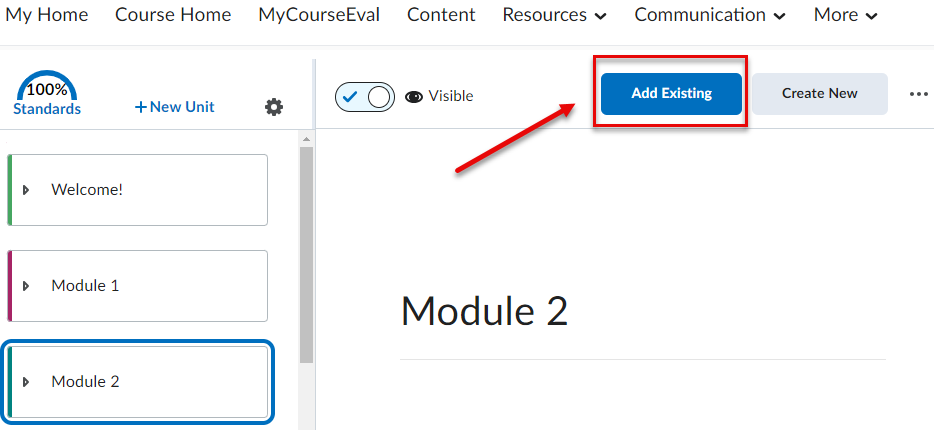
1. From the content page, click on Add Existing, select External Tool Activity.
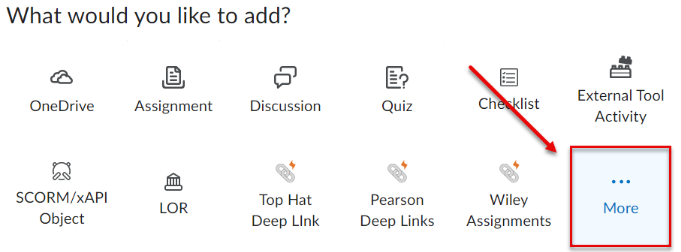
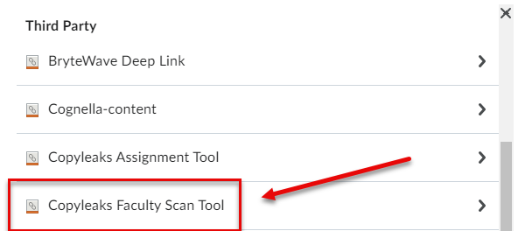
2. Select More, then scroll down to Third Party section and click on Copyleaks Faculty Scan Tool. After generating, the Copyleaks scan tool will be displayed in the content section.
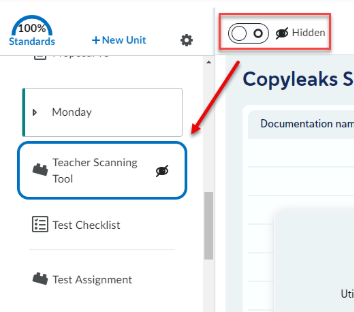
3. It is recommended to hide the instructor’s tool from the student’s view.
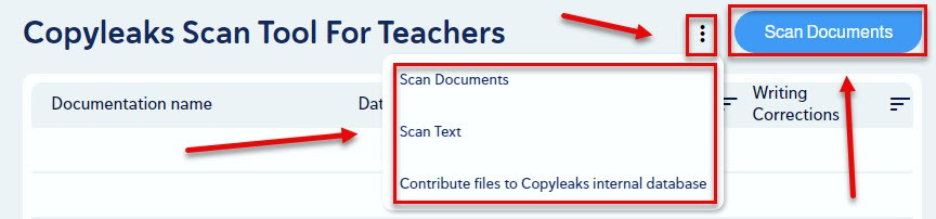
4. Click on Scan Documents to upload files. There is the option to select the three dots and select Scan Text to paste text into an HTML editor. In both methods, select Scan at the bottom right to initiate the plagiarism scan.
Additionally, there is the option to Contribute files to Copyleaks internal database. This option allows instructors to upload previous student submissions to improve Copyleaks results.
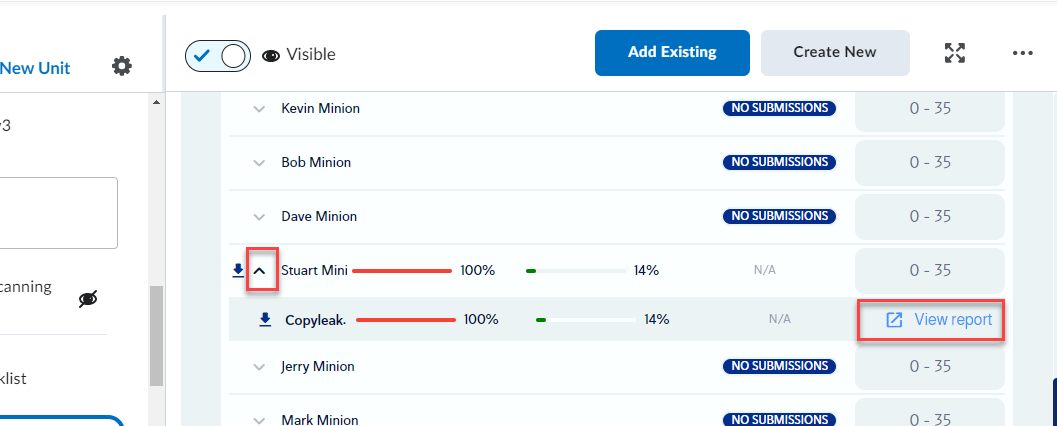
5. Once completed the report summary will populate. Selecting the link near the percentage will open the full report.

Report Tool
The Report tool generates the plagiarism and AI reports. The reports can be accessed from the Assignment Dashboard or the Instructor Scan tool.
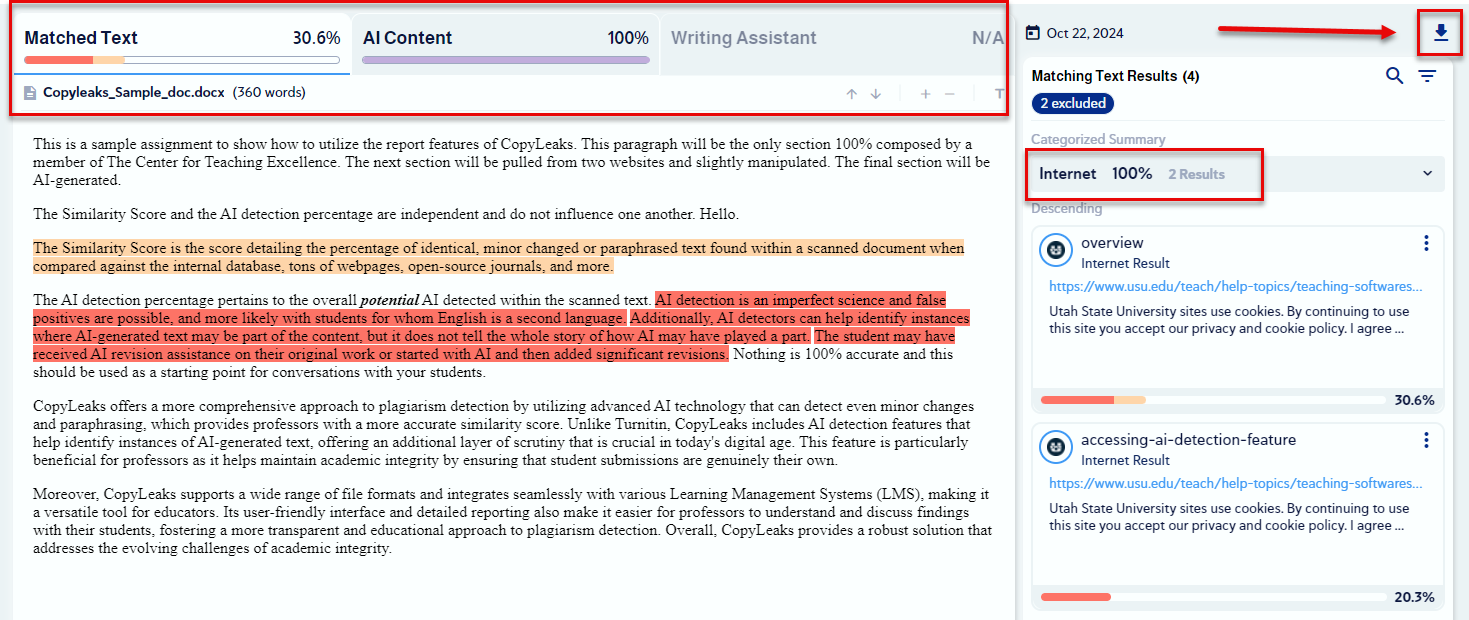
The report shows the Matched Text and AI Content percentages. It also provides links to matching sources. It will show internet sources, internal database (CopyLeaks) sources, and SIU internal matches.
Click on the download icon to download or export the similarity report as a PDF to share with students when needed.
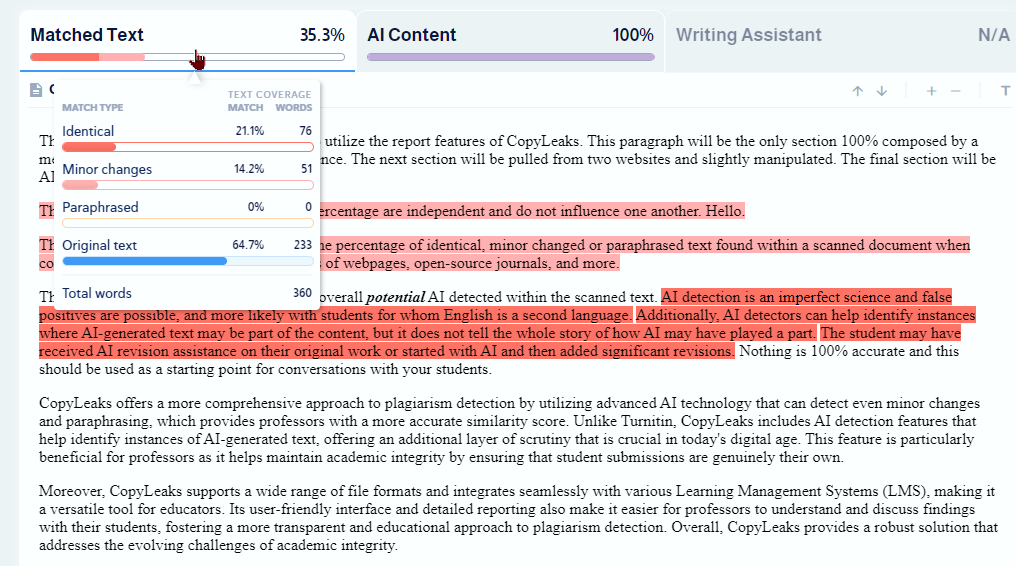
The report tool displays the similarity score by showing the percentage of how much the document matches other sources.
CopyLeaks Support
Faculty can obtain support from Copyleaks by visiting the Copyleaks Help Center or by contacting Copyleaks directly at support@copyleaks.com. Students may also email Copyleaks directly for assistance.