
Browse Our Knowledge Base
Microsoft Authenticator for current Students, Faculty & Staff
Overview
As a student or faculty/staff member at Southern Illinois University Carbondale, you have access to a variety of services and resources that cyber-criminals also want. To keep the campus community digitally secure, SIUC adopted Multi-Factor Authentication.
To get started with Microsoft Authenticator, view the information below. If you need assistance, please contact SalukiTech at 618-453-5155 or salukitech@siu.edu.
Setup
- In your browser, go to the Microsoft Security Info webpage. (If prompted, sign in with your SIU credentials).
- Click on Add Sign-in Method.
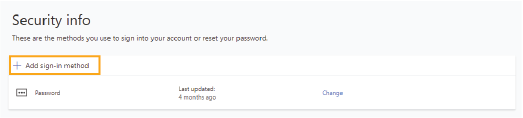
3. Click on the Choose a Method drop-down menu and select Authenticator app.
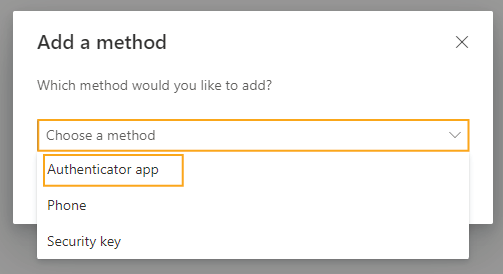
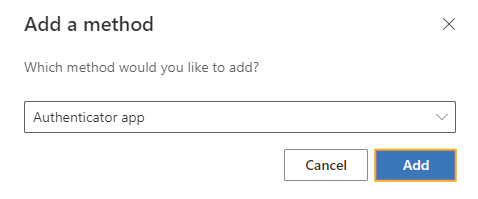
4. Click Add.
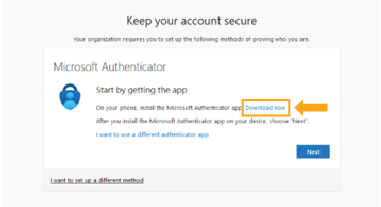
5. You will be prompted to download/install the Microsoft Authenticator app on your mobile device. Click the blue, hyperlinked words: Download Now.
Note: If you have Microsoft Authenticator already installed, you can skip Steps 5-6.
6. A new window will appear with two separate QR codes (one for Apple/iOS devices and one for Androids). Scan the QR code that matches your device.
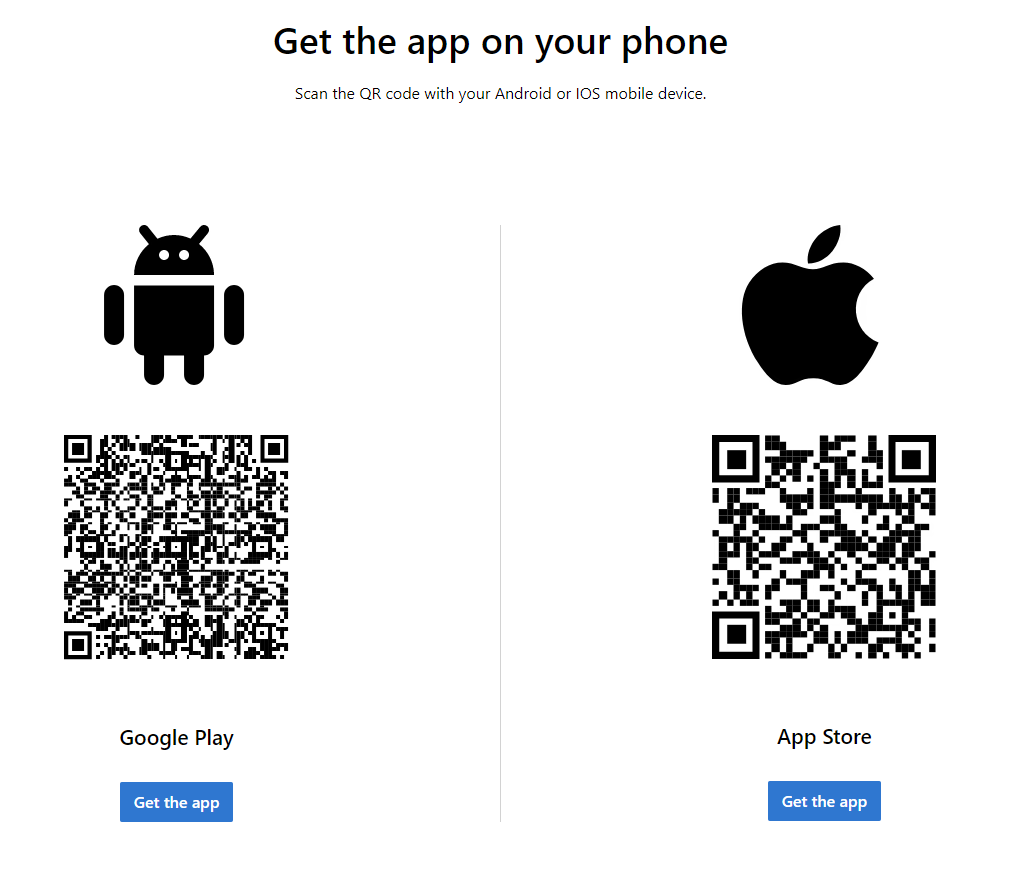
Note: If you are unable to scan the QR code, click the corresponding “Get the app” button beneath the QR code that matches your device.
7. Once installed, open the Microsoft Authenticator app on your mobile device.
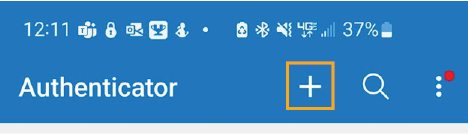
8. In the top right corner of the screen, tap the “+” icon to add a new account.
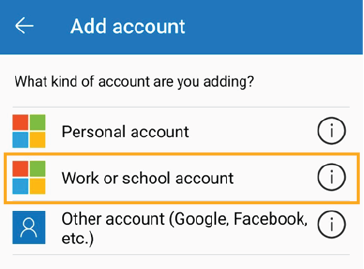
9. Select the Work or School Account option.
10. Select the Scan a QR Code option.
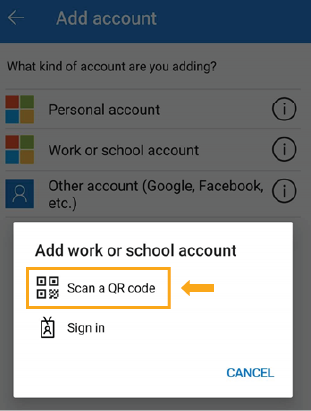
Note: You may need to choose “Allow” to grant Microsoft Authenticator access to use your camera (in order to scan the QR code).
11. In your browser, click Next to begin your account setup.
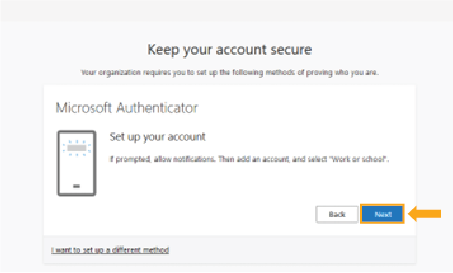
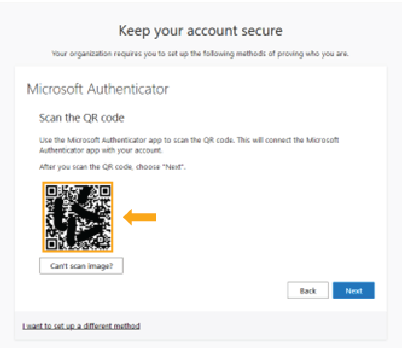
12. A QR code that is specific to your SIU account will appear on screen. Using the Microsoft Authenticator app, scan the QR code.
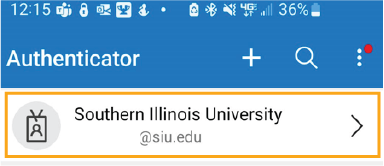
13. A notification will briefly appear on your phone that says “Account added successfully.” Once you have received this notification, the words Southern Illinois University and your SIU email address will be listed in the Microsoft Authenticator app.
Authenticator Stopped Working
If you reset your phone, get a new phone number, or switch to a new device, Microsoft Authenticator may become out of sync with your account. Contact SalukiTech for help resetting your authentication method.