
Browse Our Knowledge Base
How Do I Change My SIU Account Password?
Follow these instructions to reset your SIU account password if you have forgotten it or if it has expired.
Forgot your Password?
This method will send a security PIN to the recovery information listed on your account.
- In your browser, go to the netid.siu.edu website.
- If you are brought to a login screen, select Forgot Password.
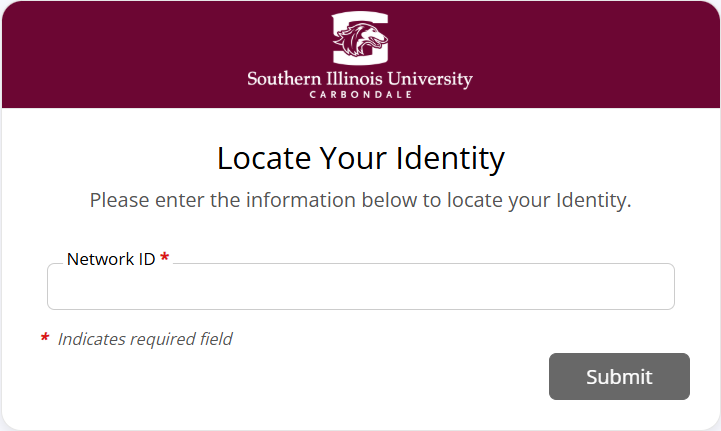
- For verification purposes, enter your Network ID (SIU85XXXXXXX) and click “Submit”. Note: The Network ID is “SIU” followed by your unique 85-number (Dawgtag)
- Complete the Captcha if prompted to confirm you are not a robot.
- Check the box that states, By selecting this checkbox you agree to receive text messages on your mobile device. (This will be a one-time message).
6. You will be asked where the PIN should be sent. Note: If you only have one recovery method on your account, the PIN will be sent automatically.
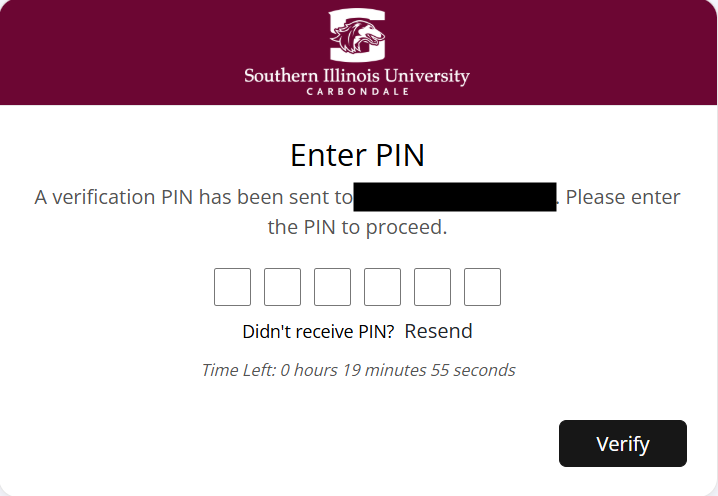
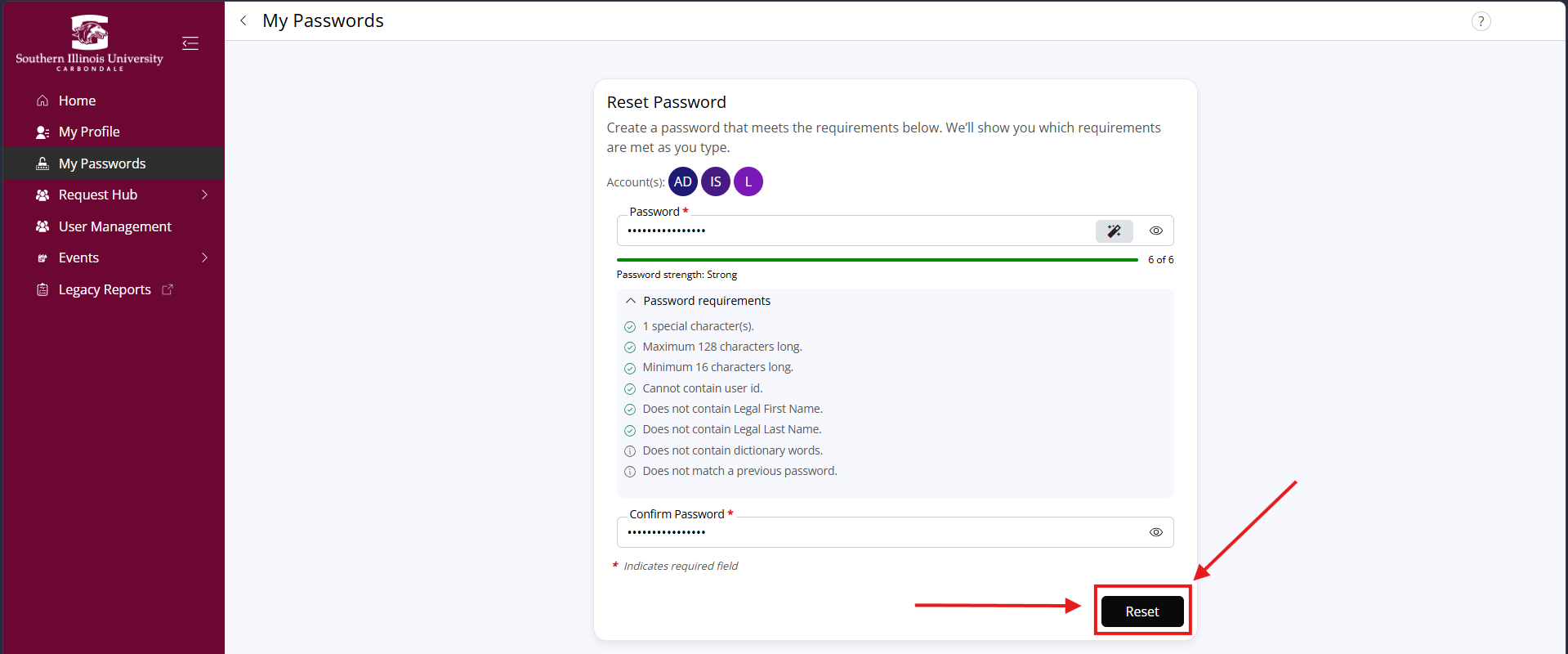
8. Once the PIN has been validated, you will be prompted to set a new password.
9. Re-type your password in the second field to confirm.
10. Click RESET to save the new password.
Need to change your password before it expires?
If you know your password and just need to change it, you can log in at netid.siu.edu and click on the tab labled “My Passwords”
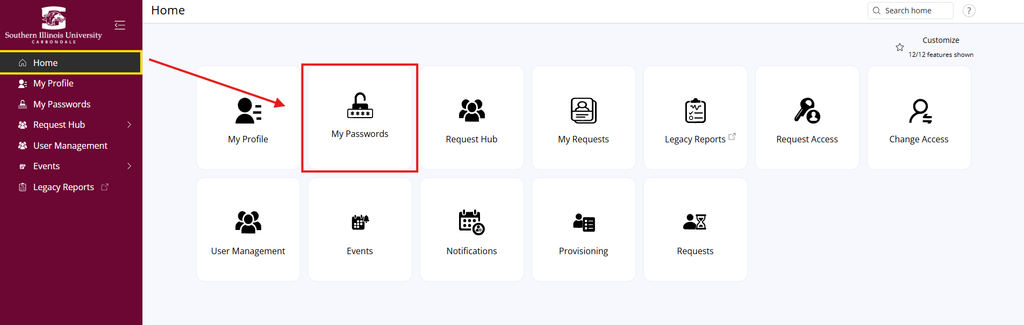
Screenshot of the My Account Password tab in NetID with the password field highlighted.
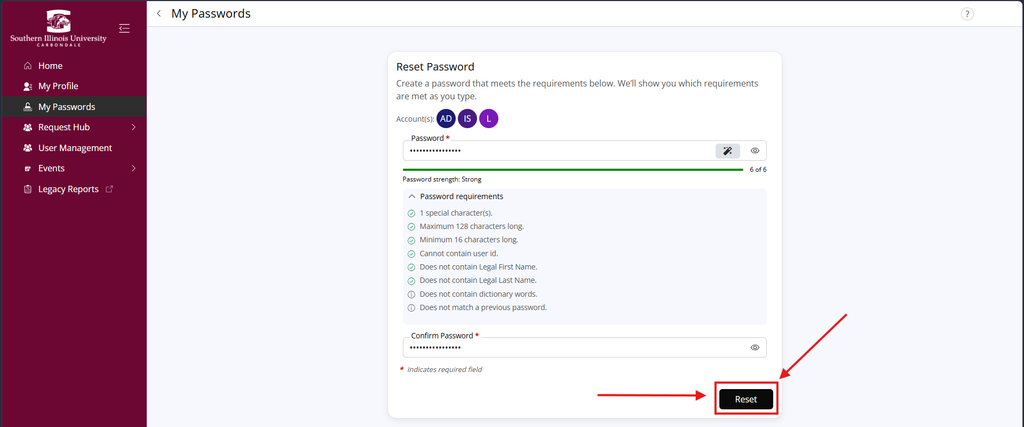
Craft your new password, in accordance with the password rules, and type it in the required fields. Click RESET to save your changes.