Browse Our Knowledge Base
Connect to Windows Remote Desktop using Ubuntu
First, you’ll need to download and install the Cisco Anyconnect VPN client. You can find instructions on how to do that here:
https://oit.siu.edu/networkengineering/services/vpn/vpn-linux.php
Note that the filename you download may be different than vpnsetup.sh and adjust the chmod command accordingly.
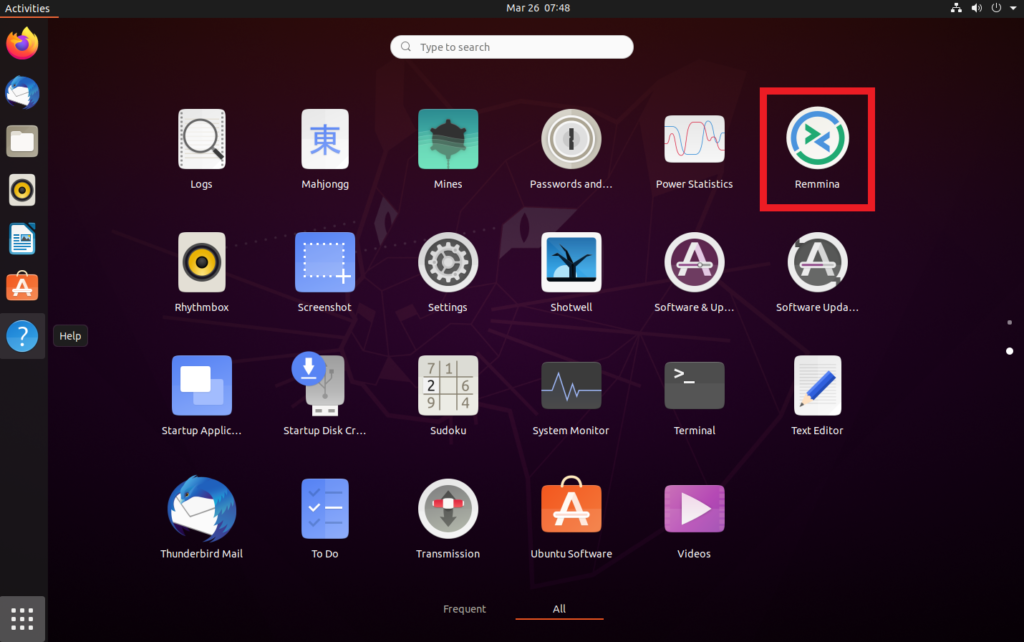
Once you’re done with getting connected to the VPN, start Remmina. This is a Remote Desktop client built into Ubuntu.
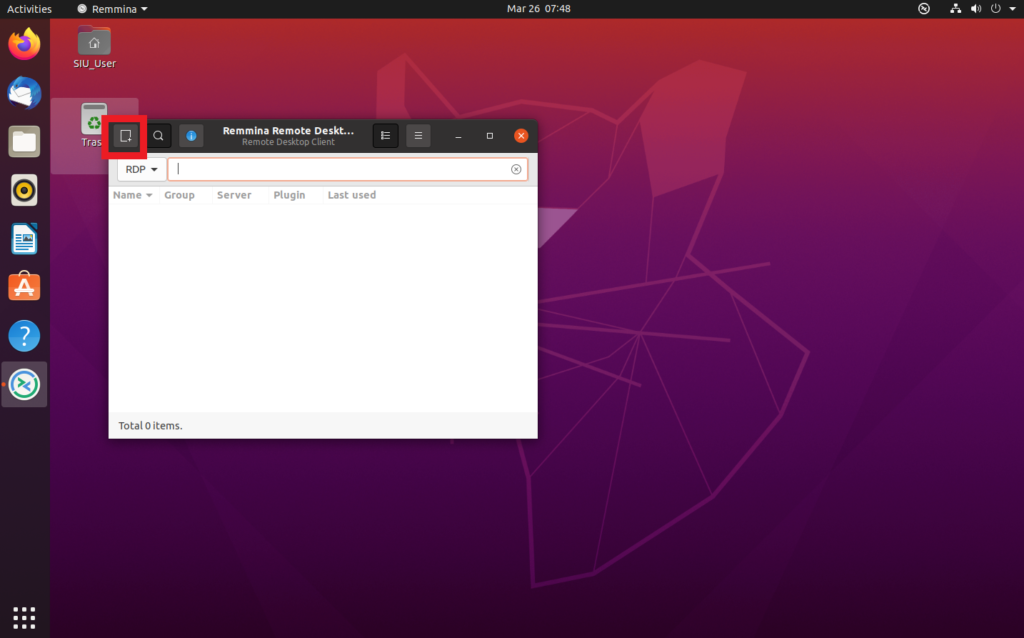
After that’s loaded up, click the “New Connection Profile” button in the top left corner of the window
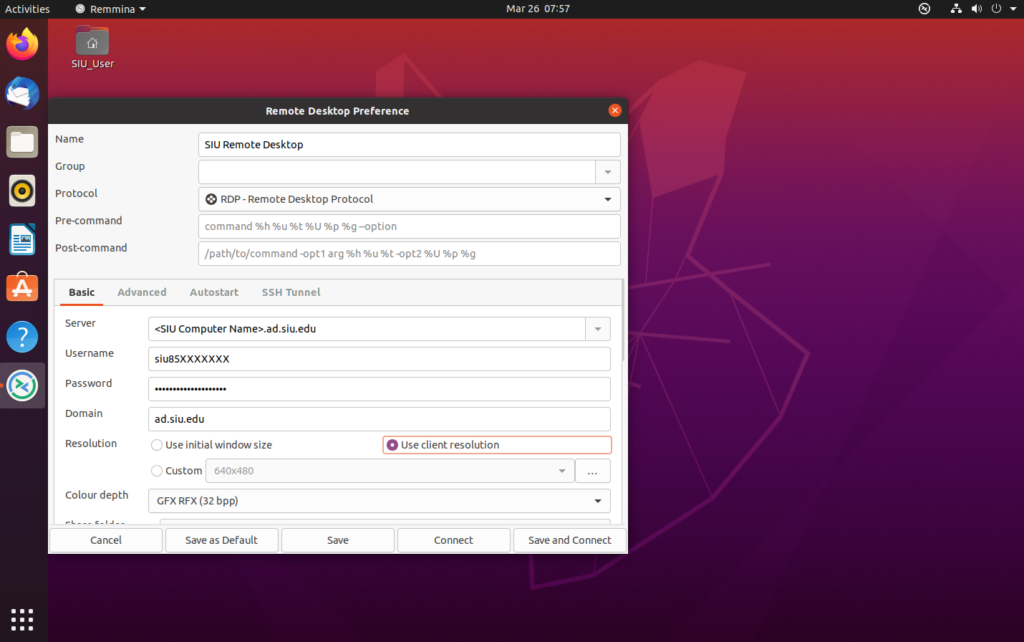
Fill out the fields as below:
Name: SIU Remote Desktop (or whatever you’d like to call it; this field doesn’t need to be something specific)
Server: <your computer’s name>.ad.siu.edu
Username: Your Network ID
Password: Your Network ID Password
Domain: ad.siu.edu
Resolution: Use Client Resolution
The rest of the fields can be left as their defaults.
Save the configuration and double-click on the new entry to connect to your computer.
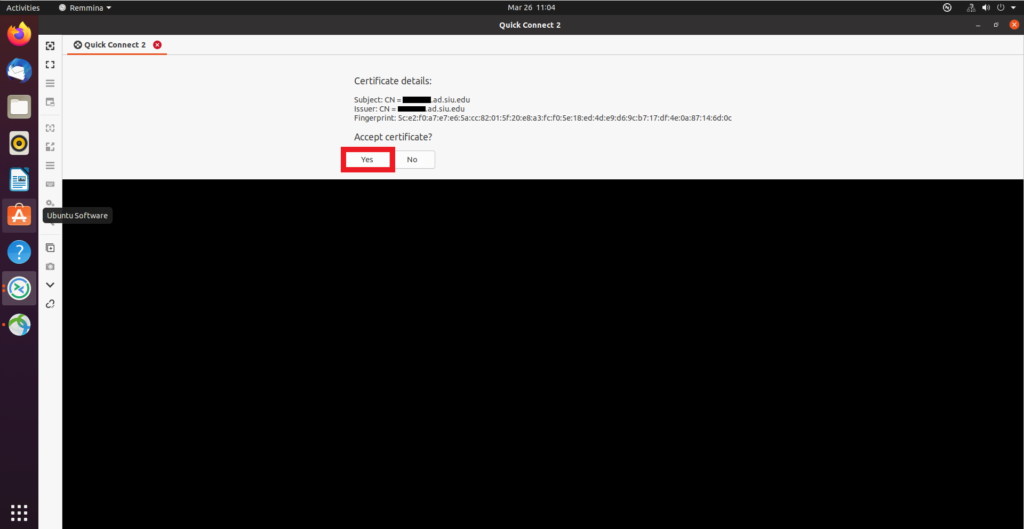
The client may ask you to accept the certificate when you connect. Go ahead and click “Yes”