
Browse Our Knowledge Base
Create a Microsoft Form
Overview
Microsoft Forms is an online tool (included with your SIU Microsoft 365 account) that allows you to create forms for a variety of purposes:
- Surveys
- Event registration
- Quizzes
- Polls
- Feedback collection
Access Microsoft Forms
1. Microsoft Forms can be accessed through your browser by going to forms.cloud.microsoft or by clicking the button below.
2. If prompted, sign in with your SIU email address and password.
3. Once signed in, click New Quiz or New Form in the top left to get started.
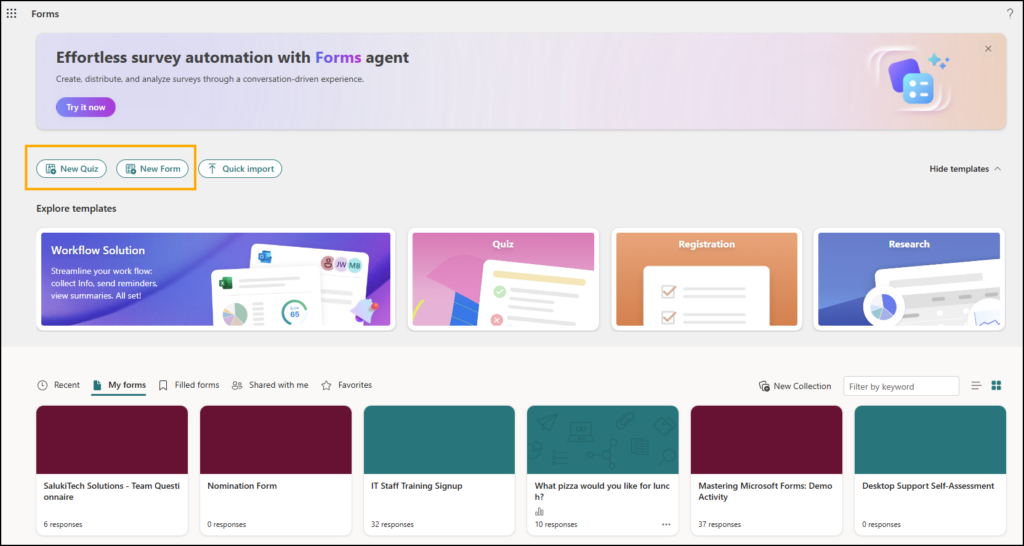
Parts of a Microsoft Form
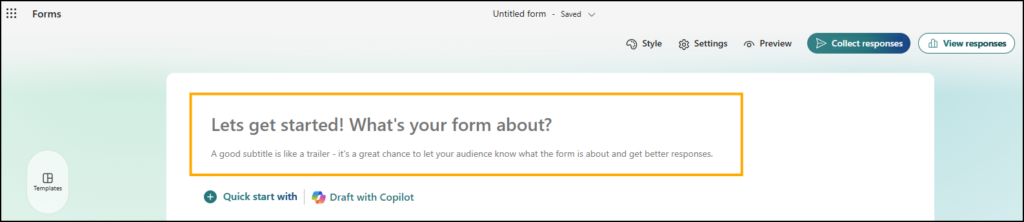
Introduction Section
The introduction section of your form allows you add a custom title, description, and picture or logo.
Field Types
Microsoft Forms includes the following nine question types, which can be used to collect different kinds of information from respondents.
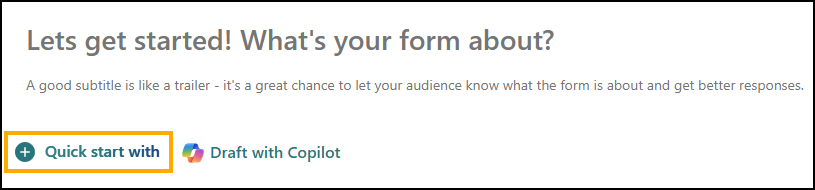
1. To add a field to your form, click Quick Start With.
2. Select the type of field you would like to add.
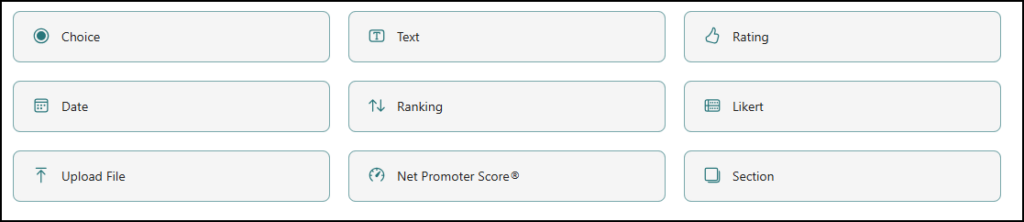
- Choice: Allows respondents to select one or more options from a defined list.
- Useful for multiple‑choice questions, checkboxes, or drop‑down selections.
- Text: Provides an open text field for responses.
- Can be used for short answers (single line) or longer written responses (multiple lines), with optional input restrictions such as number or email format.
- Rating: Asks respondents to rate something using stars, numbers, or symbols.
- Commonly used for satisfaction or quality ratings.
- Date: Allows respondents to select a date using a calendar picker.
- Useful for scheduling, deadlines, or date‑specific information.
- Ranking: Lets respondents drag and drop items into an order of preference or priority.
- Helpful for comparing choices or identifying relative importance.
- Likert: Groups multiple statements into a single question with the same response scale.
- Often used for surveys measuring agreement, satisfaction, or attitudes.
- File Upload: Allows respondents to upload a file as their response.
- Files are saved to OneDrive or SharePoint and may require users to sign in, depending on form settings.
- Net Promoter Score (NPS): Asks how likely respondents are to recommend something on a scale from 0–10.
- Commonly used to measure overall satisfaction or loyalty.
- Section: Divides a form into multiple pages or logical sections.
- Useful for organizing longer forms and improving readability.
Customization
Click the Style button from the menu bar at the top to choose from a variety of templates and colors. Or, add your own custom colors (such as SIU maroon).

Preview Mode
Before sharing your form with others, preview how it looks and test it out.

Additional Resources
For more in-depth training on Microsoft Forms, view Microsoft’s Help & Learning Resources.