Browse Our Knowledge Base
Attend Virtual Class Meeting on Teams
Overview
This guide is designed to help students to navigate to Team course meetings from D2L or Teams.
Joining from D2L
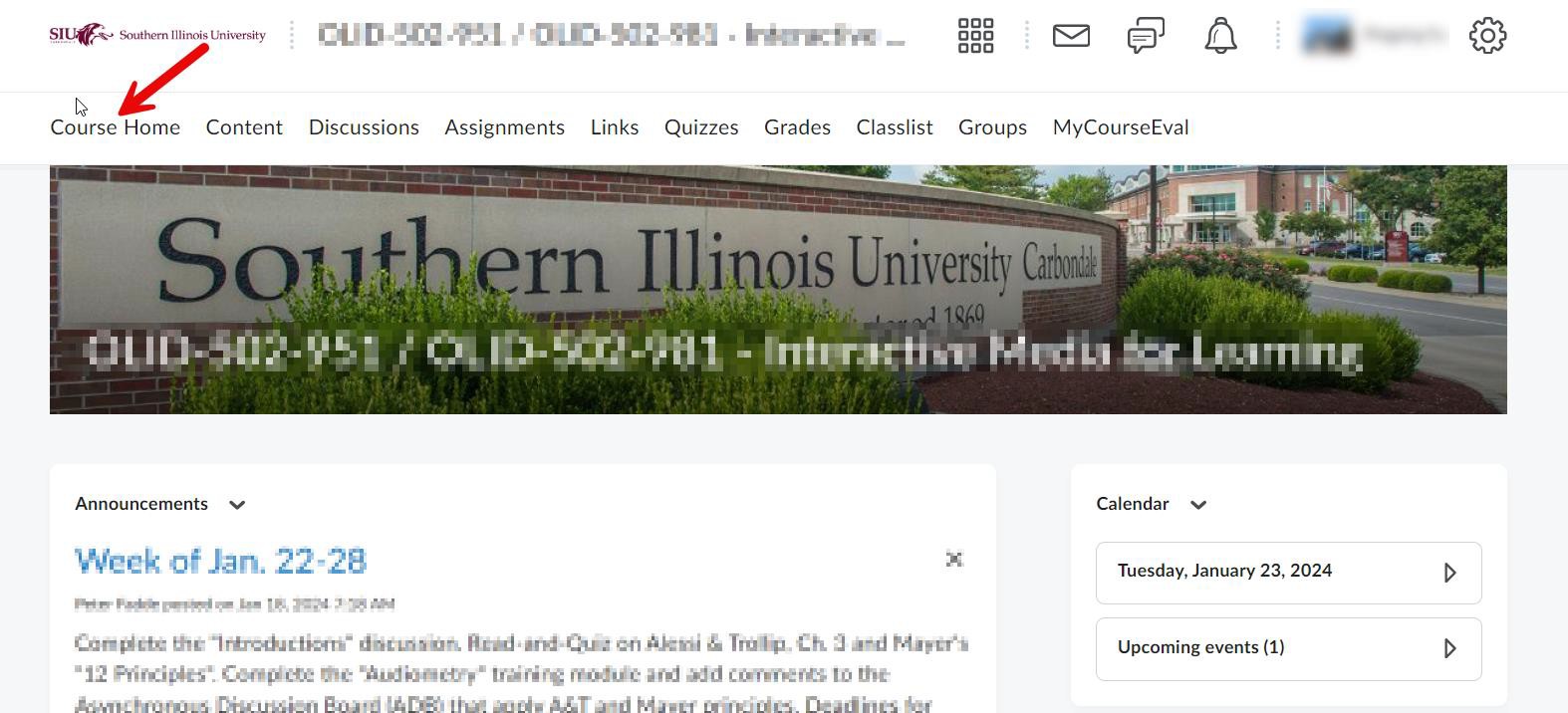
1. Log into D2L and navigate to the target course home.
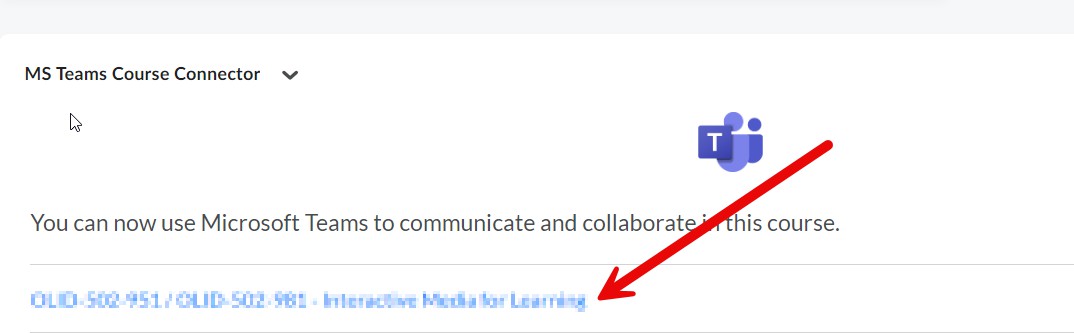
2. Click on the corresponding Team course under MS Teams Course Connector. The connector widget is usually at the bottom of the homepage or below the calendar widget.
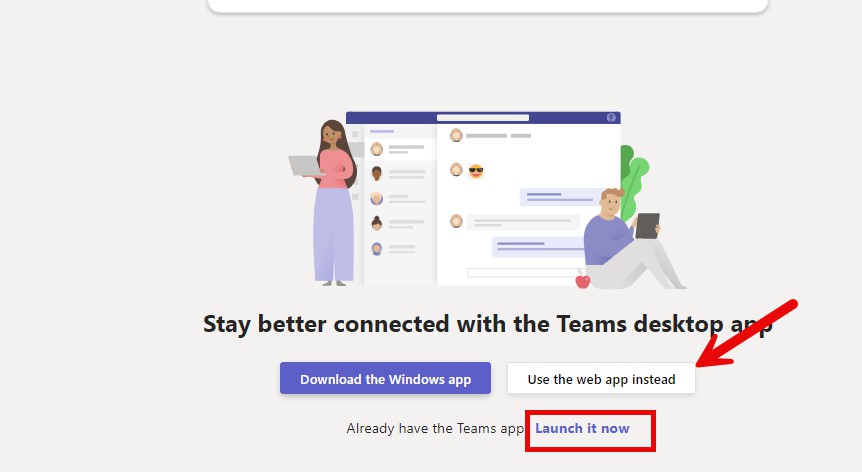
3. If you have the Microsoft Teams app installed, open it by clicking on Launch it now. If you have not downloaded the app, you can click on Use the web app instead.
Note: If prompted, select Microsoft Teams (work or school).
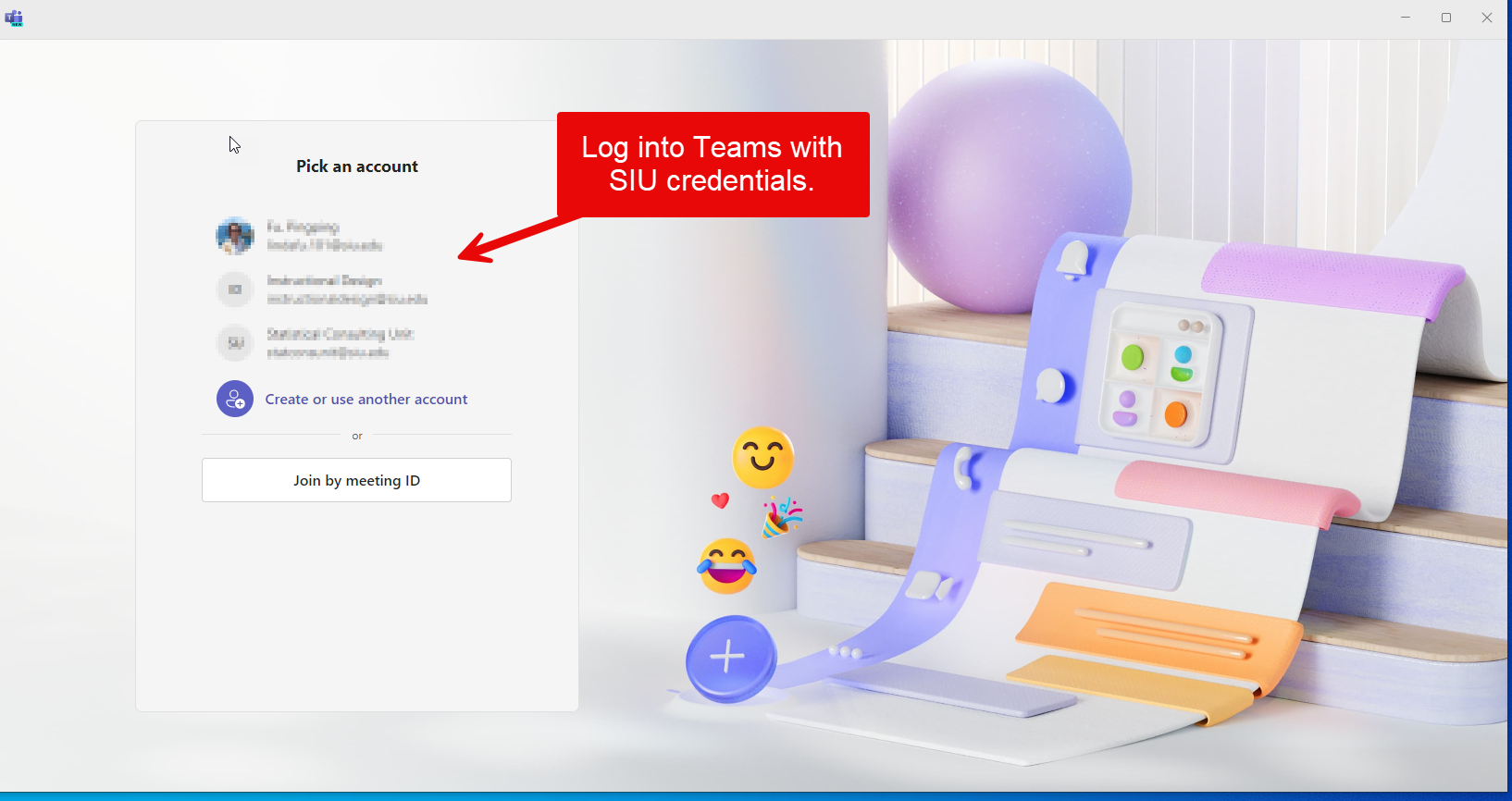
4. You will be directed to the corresponding Team course. Use your SIU credentials to log into Teams if needed.
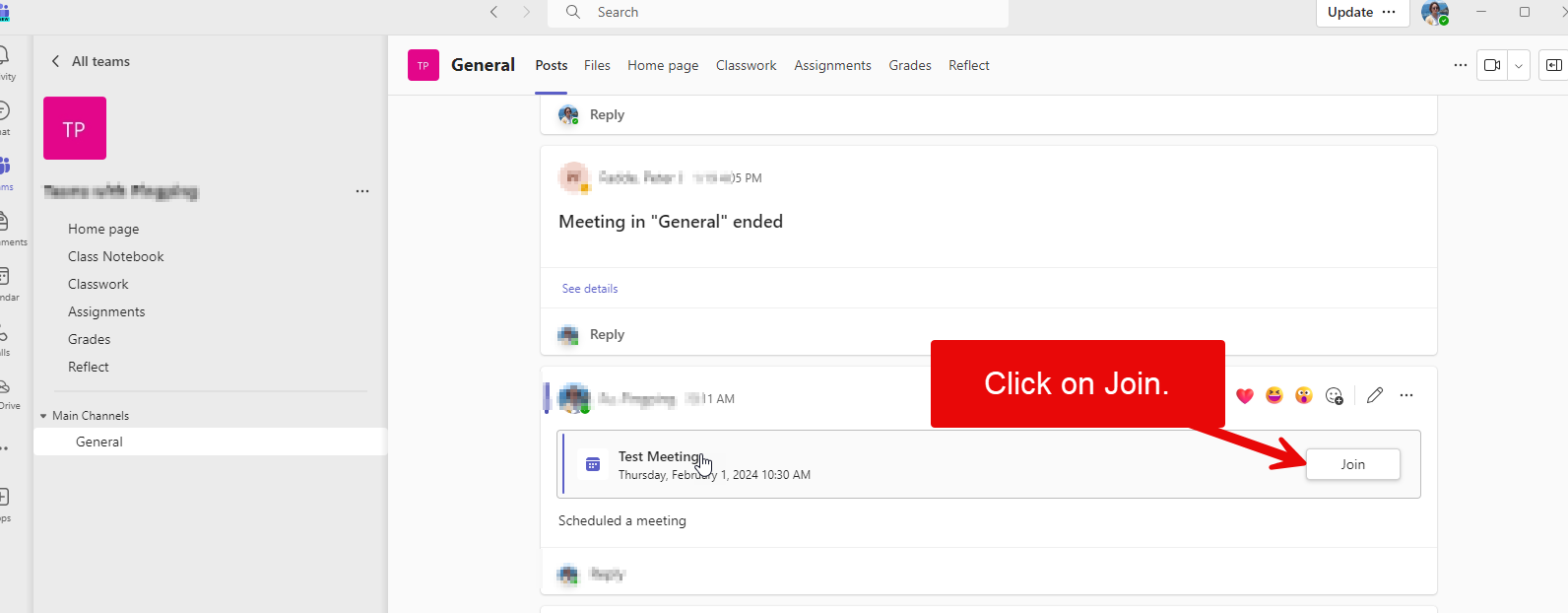
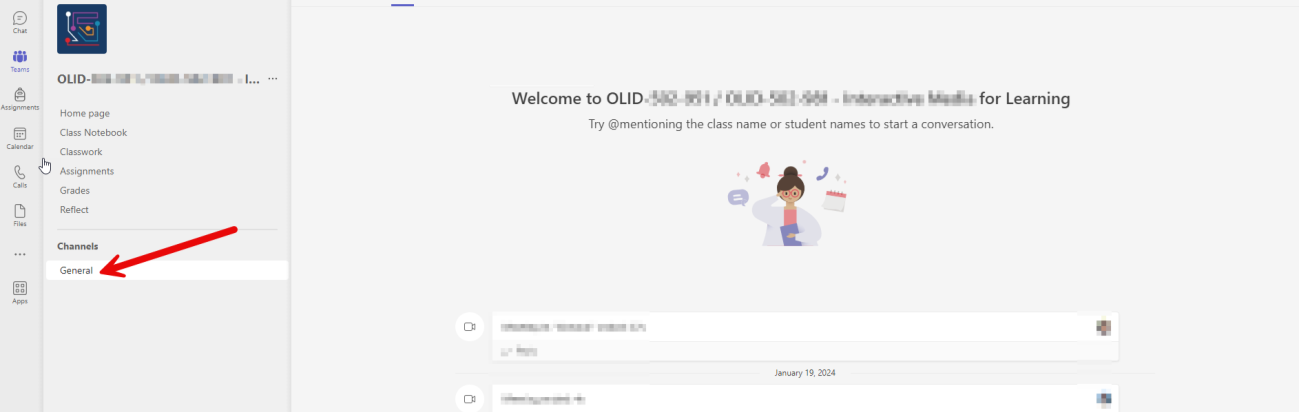
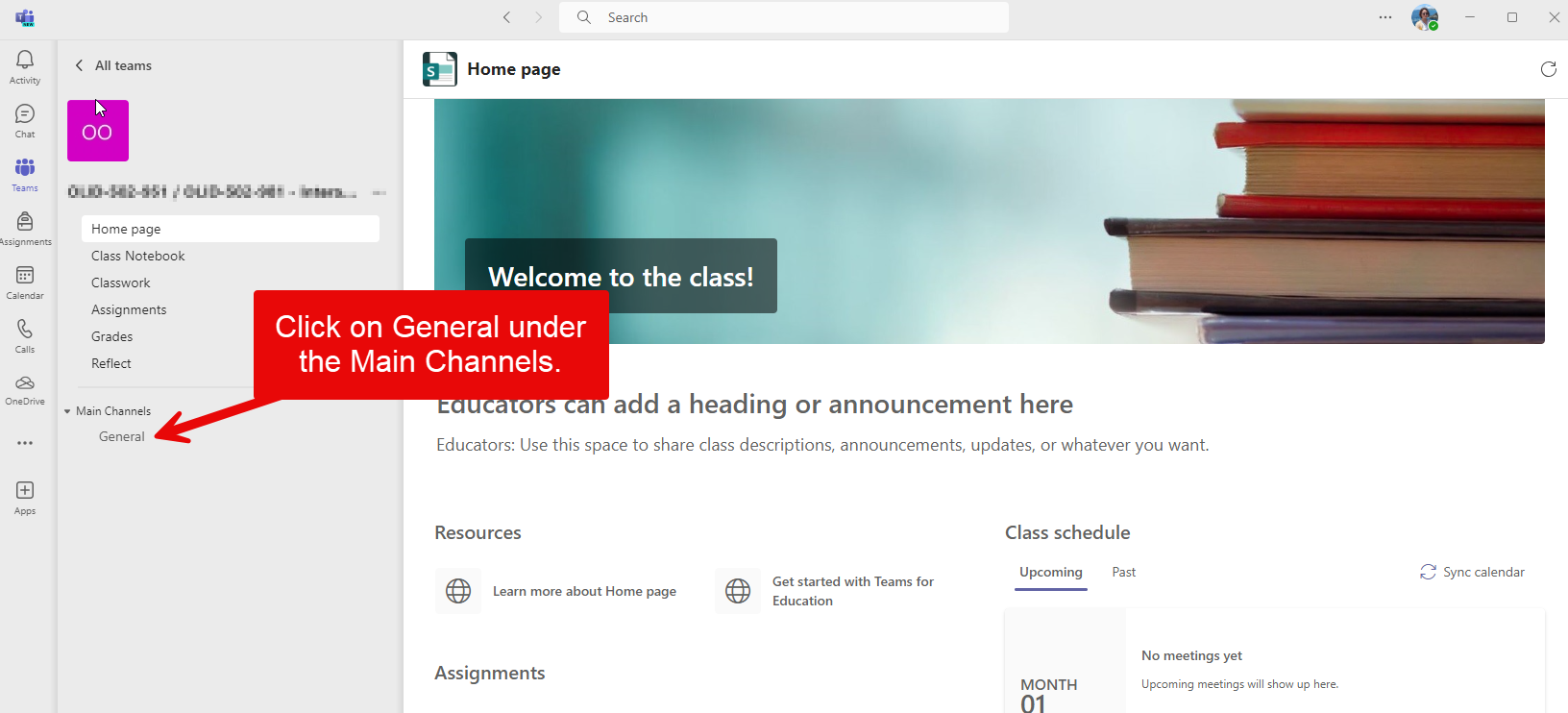
5. Navigate to the Main Channels section and click on General.
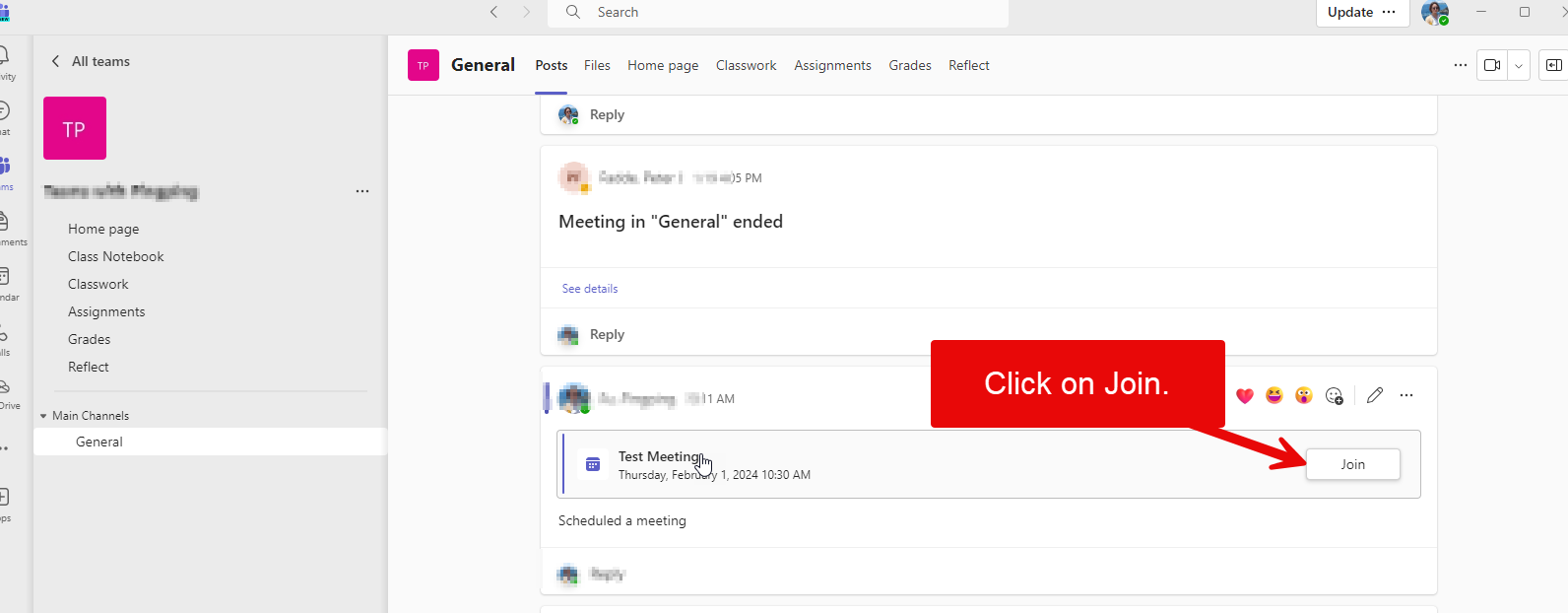
6. Click Join to the right of the meeting schedule bar.
Joining from the Teams app
Step 1: Log into the new Teams app using your SIU credentials.
Note: You may also use the Teams web app if you have not already installed the app on your device. We recommend downloading the new Teams app.
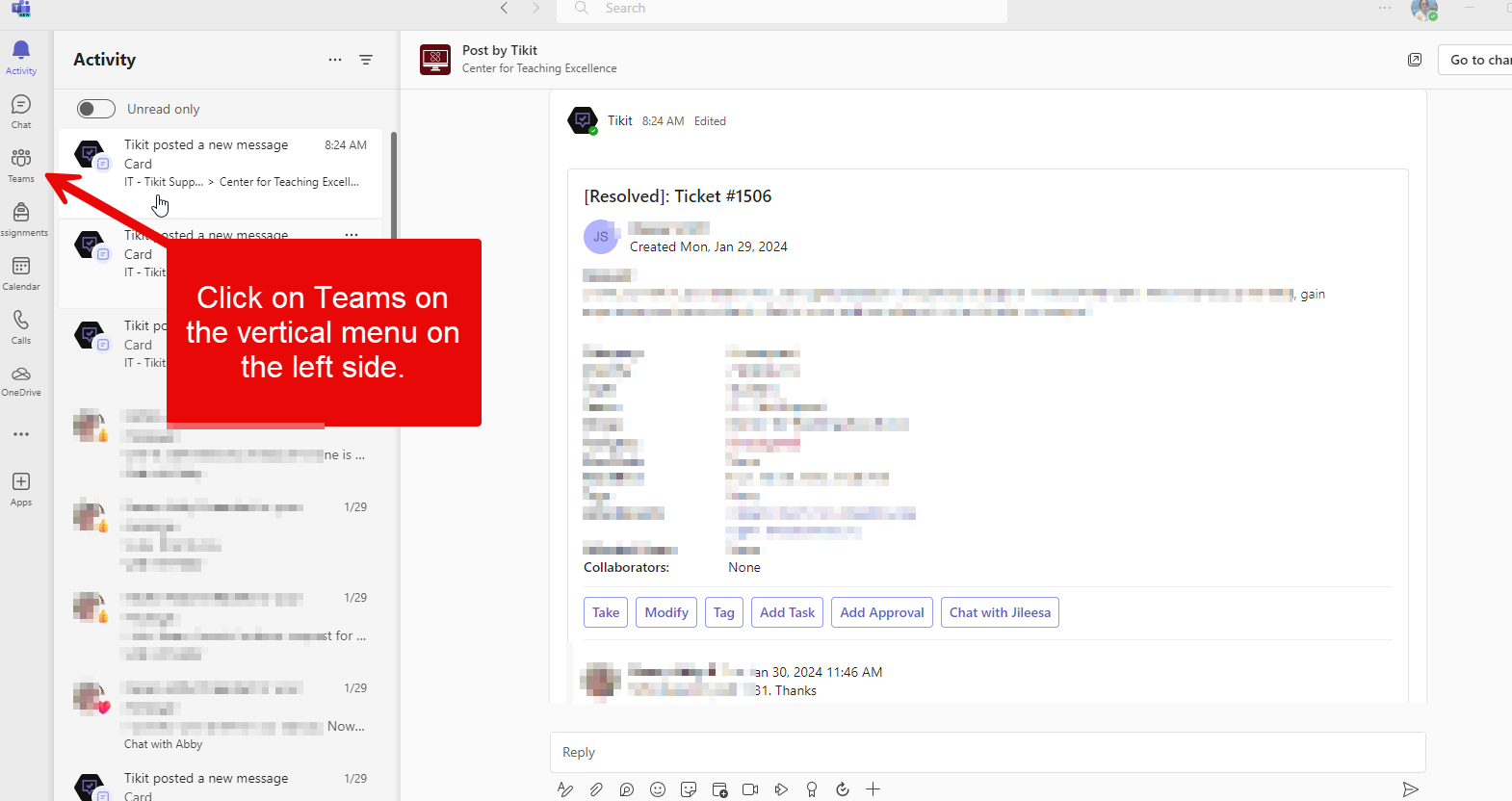
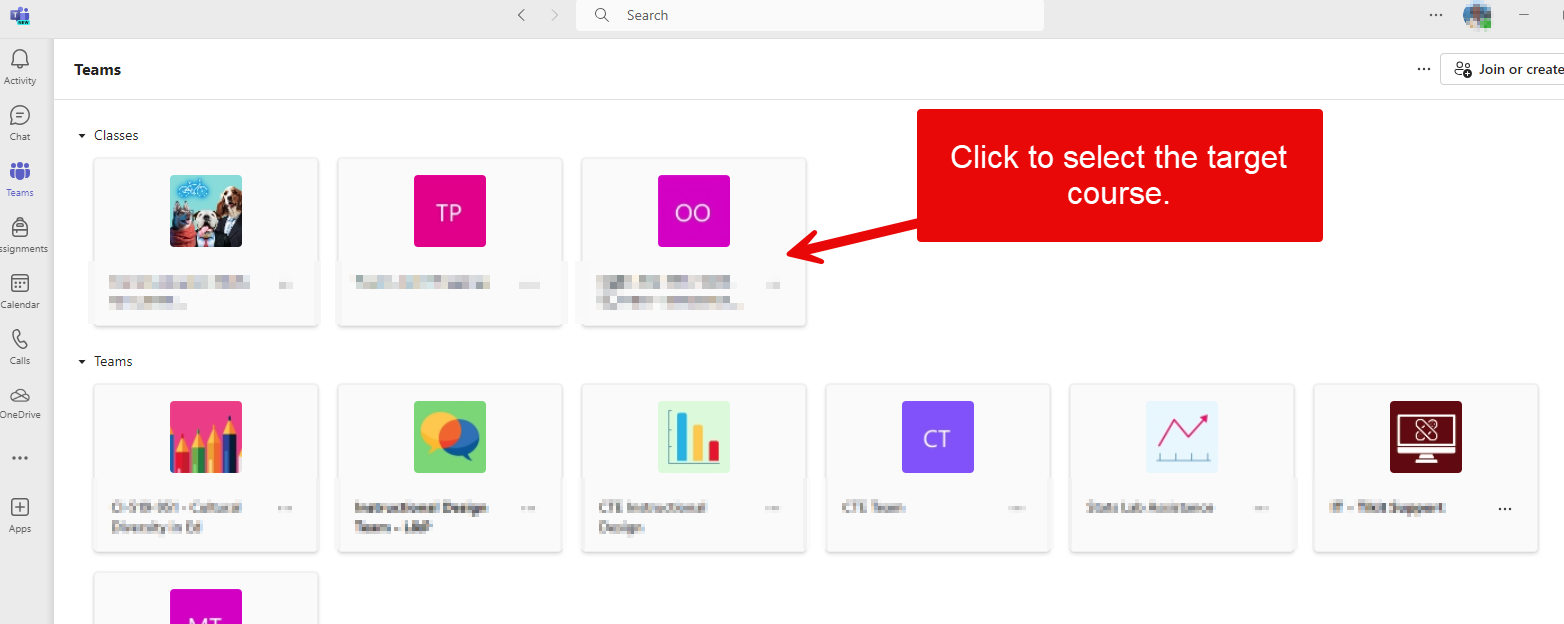
Step 2: Click on Teams on the vertical menu on the left side.
 Step 3: Click on the target course team to open the team.
Step 4: Navigate to the Main Channels and click on General.
Step 5: Click on Join on the right of the meeting schedule bar.