
Browse Our Knowledge Base
Force Chrome and Edge to Download PDF Forms
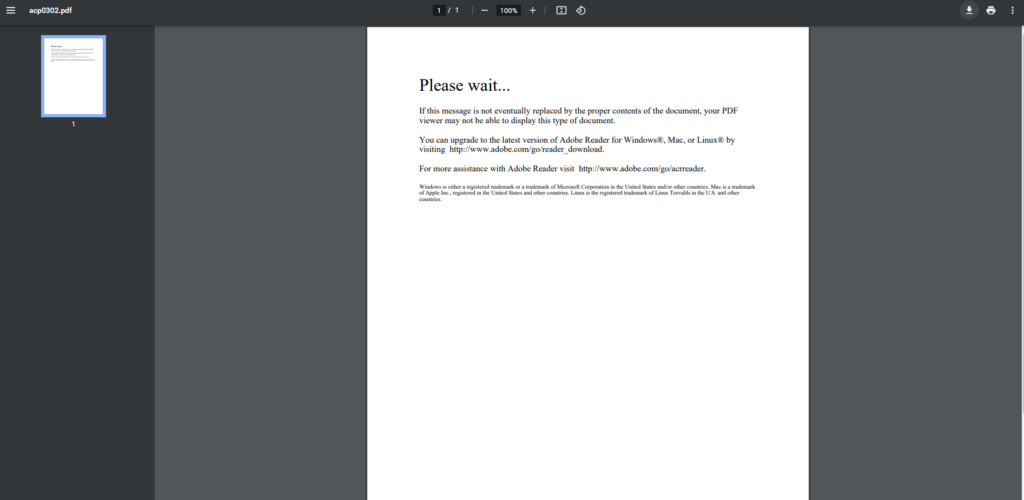
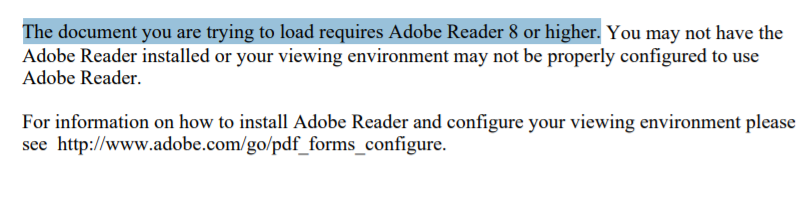
Fixing the “document you are trying to load requires Adobe Reader 8 or higher” error trying to use the https://eforms.siu.edu/ site when using Google Chrome or Edge.
If you get one of the following errors accessing this site, you will need to download the PDF and open the PDF file in acrobat. This guide will allow you to set Chrome and Edge to automatially download PDF files to your computer, so you do not see the errors listed below.
Google Chrome
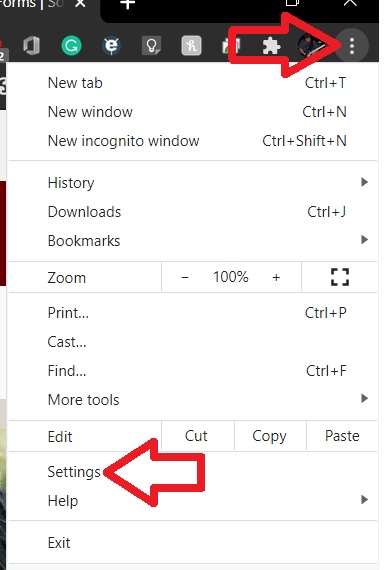
On the right-hand side click on the three dots and then click on “Settings”
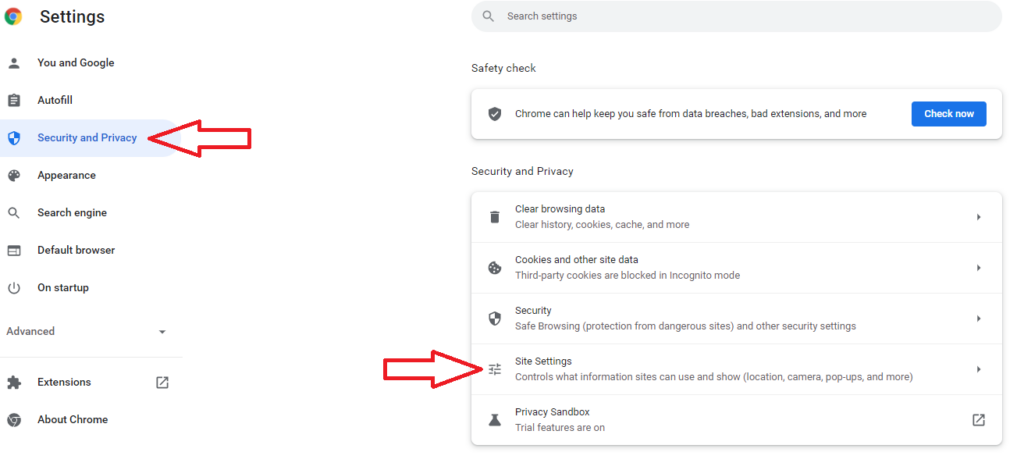
Click “Security and Privacy,” then click “Site Settings”
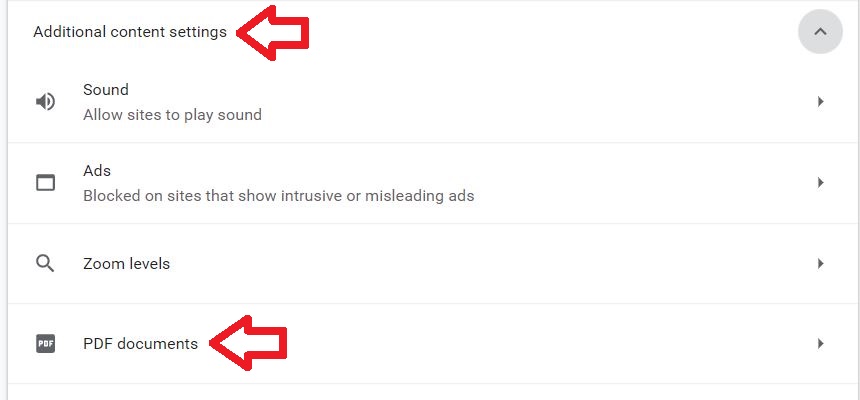
In the “Additional content settings” Click on “PDF documents”
Click “Download PDFs”
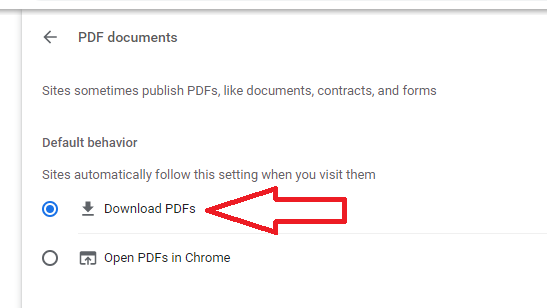
Now Chrome will automatically download PDF files instead of opening them.
Microsoft Edge
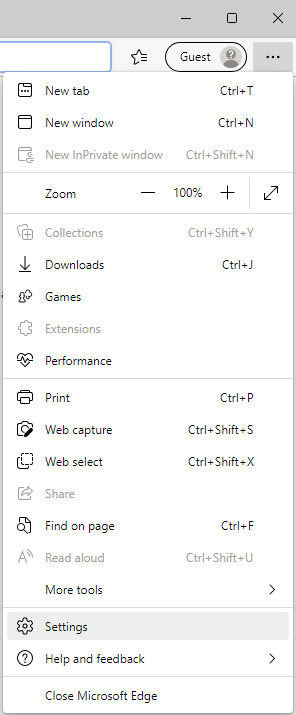
In the upper right hand corner of Edge, select the menu (three dots) and select “settings”.
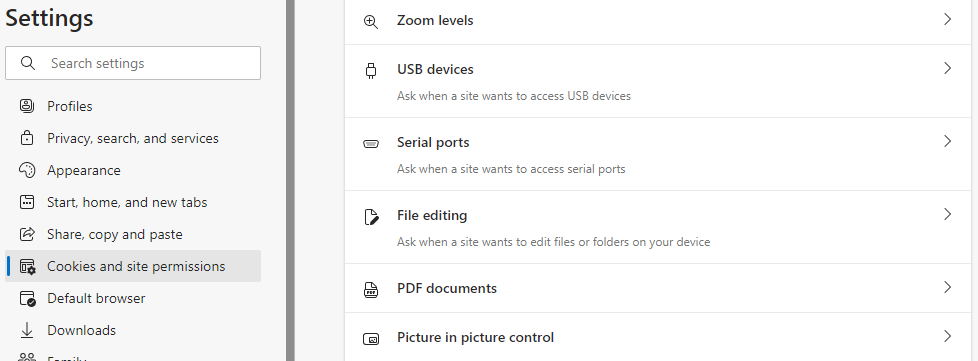
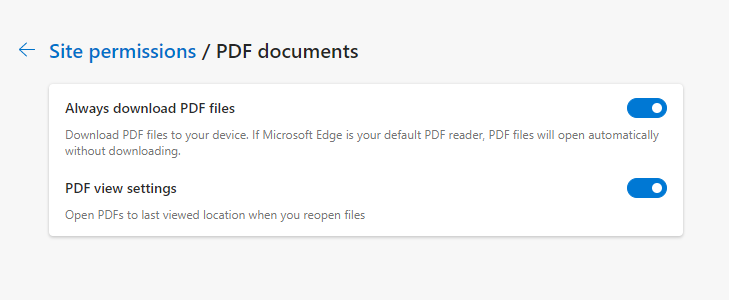
Inside settings select “cookies and site permissions” then scroll down and select PDF documents on the right hand side.
Toggle the option “always download PDF files” to the ON position.
How do I open these downloaded files in Adobe Acrobat?
Please see our article on how to open these files in Adobe Acrobat.
https://oitkb.siu.edu/knowledge-base/pdf-not-opening-adobe/