Browse Our Knowledge Base
Restoring Firefox Bookmarks
The guide above shows you how to restore your favorites to firefox after a recent update wiped them out.
Turning on Hidden Files
Open-up File Explorer (sometimes will just show as a manilla folder)

- Go to View
- Turn on view hidden files (to be continued)

Import Recovered Profile in Firefox
- Open Firefox
- Hit ctrl+shift+b key – This will open the bookmark manager
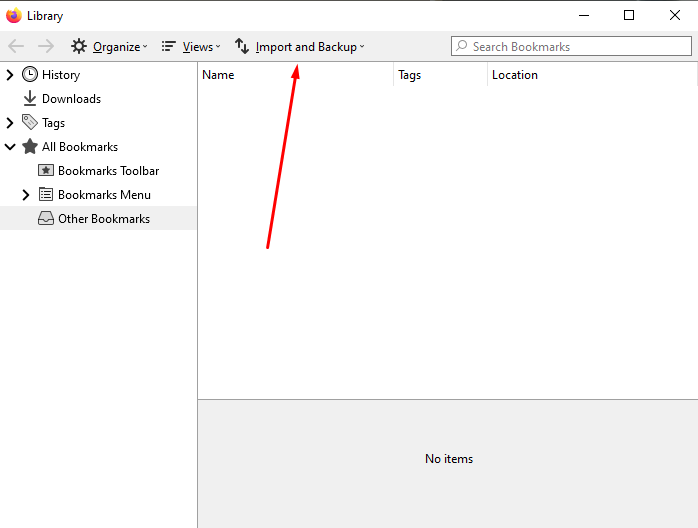
- Go to Import and Backups
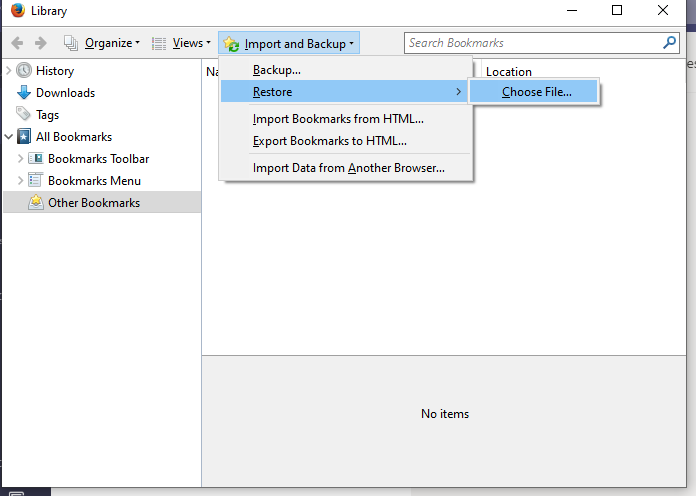
- Then go to Restore and Choose file
- Navigate to the bookmark backup location
DirectFilepath: You can copy and paste this into the explorer bar and you’re your siu85number.
C:\Users\siu85*****\AppData\Roaming\Mozilla\Firefox\Profiles\0zgpnyp.default\bookmarkbackups
Or Browse to your Firefox Backup
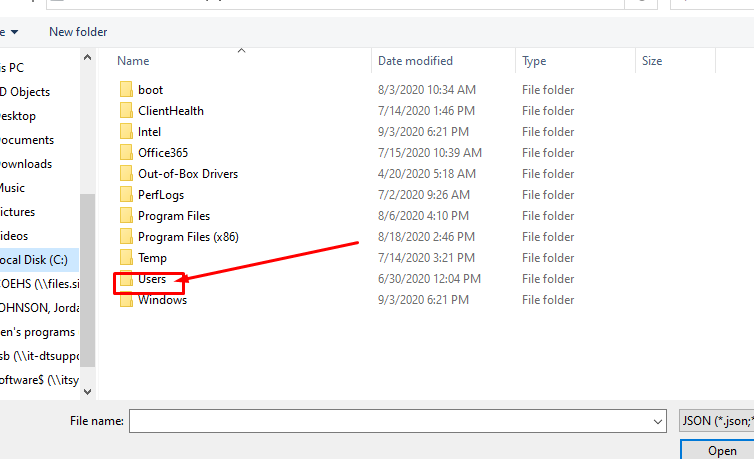
- Local disk C:\
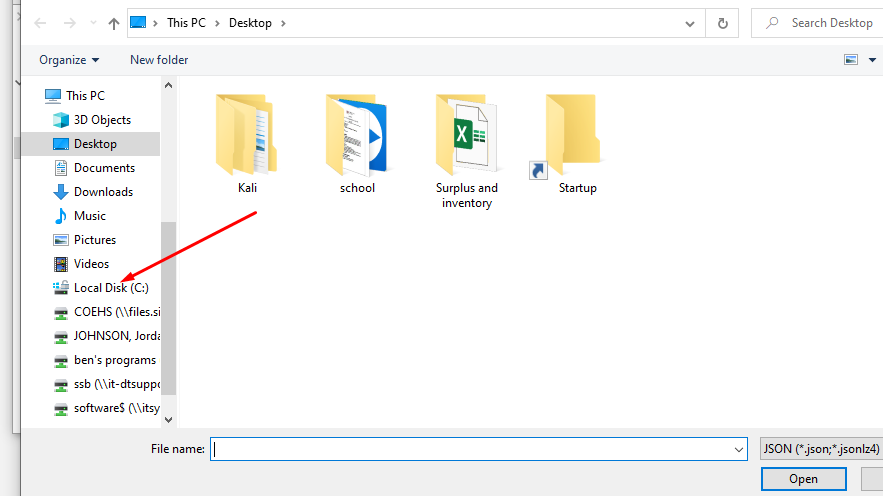
- Go to Users
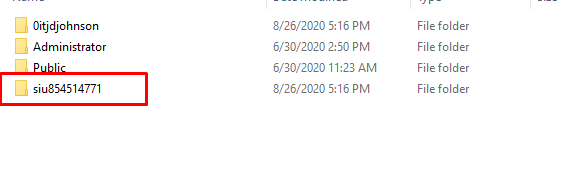
- Go to your Dawg tag number
- Go to your AppData folder (it should now be visible after we turned on view hidden
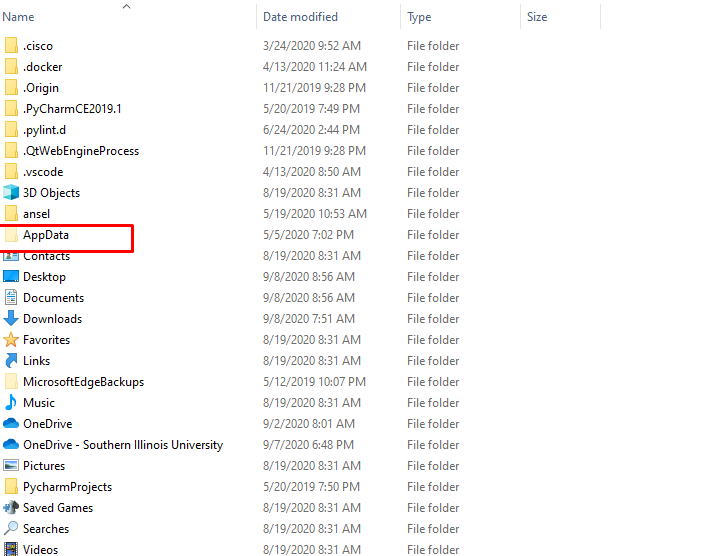
- Go to roaming
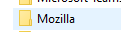
- Go to Mozilla
- Go to firefox
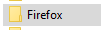
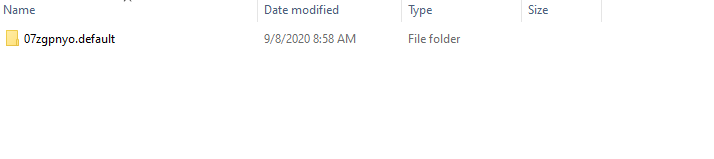
- Go to Profiles

- Your profile name may be different, shown below is the default profile
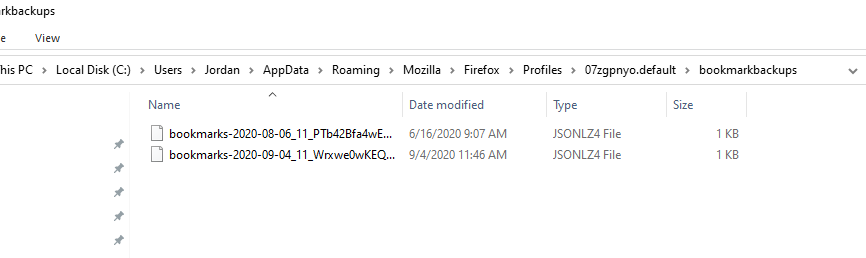
Also, you may have multiple profiles, you may have to look under each entry until you find jsonlz4 files (shown in step 10) from prior to this week’s date. (see above for example)
- Go to Bookmarkbackups, You should see files similar to these in your profile (if you have multiple profiles you may need to look at the other profiles to locate the restoration points.
Recover Selected File
- Once you select the appropriate bookmark backup file you can hit open
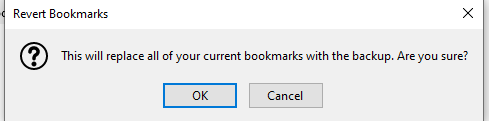
- then hit ok when presented with the prompt below. If your bookmarks are not restored then you may need to try a different profile or backup file.