
Browse Our Knowledge Base
Firewall Rule Request
Important Access Note
Only approved users are authorized to submit firewall rule requests.
- If you are not approved, you will still be able to submit the request form in Tikit; however, the ticket will be automatically denied and closed.
- To request permission to submit firewall rules, submit a separate ticket.
How to Submit Request
1. In Microsoft Teams, open the ITHelp Virtual Assistant from the menu on the left-hand side of the screen.
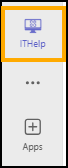
Note: If the ITHelp Virtual assistant is not on your left-hand menu, click the Apps button, then select IT Help.
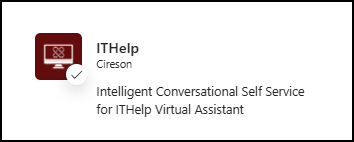
2. In the chat, enter “Firewall Rule.” The Virtual Assistant will provide the required request form.
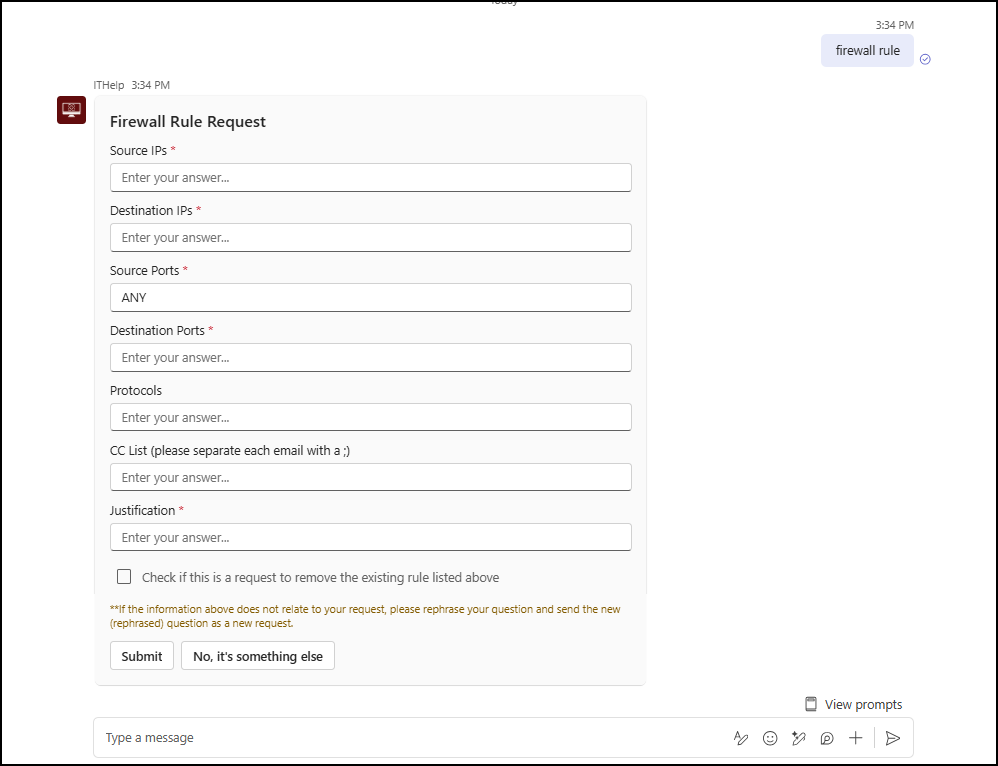
3. Complete all required fields and select Submit. Note: The keyword “ANY” may be used in the IP address and port fields, but only when truly necessary.
Field Descriptions
Source IPs
A list of IP addresses or subnets from which the traffic will originate.
Destination IPs
A list of IP addresses or subnets to which the traffic needs to go (the target systems you need to connect to).
Source Ports
A list of TCP or UDP ports from which the source IPs will connect.
In most cases, this should be left as ANY.
Destination Ports
A list of TCP or UDP ports on the destination IPs.
Be sure to specify:
- TCP
- UDP
- Both TCP and UDP
Protocols
IP protocols needed on the destination IPs other than TCP or UDP.
Examples include:
- ICMP (ping)
- ESP/AH (IPSec)
Note: Protocols do not need to be specified for TCP or UDP traffic; those should be defined in the Destination Ports field.
CC List
Email addresses of additional individuals who should be notified of the firewall request status.
- Separate multiple email addresses with a semicolon (
;).
Justification
A clear explanation of why the firewall rule is needed. Note: Requests without sufficient justification may be denied.
Removal Checkbox
Select this checkbox if you are requesting that existing firewall rules matching the provided criteria be removed rather than added.
Example: Removing rules for a server that has been decommissioned.
What happens after submission
Approved users will receive an email confirmation that the ticket has been successfully submitted.
Unapproved users will receive an email notification indicating that the ticket has been closed due to lack of permission.