
Browse Our Knowledge Base
How to Forget the Network
Overview
Forgetting a network can help resolve common Wi‑Fi connection issues, especially after a password change, device update, or repeated connection failures. When you “forget” a network, your device removes the saved connection details and allows you to reconnect using fresh settings.
Important: If you recently changed your SIU password and your account is locking, be sure to forget all SIU networks you may have previously connected to (such as Eduroam, SIU Guest, or SIU‑Limited). You should also repeat this process on every device that was connected with your old password.
iPhone
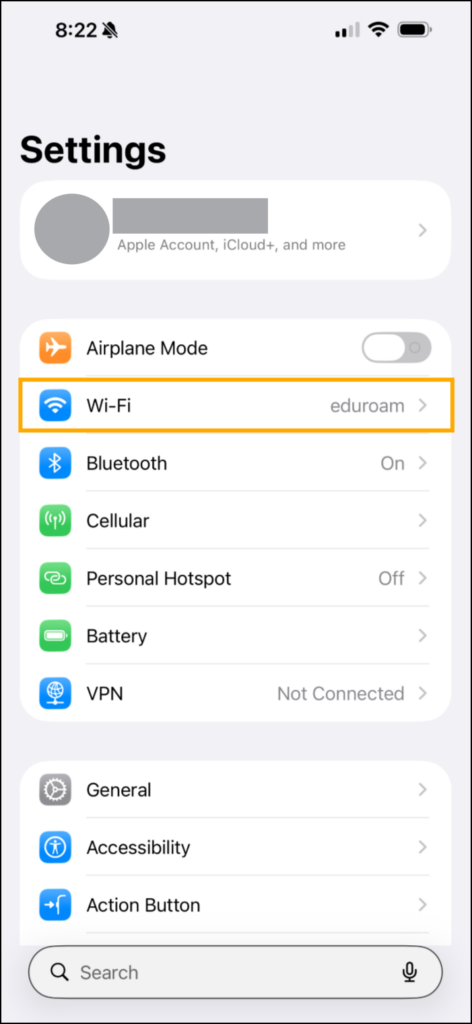
1. Open the Settings app on your phone.

2. Select Wi-Fi from the list of Setting options.
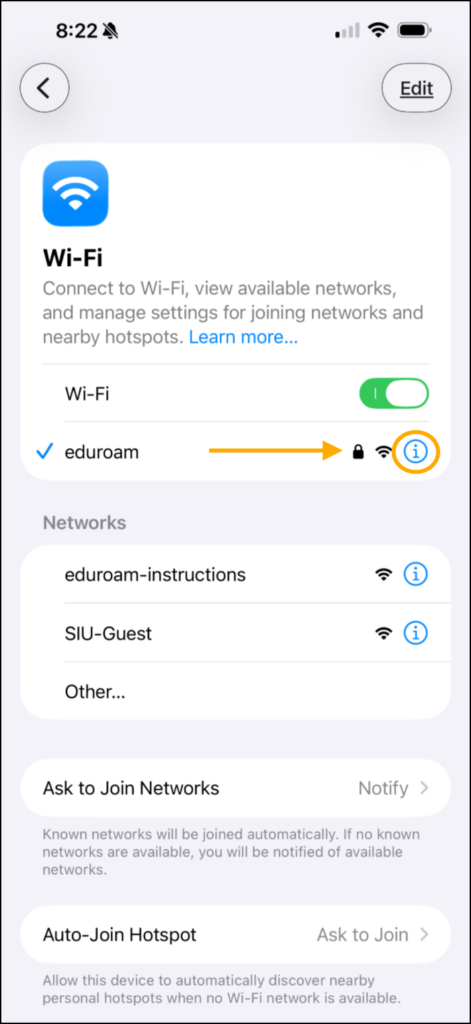
3. Tap the Information (“i”) icon to the right of the Network Name.
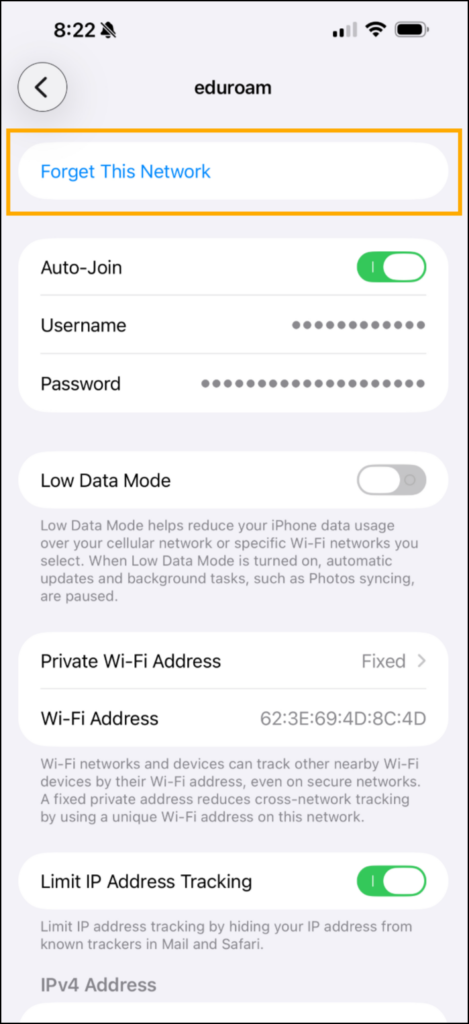
4. Select Forget This Network.
Android
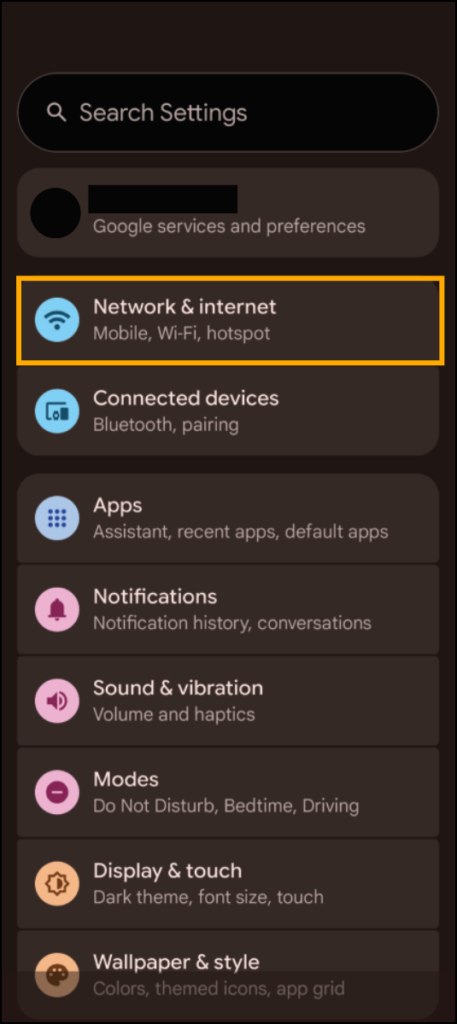
1. Open your Settings.
2. Select Networks & Internet.
Note: The name may vary slightly depending on your device. Navigate to where you would typically view the list of Available Wifi Networks.
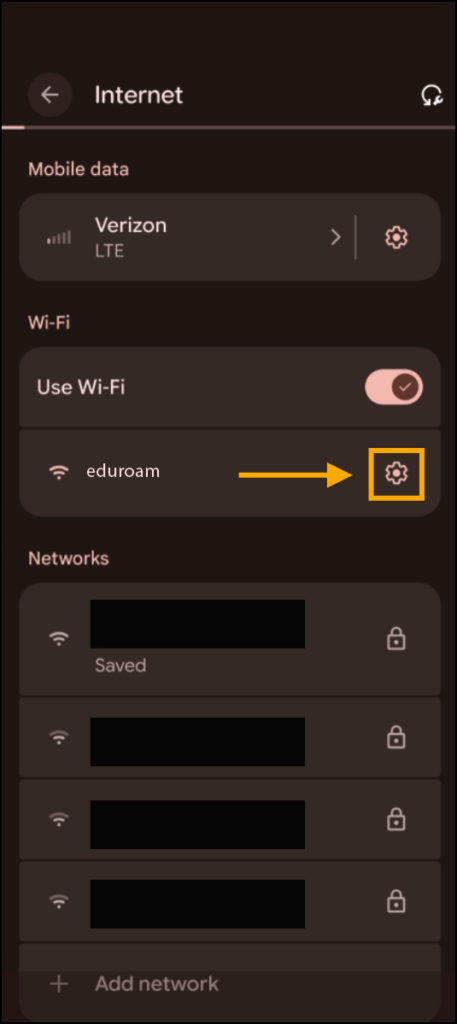
3. Select Internet.
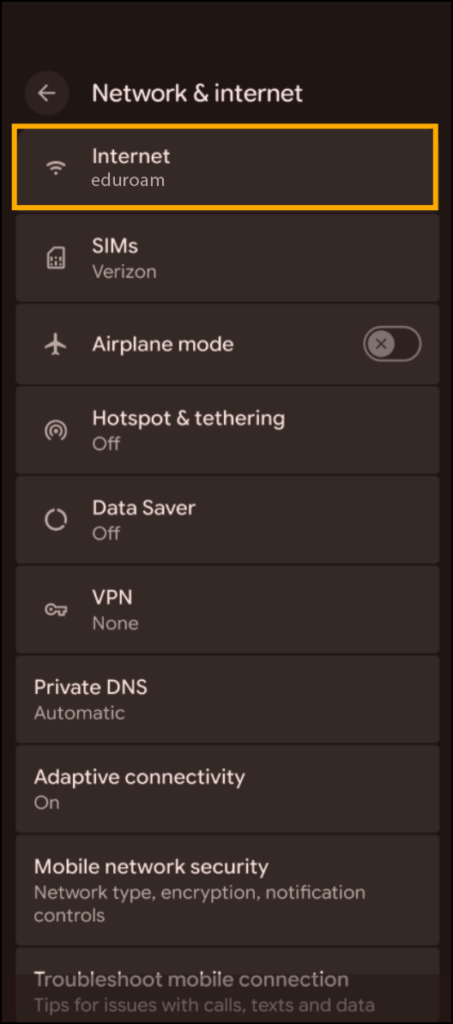
4. Select the Settings icon next the name of the network you would like to forget.
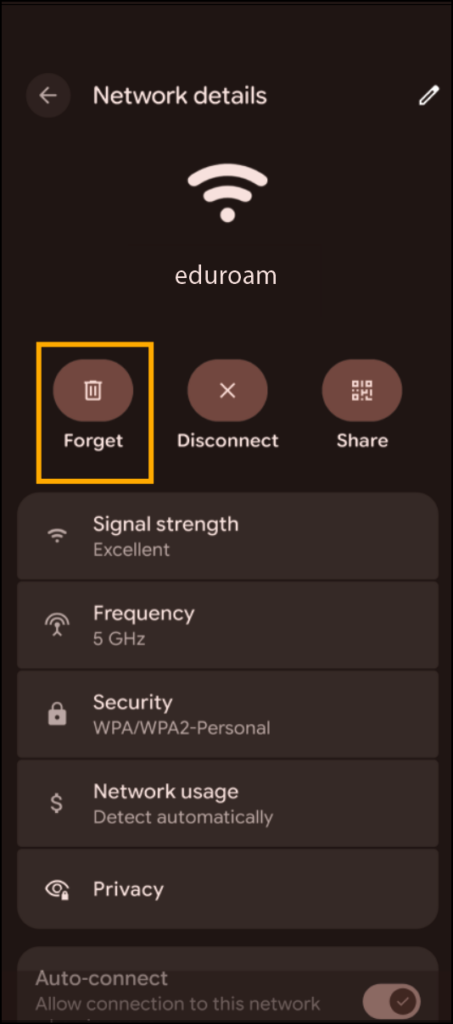
5. Select Forget.
Windows
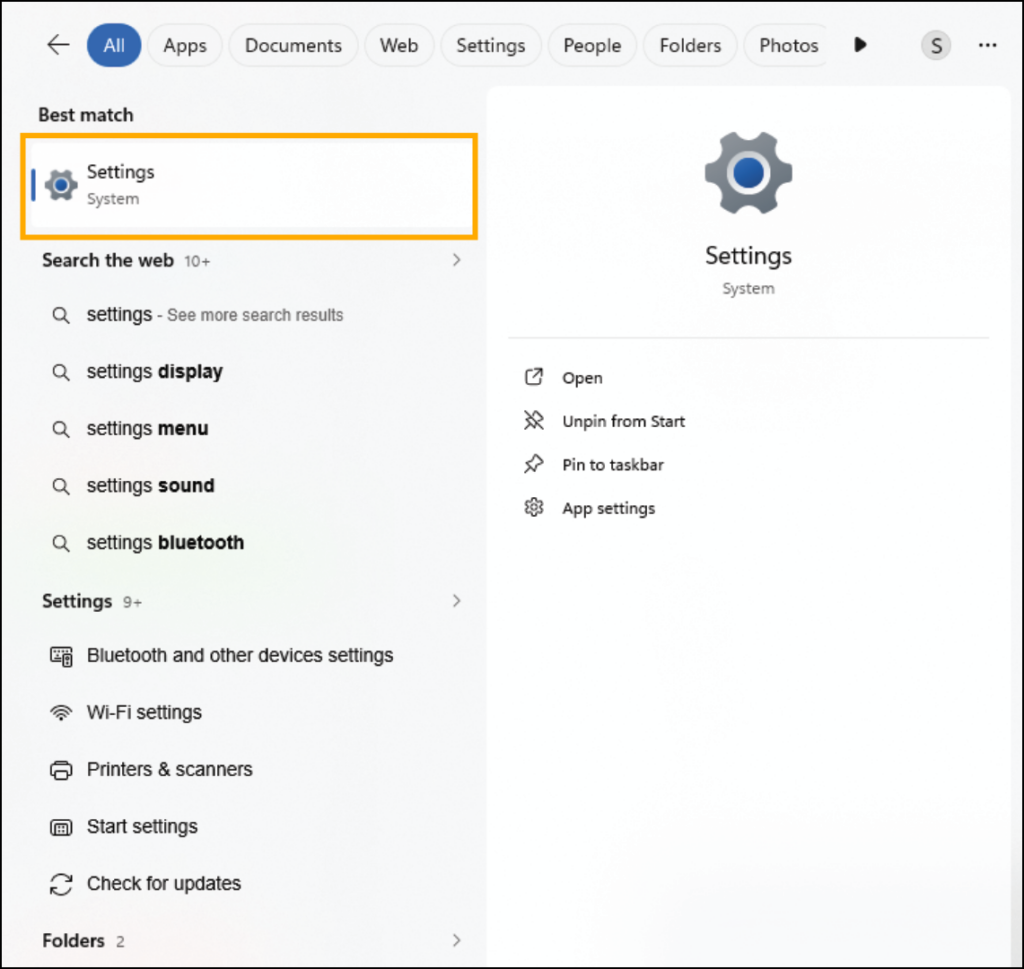
1. Click the Windows icon at the bottom of your screen.

2. Search for Settings. Click on the Settings icon.
3. Select Network and Internet.
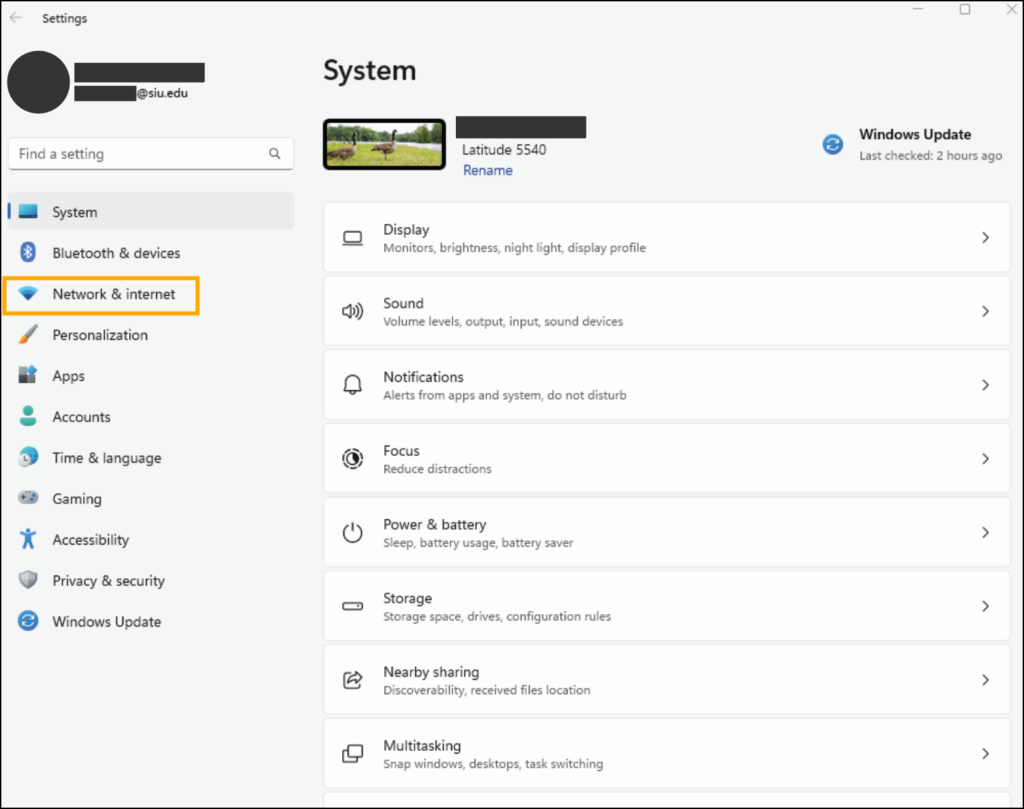
4. Select Wifi.
5. Select Manage Known Networks.
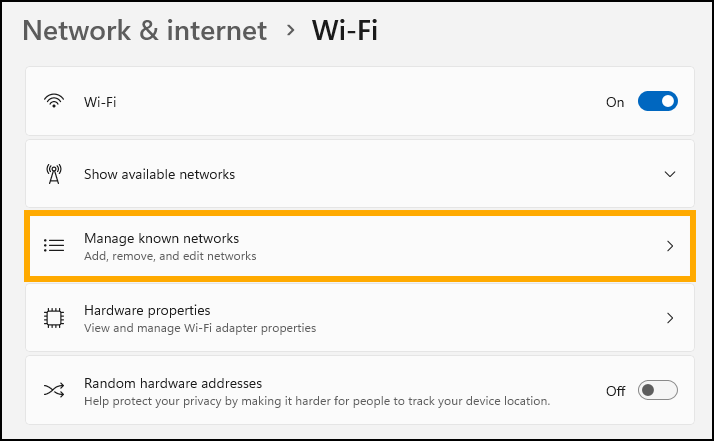
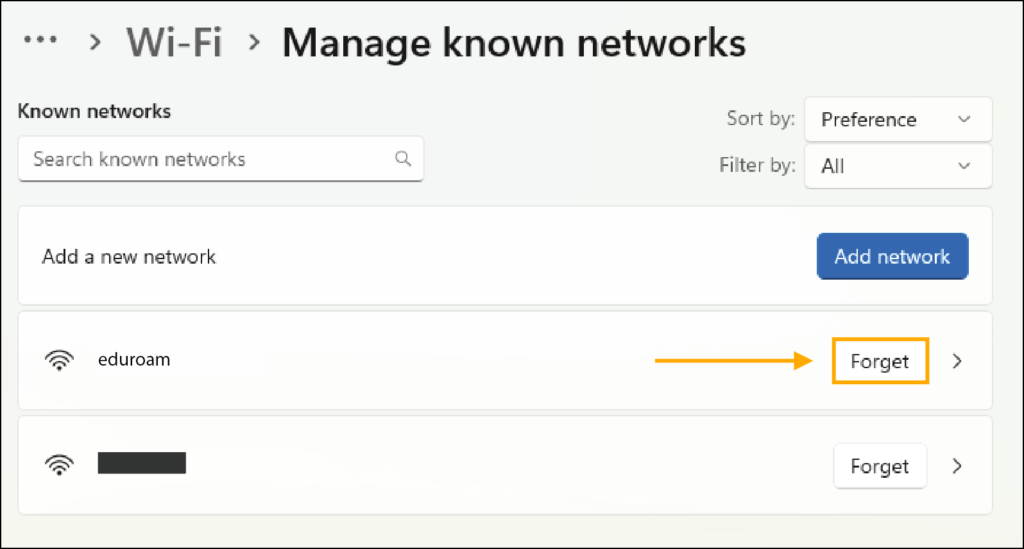
6. Select Forget to the right of the network name.
Mac
1. Select System Preferences.
2. Select Network.
3. Select Wi-Fi from the list of network settings.
4. Select Advanced.
5. Select the Network you want to forget so that it is highlighted. Then, select the “–” button.