Browse Our Knowledge Base

Video Chapters in Microsoft Stream

You are here:

Overview

In this how-to guide, learn how to add chapters to a video and make changes to these chapters in Microsoft Stream.

Create a Video Chapter

Step 1: Select a video in OneDrive and open it in Stream. Click on Video settings icon from the menu in the upper right corner.
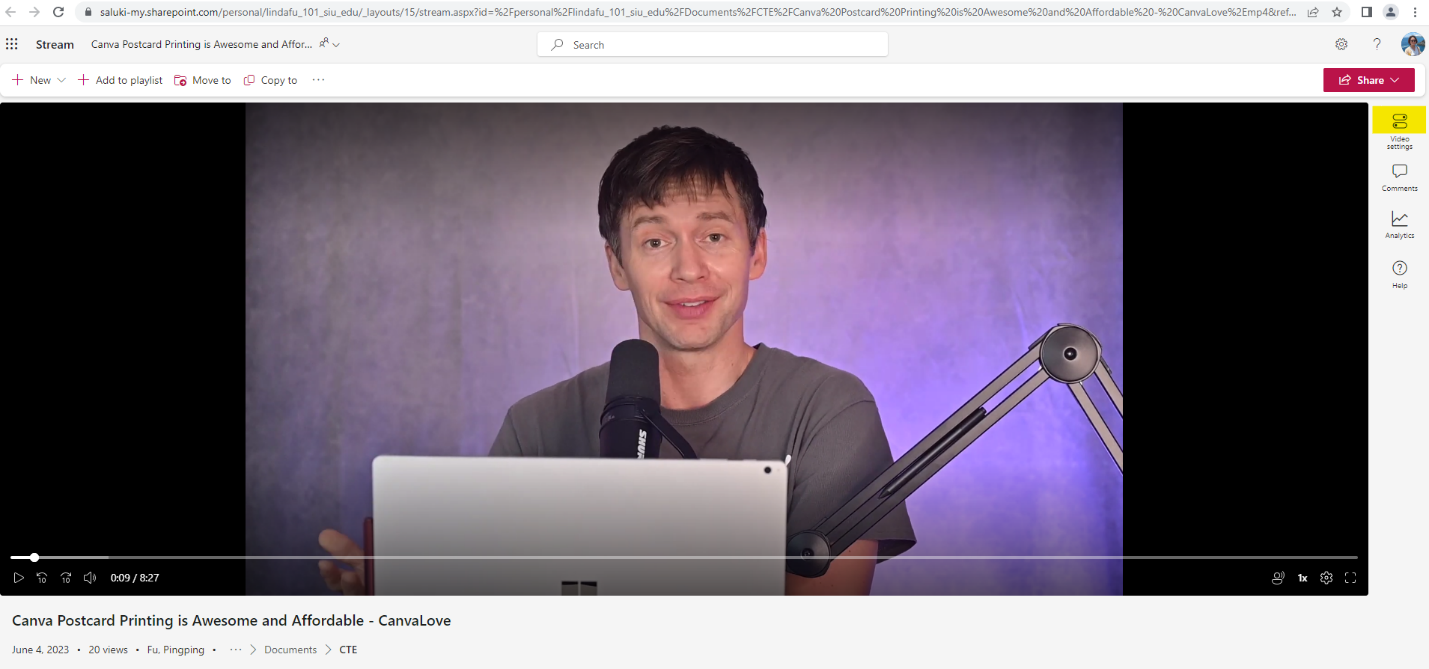
A screenshot of a video streaming in MS Stream, highlight the video settings icon

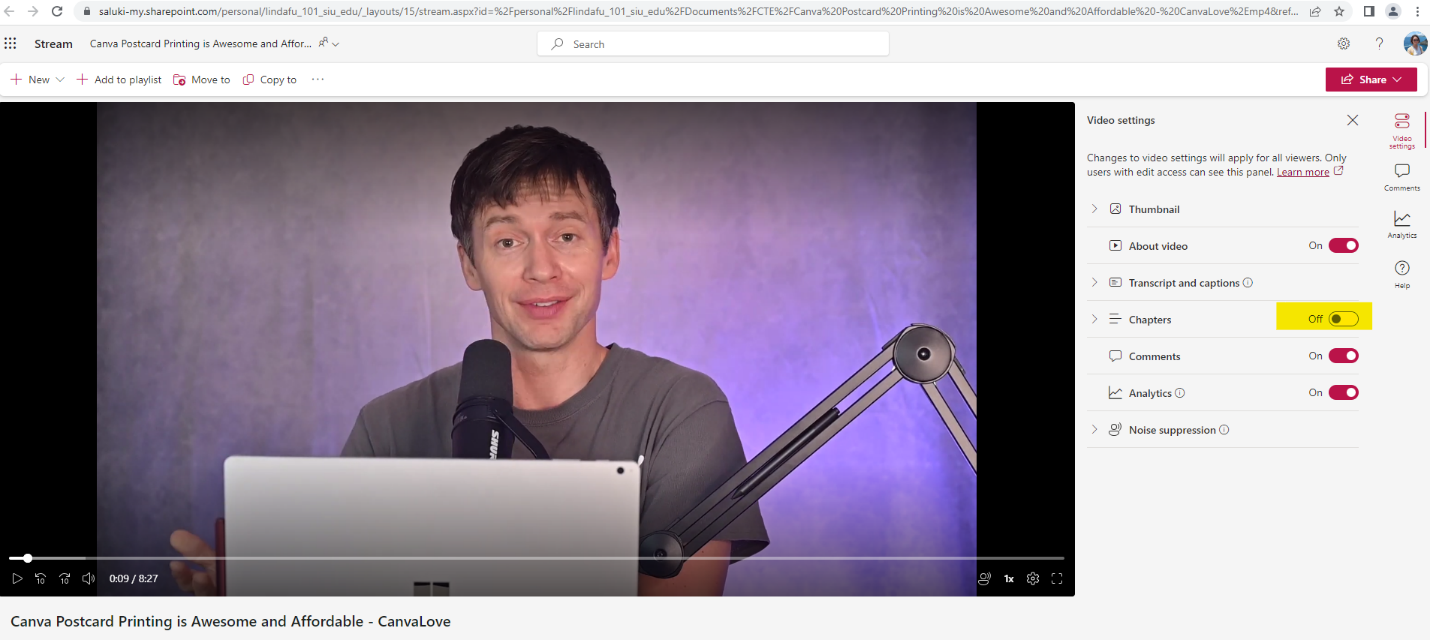
Step 2: Toggle Chapters to on.

A screenshot of the video settings of a Stream video, highlighting the Chapter enabling toggle

Step 3: Once chapters are enabled, click on Go to chapters.
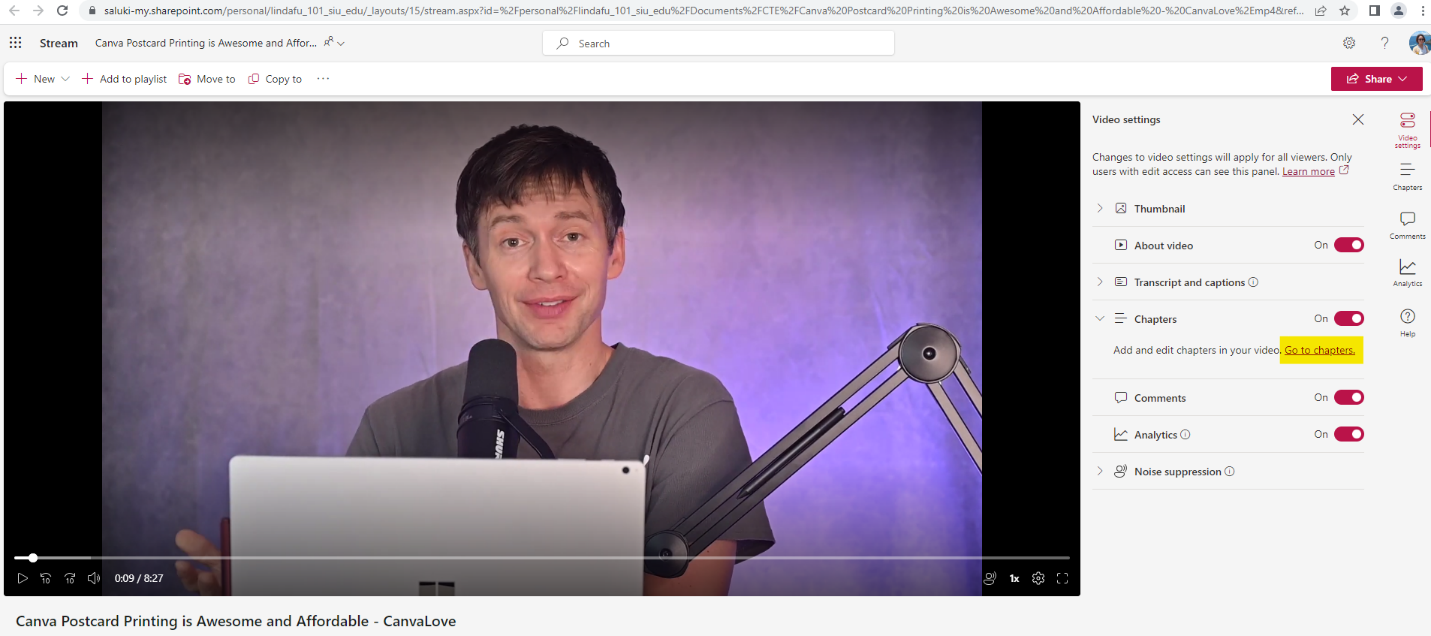
A screenshot of the video settings of a Stream video, highlighting Go to chapters under the Chapter enabling toggle

Step 4: The Chapter icon will appear in the menu in the upper-right corner of the video. Select + New chapter to create a chapter.
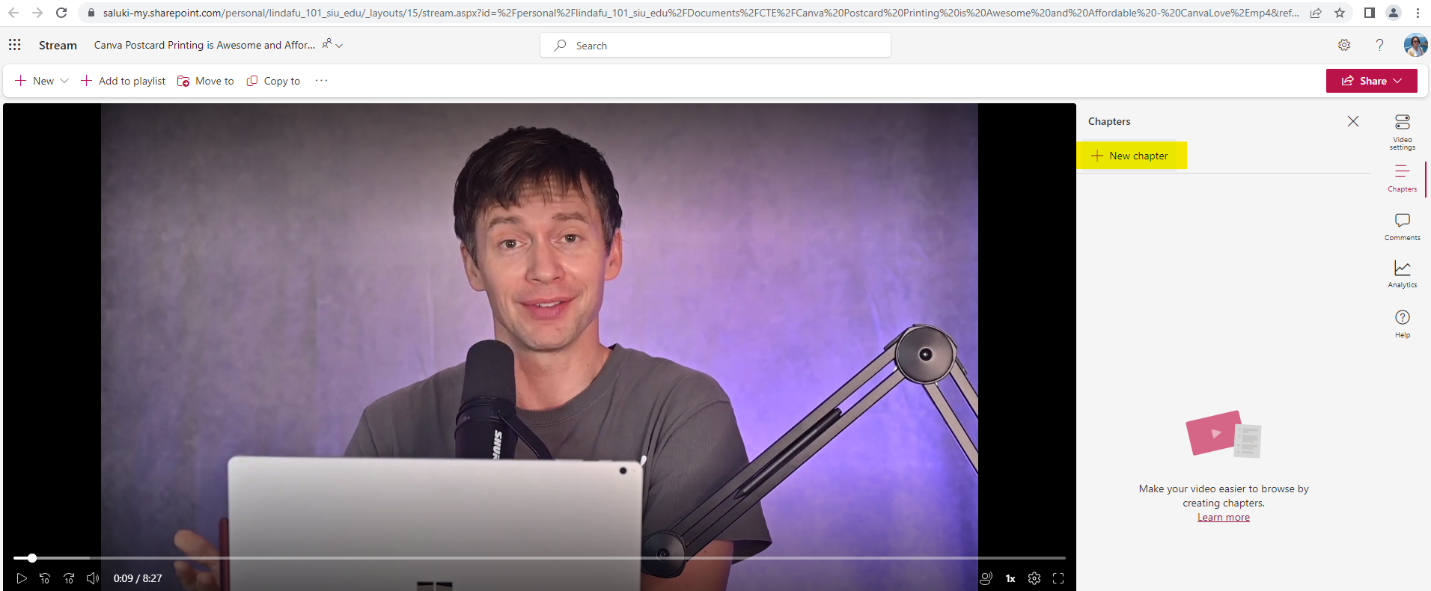
A screenshot of a Stream video, highlighting +New chapter under Chapter icon

Step 5: Enter a chapter title in the first field. Enter a time code in the second field.
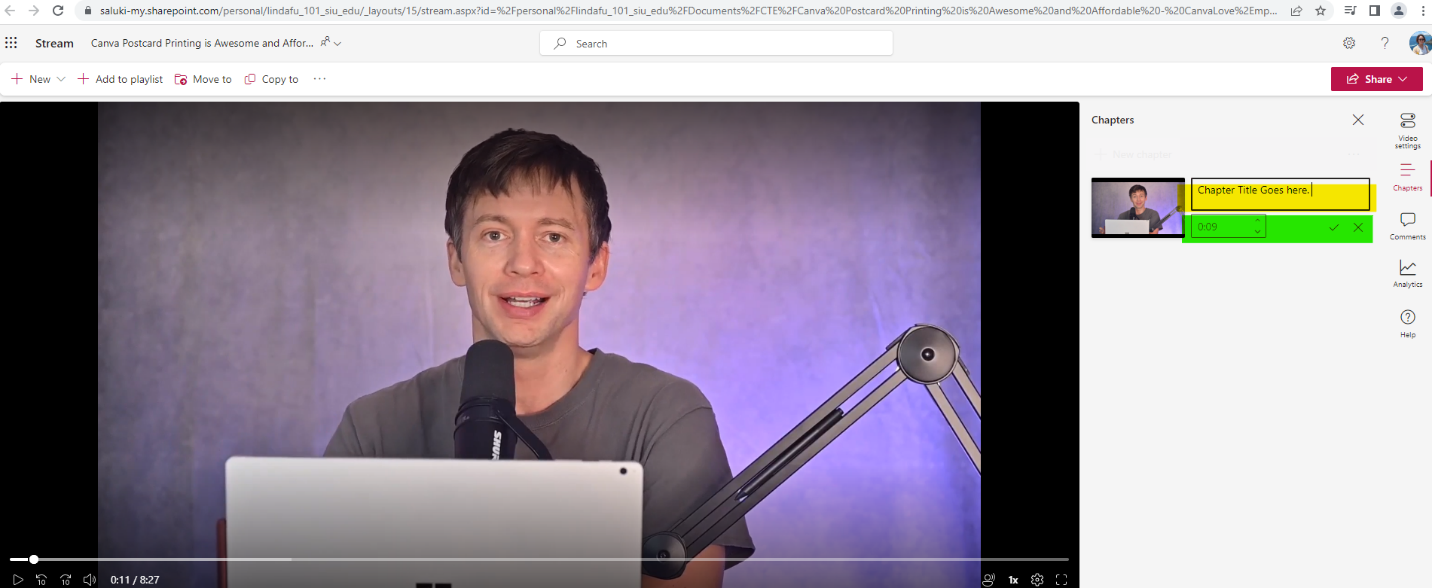
A screenshot of the video settings of a Stream video, highlighting the Chapter title field and timecode field

Step 6: Click on the tick to the right of the time code field to save the information.
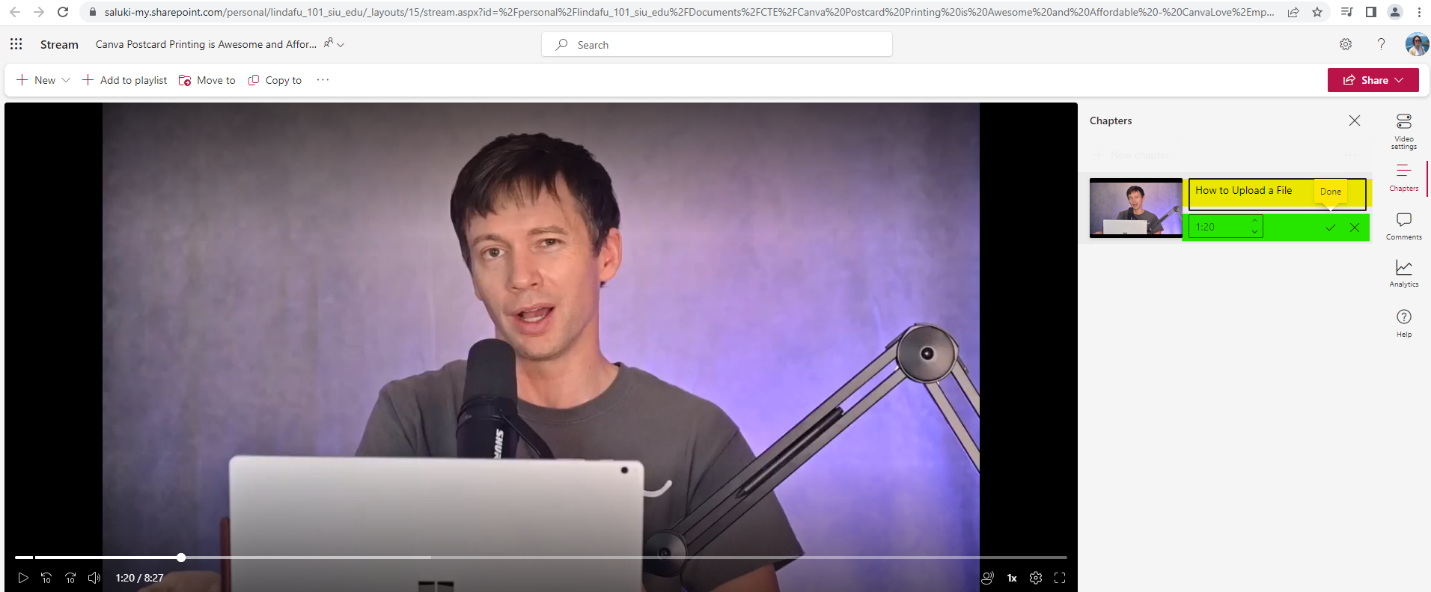
A screenshot of the video settings of a Stream video, highlighting the Chapter title field and timecode field

Step 7: Now a video chapter is added to the video and located to the right of the video. To add more video chapters, click on + New chapter and repeat the steps above.
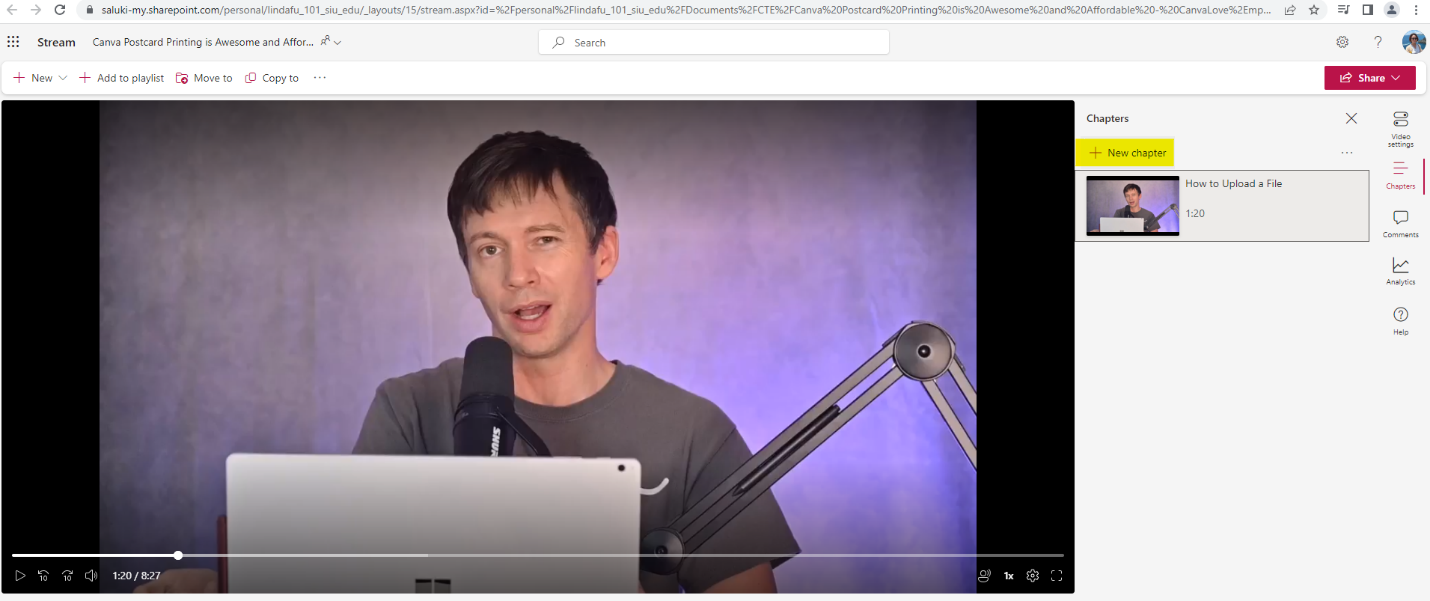
A screenshot of the video settings of a Stream video, highlighting +New chapter

Edit a Video Chapter

Step 1: Hover the cursor over the target chapter. Click on the three dots menu that appears in the bottom right corner.
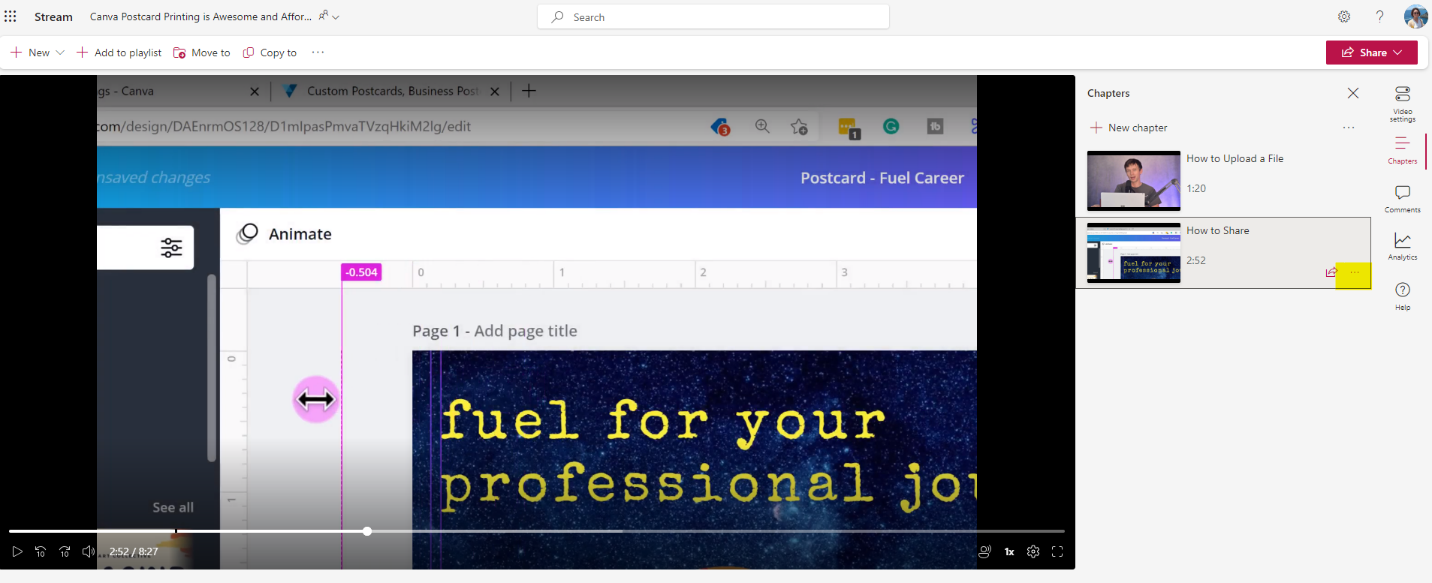
A screenshot of the video settings of a Stream video, highlighting the three dots menu in the bottom right corner of a chapter

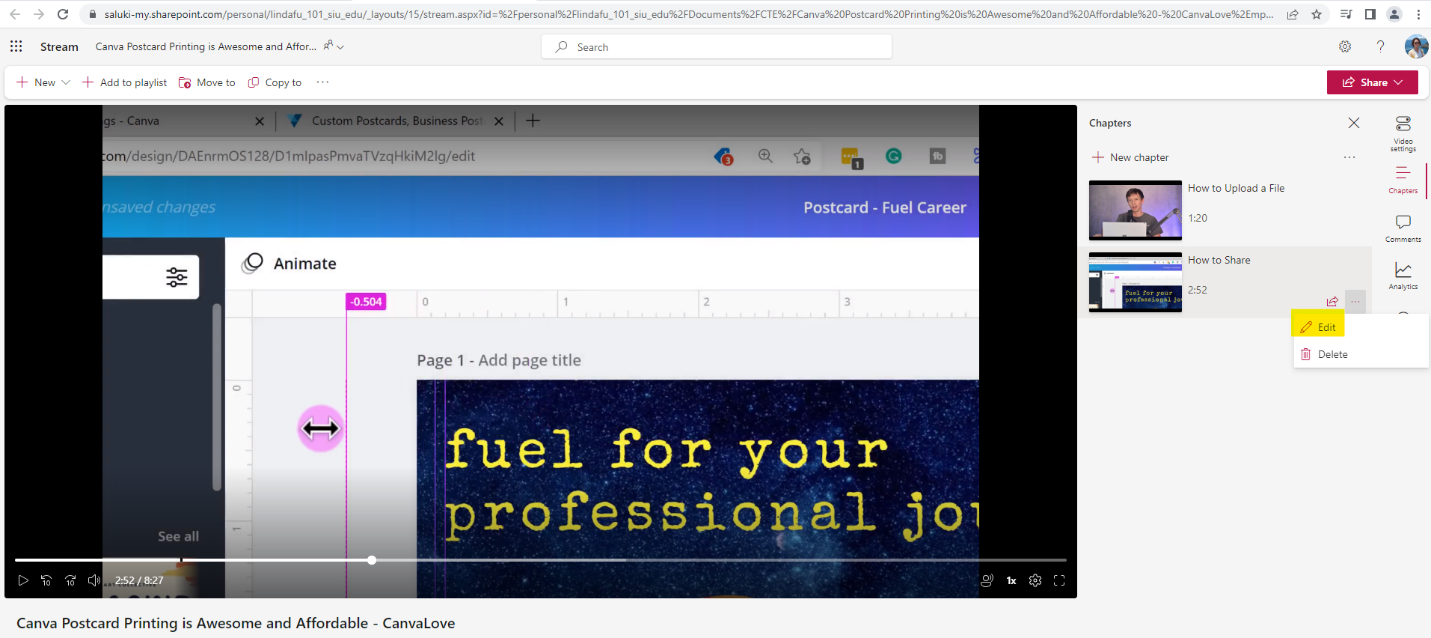
Step 2: Click on Edit in the dropdown menu.

A screenshot of the video settings of a Stream video, highlighting Edit under the three dots menu in the bottom right corner of a chapter

Step 3: The chapter and time code fields are activated and can be edited. Click on the tick to the right of the time code field to save changes.
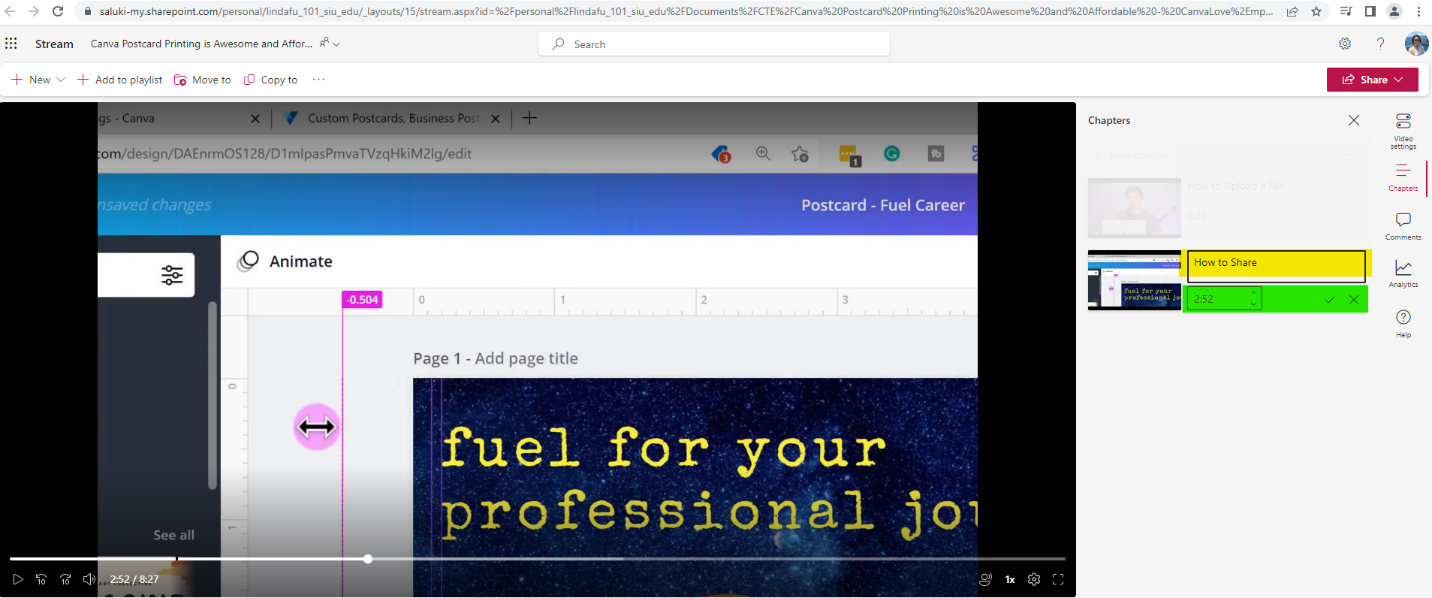
A screenshot of the video settings of a Stream video, highlighting activated Chapter title field and timecode field

Delete a Video Chapter

Step 1: Hover over the target video chapter. Click on the three dots menu that appears in the bottom right corner.
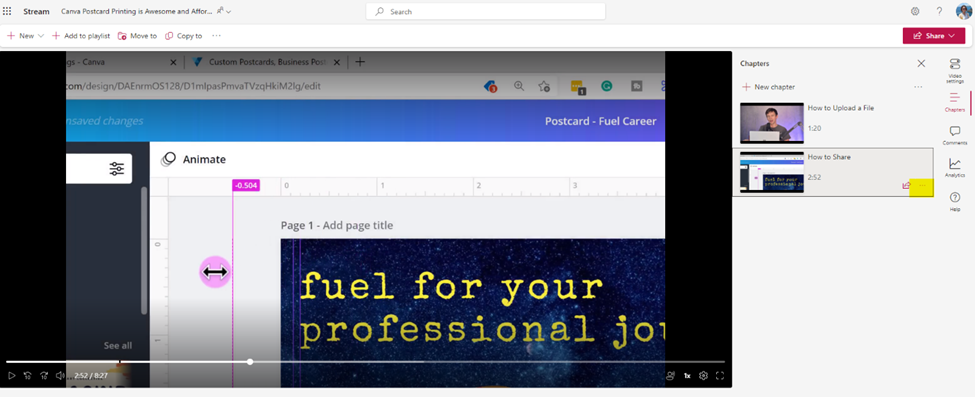
A screenshot of the video settings of a Stream video, highlighting the three dots menu in the bottom right corner of a chapter

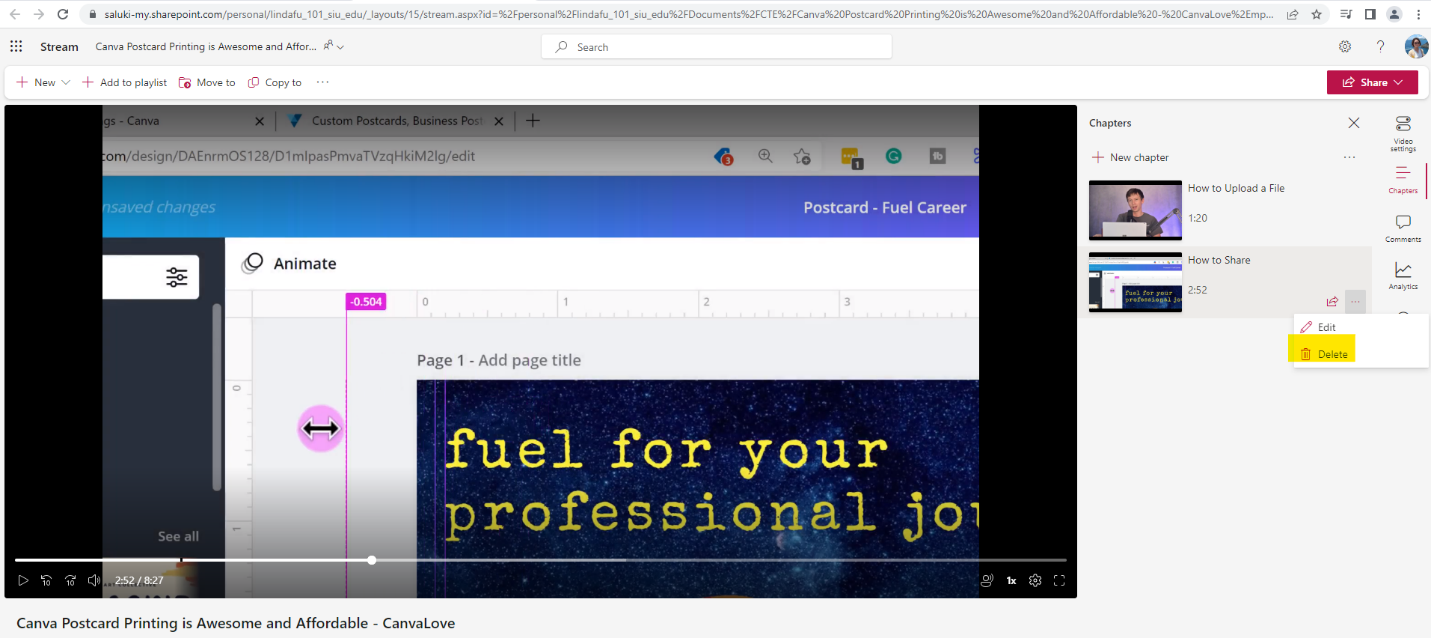
Step 2: Click on Delete in the dropdown menu.

A screenshot of the video settings of a Stream video, highlighting Delete under the three dots menu in the bottom right corner of a chapter

Step 3: Click on Yes, delete to confirm the deletion.

A screenshot of video in Stream, highlighting  Yes, Delete in the Delete chapter? pop up window Step 4: The video chapter is now deleted from the video.
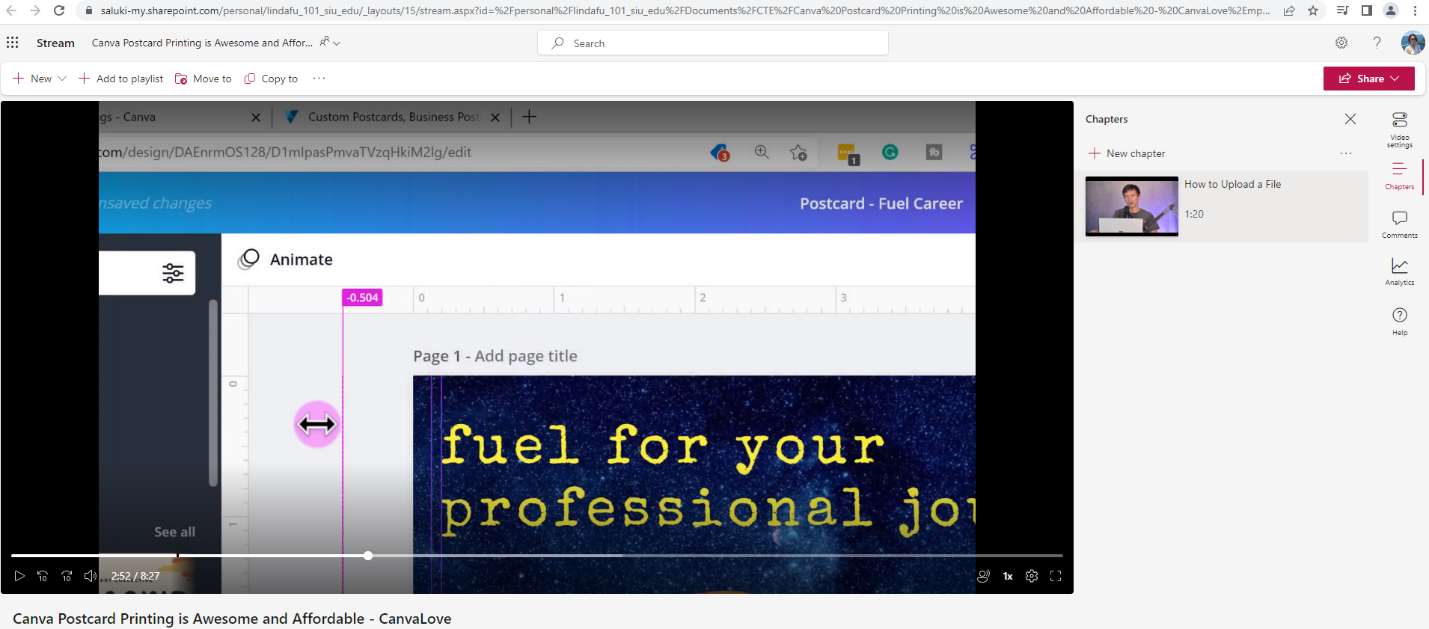
A screenshot of a video in Stream, with one video chapter to the right of the video
Was this article helpful?
How can we improve this article?
Need help?

Leave a Reply

Table of Contents