
Browse Our Knowledge Base

Upload a File to Microsoft Stream

You are here:

Overview

Because Stream is fully integrated with Microsoft 365, there are several ways to upload a file to it. In this how-to guide, learn two pathways to upload to and access video files in the platform.

The pathway from SIU Outlook email page

Step 1: On Outlook email page, click on the waffle iron in the upper left corner.
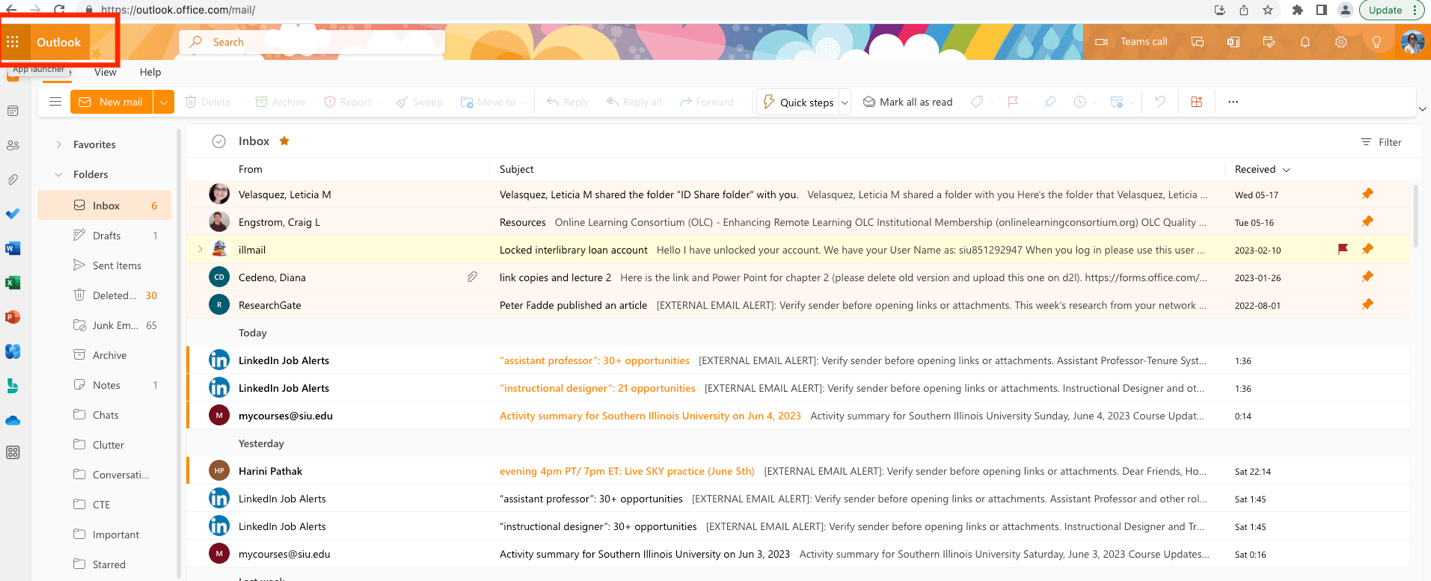
A screenshot of the Outlook Email page, highlighting the waffle iron at the upper left corner.

Step 2: Click on OneDrive under Apps.
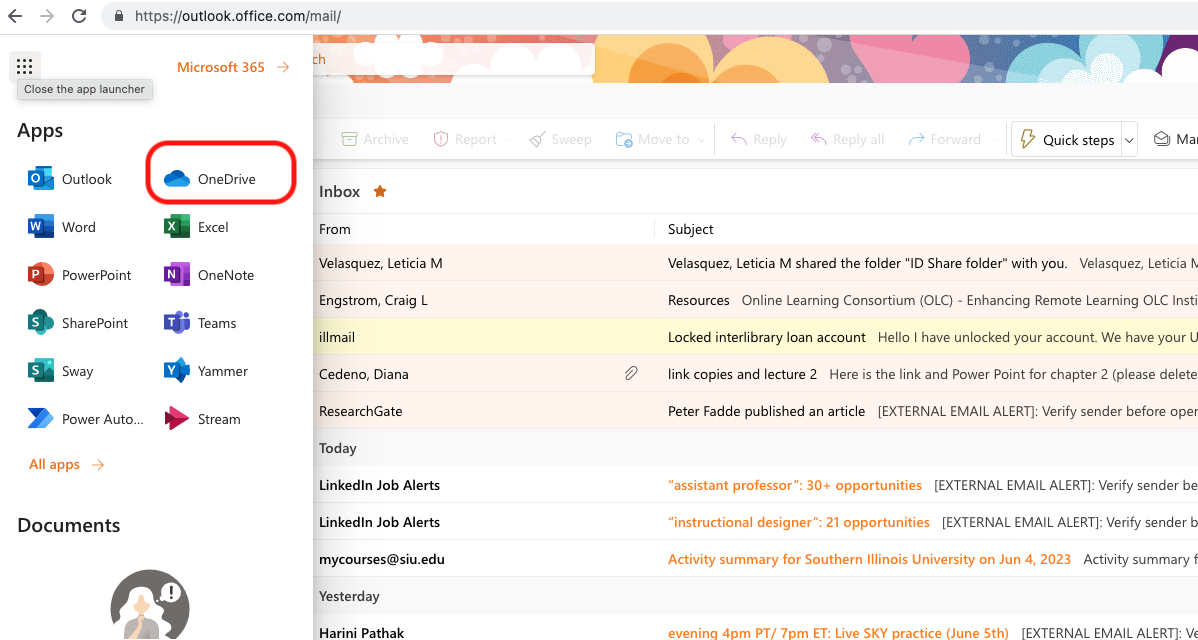
A screenshot of a Microsoft 365 Apps, highlighting OneDrive on the left side of the page

Step 3: Click on My files on the left panel.
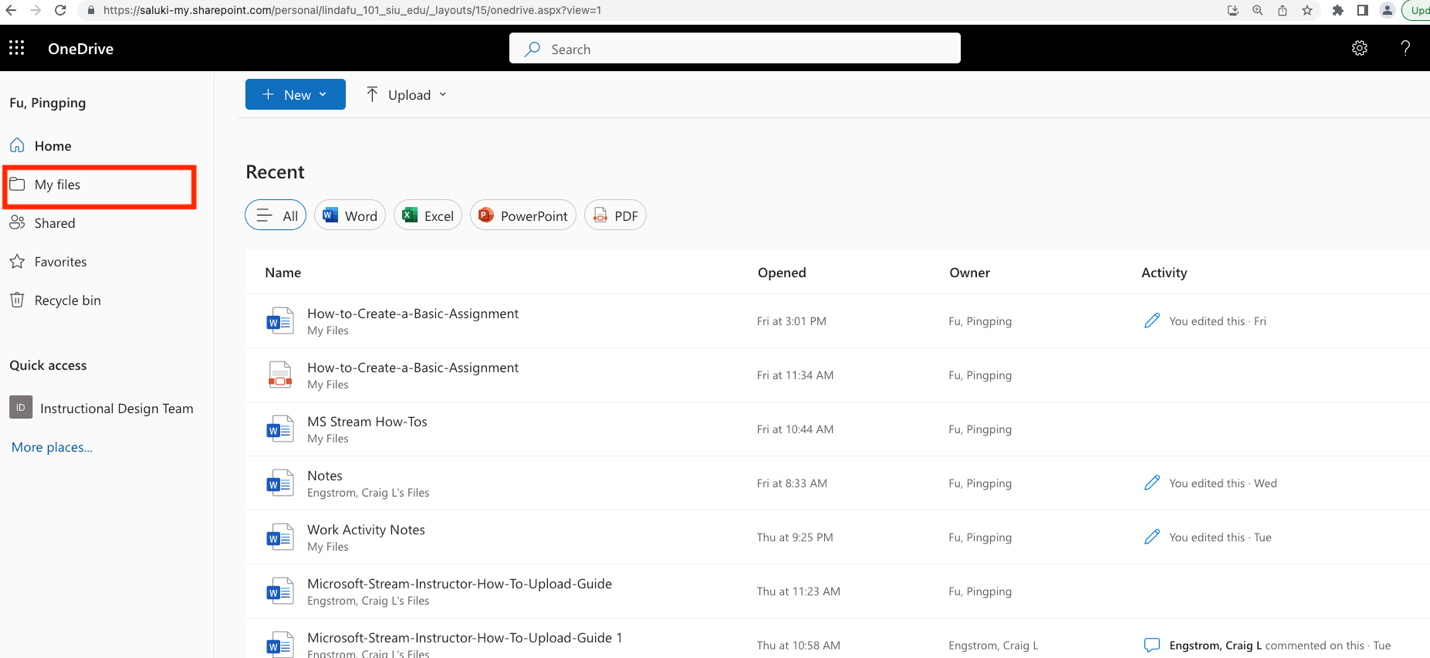
A screenshot of OneDrive, highlighting My files on the left panel

Step 4: Create a designated folder for the video file. If you already have one, proceed to Step 6. If you do not have one to store your video file, click on +New and then click on Folder.
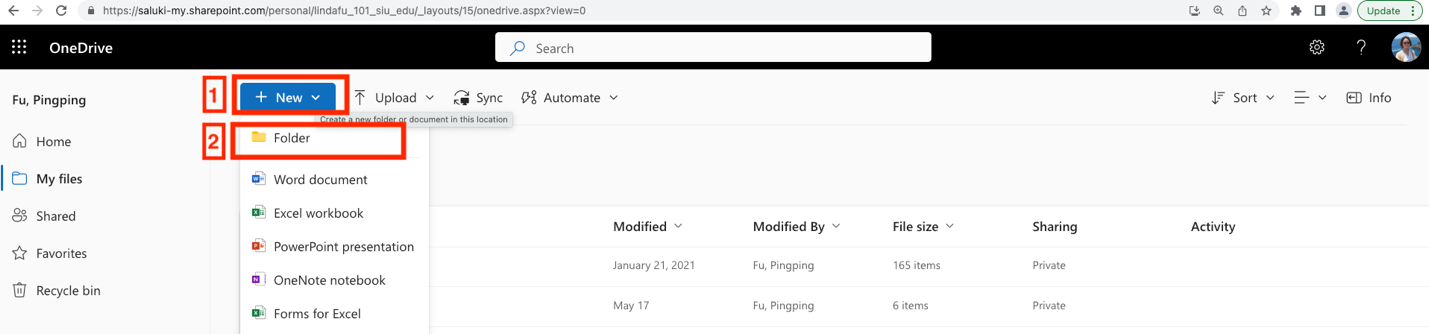
A screenshot of OneDrive, highlighting +New and Folder

Step 5: Enter a name to create a folder and click on Create.
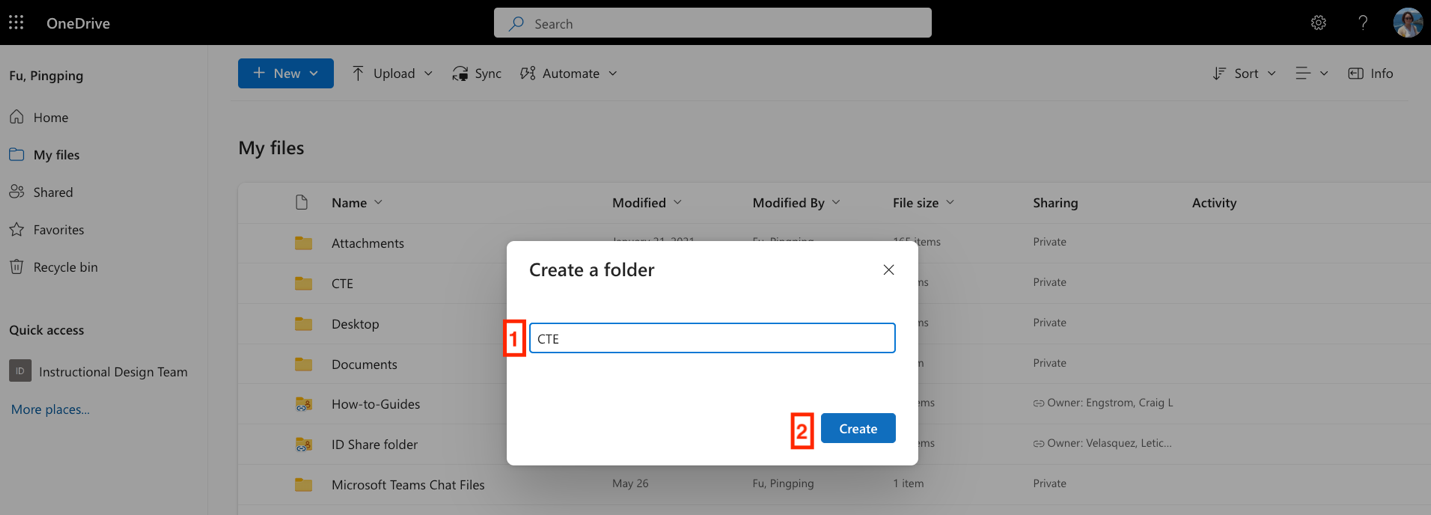
A screenshot of My files on OneDrive, highlighting enter a name with circled number 1 and Create with circled number 2

Step 6: Click on the designed folder to store the video file. Click on Upload from the menu at the top and click on Files.
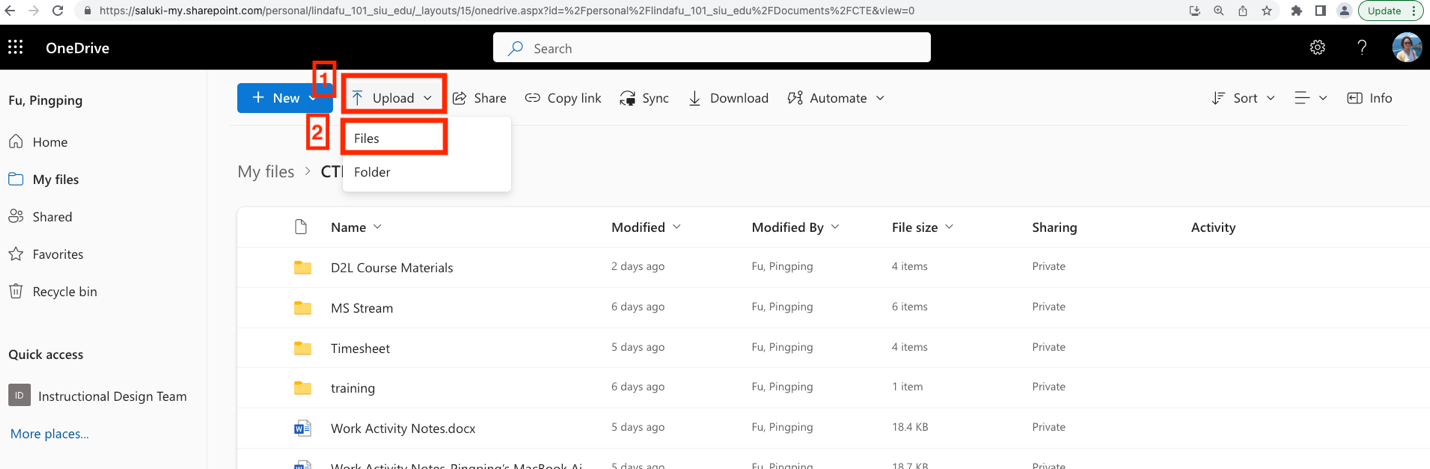
A computer screen shot of a folder in OneDrive, highlighting Upload with circled number 1 and Files with circled number 2

Step 7: Locate the video file from your computer and click on Open in the window.
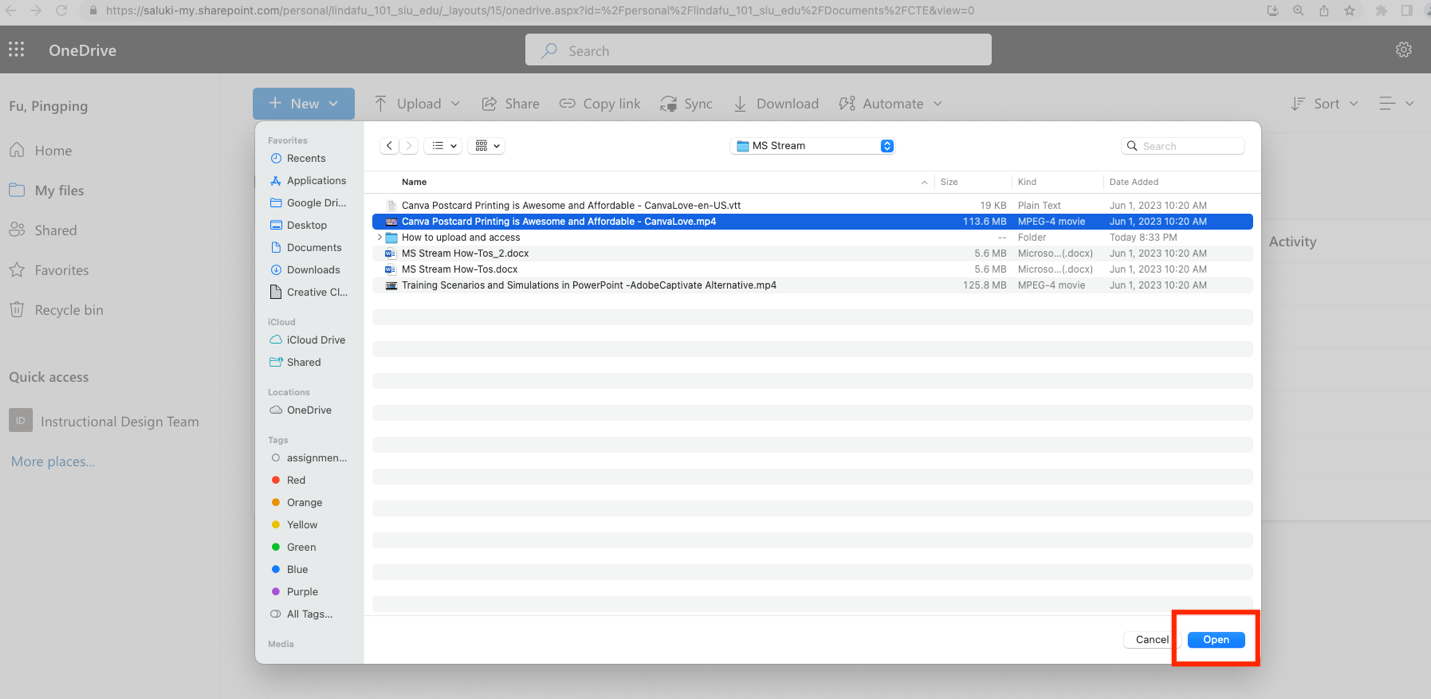
A screenshot of a local drive, highlighting upload at the bottom right

Step 8: Wait for the file to upload. Click on Uploading 1 item in the upper right corner to see uploading progress. If it is a large video, it may take several minutes.
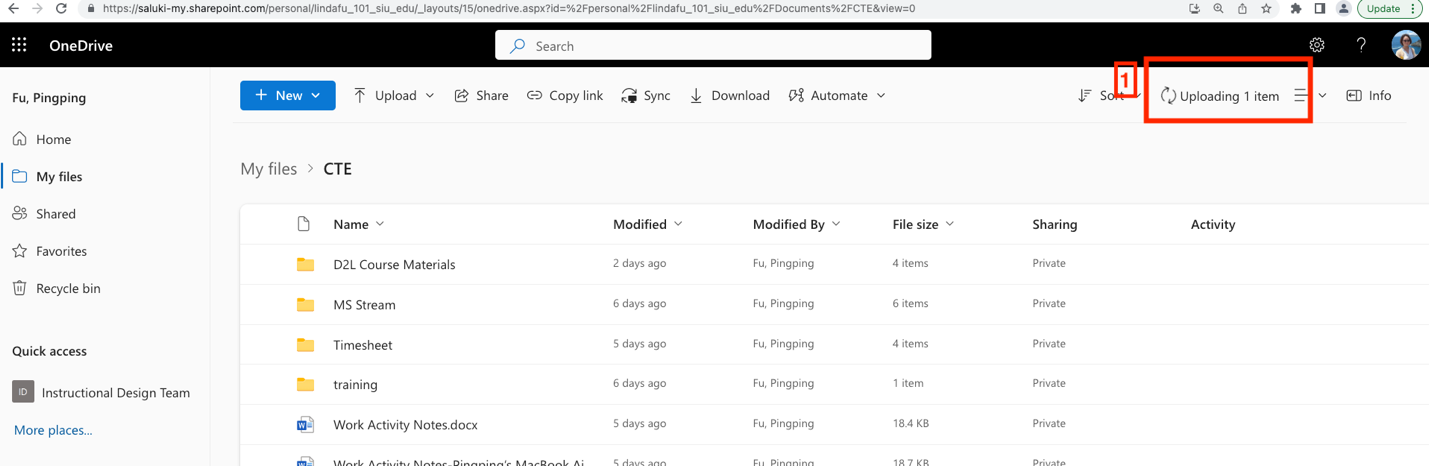
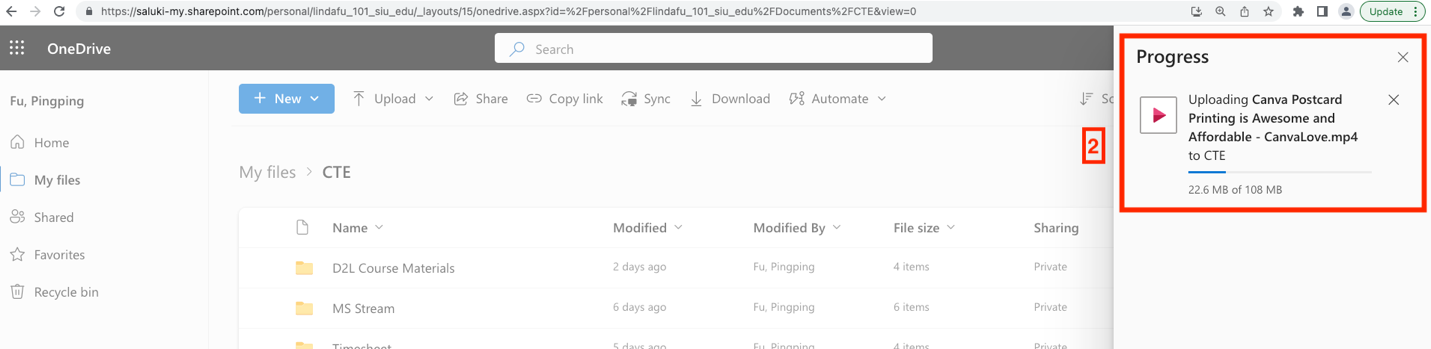
a screenshot a OneDrive folder, highlighting the Uploading 1 item with encircled number 1
a screenshot a OneDrive folder, highlighting the upload progress with encircled number 2

Step 9: When it is done uploading, you will see a Share window on the right. Click on X next to it to exit.
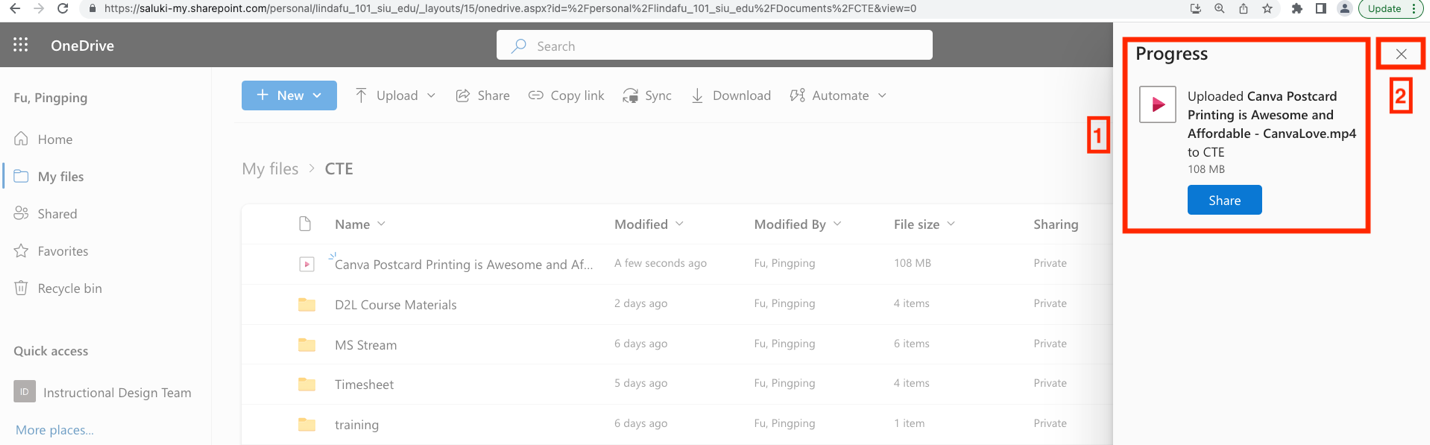
a screenshot of OneDrive folder, highlighting completed upload  and share button with circled number 1 and the exit sign X with circled number 2

Step 10: Click on the uploaded video file to open it. Click Open at the top left corner and then click on Open in Stream.
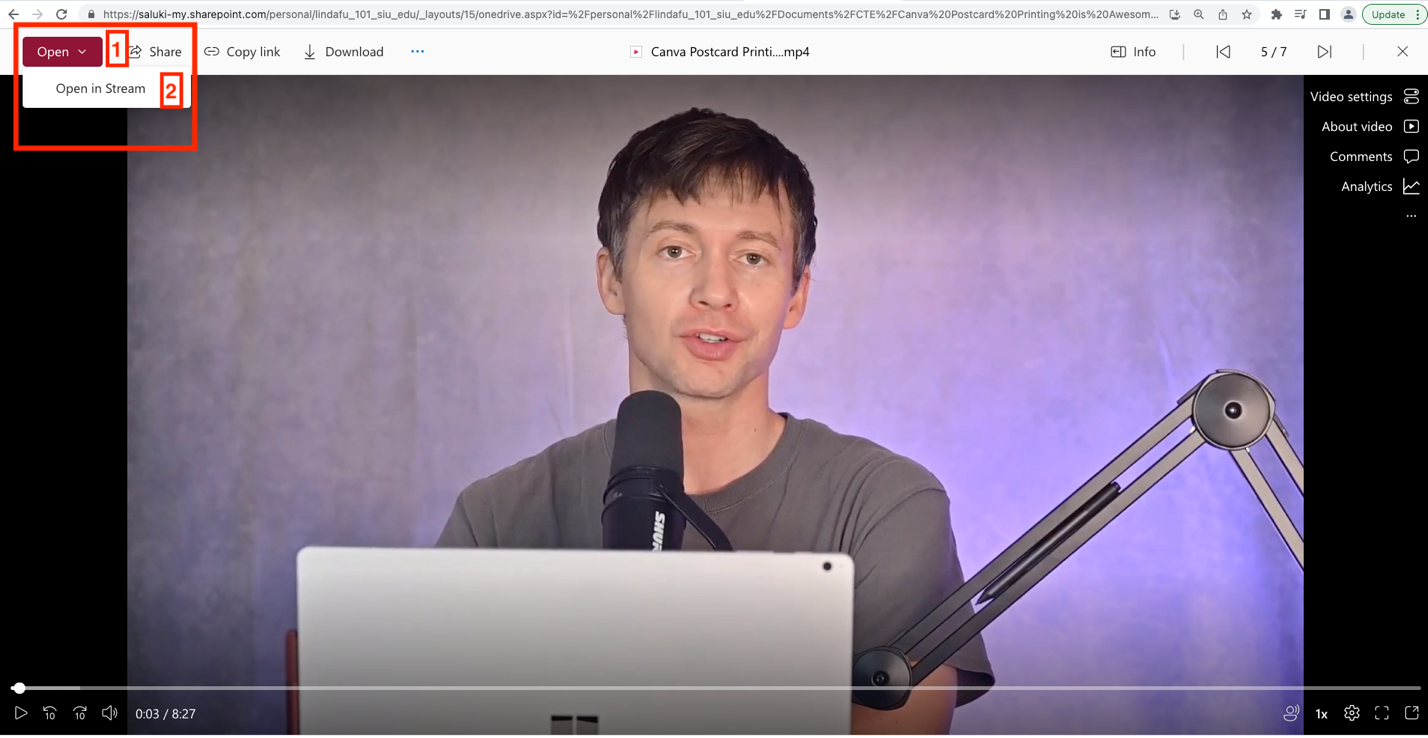
a screenshot of a running video file in OneDrive, highlighting Open with circled number 1 and Open in Stream with circled number 2 at the upper left corner

Step 11: Now you are streaming the uploaded video file on Stream.
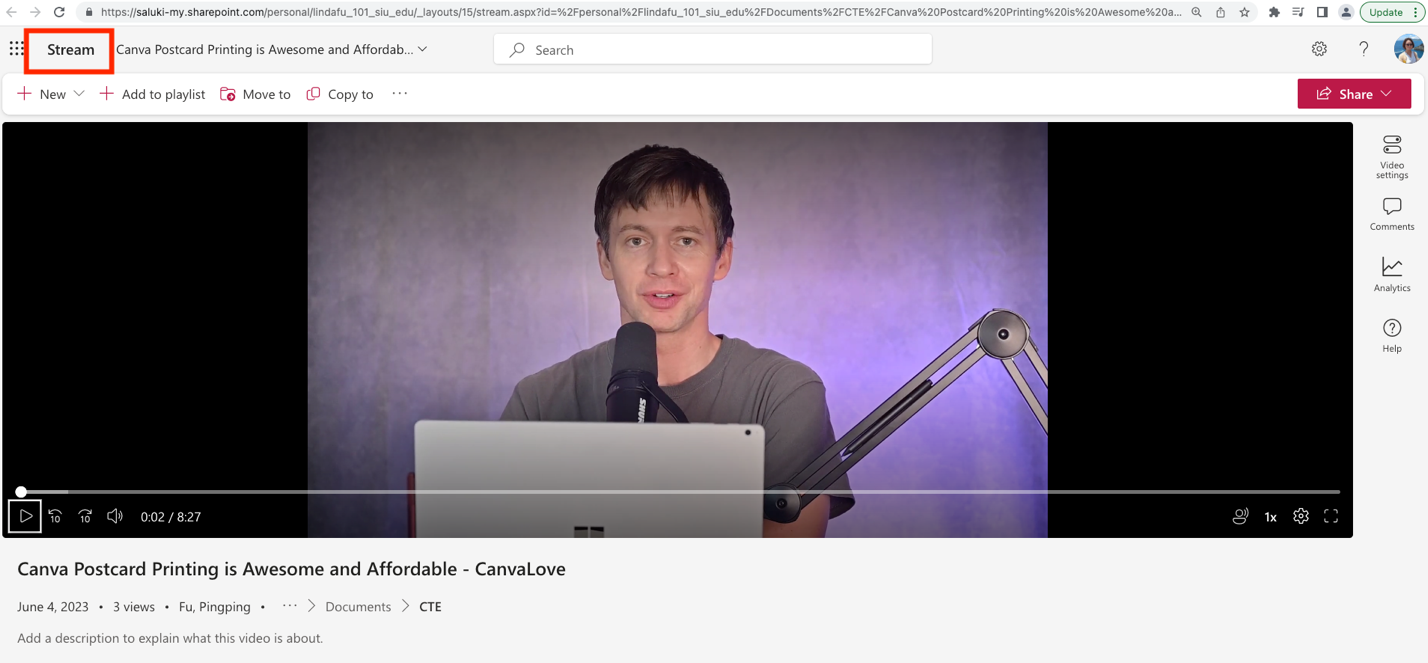
a screenshot of a video playing in Stream, highlighting Stream

The pathway from Microsoft Stream

Step 1: If MS Stream Portal is streaming a video, click on +New at the upper left corner and then click on Upload.
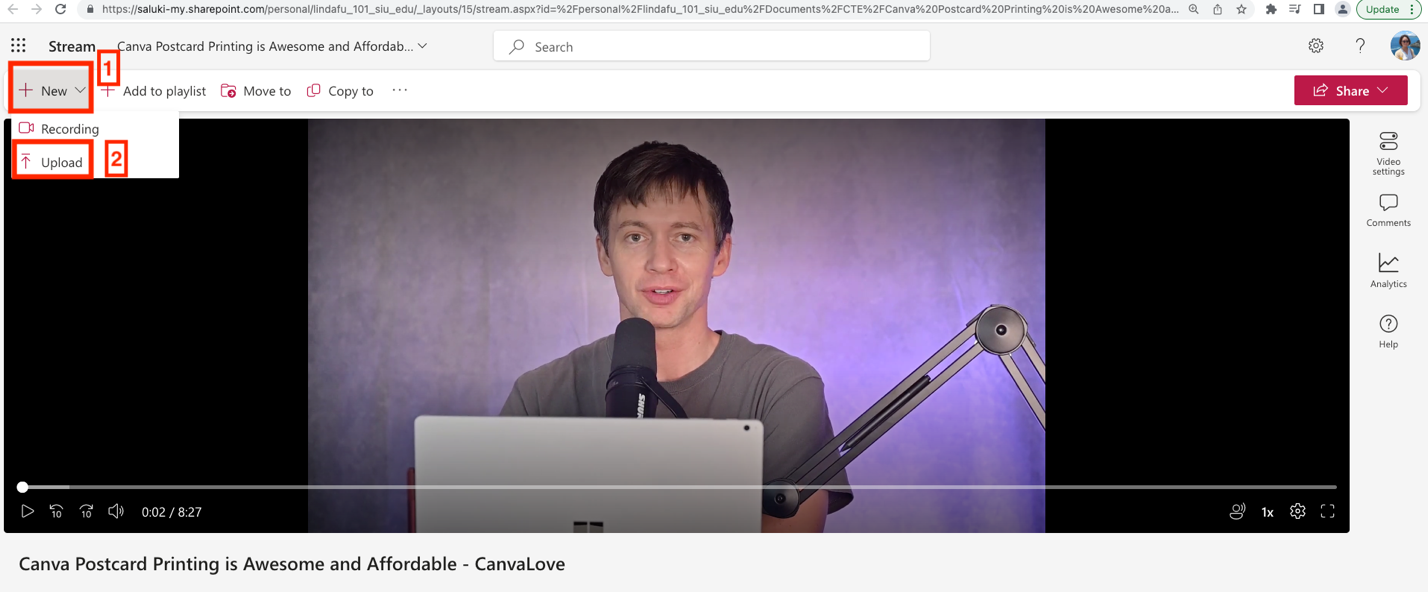
a screenshot of video opened in Stream, highlighting +New with circled number 1 and Upload with circled number 2 in the upper left corner

Step 2: Navigate to the folder where you store the video file on your computer and click open.
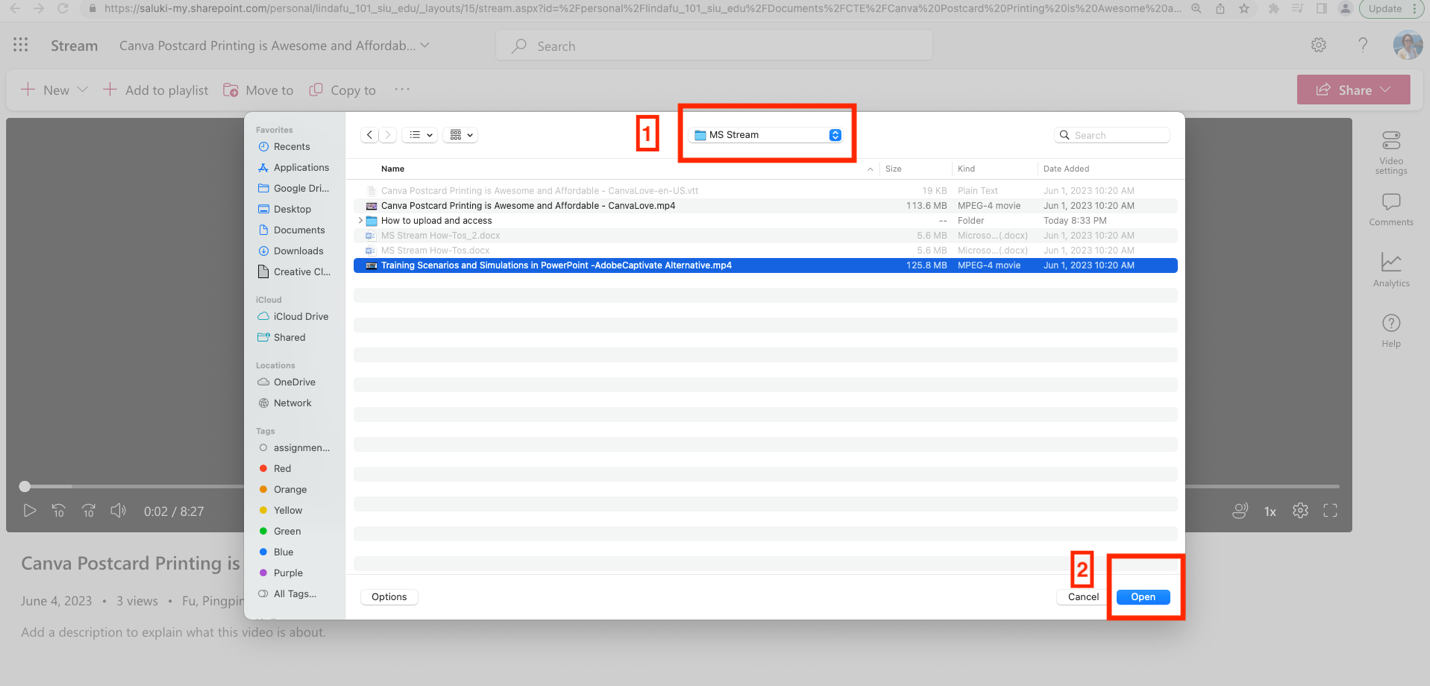
a screenshot of selecting a file from a local folder in the computer, highlighting folder name at the upper center with circled number 1 and Open at the bottom right with circled number 2

Step 3: Click on the folder to store the video file and click on Select.
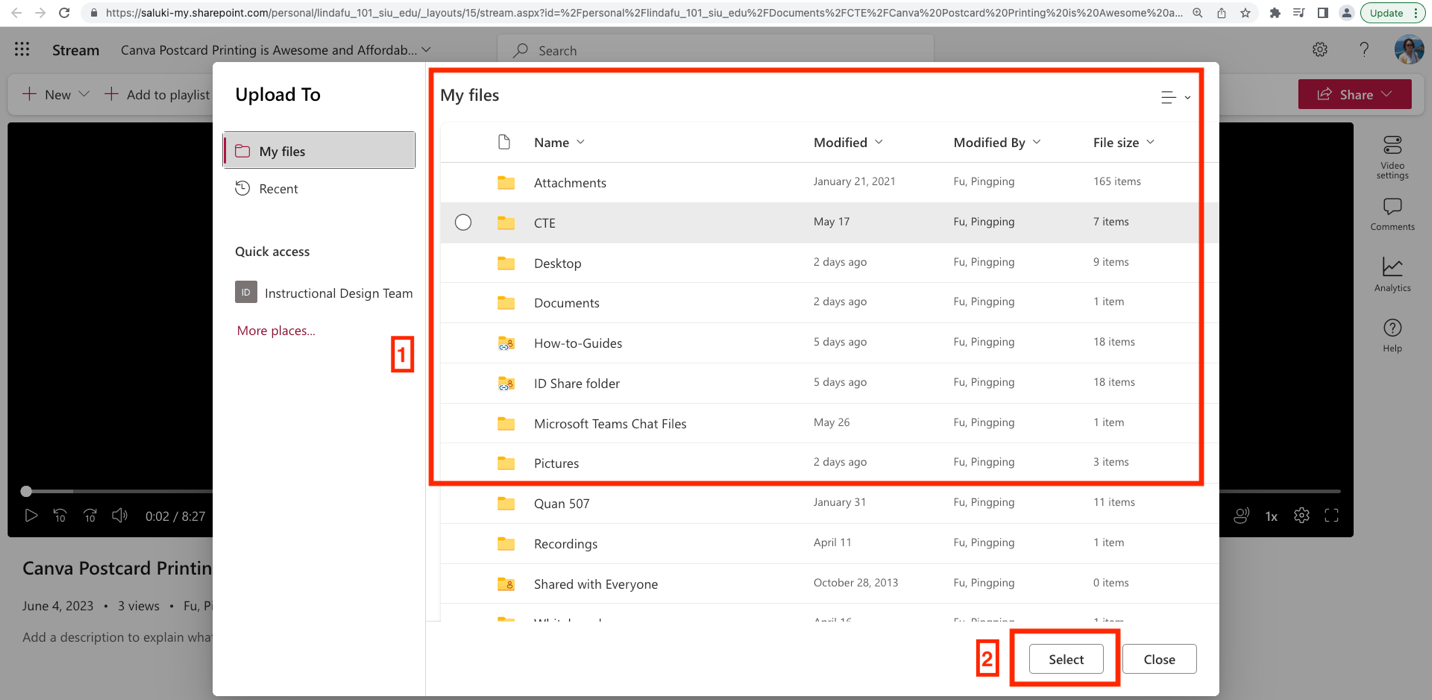
a screenshot of my file folders in OneDrive, highlighting folders in the upper center with circled number 1 and Select at the bottom right with circled number 2

Step 4: Wait for the video file to upload. Clicking on Uploading 1 item to see the uploading progress. If it is a large video, it may take several minutes.
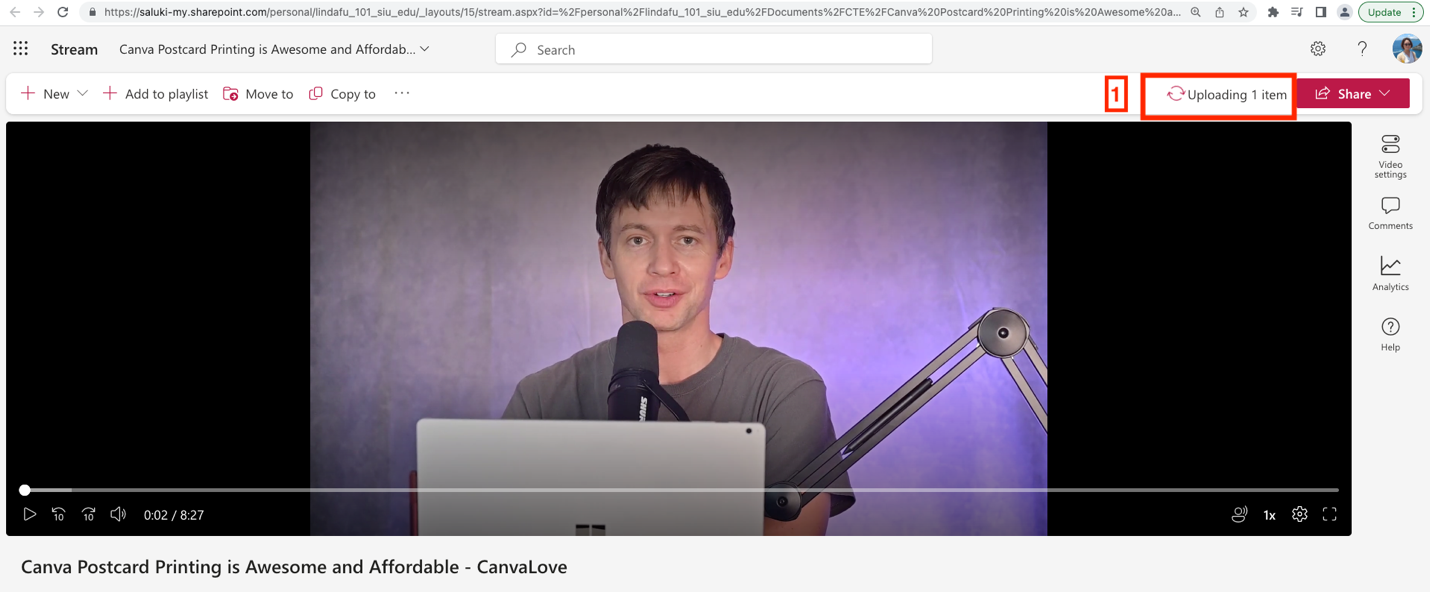
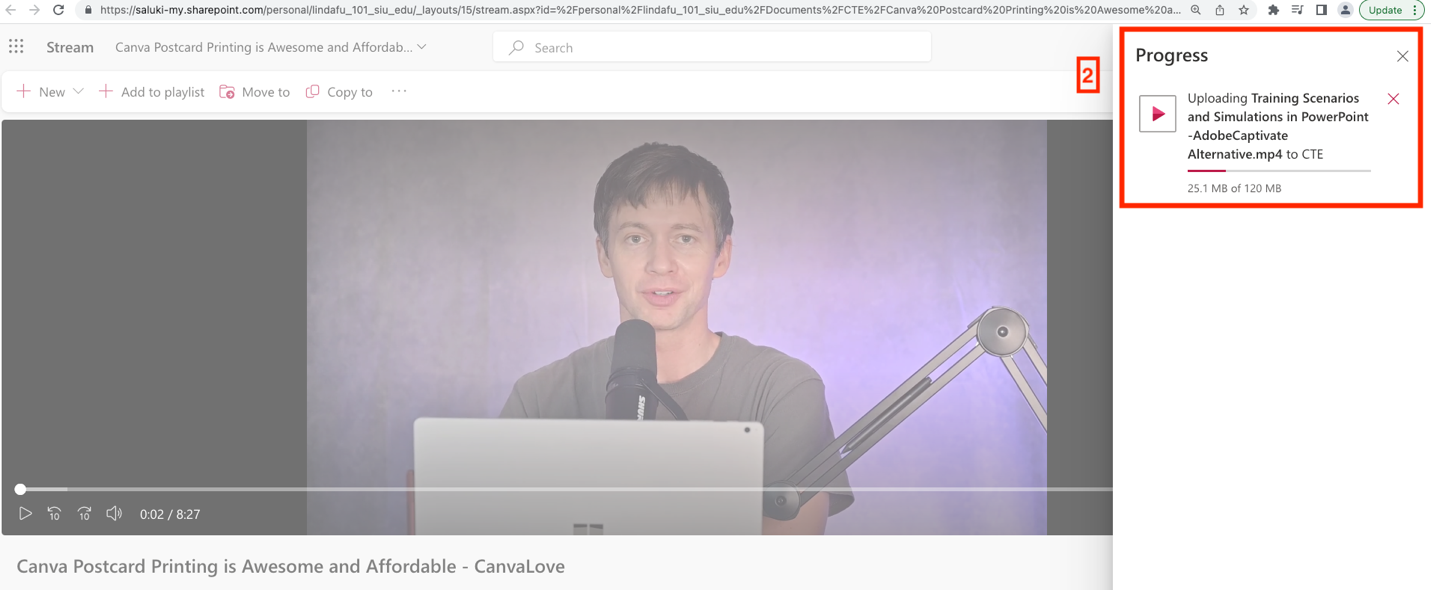
a screenshot of a video file opened in Stream, highlighting Uploading 1 item at the upper right corner with circled number 1
a screenshot of a video file opened in Stream, highlighting Uploading file name and Progress at the upper right corner with circled number 2

Step 5: When it is done uploading, click on Open to start streaming the video.
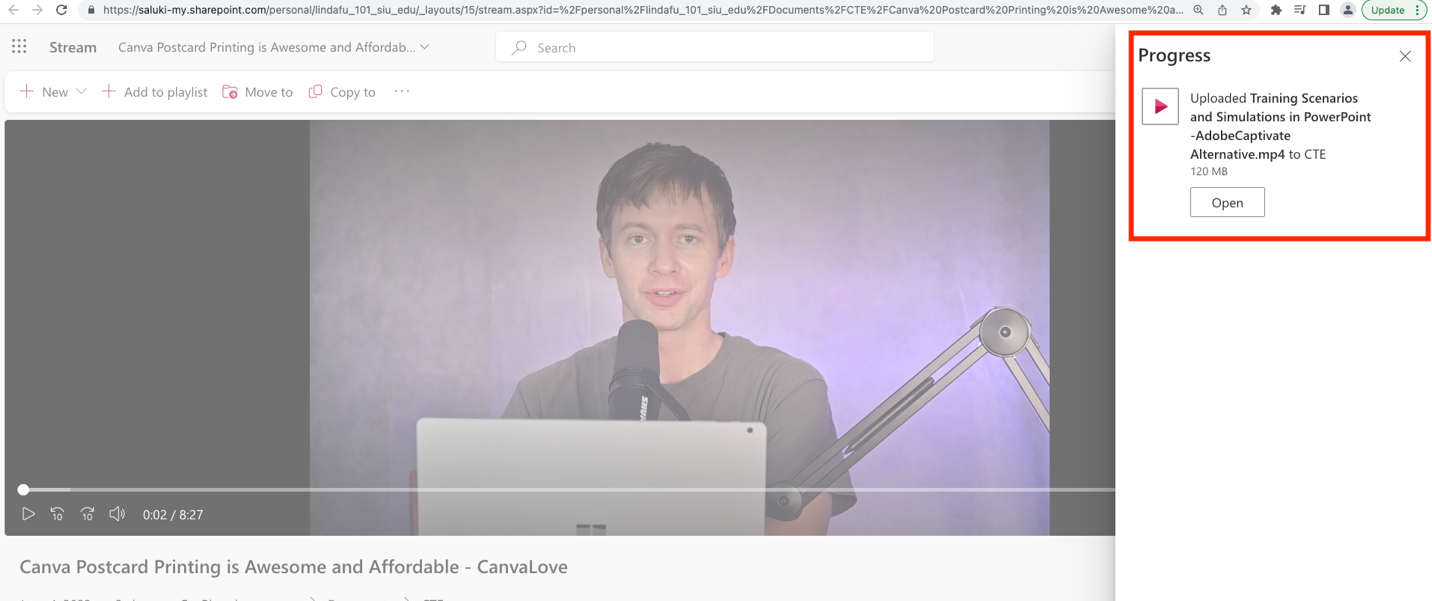
a screenshot of a video opened in Stream, highlighting Uploaded video file to a folder and Open button at the upper right corner

Step 6: Now you are streaming the video you just uploaded on Microsoft Stream.
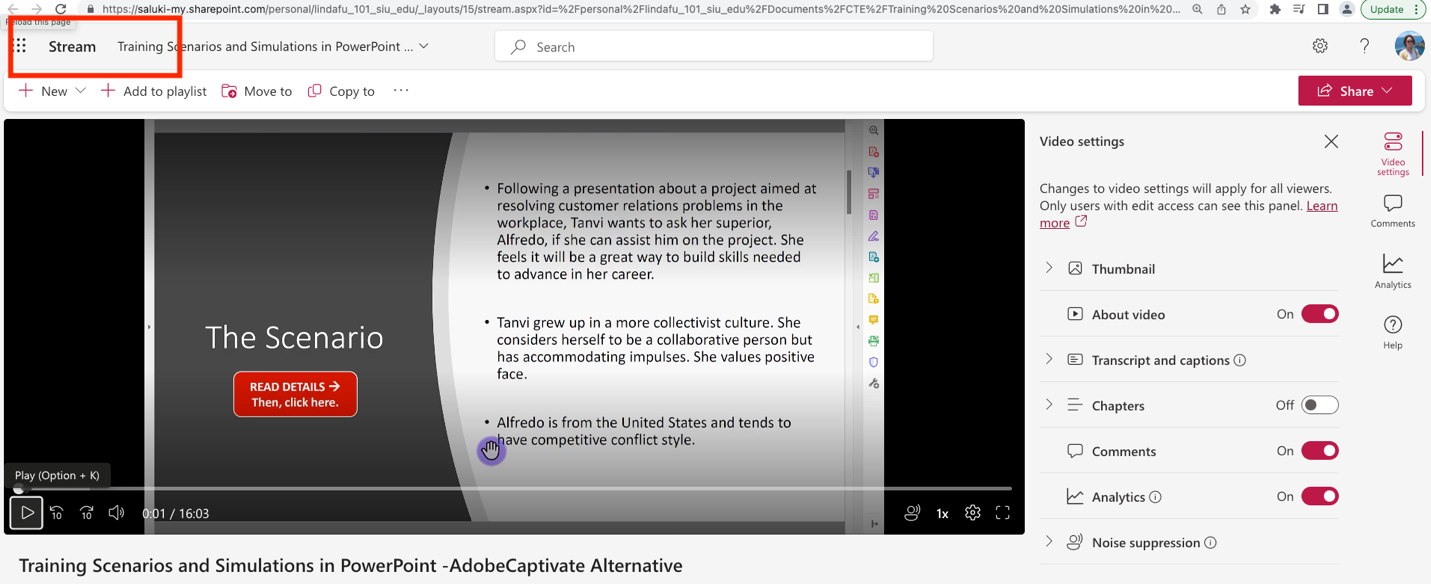
a screenshot of the uploaded video file playing in Stream, highlighting Stream at the upper left corner
Was this article helpful?
How can we improve this article?
Need help?

Leave a Reply

Table of Contents