Browse Our Knowledge Base
How to Create a Video Assignment in D2L
This Quick Guide will help you learn How to Create a video assignment in D2L.
Step 1
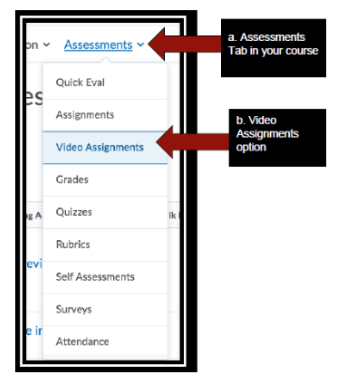
- After entering your course, select “Video Assignment” under the “Assessment tab.”
Step 2
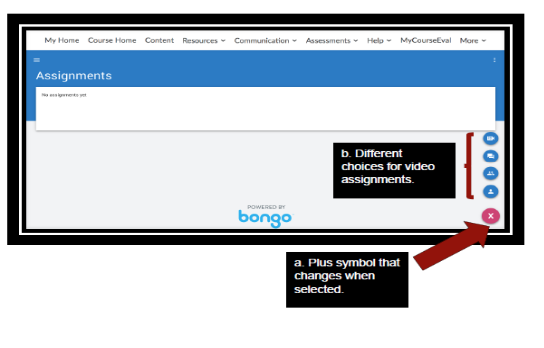
- On the “Video Assignment”, you may select the “Red Plus” symbol on the left bottom of the screen.
Step 3
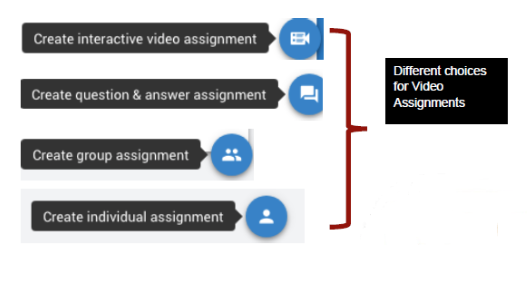
- Select any choices presented above according to the type of assignment you want to create.
Step 4
- The following example is for individual assignments. You may complete the requested information: Assignment name, and assignment instructions. You might add some optional information: Due date, due time, grade type (percentage, rubric, pass/fail, auto pass, five star),
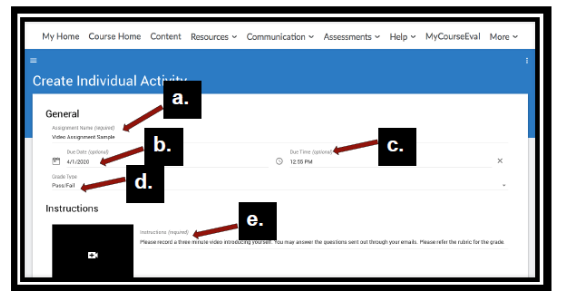
a. Video Assignment Name (Required)
b. Due Date (Optional)
c. Due Time (Optional)
d. Grade Type (Optional)
e. Assignment Instructions (Required)
Step 5
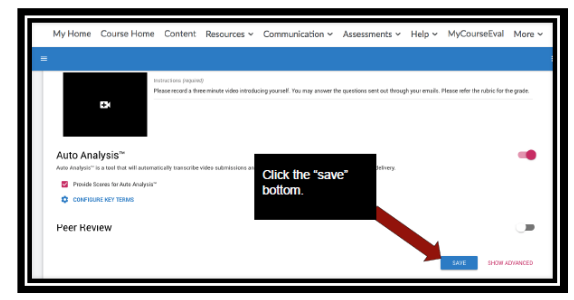
- After completing the assignment information, click the blue bottom “save”.
Step 6
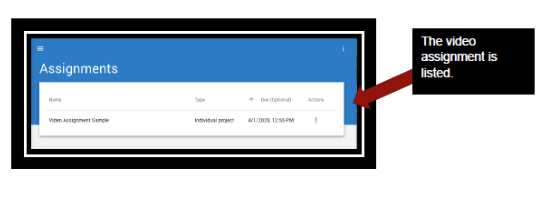
- The video assignment has been created after clicking save, and it is listed in the dashboard.