Browse Our Knowledge Base
How to Create Assignments in D2L
This Quick Guide will help you learn How to Create Assignments in D2L.
Step 1 (Creating your New Assignment (1 of 3))
- On your Course Homepage:
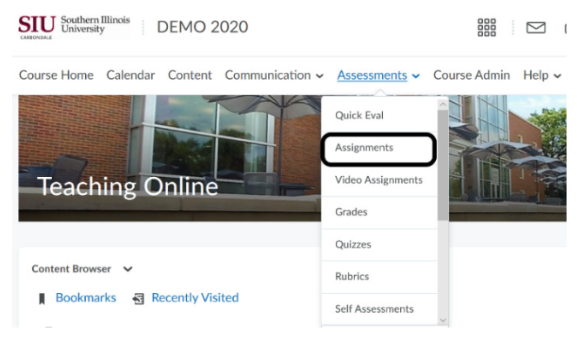
- Click Assessments, then click Assignments
Click New Assignments
Step 2
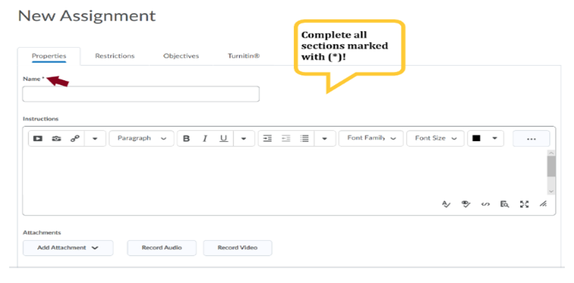
- In New Assignments‐ Properties Tab:
- You must type name of the assignment
- Add instructions for assignment
- Click add attachments for additional links, or pdfs.
Step 3
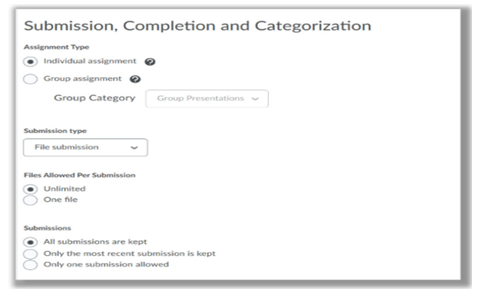
- Scroll down to Assignment Type:
- Choose Individual or Group
- Choose File submission for submission type for online submission of documents
- Choose how many files you will allow students to submit
- Recommendation: Choose for allsubmissions to be kept.
Step 4 (Creating the Grade Item (2 of 3))
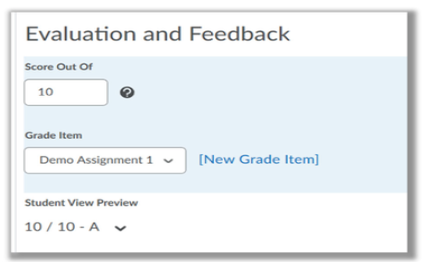
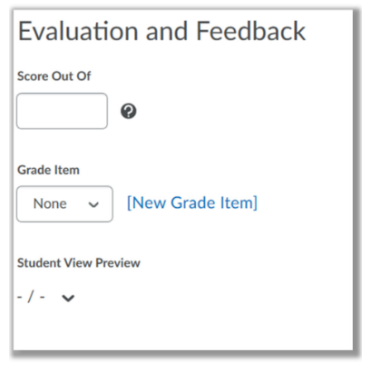
Type the total amount of points of the Assignment in the Score Out Of box.
* You must create a Grade Item for the Assignment to post in the Gradebook!
Step 5
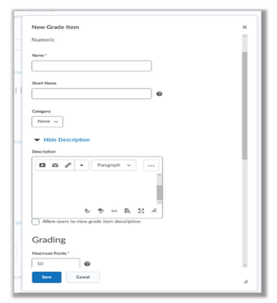
Click New Grade Item and following the Instructions provided by D2L:
- First you will choose Grade Item Type: Numeric
- *Must enter Name (ex. Assignment 1)
- *Must enter Maximum No. of Points Possible
- *You must enter the maximum points for the Assignment.
- Recommendation: Leave Grade Scheme on Letter Grades
- Click SAVE
Optional Settings:
- Hide Grade from Users
- Set Availability for Students to View Grades.
Step 6(Creating Restrictions (3 of 3))
- Upon completion of the grade item, you should see the Score, Grade Item Name and Student Preview of their Graded Score.