
Browse Our Knowledge Base
Mapping a Network Drive
Mapped drives are a way to connect your computer to a shared folder on SIU’s File Server. Connections to shared folders require an internet connection AND an active (connected) connection to SIU’s VPN. Mapping a drive from a personal computer is discouraged since it requires saving SIU credentials to reconnect when the computer reboots.
- Open file Explorer in Windows
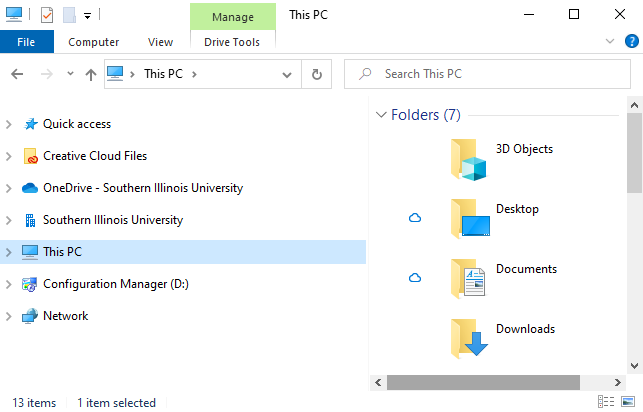
- Right Click on “This PC”
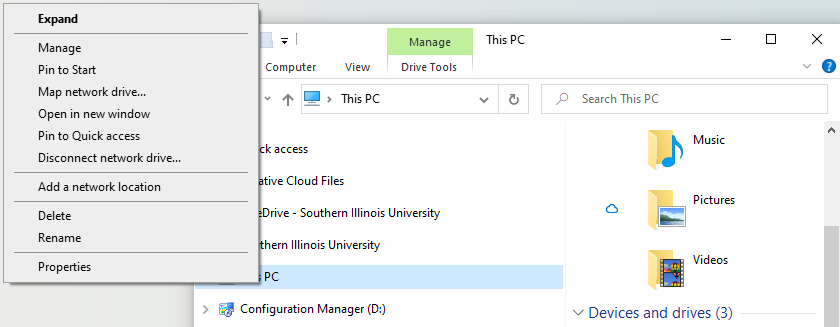
- Left-Click “Map network drive…”
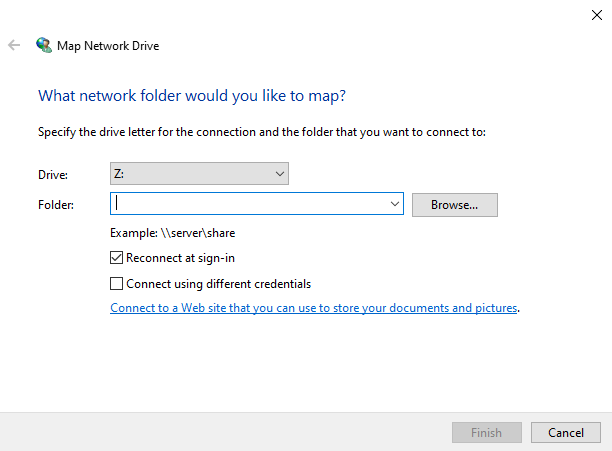
- Select your desired drive letter from the drop-down list.
- Enter the path to your network drive. This would be provided for you by your supervisor, or possibly your LAN Admin or OIT Support Team.
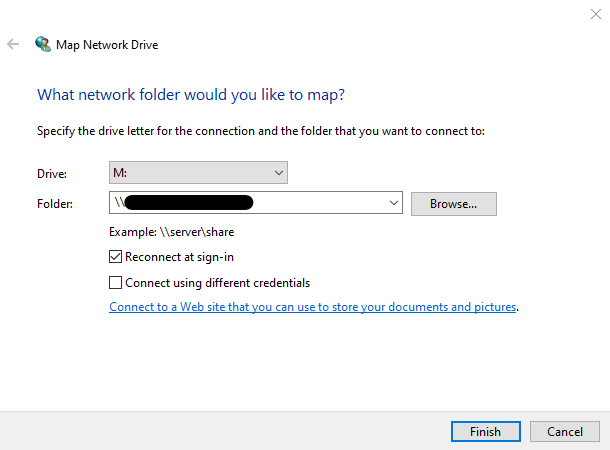
- Click “Finish.”
The Network Share will now be listed under “This PC” in File Explorer