Browse Our Knowledge Base
Connecting to Eduroam with Linux
Manual Setup
This guide is shown using the Ubuntu distribution (22.04 LTS). The exact setup methods shown below will vary between distributions, but the connection settings should still work.
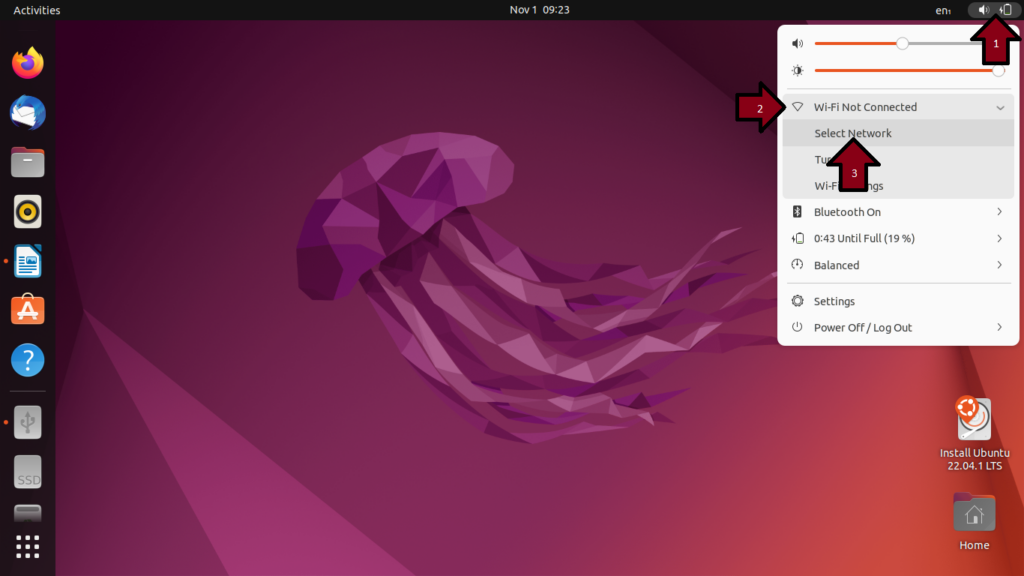
1.Click settings in the top right
2.Click “wi-fi not connected” (this will show the current network if you connected to a different wi-fi network)
3.Click Select Network
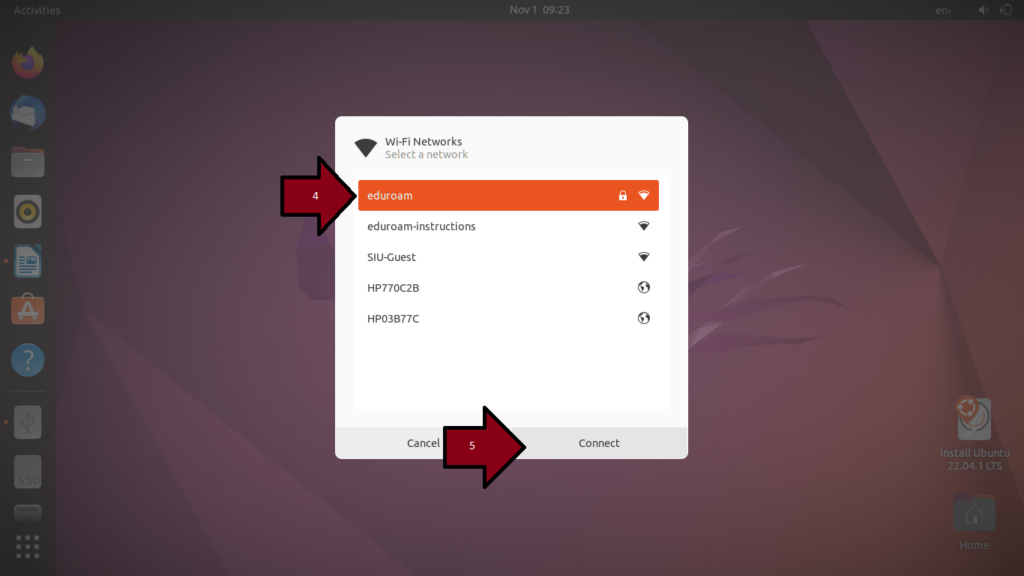
4.Click the network titled “eduroam”
5.Click Connect at the bottom of the menu
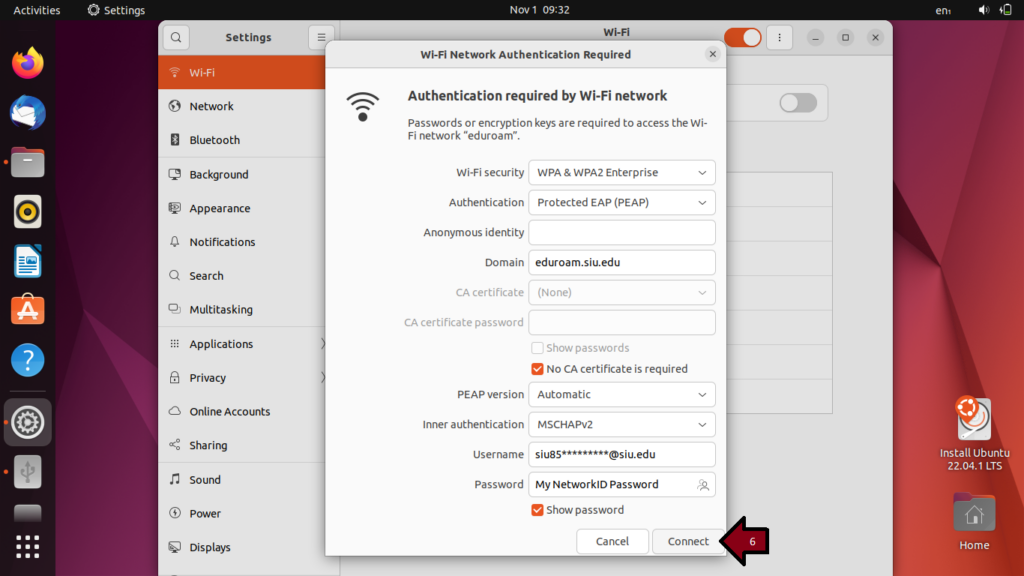
6. A “Wi-fi network Authentication Required” menu will then appear. you will need to enter in the following settings.
Wi-Fi Security: WPA& WPA2 Enterprise
Authentication: Protected EAP (PEAP)
Anonymous Identity: Leave blank
Domain: eduroam.siu.edu
CA certificate: (None)
CA certificate password: Leave blank
No CA certificate is required: Check this box
PEAP version: Automatic
Inner Authentication: MSCHAPv2
Username: Your network ID@siu.edu (SIU85*******@siu.edu)
Password: Your network ID password
After you’ve entered in all of the information, click Connect.
You should now be connected to the eduroam network. If you are unable to connect, please confirm you are using the correct settings and entering in the right credentials. You can confirm your password is correct by signing into netid.siu.edu on another device.
Forgetting the eduroam connection
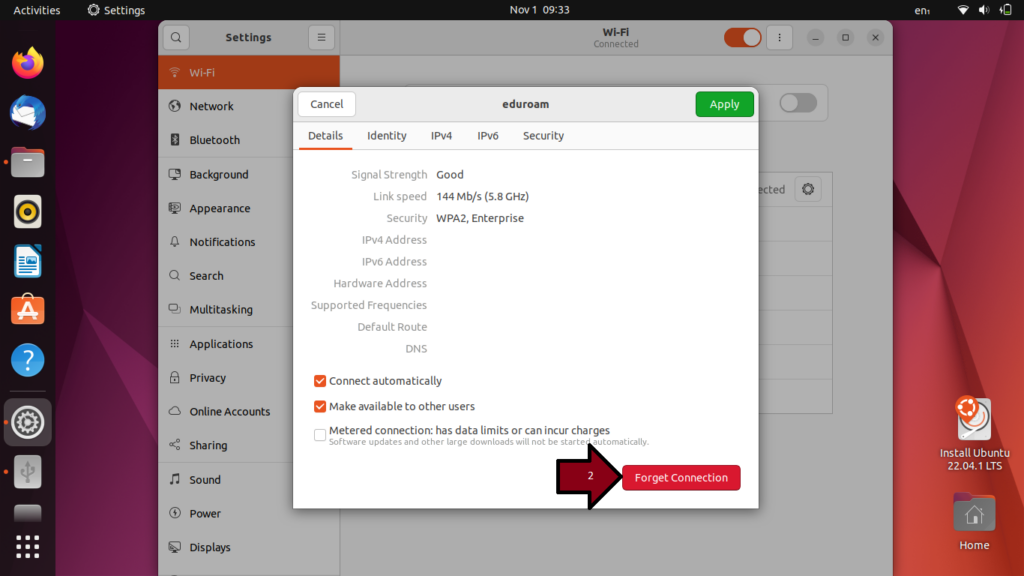
1.Navigate to the Wi-FI menu in settings. Select the gear next to “eduroam”
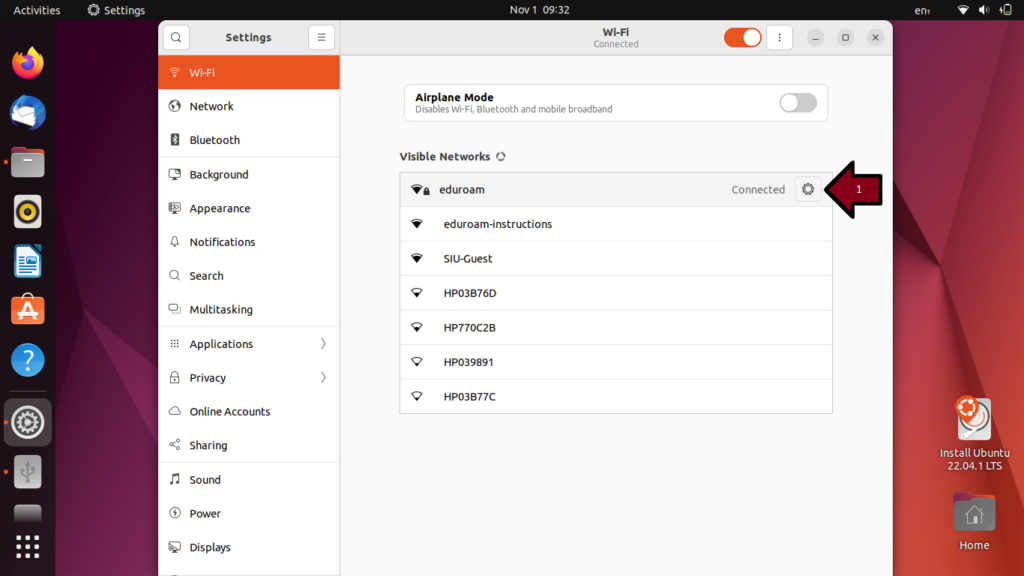
2. Click “Forget Connection” at the bottom right