Browse Our Knowledge Base
Video Comment in Microsoft Stream
Overview
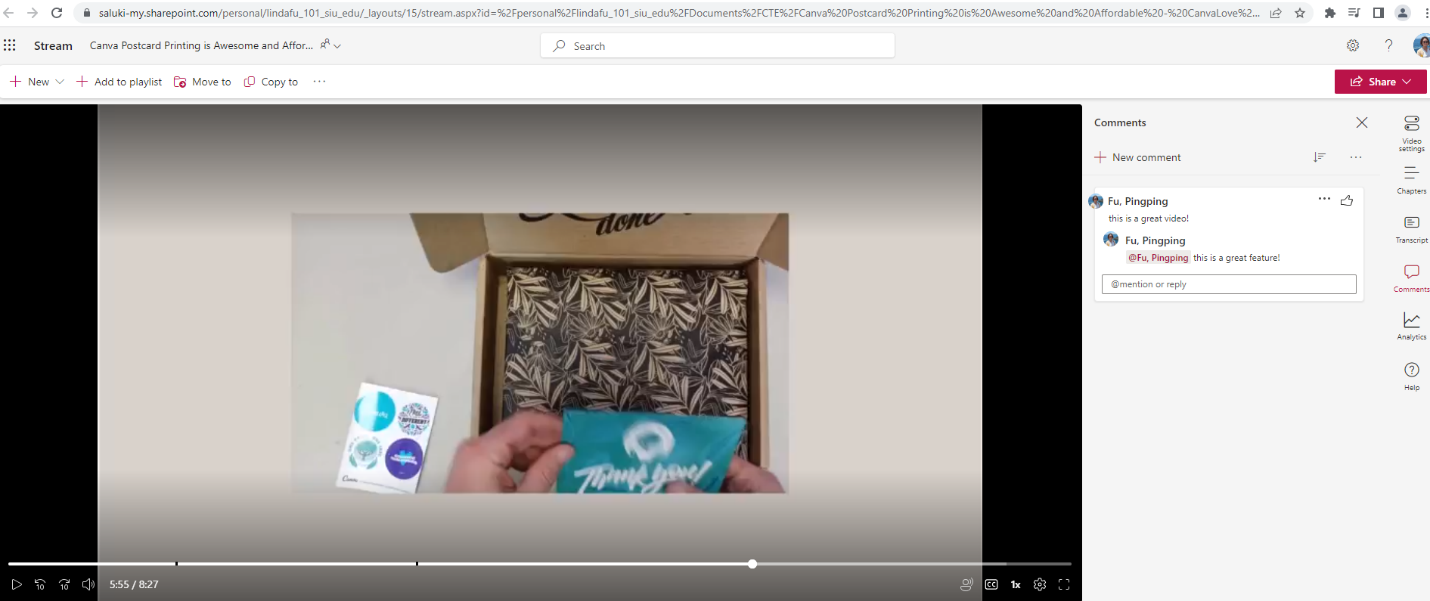
In this how-to guide, learn how to add a comment, tag a person, and use a time code to synchronize a video in Microsoft Stream.
Add a Comment
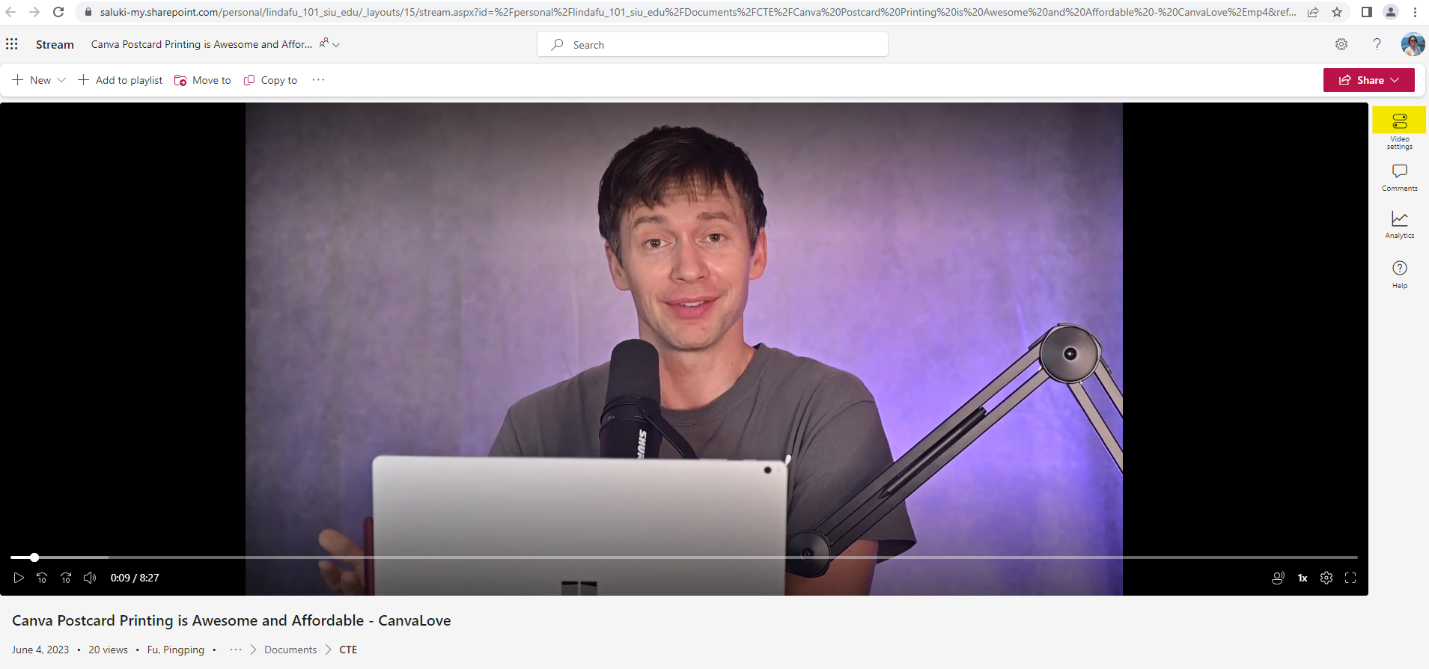
Step 1: Select a video in OneDrive and open it in Stream. Click on Video settings icon from the menu in the upper right corner.
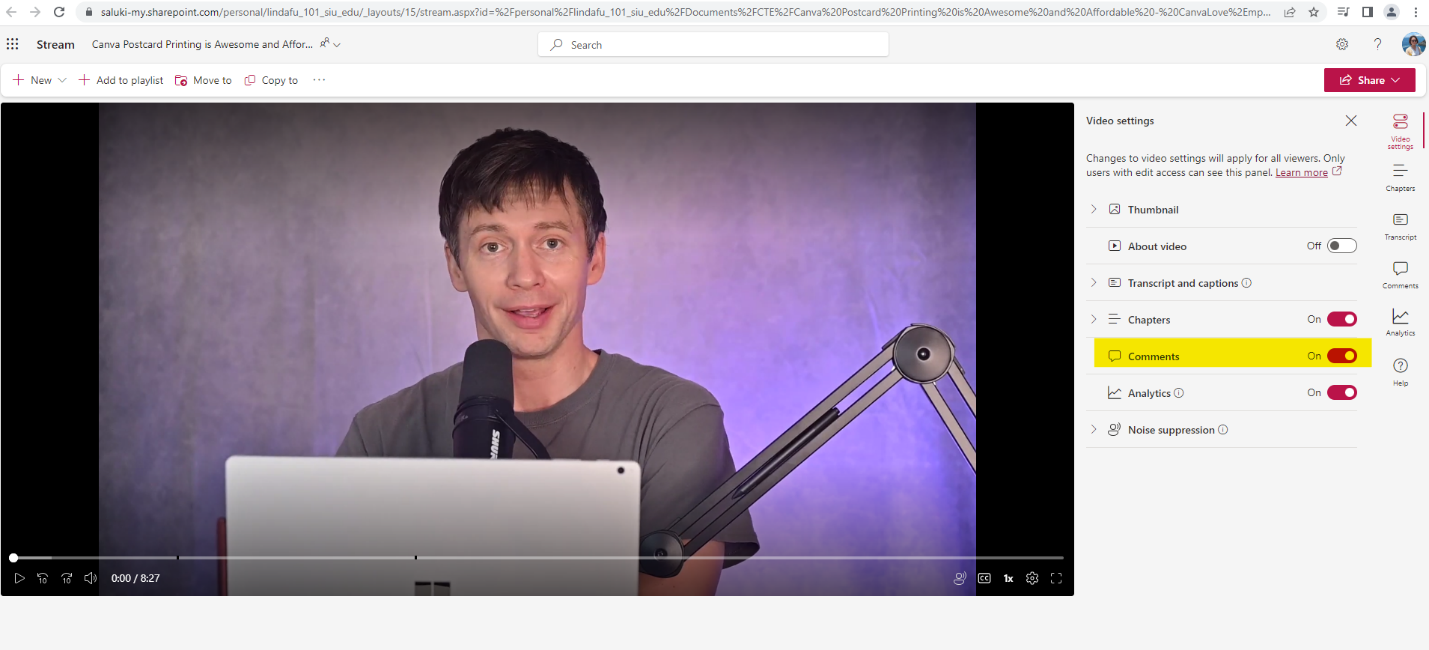
Step 2: Toggle Comments to on.
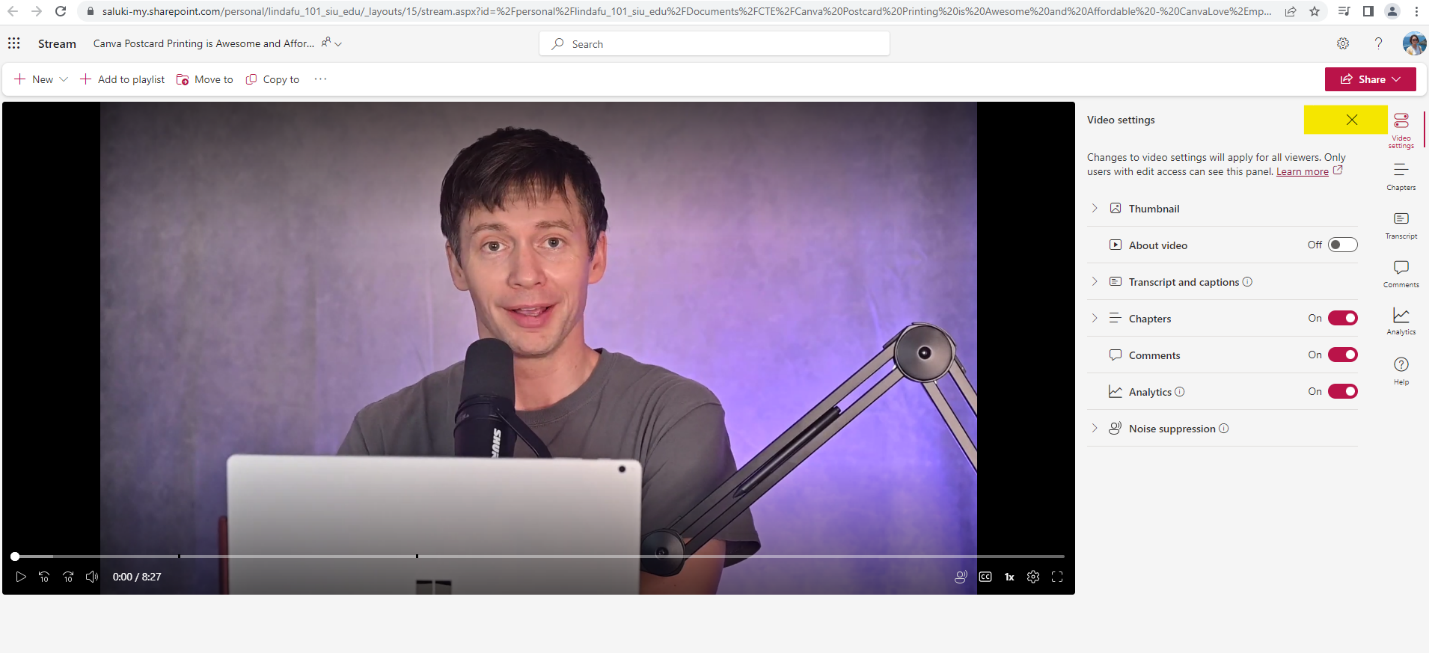
Step 3: Click on X sign to exit Video settings.
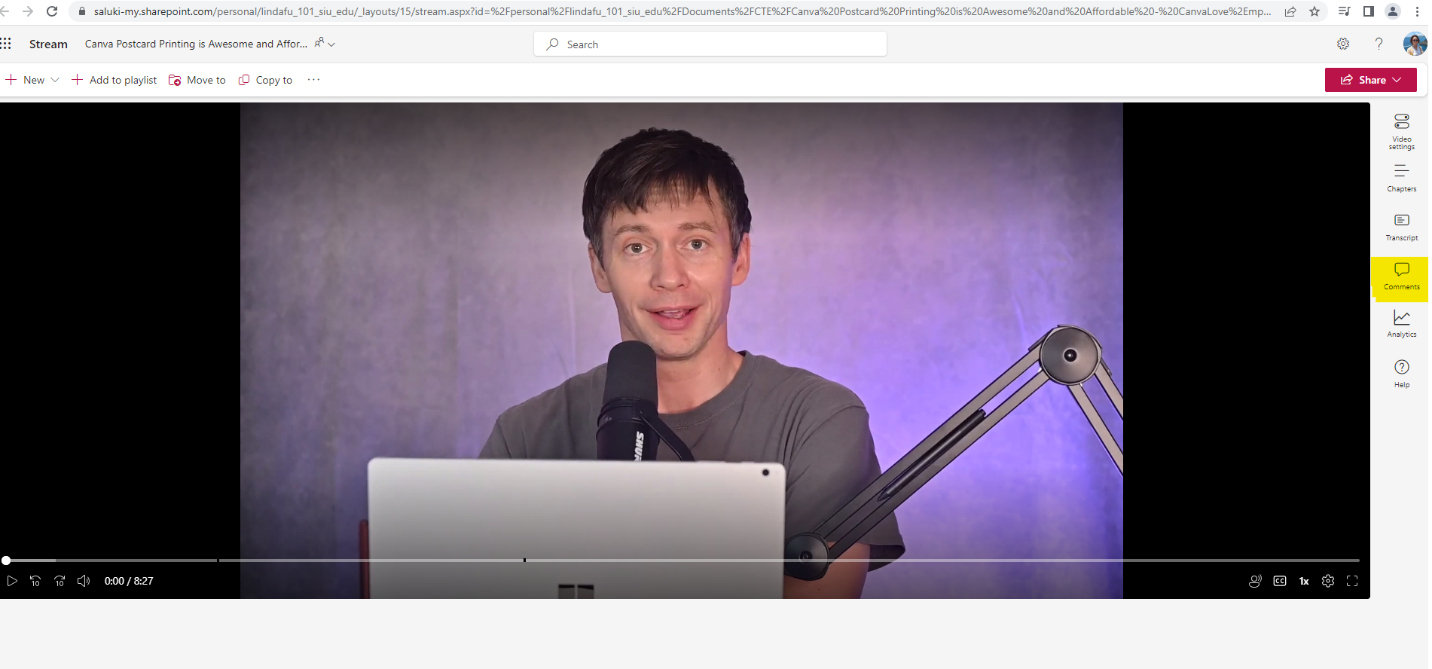
Step 4: Click on Comments icon from the menu on the right of the screen.
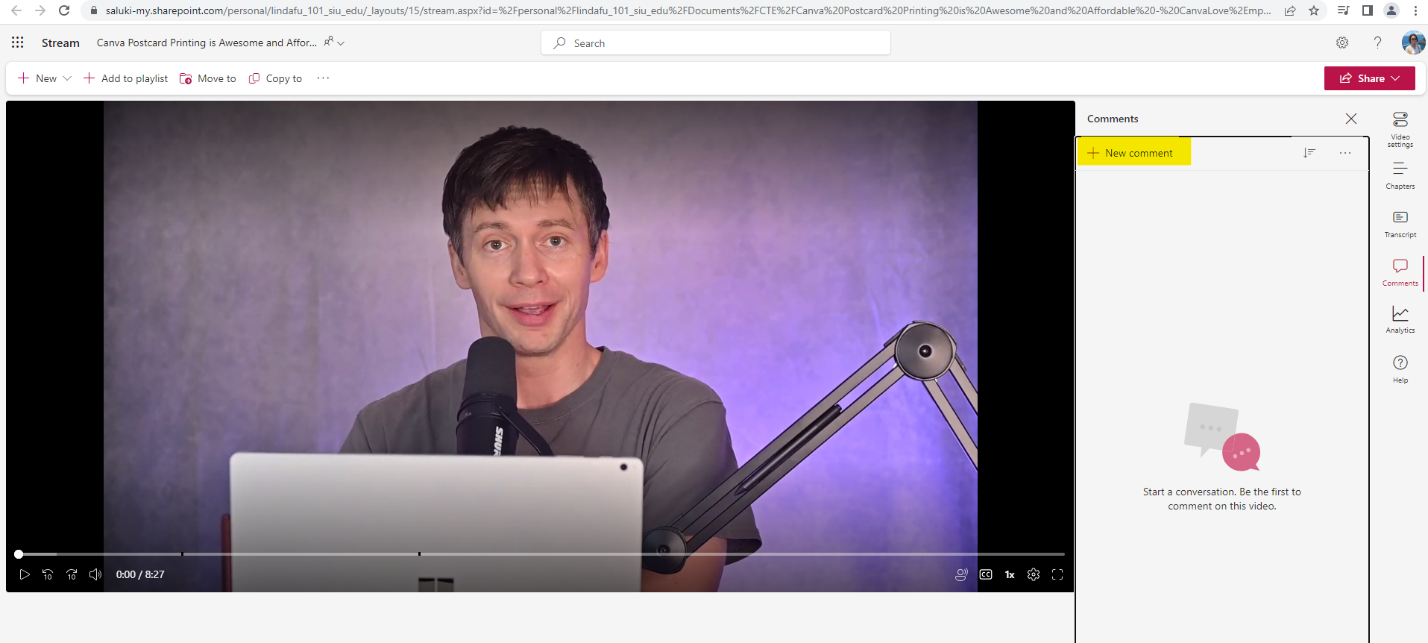
Step 5: Click on + New comment.
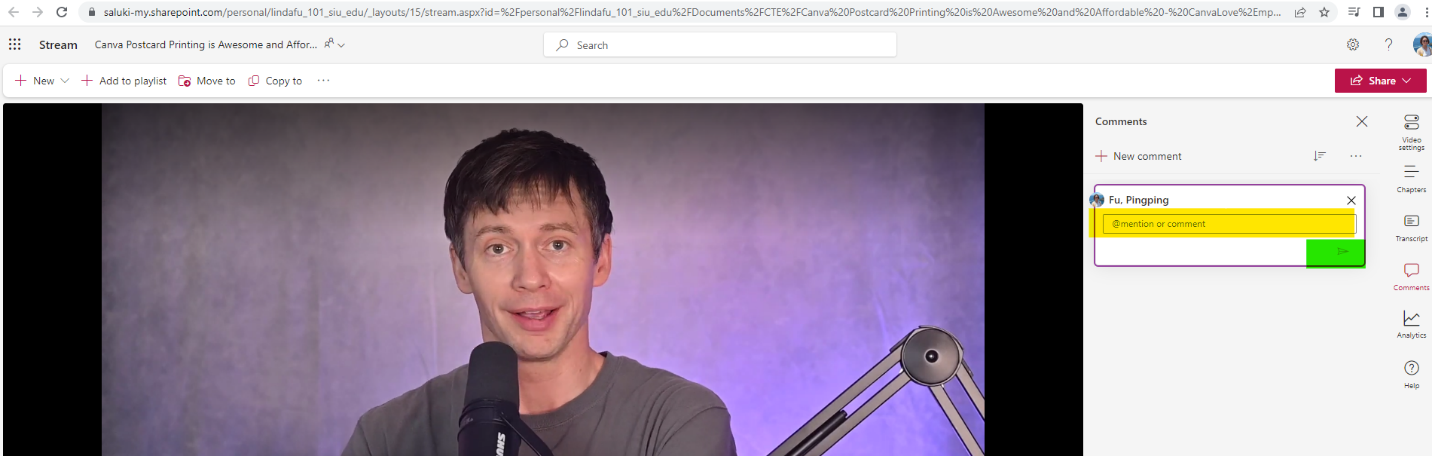
Step 6: In the text box, enter a comment and click the Post Reply arrow in the bottom right corner.
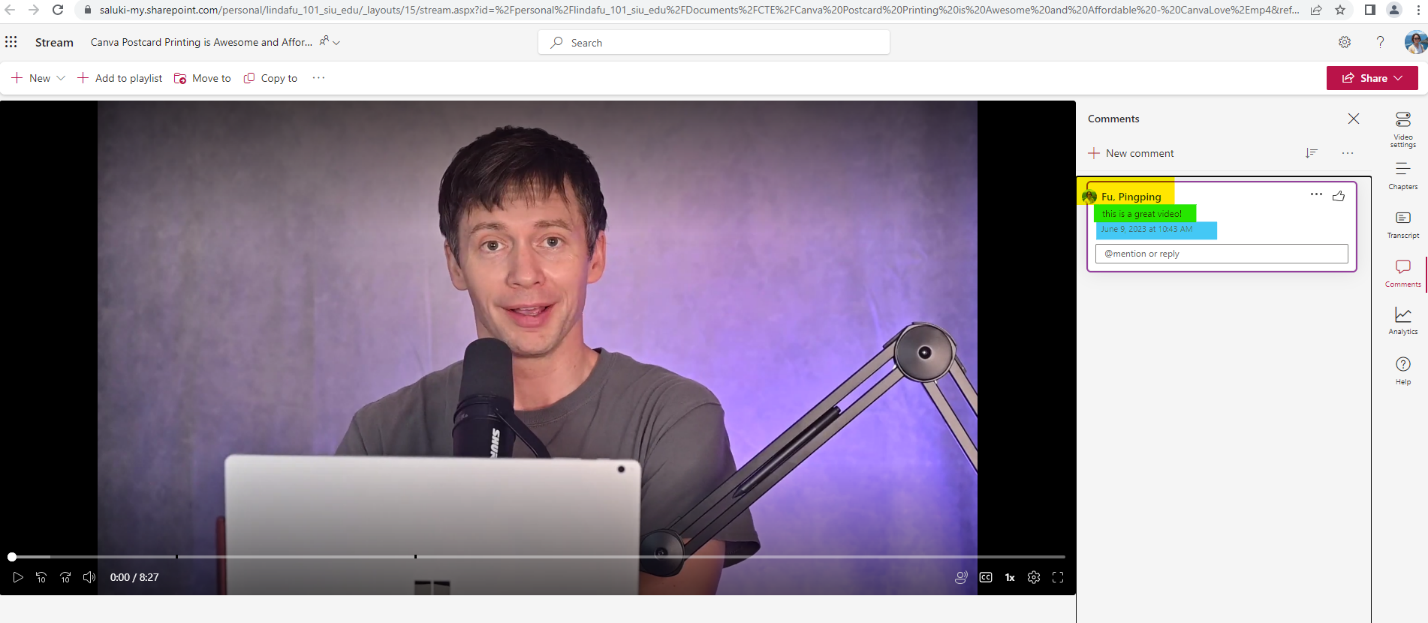
Step 7: The comment appears to the right of the video. In addition, information about who made the comment and when the comment was made is available.
Tag a Person in the Comment
Step 1: In the comment textbox, type in @ and immediately the name of a person within the same organization. Note that you can type in first name or last name, a list of names will appear. Select the person’s name to tag them.
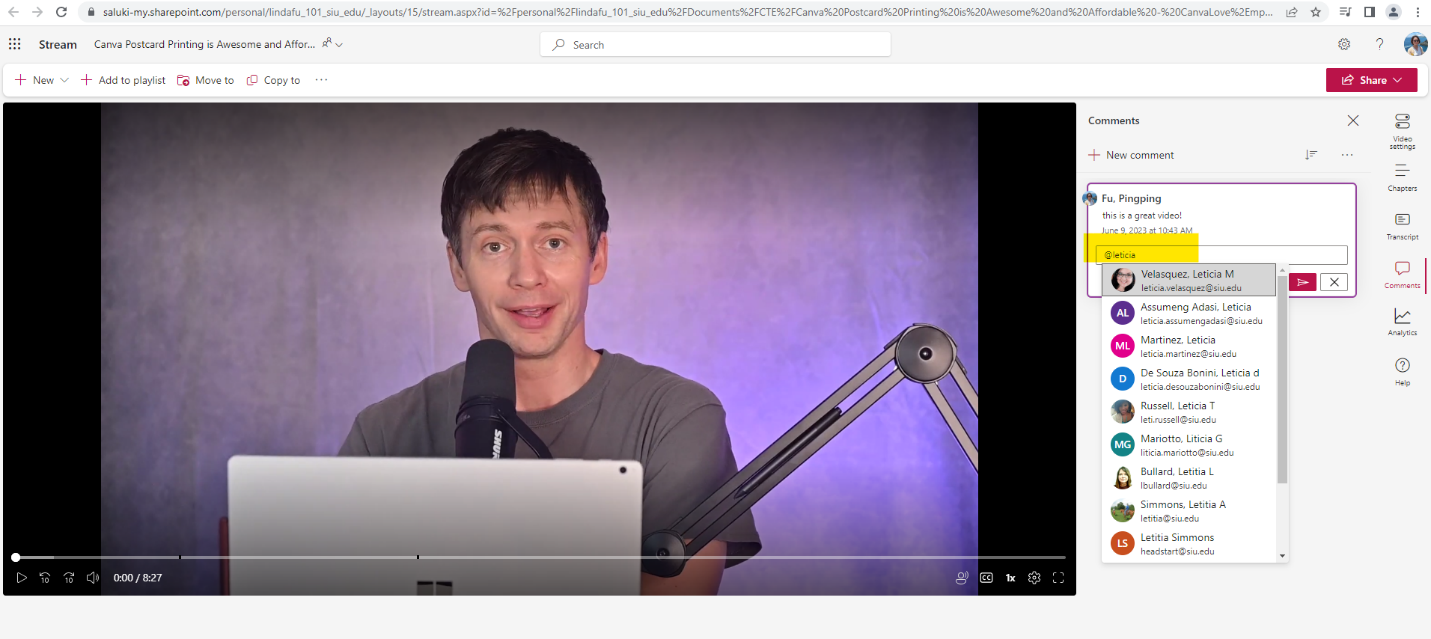
Step 2: Enter the comment and then click on the Post Reply arrow in the bottom right corner below the text box.
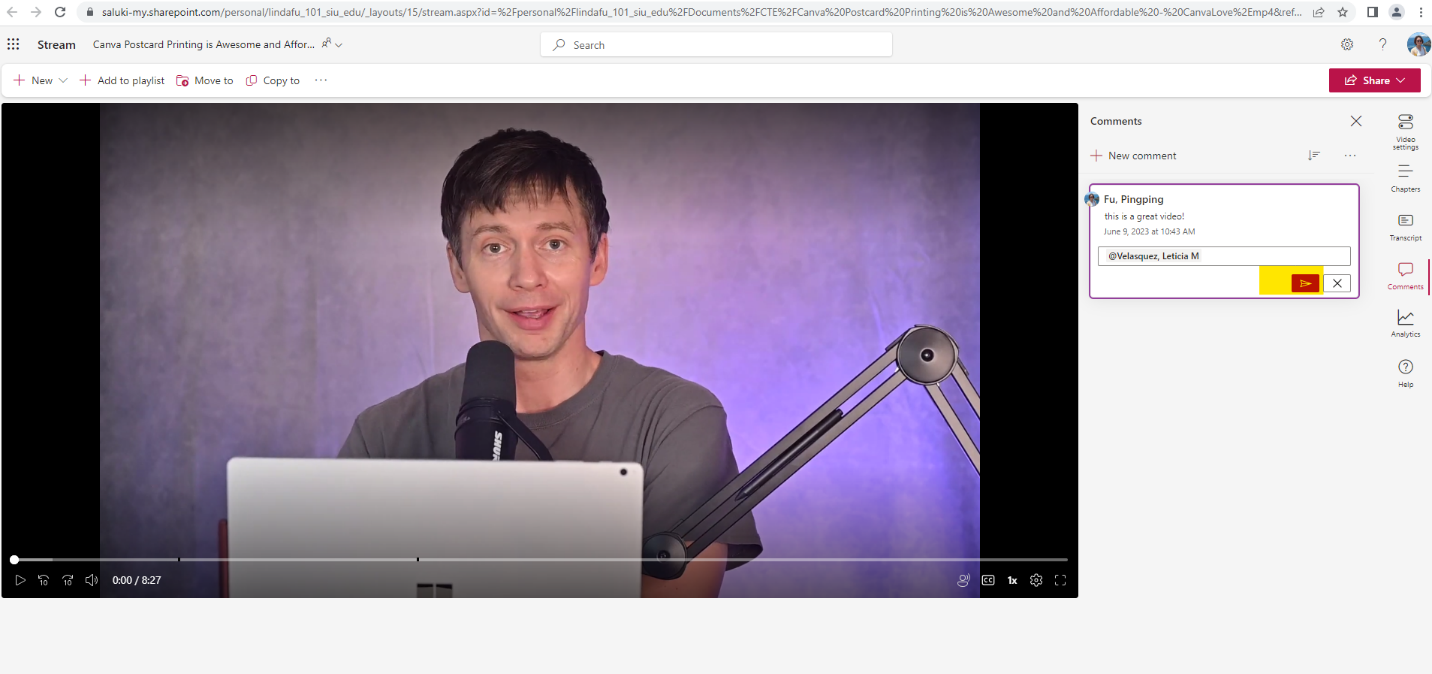
Step 3: The person is tagged in the comment. Note that the tagged person will receive an email notification about this comment.
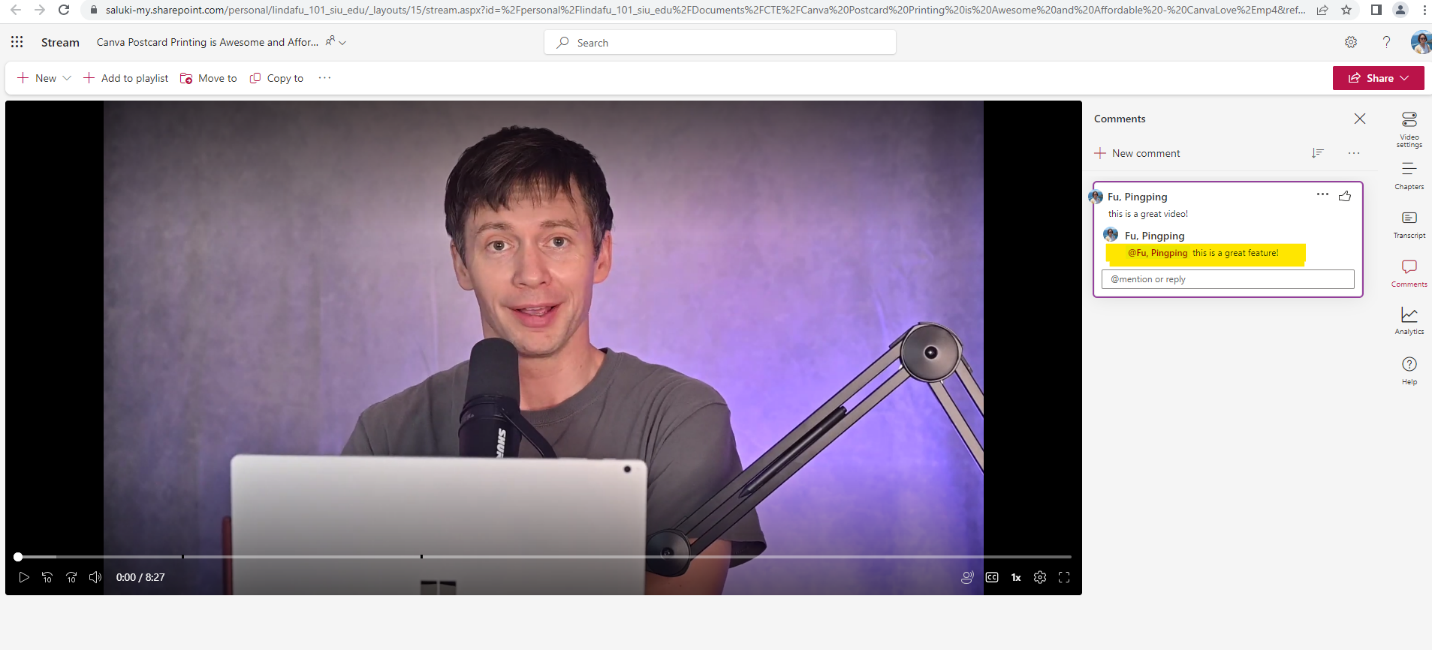
Add a Time code in the Comment
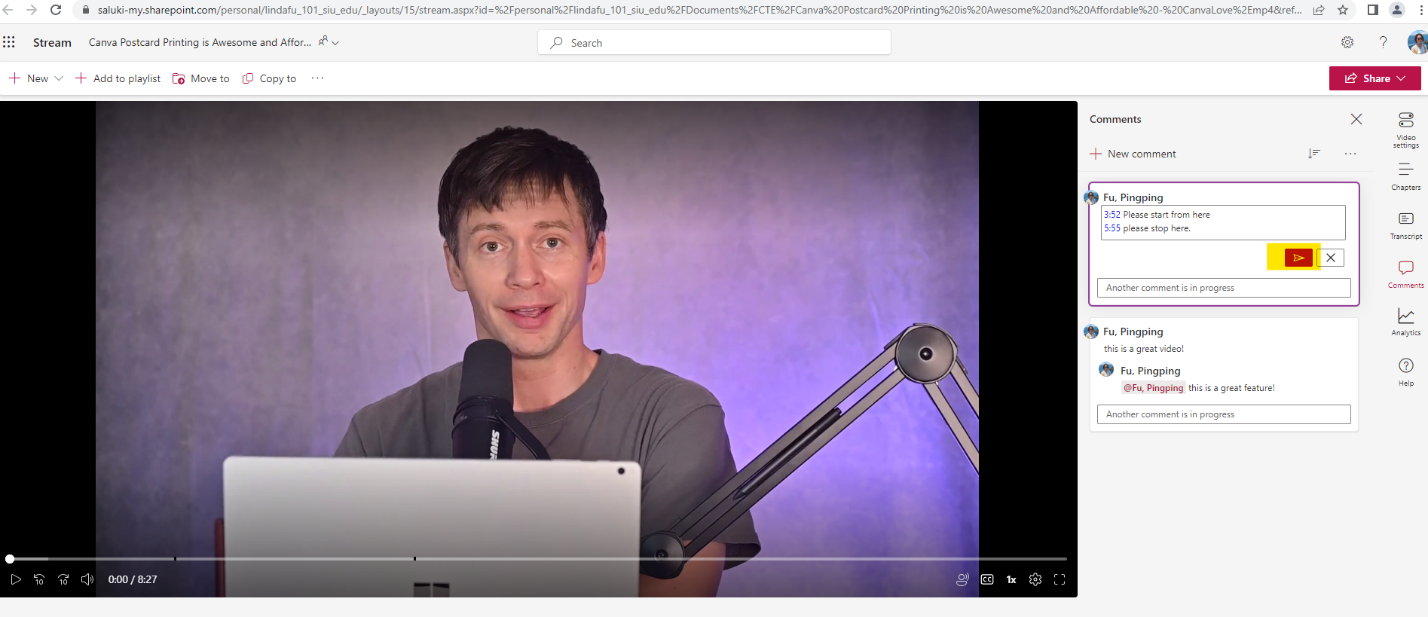
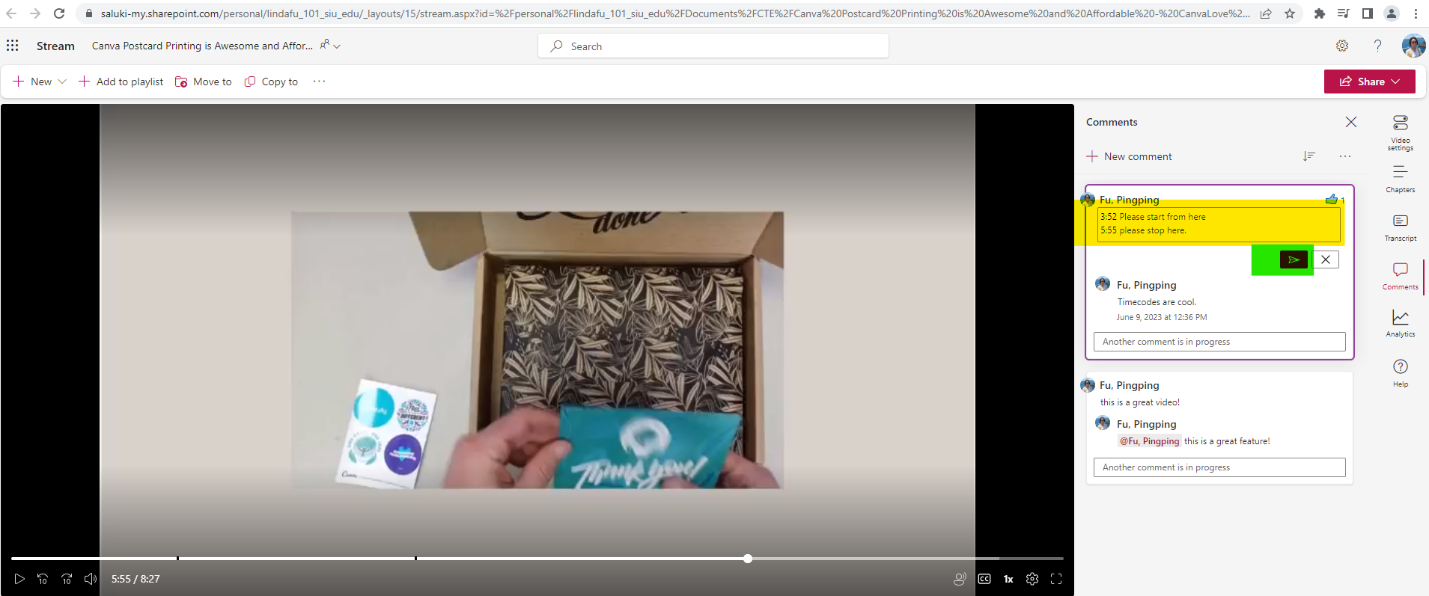
Step 1: In the comment text box, enter a time code and then a message or comment. Note that you can enter multiple time codes if necessary.
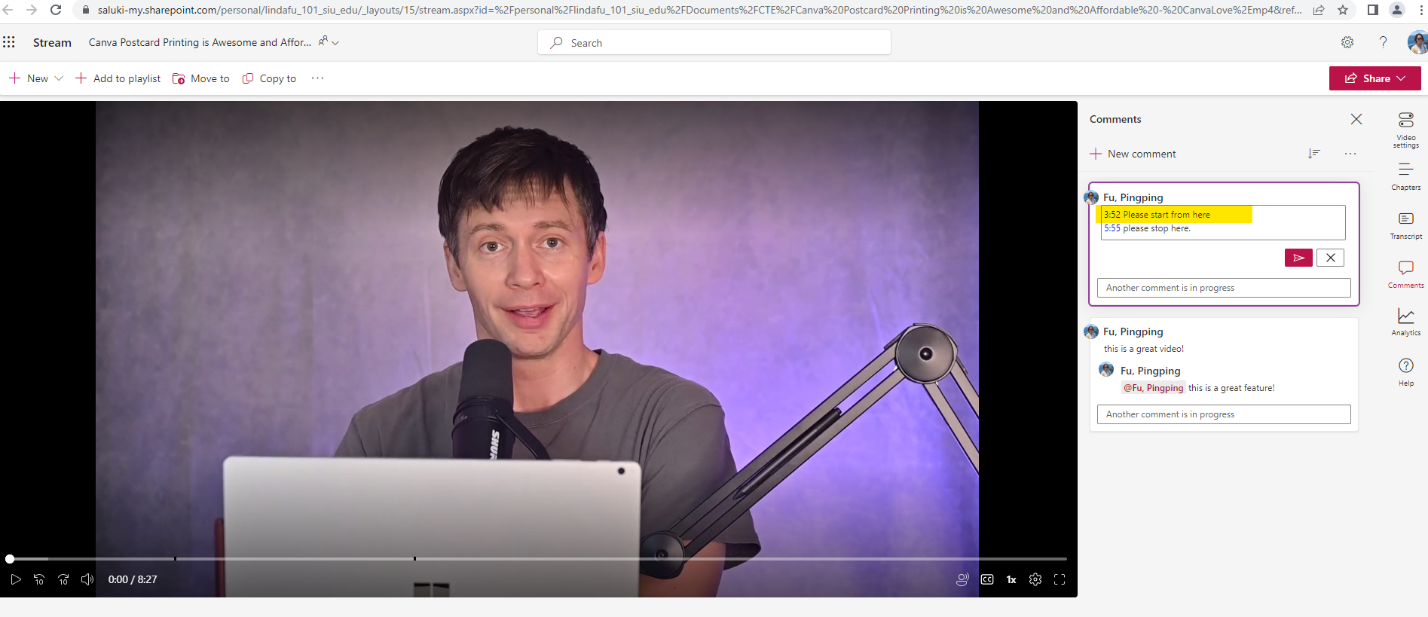
Step 2: Click on Post Reply arrow.
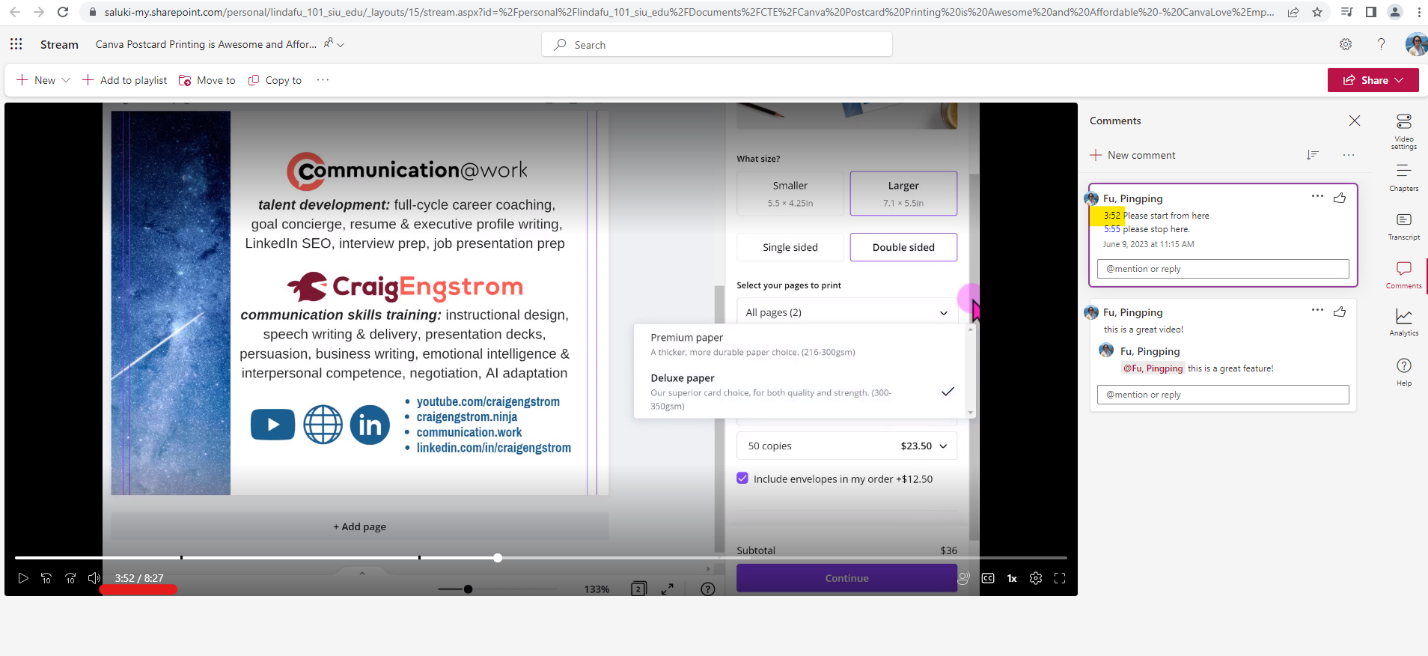
Step 3: Click on the time code to synchronize the video. Click play and the video will start to play at the exam time code.
Reply to a Comment
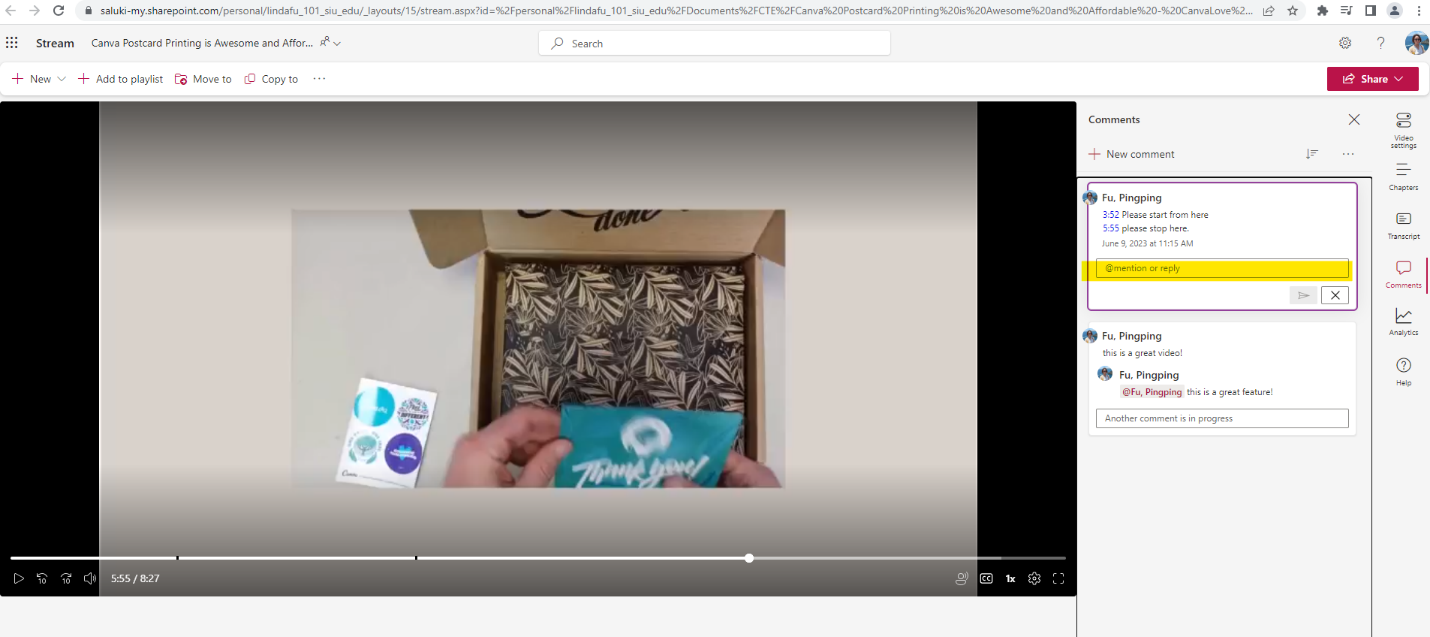
Step 1: Click on the text box under a comment.
Step 2: Enter a comment and click on Post Reply button in the bottom right corner under the text box.
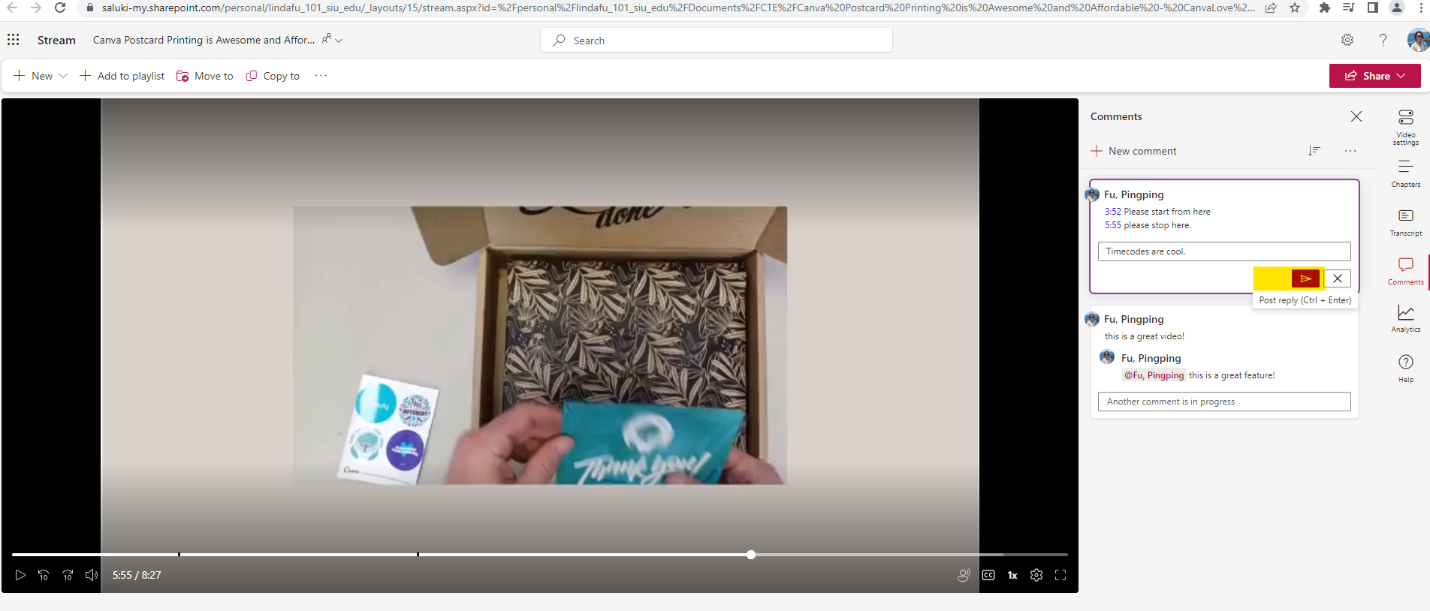
Step 3: A reply to a comment has been made.
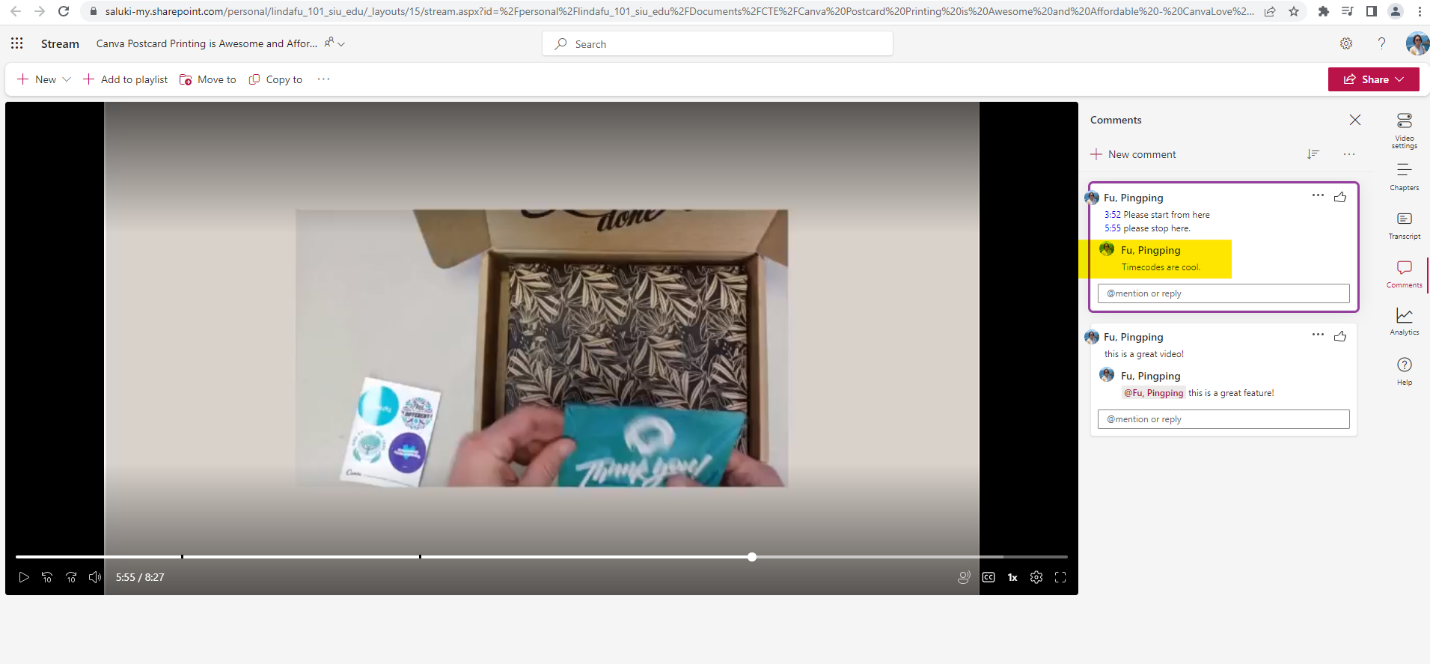
Step 4: If desired, click on the thumbs up icon to like a comment.
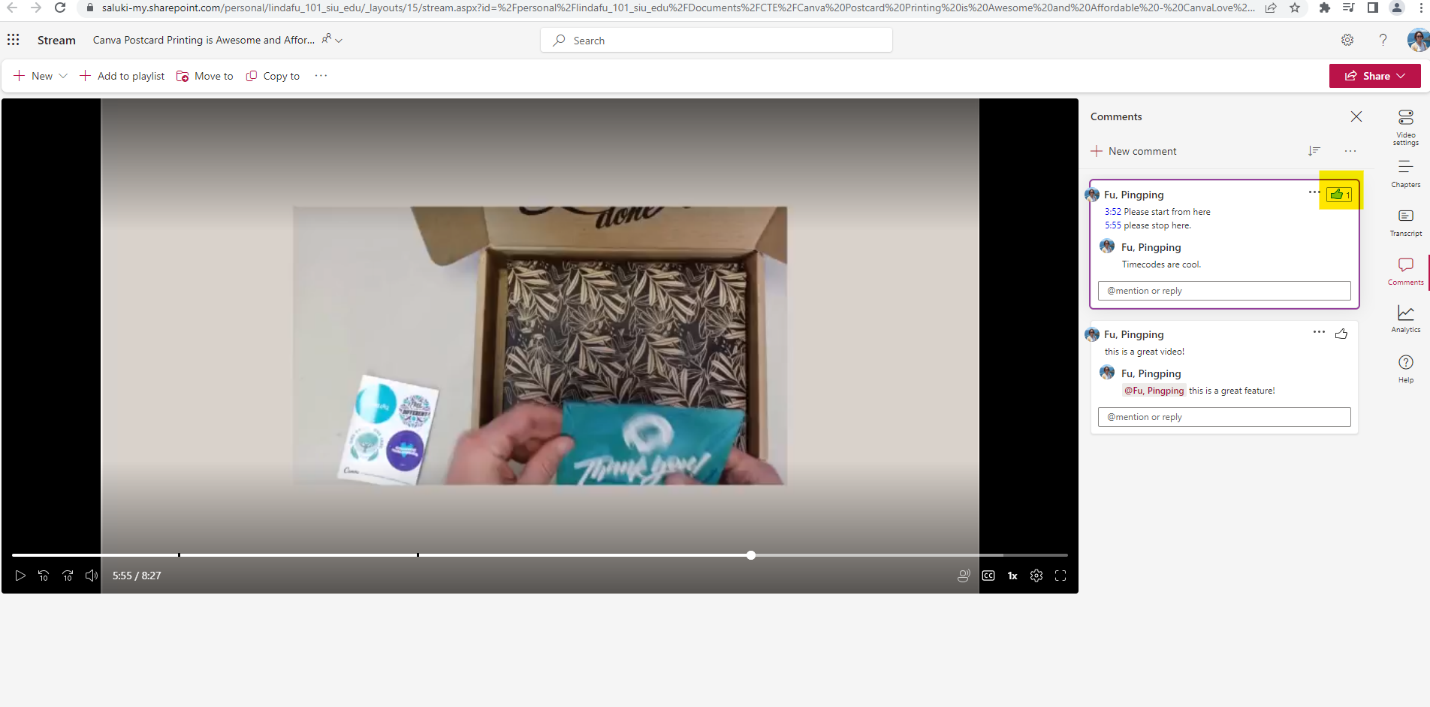
Edit a Comment
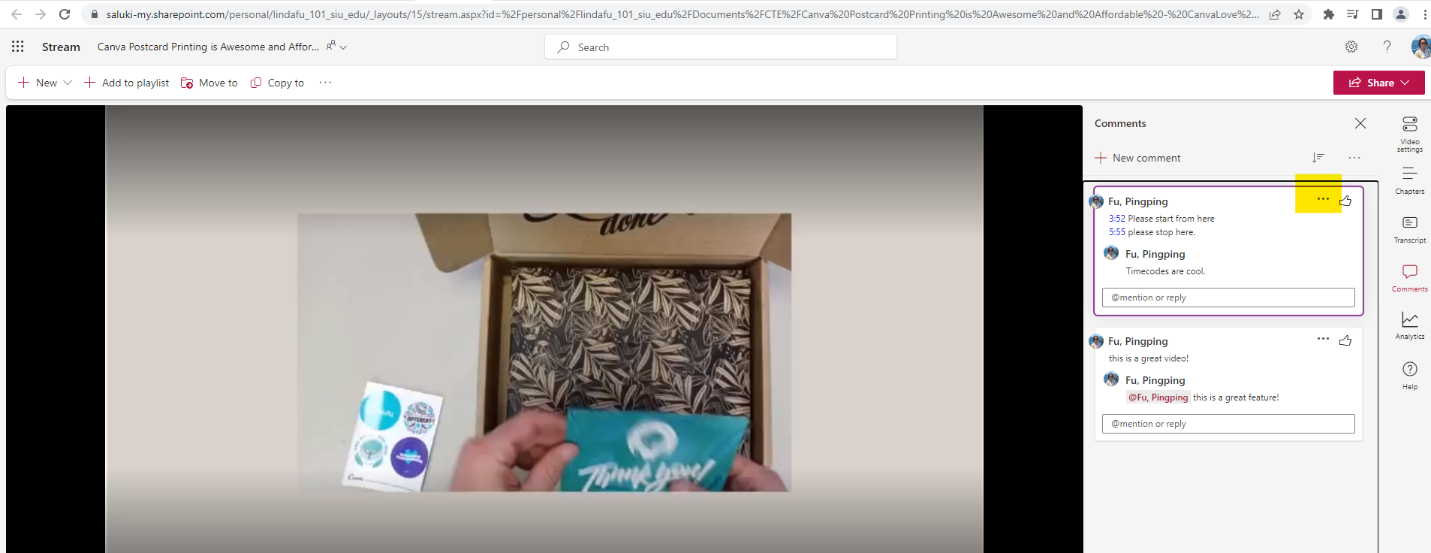
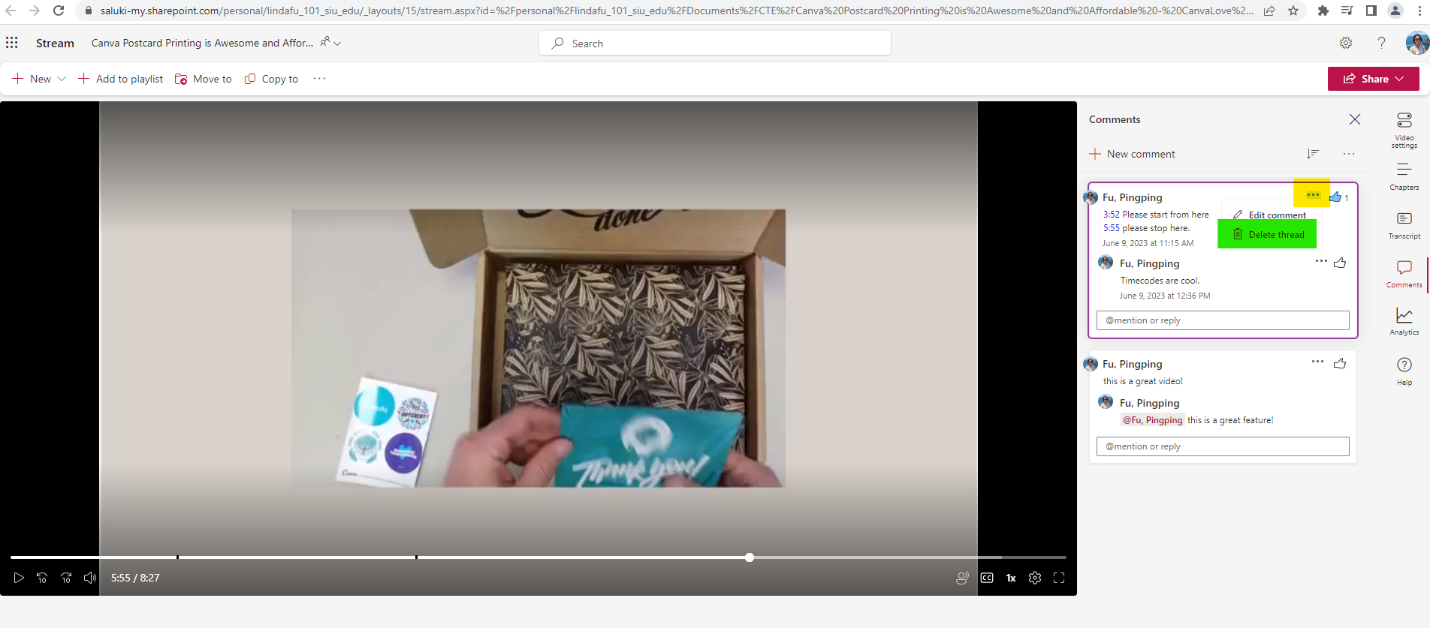
Step 1: Click on the three dots menu to the right of a commenter.
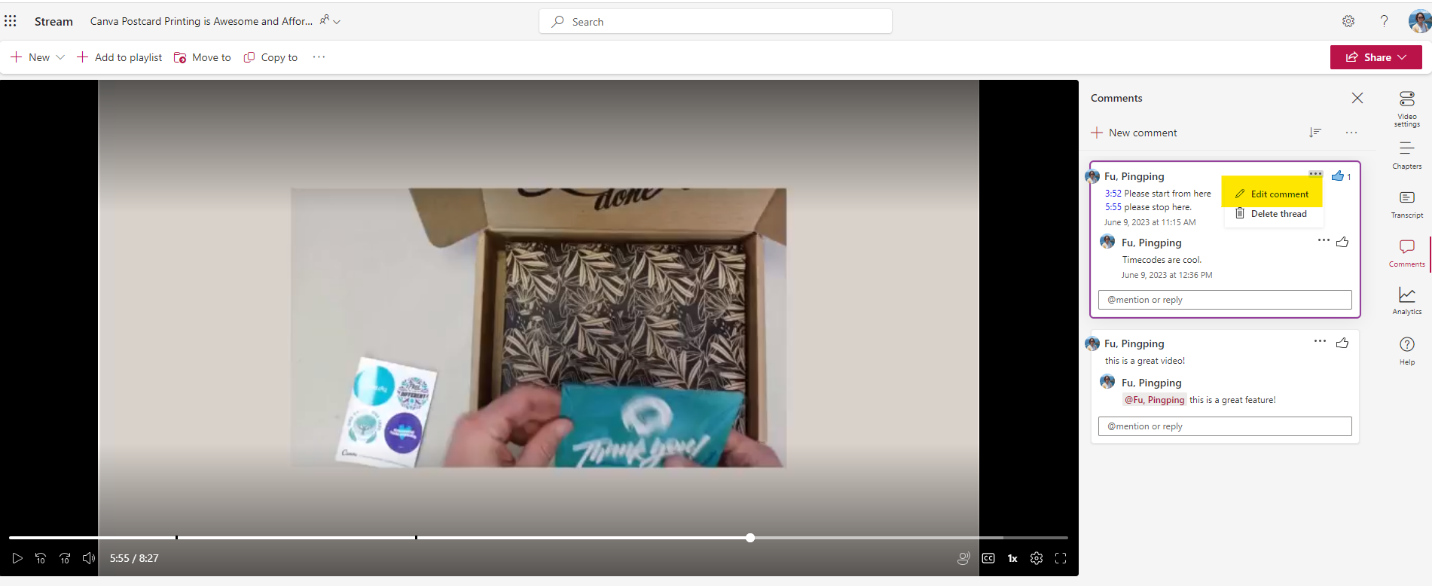
Step 2: Click on Edit comment to activate the text box.
Step 3: Edit the comments and click on post reply arrow in the bottom right corner to save any changes made.
Delete a Comment
Step 1: Click on the three dots menu and click on Delete thread.
Step 2: The comment thread is deleted.