Browse Our Knowledge Base
Share a Video File in Microsoft Stream
Overview
In this how-to guide, learn how to share video files in Microsoft Stream.
Share A Video
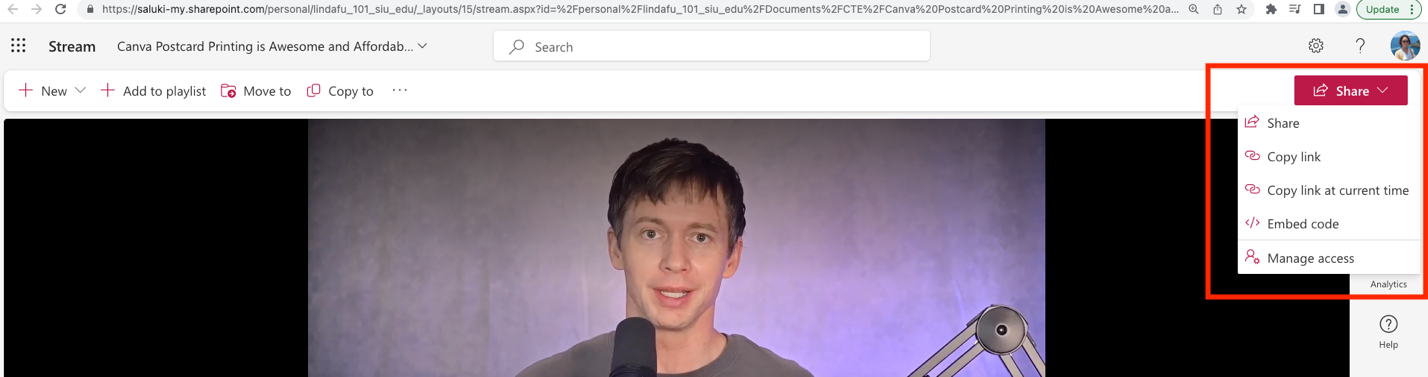
Step 1: Stream a video in Stream. Click on Share on the upper right corner. There are five options in the dropdown menu.
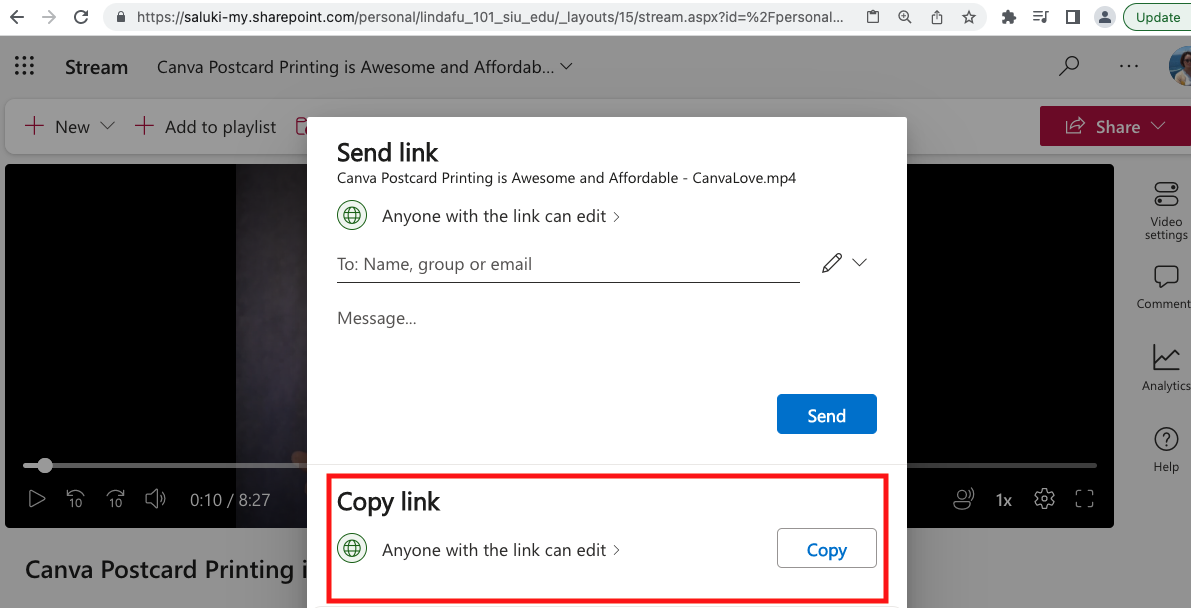
Step 2: Click on Share and this window will pop up. You can either Send Link or Copy Link.
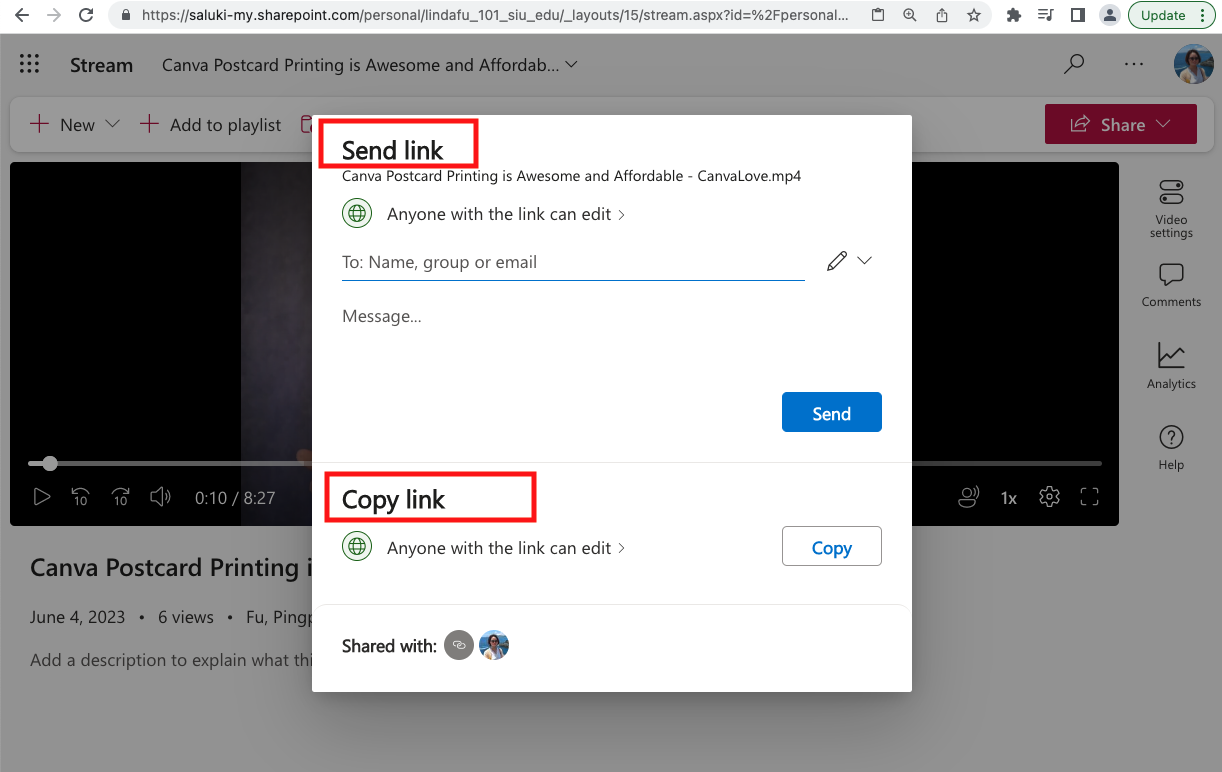
Send Link
Step 1: Enter a name, group or email address in Box 1. Add a message in Box 2 if desired and click on Send.
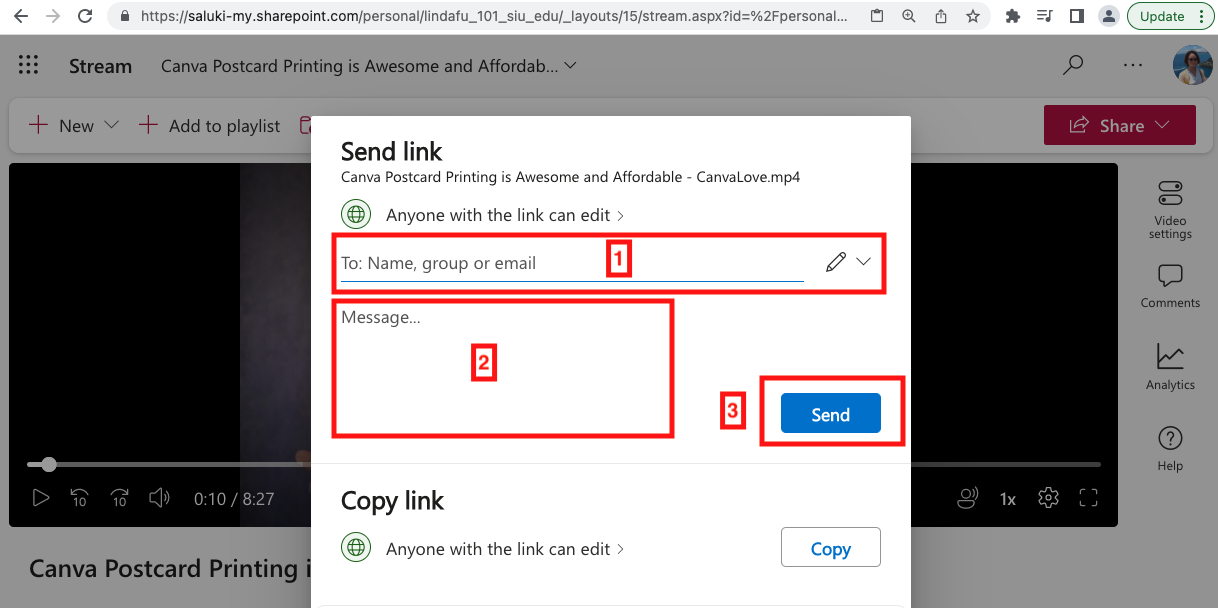
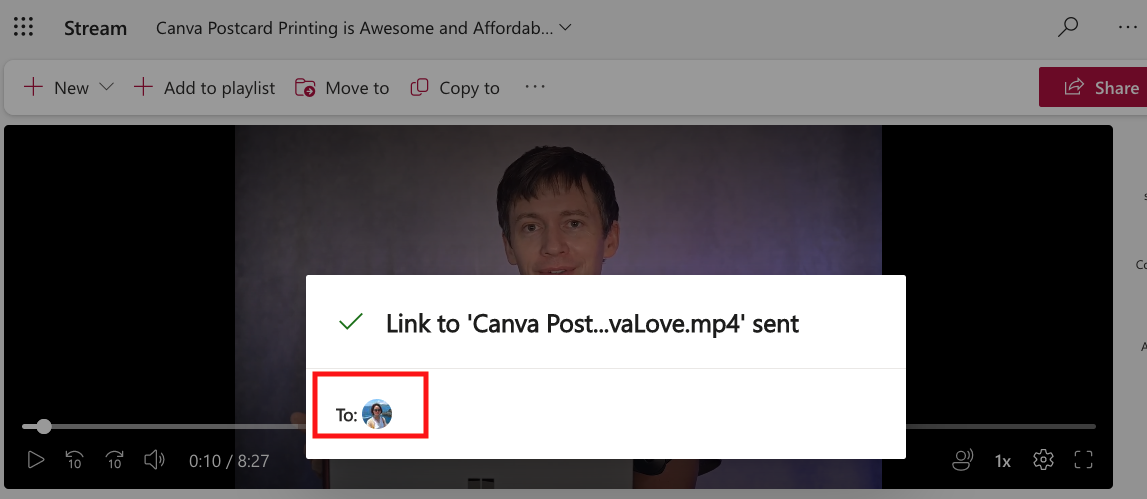
Step 2: This window confirms that the video file has been shared with intended people.
Copy Link
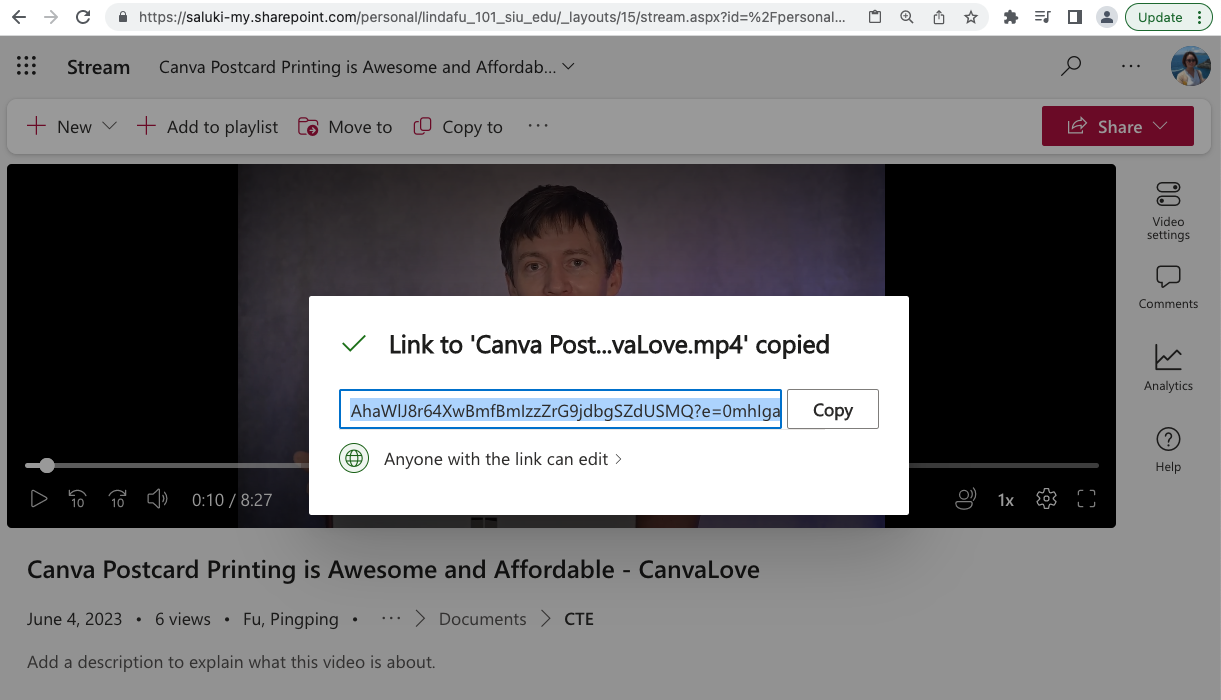
Step 1: Navigate to the bottom of the window and click on Copy.
Step 2: The window below confirms that the link has been copied to the clipboard. Paste the link where you want to share the video file.