Browse Our Knowledge Base
Creating Break-Out Group Discussion Boards
Create
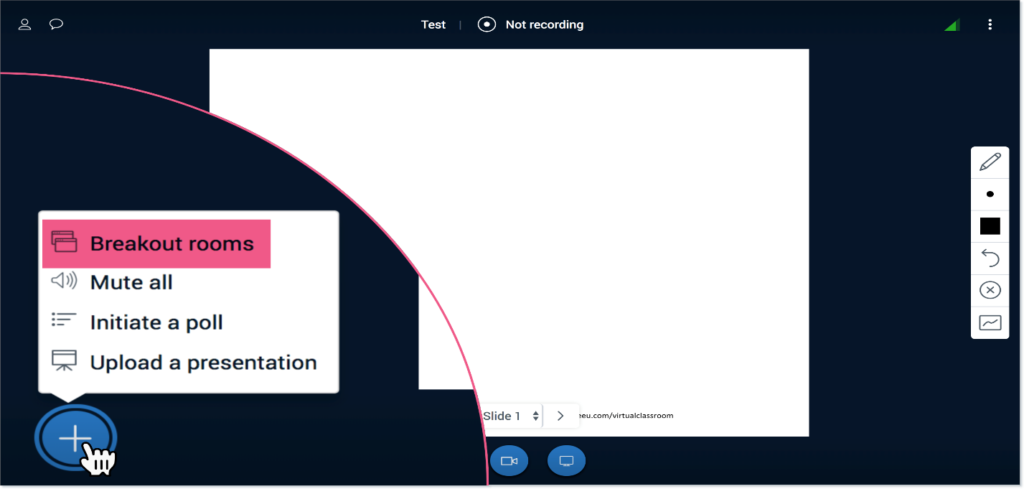
To initiate Breakout Rooms, click the Actions button in the bottom left corner. Select Breakout Rooms.
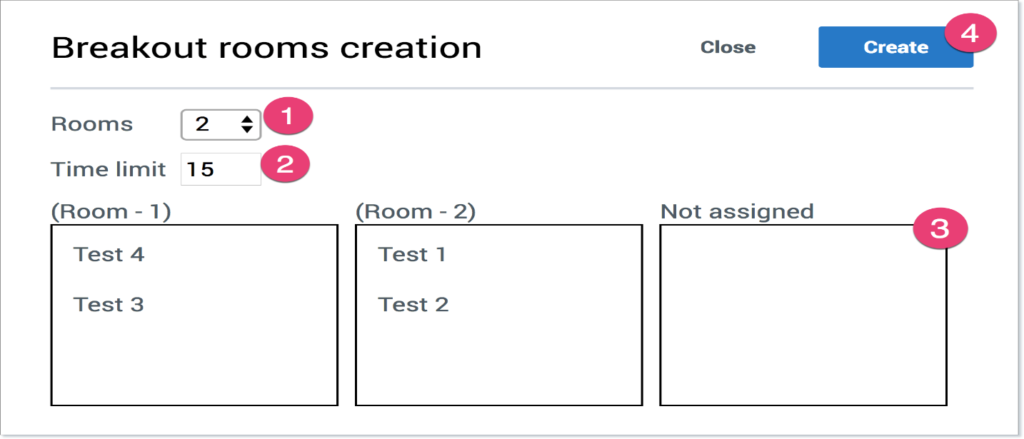
- Select the number of breakout rooms you would like to create. Maximum number of rooms you can create is 6.
- Indicate the time limit for the breakout.
- Drag and drop names to assign them to the preferred Breakout Room.
- When finished, click Create.
Then, learners receive an invitation to join their assigned Breakout Room. The first person to enter the breakout room will be assigned the Moderator role.
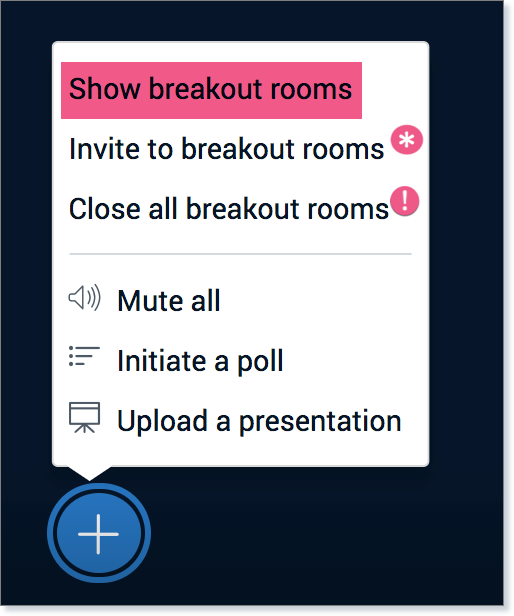
Note: if a user joins late you will be able to add them to the breakout room by selecting invite to breakout rooms (pictured below).Dial-in users will not be able to join in a breakout room without a computer.
Monitor Breakout Room
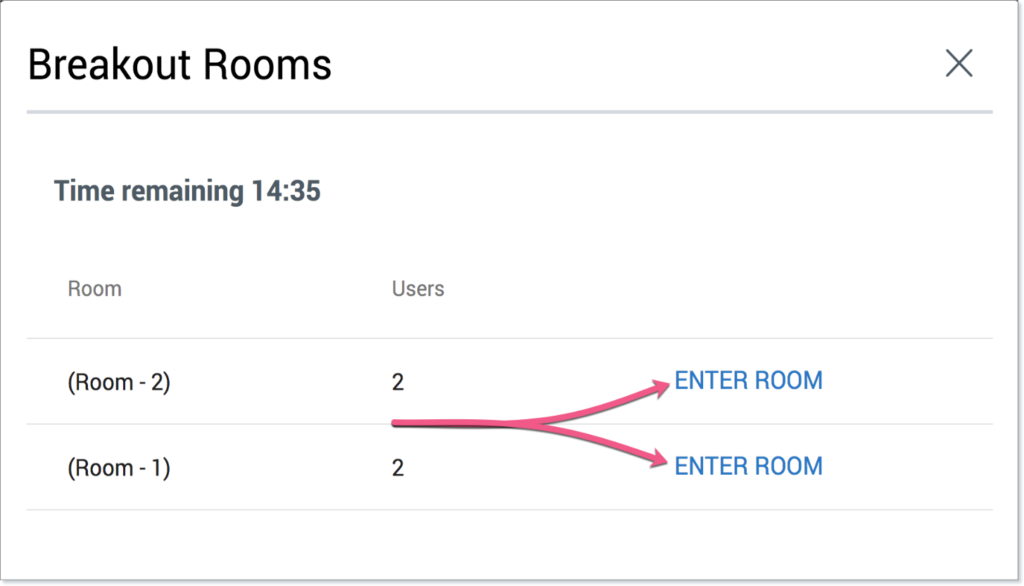
You can monitor Breakout Rooms by clicking the Actions button and selecting Show breakout rooms.
To join a Breakout Room, click Enter Room. The Breakout Room will open a new tab.
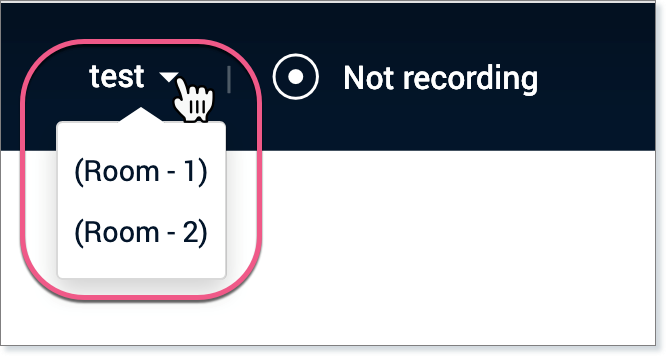
You can also join a Breakout Room by clicking on the caret icon next to the meeting name.
If you would like to leave one room and join another, close the Breakout Room tab and repeat the process above.
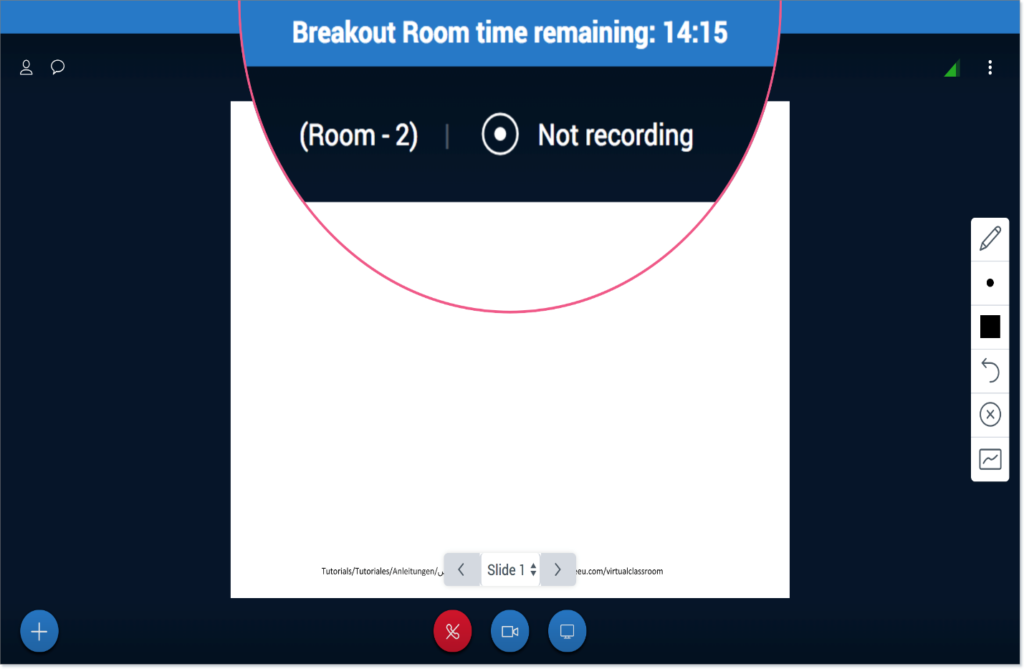
There is a countdown timer in the Breakout Room. Learners will automatically rejoin the Virtual Classroom when the timer runs out.
Note: You can also end the Breakout Room session early by clicking the Actions button and selecting Close all breakout rooms (pictured above).