Browse Our Knowledge Base
How to Login and Navigate a course in D2L
This Quick Guide will help you learn How to Login and Navigate a course in D2L
Step 1
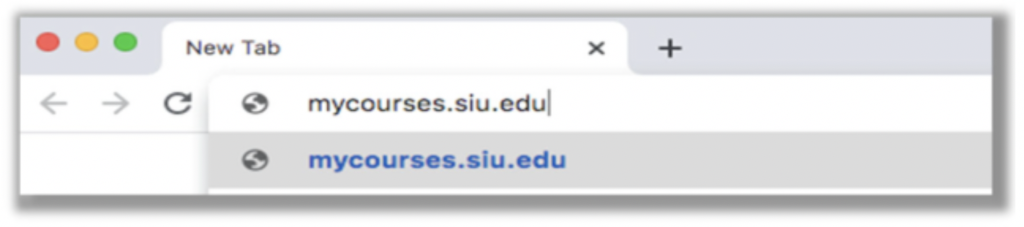
- Type “mycourses.siu.edu” in your browser search tab (Chrome, Firefox, Safari) as shown. Chrome is the preferred browser.
Step 2
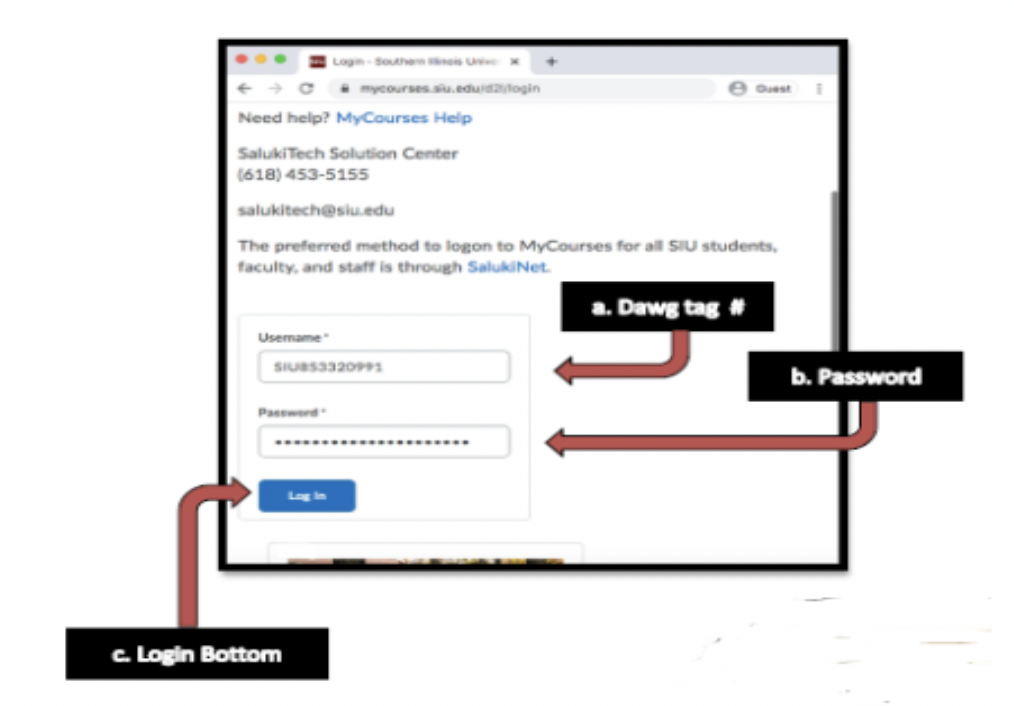
- Your browser will take you to the main page of D2L. Now, You need to type your user name and your personal password. When you finish typing the requested information, hit the blue bottom “Log in”.
Step 3
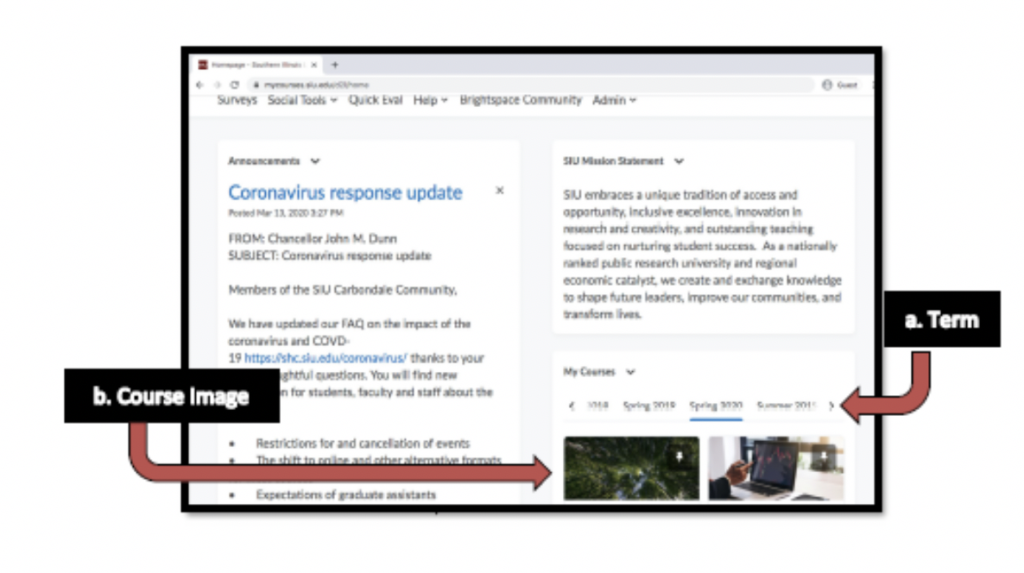
- You are now in your D2L home page. You may see all the courses listed each term (fall, spring, summer order alphabetically). You may choose any course in any term by placing your computer pointer on the course image and hitting it once to enter.
Step 4
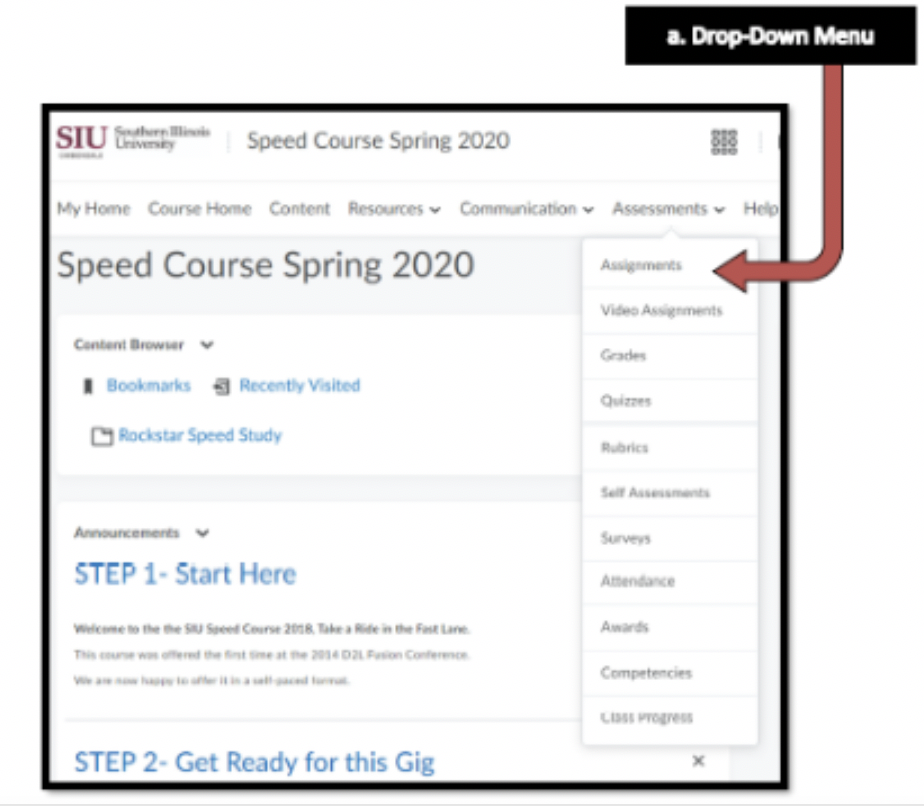
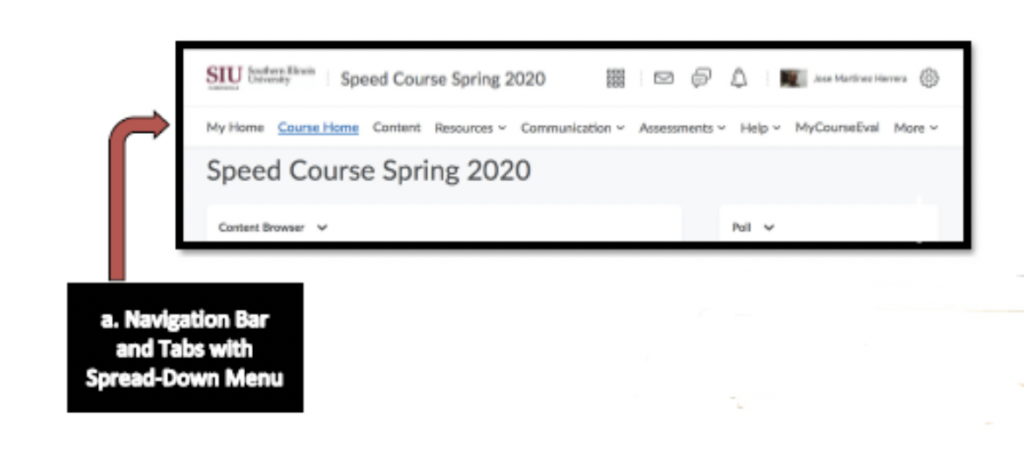
- You are now in your course home page. There is a navigation bar on the top of your course. You may select any tab to see the spread down menu in each tab.
Step 5
- The “assessment” tab is the one you will use more often. Its drop-down menu is shown with different options: Assignments, Video Assignments, Grades, Quizzes, Rubrics, Self-Assessment, Surveys, Attendance and Awards.