Browse Our Knowledge Base
Scheduling Class Meetings in Teams
Overview
This guide is designed to help instructors to navigate to Team course and schedule class meetings within Team course.
Navigating to the Team Course
From D2L to the Team Course
Assume that instructors have used the Teams Connect in D2L to set up the corresponding Team course. If corresponding Team course has not been set up, refer to this OIT knowledge base article to set up the corresponding Team course.
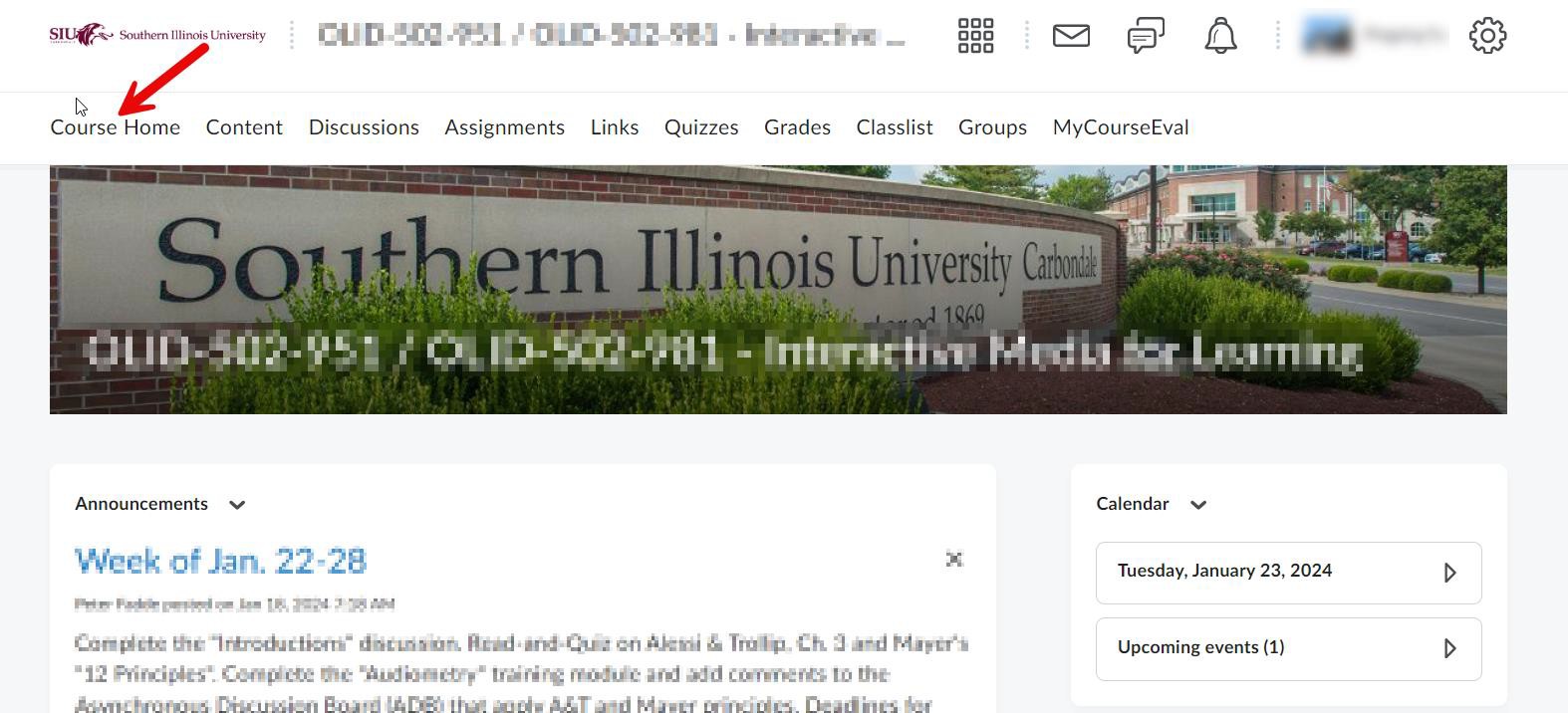
Step 1: Log into D2L and navigate to your course home.
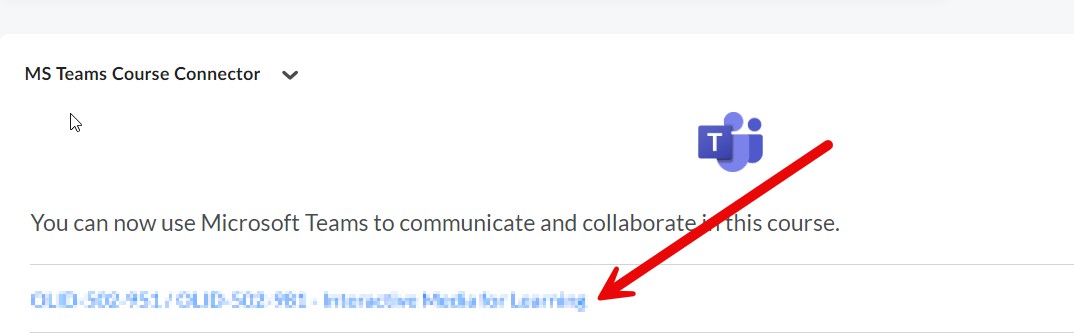
Step 2: Click on the corresponding Team course under MS Teams Course Connector. The connector widget is usually located at the bottom of the homepage or below the calendar widget at the bottom left, depending on homepage template used.
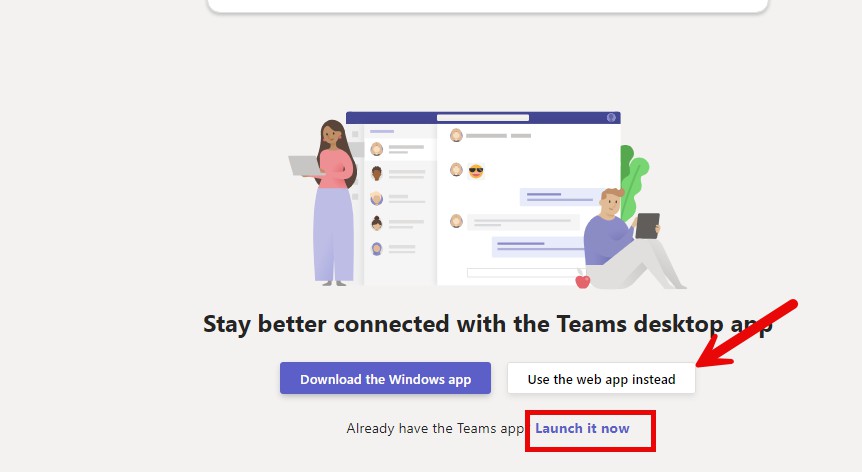
Step 3: Use the Teams app by clicking on Launch it now if you have downloaded it. If you have not downloaded the app, you can click on Use the web app instead.
Note: Select Microsoft Teams (work or school).
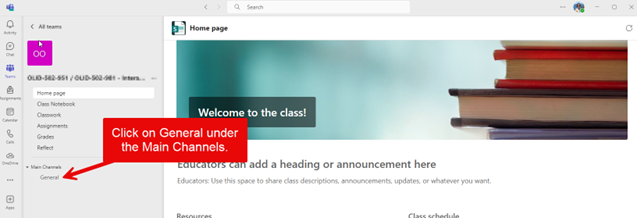
Step 4: You will be directed to the corresponding Team course. Use your SIU credentials to log into Teams, if needed. Navigate to the Main Channels and click on General.
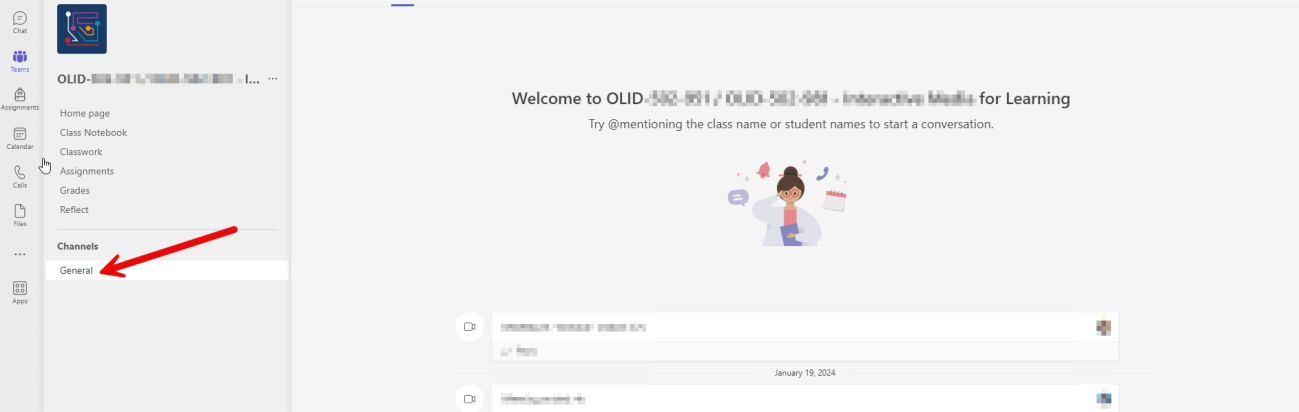
Using Teams App to access the Team course.
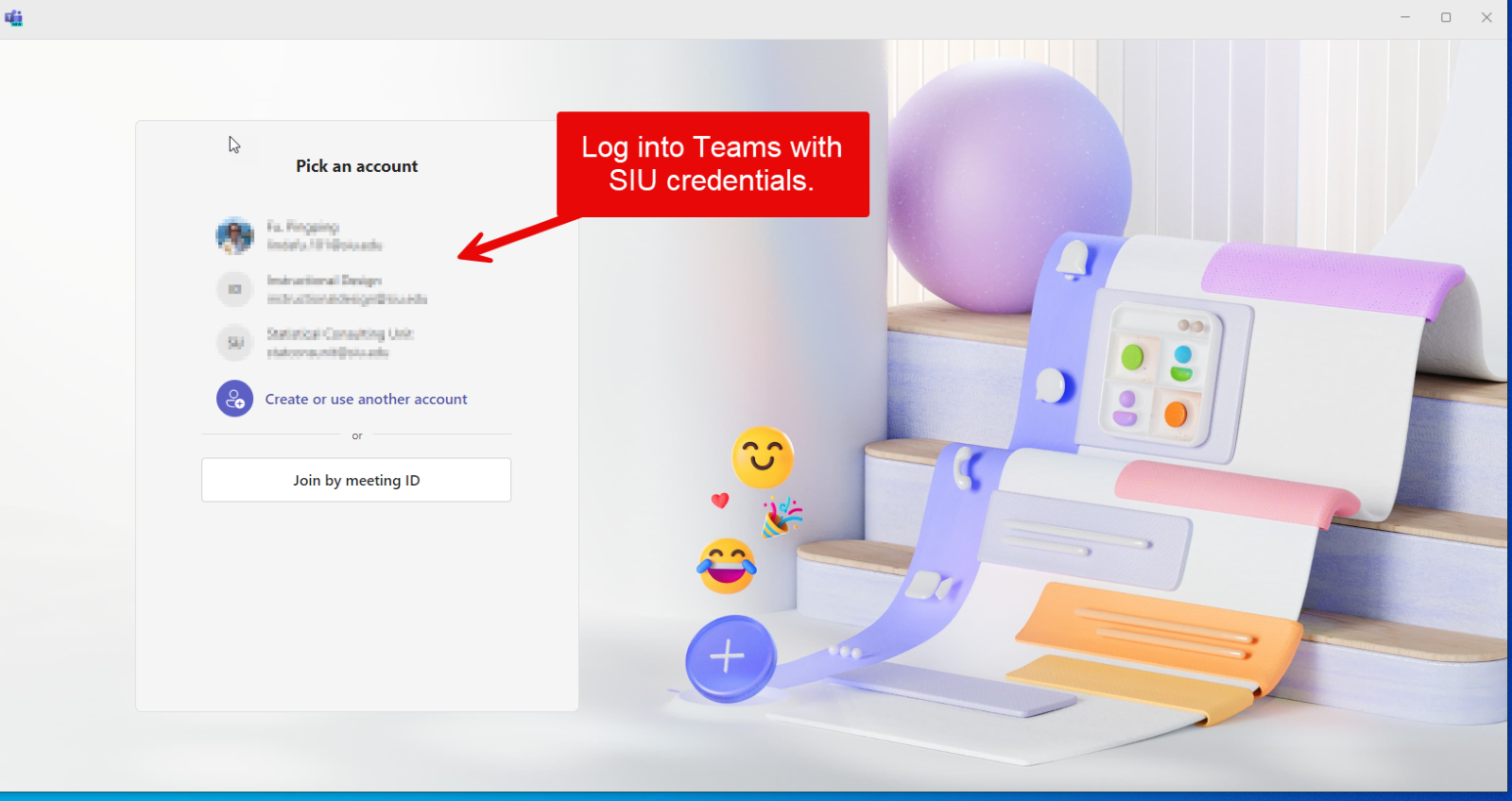
Step 1: Log into the new Teams app using your SIU credentials.
Note: You may also use the Teams web app if you have not already installed the app on your device. We recommend downloading the new Teams app for ease of access to the full range of Teams features.
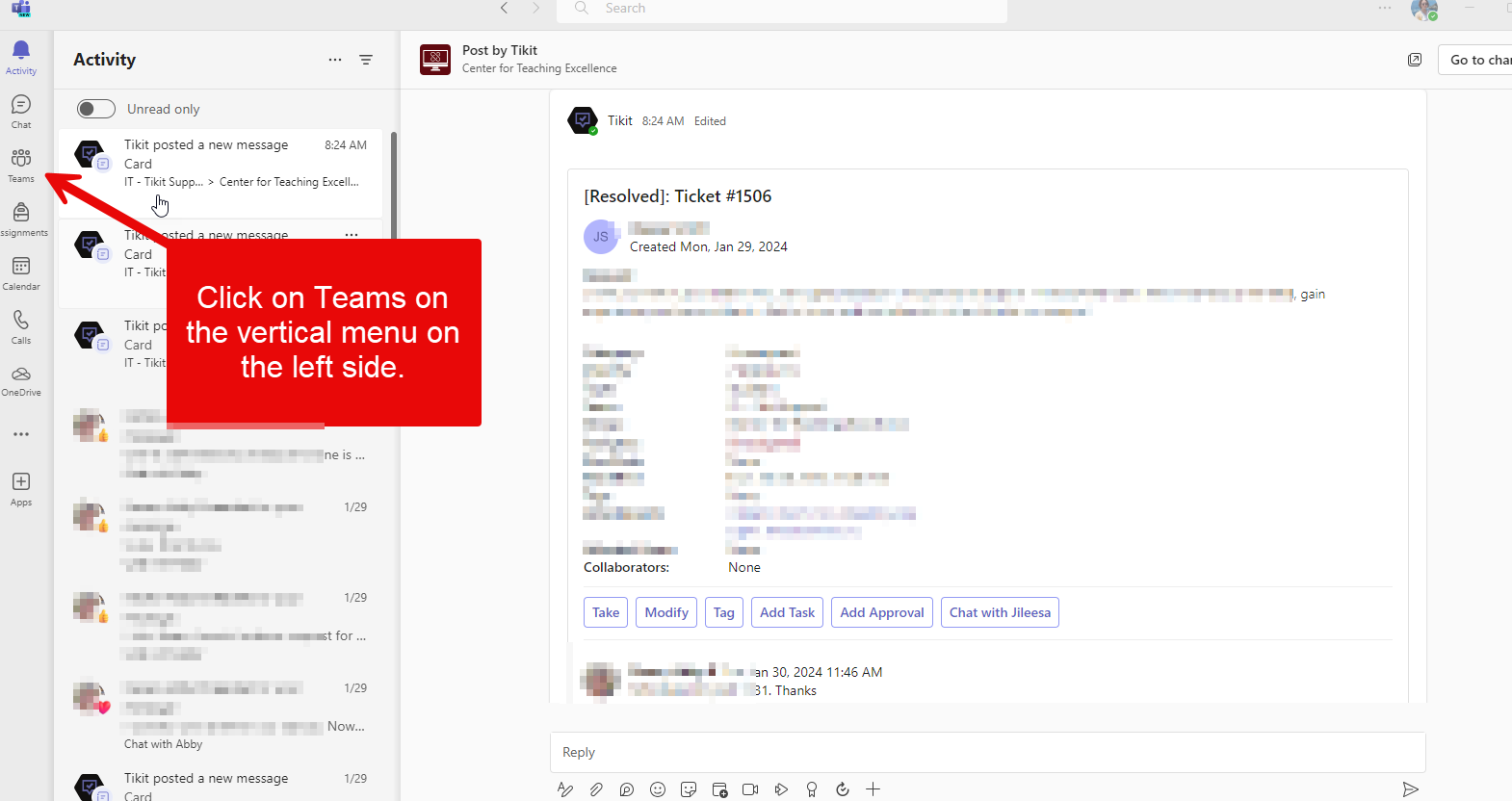
Step 2: Click on Teams on the vertical menu on the left side.
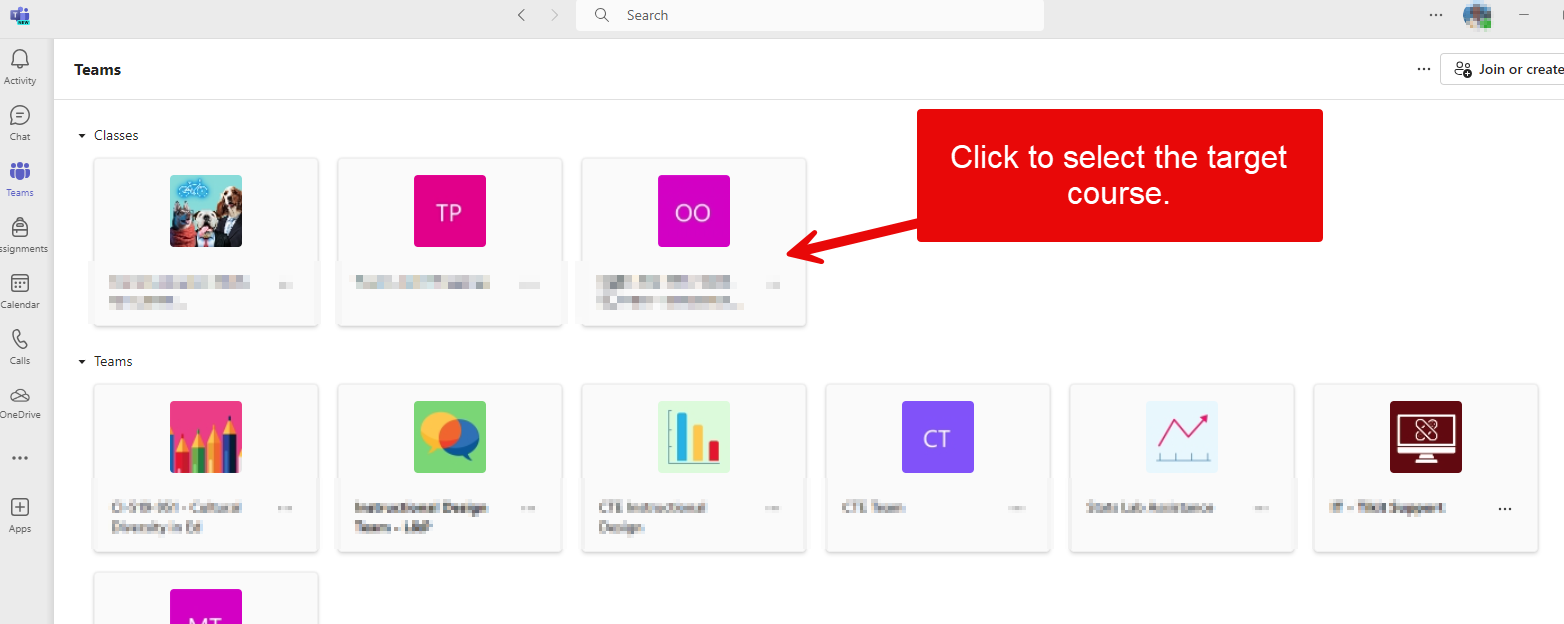
Step 3: Click on the target course team to open the team.
Step 4: Navigate to the Main Channels section and click on General.
Schedule a Class Meeting within Team Course
After you have navigated to the General channel of your Team course. Following the steps below to schedule a meeting session.
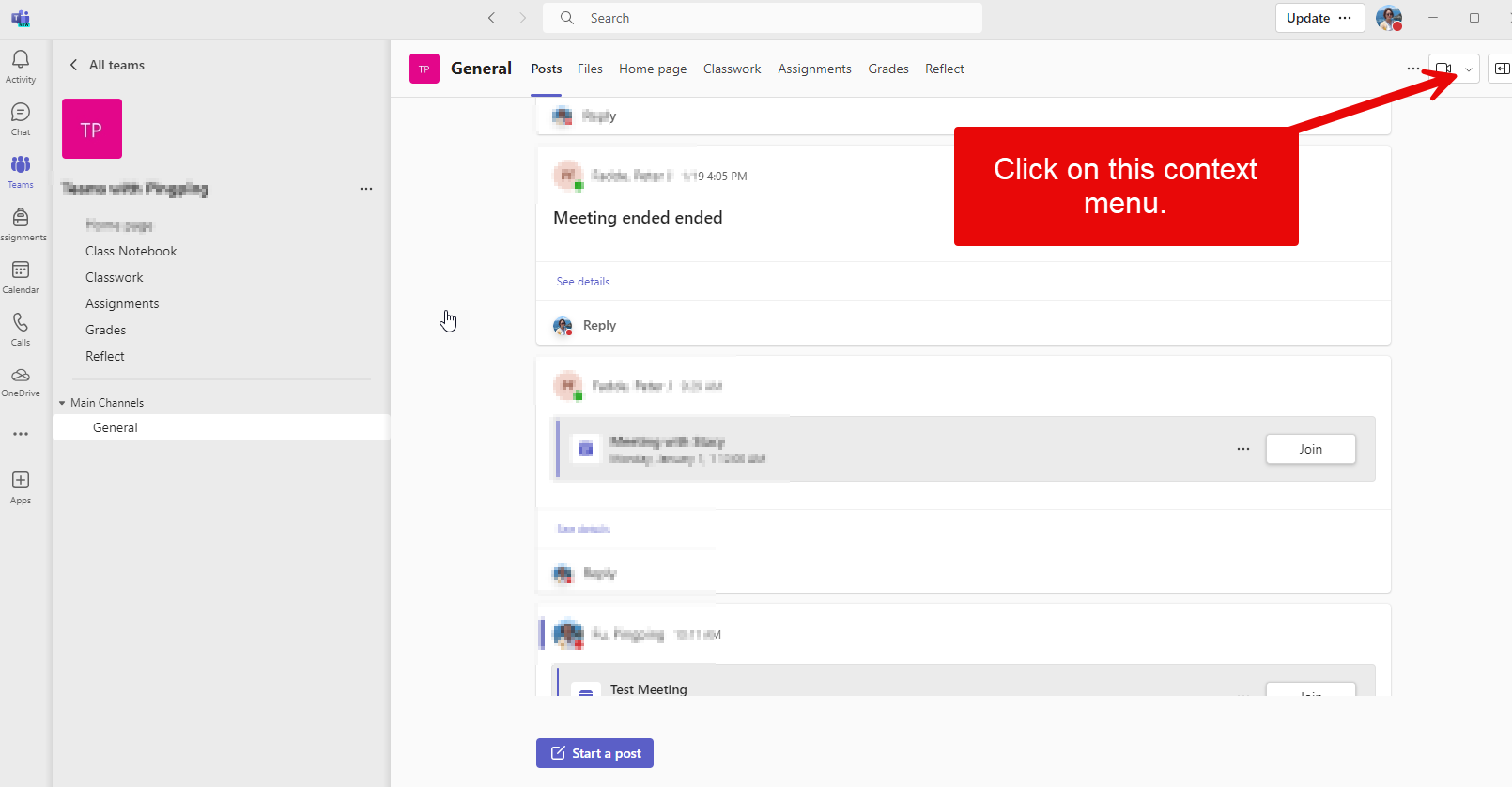
Step 1: Click on the context menu (downward arrow) to expand the dropdown menu.
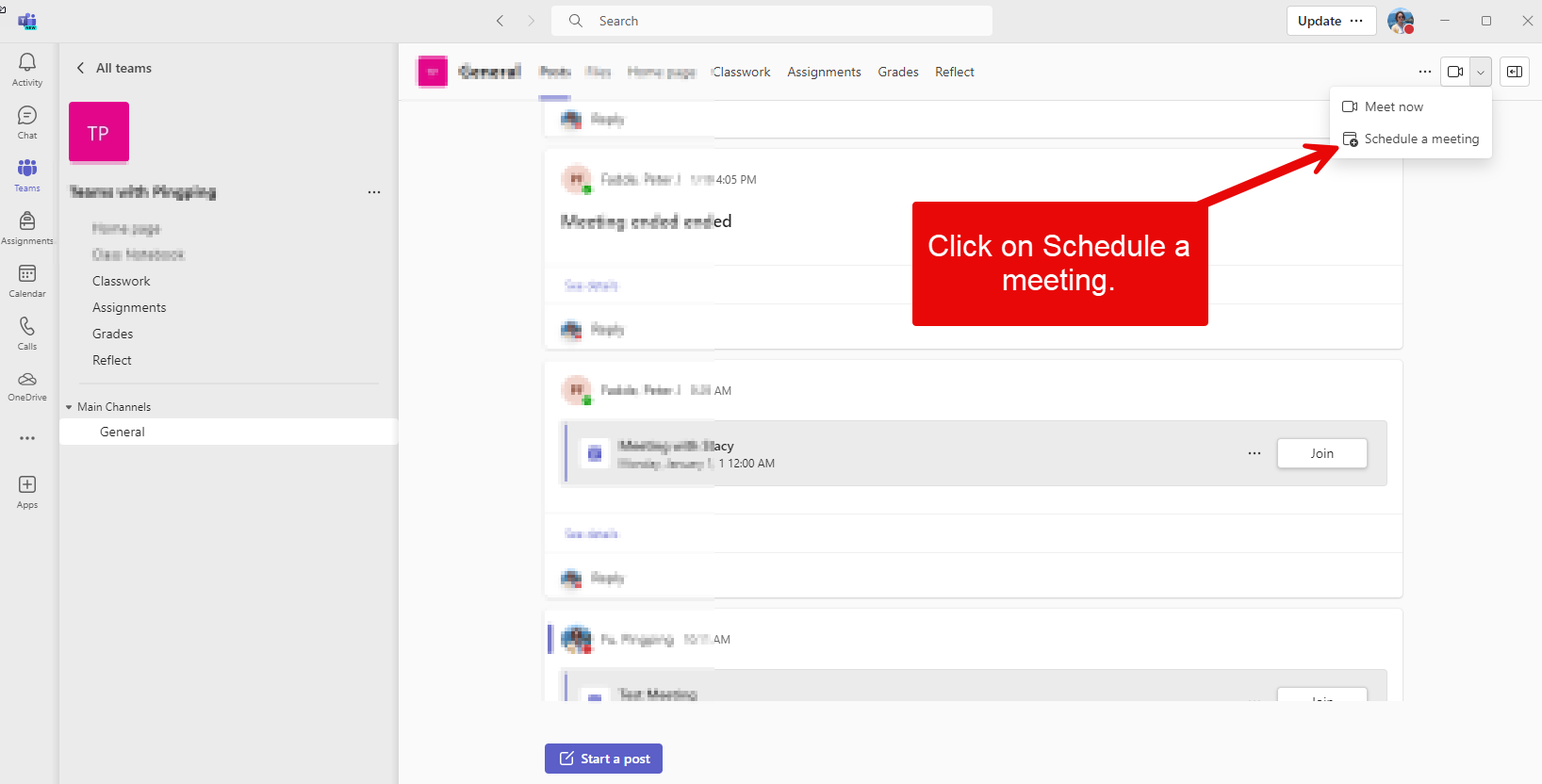
Step 2: Click on Schedule a meeting.
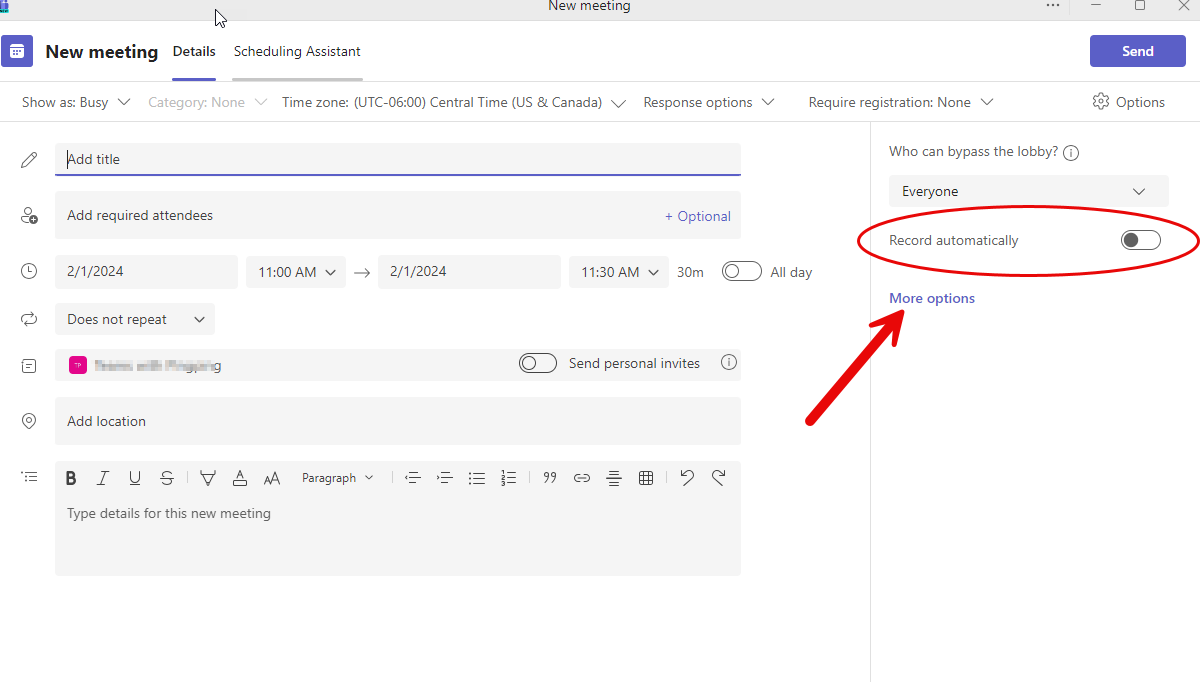
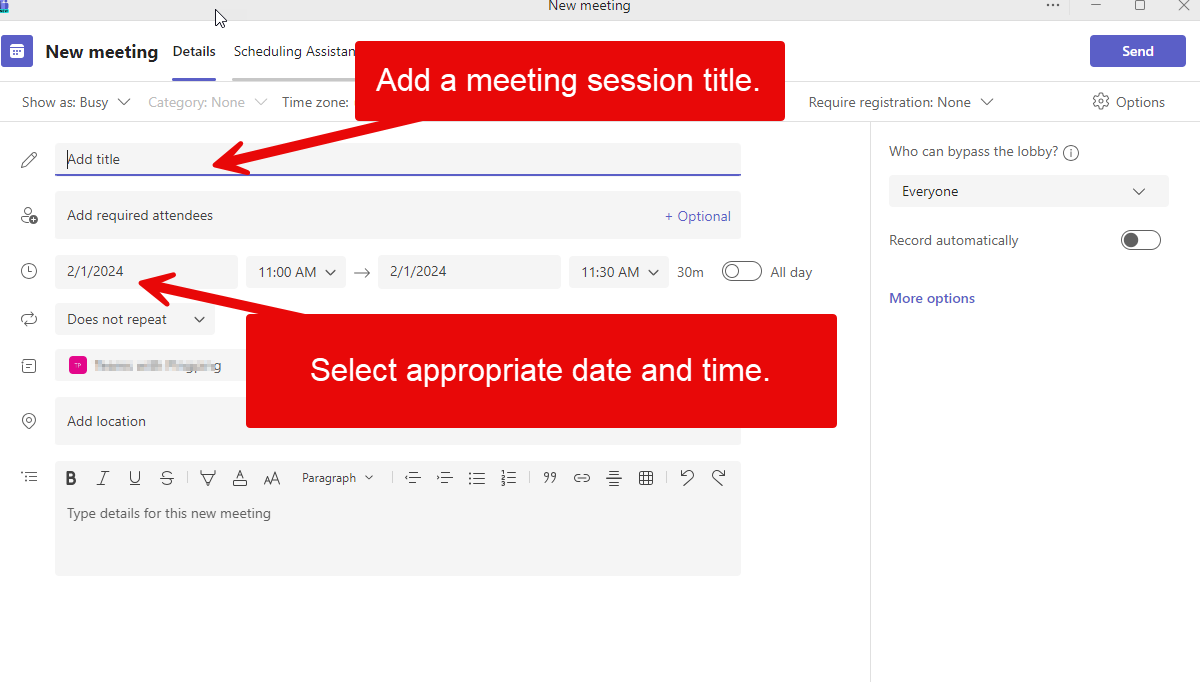 Step 3: Edit details on this page to schedule a meeting. Make sure to add a title and select appropriate date and time.
Step 4 (optional): Click on the toggle to enable automatic recording if it is desired. Additional meeting settings are available by clicking on More options.
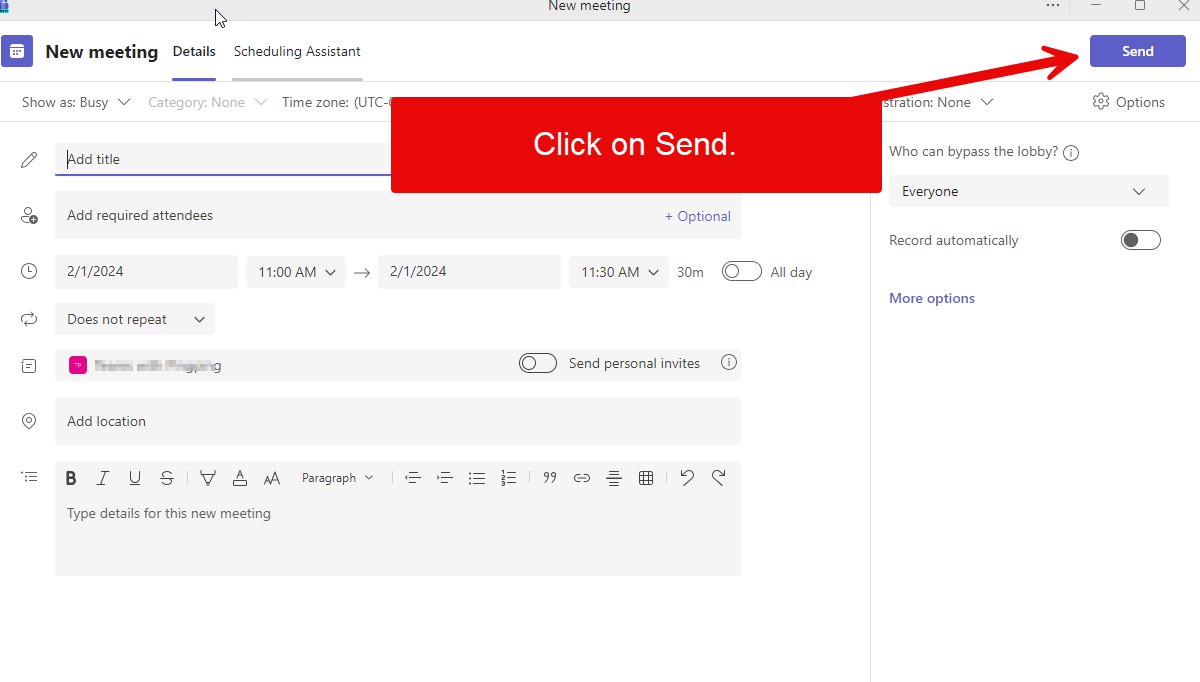
Step 5: Click on Send at the upper right corner after you have finalized all the schedule details.
Note: Shortly after you hit Send, students in this Team course will receive an email notification about this meeting schedule and this meeting will be added to their calendar.
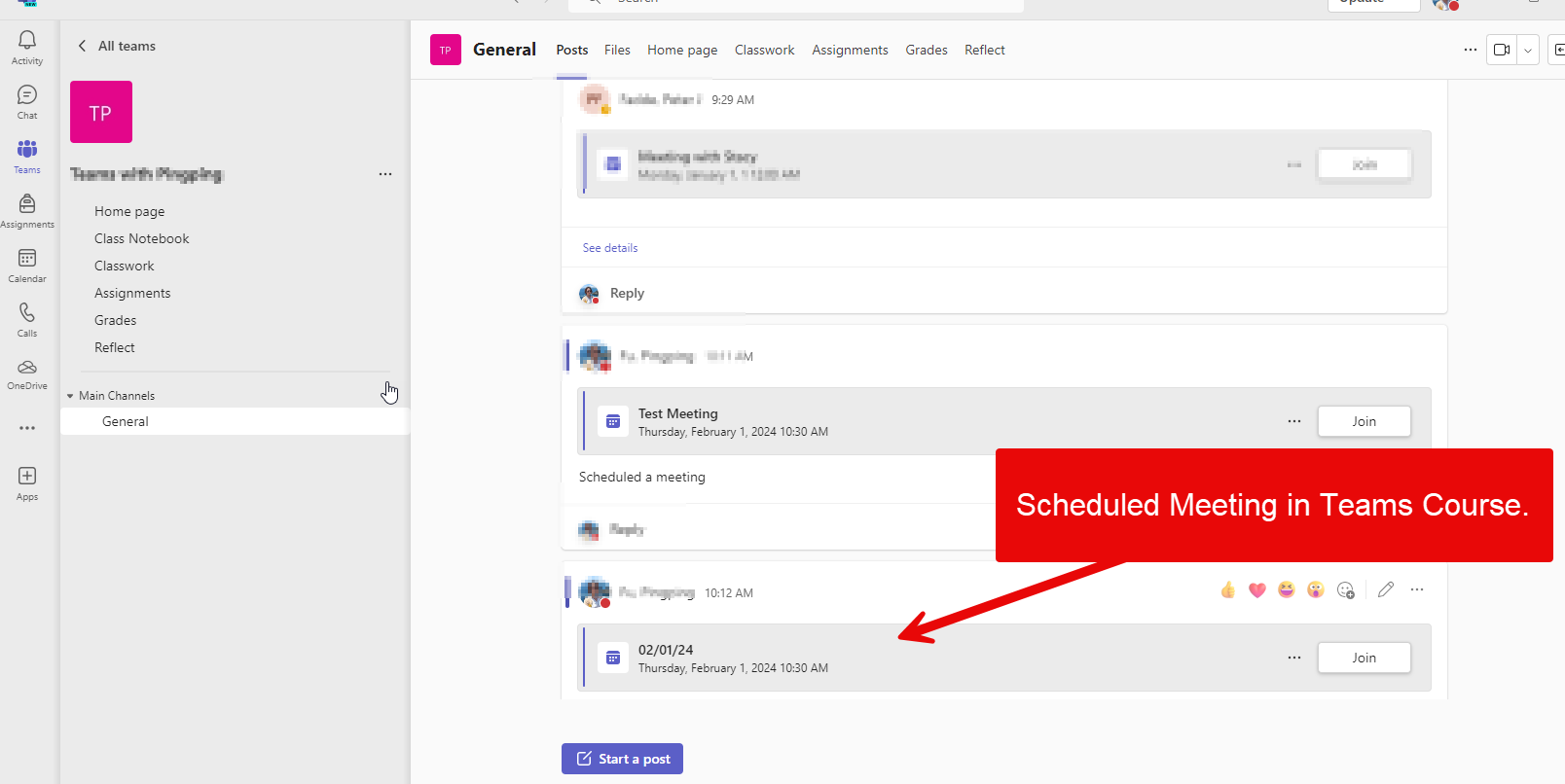
Step 6: Meeting session is scheduled within the Team course. Both the instructor and students can see the scheduled meeting bar in the Team course.
Get the scheduled meeting link
Instructors might want to share the link for the scheduled meeting session with students.
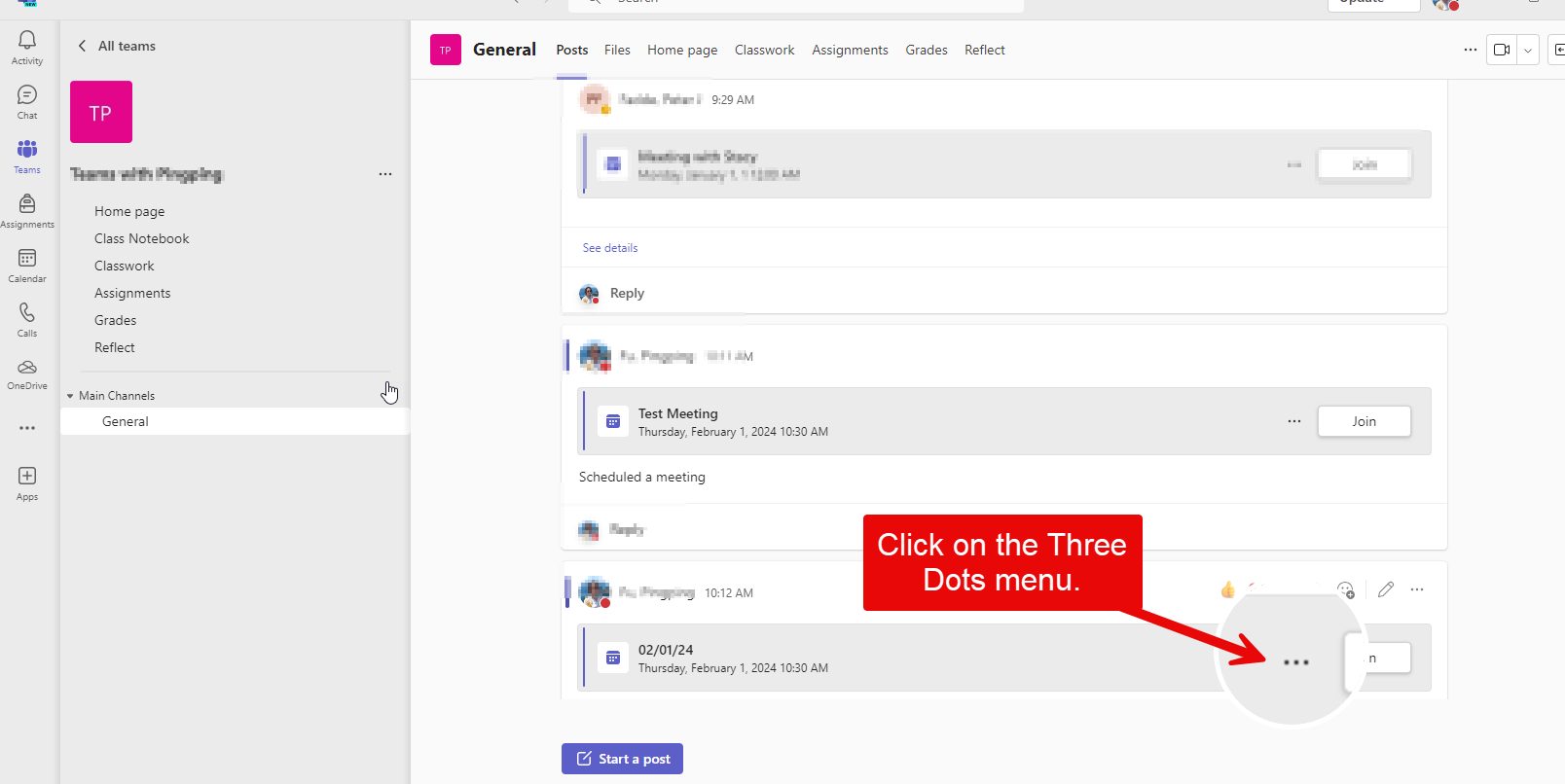
Step 1: Click on the Three dots menu.
Step 2: click on Copy link.
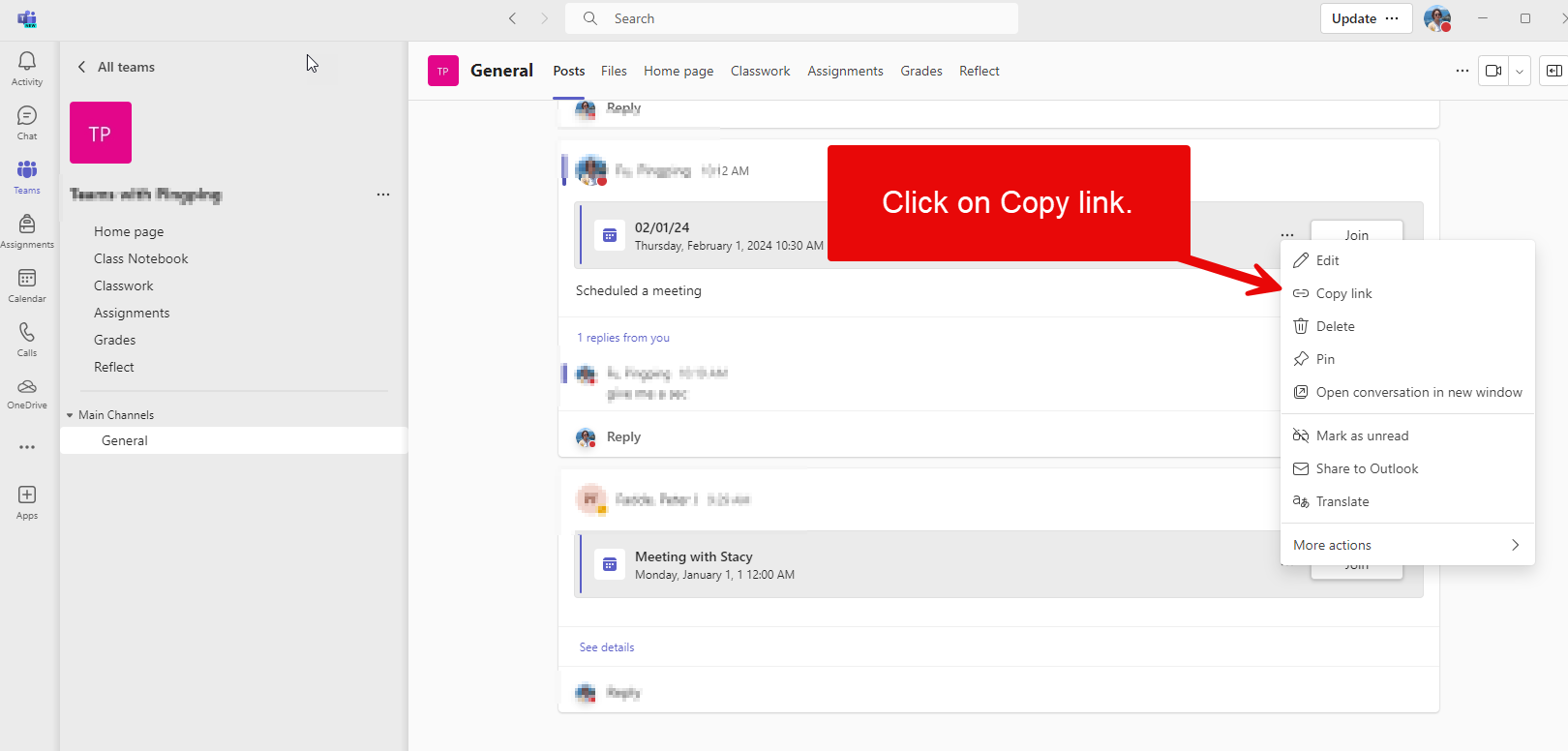
Step 3: Share this link via email or other channels of communication.
Update meeting Details
Instructors can make changes to meeting details after it has been scheduled.
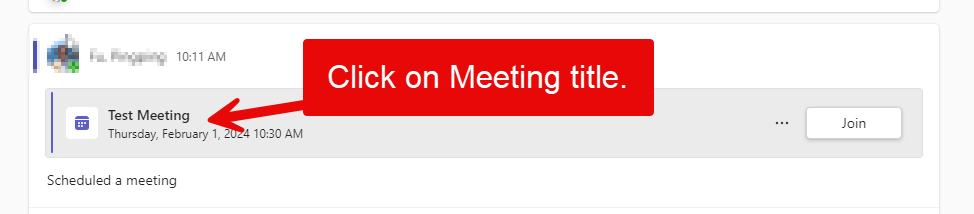
Step 1: Click on the scheduled meeting title.
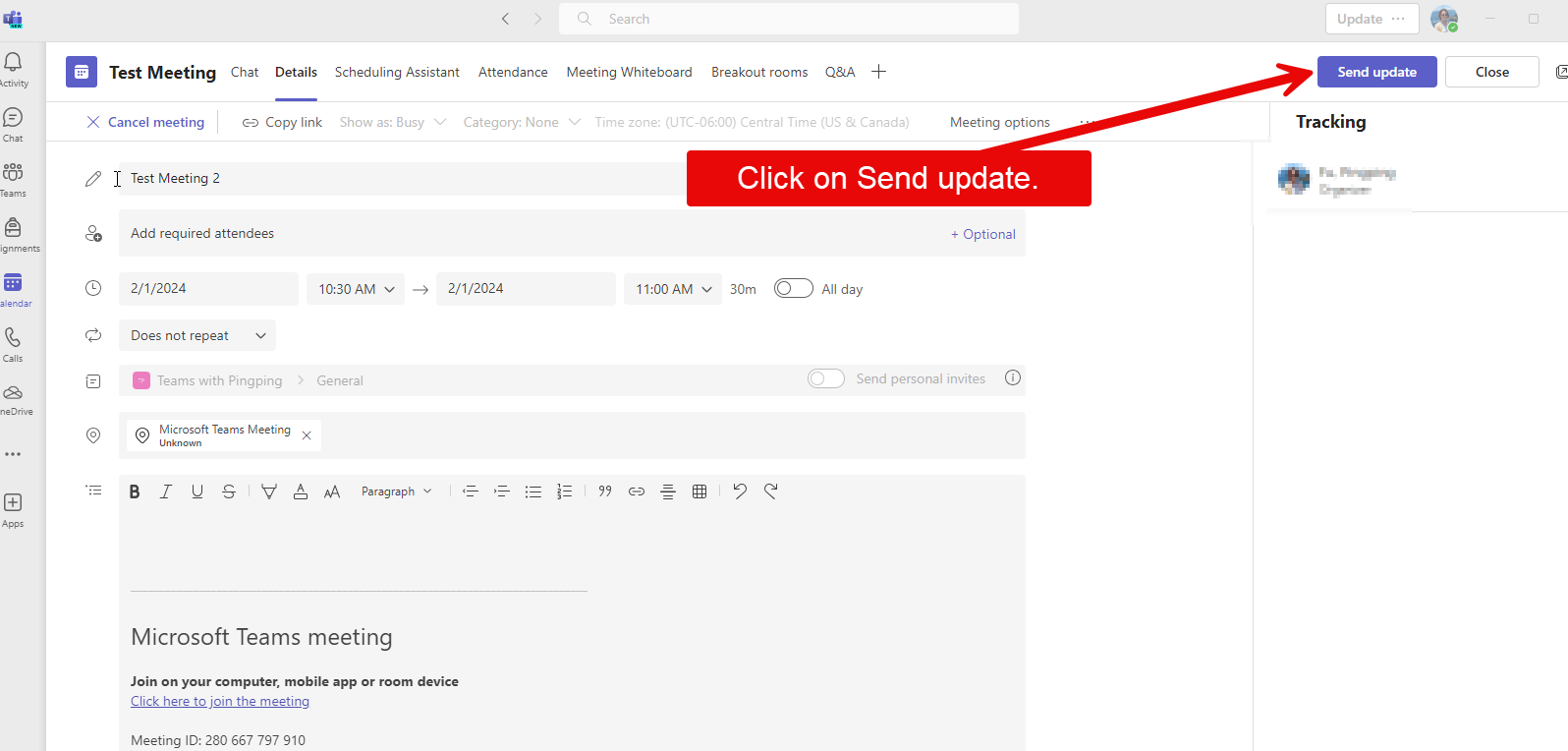
Step 2: You will open the meeting details in calendar. Make any updates intended and click on Send update at the upper right corner. Your students will receive an email notification about this update.
Join the scheduled meeting
You can join the scheduled meeting through your calendar or the General Channel of your Team course.
Step 1: Navigate to your Team course on Teams (refer to the first section of the document if needed.).
Step 2: Navigate to the Main Channels and click on General.
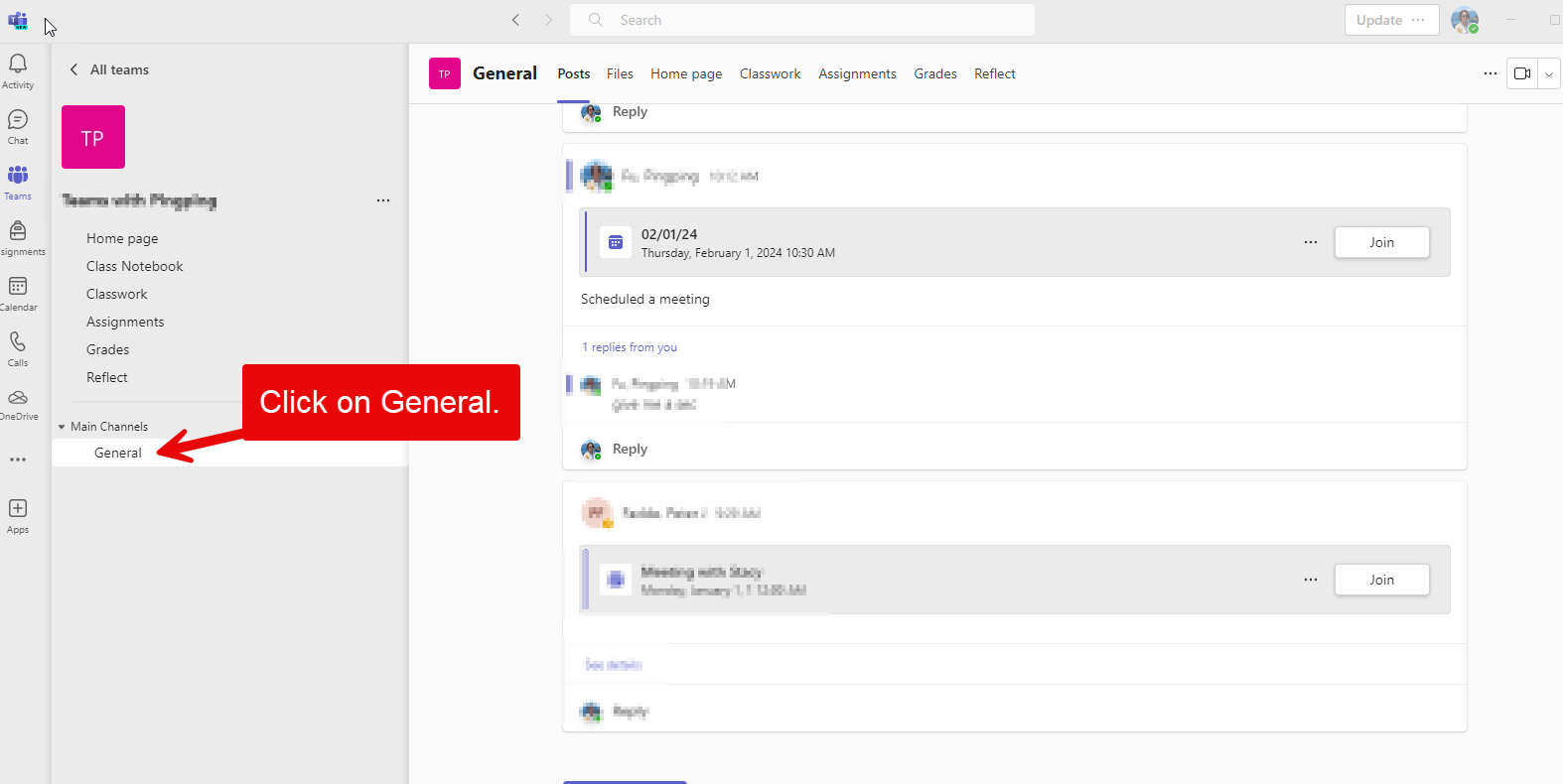
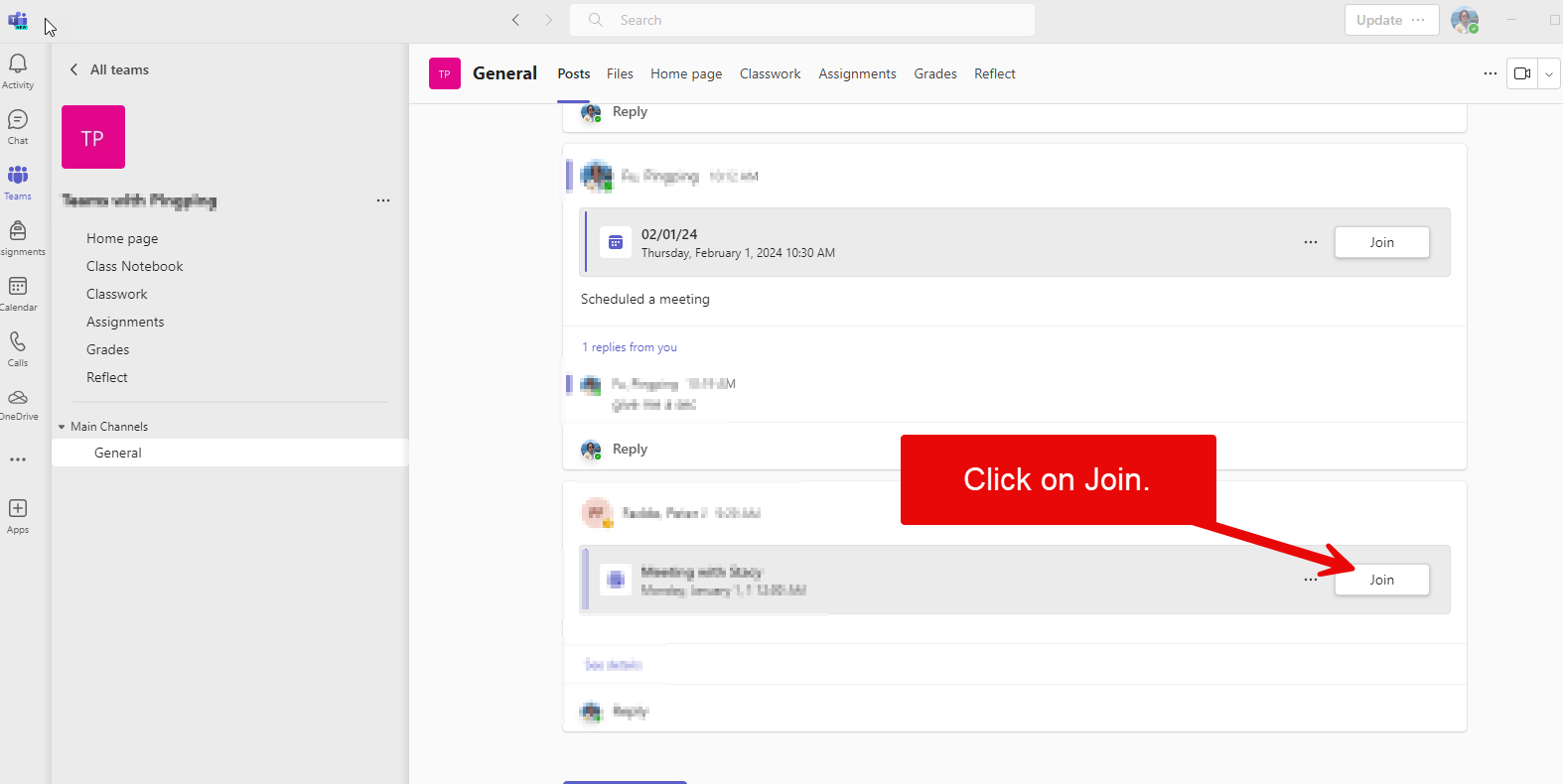
Step 3: Click on Join on the right of the meeting schedule bar.
Note: Students can join the meeting before the instructor.