Browse Our Knowledge Base
Sign into Adobe Acrobat
Overview
Adobe Acrobat is part of the Adobe Creative Cloud suite. To download and use Acrobat, you must first install the Creative Cloud app on your device. Follow the instructions below to get started.
Install Adobe Creative Cloud
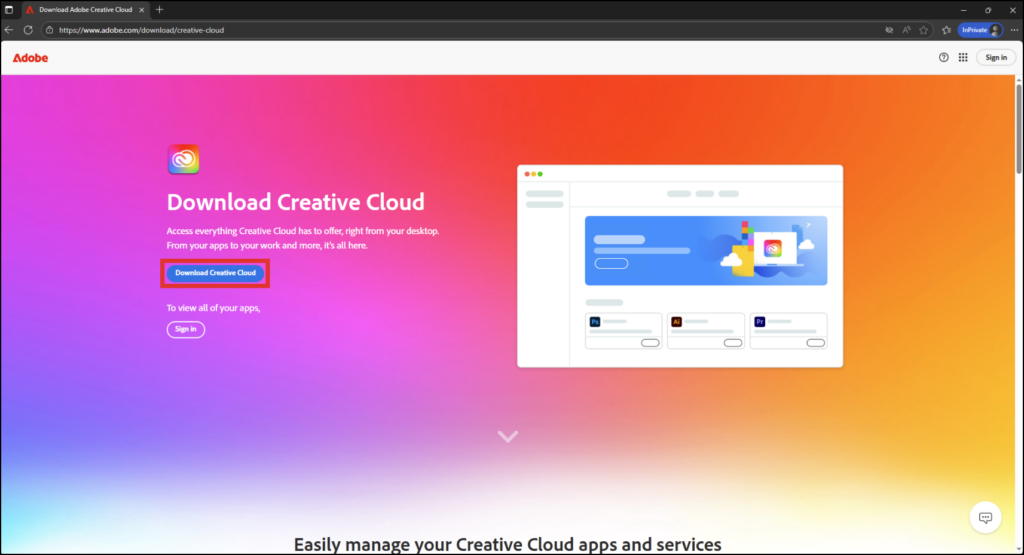
1. In your browser, go to the Adobe Creative Cloud download page.
Note: If you are a student, you will first need to submit a Software Request for an Adobe Creative Cloud license. Once your request has been processed, you will receive an email notification.
2. Click the Download Creative Cloud button.
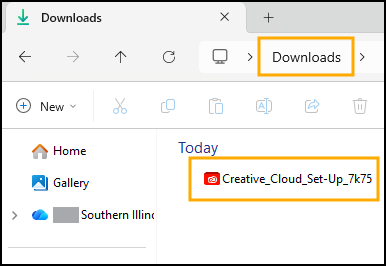
3. Open your Downloads folder.
4. Double-click the Adobe installer to begin the installation process.
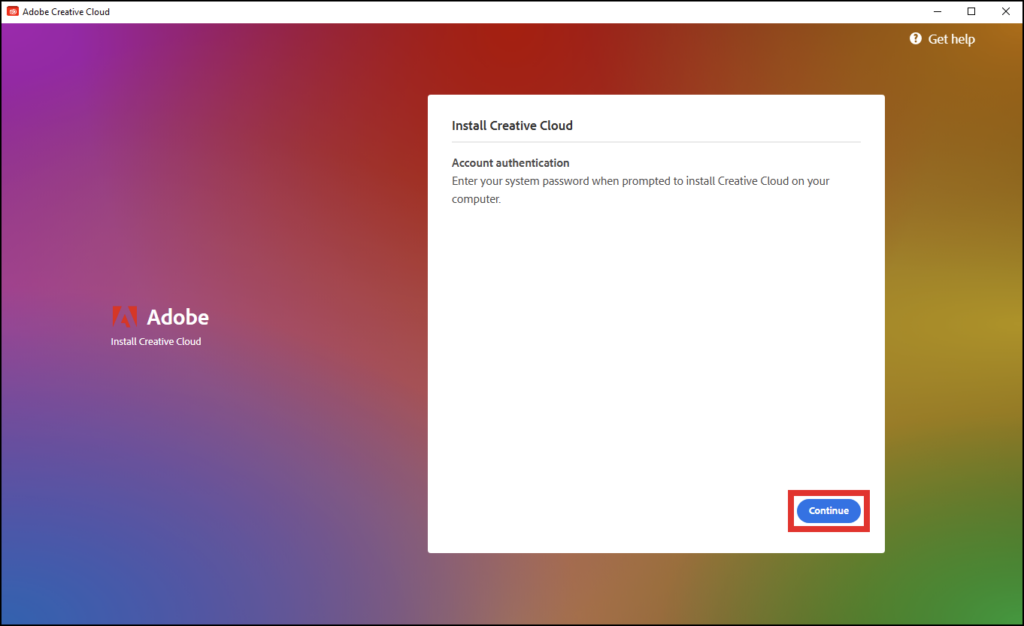
5. Click Continue.
6. Follow the installation steps on screen.
7. Once the installation has completed, double-click the Adobe Creative Cloud app to open it.
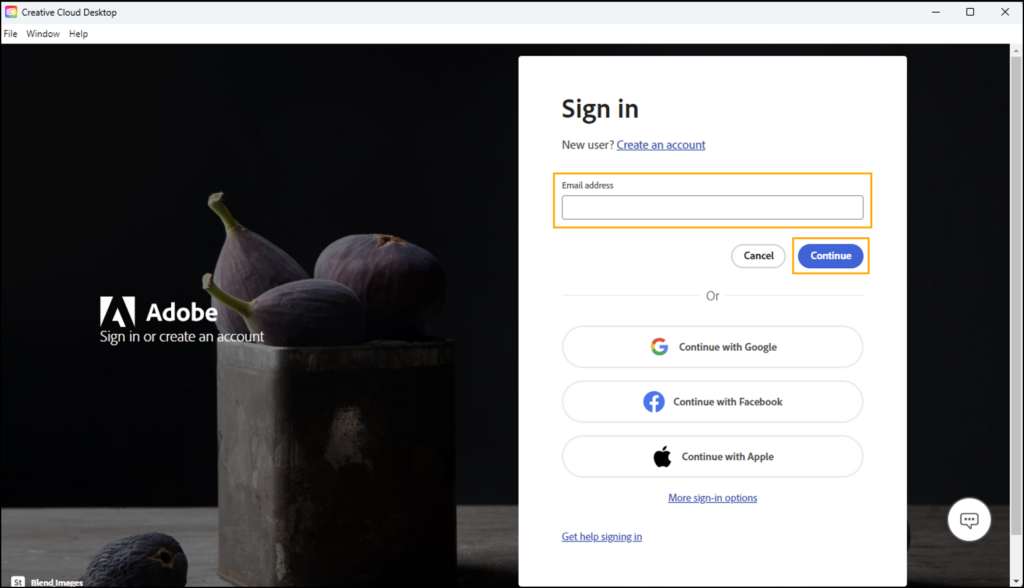
8. Enter your @siu.edu email address and click Continue.
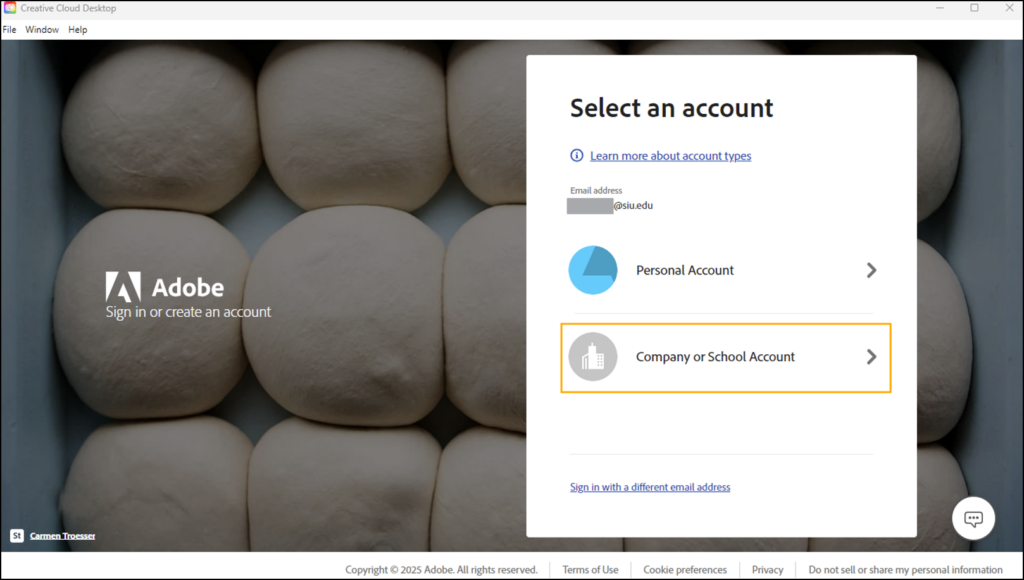
9. If prompted, select Company or School Account.
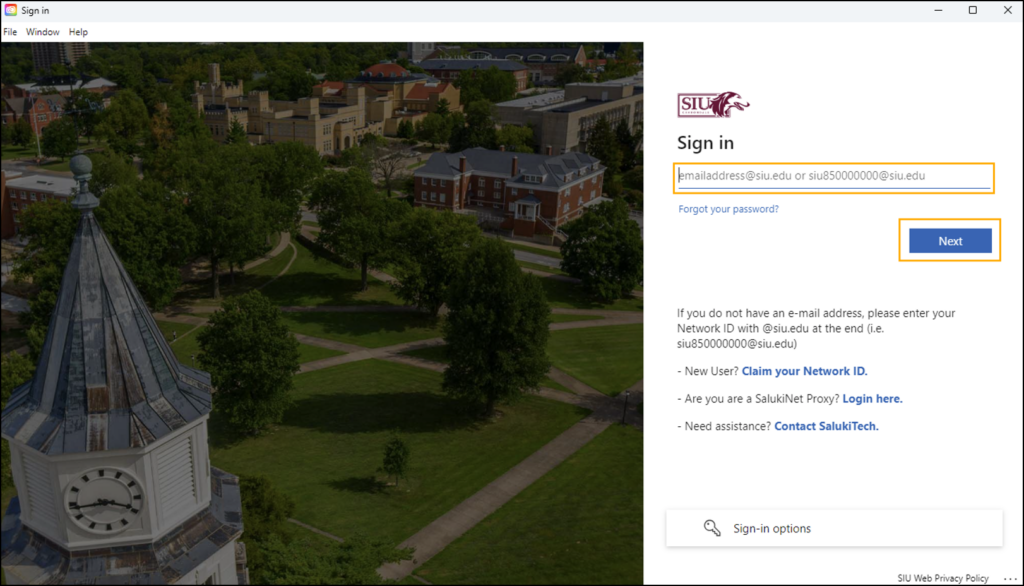
10. Enter your @siu.edu email again. Then, click Next.
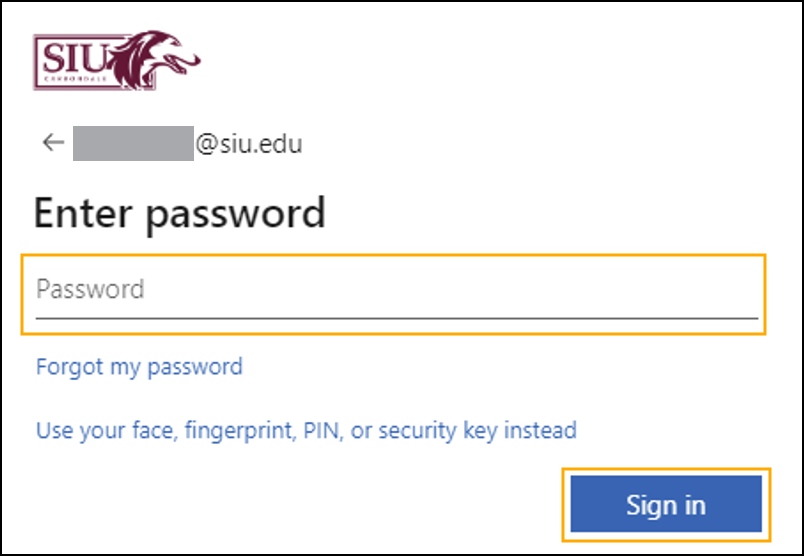
11. Enter your password. Then, click Sign in.
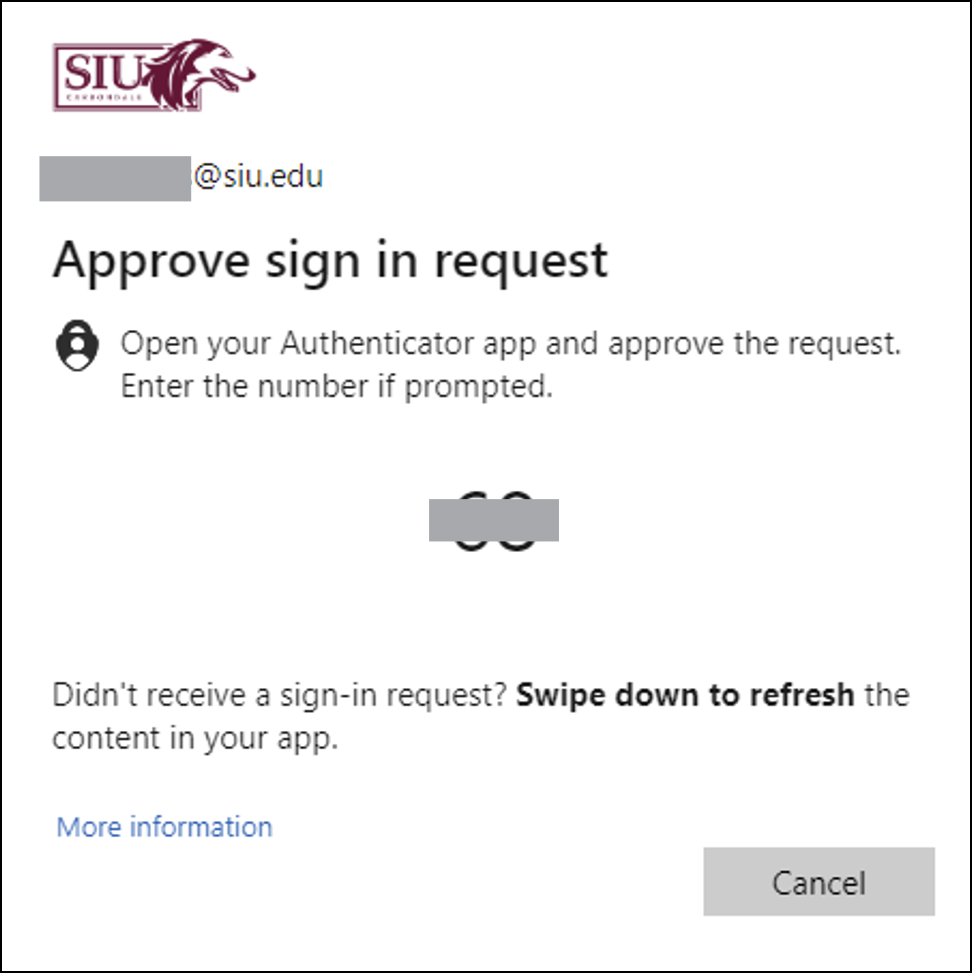
12. Complete the multi-factor authentication process.
13. Once signed in, click the Apps button on the left-hand menu to view all the Adobe Creative Cloud apps that are available for installation.
14. Click the Install button under the Adobe Acrobat app.
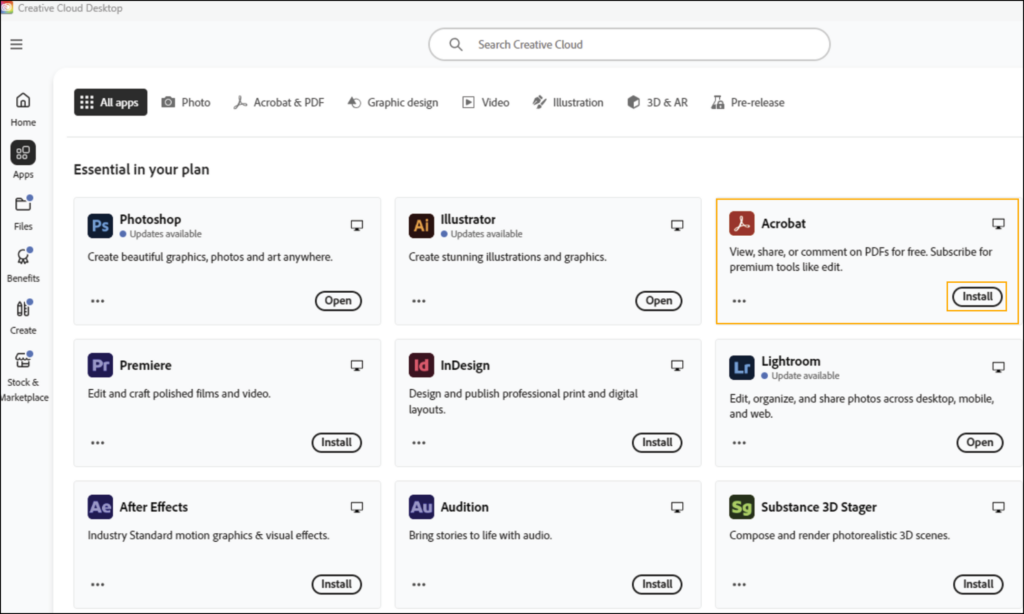
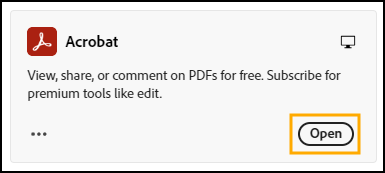
15. Once Adobe Acrobat has been installed, the “Install” button will change to “Open.” Click the Open button to begin using the app.