
Browse Our Knowledge Base
Adding You-Attend for Attendance in D2L
Overview
You-Attend integrates seamlessly into your Brightspace course and automates attendance tracking across modalities. Use the PIN-based In-Class mode for face-to-face sessions, or Online mode to automatically log participation in virtual environments. Manual mode remains available for hands-on adjustments. Customize attendance codes and sync everything with your Gradebook for efficient grading. The intuitive interface means you spend less time on logistics and more time on instruction.
Installing the You-Attend Widget
This guide demonstrates how to add You-Attend tool to D2L Brightspace Content, which is the recommended method by the CTE.
Select Content

Navigate to the designated folder. Click on the folder and then select Add Existing.

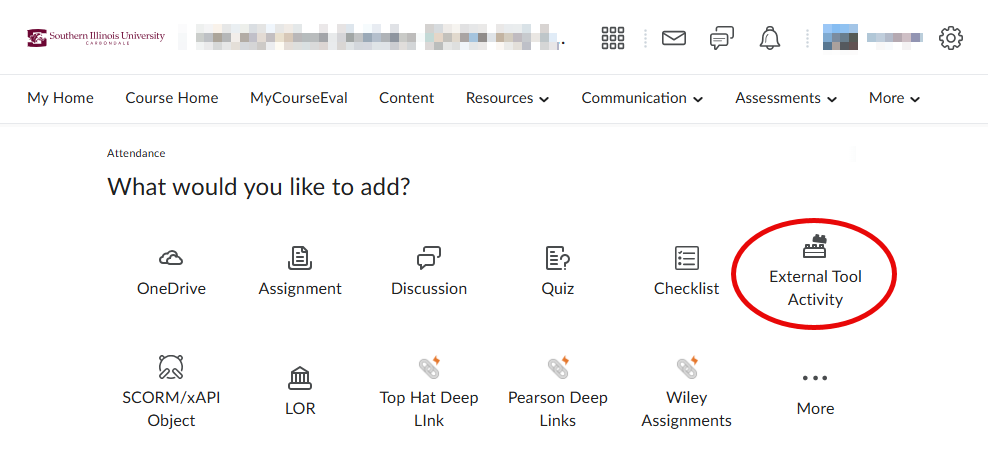
Select External Tool Activity.
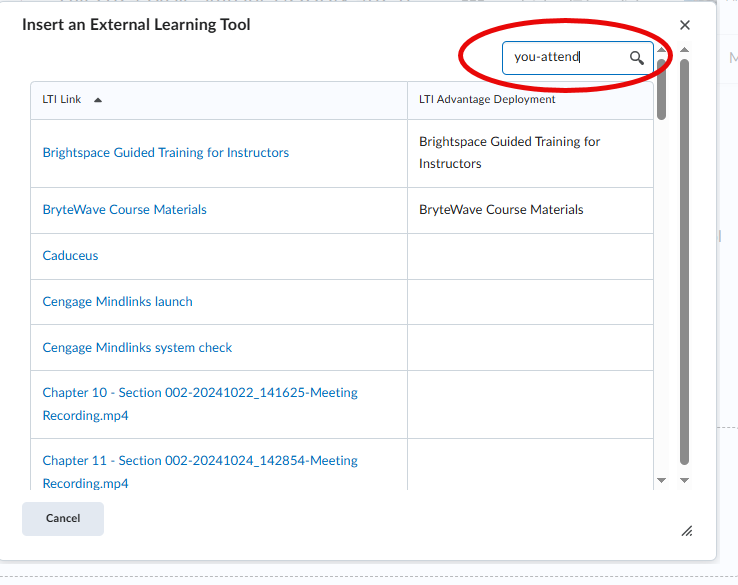
Enter “you-attend” in the search box and click on the magnifying glass to perform a search.
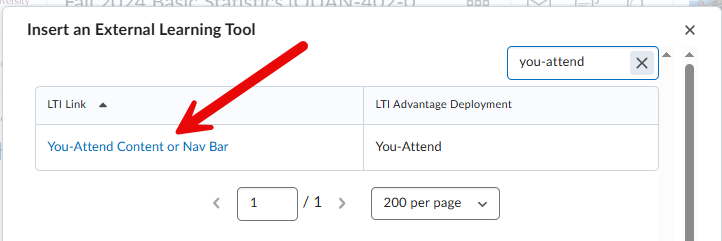
Select You-Attend Content or Nav Bar.
Wait for You-Attend to load and complete the general setting.
Using You-Attend
Get hands-on by watching the full training series (~15 minutes of time):
You‑Attend‑Brightspace Integration Training Playlist
Resources
Note: Refer to the instructor’s guide for settings and use. You may share this student guide with students.