Browse Our Knowledge Base
How to Display Quiz Feedback on D2L
Overview
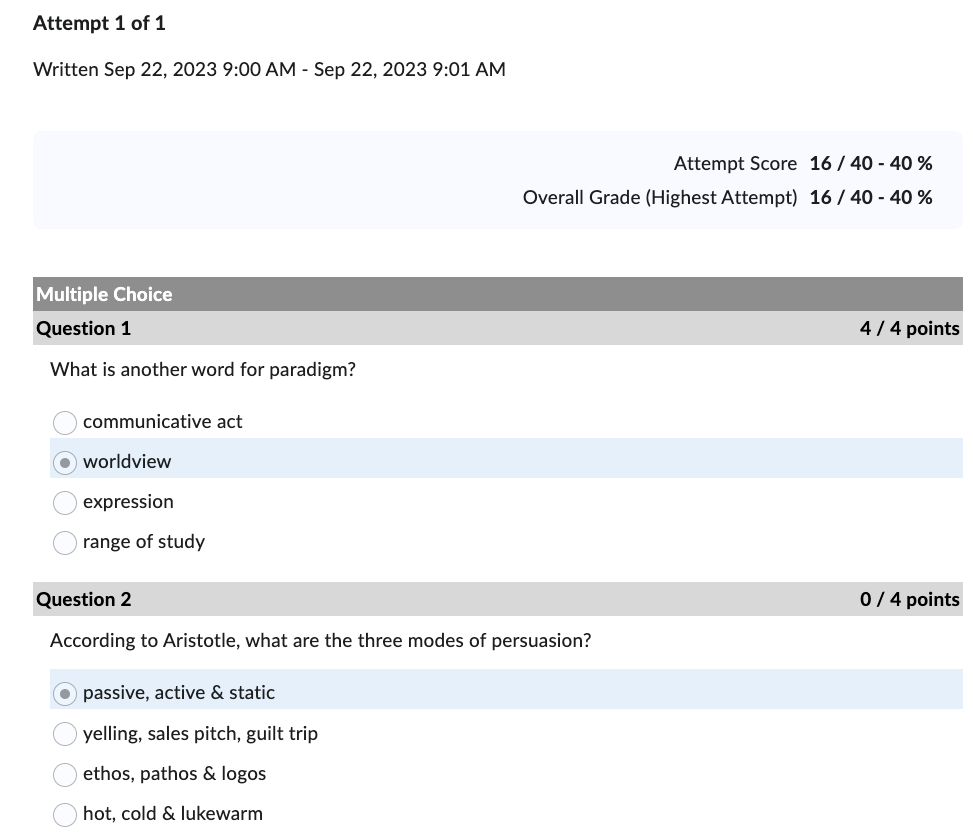
D2L Quizzes tool allows instructors to display different feedback to students upon completion of a quiz. In this how-to guide, learn how to customize quiz feedback.
How to
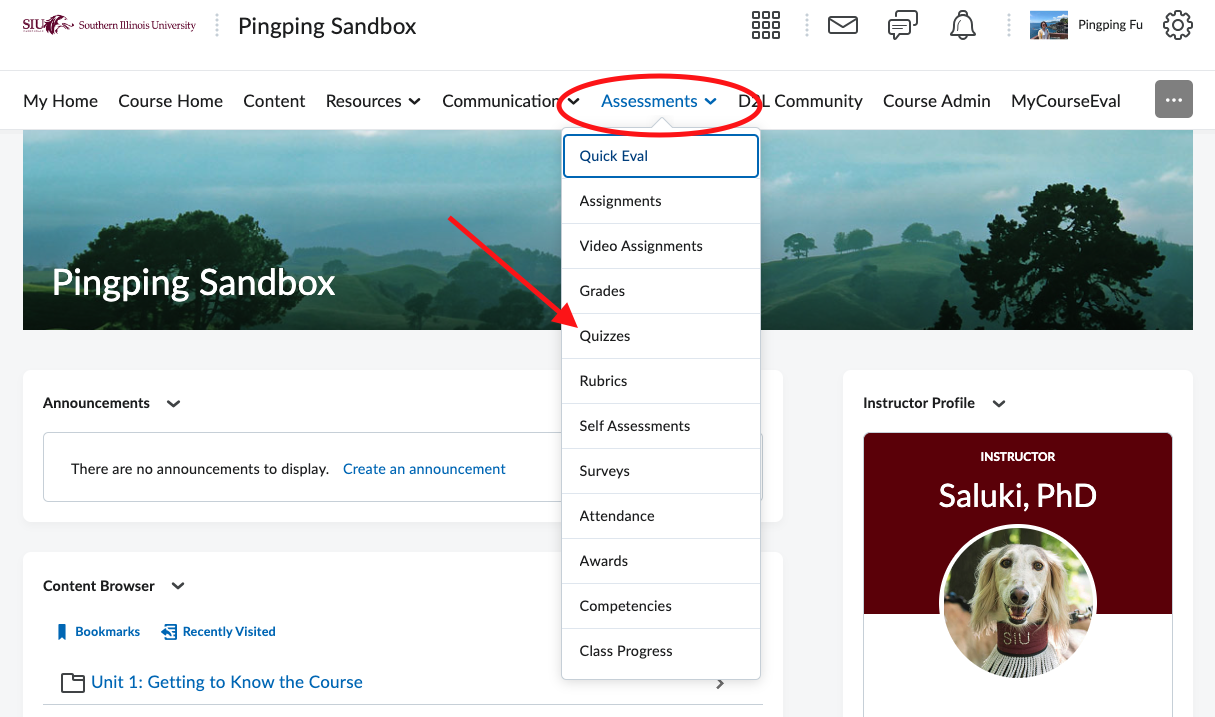
- From the homepage of the course, click on Assessment in the Navbar.
- Click on Quizzes in the drop-down menu.
Edit the Target Quiz
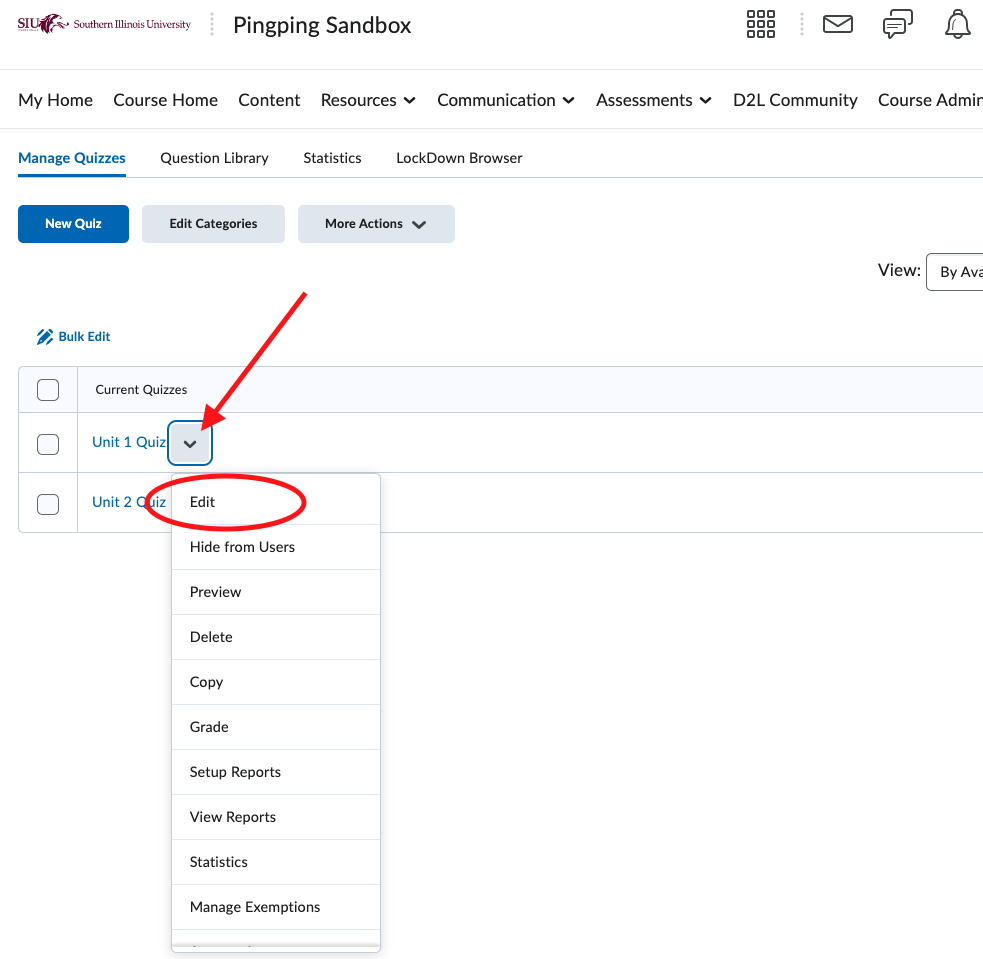
- Navigate to the target quiz from your quiz list. Click on the context menu and then click on Edit in the drop-down menu.
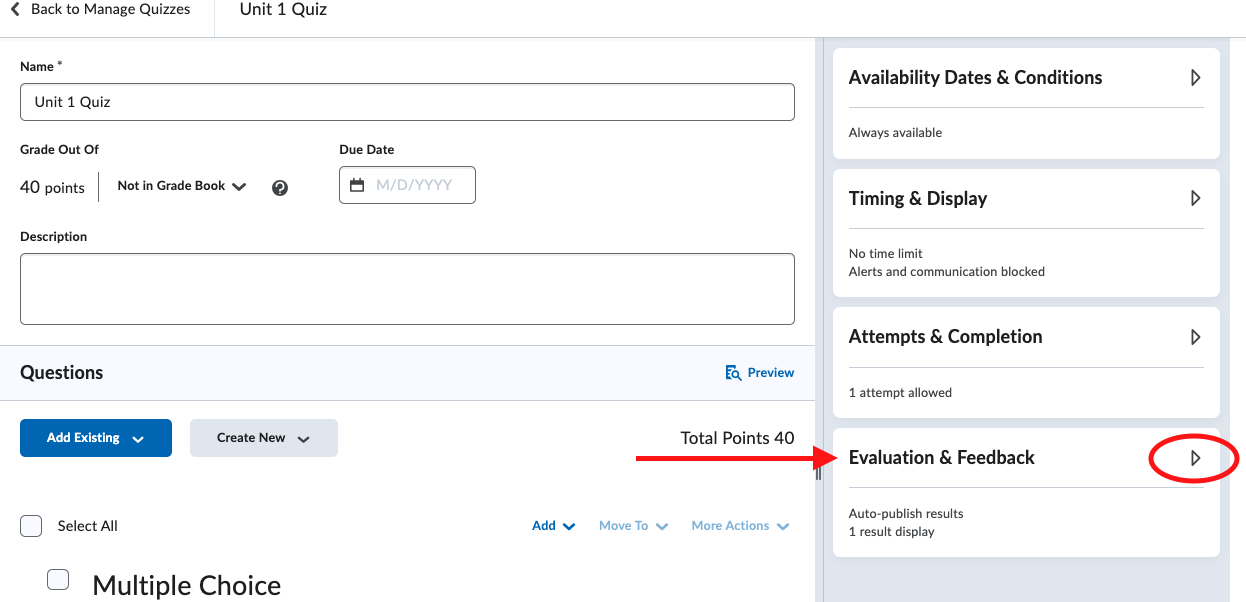
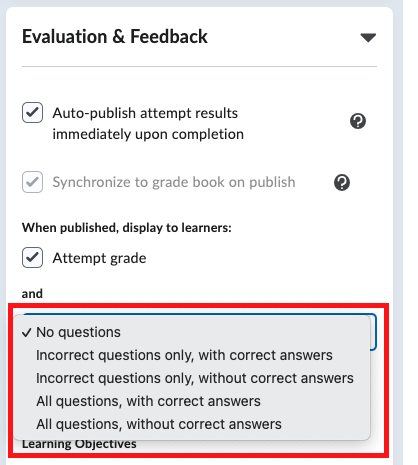
- Navigate to the Evaluation & Feedback section on the right panel. Click on the triangle to show more options.
Select the desired type of feedback
There are five types of feedback to choose from the dropdown menu.
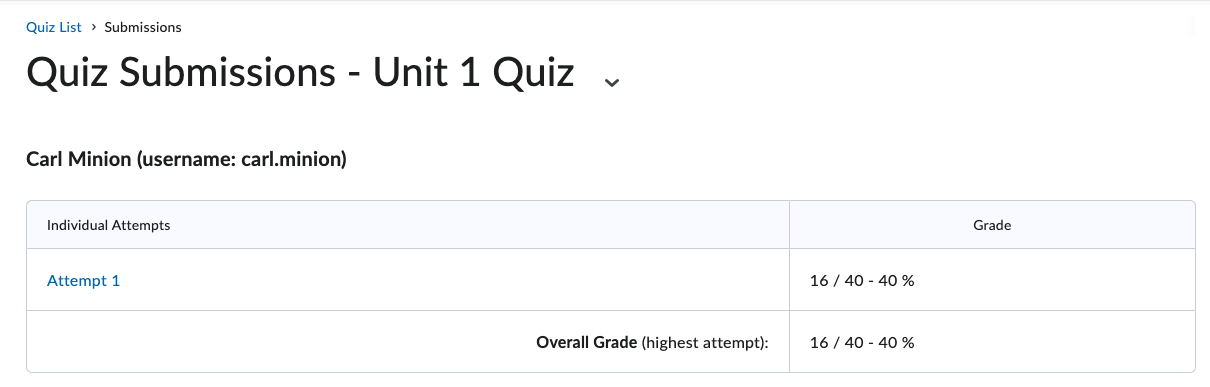
No question
When choosing No questions (default), students will only see their grades.
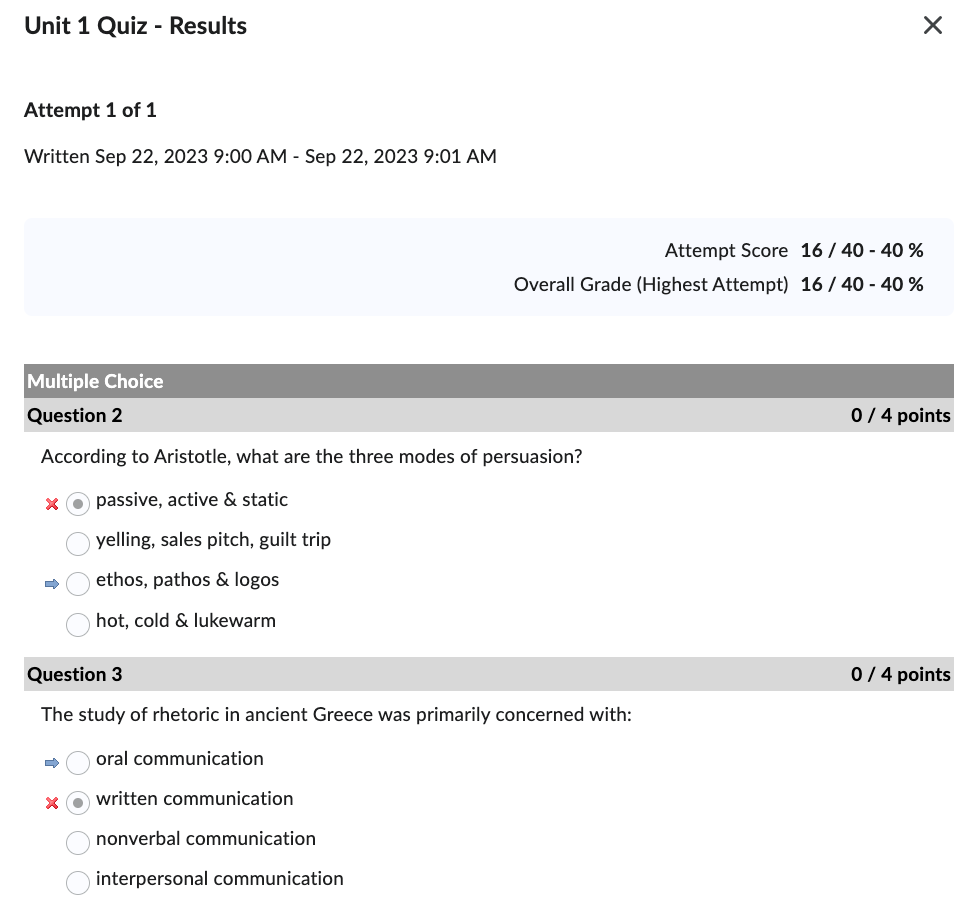
Incorrect questions only, with correct answers
When choosing this feedback display, students will see their grade, questions they did not answer correctly, their answers, and along with answer key to these questions.
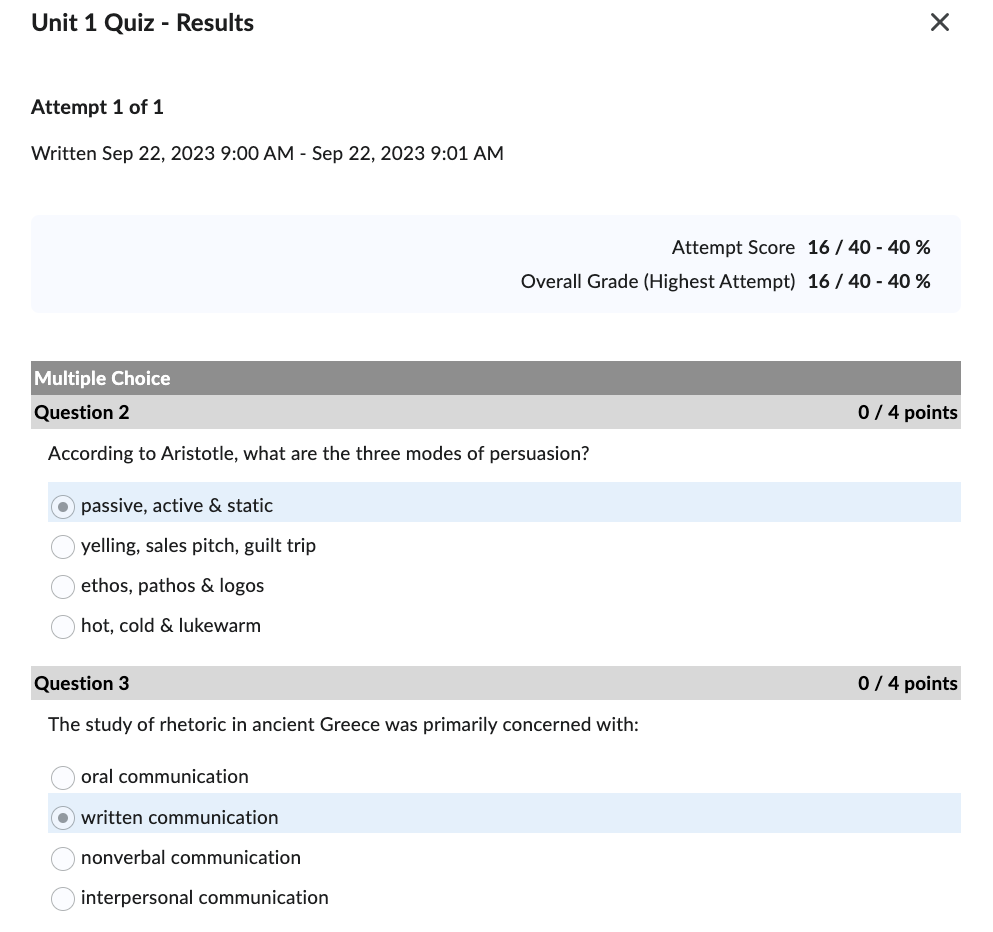
Incorrect questions only, without correct answers
When choosing this feedback display, students will see their grades, questions they did not answer correctly and their answers after their attempt.
All questions, with correct answers
When choosing this feedback display, students will see their grades, all questions, their answers, and answer key after their attempt.
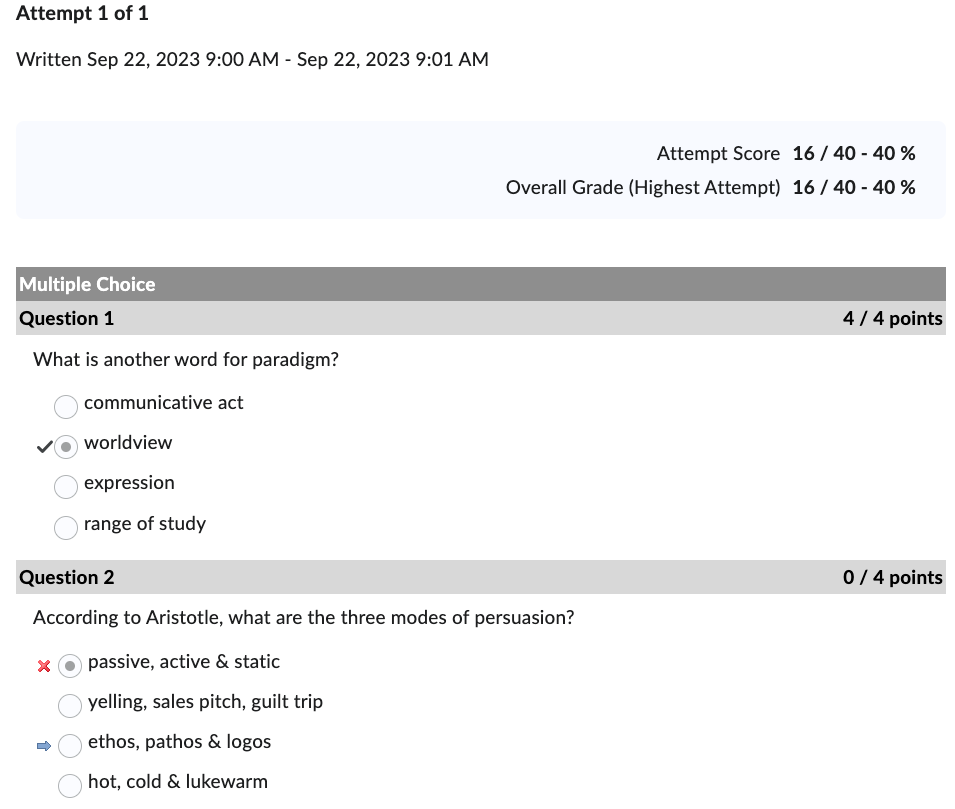
All questions, without correct answers
When choosing this feedback display, students will see their grades, all questions and their answers. They can see points earned for each question, so they can figure out which questions they have done correctly.