
Browse Our Knowledge Base
SalukiNet Proxy FAQ’s for Students
Overview
The following are common proxy-related questions. Please view the Student Proxy Setup tutorial for a step-by-step guide to adding, modifying, or removing proxies. Instructions for proxies can also be found here.
FAQ
Why can’t I use the same email address for my mom and dad or other proxies?
Each proxy in SalukiNet is identified by a unique email address. Because the email address serves as the proxy’s unique identifier, it can only be linked to one individual. If you need to set up multiple proxies, each person must use a different email address.
I don’t want my proxy to have access to my information anymore. What do I do?
- Go to salukinet.siu.edu in your browser.
- Search for “proxy.”
- Select Proxy User Management.
- If prompted, sign in with your SIUC email and password.
- Click the pencil icon under your Proxy’s name/email.
- Change the “Stop Date” to whenever you would like their access to be removed. To remove access right away, set it to today’s date.
Will my proxy be notified if I modify or remove authorization to view my information?
When you initially grant your proxy access, they will receive an email instructing them to setup their account. They will receive an additional email if you grant them Bursar access.
However, they do not receive an email if you remove their ability to see specific item or if you revoke their access entirely.
If I make someone a proxy, can they call SIU if they have questions about the information they see?
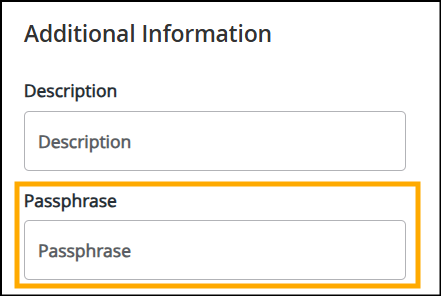
If you would like your proxy to be able to discuss the information you have authorized them to view, you need to assign them a passphrase. This can be added to the “Additional Information” section of their account within your Proxy User Management settings in SalukiNet.
I only want my proxy to have access for a particular time frame. Can I set a date range?
Yes. In your Proxy User Management settings, click the pencil (edit) icon under the proxy’s account. Change the Stop Date to whenever you would like their access to be revoked. Click Submit at the bottom of your screen to save your change.