Browse Our Knowledge Base
Video Information in Microsoft Stream
Overview
In this how-to guide, learn how to add a description to a video and how to show and hide the video description in Microsoft Stream
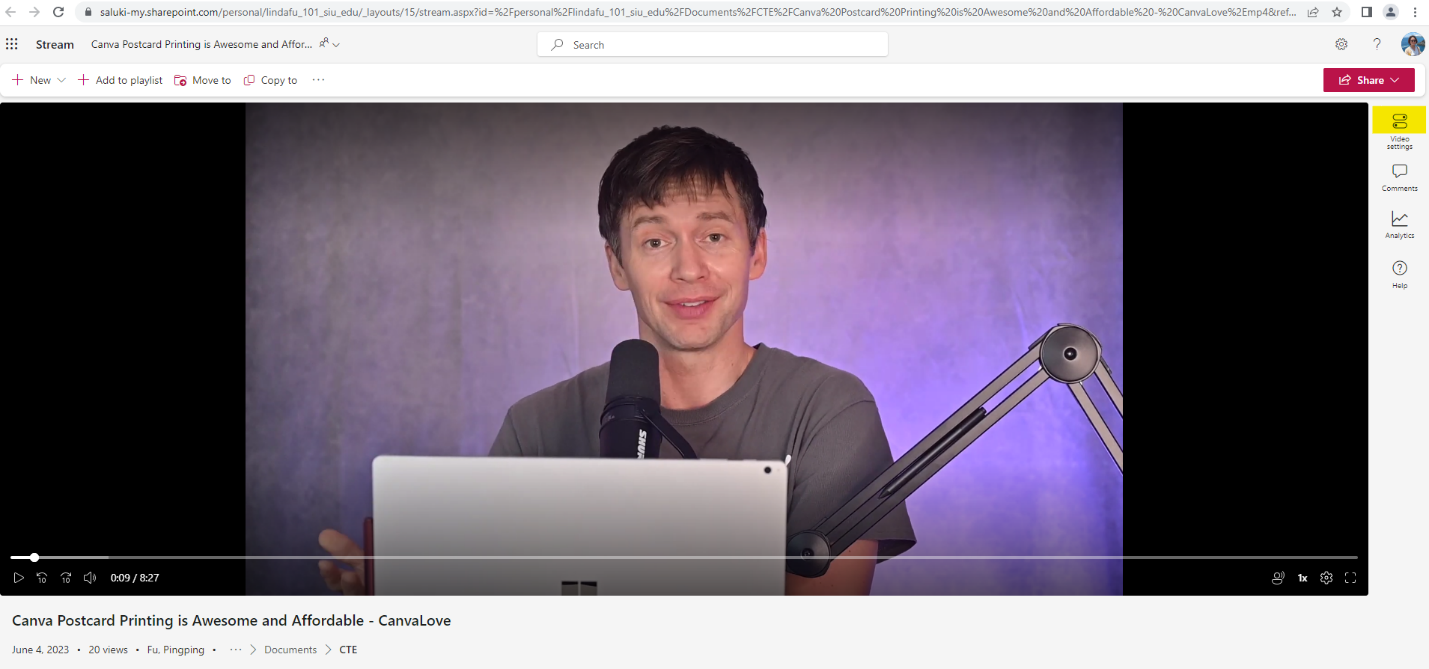
1. Select a video in OneDrive and open it in Stream. Click on Video settings icon from the menu in the upper right corner.
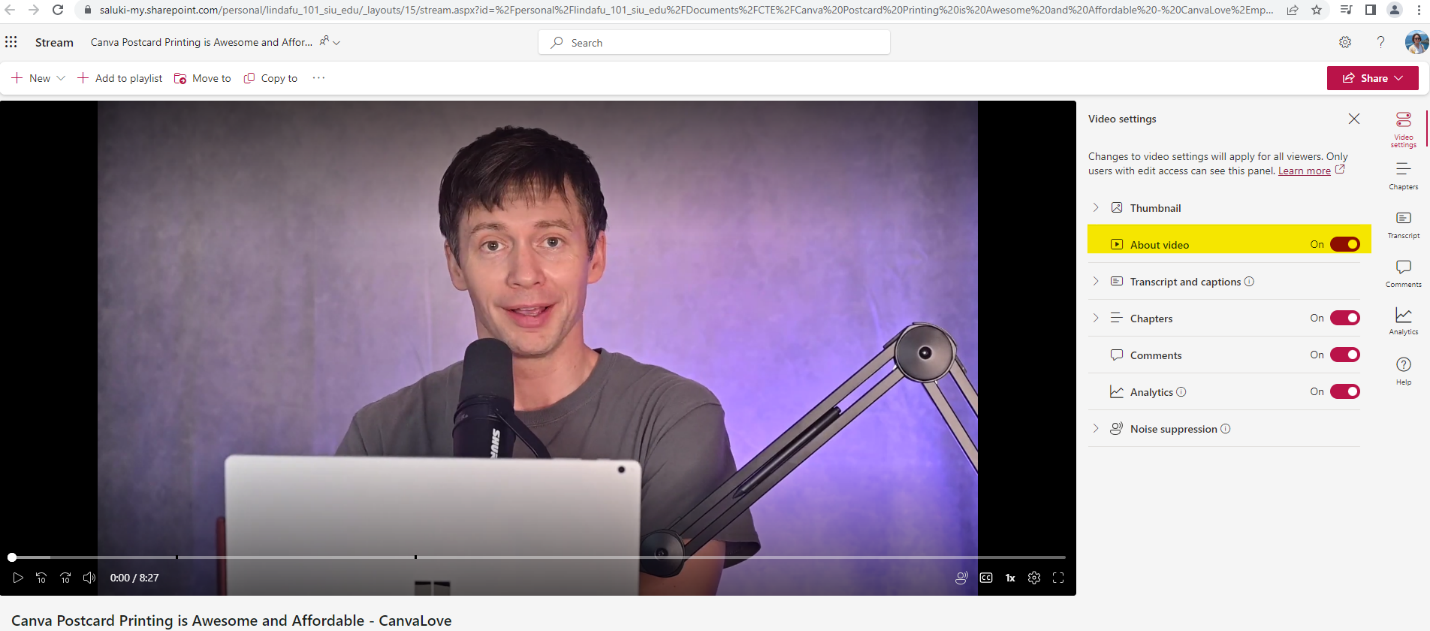
2. Navigate to About video and toggle it to On.
3. Navigate to the section below the video and click on the text box to activate it. Add a description to the video in the text box.
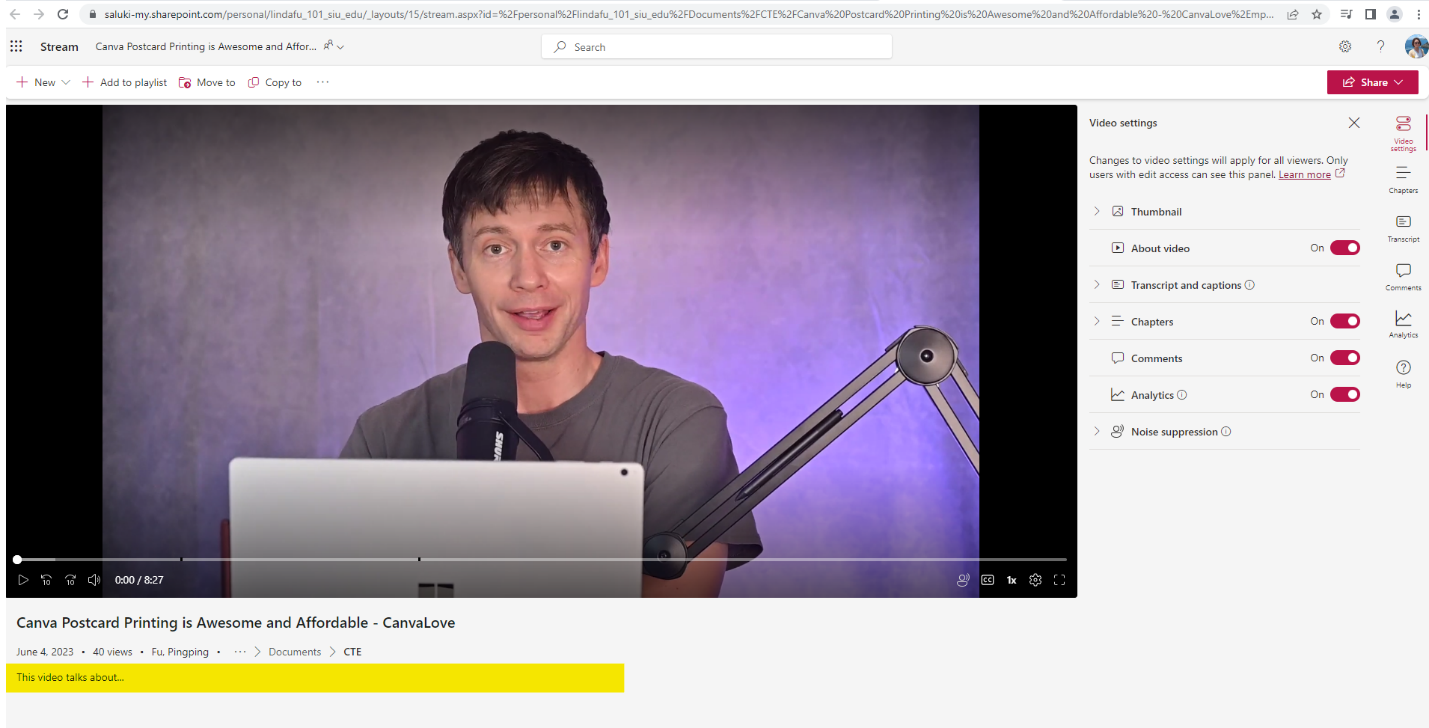
4. Click on the tick in the bottom right corner of the text box to save the description.
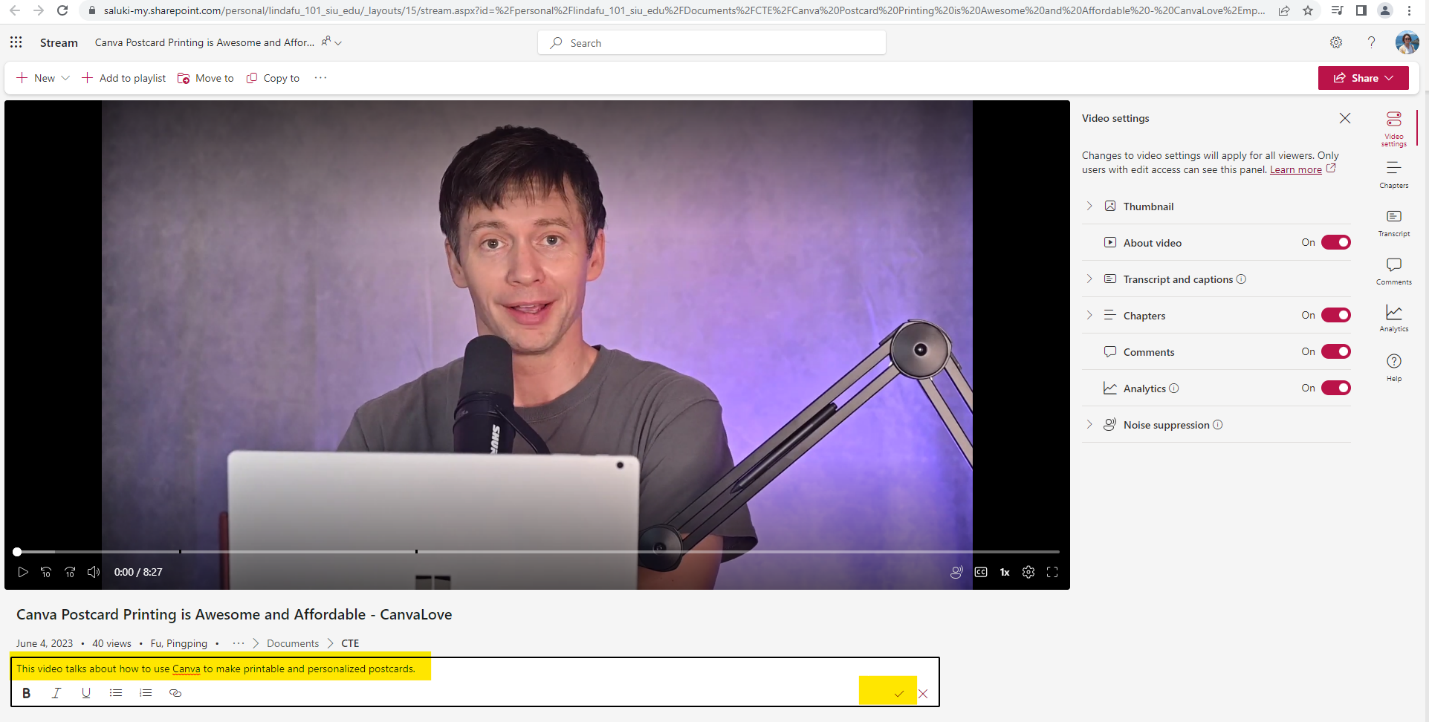
5. To make changes to the description, repeat Step 3 and Step 4.
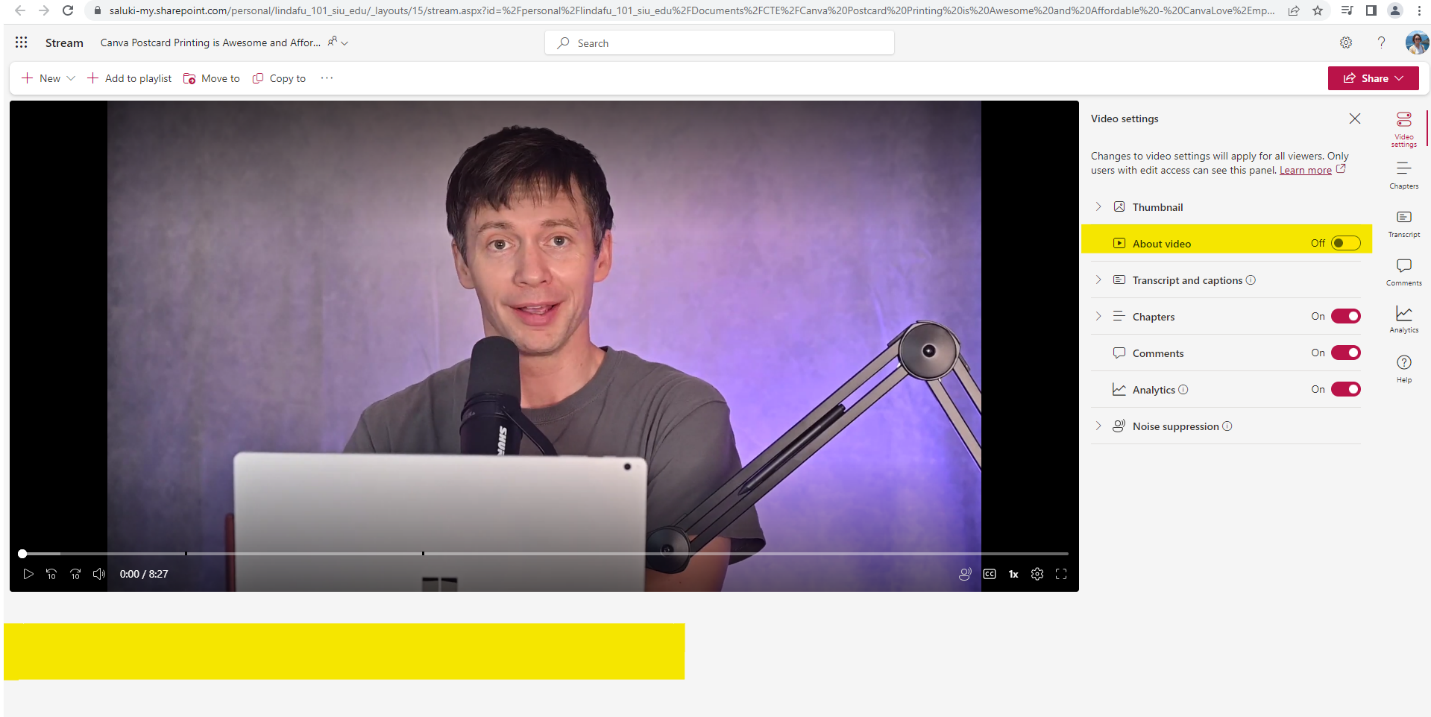
Note: To hide a video description, toggle About video to off and the text box below the video will disappear.