
Browse Our Knowledge Base
Requesting Software
How to Request Software
SalukiTech offers a range of software licenses for academic and research purposes. Full-time students, faculty, and staff can access this software at no cost or reduced rates. A list of available software can be viewed on and requested from the SalukiTech website.
Follow the instructions below for a step-by-step guide on the request process.
Students
- In your browser, go to salukitech.siu.edu/software
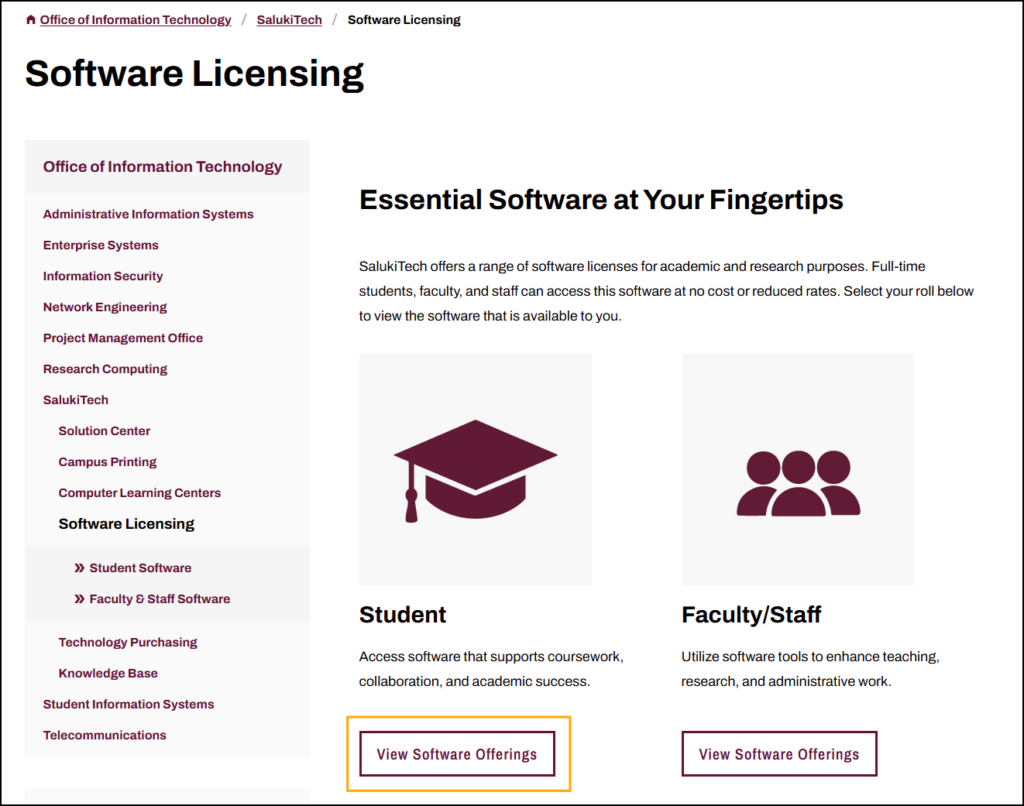
- Select View Software Offerings under Student to view available software.
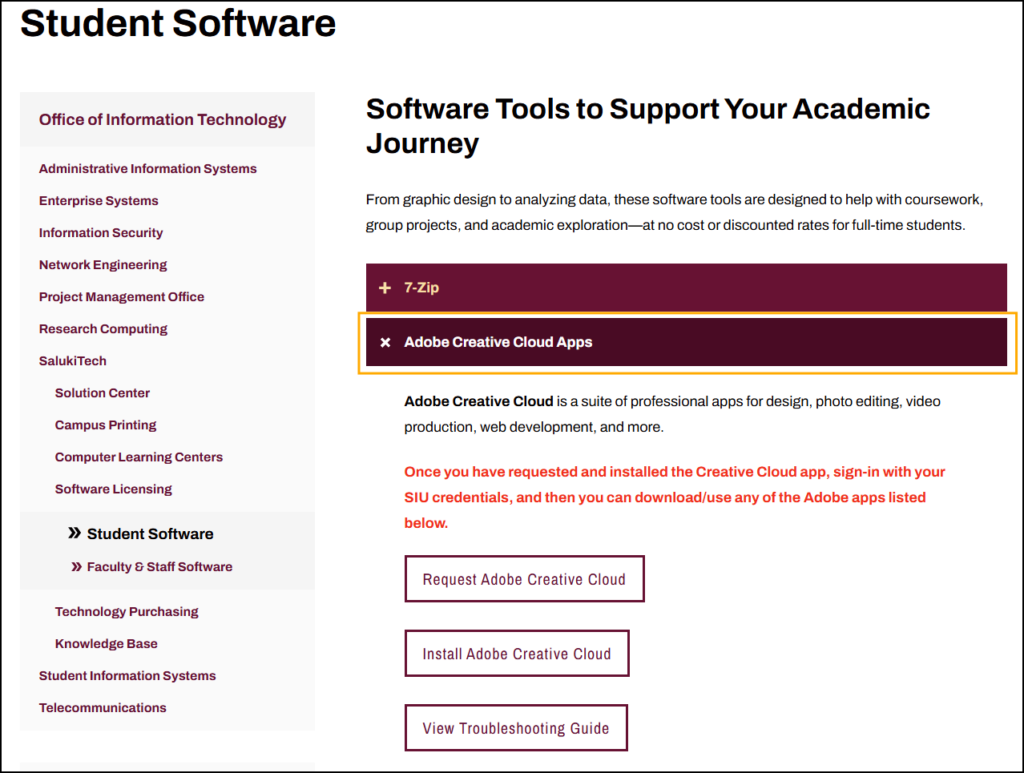
3. Scroll through the list of software. To learn more or to request a specific offering, click on the software name.
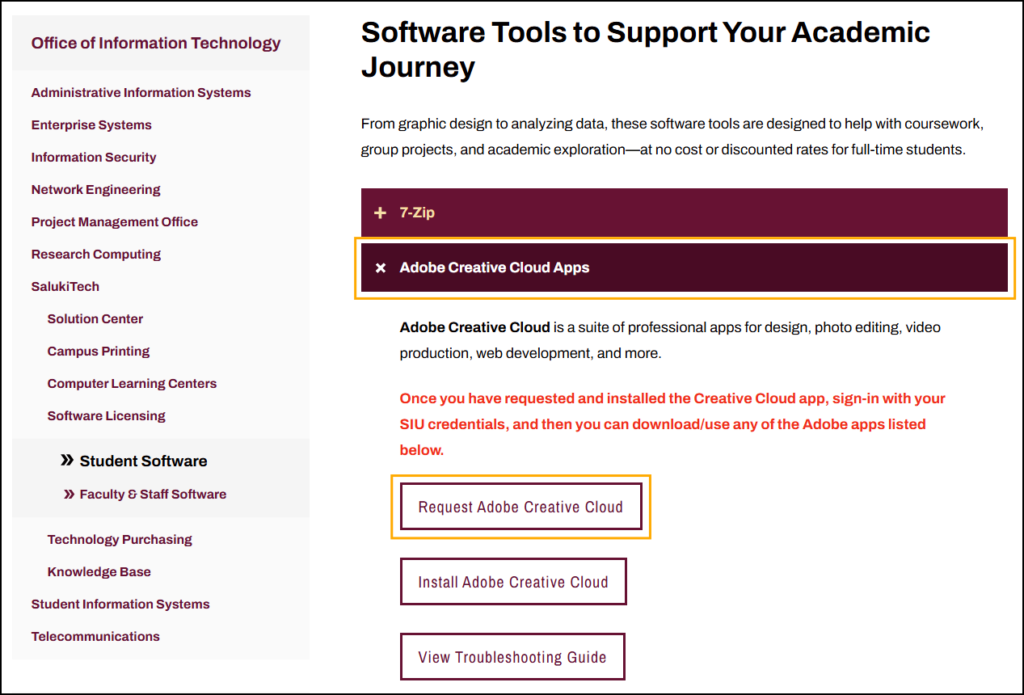
4. Click the Request button to access the Software Request Form.
Note: Although some software will include an installation link, you must still request a license if there is a Request [Software Name] button included in the software listing.
5. Complete all required fields on the Software Request form. Once you submit the form, it will be sent to our Software Licensing team for processing.
Faculty & Staff
Software on SIU Devices
Many software offerings are available through Company Portal; no request form or Admin Credentials needed for installation. Note: Company Portal is only available on SIU-owned Windows devices.
- On your Windows device, type “Company Portal” in the search bar at the very bottom of your screen.

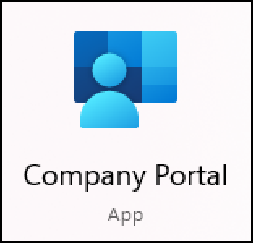
2. Click on the Company Portal app. It will have a blue person icon over a blue gradient rectangle background as shown in the image below.
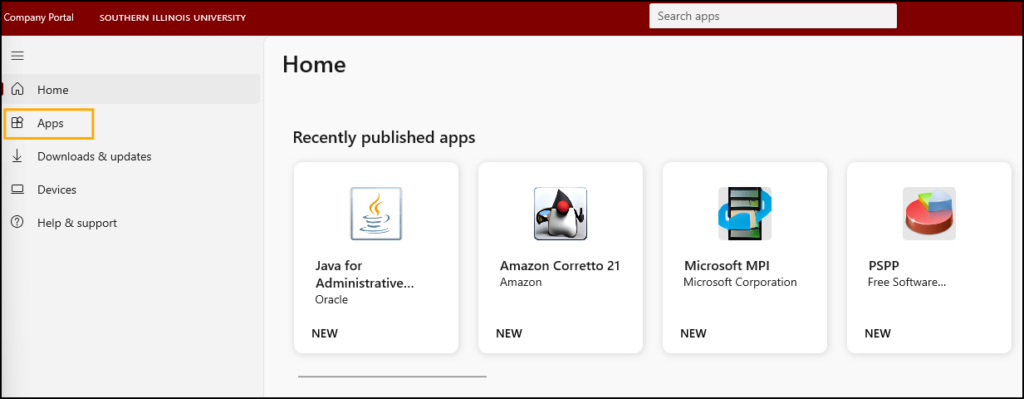
3. Click Apps on the left-hand menu to view a complete list of software available in Company Portal.
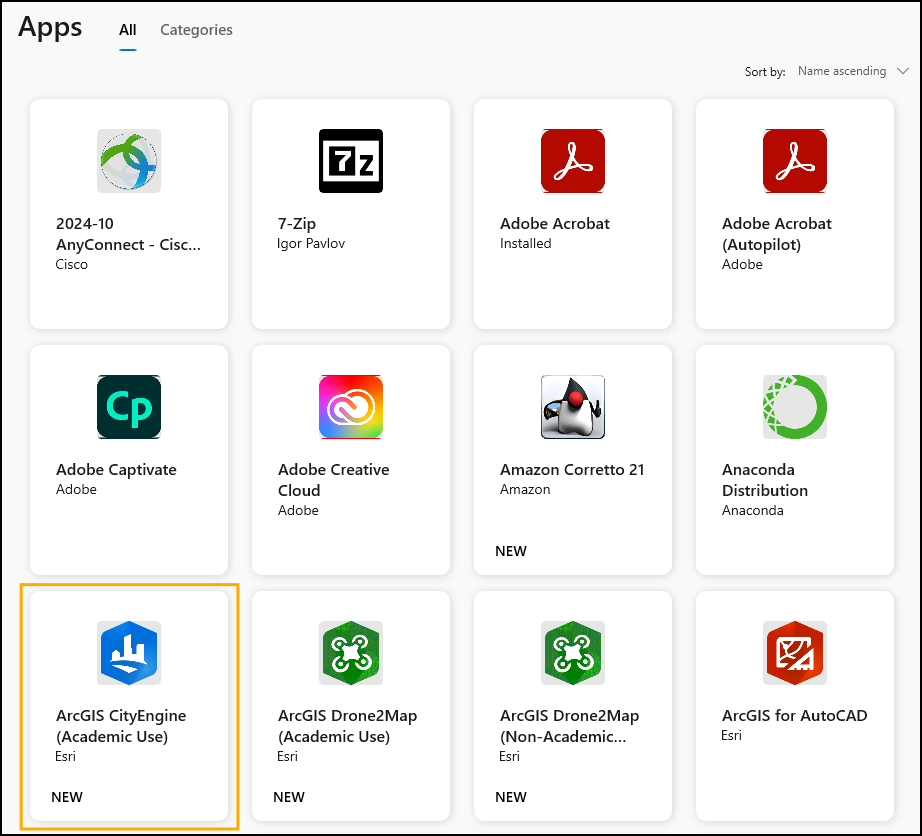
4. Select the software you would like to install. For example: ArcGIS CityEngine (Academic Use).
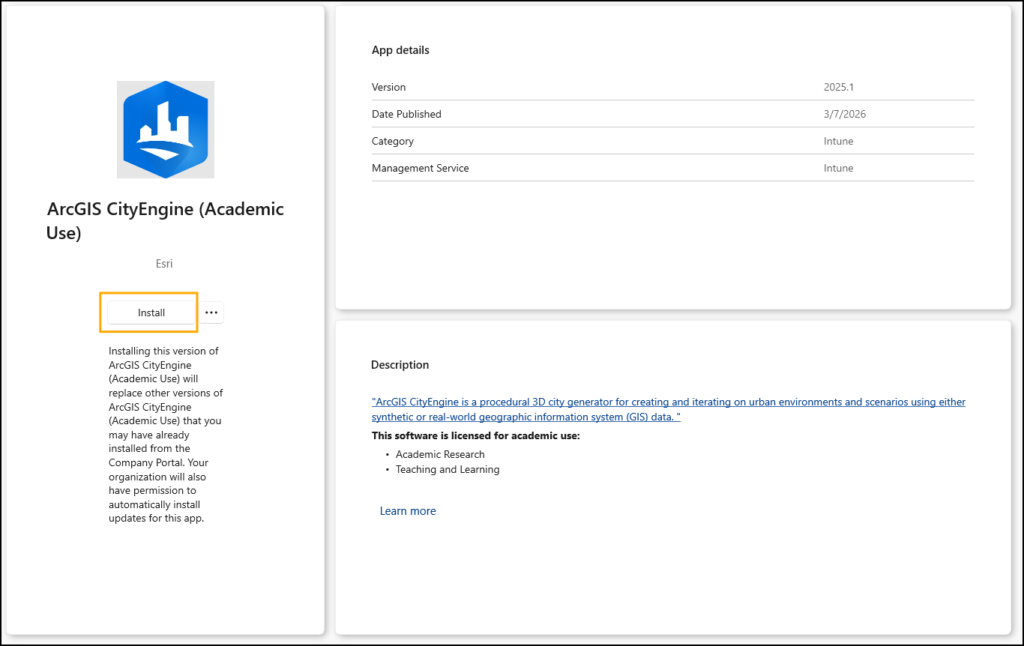
5. Click the Install button.
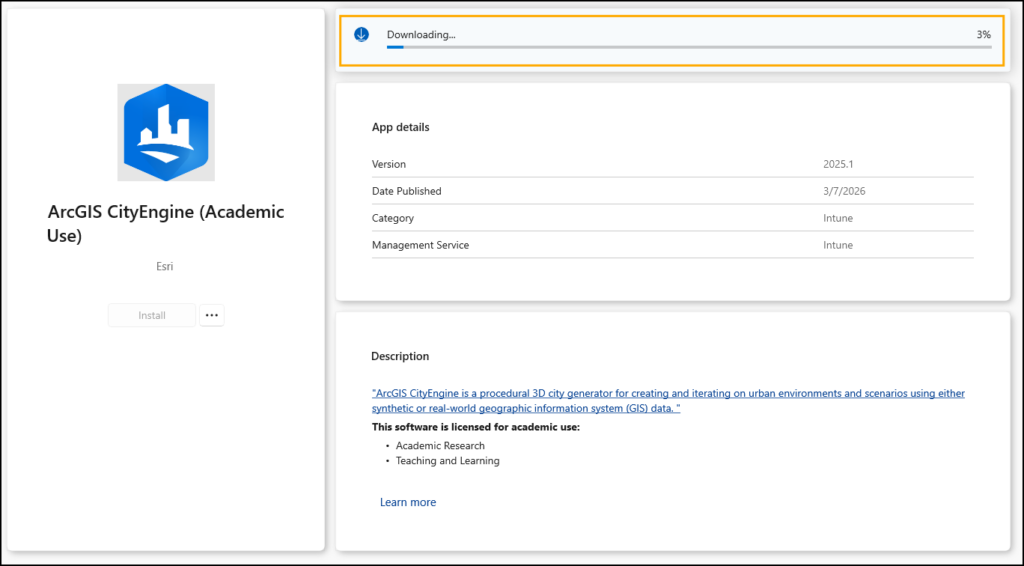
6. The installation process will begin. It may take a moment, but the screen will update to show a Downloading progression bar.
7. Once the software has been downloaded, a new window will appear in the bottom right corner of your screen. This is the installation progress bar.
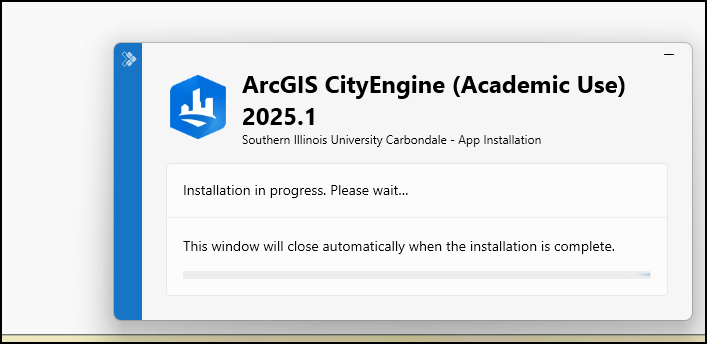
8. After the software has finished installing, the progress bar will be fully complete and the button on the software offering will change from “Install” to “Reinstall.”
9. Using the Windows search bar, type in the name of the software you just installed and click on its icon to open and begin using it.
Software on Personal Devices
1. To install software on a personal device, go to: salukitech.siu.edu/software
2. Select View Software Offerings under Faculty/Staff to view available software.
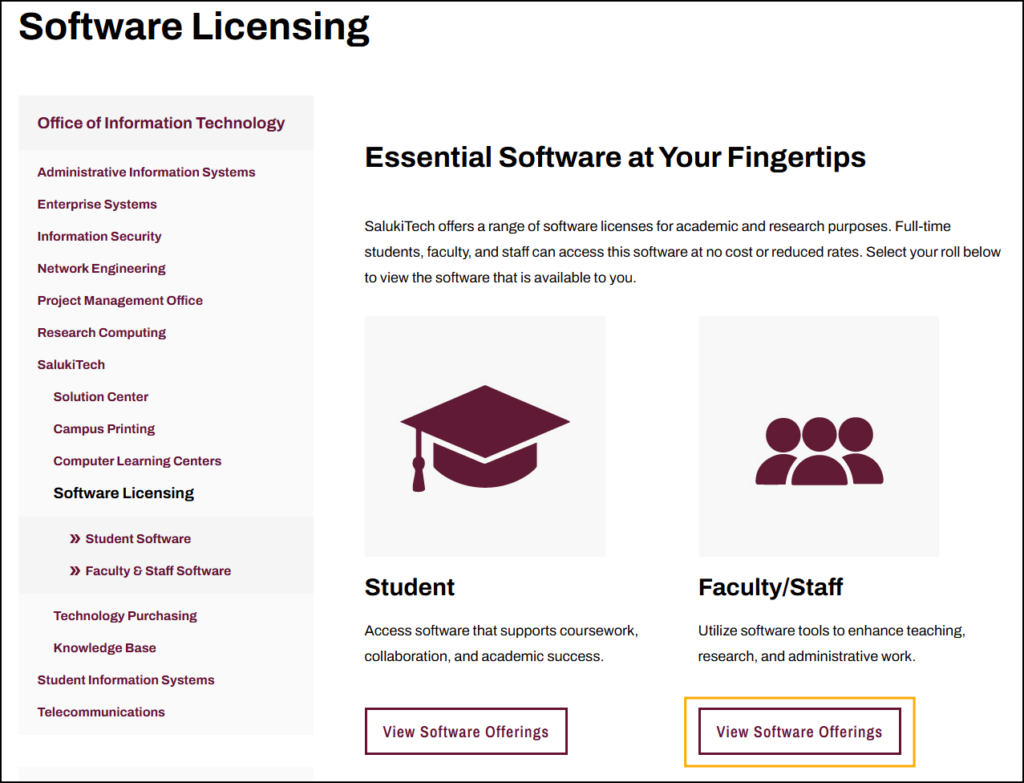
3. Scroll through the list of software. To learn more or to request a specific offering, click on the software name.
4. Click the Request button to access the Software Request Form.
Note: Although some software will include an installation link, you must still request a license if there is a Request [Software Name] button included in the software listing.
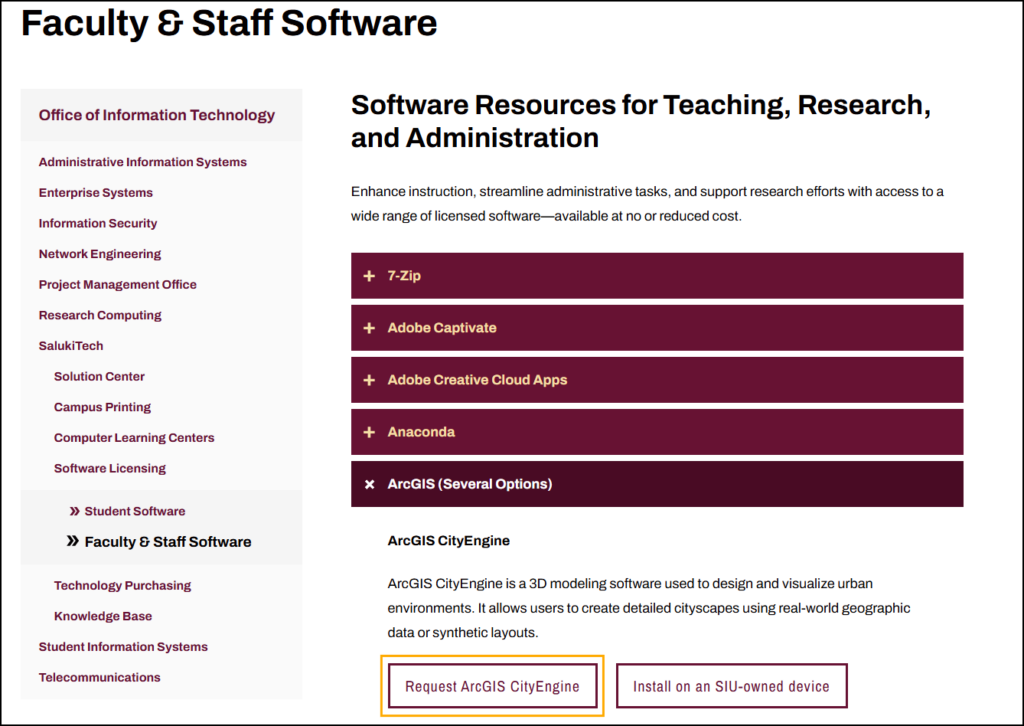
5. Complete all required fields on the Software Request form. Once you submit the form, it will be sent to our Software Licensing team for processing. If you aren’t sure what a specific field is asking for, view the Request Form Instructions section below for guidance.
Request Form Instructions
Not sure what to enter on the Software Request Form? View the instructions below for more details.
- Dawg Tag Number — this is your 85 number.
- For example: 85XXXXXXX.
- Note: If you have a 92 number instead, enter that.
- End-User Affiliation — select your role with the University.
- Note: If you are a student and an employee, select the role that you need the software for.
- Computer Ownership — select whether the device is owned by you or SIU.
- Select the software you are requesting.
- Note: If you would like multiple software licenses (For example, Adobe Creative Cloud and ArcGIS, you will need to submit the form for each item).
- Comments (Optional).
Faculty & Staff Additional Fields
In addition to the fields above, you will need to include the following pieces of information…
6. Computer Property Tag number — a 6-digit asset tag on your University device. This is typically located on a white sticker with a barcode directly on your device. If you have a laptop, it will likely be on the bottom.
7. Computer Name — many University computers now display the Computer Name in the bottom corner of your desktop screen. If it isn’t there and you aren’t sure how to find it, please follow these instructions:
8. Fiscal Officer Email — enter the email address of the person in your department that approves purchases (if the software you are requesting has a cost associated with it. The cost will be listed next to the software name on the form). Your request will be routed to your Fiscal Officer for approval before processing.