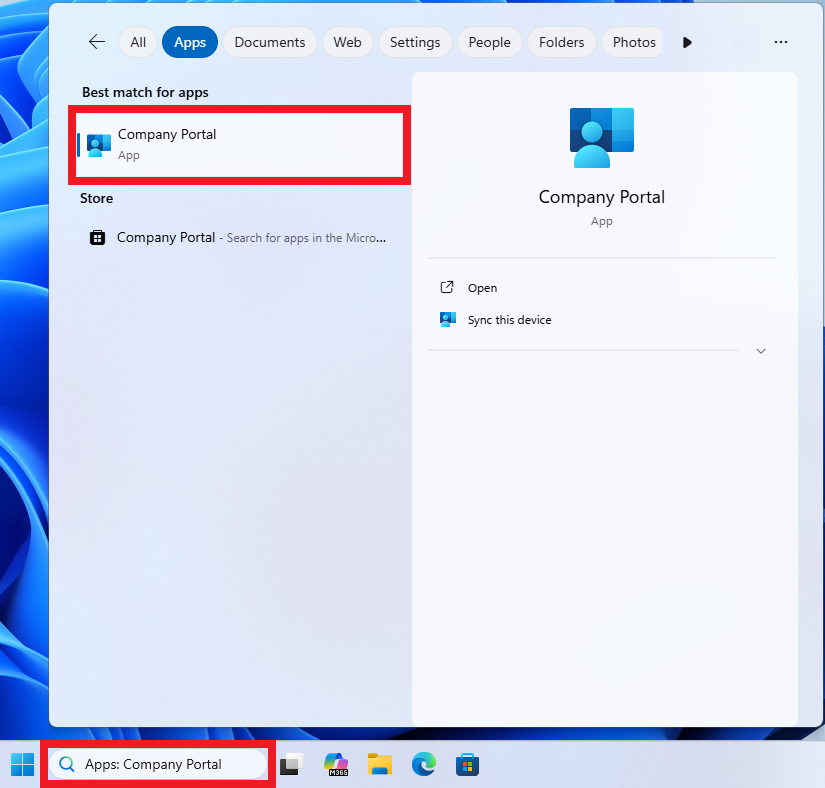
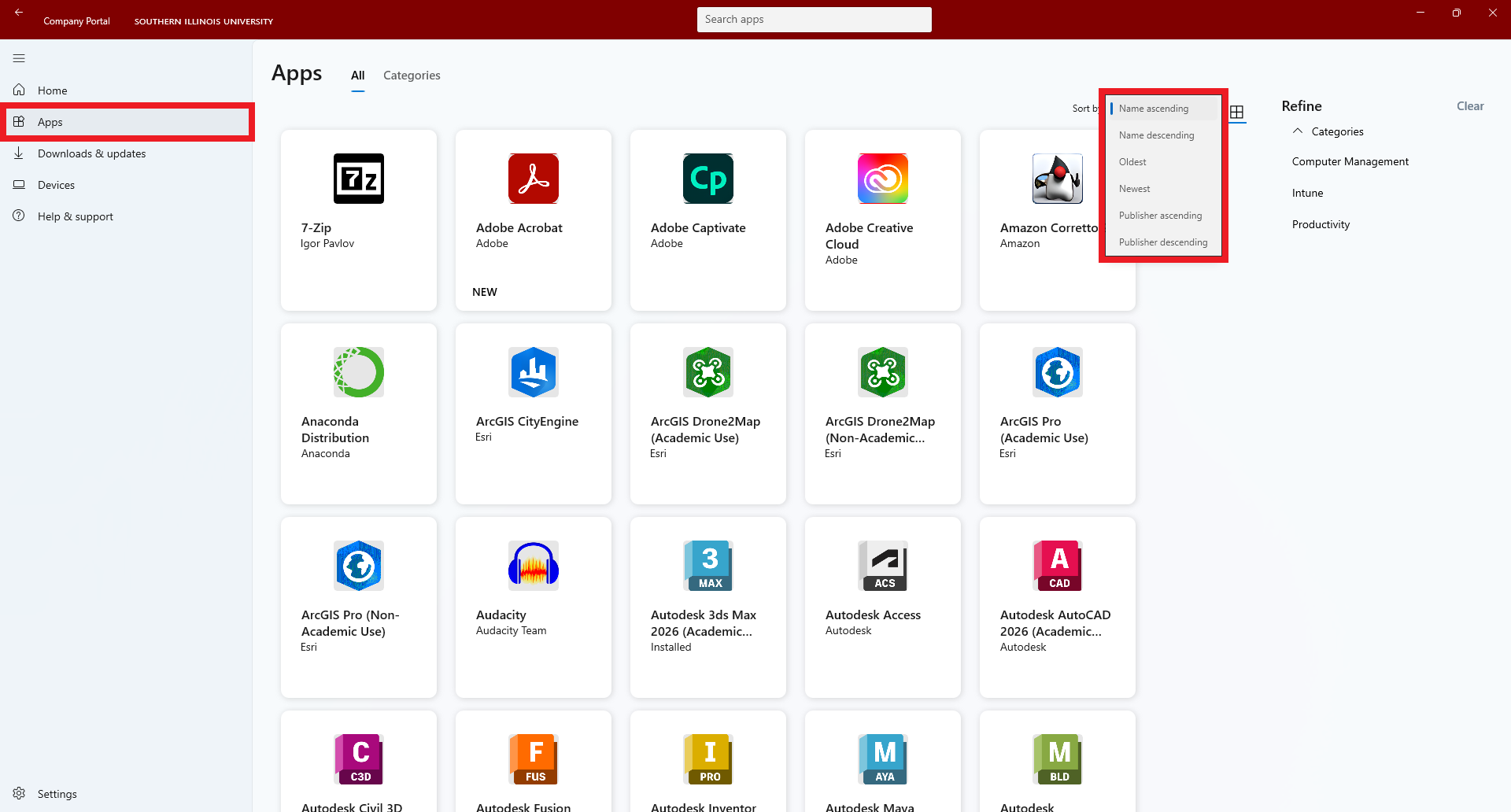
7-Zip
Igor Pavlov
“7-Zip is a file archiver with a high compression ratio.”
Instructions:
* Install 7-Zip |
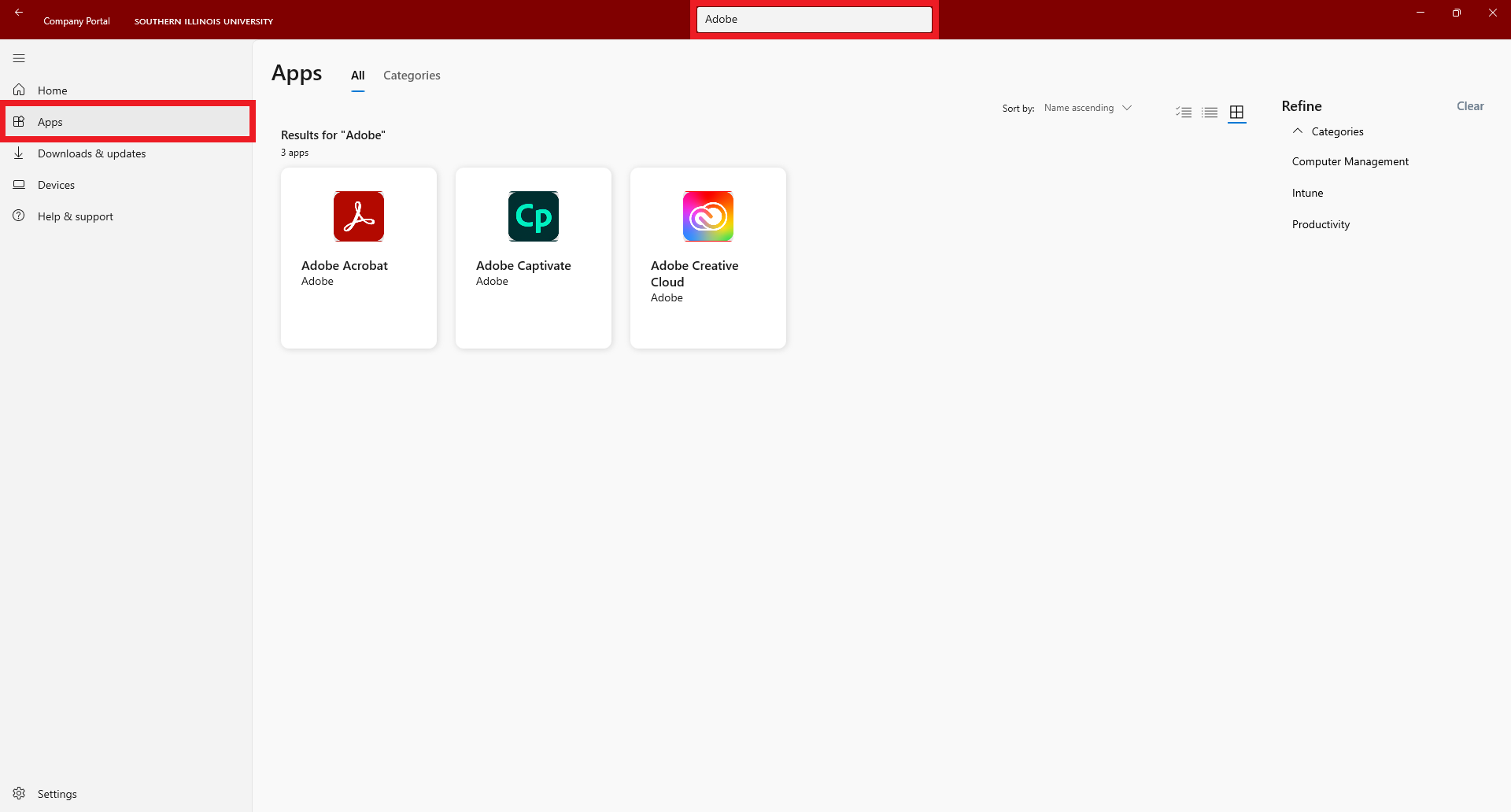
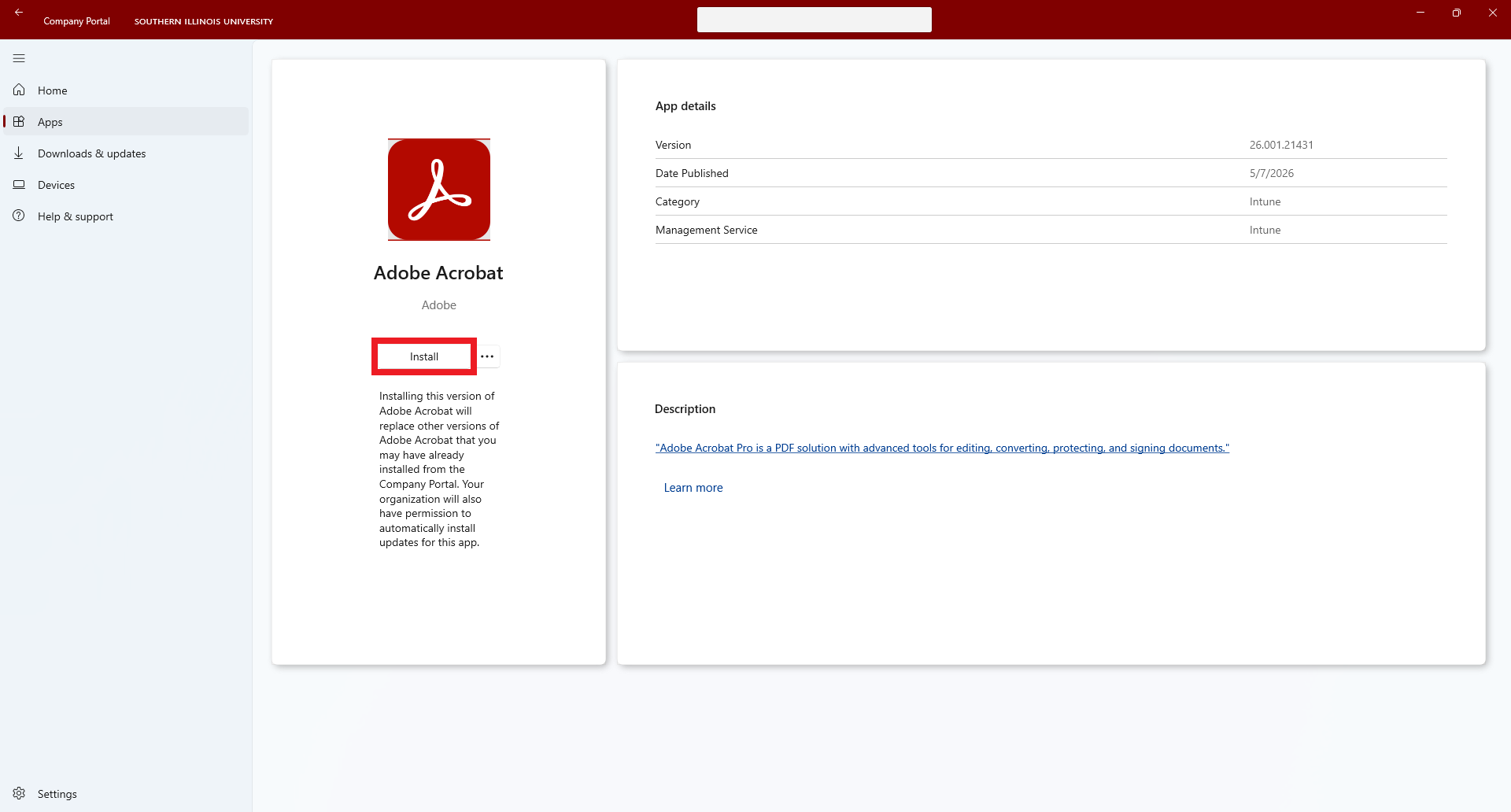
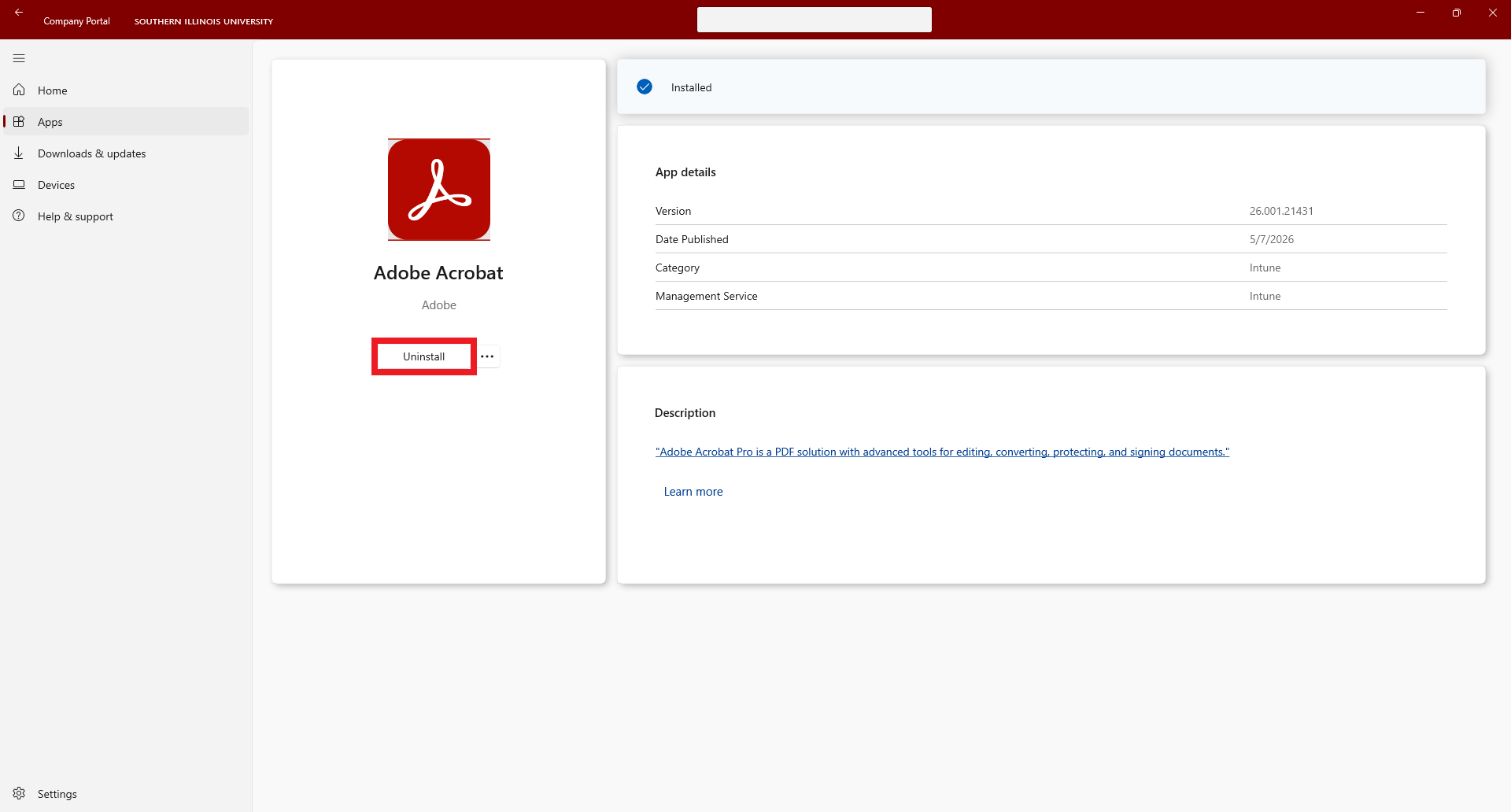
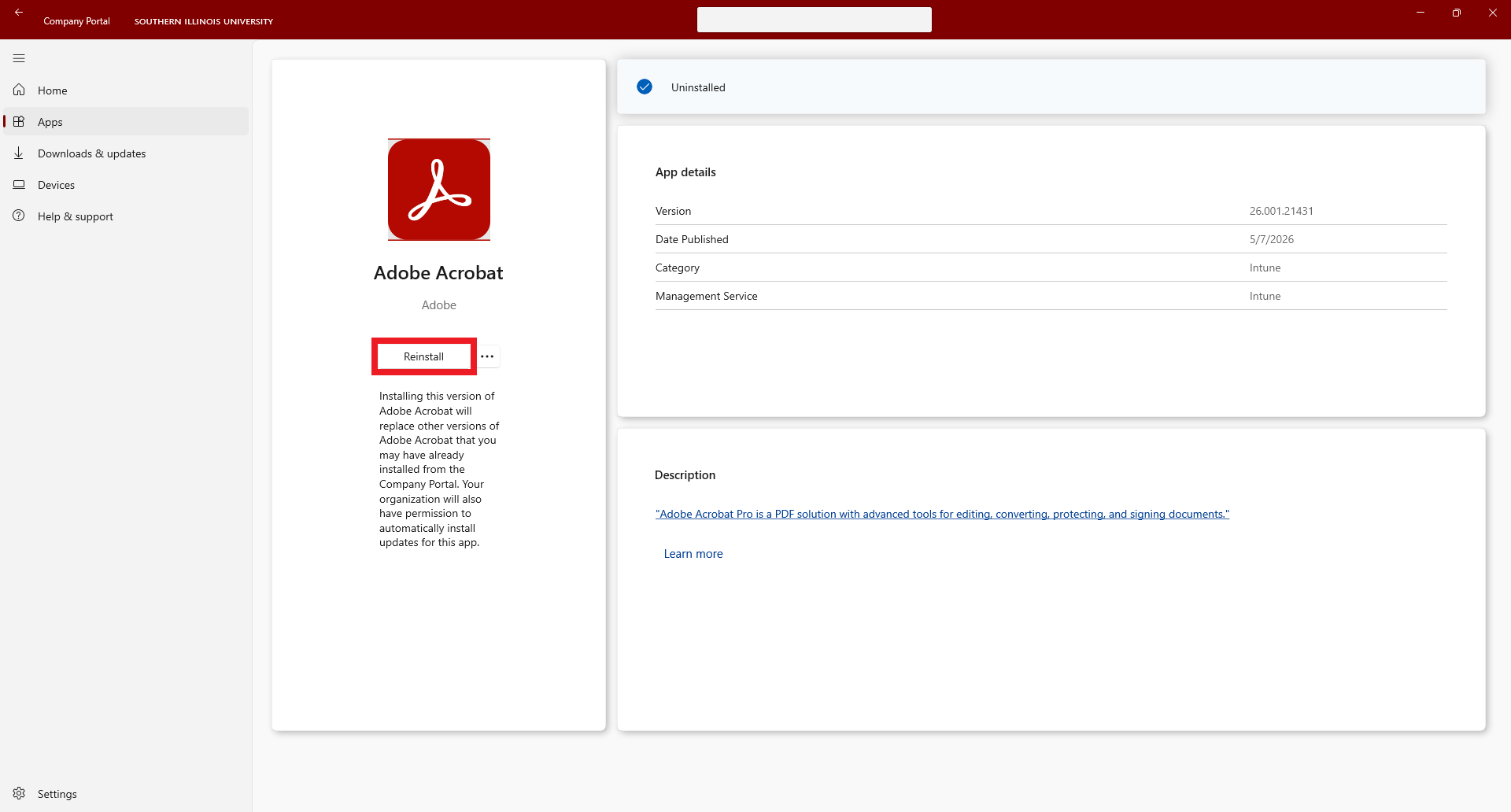
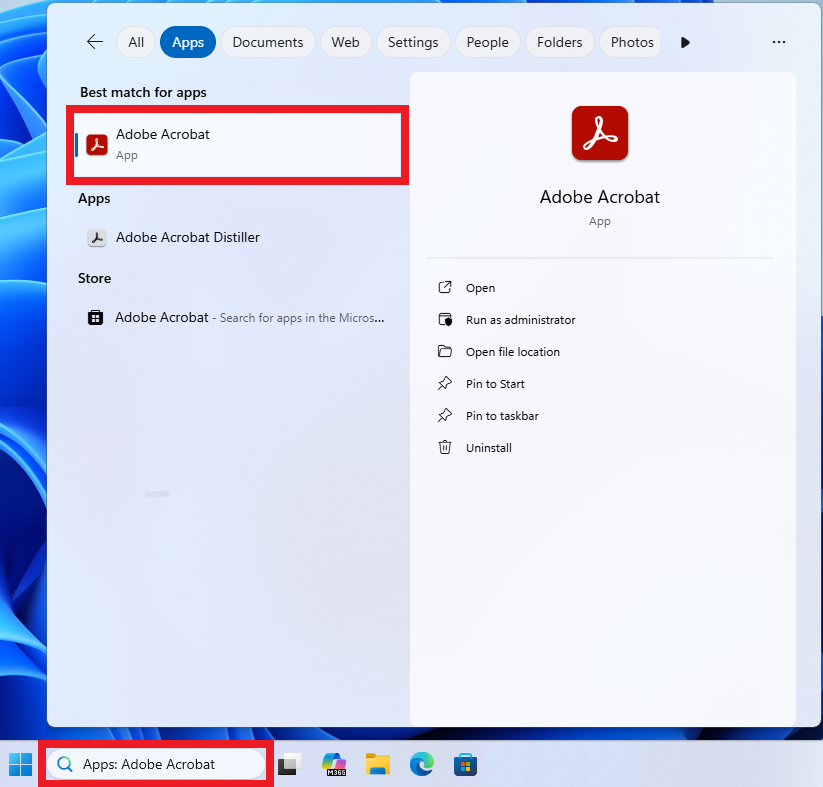
Adobe Acrobat
Adobe
“Adobe Acrobat Pro is a PDF solution with advanced tools for editing, converting, protecting, and signing documents.”
Instructions:
1. Install Adobe Acrobat
2. Sign into Adobe Acrobat (Activate Acrobat Pro) |
Adobe Captivate (Purchase Required)
Adobe
“Adobe Captivate is an easy-to-use, new generation pathbreaking eLearning software, designed for speed, creativity and scale.”
Instructions:
1. Buy Adobe Captivate
2. Install Adobe Captivate
3. Sign into Adobe Captivate |
Adobe Creative Cloud
Adobe
“Adobe Creative Cloud helps you bring your creative projects to life in photography, graphic design, video editing, UX design, drawing and painting, social media, and more.”
Instructions:
1. Install Adobe Creative Cloud
2. Sign into Adobe Creative Cloud |
AliView
Systematic Biology, Uppsala University
“Software for aligning viewing and editing dna/aminoacid sequences, intuitive, fast and lightweight.”
Instructions:
* Install AliView |
Amazon Corretto 21
Amazon
“Amazon Corretto is a no-cost, multiplatform, production-ready distribution of the Open Java Development Kit (OpenJDK).”
Instructions:
* Install Amazon Corretto 21 |
Anaconda Distribution
Anaconda
“Anaconda Distribution is a Python/R data science distribution.”
Instructions:
* Install Anaconda Distribution |
ArcGIS Arc Hydro Tools for ArcGIS Pro
Esri
“Arc Hydro helps you build a foundational dataset that can be used in water resource analyses and for integration with water resource models.”
Instructions:
* Install ArcGIS Arc Hydro Tools for ArcGIS Pro |
ArcGIS Aviation Airports Product Data for ArcGIS Pro
Esri
“Aviation Airports allows you to reduce obstruction risk and manage airfield operations while streamlining regulatory reporting. You can manage Electronic Terrain and Obstacle Data (eTOD) and create 3D surfaces for airport obstacle analysis. Aviation Airports also allows you to create and manage signs and markings and compare them with reference data to ensure safe operations. Stakeholders can make better-informed decisions using airport basemaps, 3D visualizations, and operations support content.”
Instructions:
* Install ArcGIS Aviation Airports Product Data for ArcGIS Pro |
ArcGIS Aviation Charting Product Data for ArcGIS Pro
Esri
“ArcGIS Aviation Charting is a data-driven, chart production system that efficiently manages aviation data, products, and workflows with a geographic information system (GIS) to generate navigational products that are compliant with International Civil Aviation Organization (ICAO) Annex 4 and Federal Aviation Administration (FAA) standards. It simplifies aeronautical charting and ensures charts are kept up-to-date according to the Aeronautical Information Regulation and Control (AIRAC) cycle. This allows aviation authorities to focus on innovation, provide reliable and safe air navigation services, and promote business growth through accurate digital information products.”
Instructions:
* Install ArcGIS Aviation Charting Product Data for ArcGIS Pro |
ArcGIS Bathymetry Product Data for ArcGIS Pro
Esri
“ArcGIS Bathymetry GIS enables bathymetric data management by providing an easy-to-use, scalable solution that leverages the power of ArcGIS. Its ability to support a broad range of data types, combined with the visualization and analysis tools in ArcGIS, increases the value of your bathymetry data. Bathymetry offers intuitive user interfaces and geoprocessing tools that are suitable for novice and advanced GIS users. Customized metadata streamlines data access and enables quick generation of custom bathymetric surfaces through targeted data selection and prioritization. Information can be extracted on the fly, eliminating unnecessary duplication.”
Instructions:
* Install ArcGIS Bathymetry Product Data for ArcGIS Pro |
ArcGIS CityEngine
Esri
“ArcGIS CityEngine is a procedural 3D city generator for creating and iterating on urban environments and scenarios using either synthetic or real-world geographic information system (GIS) data.”
Instructions:
1. Install ArcGIS CityEngine
2. Sign into ArcGIS CityEngine |
ArcGIS Coordinate Systems Data
Esri
“To perform geographic transformations (for example, NTv2, GEOCON, and NADCON5) and vertical transformations (for example, EGM and VERTCON) requires additional coordinate system files to properly transform and render features.”
Instructions:
* Install ArcGIS Coordinate Systems Data |
ArcGIS Data Interoperability for ArcGIS Pro
Esri
“ArcGIS Data Interoperability provides Pro the ability to read, write and build complex spatial extraction, transformation, and loading (ETL) tools for data validation, migration, and distribution.”
Instructions:
* Install ArcGIS Data Interoperability for ArcGIS Pro |
ArcGIS Deep Learning Libraries for ArcGIS Drone2Map
Esri
“The Deep Learning Libraries package adds in Python-based deep learning models that are used in the automated ground control point linking feature, as well as the processing of Gaussian splats. Without this package installed alongside ArcGIS Drone2Map, those functions will be disabled.”
Instructions:
* Install ArcGIS Deep Learning Libraries for ArcGIS Drone2Map |
ArcGIS Deep Learning Libraries for ArcGIS Pro
Esri
“Includes tools to use AI and Deep Learning to solve geospatial problems, such as feature extraction, pixel classification, and feature categorization.”
Instructions:
* Install ArcGIS Deep Learning Libraries for ArcGIS Pro |
ArcGIS DJI Camera Support for ArcGIS Drone2Map
Esri
“Contains software modules to convert pixel values to temperature units for images captured by DJI thermal infrared cameras. Without this software ArcGIS Drone2Map and ArcGIS Pro will report pixel values of relative brightness (equivalent to energy received).”
Instructions:
* Install ArcGIS DJI Camera Support for ArcGIS Drone2Map |
ArcGIS DJI Camera Support for ArcGIS Pro
Esri
“Contains software modules to convert pixel values to temperature units for images captured by DJI thermal infrared cameras. Without this software ArcGIS Drone2Map and ArcGIS Pro will report pixel values of relative brightness (equivalent to energy received).”
Instructions:
* Install ArcGIS DJI Camera Support for ArcGIS Pro |
ArcGIS Drone2Map
Esri
“ArcGIS Drone2Map is the desktop app for your drone mapping needs. Use any modern drone to capture high-resolution imagery where and when you need it. Immediately after the flight in the field, process images on your laptop and perform drone analytics on your natural-color, thermal infrared, or multispectral datasets.”
Instructions:
1. Install ArcGIS Drone2Map
2. Sign into ArcGIS Drone2Map |
ArcGIS for AutoCAD
Esri
“ArcGIS for AutoCAD is the Esri plug-in application to Autodesk AutoCAD that allows you to create and edit ArcGIS data using AutoCAD and to discover and use maps and data provided through ArcGIS web services.”
Instructions:
* Install ArcGIS for AutoCAD |
ArcGIS Indoors Product Data for ArcGIS Pro
Esri
“ArcGIS Indoors provides powerful data management tools and focused apps to enhance operations, maintenance, safety, security, and wayfinding within your facilities. Visualize people, spaces, assets, and incidents on floor-aware 2D and 3D maps, modernize asset and space management, improve situational awareness in emergencies, and transform occupant and visitor experiences.”
Instructions:
* Install ArcGIS Indoors Product Data for ArcGIS Pro |
ArcGIS Maritime Product Data for ArcGIS Pro
Esri
“ArcGIS Maritime supports a wide variety of IHO S-57 and S-100 product specifications, like ENC, Inland ENC, AML, S-58, S-4, S-63, and DNC, in both desktop and enterprise. Scriptable production tools allow entire workflows to be automated in the desktop. While in the web, electronic charts published as web services support shore-based mission planning, situational awareness, and generation of paper charts as geographic (georeferenced) PDFs directly from the latest Electronic Navigational Chart data.”
Instructions:
* Install ArcGIS Maritime Product Data for ArcGIS Pro |
ArcGIS Pro
Esri
“ArcGIS Pro is desktop geographic information system (GIS) software for advanced mapping, analytics, and data management.”
Instructions:
1. Install ArcGIS Pro
2. Sign into ArcGIS Pro |
ArcGIS Raster Data
Esri
“Contains a compressed global elevation model primarily required by users of Ortho Mapping workflows who work offline and don’t have better elevation data required for orthorectification of satellite imagery or to initiate some photogrammetric workflows.”
Instructions:
* Install ArcGIS Raster Data |
ArcGIS Topographic Mapping Product Data for ArcGIS Pro
Esri
“ArcGIS Topographic Mapping is a configurable extension that optimizes and tailors geographic information system (GIS) production to the way your organization works. It is a specification-driven topographic mapping software for national civilian and defense mapping agencies, their contractors, and authoritative content producers. This extension automates the topographic production process from beginning to end through standardization, repeatability, and configuration. It includes tools for data creation and feature extraction from imagery, data management, validation, and visualization, advanced cartographic production and Web GIS integration.”
Instructions:
* Install ArcGIS Topographic Mapping Product Data for ArcGIS Pro |
Audacity
Audacity Team
“Audacity is the world’s most popular free software for recording and editing audio.”
Instructions:
* Install Audacity |
Autodesk 3ds Max (Academic Use)
Autodesk
“3D modeling, animation, and rendering software for games and design visualization.”
This software is licensed for non-commercial academic use:
* Academic Research
* Teaching and Learning
Instructions:
1. Install Autodesk 3ds Max (Academic Use)
2. Sign up for Autodesk educational access |
Autodesk Access
Autodesk
“Autodesk Access simplifies the update experience. Quickly and easily install updates for your desktop products from the app.”
Instructions:
1. Install Autodesk Access
2. Sign up for Autodesk educational access |
Autodesk AutoCAD (Academic Use)
Autodesk
“Software for 2D and 3D CAD. Subscription includes AutoCAD, specialized toolsets, and apps.”
This software is licensed for non-commercial academic use:
* Academic Research
* Teaching and Learning
Instructions:
1. Install Autodesk AutoCAD (Academic Use)
2. Sign up for Autodesk educational access |
Autodesk Civil 3D (Academic Use)
Autodesk
“Civil engineering design and construction documentation.”
This software is licensed for non-commercial academic use:
* Academic Research
* Teaching and Learning
Instructions:
1. Install Autodesk Civil 3D (Academic Use)
2. Sign up for Autodesk educational access |
Autodesk Fusion (Academic Use)
Autodesk
“Cloud-based product design software for manufacturing, 3D modeling, electronics, simulation, and data management.”
This software is licensed for non-commercial academic use:
* Academic Research
* Teaching and Learning
Instructions:
1. Install Autodesk Fusion (Academic Use)
2. Sign up for Autodesk educational access |
Autodesk Inventor Pro (Academic Use)
Autodesk
“Powerful product design and engineering tools for 3D mechanical design, simulation, visualization and documentation.”
This software is licensed for non-commercial academic use:
* Academic Research
* Teaching and Learning
Instructions:
1. Install Autodesk Inventor Pro (Academic Use)
2. Sign up for Autodesk educational access |
Autodesk Maya (Academic Use):
Autodesk
“3D animation, modeling, simulation, and rendering software for film, games, and TV.”
This software is licensed for non-commercial academic use:
* Academic Research
* Teaching and Learning
Instructions:
1. Install Autodesk Maya (Academic Use)
2. Sign up for Autodesk educational access |
Autodesk MotionBuilder (Academic Use)
Autodesk
“3D character animation software.”
This software is licensed for non-commercial academic use:
* Academic Research
* Teaching and Learning
Instructions:
1. Install Autodesk MotionBuilder (Academic Use)
2. Sign up for Autodesk educational access |
Autodesk Mudbox (Academic Use)
Autodesk
“Digital painting and sculpting software.”
This software is licensed for non-commercial academic use:
* Academic Research
* Teaching and Learning
Instructions:
1. Install Autodesk Mudbox (Academic Use)
2. Sign up for Autodesk educational access |
Autodesk ReCap Pro (Academic Use)
Autodesk
“Reality capture and 3D scanning software and services.”
This software is licensed for non-commercial academic use:
* Academic Research
* Teaching and Learning
Instructions:
1. Install Autodesk ReCap Pro (Academic Use)
2. Sign up for Autodesk educational access |
Autodesk Revit (Academic Use)
Autodesk
“Plan, design, construct, and manage buildings with powerful tools for Building Information Modeling.”
This software is licensed for non-commercial academic use:
* Academic Research
* Teaching and Learning
Instructions:
1. Install Autodesk Revit (Academic Use)
2. Sign up for Autodesk educational access |
Blender
Blender Foundation
“Blender is the free and open source 3D creation suite. It supports the entirety of the 3D pipeline—modeling, rigging, animation, simulation, rendering, compositing and motion tracking, even video editing and game asset creation.”
Instructions:
* Install Blender |
Cisco Secure Client – AnyConnect VPN
Cisco Systems
Virtual Private Network (VPN) provides access to the Campus Area Network from remote locations over the Internet. VPN access is available only by request. If you don’t have access, you won’t be able to connect.
Instructions:
1. Request VPN Access
2. Install Cisco Secure Client – AnyConnect VPN |
Cyberduck
iterate
“Cyberduck is a libre server and cloud storage browser for Mac and Windows with support for FTP, SFTP, WebDAV, Amazon S3, OpenStack Swift, Backblaze B2, Microsoft Azure & OneDrive, Google Drive and Dropbox.”
Instructions:
* Install Cyberduck |
Distance
University of St Andrews
“The Distance project provides free software for the design and analysis of distance sampling surveys of wildlife populations.”
Instructions:
* Install Distance |
EndNote
Clarivate Analytics
“A reference manager to help you better discover, organize, manage, cite, write, and share.”
Instructions:
* Install EndNote |
Entrust Certificate Agent
Entrust Corporation
“This thin agent allows organizations to use a single digital identity seamlessly to add security capabilities beyond authentication to applications such as email or file encryption on either Windows or Apple MacOS.”
Instructions:
* Install Entrust Certificate Agent |
Epic Games Launcher
Epic Games
“A downloadable app that supports purchasing, downloading and playing games developed with Unreal Engine, and is available across a wide range of platforms. The launcher also gives you access to professional game-development tools, free training videos and courses, and many other resources.”
Instructions:
* Install Epic Games Launcher |
ERDAS IMAGINE (Purchase Required)
Hexagon
“Save time and money, leverage existing data investments and improve image analysis capabilities with ERDAS IMAGINE. Available in four product tiers, it provides true value, consolidating remote sensing, photogrammetry, LiDAR analysis, basic vector analysis and radar processing in a single product.”
Instructions:
1. Buy ERDAS IMAGINE
2. Install ERDAS IMAGINE |
FileZilla
Tim Kosse
“FileZilla Client is a fast and reliable cross-platform FTP, FTPS and SFTP client with lots of useful features and an intuitive graphical user interface.”
Instructions:
* Install FileZilla |
GIMP
GIMP Team
“GIMP is an acronym for GNU Image Manipulation Program. It is a freely distributed program for such tasks as photo retouching, image composition and image authoring.”
Instructions:
* Install GIMP |
Git
Git Development Community
“Git for Windows focuses on offering a lightweight, native set of tools that bring the full feature set of the Git SCM to Windows while providing appropriate user interfaces for experienced Git users and novices alike.”
Instructions:
* Install Git |
GitHub CLI
GitHub
“GitHub CLI brings GitHub to your terminal.”
Instructions:
* Install GitHub CLI |
GitHub Desktop
GitHub
“Whether you’re new to Git or a seasoned user, GitHub Desktop simplifies your development workflow.”
Instructions:
* Install GitHub Desktop |
Golden (Purchase Required)
Benthic Software
“Golden is a query tool for Oracle databases. It includes advanced query abilities, data editing, and powerful import and export abilities.”
Instructions:
1. Buy Golden
2. Install Oracle Instant Client 12 Basic
3. Install Golden 8 OR Install Golden 7 |
Google Chrome
Google
“Chrome is the official web browser from Google, built to be fast, secure, and customizable.”
Instructions:
* Install Google Chrome |
Google Earth Pro
Google
“Google Earth Pro on desktop is available for users with advanced feature needs. Import and export GIS data, and go back in time with historical imagery.”
Instructions:
* Install Google Earth Pro |
GraphPad Prism (Purchase Required)
GraphPad Software
“Prism is a purpose-built analysis and graphing solution for scientific research, with an extensive library of analyses and one-click regression.”
Instructions:
1. Buy GraphPad Prism
2. Install GraphPad Prism |
HandBrake
HandBrake Team
“HandBrake is a open-source tool, built by volunteers, for converting video from nearly any format to a selection of modern, widely supported codecs.”
Instructions:
* Install HandBrake |
iClicker Cloud
Macmillan Learning
“iClicker is more than a polling platform. It’s a tool for student engagement that helps you guide and assess learning.”
Instructions:
* Install iClicker Cloud |
Inkscape
Inkscape
“Inkscape is a Free and open source vector graphics editor for GNU/Linux, Windows and macOS. It offers a rich set of features and is widely used for both artistic and technical illustrations such as cartoons, clip art, logos, typography, diagramming and flowcharting.”
Instructions:
* Install Inkscape |
IntelliJ IDEA
JetBrains
“IntelliJ IDEA is an Integrated Development Environment (IDE) for professional development in Java and Kotlin.”
Instructions:
* Install IntelliJ IDEA |
IrfanView
Irfan Skiljan
“IrfanView is a fast, compact and innovative FREEWARE (for non-commercial use) graphic viewer for Windows… It is designed to be simple for beginners and powerful for professionals.”
Instructions:
* Install IrfanView |
JabRef
JabRef
“JabRef is an open-source, cross-platform citation and reference management tool.”
Instructions:
* Install JabRef |
JAGS
JAGS
“JAGS is Just Another Gibbs Sampler. It is a program for analysis of Bayesian hierarchical models using Markov Chain Monte Carlo (MCMC) simulation not wholly unlike BUGS.”
Instructions:
* Install JAGS |
jamovi
jamovi Project
“jamovi is a free and open statistics package, which is easy to use, and designed to be familiar to users of SPSS.”
Instructions:
* Install jamovi |
JASP
Universiteit van Amsterdam
“JASP is a cross-platform software that allows you to conduct statistical analyses in seconds, and without having to learn programming or risking a programming mistake. It aims to be a complete statistical package for both Bayesian and Frequentist statistical methods, that is easy to use and familiar to users of SPSS.”
Instructions:
* Install JASP |
Java for Administrative Information Systems (AIS)
Oracle
Java Plug-in software is required to access the Administrative Information Systems (AIS) applications. After installation, enable Java content for browser and web start applications.
Instructions:
1. Install Java for Administrative Information Systems (AIS)
2. Configure Java Web Start |
JMP Student Edition (Academic Use)
JMP Statistical Discovery LLC
“Predictive analytics software for scientists and engineers. JMP Student Edition includes all features available in JMP and JMP Pro.”
This software is licensed for non-commercial academic use:
* Academic Research
* Teaching and Learning
Instructions:
1. Install JMP Student Edition (Academic Use)
2. Sign into JMP Student Edition |
Julia
Julia Language
“Julia is a high-level, high-performance dynamic language for technical computing.”
Instructions:
* Install Julia |
Krita
Krita Foundation
“Krita is a sketching and painting program designed for digital artists.”
Instructions:
* Install Krita |
MarcEdit
Terry Reese
“MarcEdit presently includes a very rich feature set targeted at making metadata translation and editing easier for both the beginner and advanced users.”
Instructions:
* Install MarcEdit |
Mathematica (Academic Use)
Wolfram Research
“For over three decades, Mathematica has defined the state of the art in technical computing—and provided the principal computation environment for millions of innovators, educators, students and others around the world.”
This software is licensed for non-commercial academic use:
* Academic Research
* Teaching and Learning
Instructions:
1. Request Mathematica
2. Install Mathematica (Academic Use)
3. Activate Mathematica |
MATLAB (Academic Use)
MathWorks
“MATLAB is a programming and numeric computing platform for engineering and scientific applications like data analysis, signal and image processing, control systems, wireless communications, and robotics. MATLAB is also the foundation for Simulink, a block diagram environment for simulating complex multi-domain systems.”
This software is licensed for non-commercial academic use:
* Academic Research
* Teaching and Learning
Instructions:
1. Install MATLAB (Academic Use)
2. Sign into MATLAB |
Mendeley Desktop
Mendeley
“The free all-in-one reference manager. Mendeley helps you stay organized, do more in less time, and bring ease to your research workflow.”
Instructions:
* Install Mendeley Desktop |
Mendeley Reference Manager
Mendeley
“The free all-in-one reference manager. Mendeley helps you stay organized, do more in less time, and bring ease to your research workflow.”
Instructions:
* Install Mendeley Reference Manager |
MGLTools (Academic Use)
The Scripps Research Institute
“visualization and analysis of molecular structures”
This software is licensed for non-commercial academic use:
* Academic Research
* Teaching and Learning
Instructions:
* Install MGLTools (Academic Use) |
Microsoft .NET Windows Desktop Runtime 6.0
Microsoft
“The .NET Desktop Runtime enables you to run existing Windows desktop applications. This release includes the .NET Runtime; you don’t need to install it separately.”
Instructions:
* Install Microsoft .NET Windows Desktop Runtime 6.0 |
Microsoft .NET Windows Desktop Runtime 8.0
Microsoft
“The .NET Desktop Runtime enables you to run existing Windows desktop applications. This release includes the .NET Runtime; you don’t need to install it separately.”
Instructions:
* Install Microsoft .NET Windows Desktop Runtime 8.0 |
Microsoft .NET Windows Desktop Runtime 10.0
Microsoft
“The .NET Desktop Runtime enables you to run existing Windows desktop applications. This release includes the .NET Runtime; you don’t need to install it separately.”
Instructions:
* Install Microsoft .NET Windows Desktop Runtime 10.0 |
Microsoft 365 Apps (Office 365)
Microsoft
“Office is now Microsoft 365: Microsoft 365 is your powerful cloud-based productivity platform that includes apps such as Microsoft Teams, Word, Excel, PowerPoint, Outlook, and OneDrive, as well as intelligent cloud services and advanced security.”
Instructions:
1. Install Microsoft 365 Apps (Microsoft Office)
2. Sign into Microsoft 365 Apps (Microsoft Office) |
Microsoft MPI
Microsoft
“Microsoft MPI (MS-MPI) is a Microsoft implementation of the Message Passing Interface standard for developing and running parallel applications on the Windows platform.”
Instructions:
* Install Microsoft MPI |
Microsoft Project Pro for Office 365 (Purchase Required)
Microsoft
“Task and Project Management: Manage all your work in a single, intelligent planning solution to stay on track and achieve more.”
Instructions:
1. Buy Microsoft Project Pro for Office 365
2. Install Microsoft Project Pro for Office 365
3. Sign into Microsoft 365 Apps (Microsoft Office) |
Microsoft Teams
Microsoft
“Video Conferencing, Meetings, Calling: Microsoft Teams is the ultimate messaging app for your organization—a workspace for real-time collaboration and communication, meetings, file and app sharing, and even the occasional emoji!”
Instructions:
* Install Microsoft Teams |
Microsoft Visio Pro for Office 365 (Purchase Required)
Microsoft
“Diagramming and Flowcharts: Transform the way you use and visualize data to bring your best ideas to life.”
Instructions:
1. Buy Microsoft Visio Pro for Office 365
2. Install Microsoft Visio Pro for Office 365
3. Sign into Microsoft 365 Apps (Microsoft Office) |
Microsoft Visual C++ 2022 Redistributable
Microsoft
“A Visual C++ Redistributable installs Microsoft C and C++ Runtime libraries. Many applications built by using Microsoft Visual C++ (MSVC) Build Tools require these libraries.”
Instructions:
* Install Microsoft Visual C++ 2022 Redistributable |
Microsoft Visual Studio Code
Microsoft
“Microsoft Visual Studio Code is a free, powerful, lightweight code editor for Windows, macOS and Linux. Based on open source, it is highly customizable with over 25,000 extensions, for every developer and every programming language.”
Instructions:
* Install Microsoft Visual Studio Code |
Microsoft Visual Studio Community (Academic Use)
Microsoft
“A fully-featured, extensible, free IDE for creating modern applications for Android, iOS, Windows, as well as web applications and cloud services.”
This software is licensed for non-commercial academic use:
* Academic Research
* Teaching and Learning
Instructions:
* Install Microsoft Visual Studio Community (Academic Use) |
Microsoft Visual Studio Professional (Purchase Required)
Microsoft
“Professional developer tools and services for individual developers or small teams.”
Instructions:
* Install Microsoft Visual Studio Professional |
Miniconda
Anaconda
“Miniconda is a free, miniature installation of Anaconda Distribution that includes only conda, Python, the packages they both depend on, and a small number of other useful packages.”
Instructions:
* Install Miniconda |
Miniforge
conda-forge
“Miniforge is the preferred conda-forge installer and includes conda, mamba, and their dependencies.”
Instructions:
* Install Miniforge |
Mozilla Firefox
Mozilla
“Firefox is the fast, lightweight, privacy-focused browser that works across all your devices.”
Instructions:
* Install Mozilla Firefox |
Mozilla Firefox ESR for Administrative Information Systems (AIS)
Mozilla
“Firefox Extended Support Release (ESR) is an official version of Firefox developed for large organizations like universities and businesses…. Firefox ESR does not come with the latest features, but it has the latest security and stability fixes.”
Instructions:
* Install Mozilla Firefox ESR |
mRemoteNG
Next Generation Software
“An open source, multi-protocol, tabbed remote connections manager allowing you to view all of your connections in a simple yet powerful interface.”
Instructions:
* Install mRemoteNG |
Notepad++
Notepad++ Team
“Notepad++ is a free (as in “free speech” and also as in “free beer”) source code editor and Notepad replacement that supports several programming languages.”
Instructions:
* Install Notepad++ |
NVDA
NV Access
“NVDA (Non-Visual Desktop Access) allows blind and vision impaired people to access and interact with the Windows operating system and many third party applications.”
Instructions:
* Install NVDA |
OBS Studio
OBS Project
“Free and open source software for video recording and live streaming.”
Instructions:
* Install OBS Studio |
Omnissa Horizon Client
Omnissa
“Omnissa Horizon Clients for Windows, Mac, iOS, Linux, Chrome and Android allow you to connect to your Omnissa Horizon virtual desktop from your device of choice giving you on-the-go access from any location.”
Instructions:
* Install Omnissa Horizon Client |
Oracle Instant Client 12 Basic
Oracle
“Oracle Instant Client enables development and deployment of applications that connect to Oracle Database, either on-premise or in the Cloud. The Instant Client libraries provide the necessary network connectivity and advanced data features to make full use of Oracle Database.”
Instructions:
* Install Oracle Instant Client 12 Basic |
OracleReports for Administrative Information Systems (AIS):
n/a
Microsoft Word add-in to format Oracle reports for Administrative Information Systems (AIS).
Instructions:
1. Install OracleReports for Administrative Information Systems (AIS)
2. Using the Oracle Reports Feature |
Paint.NET
dotPDN
“Originally intended as a free replacement for the Microsoft Paint software that comes with Windows, [Paint.NET] has grown into a powerful yet simple image and photo editor tool.”
Instructions:
* Install Paint.NET |
PDF Accessibility Checker (PAC)
axes4
“PAC is the globally used, free PDF accessibility checking tool that has been tried and tested since 2010. PAC can check many PDF/UA and WCAG requirements at the touch of a button. In addition to this, PAC also supports the required visual check.”
Instructions:
* Install PDF Accessibility Checker (PAC) |
PowerShell 7 (x64)
Microsoft
“PowerShell is a cross-platform task automation solution made up of a command-line shell, a scripting language, and a configuration management framework.”
Instructions:
* Install PowerShell 7 (x64) |
PSPP
Free Software Foundation
“GNU PSPP is a program for statistical analysis of sampled data. It is a free as in freedom replacement for the proprietary program SPSS, and appears very similar to it with a few exceptions.”
Instructions:
* Install PSPP |
PuTTY
Simon Tatham
“PuTTY is a client program for the SSH network protocol, usually used to run terminal sessions over a network. It also supports running terminal sessions over a serial port, and a variety of older legacy network protocols such as Telnet, Rlogin, and SUPDUP.”
Instructions:
* Install PuTTY |
PyCharm
JetBrains
“PyCharm is a dedicated Python Integrated Development Environment (IDE) providing a wide range of essential tools for Python developers, tightly integrated to create a convenient environment for productive Python, web, and data science development.”
Instructions:
* Install PyCharm |
Python
Python Software Foundation
“Python is an interpreted, interactive, object-oriented programming language.”
Instructions:
Install one or more of the following:
* Install Python 3.14
* Install Python 3.13
* Install Python 3.12
* Install Python 3.11
* Install Python 3.10 |
QGIS
QGIS.org
“QGIS is a full-featured, user-friendly, free-and-open-source (FOSS) geographical information system (GIS) that runs on Unix platforms, Windows, and MacOS.”
Instructions:
* Install QGIS |
R
R Core Team
“R is a language and environment for statistical computing and graphics.”
Instructions:
* Install R |
Respondus Lockdown Browser Lab
Respondus
“LockDown Browser® is a custom browser that locks down the testing environment within a learning management system. Used at over 2000 higher educational institutions, LockDown Browser is the “gold standard” for securing online exams in classrooms or proctored environments.”
Instructions:
* Install Respondus Lockdown Browser Lab |
Respondus Lockdown Browser Lab OEM
Respondus
“LockDown Browser® is a custom browser that locks down the testing environment within a learning management system. Used at over 2000 higher educational institutions, LockDown Browser is the “gold standard” for securing online exams in classrooms or proctored environments.”
Instructions:
* Install Respondus Lockdown Browser Lab OEM |
Rhino (Purchase Required)
Robert McNeel & Associates
“Rhino can create, edit, analyze, document, render, animate, and translate NURBS curves, surfaces and solids, subdivision geometry (SubD), point clouds, and polygon meshes.”
Instructions:
1. Buy Rhino
2. Install Rhino |
RStudio
Posit Software
“RStudio is an integrated development environment (IDE) for R and Python.”
Instructions:
* Install RStudio |
Rtools
R Foundation
“Toolchains for building R and R packages from source on Windows”
Instructions:
* Install Rtools |
SAS (Academic Use)
SAS Institute
“SAS is an integrated software suite for advanced analytics, business intelligence, data management, and predictive analytics. You can use SAS software through both a graphical interface and the SAS programming language, or Base SAS.”
This software is licensed for non-commercial academic use:
* Academic Research
* Teaching and Learning
Instructions:
* Install SAS (Academic Use) |
SAS (Non-Academic Use)
SAS Institute
“SAS is an integrated software suite for advanced analytics, business intelligence, data management, and predictive analytics. You can use SAS software through both a graphical interface and the SAS programming language, or Base SAS.”
This software is licensed for non-academic use:
* Academic Administration
* Administrative Use
* Auxiliary Use
* Institutional Research
Instructions:
* Install SAS (Non-Academic Use) |
ScanSnap Home
PFU Limited
“ScanSnap Home software works with your ScanSnap scanner so you can organize, manage and edit data from one application.”
Instructions:
* Install ScanSnap Home |
Spirion Identity Finder
Spirion, LLC
“Prevent identity theft, prevent confidential data leakage, search for sensitive information, and protect your identity.”
Instructions:
* Install Spirion Identity Finder |
SPSS Amos (Purchase Required)
IBM
“IBM® SPSS® Amos is a powerful structural equation modeling (SEM) software helping support your research and theories by extending standard multivariate analysis methods, including regression, factor analysis, correlation and analysis of variance. Build attitudinal and behavioral models reflecting complex relationships more accurately than with standard multivariate statistics techniques using either an intuitive graphical or programmatic user interface.”
Instructions:
1. Buy SPSS Amos
2. Install SPSS Amos |
SPSS Statistics
IBM
“Analyze data with ease, forecast trends accurately and drive key outcomes”
Instructions:
* Install SPSS Statistics |
Unity
Unity Technologies
“Build 2D and 3D experiences in any style, for any platform. The Unity engine gives you the power and flexibility to realize your creative vision.”
Instructions:
* Install Unity |
Unity Hub
Unity Technologies
“The Unity Hub is a standalone application that streamlines the way you navigate, download, and manage your Unity projects and installations.”
Instructions:
* Install Unity Hub |
Unreal Engine
Epic Games
“From design visualizations and cinematic experiences to high-quality games across PC, console, mobile, VR, and AR, Unreal Engine gives you everything you need to start, ship, grow, and stand out from the crowd.”
Instructions:
* Install Unreal Engine |
Visual Acquisition
BioSonics
“Real-time data acquisition, storage and playback software for BioSonics Echosounder Systems.”
Instructions:
* Install Visual Acquisition |
VLC
VideoLAN
“VLC is a free and open source cross-platform multimedia player and framework that plays most multimedia files as well as DVDs, Audio CDs, VCDs, and various streaming protocols.”
Instructions:
* Install VLC |
VMware Workstation Pro
VMware
“Build and test nearly any app with the world’s leading desktop hypervisor app for Windows and Linux.”
Instructions:
* Install VMware Workstation Pro |
Wacom Tablet Driver
Wacom
“Wacom provides interactive pen displays, pen tablets, styli and apps to equip and inspire everyone to make the world a more creative place.”
Instructions:
* Install Wacom Tablet Driver |
WinDirStat
WinDirStat Team
“WinDirStat is a disk usage statistics viewer and cleanup assistant for Microsoft Windows clients and servers.”
* Install WinDirStat |
WinSCP
Martin Prikryl
“WinSCP is an open source free SFTP client, FTP client, WebDAV client, S3 client and SCP client and file manager for Windows.”
Instructions:
* Install WinSCP |
XPS Viewer
Microsoft
“Allows you to read, copy, print, sign, and set permissions for XPS documents.”
Instructions:
* Install XPS Viewer |
Zotero
Corporation for Digital Scholarship
“Zotero is a free, easy-to-use tool to help you collect, organize, annotate, cite, and share research.”
Instructions:
* Install Zotero |