
Browse Our Knowledge Base
Microsoft Authenticator for current Students, Faculty & Staff
Overview
As a student or faculty/staff member at Southern Illinois University Carbondale, you have access to a variety of services and resources that cyber-criminals also want. To keep the campus community digitally secure, SIUC adopted Multi-Factor Authentication.
To get started with Microsoft Authenticator, view the information below. If you need assistance, please contact SalukiTech at 618-453-5155 or salukitech@siu.edu.
Setup
- In your browser, go to the Microsoft Security Info webpage. (If prompted, sign in with your SIU credentials).
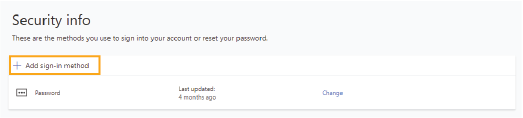
- Click on Add Sign-in Method.
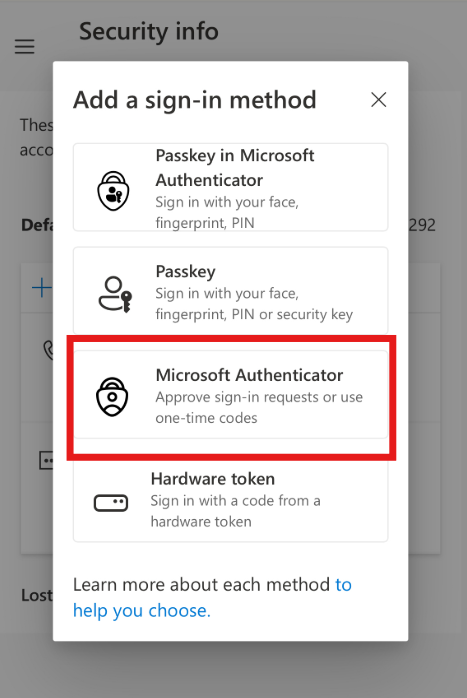
3. Click on Microsoft Authenticator.
4. You will be prompted to download/install the Microsoft Authenticator app on your mobile device. If you do not have Microsoft Authenticator, download it from the Apple App store or Google Play by clicking on the icon.
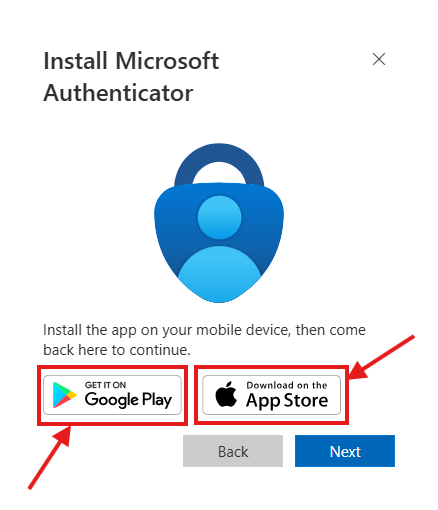
Note: If you already have the app, skip step 4.
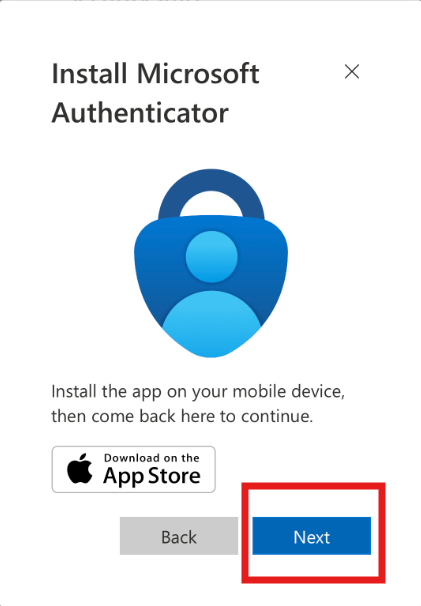
5. Click the blue “Next” button.
6. A new window will appear with a QR code.
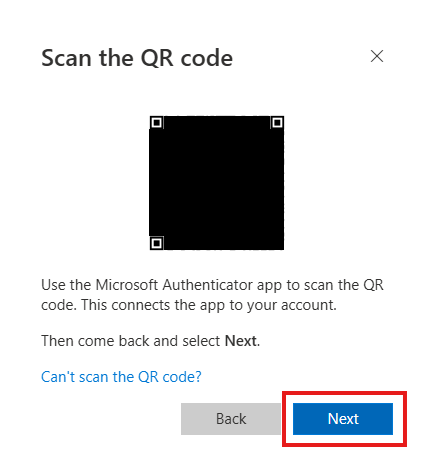
Note: If you are unable to scan the QR code, click the corresponding “Can’t scan the QR code?” button beneath the QR code that matches your device and you can manually add it.
7. Open the Microsoft Authenticator app on your mobile device and click the blue circle on the bottom right, point the camera at the QR code and then click next on the computer.
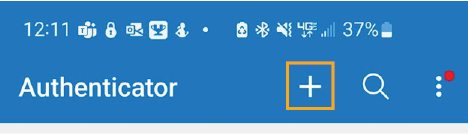
8. If needed, tap the “+” icon to add a new account.
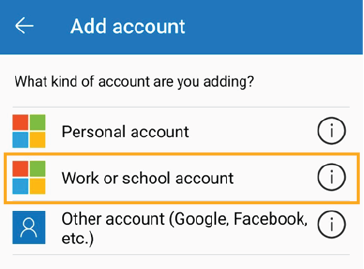
9. Select the Work or School Account option.
10. Select the Scan a QR Code option.
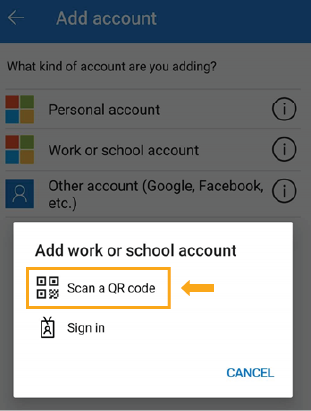
Note: You may need to choose “Allow” to grant Microsoft Authenticator access to use your camera (in order to scan the QR code).
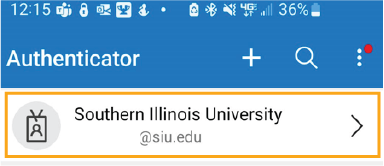
11. A notification will briefly appear on your phone that says “Account added successfully.” Once you have received this notification, the words Southern Illinois University and your SIU email address will be listed in the Microsoft Authenticator app.
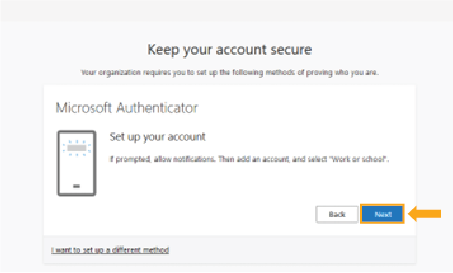
12. Click “Done” on the computer and it will show a two-digit code. Enter the two-digit code in the app and you will be logged into the computer.
13. A notification will briefly appear on your phone that says “Account added successfully.” Once you have received this notification, the words Southern Illinois University and your SIU email address will be listed in the Microsoft Authenticator app.
Adding Microsoft Authenticator with a mobile device only
- Follow steps 1-5 listed above.
- After you click “Next”, a notification will appear that says, “Now pair Authenticator with your account”. Click “Pair your account to the app by clicking this link”.
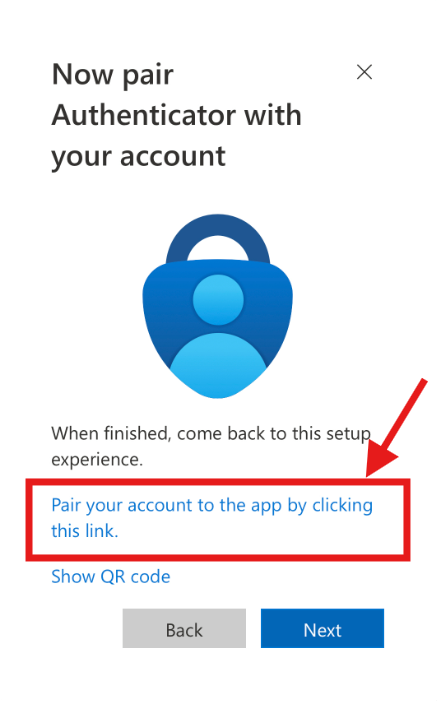
Note: Clicking on “Show QR code” will show a QR code that you can screenshot and then follow the link.
3. A notification will briefly appear on your phone that says “Account added successfully.” Once you have received this notification, the words Southern Illinois University and your SIU email address will be listed in the Microsoft Authenticator app.
Authenticator Stopped Working
If you reset your phone, get a new phone number, or switch to a new device, Microsoft Authenticator may become out of sync with your account. Contact SalukiTech for help resetting your authentication method.