
How Can We Help?
SAS 9.4M7 for Windows: Manual Installation
Overview
Note: This article has not yet been updated for version 9.4.M8.
Install SAS
1. Uninstall Previous Installations
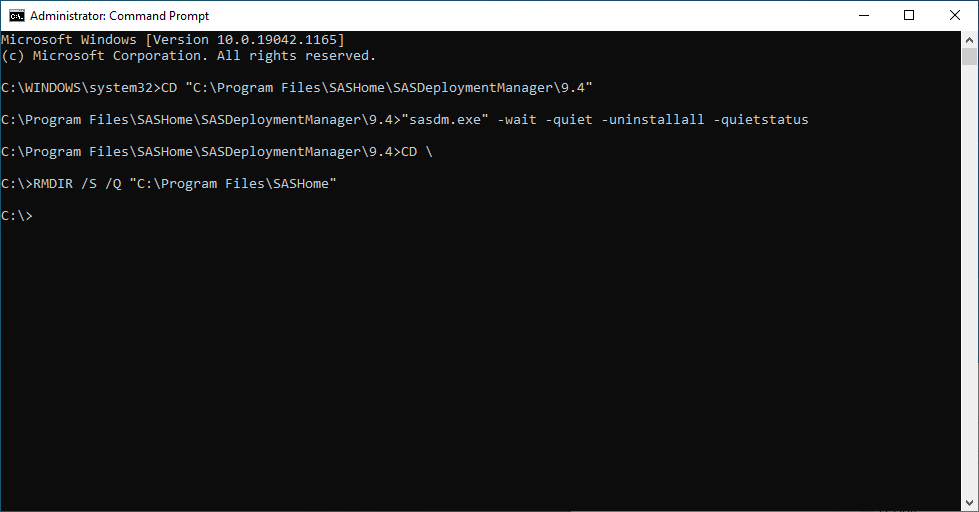
Open an elevated command prompt, uninstall any previous SAS 9.4 installations, and remove the SASHOME folder.
- CD “C:\Program Files\SASHome\SASDeploymentManager\9.4”
- “sasdm.exe” -wait -quiet -uninstallall -quietstatus
Once the uninstall is complete, clean up any previous installations:
- CD \
- RMDIR /S /Q “C:\Program Files\SASHome”
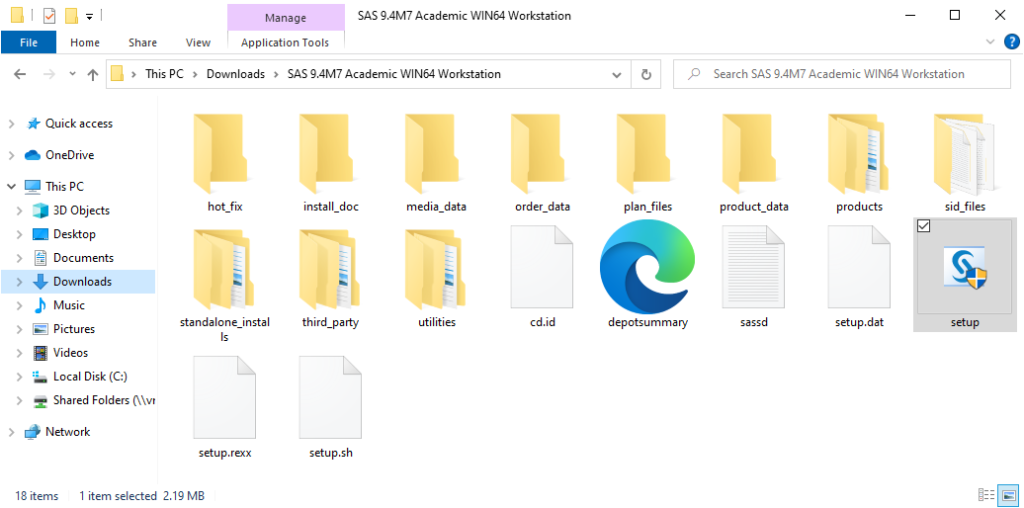
2. Installer
Close all running applications, then open the setup.exe installer.
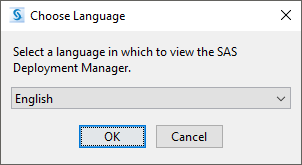
3. Choose Language
Click OK.
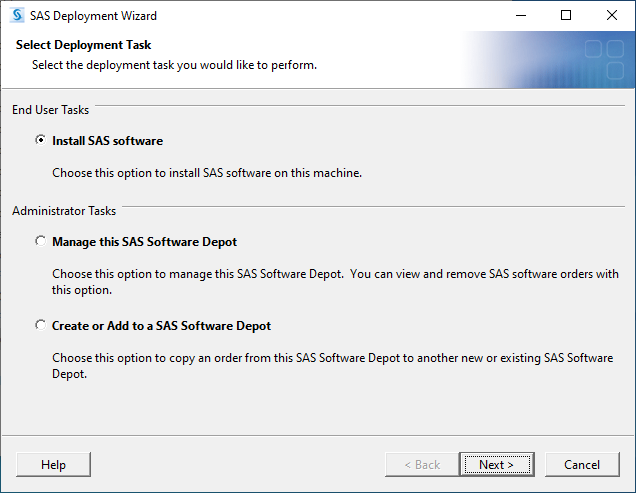
4. Select Deployment Task
Select Install SAS Software, then click Next.
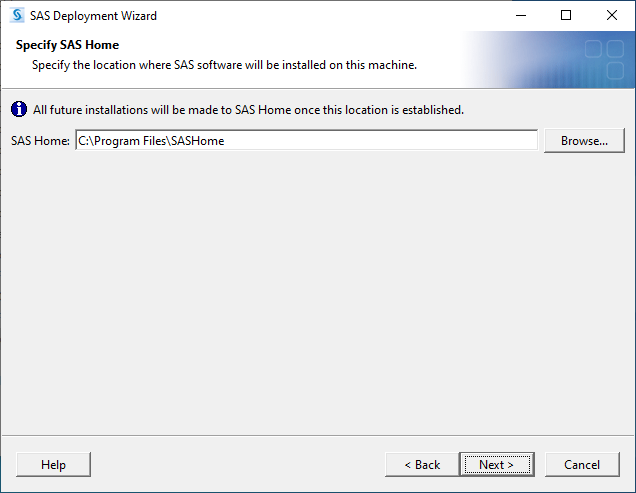
5. Specify SAS Home
Click Next.
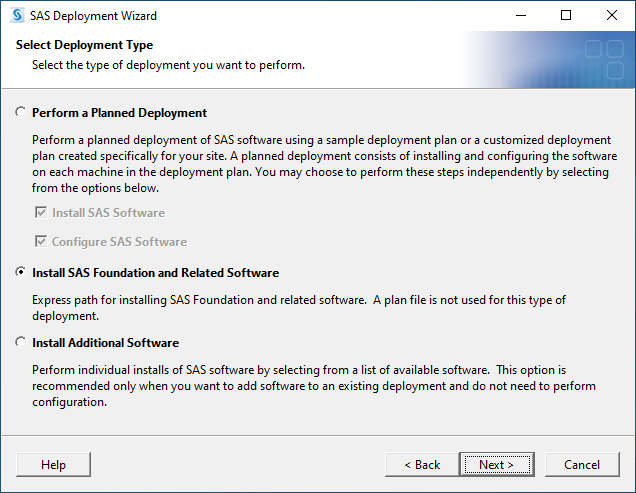
6. Select Deployment Type
Select Install SAS Foundation and Related Software, then click Next.
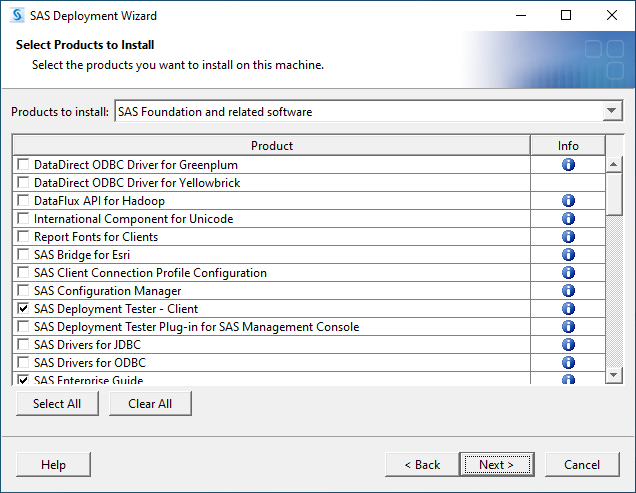
7. Select Products to Install
Select SAS Foundation and related software, then click Next.
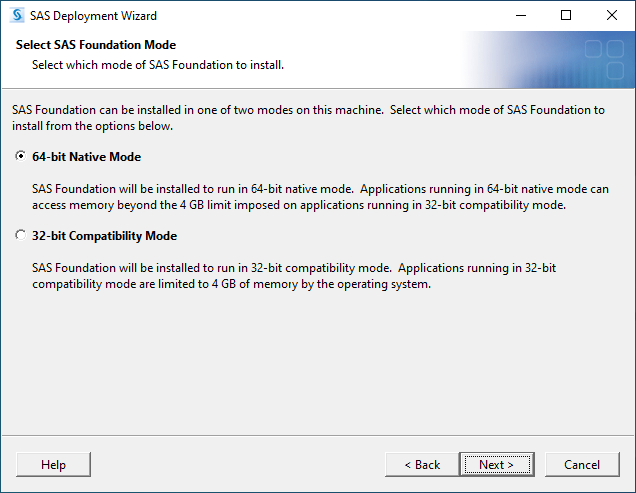
8. Select SAS Foundation Mode
Select 64-bit Native Mode, then click Next.
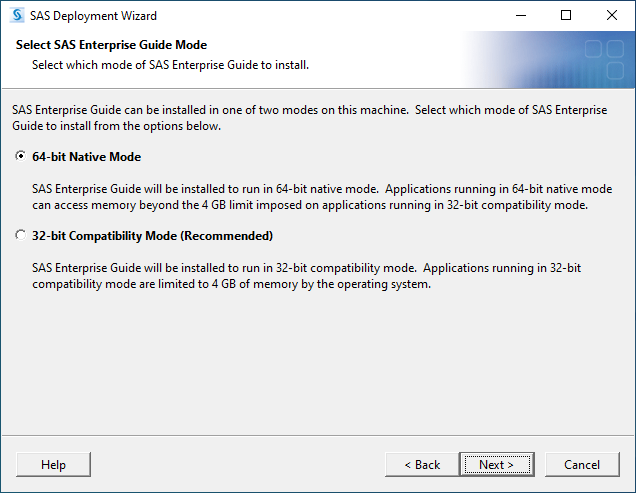
9. Select SAS Enterprise Guide Mode
Select 64-bit Native Mode, then click Next.
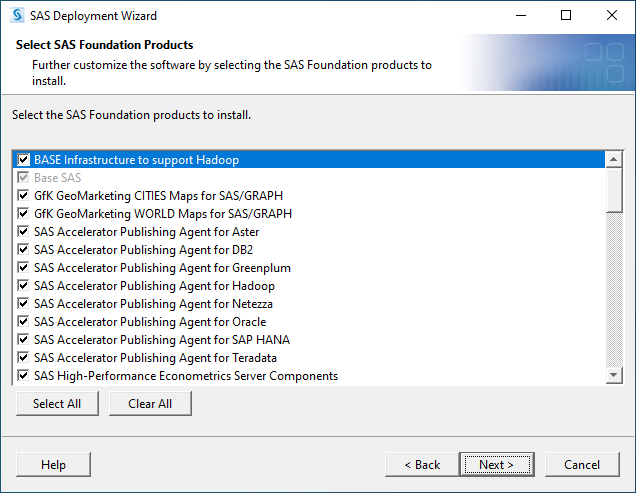
10. Select SAS Foundation Products
Click Select All, then click Next.
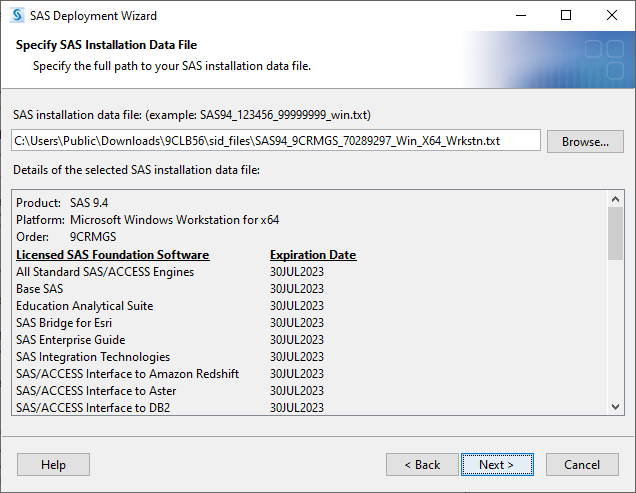
11. Specify SAS Installation Data File
Select the SAS installation data file with the expiration date of 30JUL2025, then click Next.
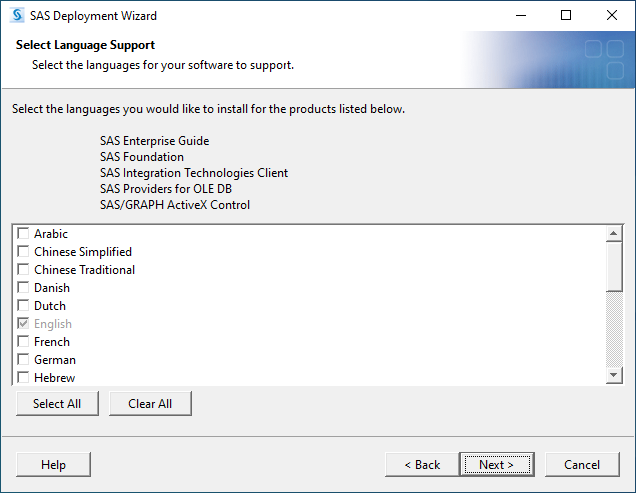
12. Select Language Support
Click Clear All, then click Next.
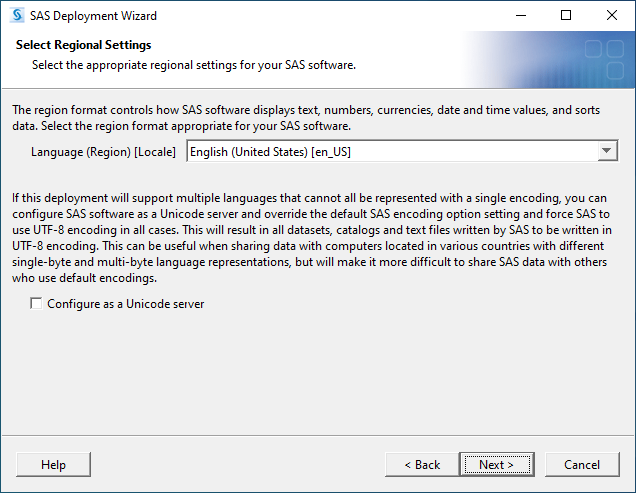
13. Select Regional Settings
Click Next.
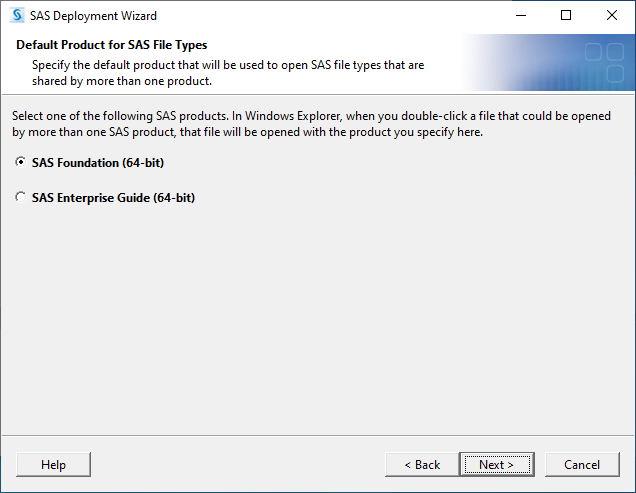
14. Default Product for SAS File Types
Select SAS Foundation (64-bit), then click Next.
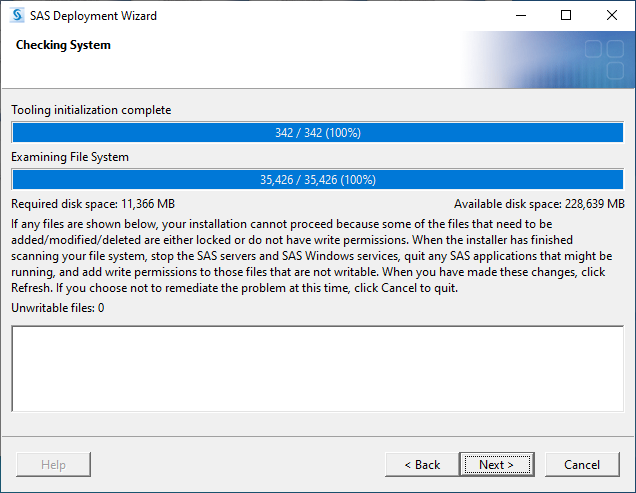
15. Checking System
Click Next.
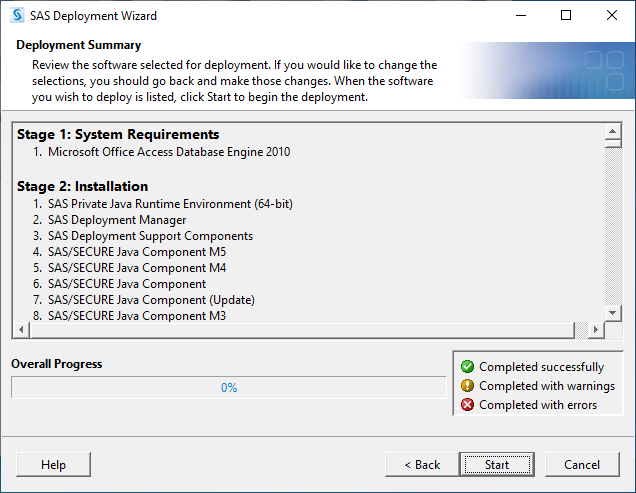
16. Deployment Summary
Click Start.
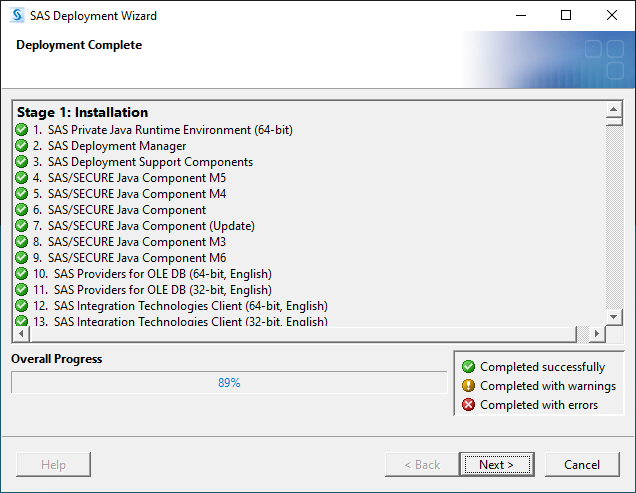
17. Deployment Complete
Note any warnings and errors, then click Next.
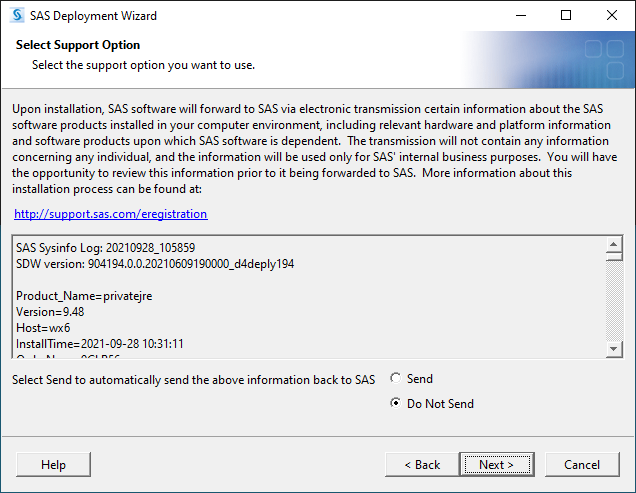
18. Select Support Option
Select Do Not Send, then click Next.
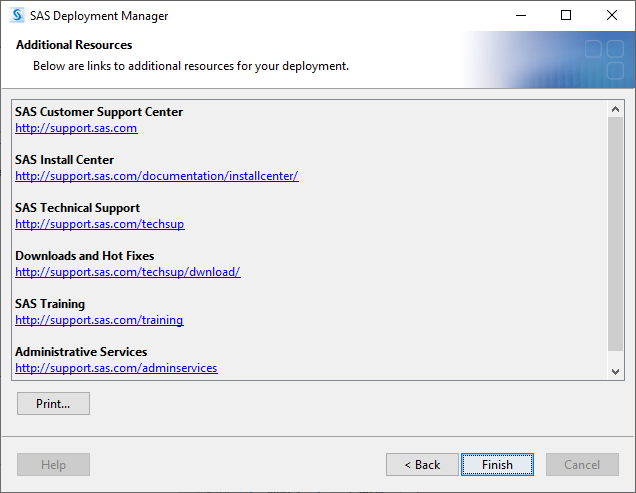
19. Additional Resources
Click Finish.
Renew SAS
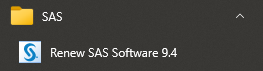
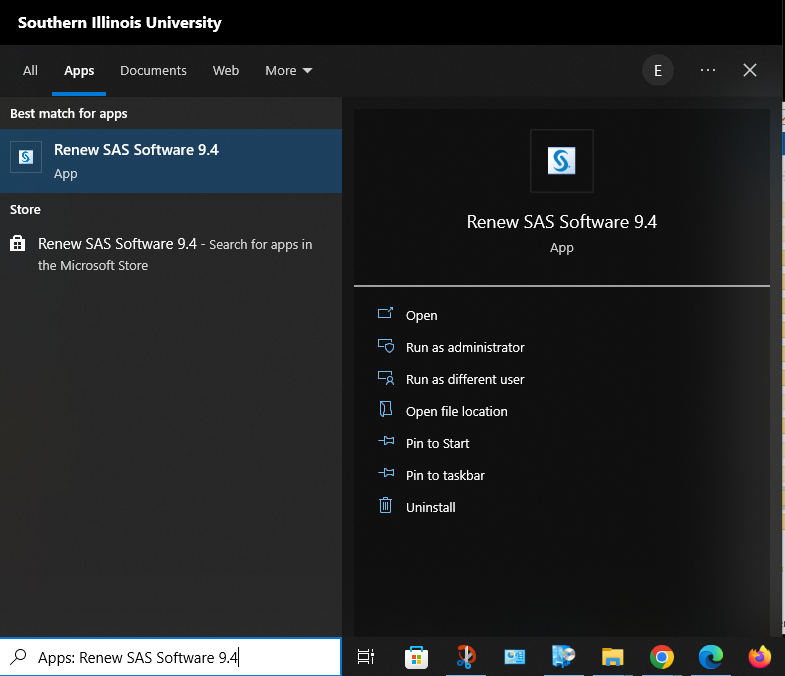
1. Renew SAS Software 9.4
Open the Renew SAS Software 9.4 app from the Windows Start app list or from Windows Search.
2. Choose Language
Click OK.
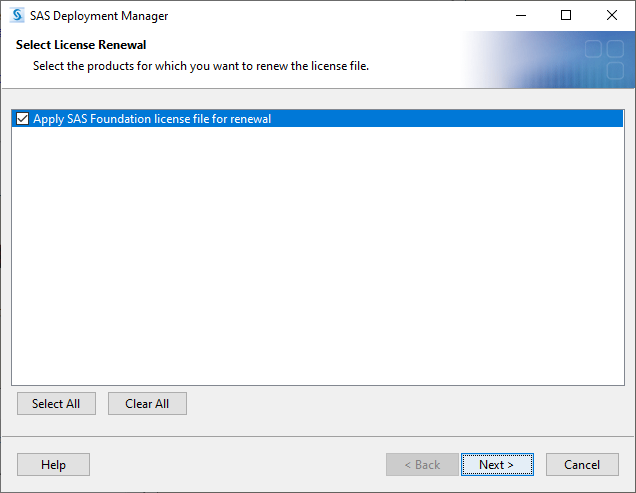
3. Select License Renewal
Check Apply SAS Foundation license file for renewal, then click Next.
4. Specify SAS Installation Data File
Select the SAS installation data file with the expiration date of 30JUL2025, then click Next.
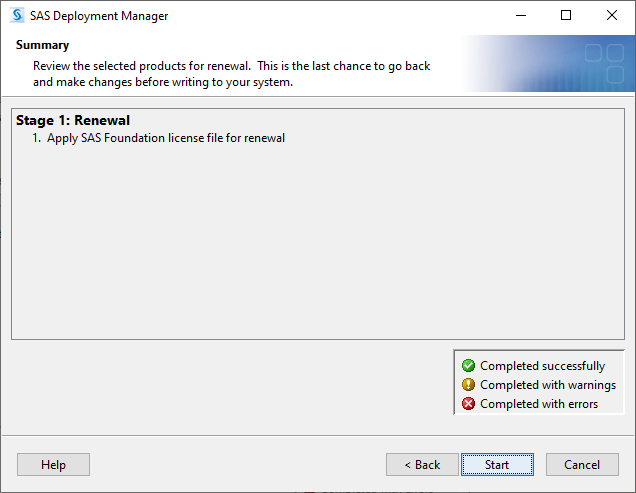
5. Summary
Click Start.
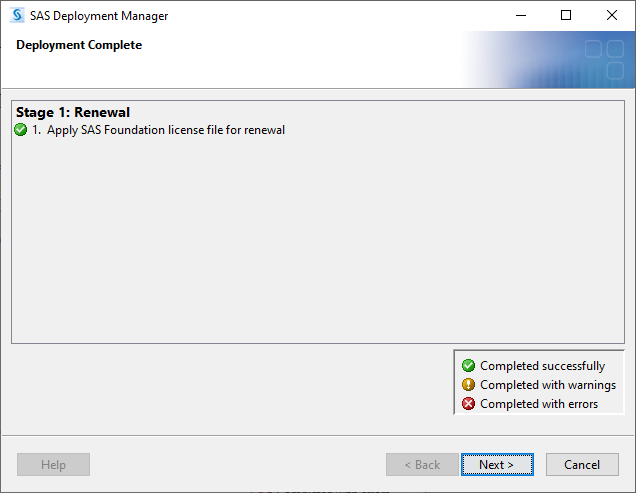
6. Deployment Complete
Click Next.
7. Additional Resources
Click Finish.
Frequently Asked Questions (FAQ)
What are our SAS license cycles?
Our SAS Academic Use license cycle is July 31st through July 30th the following year. Our SAS Administrative Use license cycle is July 1st through June 30th the following year. Licenses must be renewed each year.