
Browse Our Knowledge Base
Access Virtual Desktop Infrastructure (VDI) from a Personal Device
Overview
To provide broader access to commonly used software, SIU offers virtual desktops that allow students, faculty, and staff to use University‑licensed applications from their personal devices, without the need for local installation.
Installing
1. Click on your device type below to download and install the corresponding version of Omnissa Horizon Client.
2. Open the Omnissa installer from your Downloads folder and follow the prompts to complete installation.
3. Once installed, open the Omnissa Horizon Client.

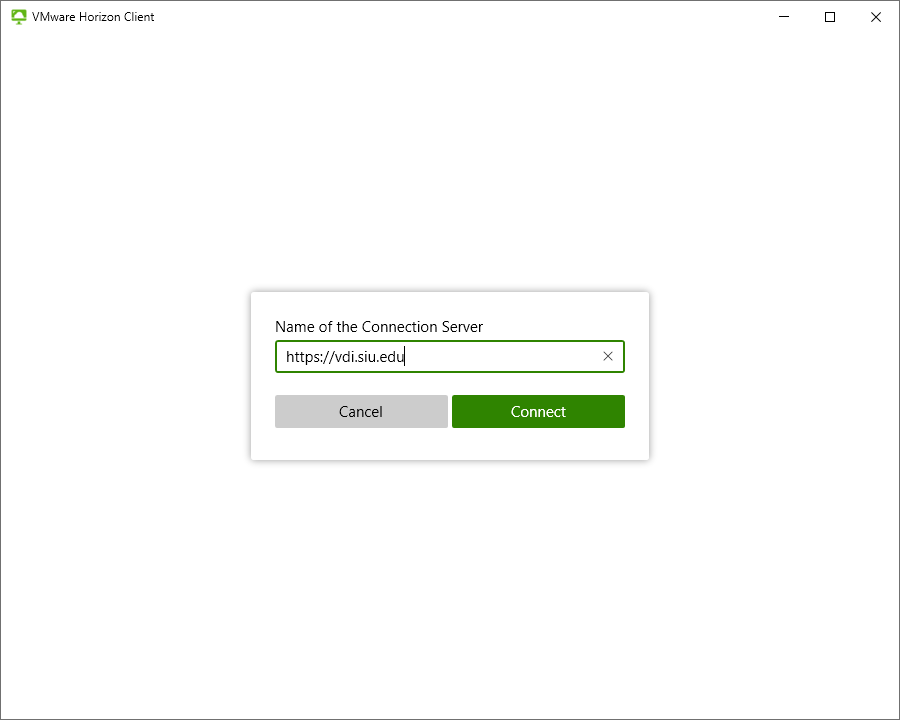
4. Click Add Server and enter the following connection server: https://vdi.siu.edu
5. Click Connect.
Logging In
When prompted, enter your SIU email address and password to login.
Opening a Virtual Desktop
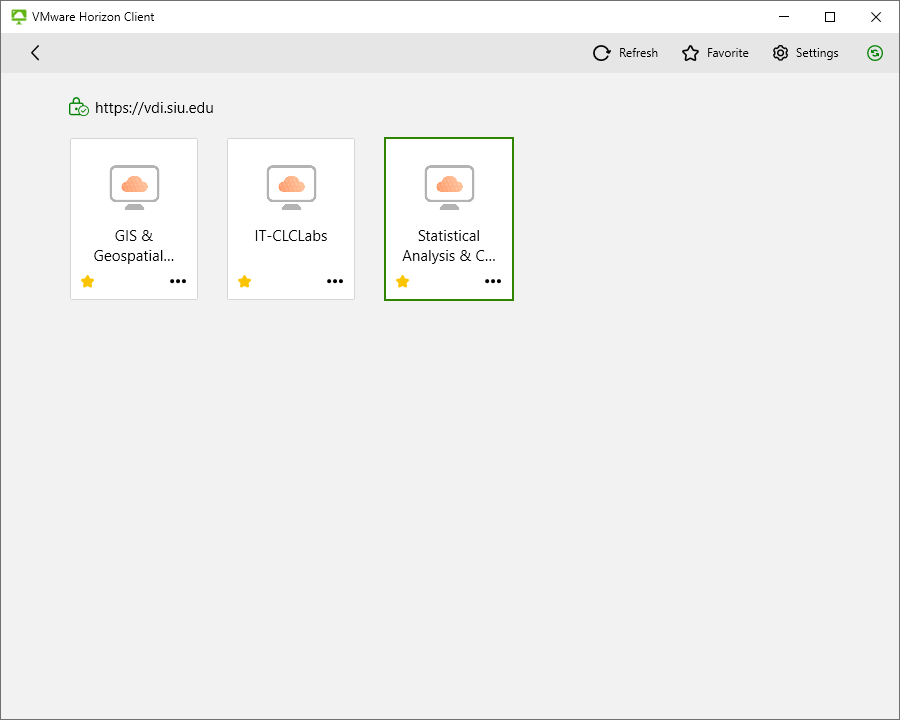
1. Once you have opened Omnissa and signed in, you will see a list of the Virtual Desktops that are available to you. Click on the desktop you would like to access.
Storing Files
Files saved directly on a VDI (Virtual Desktop Infrastructure) desktop are not retained and will be permanently lost when the session ends.
To avoid data loss, always save your work to one of the following locations:
- OneDrive
- Other approved cloud storage
- A removable storage device (USB flash drive or external hard drive)
Files saved to a VDI desktop cannot be recovered. Any data lost due to being saved locally on a VDI desktop is not recoverable.
Logging Out
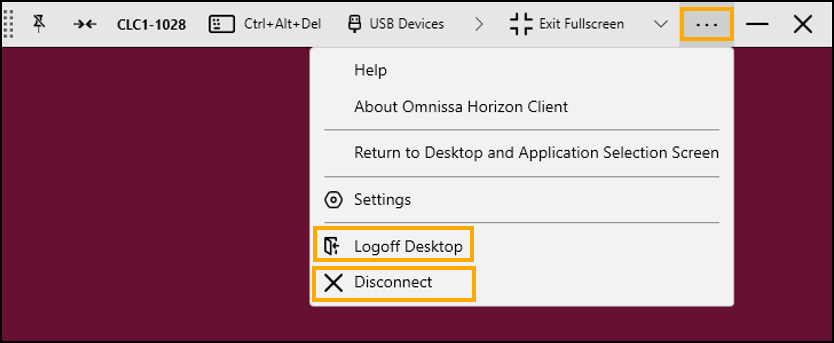
1. To sign out, click the ellipsis (…) on the menu bar at the top of your desktop screen.
2. Click Logoff Desktop or Disconnect.
- Logoff: returns you to the desktop selection screen.
- Disconnect: signs you out of Omnissa completely.
3. When logging off or disconnecting, you will receive a pop-up reminding you that all unsaved work will be lost. To end your session, click OK.