
Browse Our Knowledge Base
Adding a Passkey as an Authentication Method
“A passkey is a form of passwordless authentication that uses cryptographic credentials, along with biometrics or a device PIN, to verify a user’s identity. Unlike traditional passwords, passkeys are tied to a specific user and device, helping organizations modernize authentication while supporting secure access to applications, systems, and data. As adoption grows across platforms and services, passkeys are becoming an increasingly important part of enterprise identity and access management strategies.”
SIUC offers two different methods of saving passkeys for logins to SIUC websites and related services: Native device manager (iCloud Keychain/Passwords or Google Passwords) and through the Microsoft Authenticator App.
There are benefits to both options, which will be laid out in this knowledge base article, both are valid and appropriate for multi-factor-authentication.
Saving Passkey to Personal Mobile Device
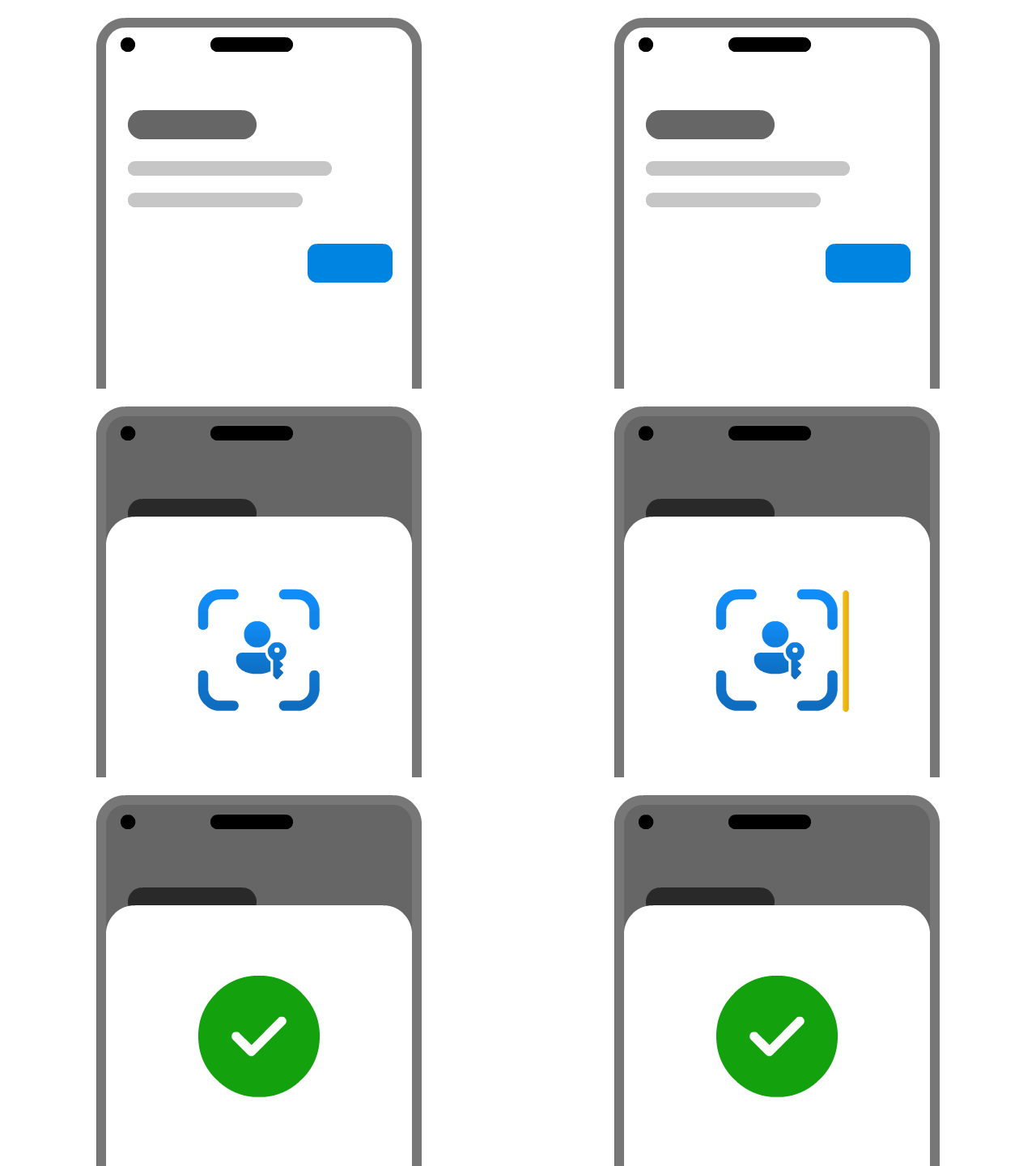
Note: This method requires two systems — the one that will host the keychain and a separate one you will scan a QR code from. Along with this: both systems will need to be connected to the internet and have Bluetooth enabled.
Saving a passkey to a “Keychain” or password manager (i.e. iCloud or Google) allows you to sync the keychain between devices — Which means no more needing to contact SalukiTech whenever you get a new phone, your authentication is handled by you!
It is important to note that for this method your SIUC credentials are not just tied to your SIUC account, but also the personal account that you are logged into on your mobile device.
Along with that, your passkey is connected to your personal device and account’s (i.e. iCloud or Google) direct biometrics (fingerprint, face scan, etc.) or passcode without a third party, outside of the one that created your phone, being involved.
To begin the process of creating and saving a passkey, sign in to your SIUC account Security Info at https://mysignins.microsoft.com/security-info
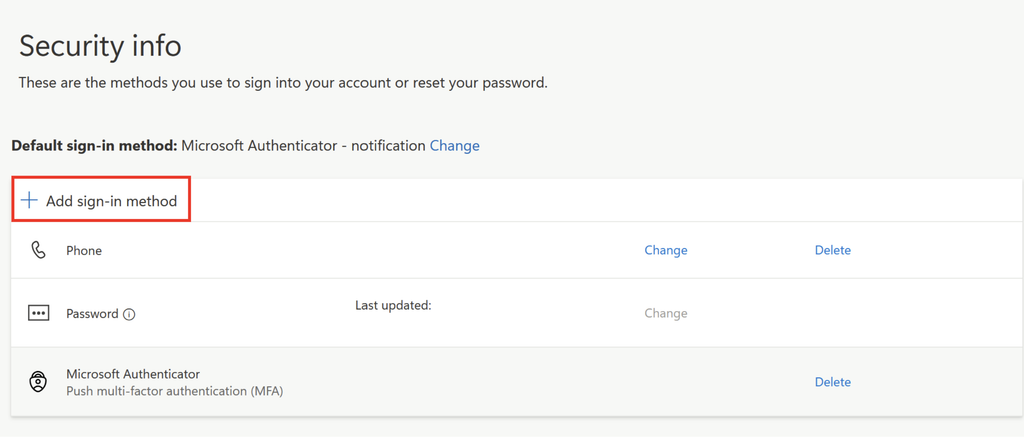
Once there, you should see something that looks like the image below: Select the Add sign-in method option.
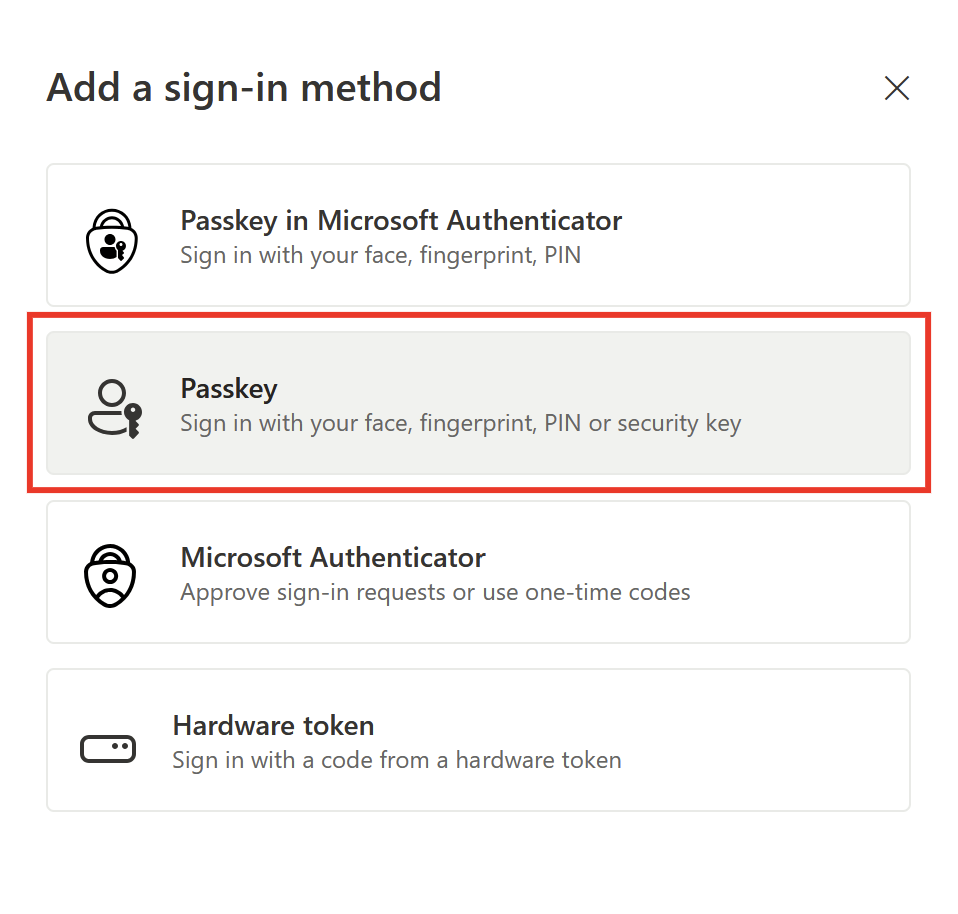
This will now open up a sub-menu similar to what is shown below. Select Passkey (to use another device or a password manager, see below).
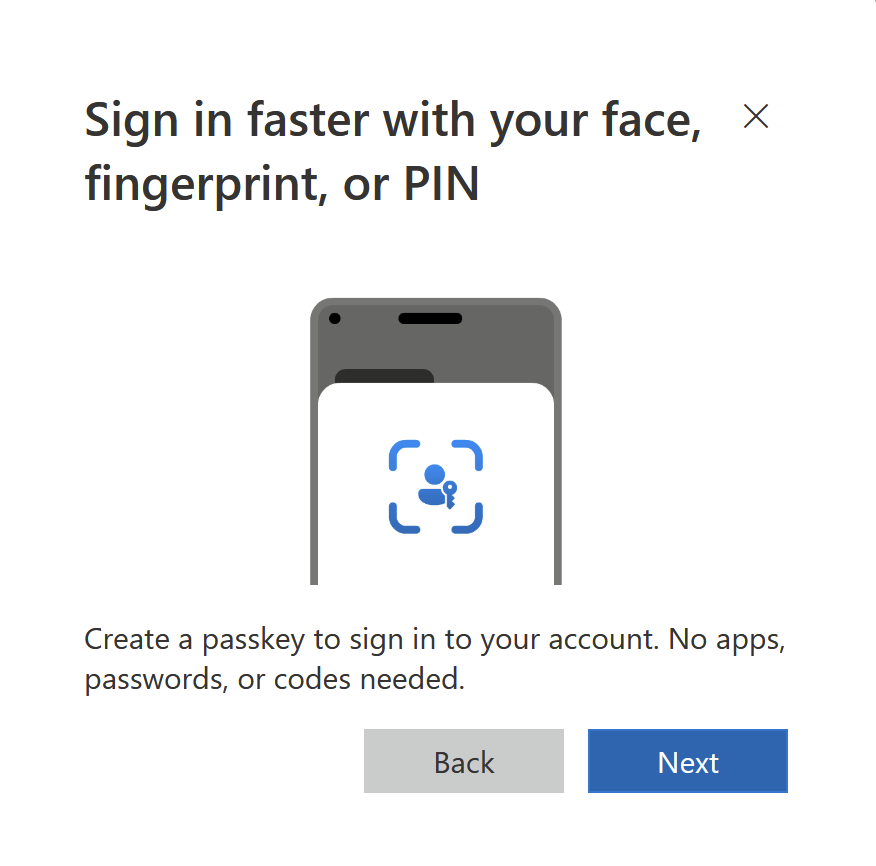
The page will then show you a pop-up, select Next or whatever similar prompt that shows up on your device.
Check and see what it wants to save the passkey to; you want to make sure it is saving to a device, not a hardware token.
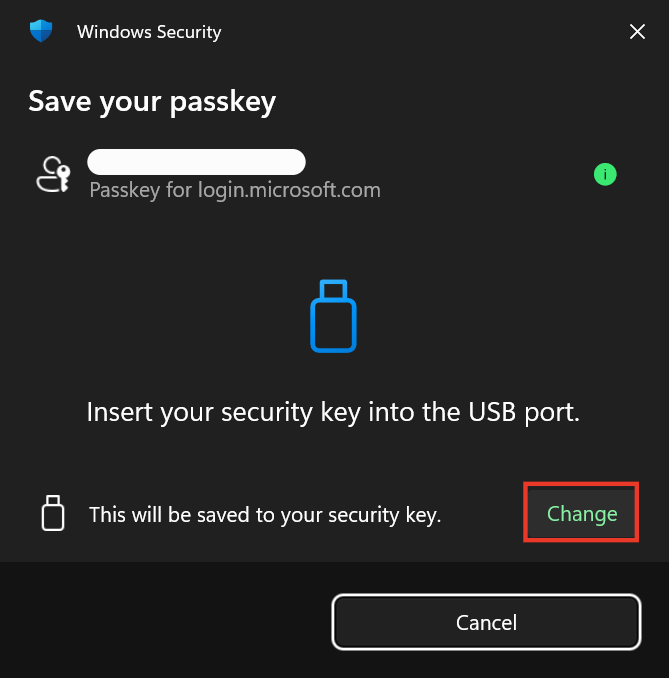
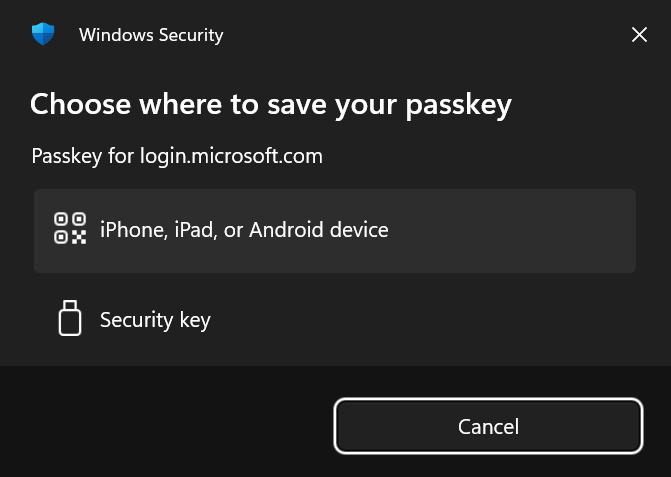
A QR code will pop up after selecting the mobile device option, at this point you are good to go and scan the QR code with the mobile device you wish to save the passkey on.
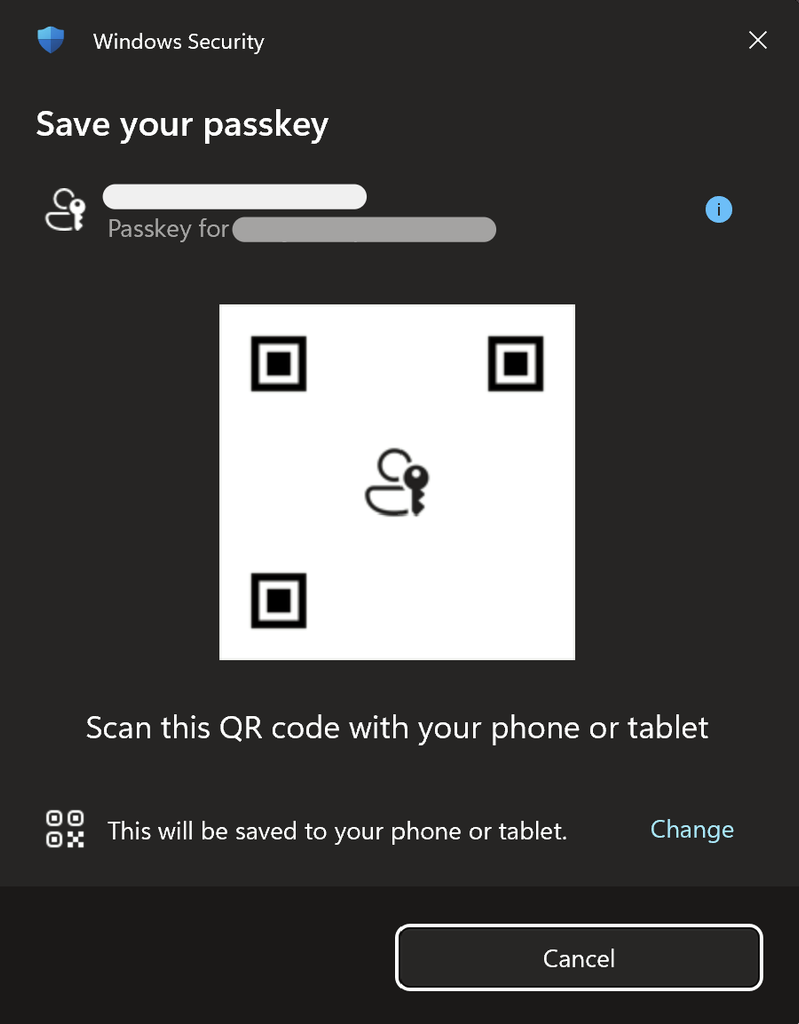
Once the QR code is scanned in your respective camera app, you will receive a pop-up on your mobile device that will look similar to the one below. Make sure the Passkey is set to save to the device (or native passwords app) rather than the Microsoft Authenticator App (if applicable).
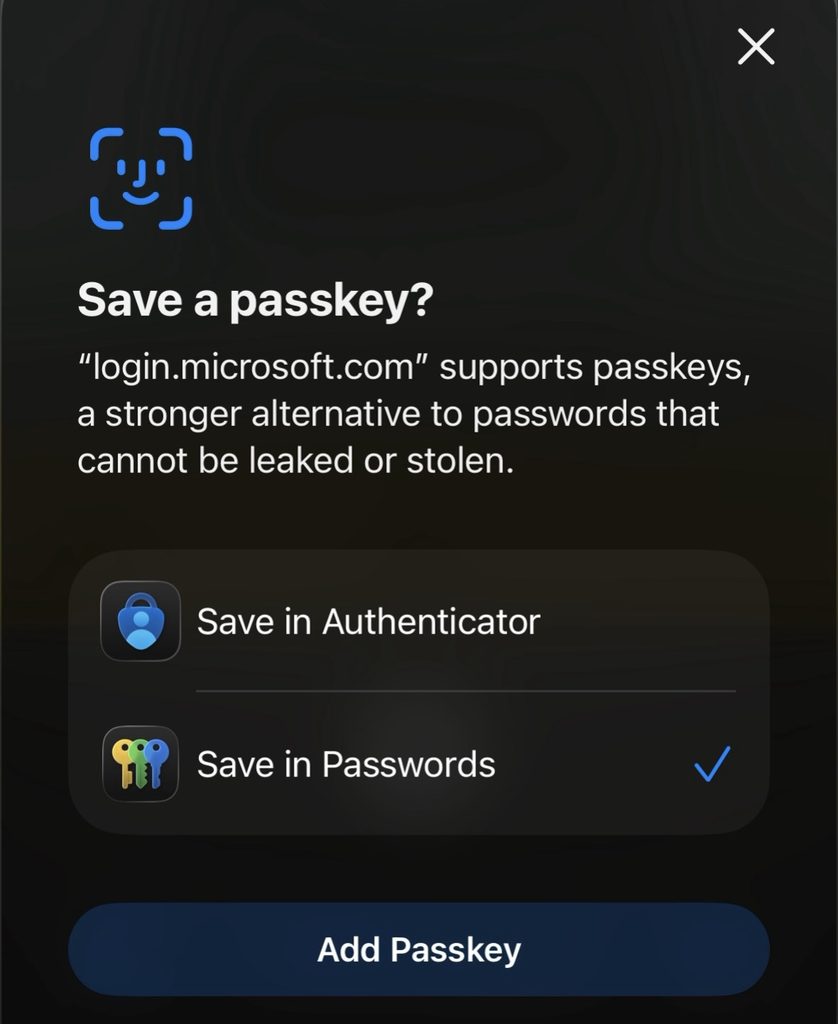
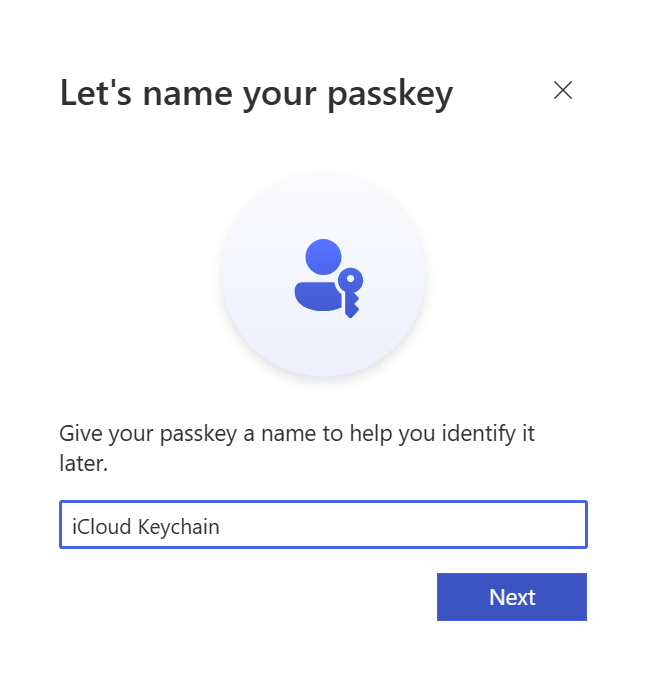
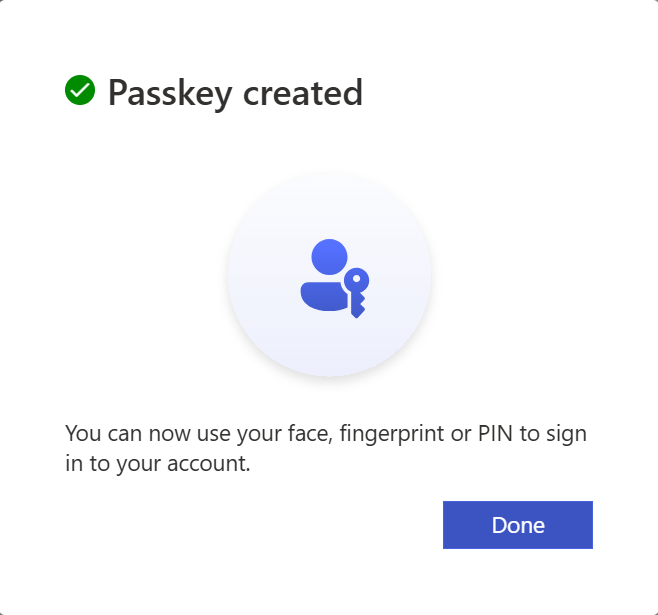
After you “confirm” the passkey creation on your mobile device, you will receive a notification on your computer (where the QR code was scanned) to name your passkey. This name is for your use and to identify it on the Microsoft security page. When you have chosen a name, you will then click Next and then Done!
Saving a Passkey to Microsoft Authenticator
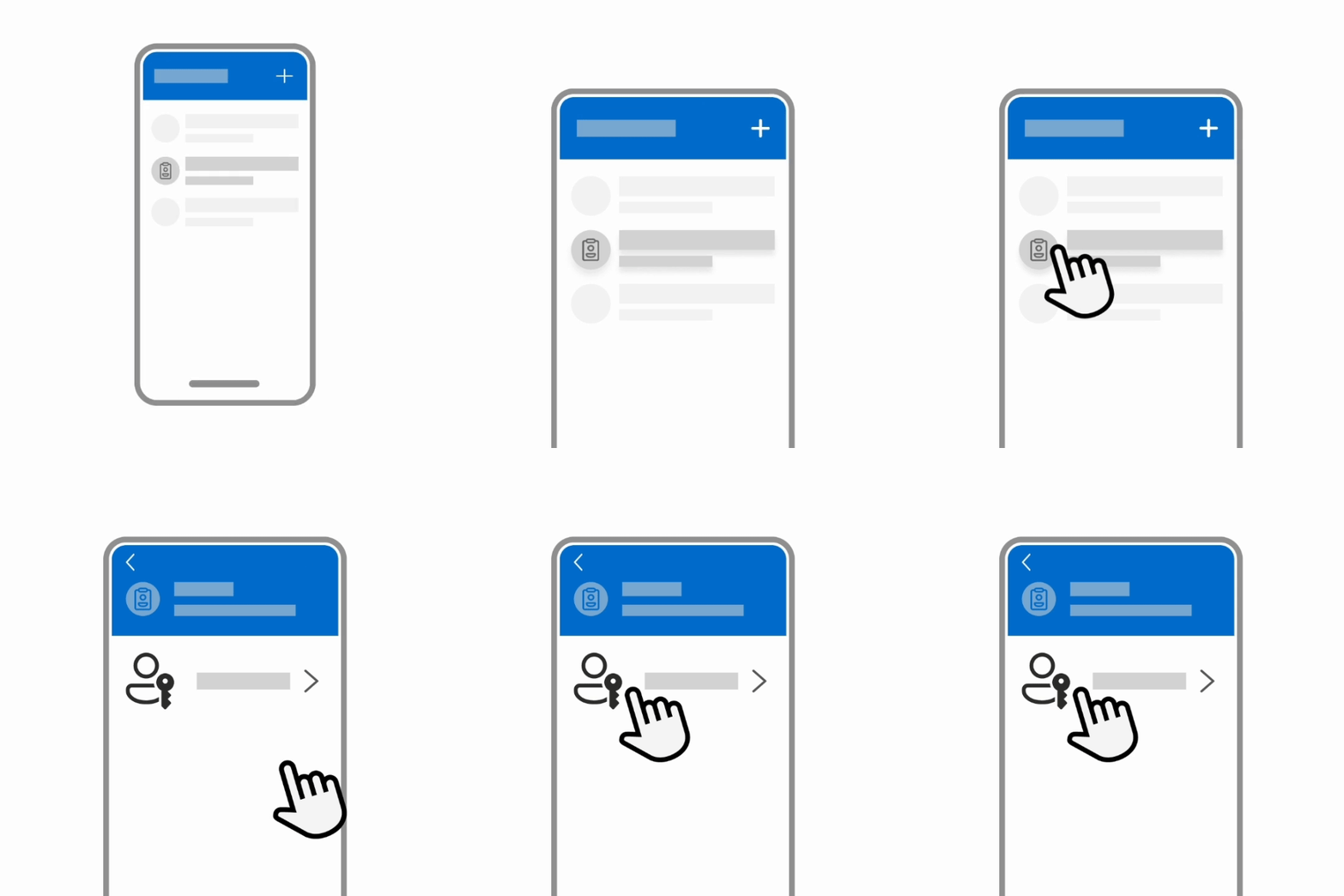
A passkey on Microsoft Authenticator lets you sign in more easily and securely with your face, fingerprint, or PIN.
Although it still uses your device’s biometrics or passcode, the SIUC credentials are hosted on Microsoft’s third-party application (Microsoft Authenticator) rather than tied directly to your mobile device and your personal/separate account.
This means, however, that in the case of getting a new mobile device, if you do not also have a passkey saved natively to your device and its cloud you will need to contact SalukiTech to reset your authentication methods to access your SIUC account.
If you do not have your SIUC account set-up on authenticator already, please follow the guide here: Microsoft Authenticator for current Students, Faculty & Staff – OIT Knowledge Base
Once your SIUC account is setup on authenticator, you will login to view your SIUC Security Info at https://mysignins.microsoft.com/security-info
NOTE: this will be on a separate device that is not hosting your authenticator app, like a computer, tablet, etc.
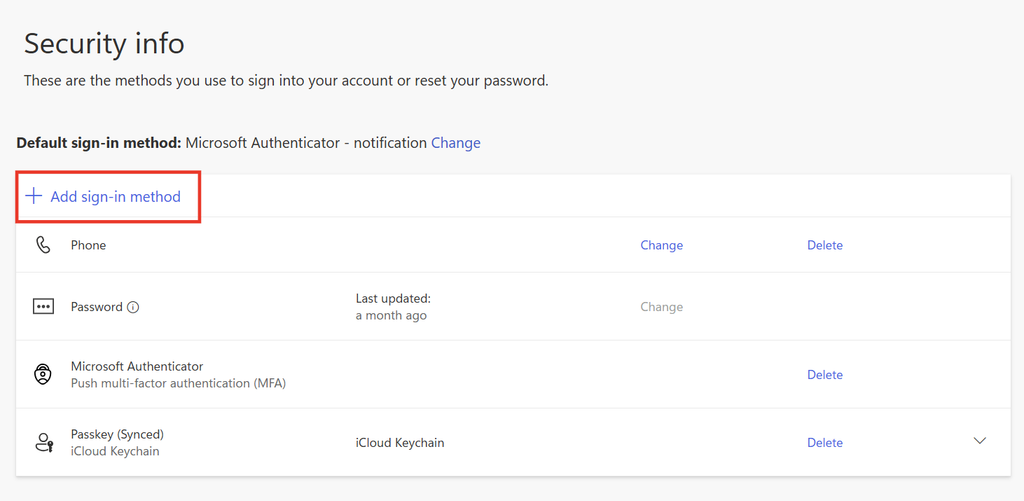
Once there, you should see something that looks like the image below: Select the Add sign-in method option.
Once in the second menu, you will select the top option, Passkey in Microsoft Authenticator
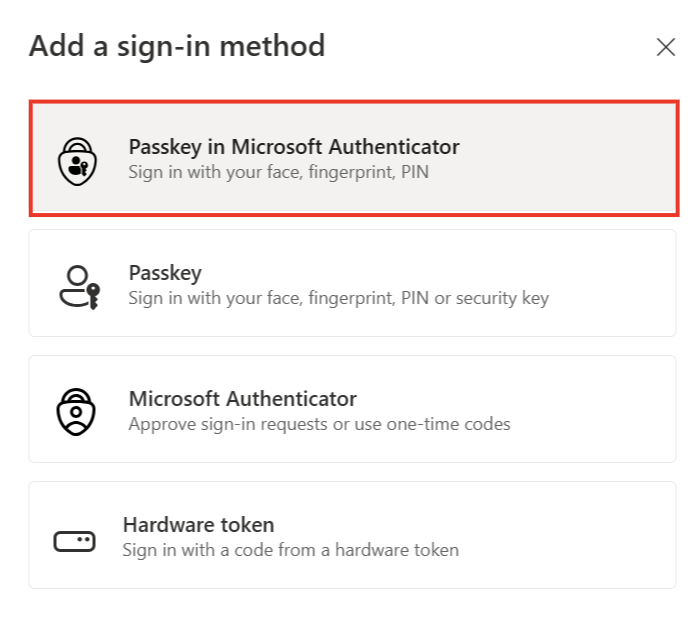
Once Passkey in Microsoft Authenticator is selected, the pop-up below will show up below explaining what a passkey is and the versions needed to use the Authenticator app… You can click Next to continue to the actual setup.
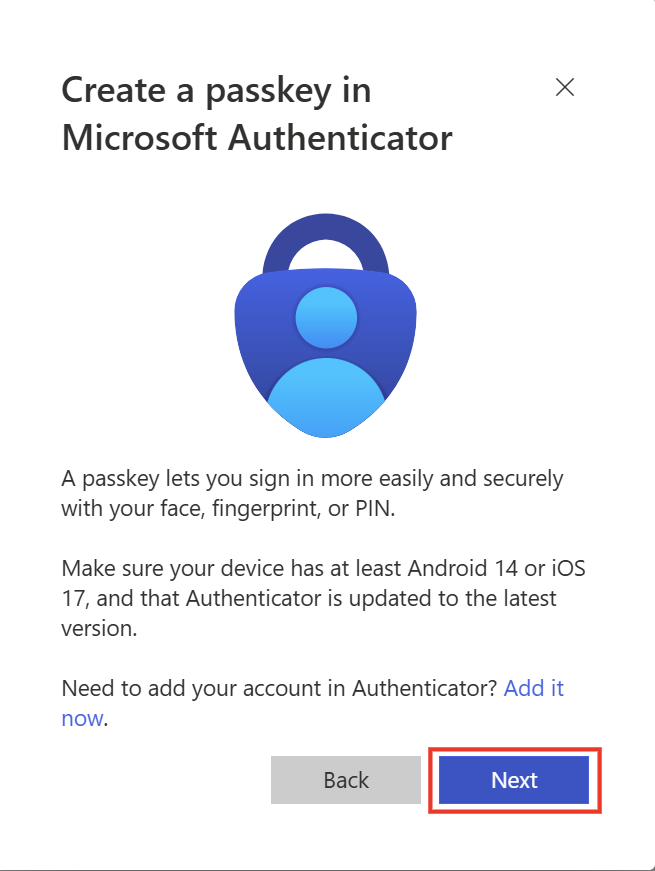
Once you click next, it will give you step-by-step instructions on what to do next
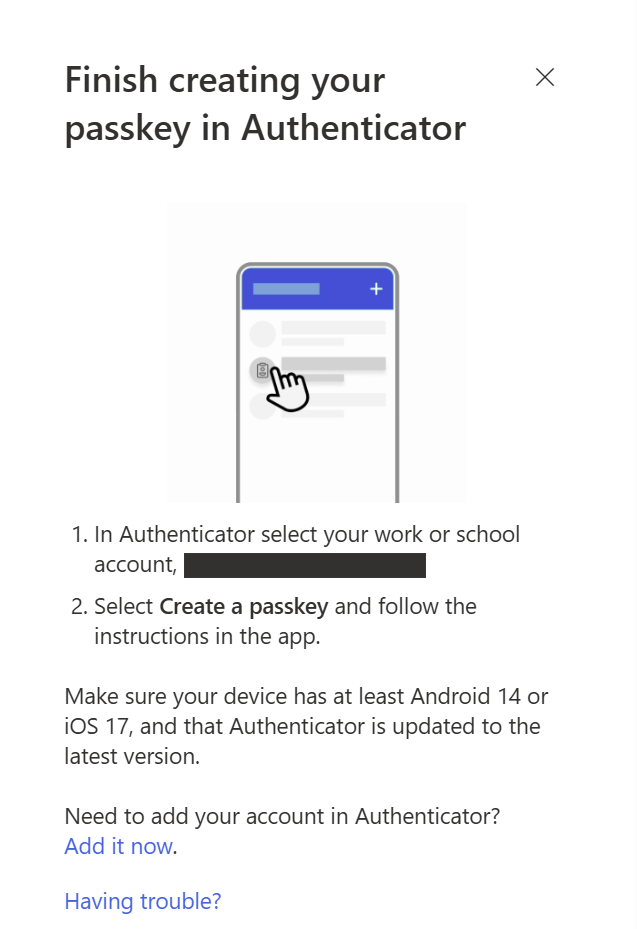
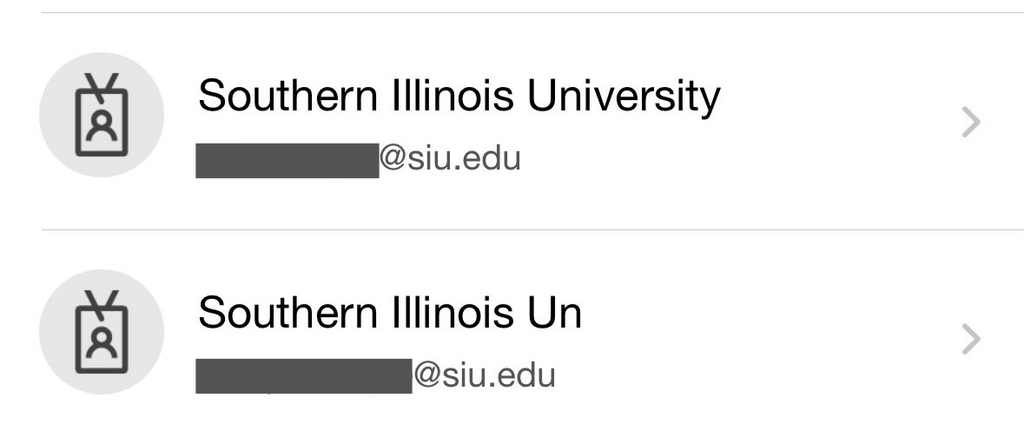
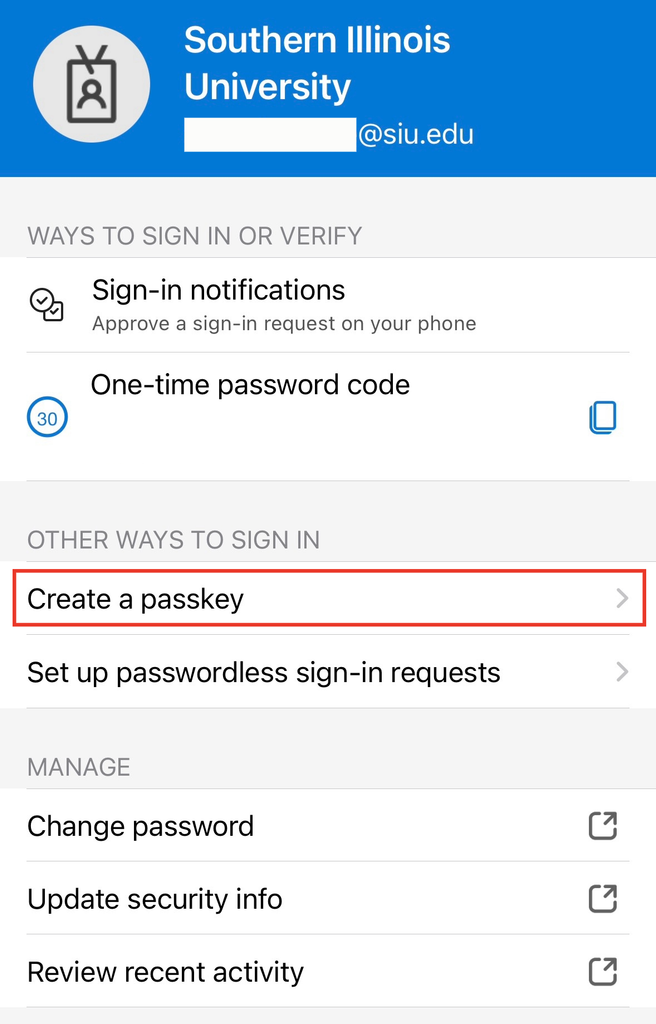
In the Microsoft Authenticator App, you will select your account which has already been added.
Then, select Create a passkey and follow the instructions in the app.
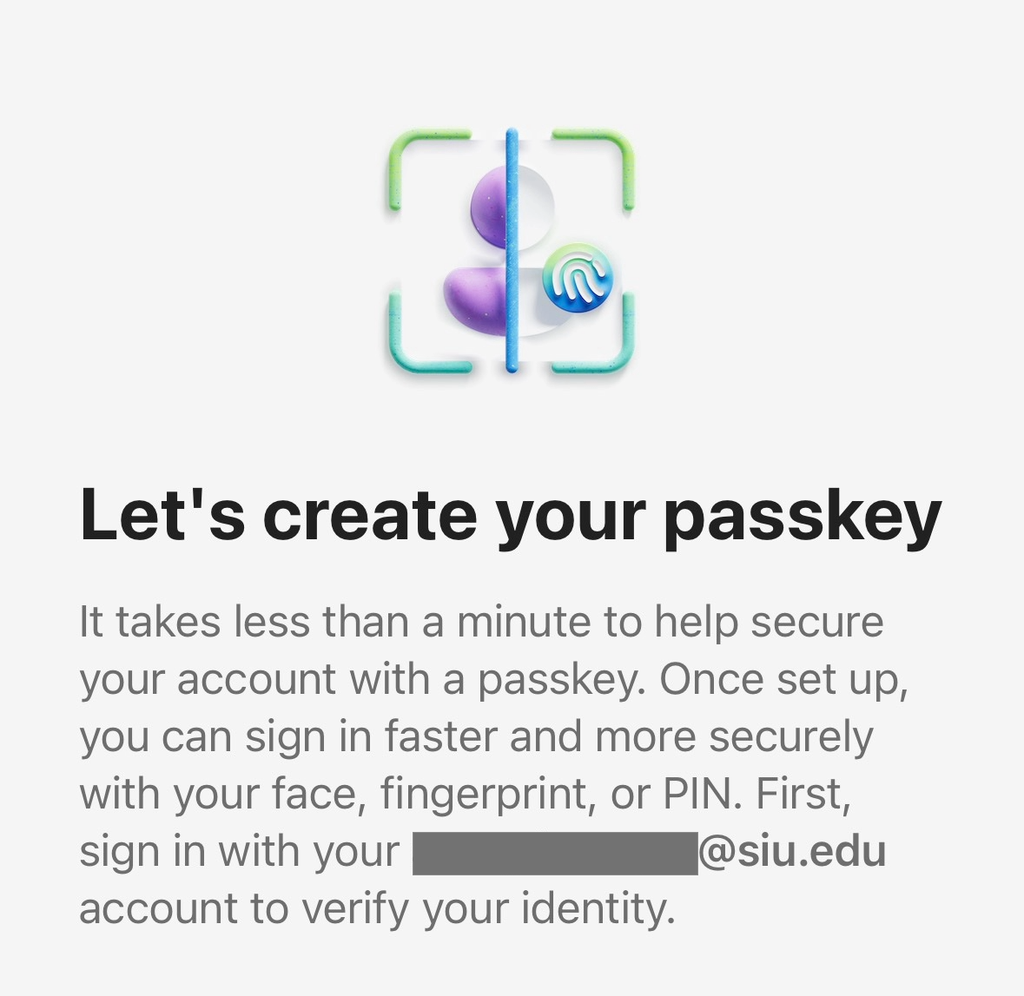
A screen will then pop-up titled Let’s create your passkey which explains the passkey creation process along with some general passkey information.
It will also ask you to sign in with your [SIU email]@siu.edu account to verify your identity.
Once you continue to the next page after selecting the blue button that pops up in the bottom right-hand corner of the window, the app will have you sign in with your password as well as authenticate the login with a previously established method.
It may take a few moments for the passkey creation process to complete. Do not exit the application, lock or turn off your device during this process.

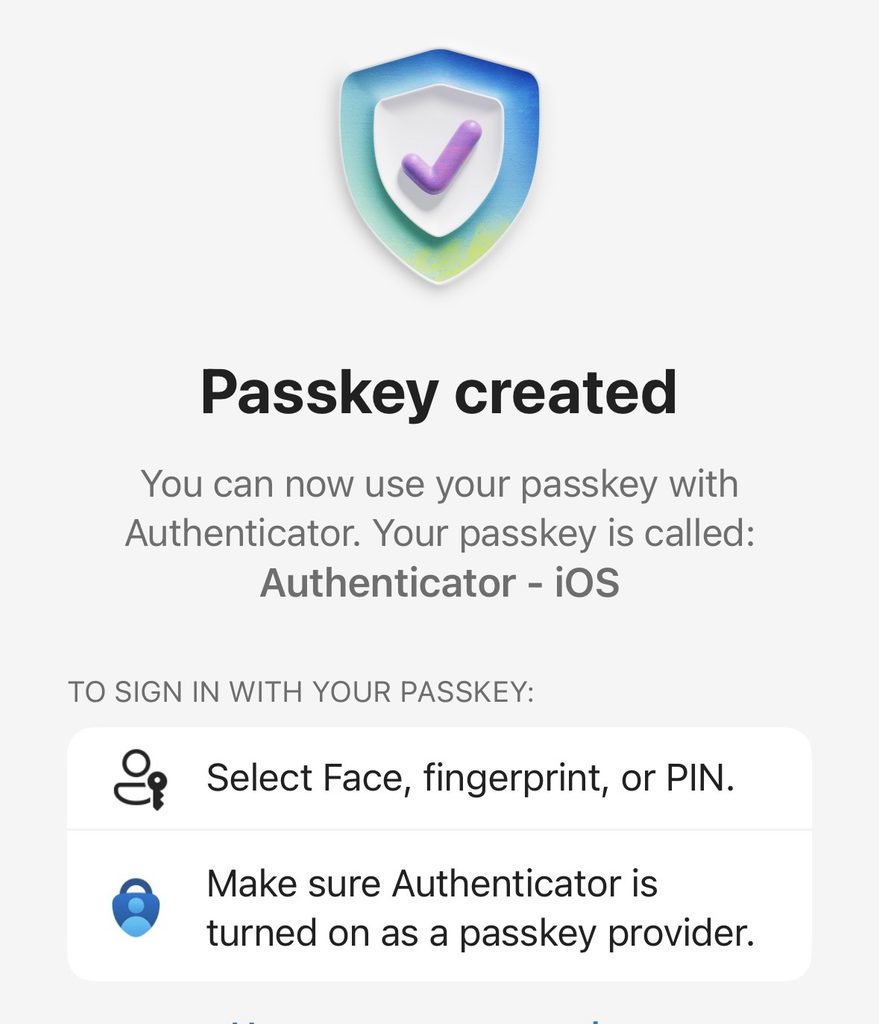
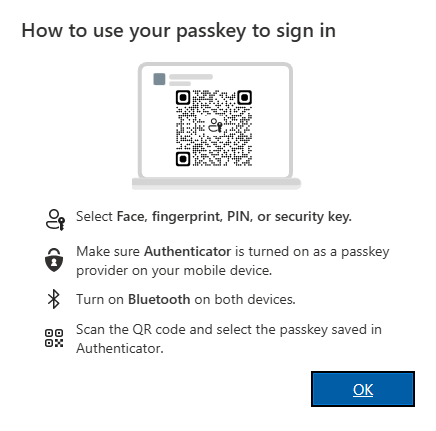
You will know the creation process is complete when the Passkey created screen shows up. The page will tell you the name of your passkey as well as instructions on how to sign in with your passkey.
The instructions include the different methods of confirming authentication (biometrics or PIN) and making sure that Authenticator is turned on as a passkey provider.
The process on the app is now complete.
The process is now complete on the other device as well.
The site on your other device will also confirm that the passkey is created with its own Passkey created window.
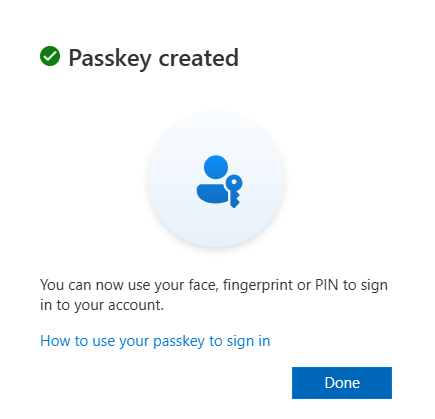
It will include a link that leads to official Microsoft instructions on How to use your passkey to sign in.
If at any point you have questions about Passkeys or other authentication methods, please contact SalukiTech Solutions Center by phone at 618-453-5155, email us at SalukiTech@siu.edu, or online at the following link Solution Center | Office of Information Technology | SIU